

System image backups in Windows 11 create a complete copy of your system drive, allowing you to restore your computer to a previous working state. When attempting this process, the error message The backup failed. The specified backup storage location has the shadow copy storage on another volume (0x80780038) can halt your progress and prevent you from safeguarding your data. This issue often arises due to misconfigured shadow copy settings, permission issues, or insufficient disk space on the target backup drive. Addressing these root causes restores your ability to create reliable system backups and reduces the risk of data loss.
Method 1: Run a System File Checker (SFC) Scan
Corrupted or missing system files can interfere with backup operations, including the creation of shadow copies required for system image backups. Running an SFC scan identifies and repairs these files, which can resolve the 0x80780038 error.
cmd in the search bar. Right-click on Command Prompt and select Run as administrator to launch an elevated command prompt window.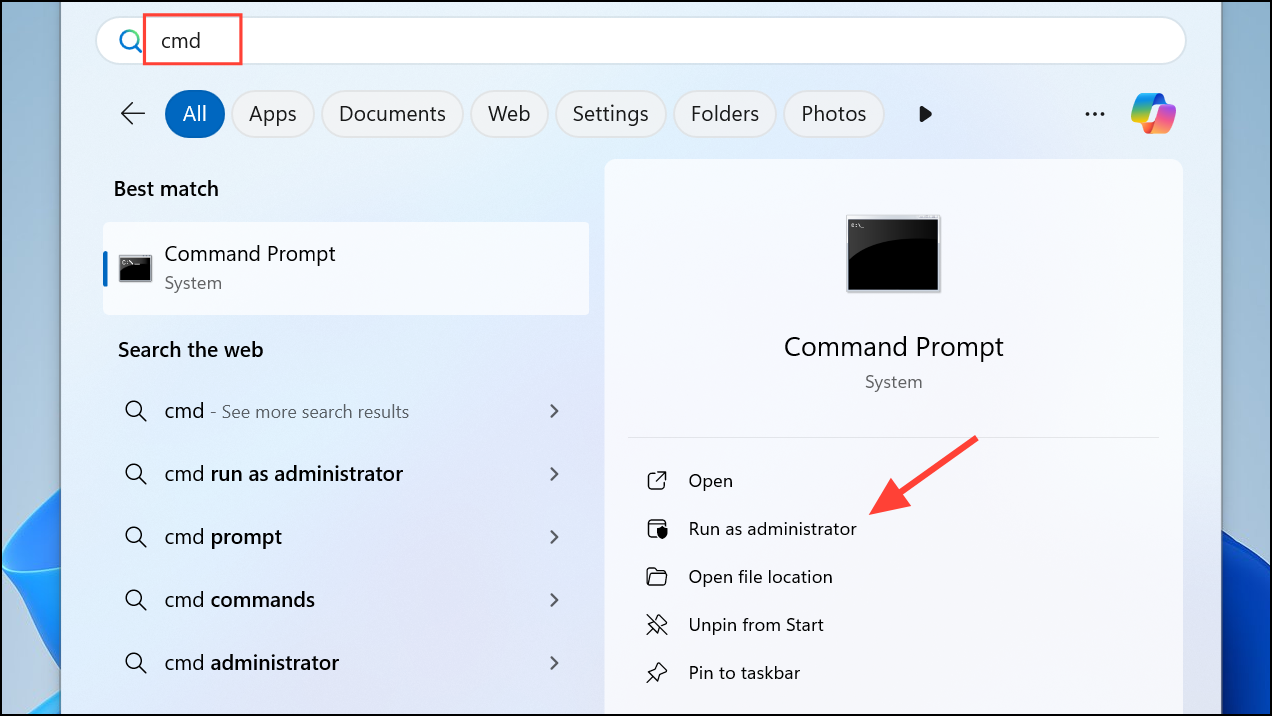
sfc /scannow and press Enter. The System File Checker will scan and repair any detected issues. Wait for the process to complete, then restart your computer.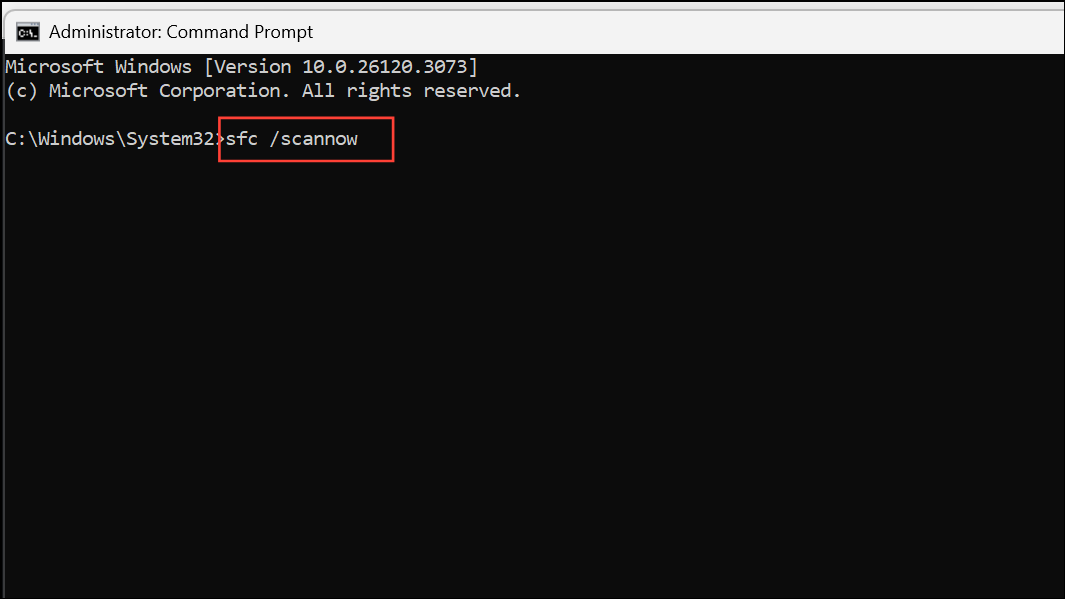
Method 2: Configure System Protection and Restore Settings
Improper system protection settings or conflicting restore points can prevent Windows 11 from writing shadow copies to the intended backup drive. Adjusting these settings helps ensure the backup process can complete successfully.
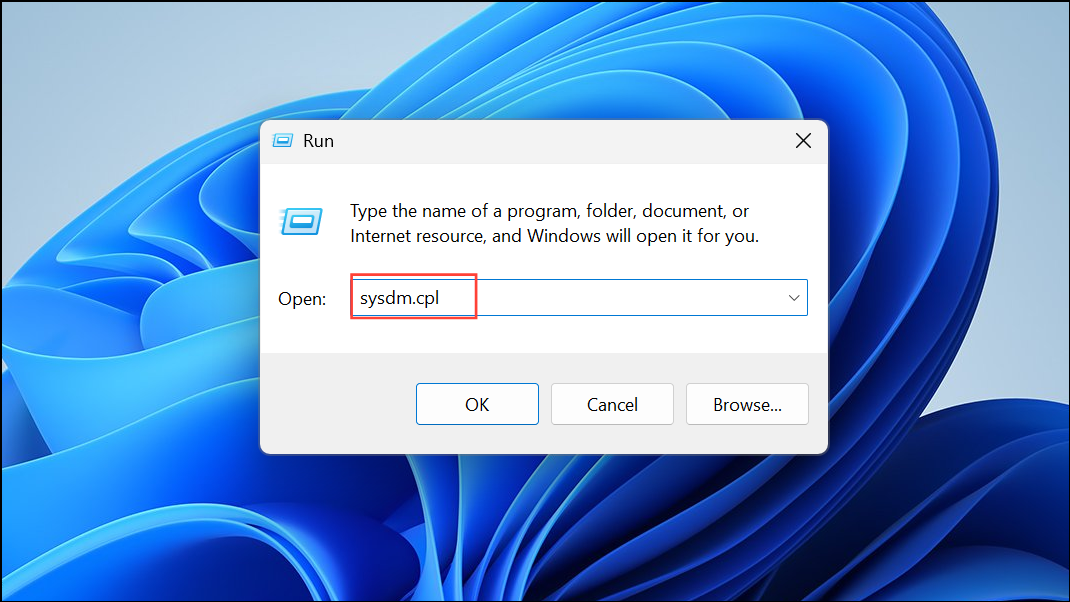
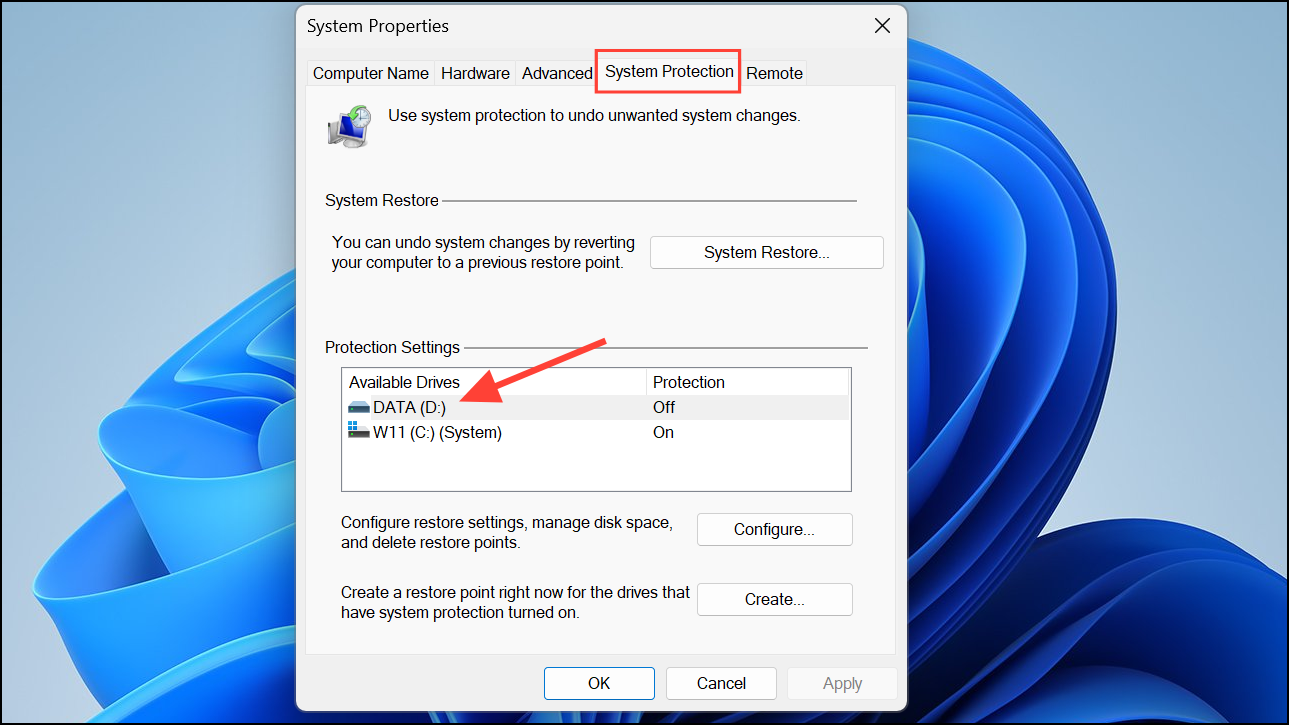
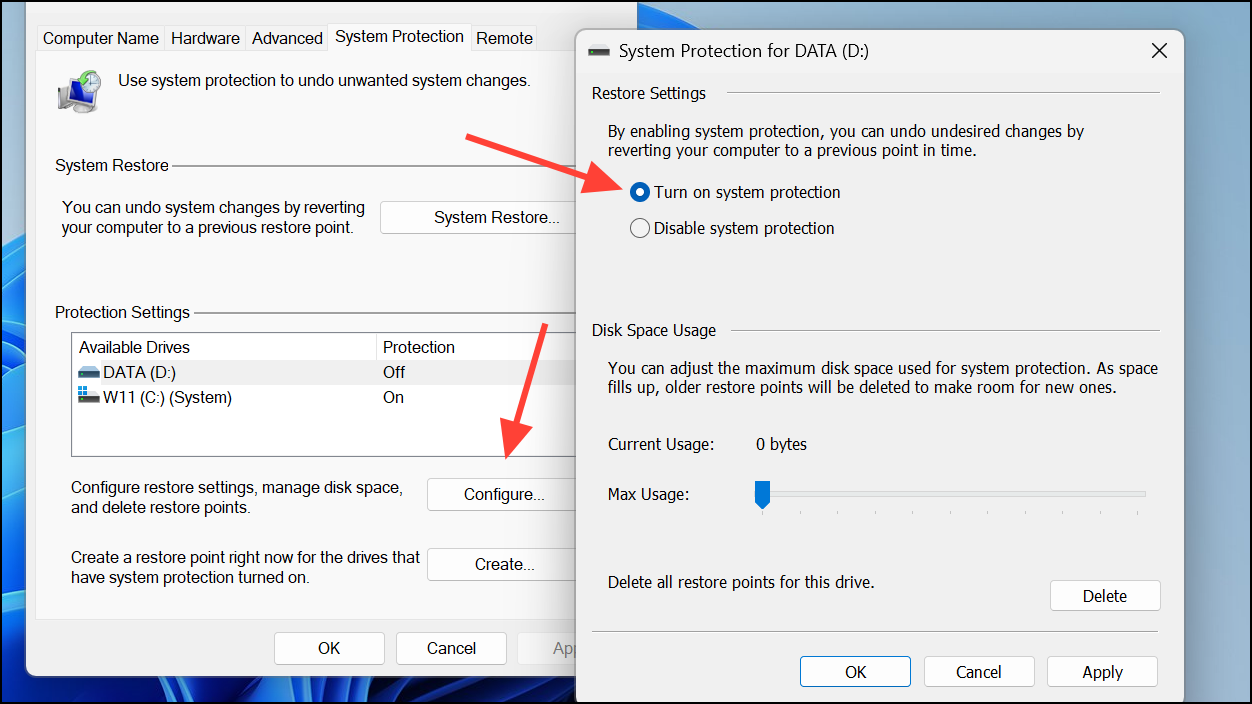
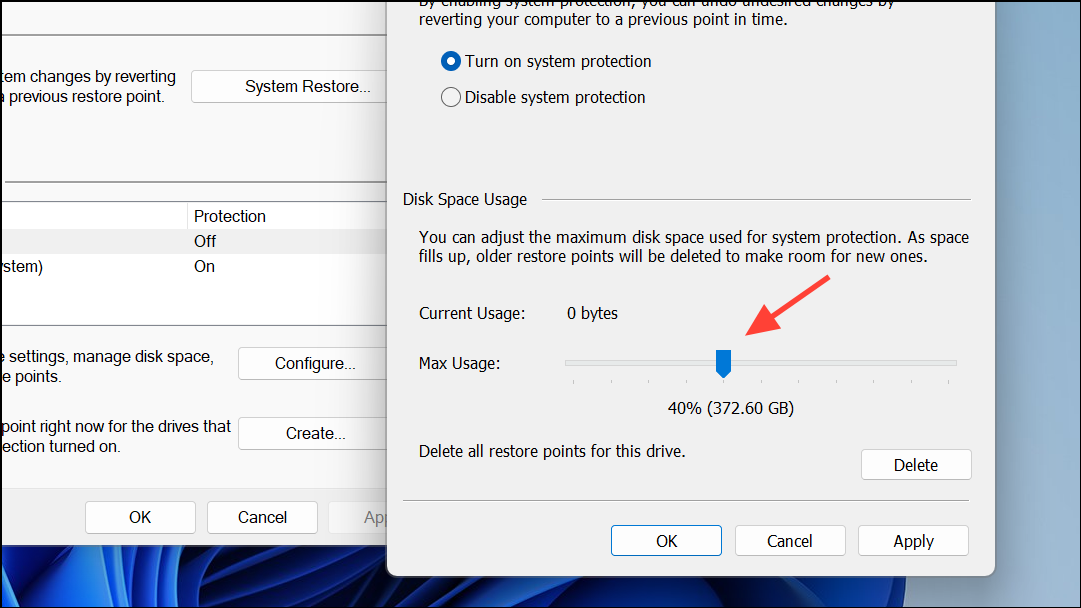
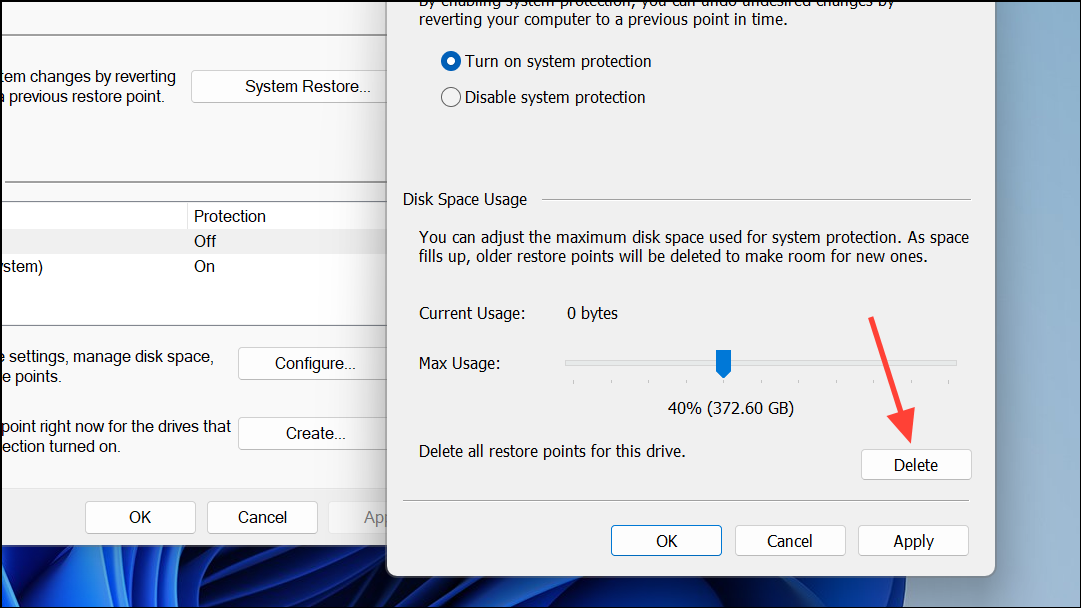
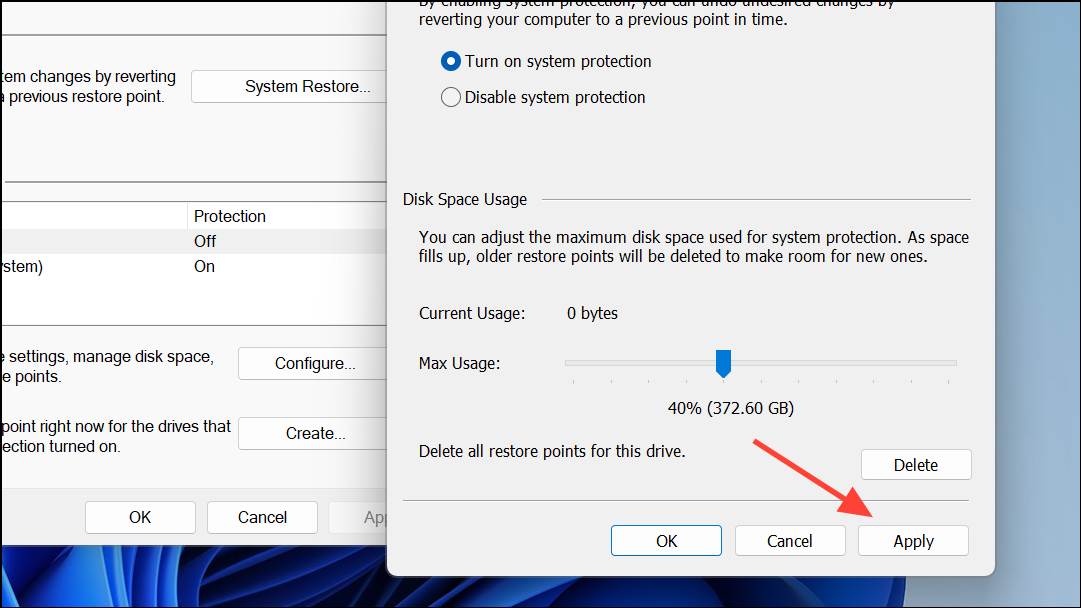
Method 3: Free Up Disk Space on the Backup Drive
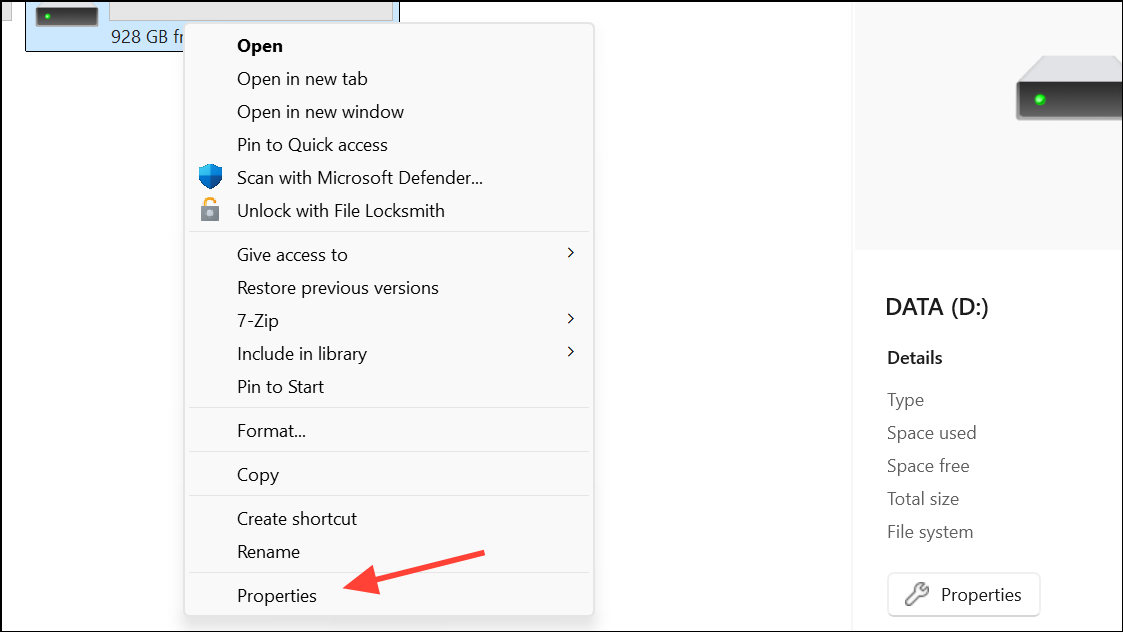
Insufficient free space on the backup target can trigger shadow copy errors. Windows requires enough storage to create both the backup image and the necessary shadow copies during the process.
Disk Cleanup in the Start menu, select the backup drive, and remove unnecessary files such as temporary files, system logs, and previous backups.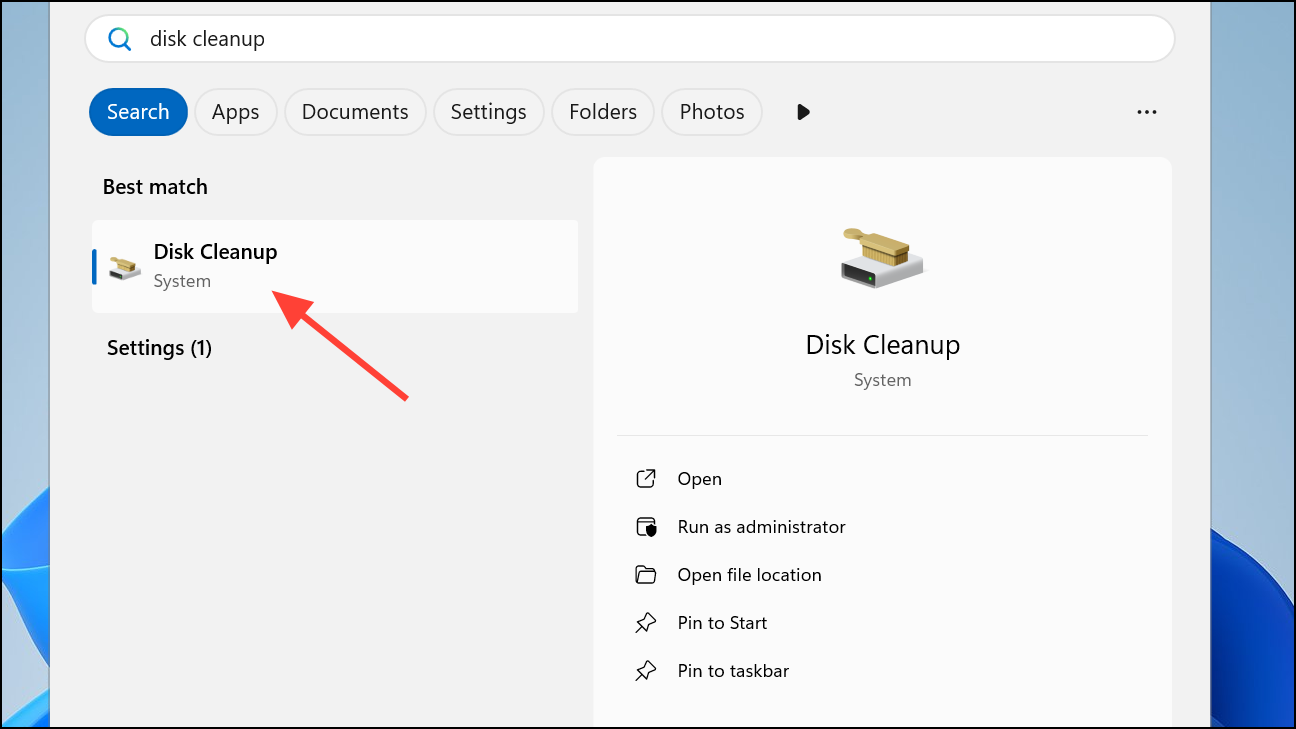
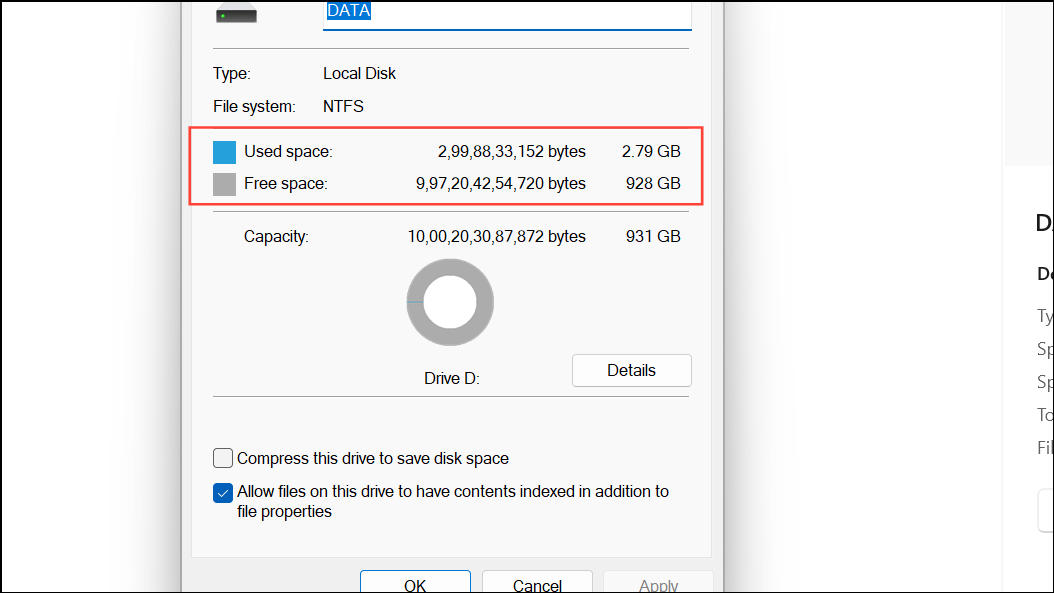
Method 4: Increase Shadow Storage Space via Command Line
Shadow storage is the reserved space for storing shadow copies (restore points and backup snapshots). If this space is too limited, the backup process can fail with error 0x80780038. Increasing the allocated shadow storage may resolve the issue.
cmd, right-clicking, and selecting Run as administrator.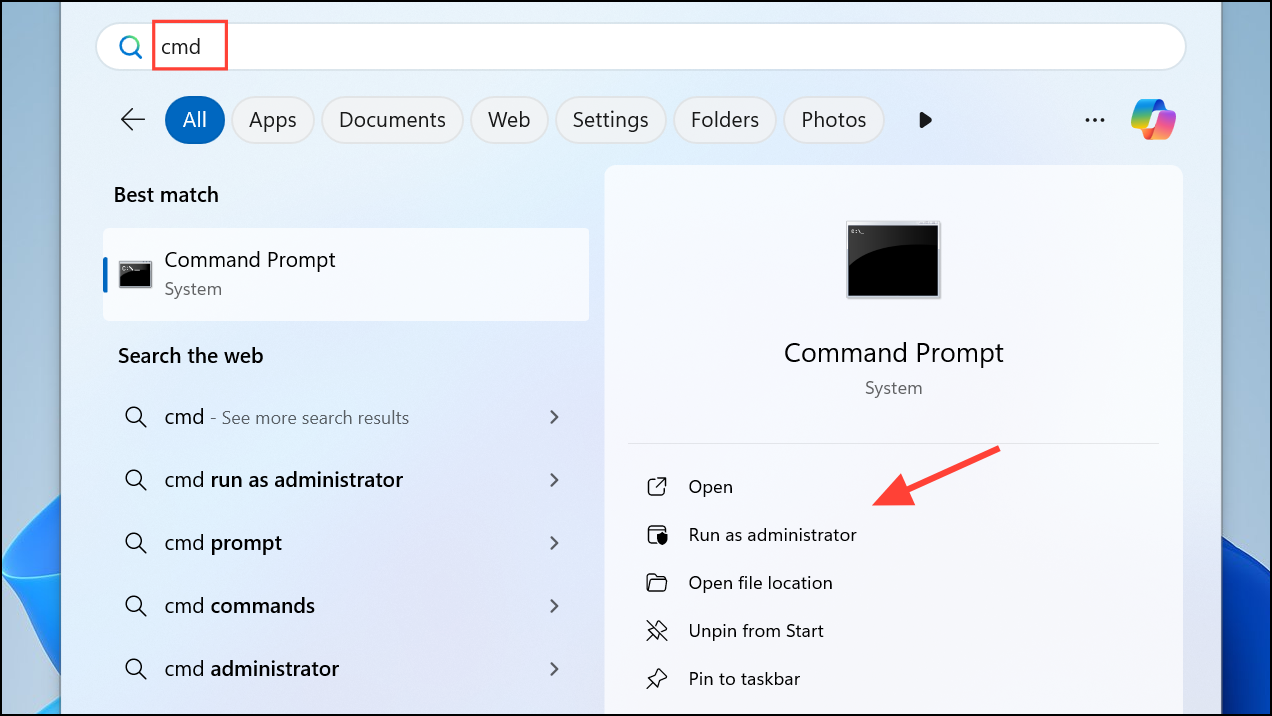
vssadmin list shadowstorage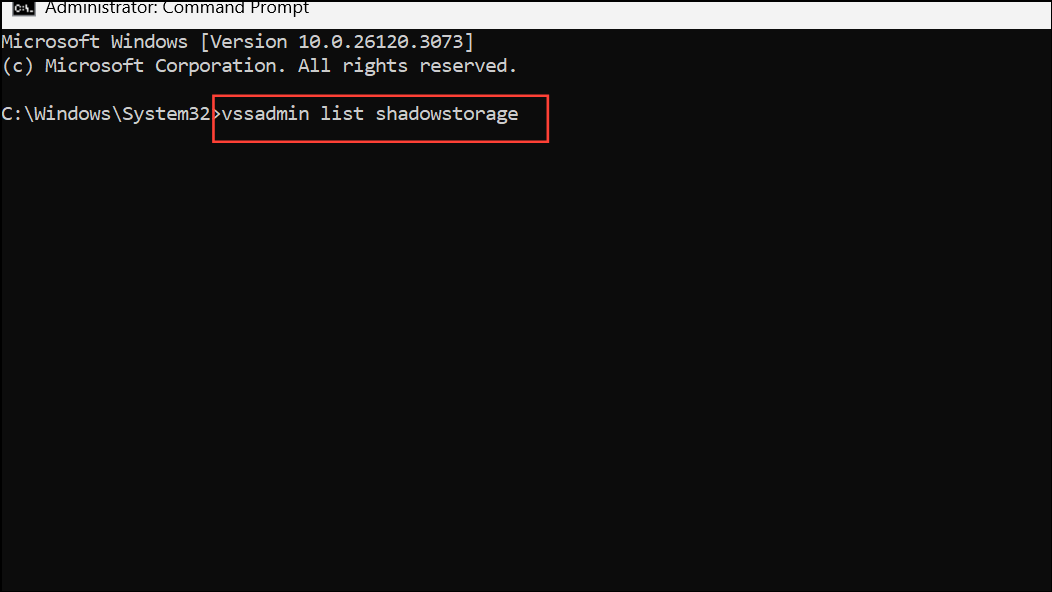
D: with your backup drive letter), enter:vssadmin resize shadowstorage /for=D: /on=D: /maxsize=10%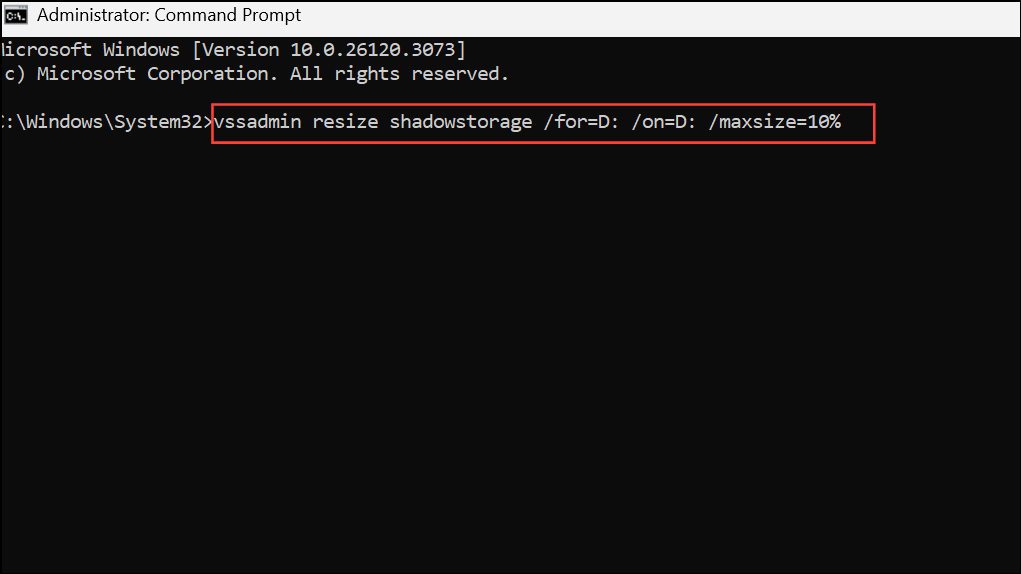
This command sets the maximum shadow copy storage to 10% of the drive’s capacity. Adjust the percentage as needed based on available space.
Method 5: Use Third-Party Backup Software
Windows’ built-in system image backup feature is deprecated and may be removed in future updates. If the above methods do not resolve error 0x80780038, consider using dedicated third-party backup software. Options such as Macrium Reflect, AOMEI Backupper, or MiniTool ShadowMaker provide reliable system image backups, often with additional features like incremental backups, flexible scheduling, and better error handling.
- Download and install your chosen backup software from the official website.
- Launch the program and select the system image backup option.
- Choose your source (system drive) and destination (external drive or another partition).
- Follow the on-screen instructions to complete the backup process.
These tools typically bypass Windows’ shadow copy limitations and offer a smoother backup experience, especially on newer versions like Windows 11.
Regularly checking your backup settings and using reliable tools ensures your Windows 11 system stays protected and recoverable, even when built-in utilities throw errors like 0x80780038.



