
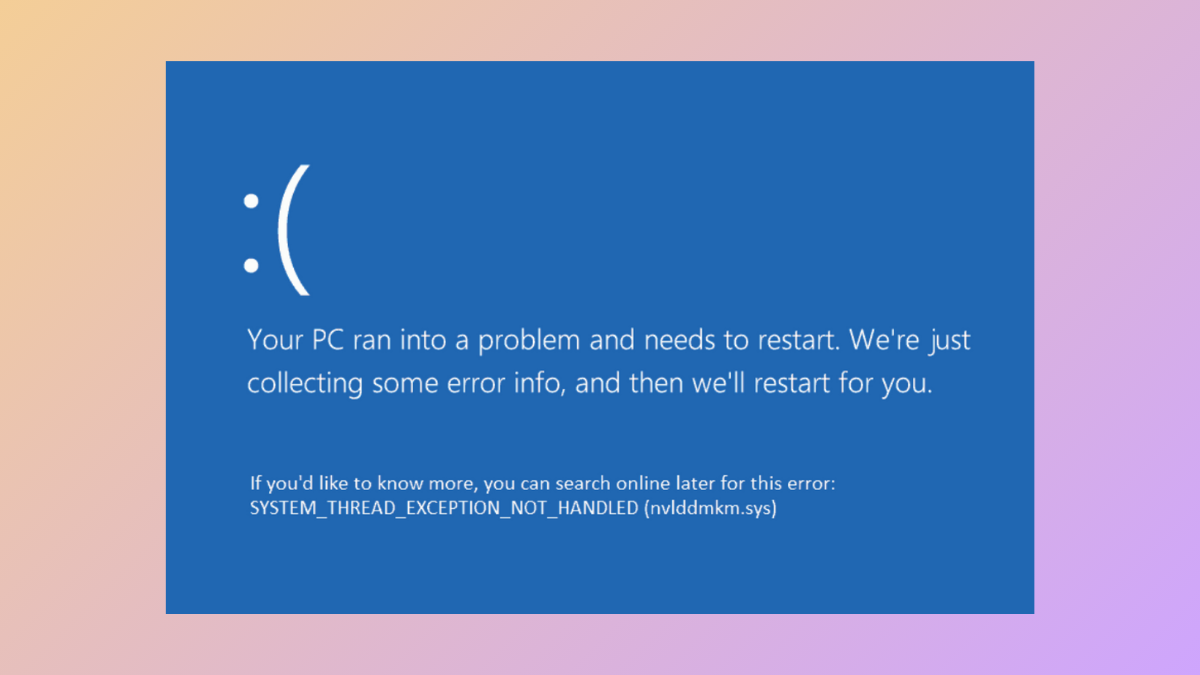
The “System Thread Exception Not Handled” blue screen error disrupts normal Windows 11 operation, often causing repeated crashes or preventing the system from booting. This error typically points to driver conflicts, corrupted system files, or hardware malfunctions. Addressing the root cause restores system stability and prevents further interruptions.
Update or Reinstall Faulty Drivers
Driver issues are the most common cause of this BSOD. Graphics, network, and storage drivers are frequent culprits, especially after recent updates or hardware changes.
Troubleshoot > Advanced options > Startup Settings > Restart. When the options appear, press F5 to start Safe Mode with Networking.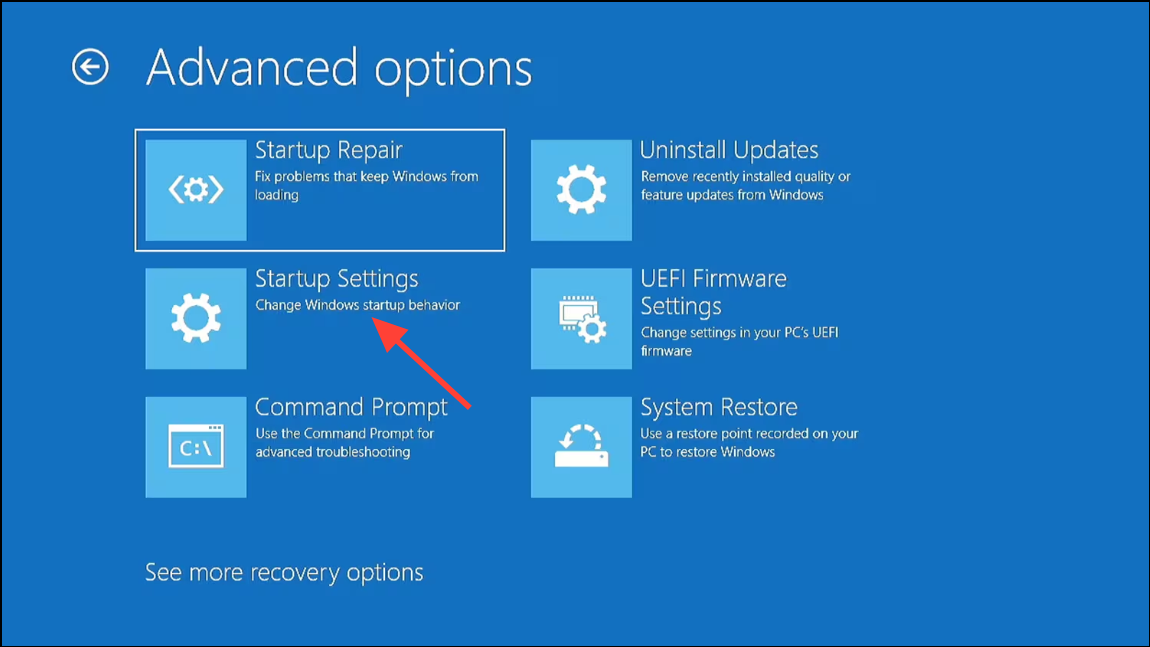
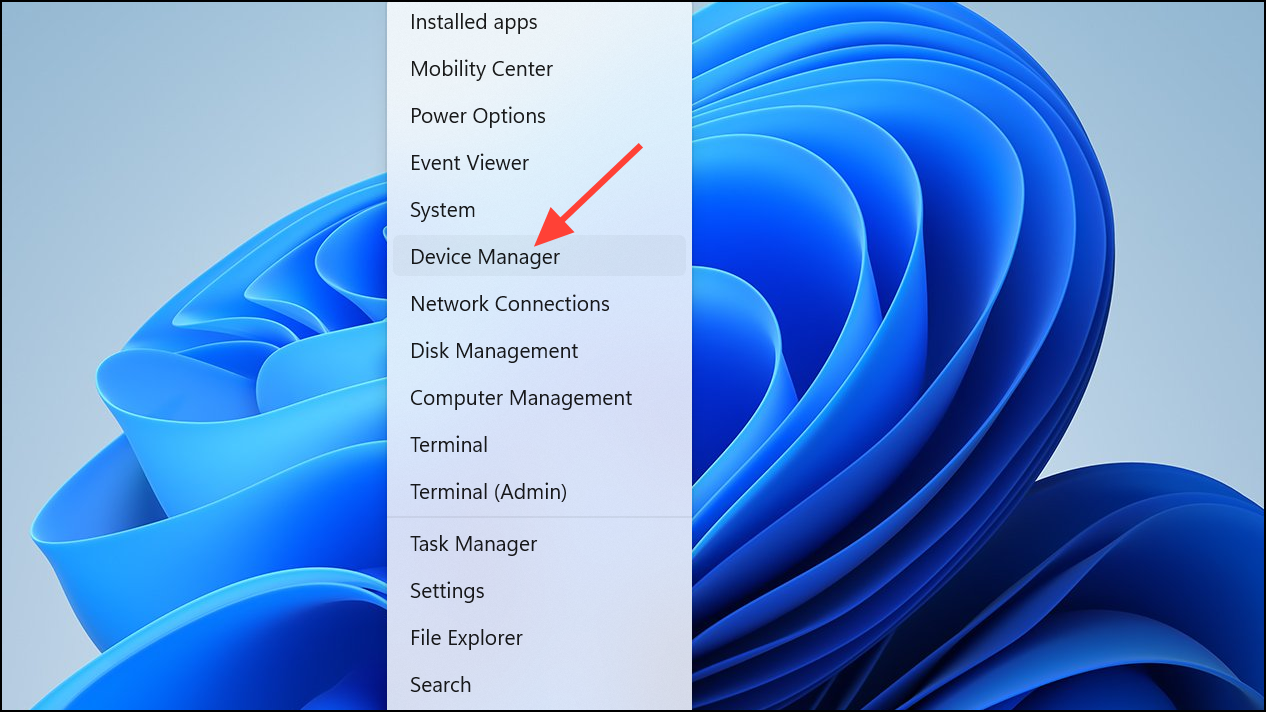
Display adapters, Network adapters, and Storage controllers.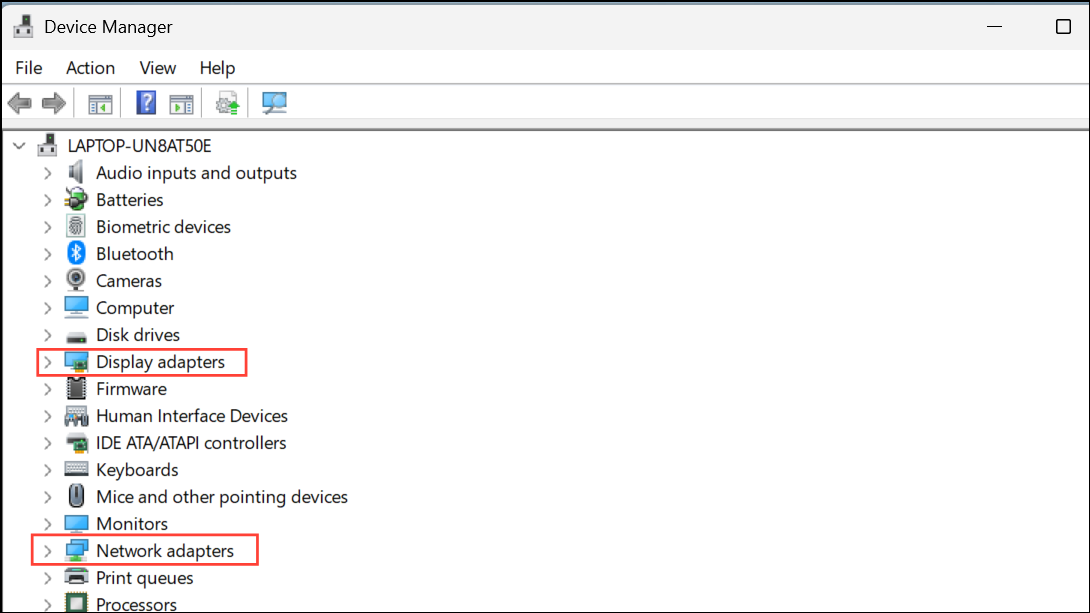
Update driver. Select Search automatically for drivers. Alternatively, visit the manufacturer’s website for the latest driver and install it manually.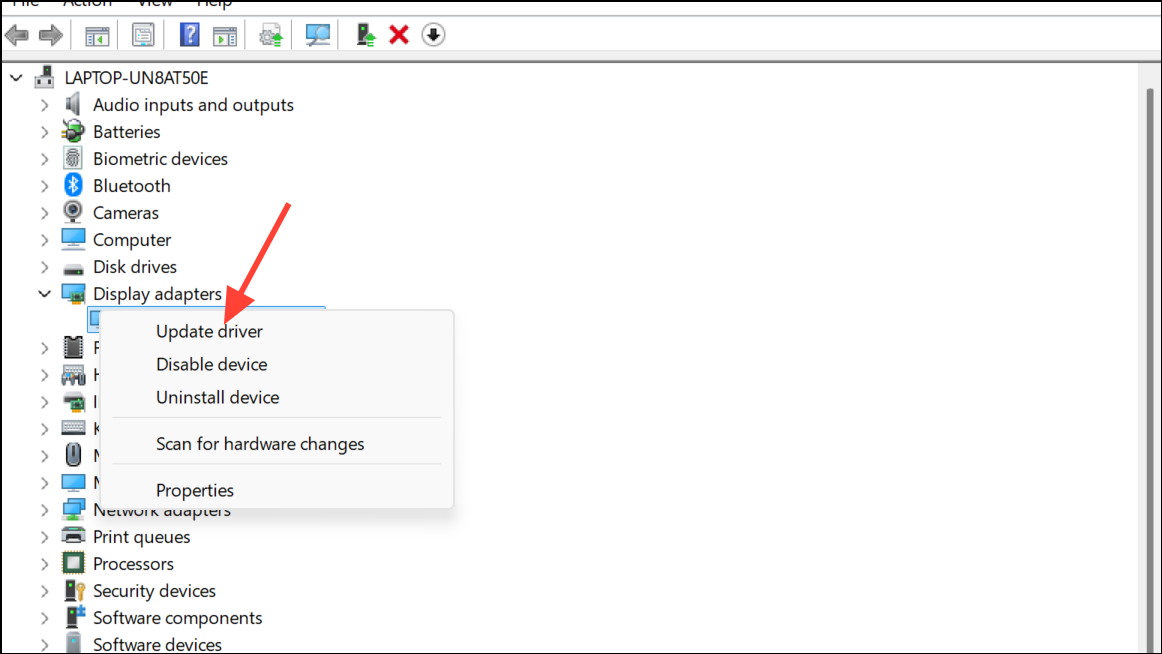
Uninstall device. Restart the computer; Windows will attempt to reinstall the driver.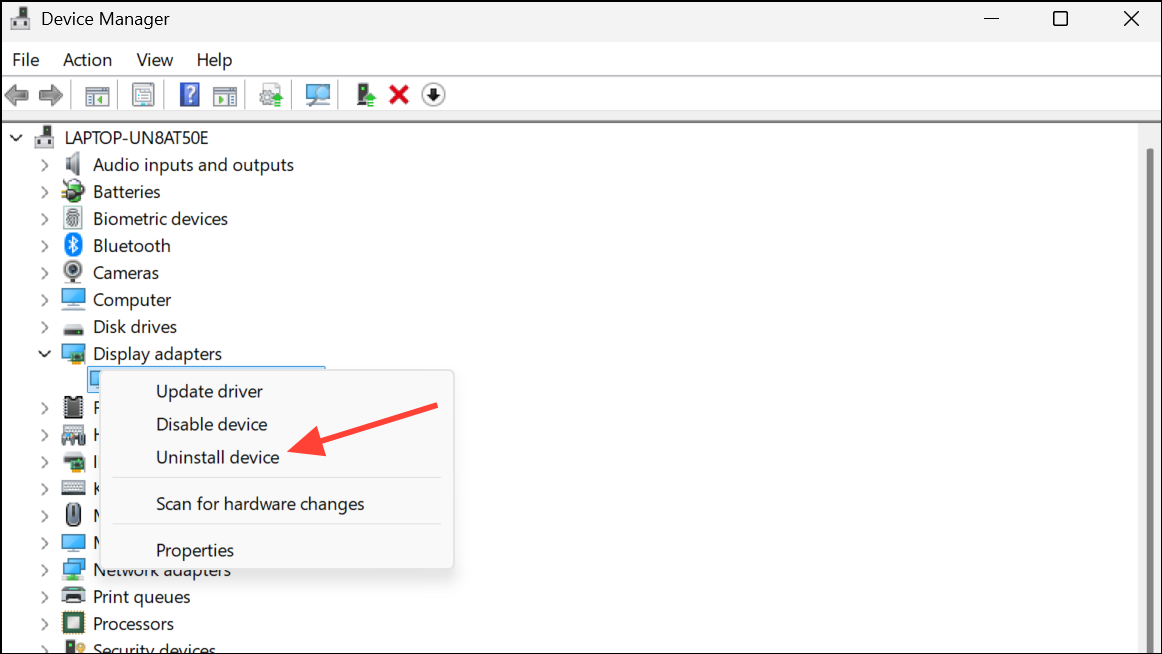
Properties, then the Driver tab, and select Roll Back Driver if available.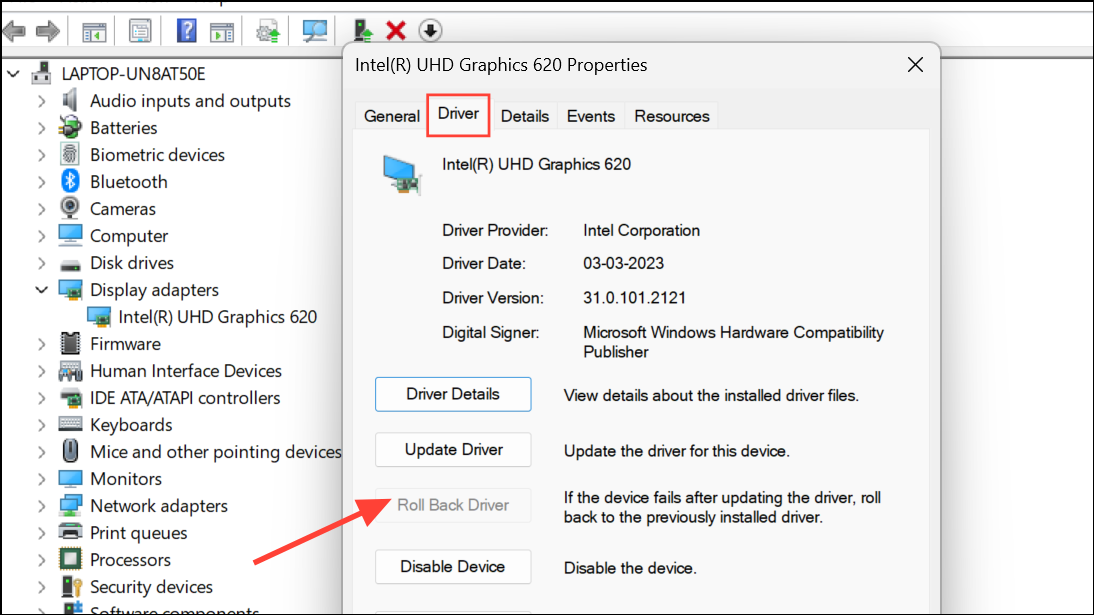
Driver-related BSODs often reference specific files such as nvlddmkm.sys (Nvidia), atikmdag.sys (AMD), or Netwbw02.sys (Intel WiFi). Updating or disabling the corresponding device resolves many cases.
Repair Corrupted System Files
Corrupted or missing system files can trigger this error, especially after abrupt shutdowns or failed updates.
cmd in the search bar, right-click Command Prompt, and select Run as administrator.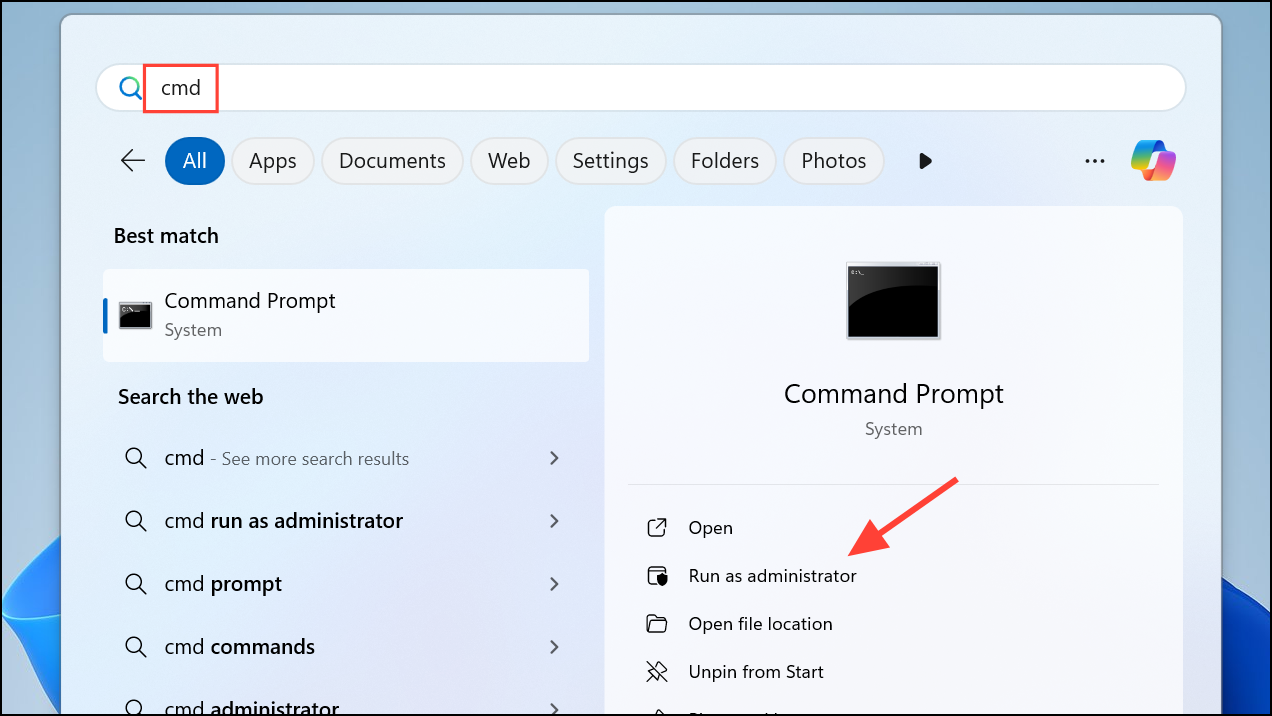
sfc /scannow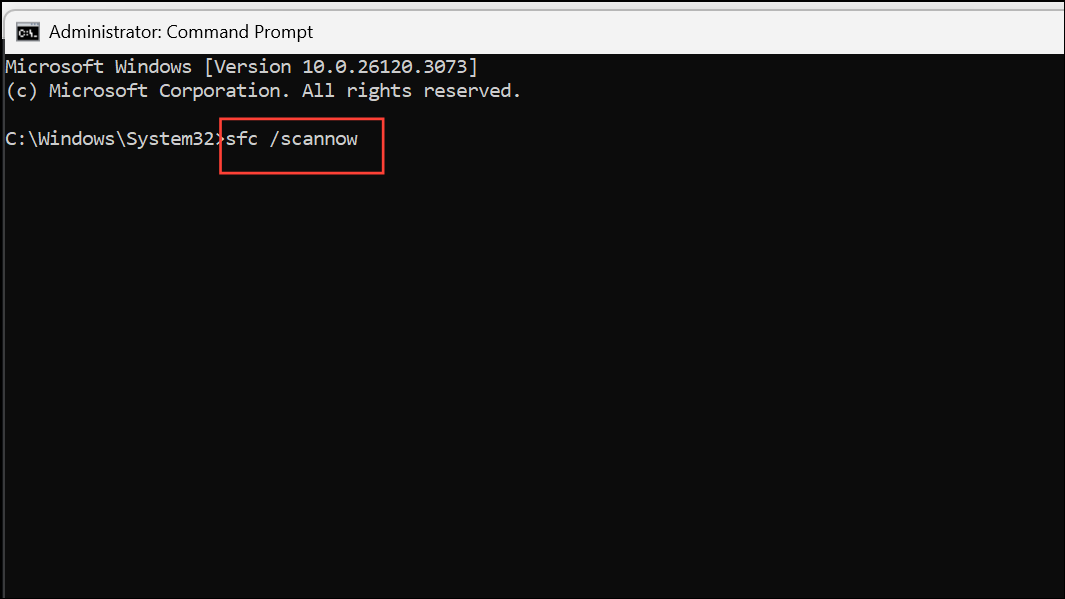
This scans and repairs corrupted system files. Wait for the process to complete.
DISM /Online /Cleanup-Image /CheckHealth
DISM /Online /Cleanup-Image /ScanHealth
DISM /Online /Cleanup-Image /RestoreHealth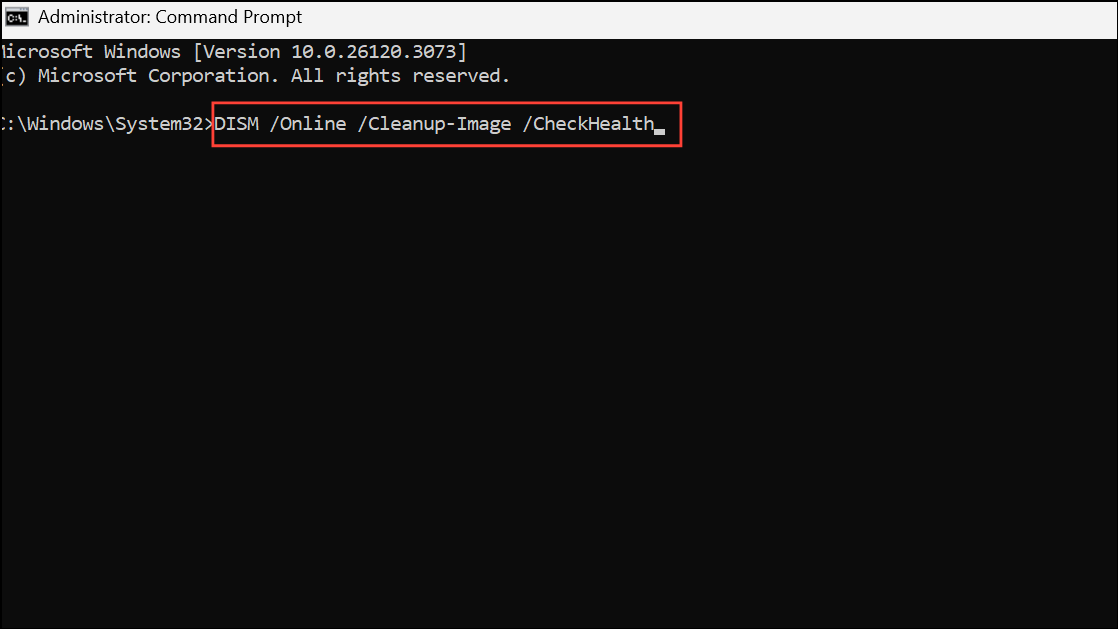
These commands address deeper system image issues that sfc cannot fix alone.
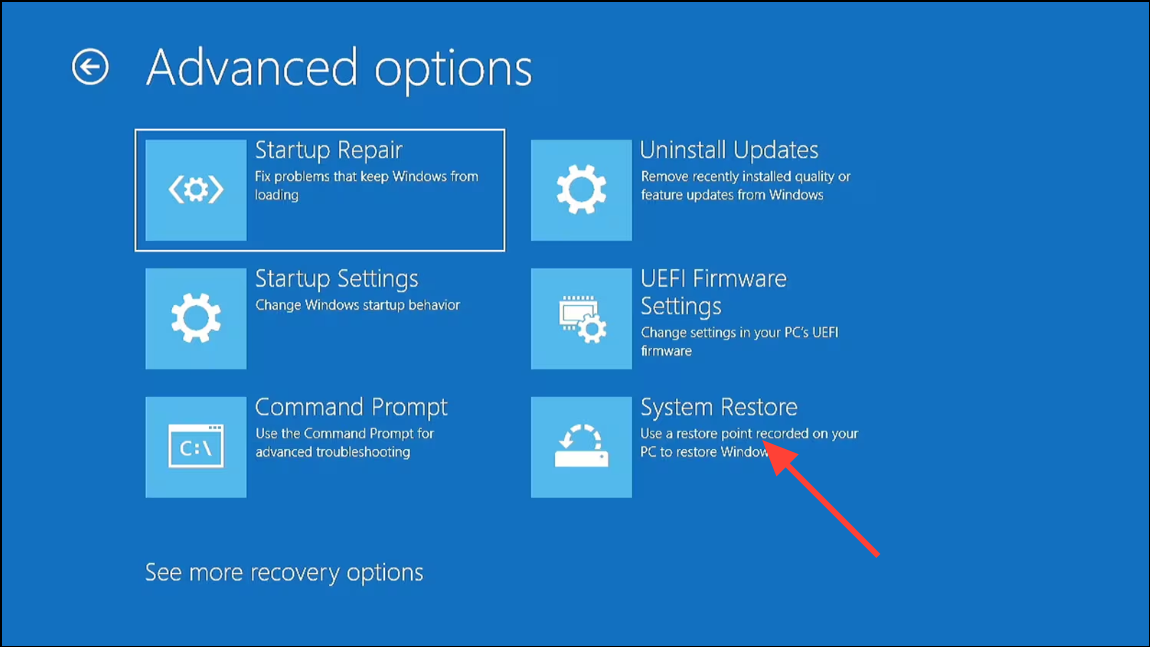
Perform a System Restore
Restoring your system to a previous state can resolve BSODs caused by recent changes, updates, or driver installations.
Check for Hardware Issues
Faulty RAM, hard drives, or recently added hardware can cause persistent BSODs.
Win + S, type Windows Memory Diagnostic, and select Restart now and check for problems. The tool will scan your RAM for errors during reboot.chkdsk /f /r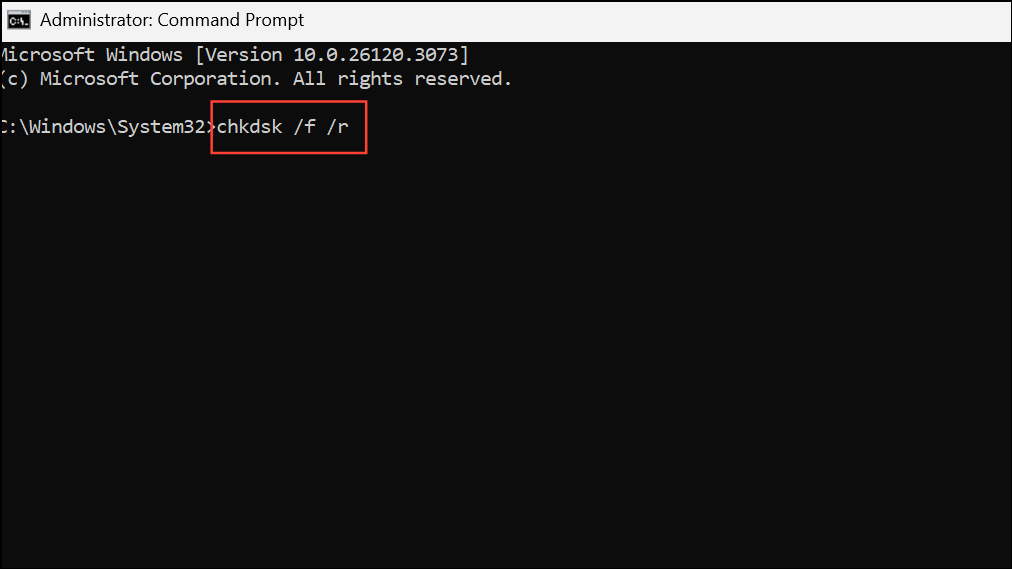
This scans for and repairs bad sectors on your hard drive. You may be prompted to schedule the scan on next restart.
Update Windows and BIOS
Outdated Windows builds or motherboard firmware can create compatibility problems that result in BSODs.
Settings > Windows Update and check for updates. Install all recommended updates and restart your PC.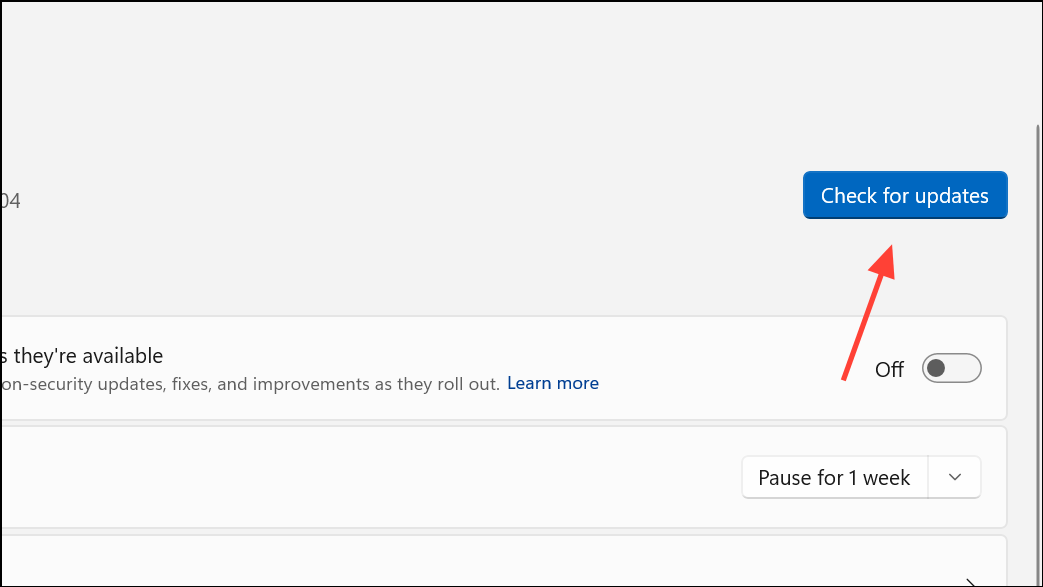
Additional Troubleshooting Steps
- Run a full antivirus scan to rule out malware as a cause of system instability.
- Check Event Viewer (
Win + X>Event Viewer) for repeated critical errors or warnings around the time of the BSOD. - If the error message references a specific file, search online for its function or related hardware, then update or roll back the associated driver.
- For persistent boot loops, consider resetting Windows or performing a clean installation. Back up all important data before proceeding.
Resolving the “System Thread Exception Not Handled” error on Windows 11 requires methodical troubleshooting, but most users restore stability by updating drivers, repairing system files, or addressing hardware issues. If the problem persists, professional repair or a clean Windows installation may be necessary.



