
System updates in Windows 11 sometimes fail with the message “We couldn’t update the system reserved partition,” especially on devices that were upgraded from older Windows versions or have limited partition sizes. This error stops the update process and prevents your system from installing vital security patches and new features. The root cause is almost always a full or undersized System Reserved Partition (SRP), which stores essential boot and recovery data. Addressing this issue involves freeing up space, repairing system files, or expanding the partition size.
Free Up Space on the System Reserved Partition
Windows + R, type diskmgmt.msc, and press Enter. In Disk Management, right-click your main disk and select Properties. Under the Volumes tab, check if your disk uses GPT (GUID Partition Table) or MBR (Master Boot Record).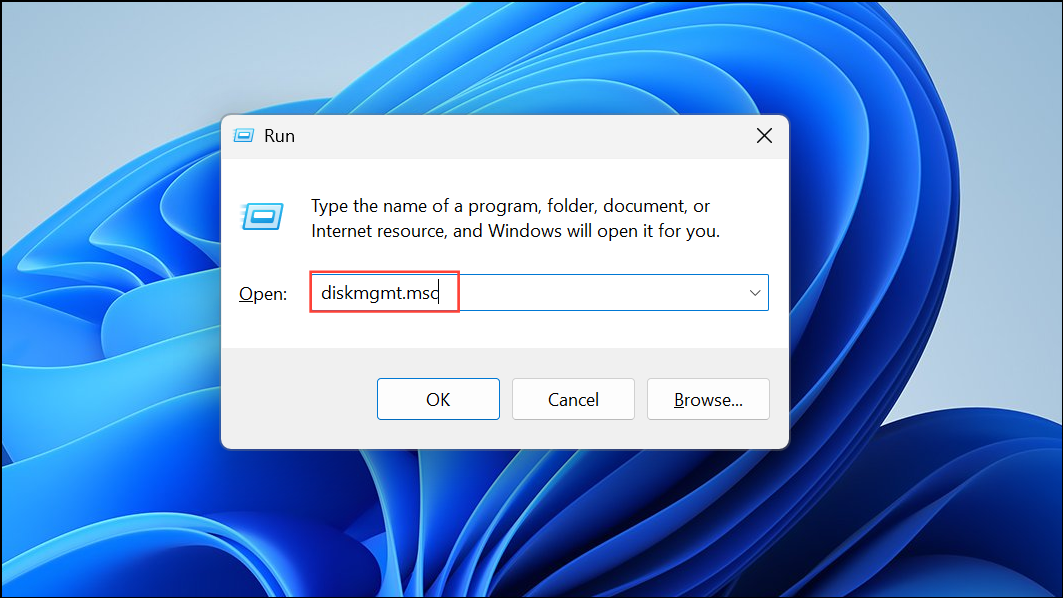
mountvol Y: /s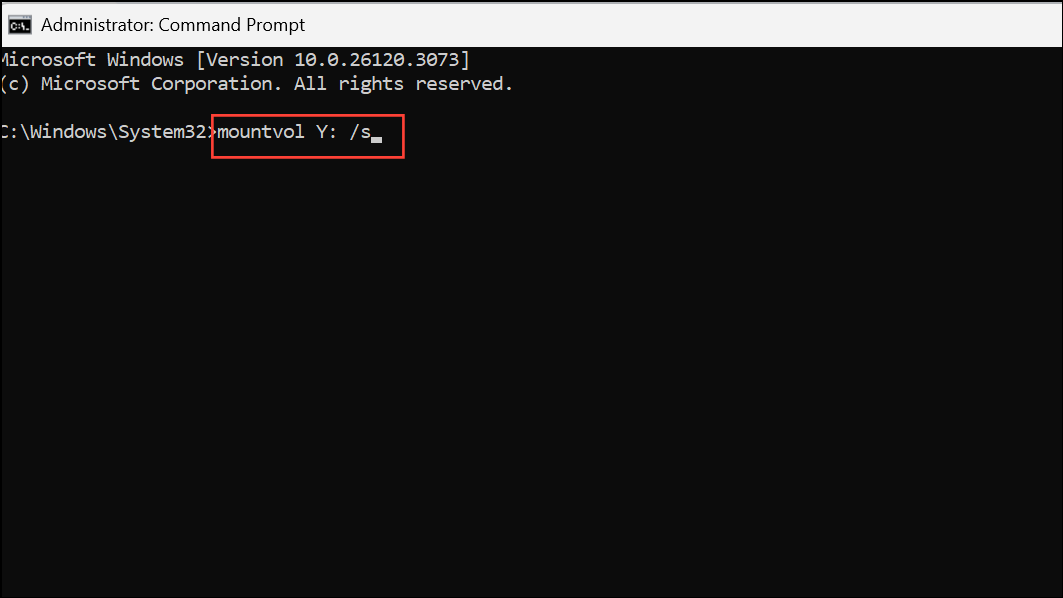
This mounts the EFI partition as drive Y:.
cd /d Y:\EFI\Microsoft\Boot\Fonts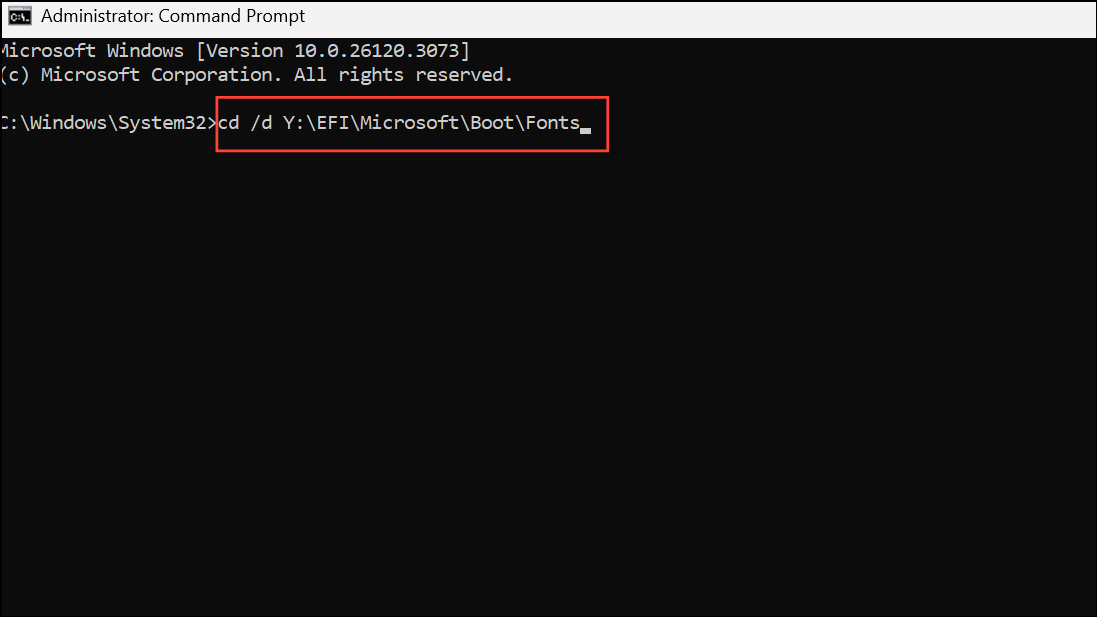
For MBR, use:
cd Y:\Boot\Fonts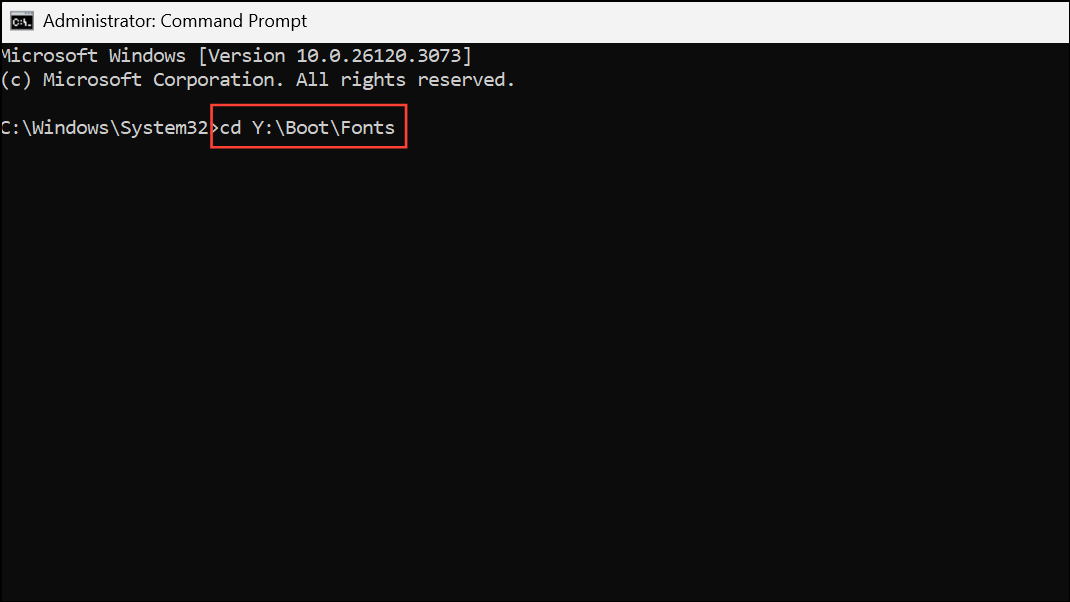
del *.ttf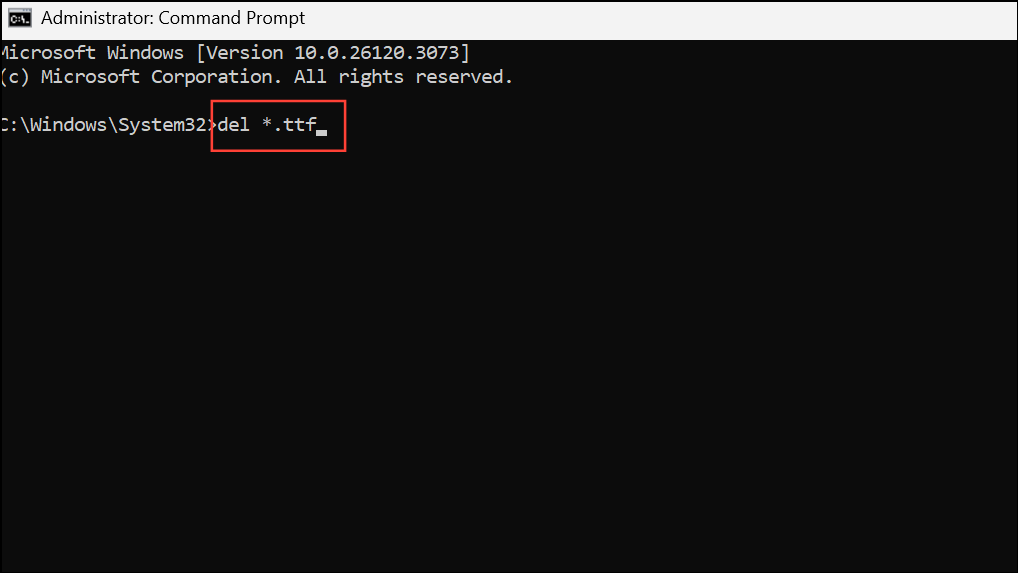
Confirm deletion if prompted. Removing these files typically frees up enough space for the update. Only delete language folders or font files you do not need—do not remove files unless you are certain they are non-essential.
Repair Corrupted System Files
Corrupted system files in the SRP can cause update errors. To repair them:
sfc /scannow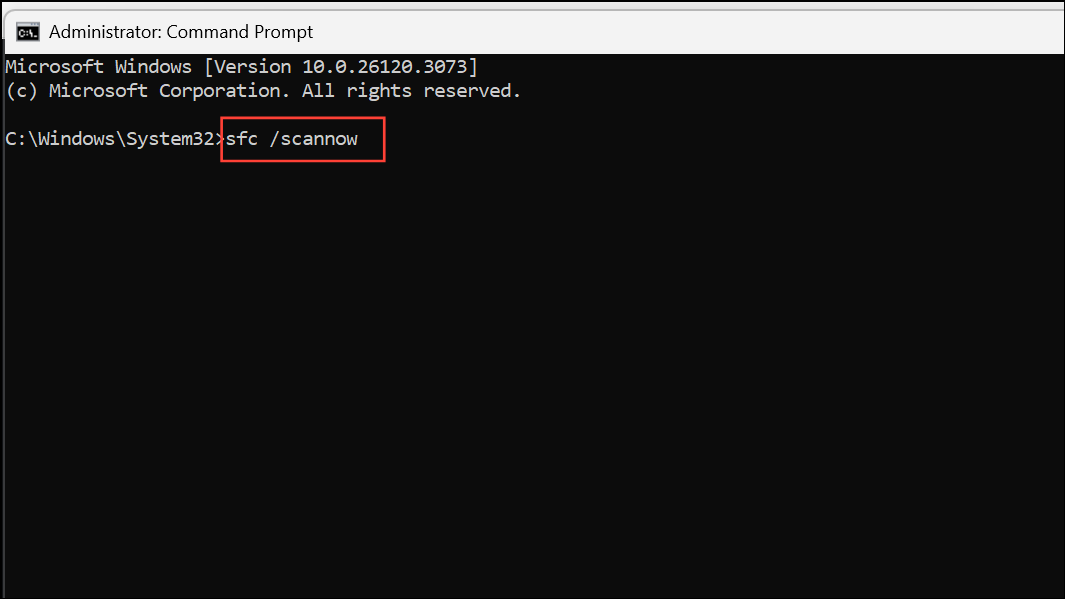
This scans and repairs corrupted Windows system files, which may resolve update issues if file corruption in the SRP is detected.
Check the Partition for Disk Errors
File system errors or bad sectors on the SRP can also block updates.
chkdsk Y: /f /r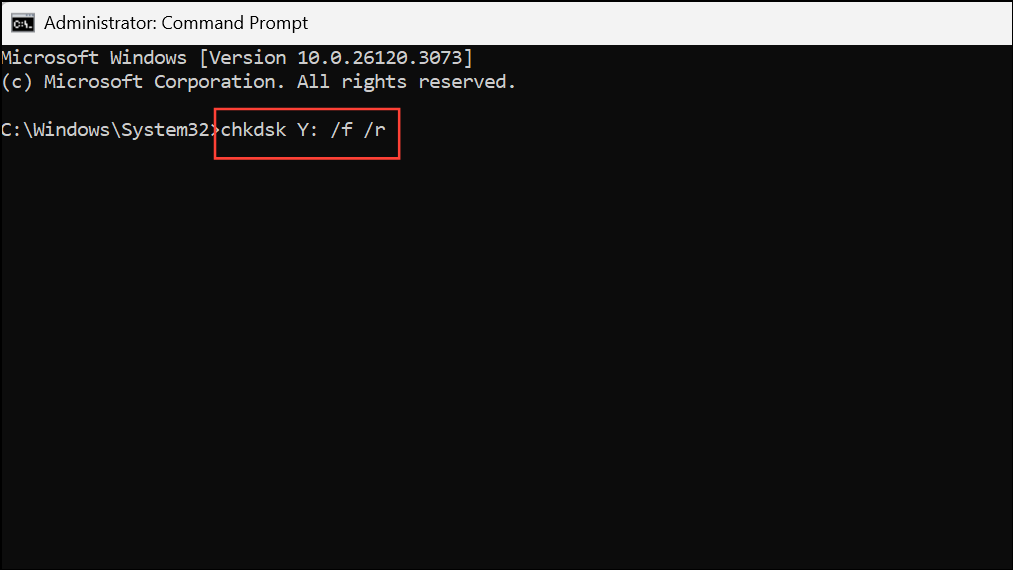
This checks for and repairs file system errors and bad sectors. Allow the tool to finish before proceeding.
Increase the Size of the System Reserved Partition
If the SRP is too small (commonly 100MB or less), freeing space may not be enough. Increasing its size often provides a permanent fix, especially for future updates.
Alternative: Clean Install of Windows 11
When all other methods fail or if partition corruption is severe, performing a clean installation of Windows 11 can resolve persistent SRP errors. This process removes all partitions, including the existing SRP, and creates a new, properly sized partition during installation.
This method guarantees a fresh SRP with enough space for updates, but removes all data from the system drive.
Tips for Preventing Future Update Issues
- Regularly check the free space on your system reserved partition using Disk Management.
- Keep your system drivers and firmware up to date to minimize compatibility issues during updates.
- Back up system images and critical files before making partition changes or major updates.
- Use disk cleanup utilities to remove unnecessary files from your system drive, but avoid modifying the SRP unless necessary.
Resolving the “We couldn’t update the system reserved partition” error in Windows 11 improves update reliability and restores your system’s ability to receive new features and security fixes. With careful partition management and regular backups, you can avoid similar update blocks in the future.



