

System tools and built-in apps in Windows 11 rely on the System32 folder and the %windir% environment variable to locate critical executables. When launching utilities like Advanced System Settings or Snipping Tool, you may see an error stating Windows cannot find '%windir%\system32\SystemPropertiesAdvanced.exe'. This typically indicates a misconfigured environment variable or missing/corrupted system files, which can prevent many default Windows apps from opening and disrupt system updates.
Check and Correct the windir Environment Variable
environment variables into the search box. Select Edit the system environment variables from the results to open the System Properties window.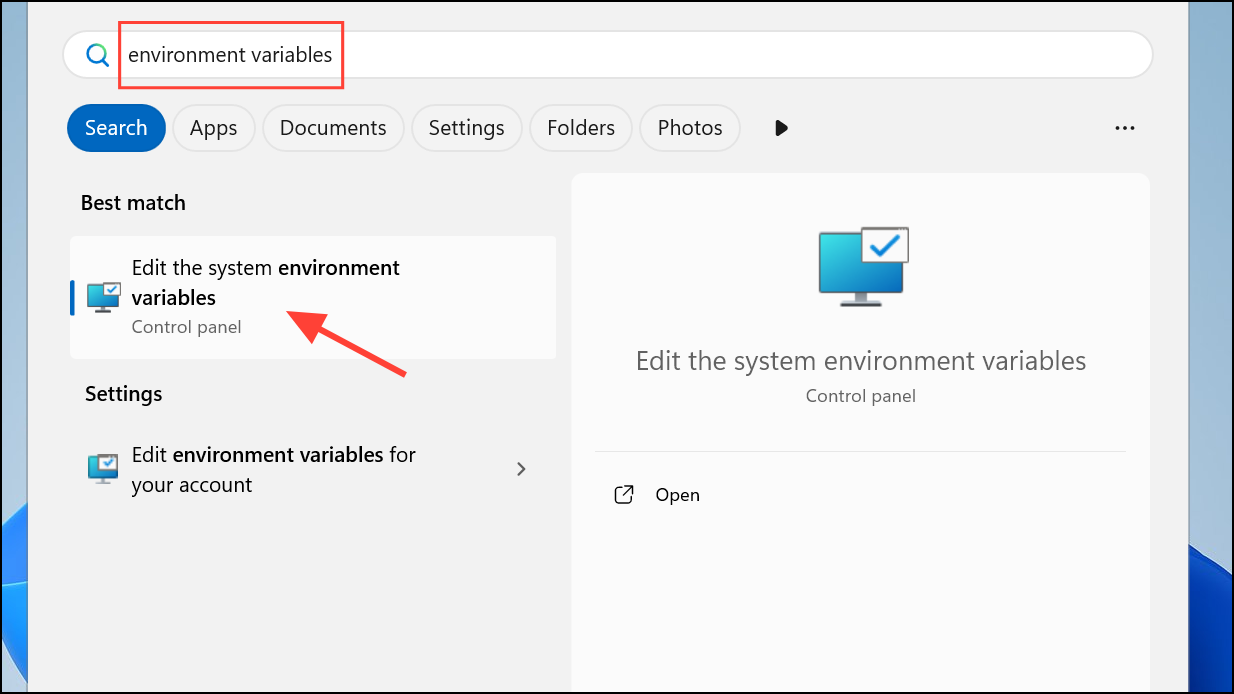
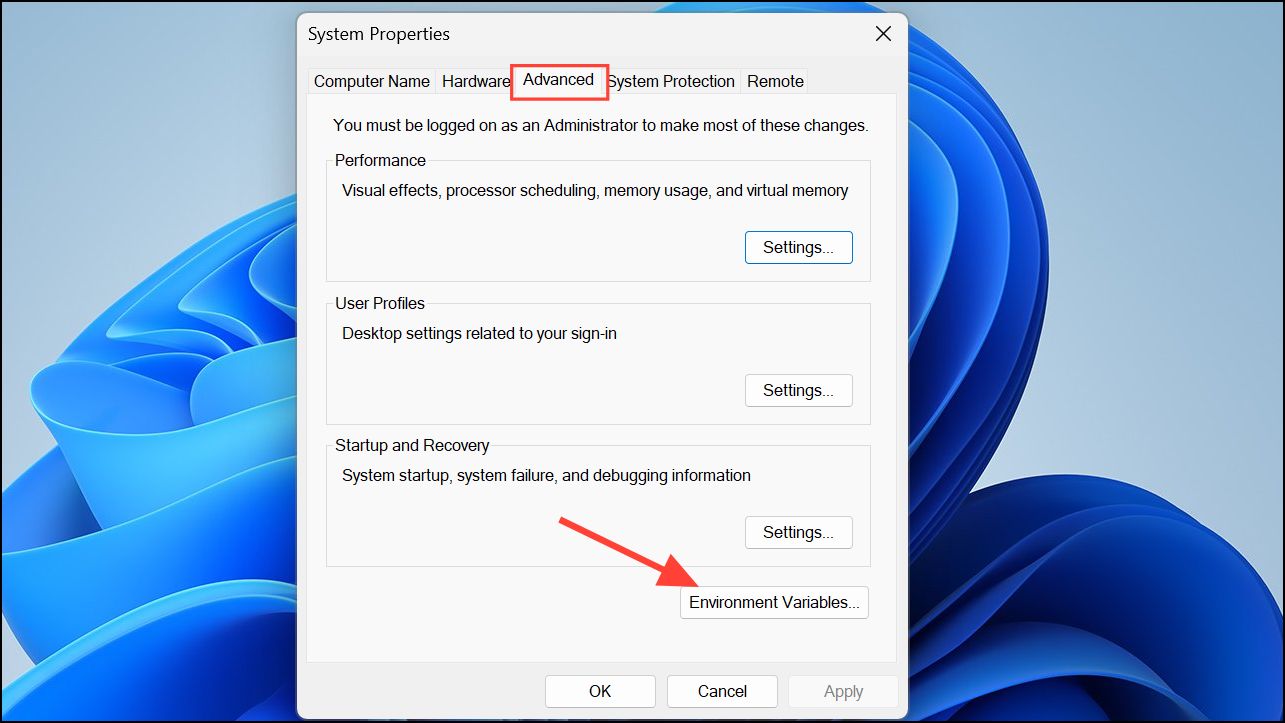
windir. Confirm that its value is set to C:\Windows (or the drive where Windows is installed). If it’s missing or set incorrectly, click New (if missing) or Edit (if present) and enter the correct path. Click OK to save.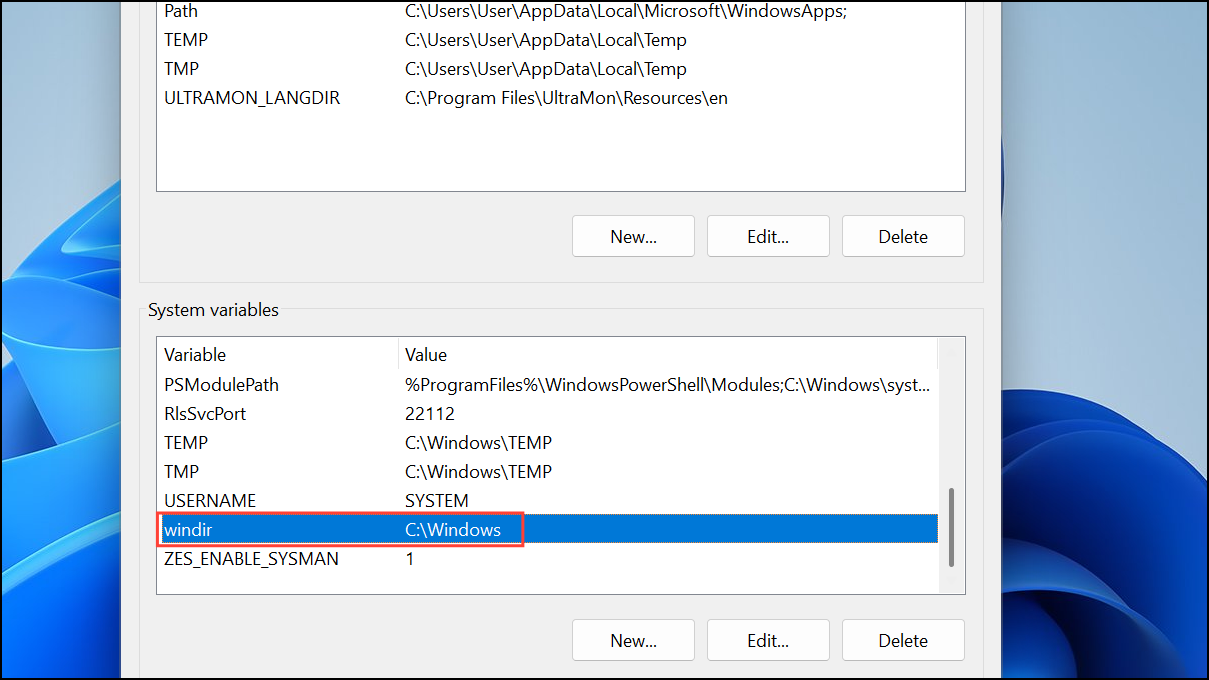
Restore System Files Using System File Checker (SFC)
If the environment variable is correct but the error persists, system files may be missing or corrupted. The System File Checker scans and repairs these files.
cmd, then right-click Command Prompt and choose Run as administrator. If you can’t open Command Prompt normally, boot into Safe Mode and try again.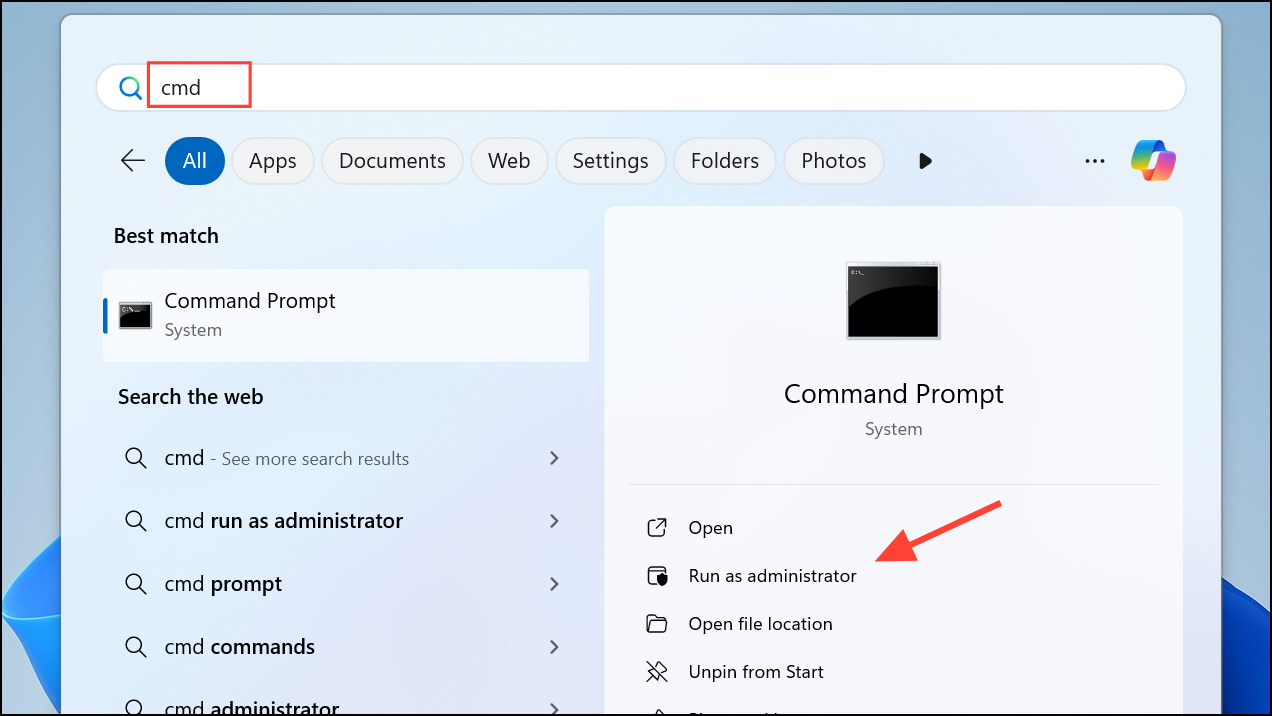
sfc /scannow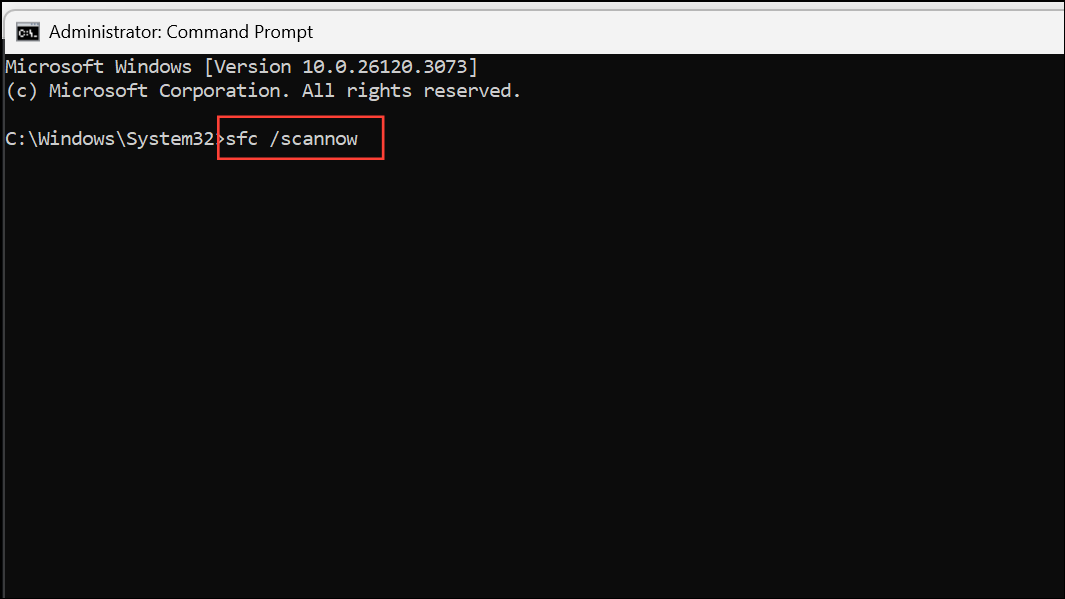
This process may take several minutes. If SFC finds and repairs corrupt files, you’ll see a message confirming successful repairs. Restart your computer once the scan completes.
Repair System Files with DISM (Deployment Imaging Service and Management Tool)
If SFC doesn’t resolve the issue, DISM can repair deeper system image problems that SFC can’t fix.
DISM /Online /Cleanup-Image /CheckHealth
DISM /Online /Cleanup-Image /ScanHealth
DISM /Online /Cleanup-Image /RestoreHealth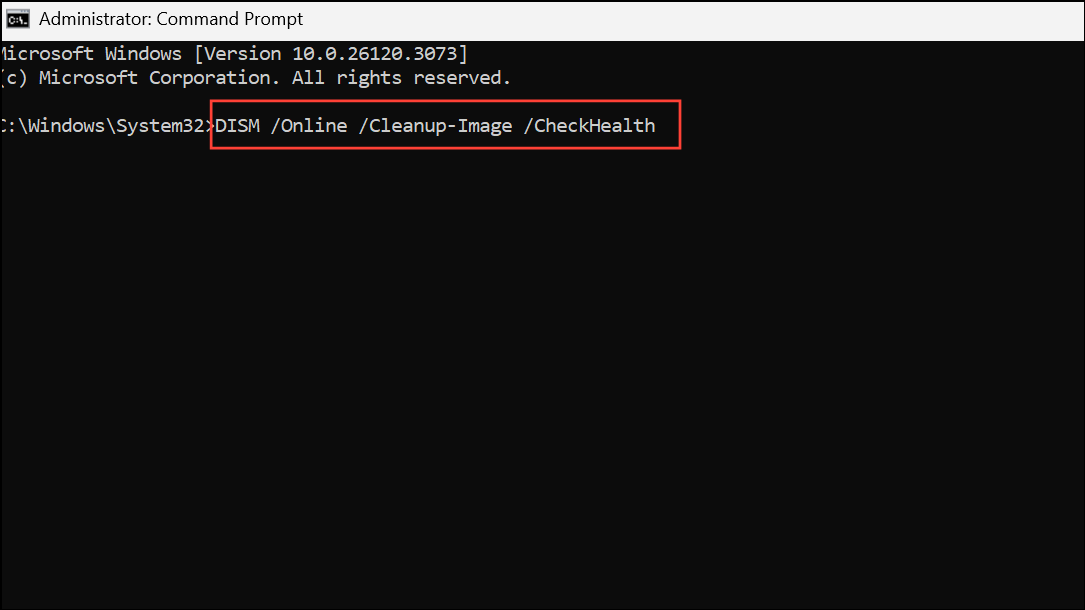
Wait for each command to finish before moving to the next. Once all commands complete, restart your computer and test the affected applications.
Perform a System Restore from Windows Recovery
If you still can’t run system tools or open Command Prompt as administrator, use System Restore to revert your system to a working state. This option is available if you have a restore point created before the issue began.
Shift while clicking Restart from the Start menu, or by interrupting the boot process three times in a row.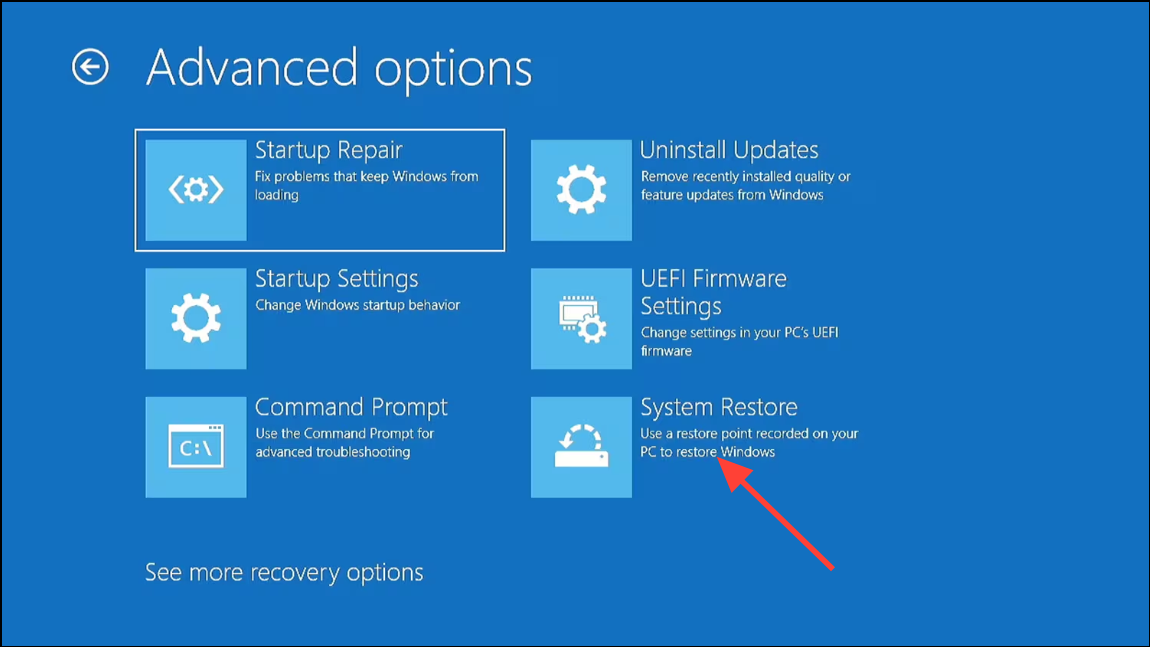
Additional Tips and Troubleshooting
- If the error occurs for a third-party program, reinstall the program after completing the above steps.
- For missing system tools like
msdt.exeortaskmgr.exethat SFC and DISM can’t restore, consider using a Windows installation USB or DVD to run offline repairs. - Always back up important files before making changes to system settings or performing a system restore.
Correcting the windir variable and restoring system files resolves the “Windows cannot find windir system32 exe” error for most users, letting you access system tools and keep your device running smoothly.



