

Windows 11 upgrade processes can halt unexpectedly with error code 0xe06d7363. This application error typically appears during system updates, installations, or when launching certain programs. It is often linked to corrupted system files, missing Visual C++ redistributables, software conflicts, or registry issues, all of which can prevent Windows from completing the upgrade process.
Repair System Files with SFC and DISM
Corrupted or missing system files are a common cause of the 0xe06d7363 error. Running the System File Checker (SFC) and Deployment Imaging Service and Management Tool (DISM) helps repair these files and restore system integrity.
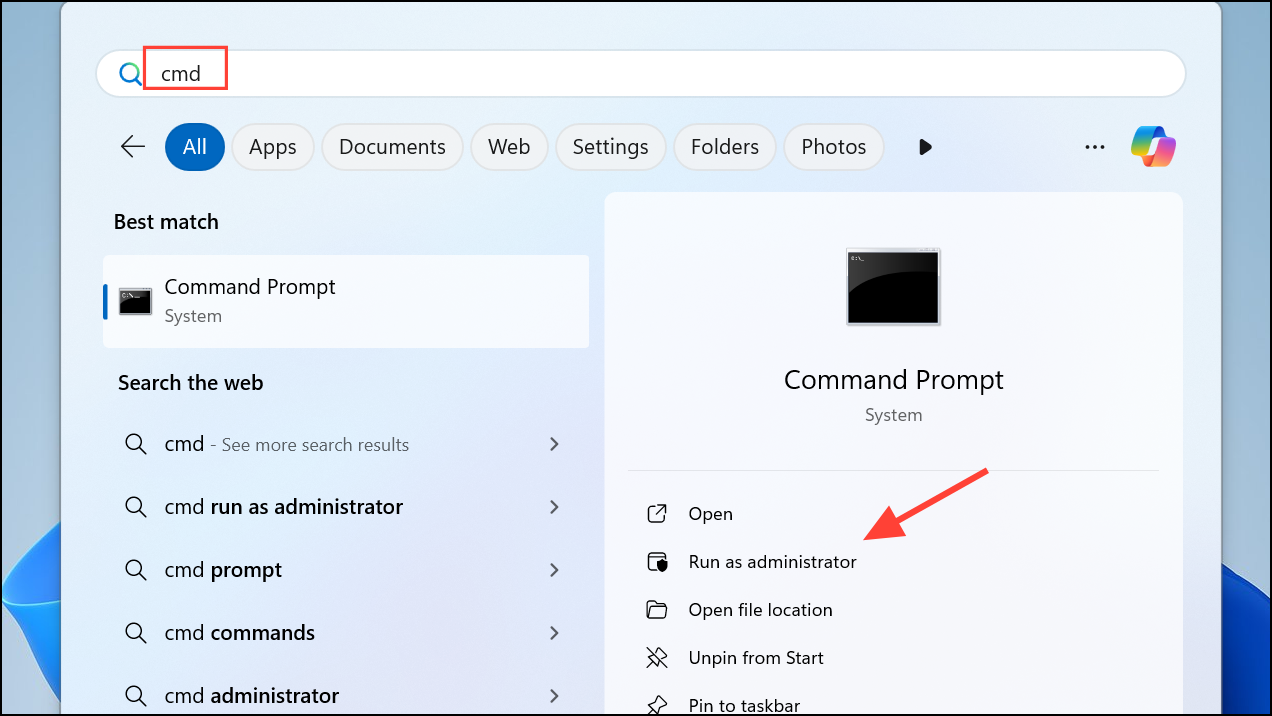
cmd, right-click Command Prompt, and select Run as administrator. Approve the User Account Control prompt.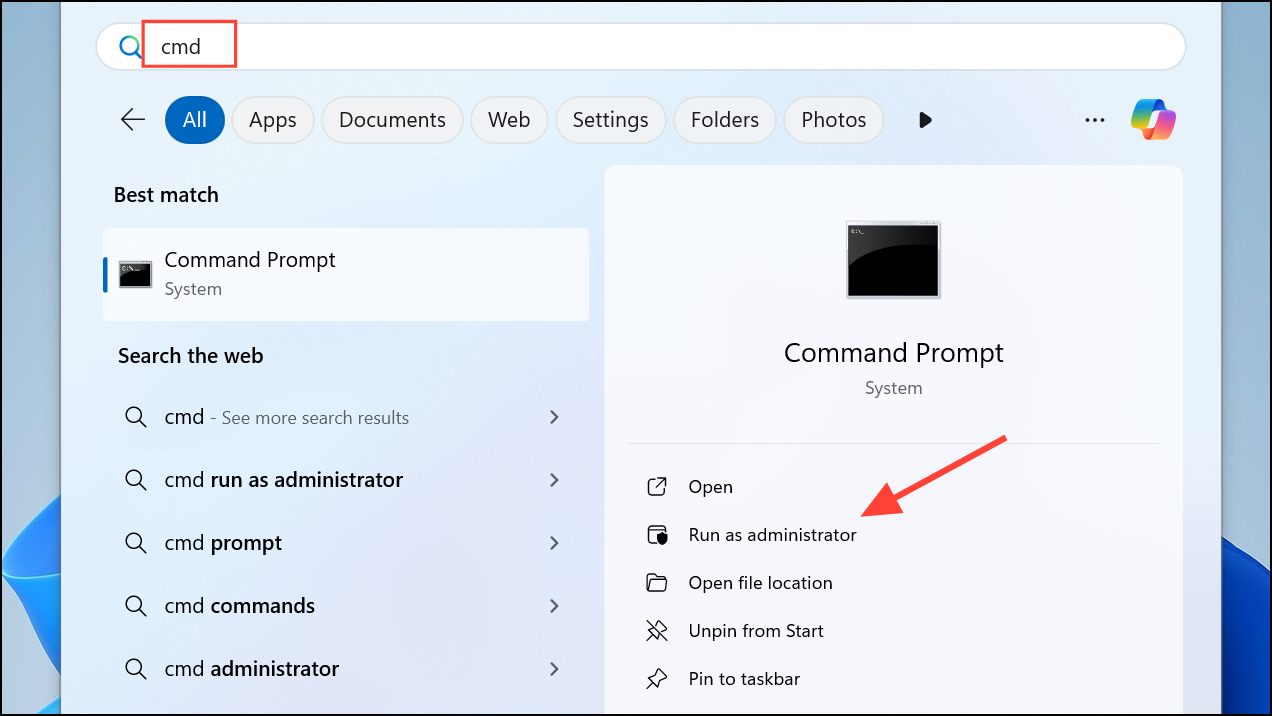
sfc /scannow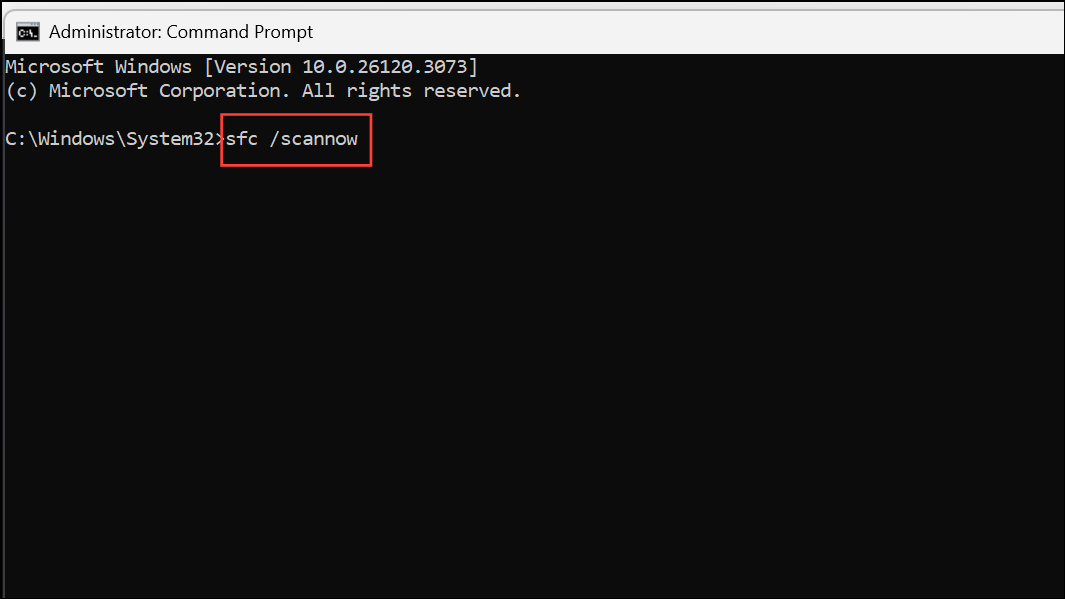
This process may take several minutes. Wait for verification and note if any files were repaired.
dism /online /cleanup-image /restorehealth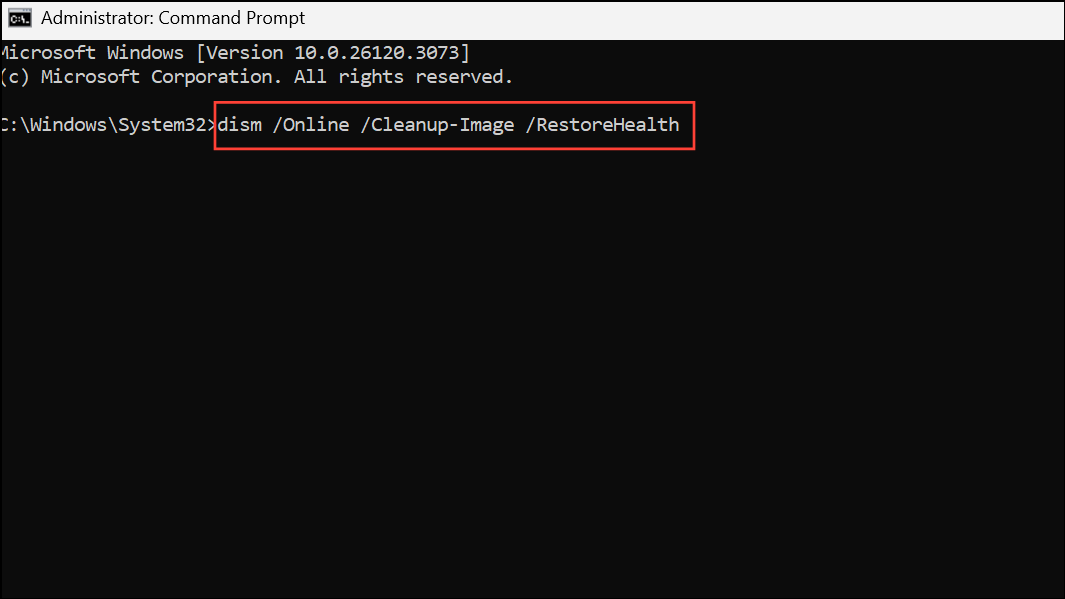
DISM will contact Windows Update servers to download and replace any damaged files. After completion, restart your computer and attempt the upgrade again.
Check for Disk Errors
File system errors or bad sectors on your hard drive can interrupt the upgrade process. Running a disk check identifies and repairs these issues.
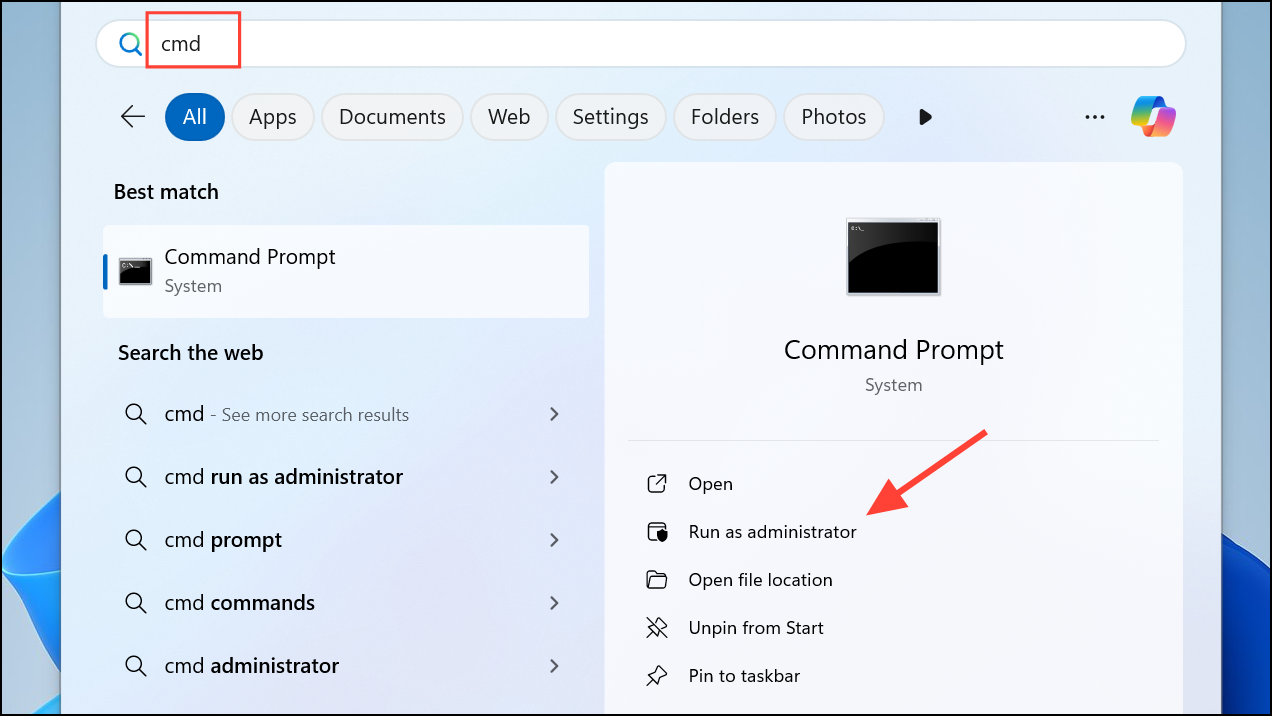
chkdsk /r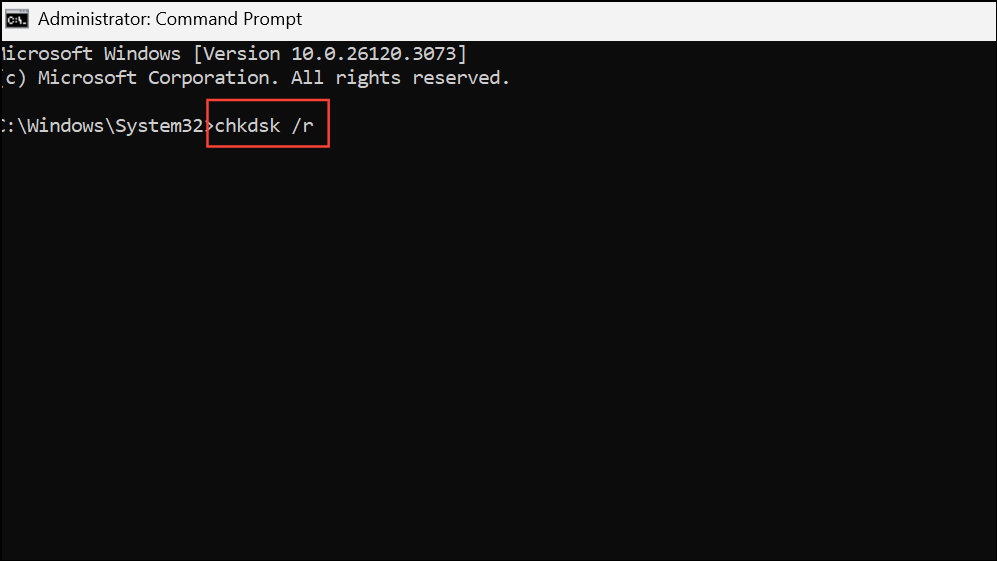
If prompted, type Y to schedule the scan for the next restart. Reboot your computer to allow CHKDSK to scan and repair your disk. Once complete, try upgrading Windows 11 again.
Reinstall Visual C++ Redistributables
Missing or outdated Visual C++ redistributable packages can trigger the 0xe06d7363 error, especially during application launches or system upgrades.
appwiz.cpl in the search box, and press Enter to access Programs and Features.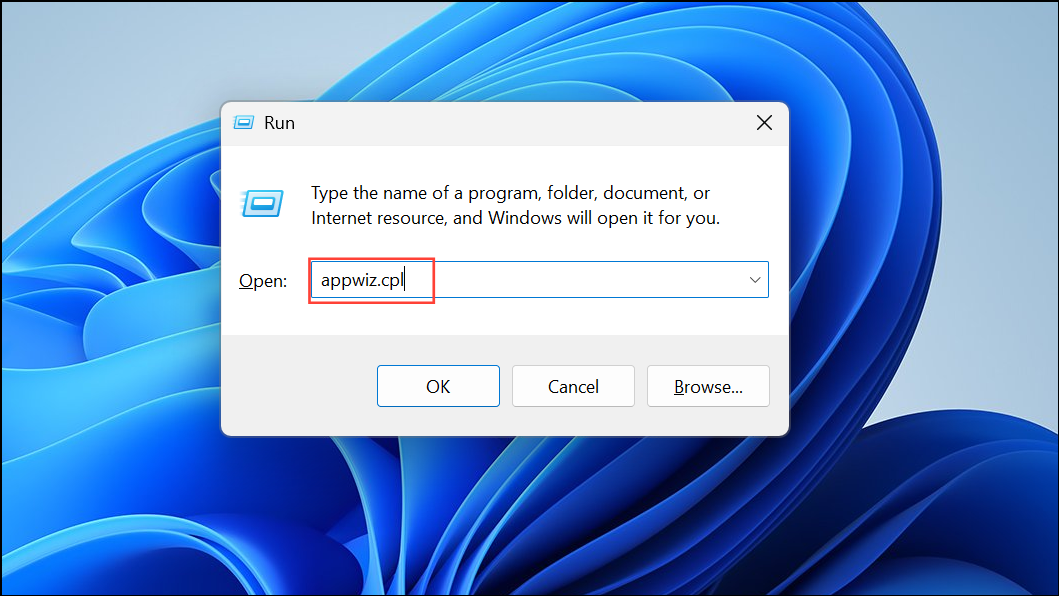
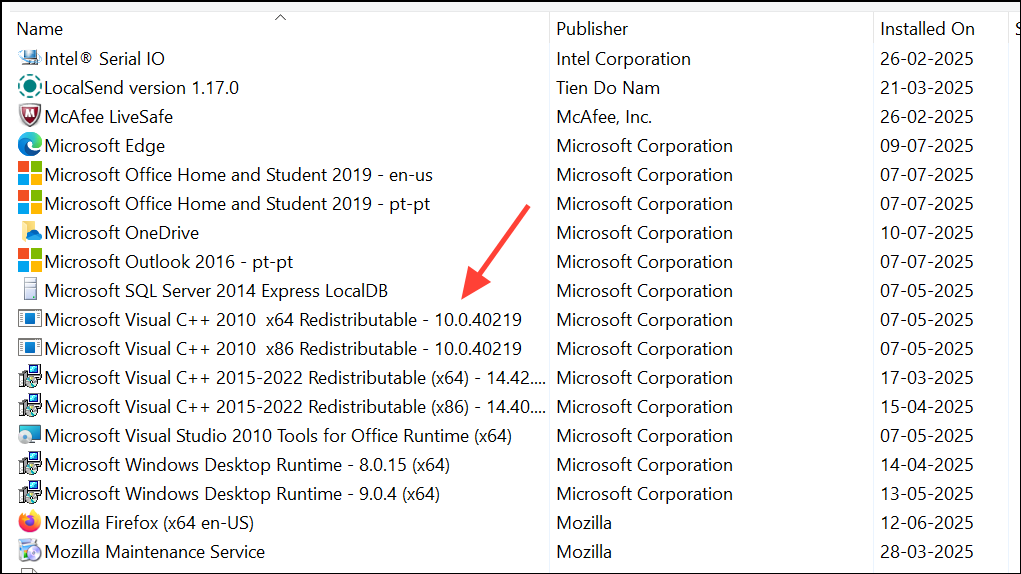
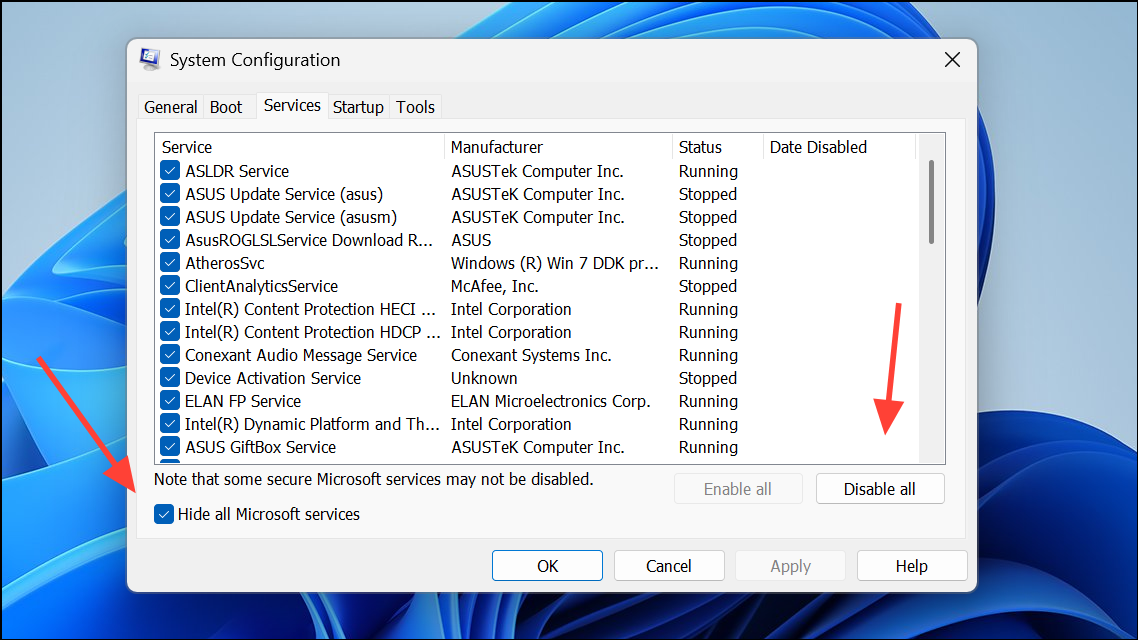
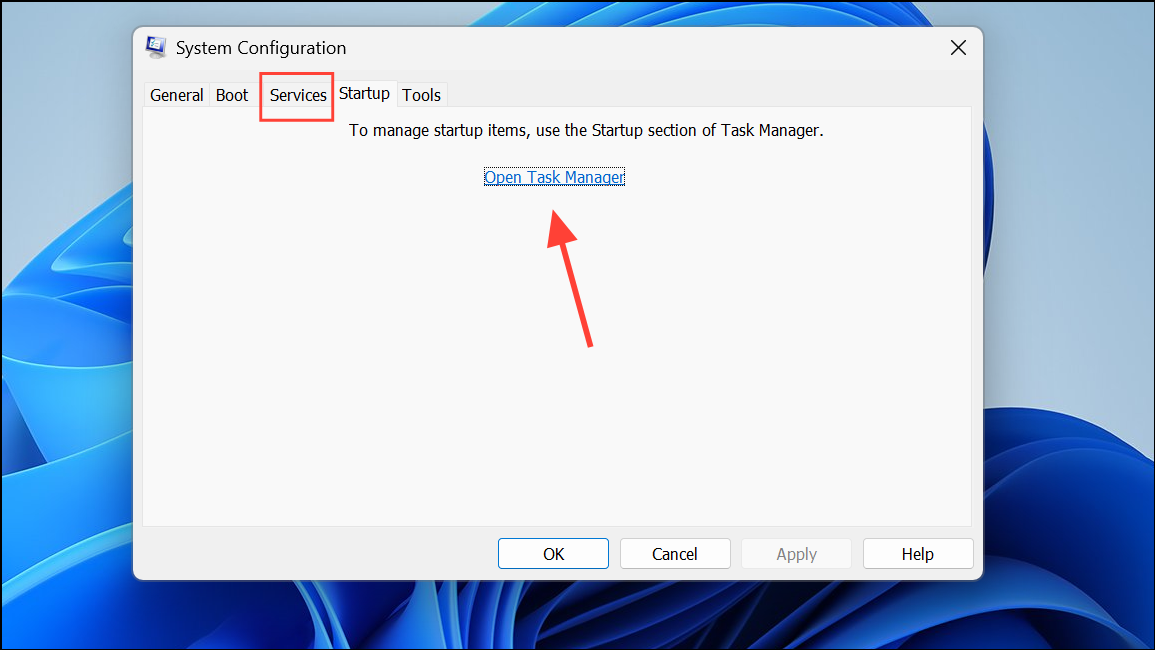
Perform a Clean Boot to Identify Software Conflicts
Third-party applications and background services can interfere with Windows upgrades, causing error 0xe06d7363. Performing a clean boot helps isolate problematic software.
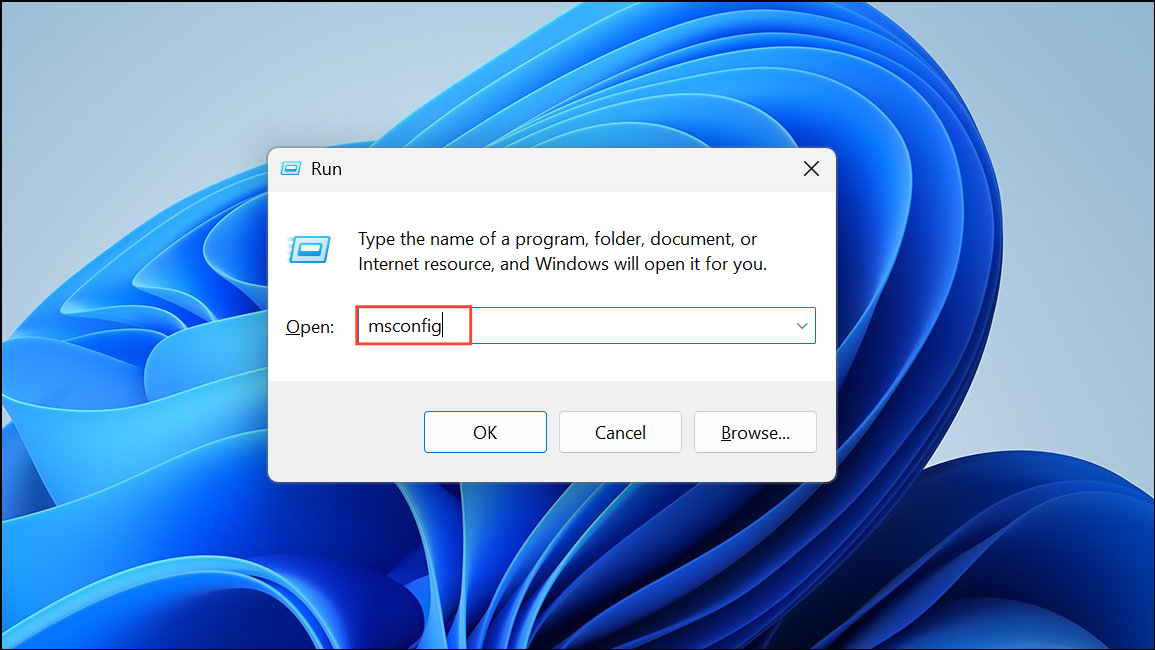
Reset Windows Update Components
Corrupted Windows Update components can block upgrade progress. Resetting these components can resolve persistent update errors.
net stop bits
net stop cryptsvc
net stop wuauserv
net stop msiserver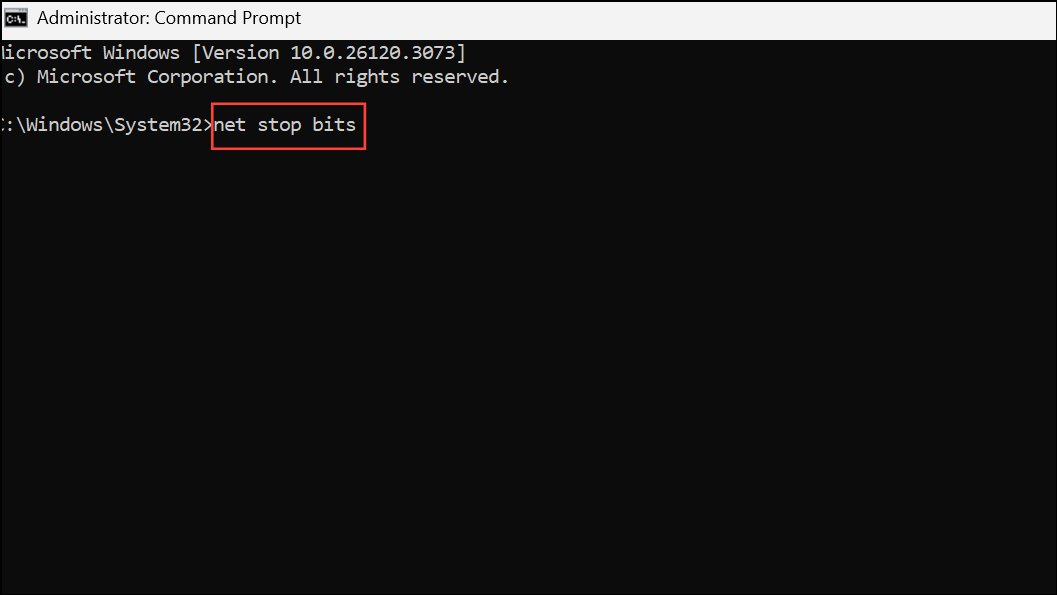
Ren C:\Windows\SoftwareDistribution SoftwareDistribution.old
Ren C:\Windows\System32\catroot2 Catroot2.oldnet start bits
net start cryptsvc
net start wuauserv
net start msiserver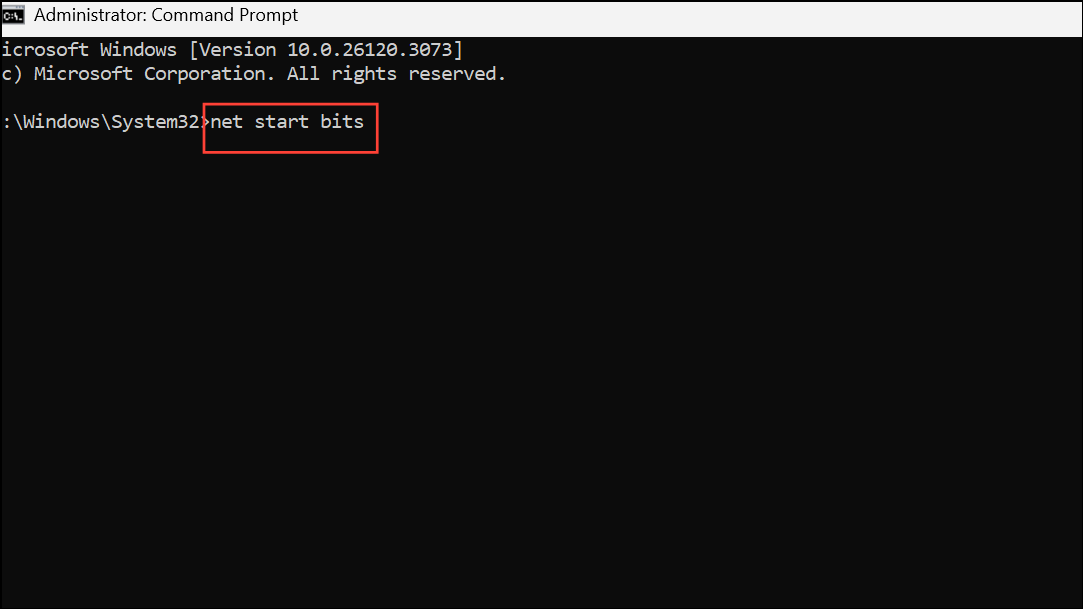
Run the Windows Update Troubleshooter
The built-in Windows Update Troubleshooter can automatically detect and fix issues related to the update process.
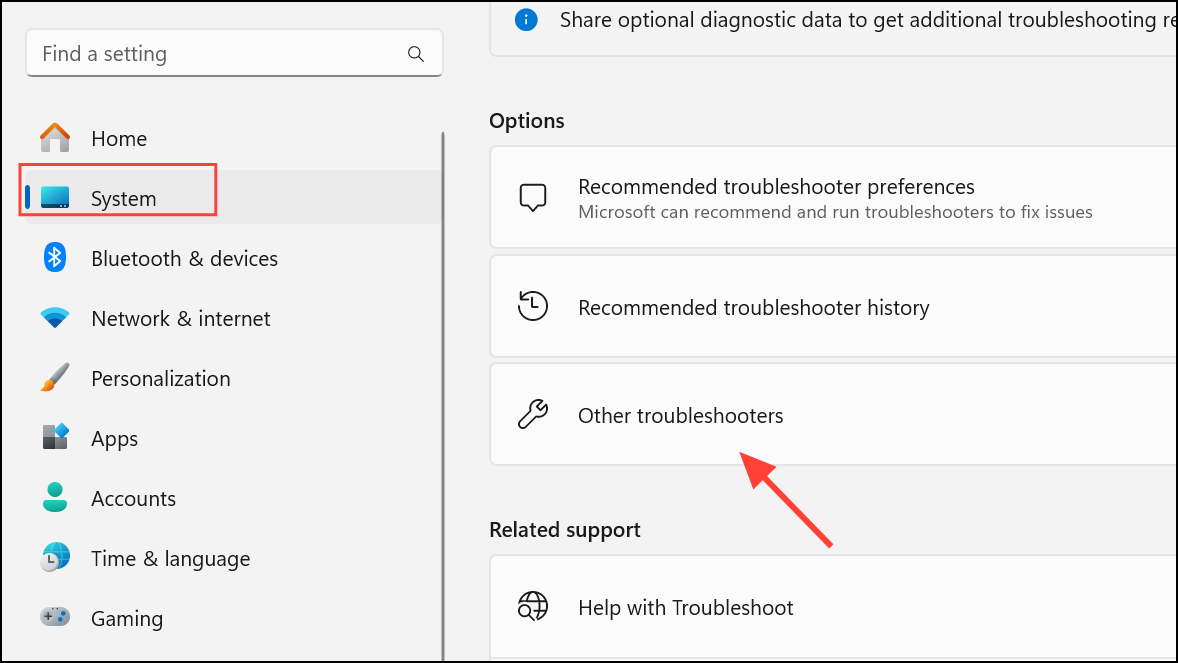
Windows Update troubleshooter and follow the on-screen instructions. Review the results and address any issues it finds.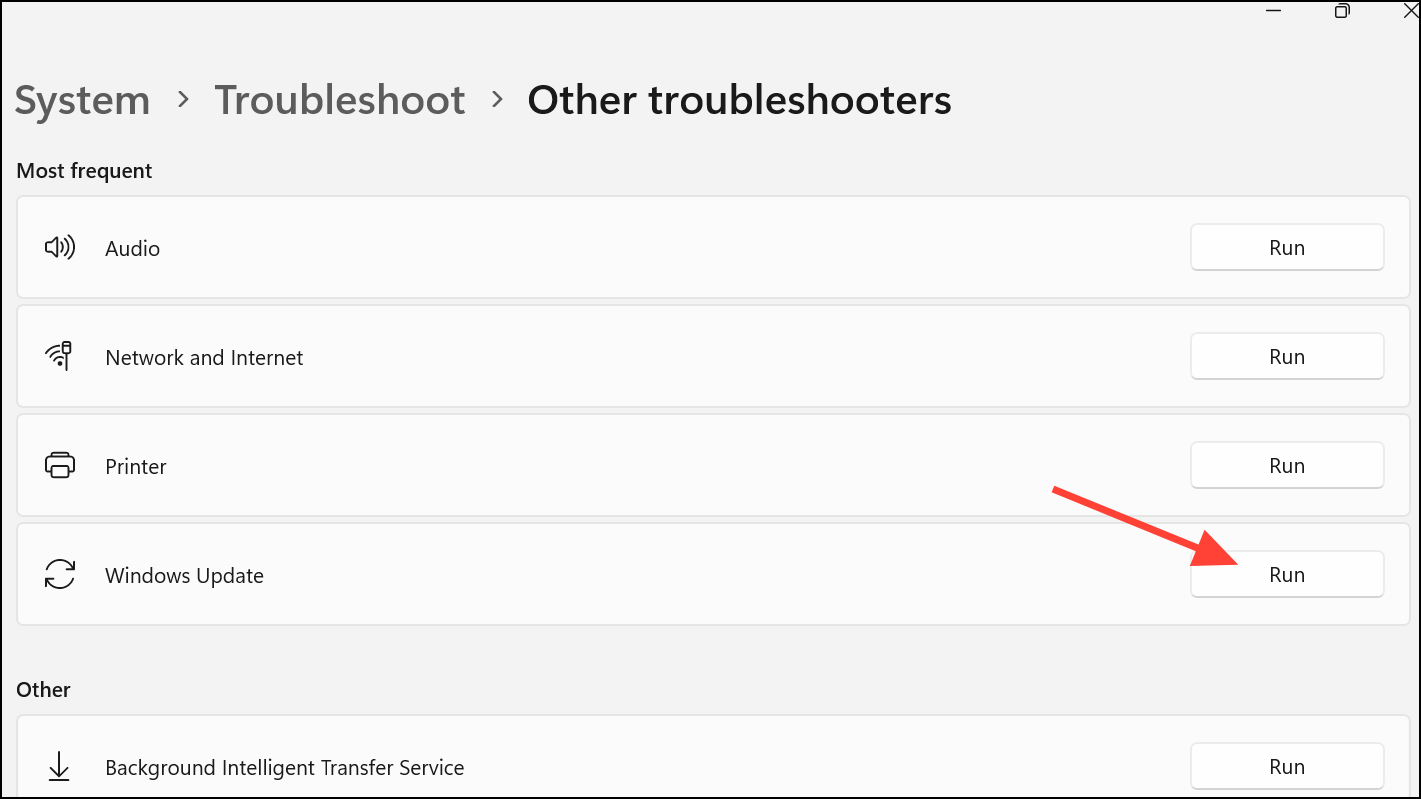
Install Windows 11 via ISO or In-Place Upgrade
If standard troubleshooting does not resolve the error, performing an in-place upgrade using the official Windows 11 ISO can overwrite problematic system files while preserving your data and applications.
Additional Checks and Maintenance Tips
- Check Device Manager for hardware issues. Open Device Manager and ensure there are no yellow warning icons on any devices.
- Update all device drivers, especially graphics and chipset drivers, as outdated drivers can sometimes cause upgrade failures.
- Scan for malware using reputable antivirus software to rule out malicious interference with system processes.
- Monitor system temperatures and hardware health, as overheating or failing components can disrupt upgrades.
- If you use Insider Preview builds, consider switching update channels (e.g., from Dev to Beta) and applying all pending updates before retrying the upgrade.
Following these steps systematically resolves most instances of upgrade error 0xe06d7363 in Windows 11. If the problem persists, consider seeking help from Microsoft support or relevant technical forums for deeper diagnostics.



