
USB devices failing to connect or showing errors like “USB Device Not Recognized” or “The last USB device you connected to this computer malfunctioned” can disrupt essential tasks, from using a mouse to transferring files. In Windows 11, these problems often stem from driver issues, faulty cables, system updates, or power management settings. Addressing these causes methodically restores device connectivity and system reliability.
Update USB Drivers and Windows System
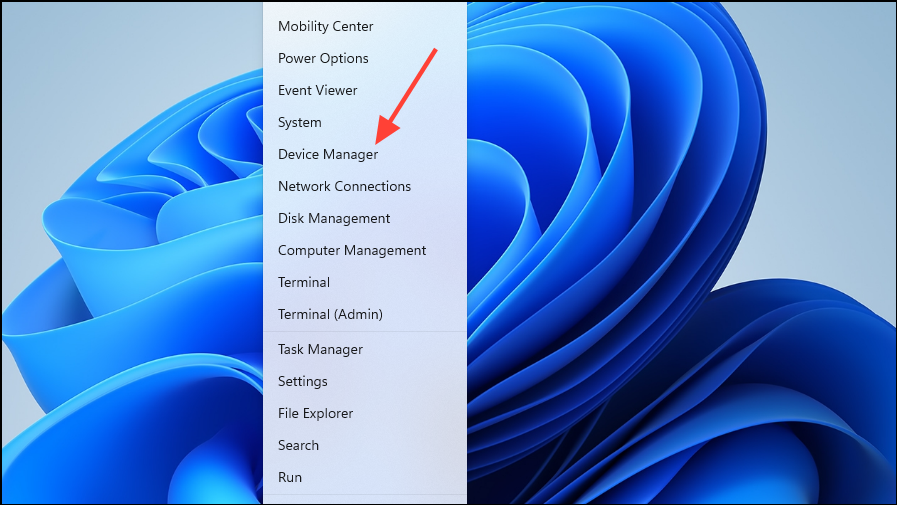
Device Manager by typing it into the Windows search bar and selecting the top result. This utility manages all hardware components and their drivers.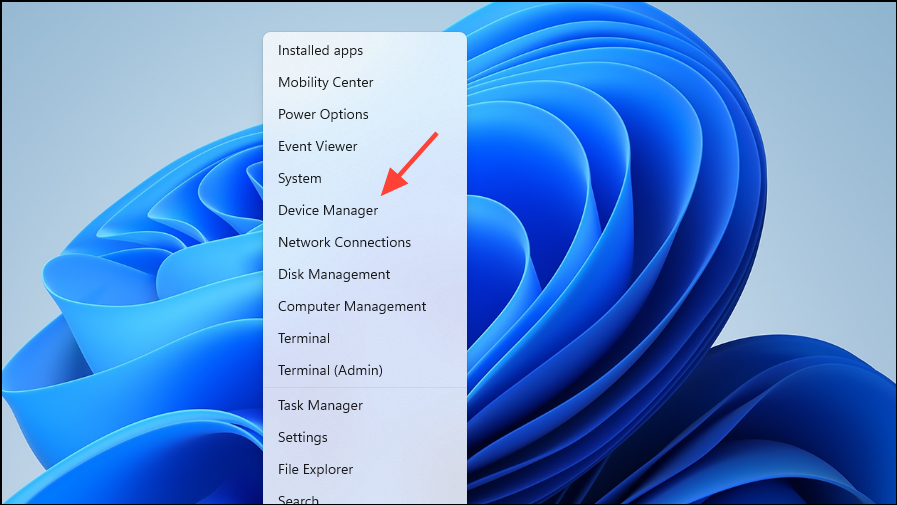
Universal Serial Bus controllers section. Right-click each USB device or controller listed and select Update driver. Choose Search automatically for drivers to let Windows find the latest version. If the automatic search fails, visit your device or motherboard manufacturer’s website to download the correct drivers manually.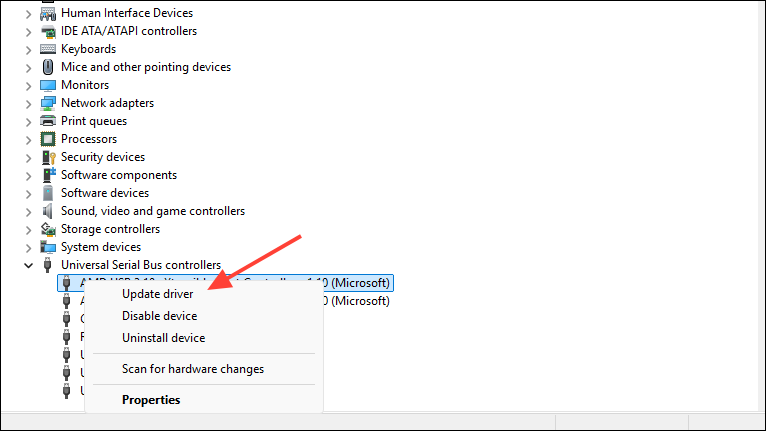
Settings > Windows Update and check for additional updates or driver patches under Advanced options > Optional updates. Install any available updates, especially those related to hardware or USB controllers.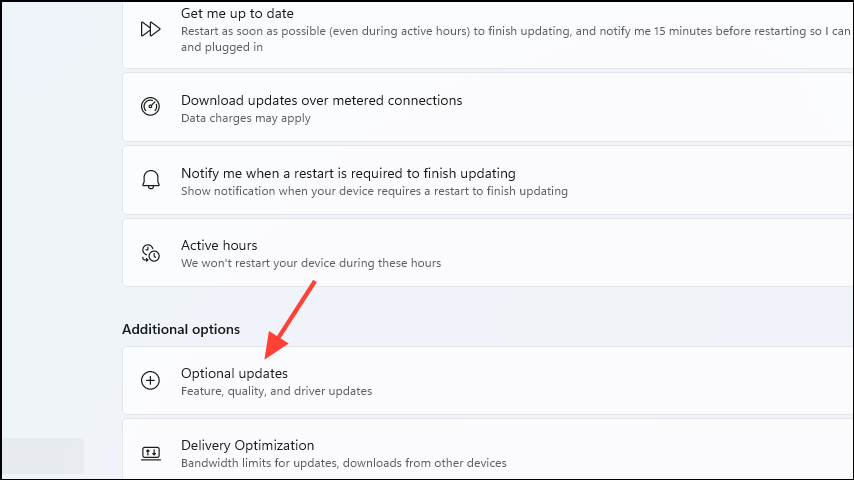
Driver and system updates address compatibility gaps and corrupted files that commonly cause USB ports to stop working, especially after major Windows 11 updates.
Check for Faulty Hardware and Cables
Identifying hardware problems early prevents unnecessary troubleshooting and helps you quickly determine if repairs or replacements are needed.
Adjust Power Management Settings
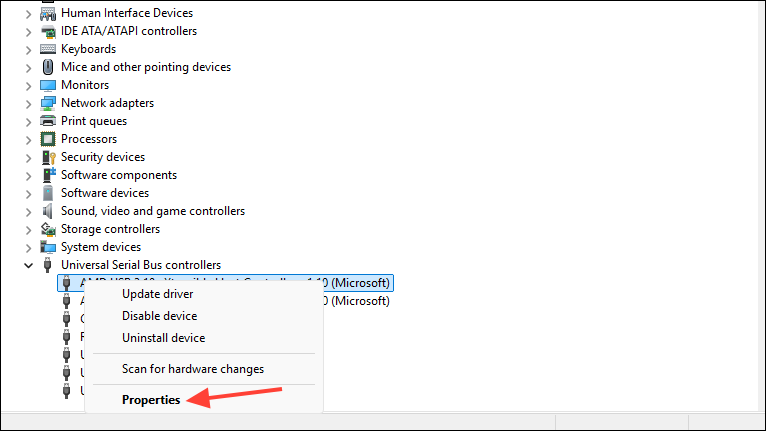
Power Management tab and uncheck Allow the computer to turn off this device to save power. Repeat for all USB Root Hubs. This prevents Windows from disabling USB ports to conserve energy, which can cause devices to disconnect or fail to appear.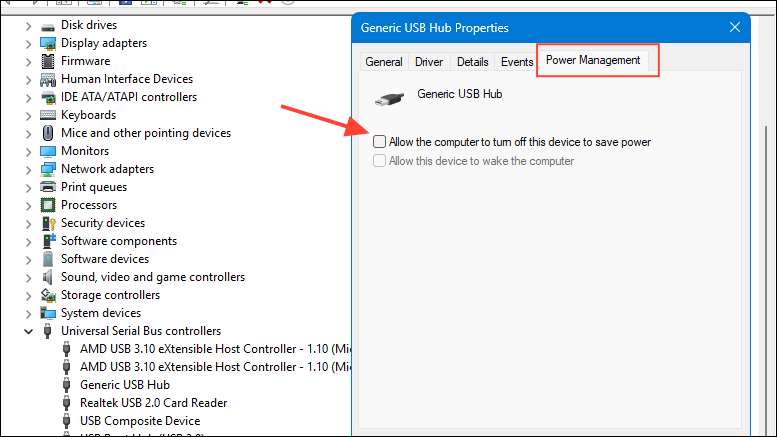
Edit Power Plan in the Start menu, click Change advanced power settings, expand USB settings, then USB selective suspend setting, and set it to Disabled.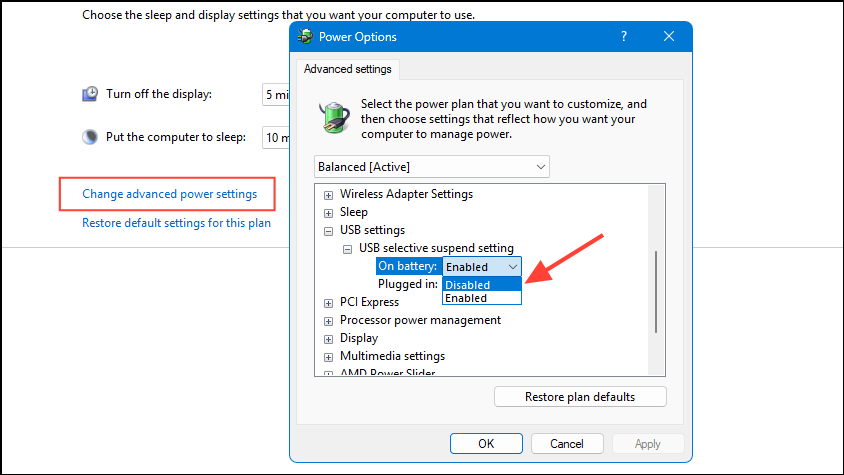
Adjusting power management ensures that USB ports remain active, especially on laptops where aggressive power-saving features sometimes disrupt device connectivity.
Uninstall and Reinstall USB Controllers
Device Manager, expand the Universal Serial Bus controllers section. Right-click each entry (such as USB Root Hub or Generic USB Hub) and select Uninstall device.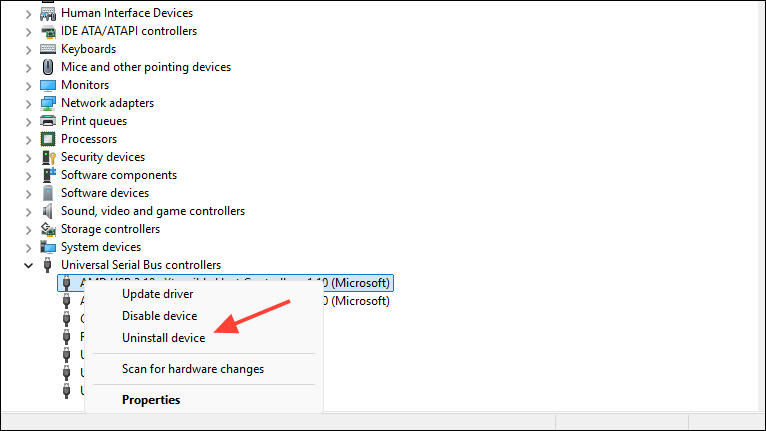
This process resets USB controller configurations and is especially effective when devices intermittently disconnect or fail to appear in File Explorer.
Check BIOS and Firmware Settings
F2, Del, or Esc) as the system starts. The correct key is usually displayed briefly during startup.Integrated Devices, USB Configuration, or similar. Ensure all USB ports are enabled. Save changes and exit the BIOS.Sometimes, USB ports are disabled in BIOS either by default or after firmware updates, which prevents Windows from accessing them regardless of driver status.
Address Issues After Windows Updates
KB5043145), consider rolling back or uninstalling the problematic update. Access the recovery environment by holding F8 or F11 during boot, or by shutting down your computer abruptly three times to trigger recovery mode.Troubleshoot > Advanced options > Uninstall Updates. Choose to uninstall the most recent quality or feature update. Restart your computer and check if USB functionality is restored.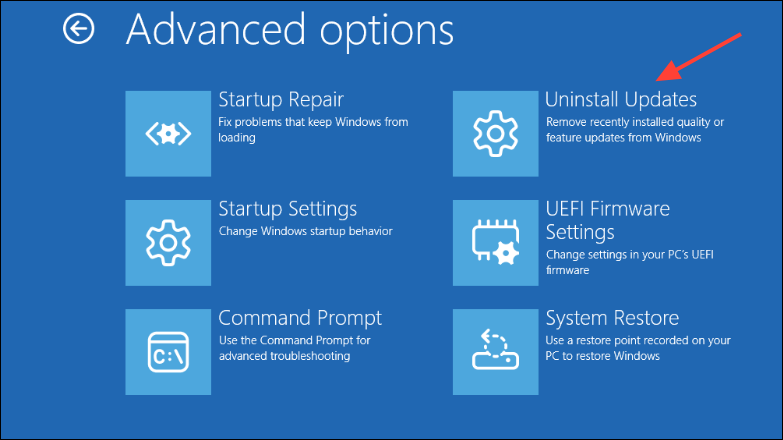
Rolling back updates is a direct way to reverse software changes that interfere with hardware compatibility, especially when widespread issues are reported after specific patches.
Scan for Malware or Viruses
Virus & threat protection in the Windows search bar and open the app. Click Quick scan to check for malware that may corrupt USB drivers or block device access.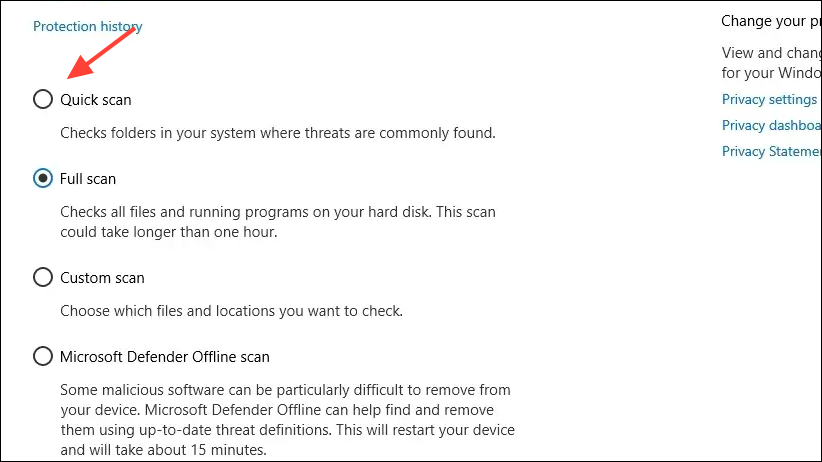
Malware can disrupt hardware drivers and system files, so scanning and removing infections restores normal device operation.
Reset or Refresh Windows 11
Settings > System > Recovery, then choose Reset PC. Select the option to keep personal files but reinstall Windows.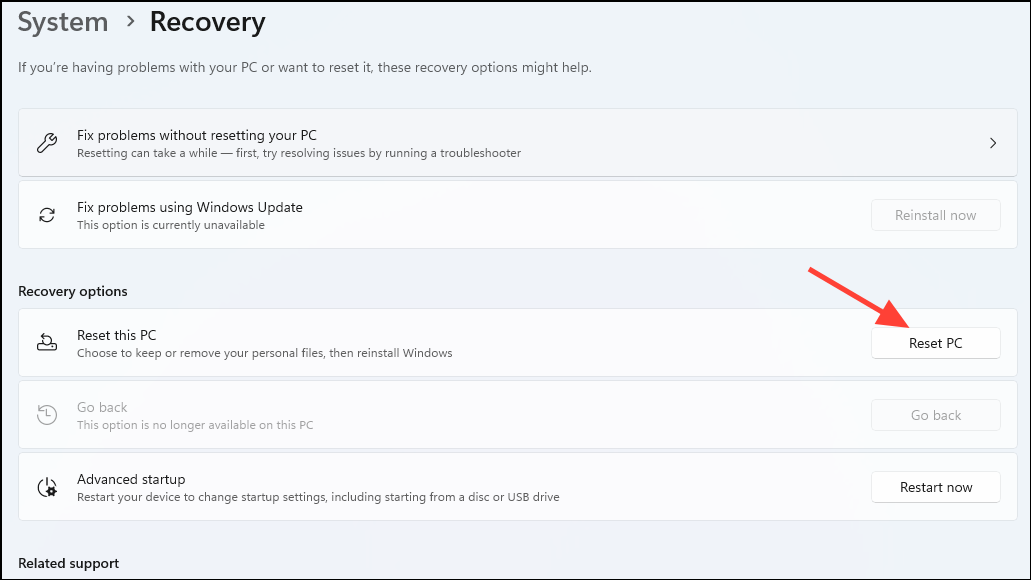
Resetting Windows is a last-resort measure, but it reliably restores hardware compatibility when standard troubleshooting fails.
Regular driver updates and careful attention to cables and ports keep USB devices working smoothly on Windows 11. If problems persist, checking BIOS settings, uninstalling recent updates, or resetting Windows can restore reliable connectivity.



