
Valorant Error Code 1 typically appears during game startup, blocking access and interrupting matches. This error often points to issues with Riot’s servers, corrupted game files, or device connection problems during launch. Addressing the root cause quickly restores access and prevents further disruptions in gameplay.
Restart the Riot Client
Exit. Wait a few seconds to ensure all related processes have ended.Run Valorant as an Administrator
Run as administrator. If prompted, confirm administrator access. Running Valorant with elevated permissions bypasses certain Windows restrictions that could prevent the game from starting or communicating with system services.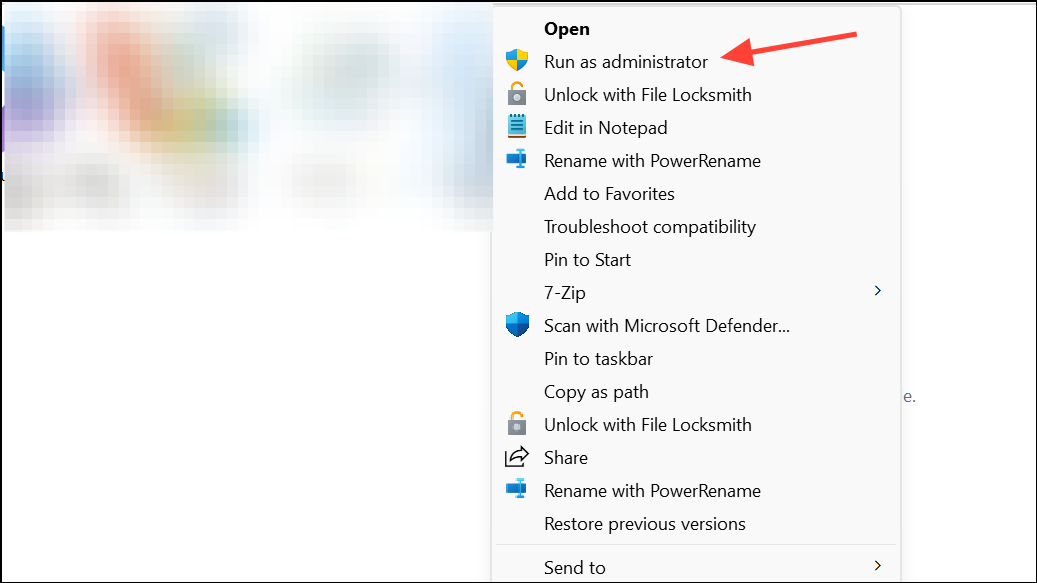
Properties, go to the Compatibility tab, and check Run this program as an administrator. Click Apply and OK to save the setting.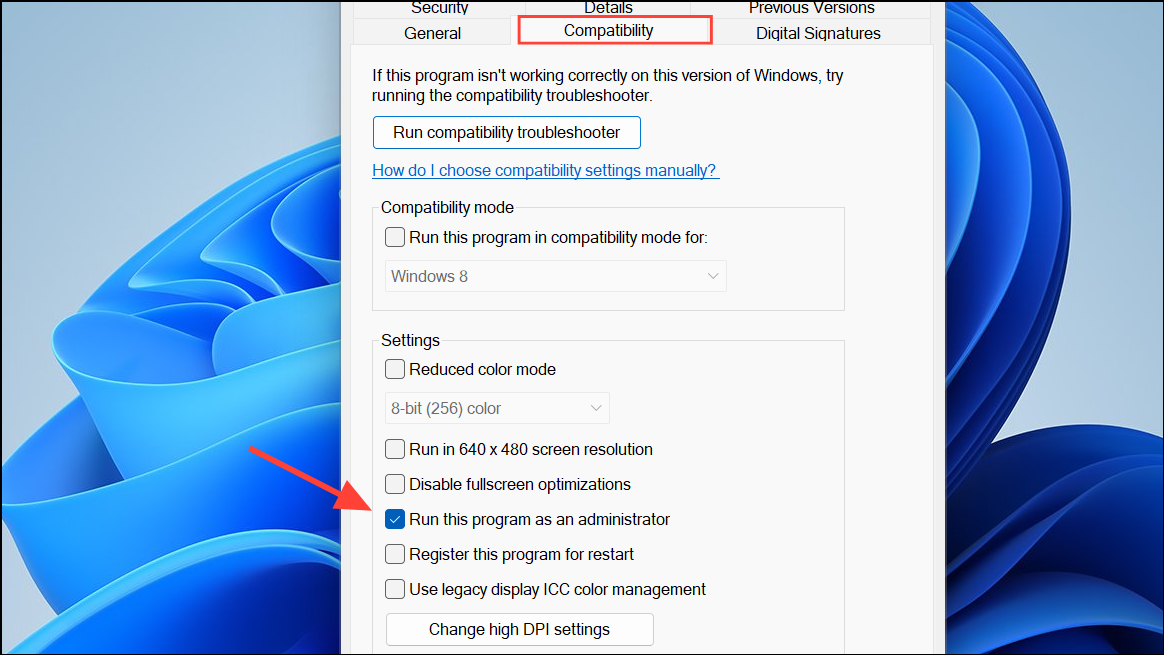
Update Graphics Drivers
Outdated or corrupted graphics drivers can cause Valorant Error Code 1.
Drivers section, and click Check for updates. For AMD cards, use the official AMD software to check for updates.Device Manager, expand Display adapters, right-click your GPU, and select Update driver. Keeping drivers current improves compatibility and reduces the risk of launch errors.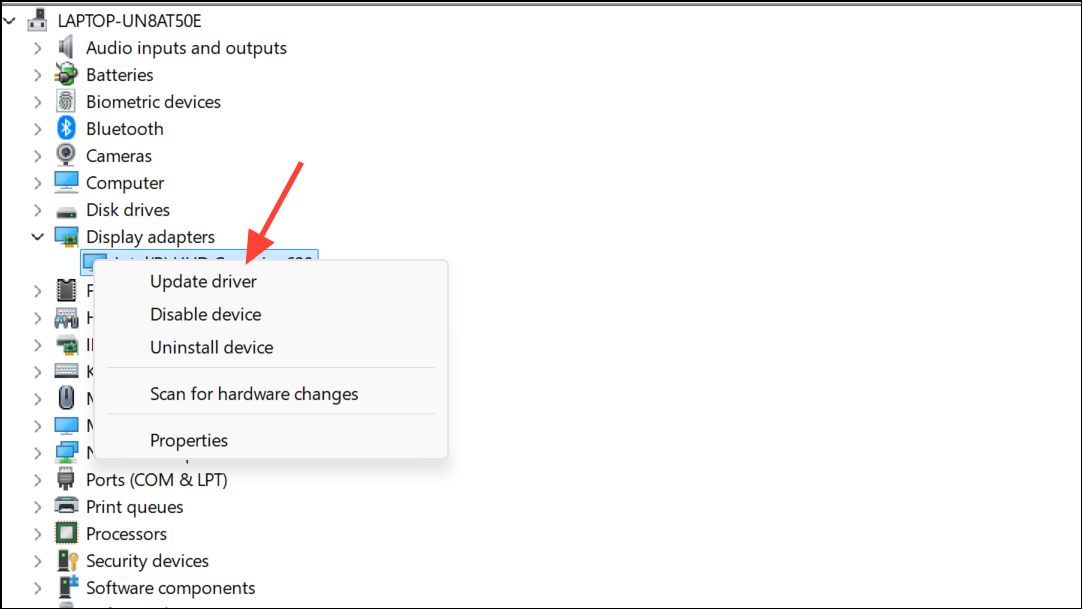
Reinstall Valorant and Riot Vanguard
If restarting and updating drivers do not resolve the error, a clean reinstall of Valorant and Riot Vanguard may be necessary.
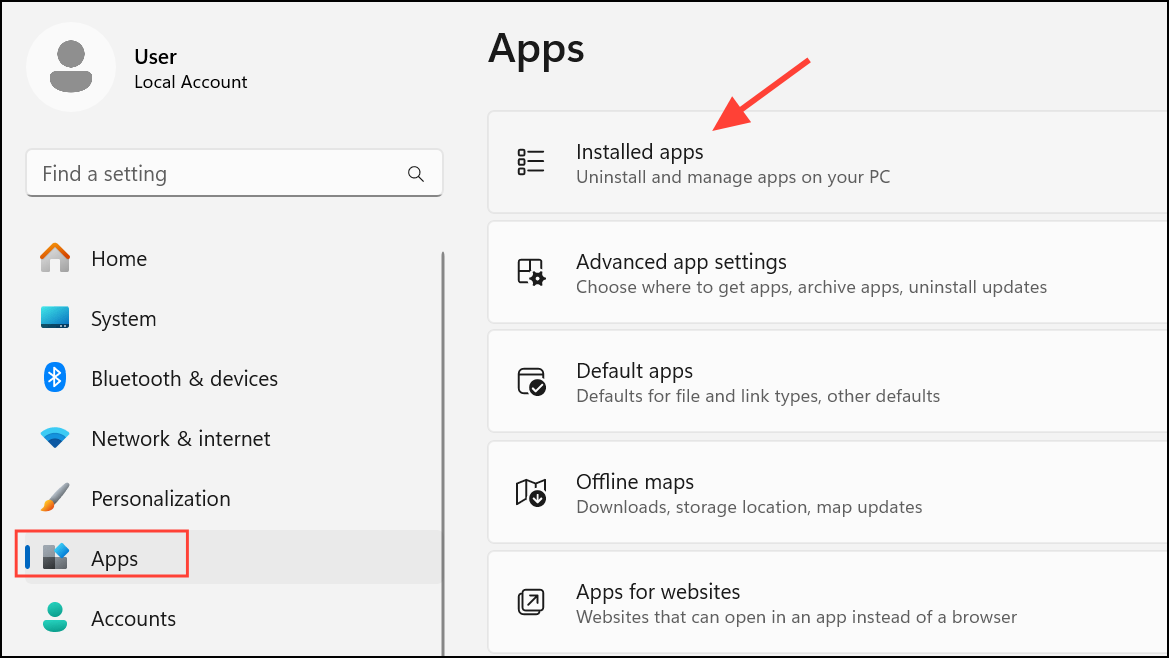
Windows + R, type %appdata%, and delete the Riot Games folder. Repeat for %LocalAppData%\Riot Games and %ProgramData%\Riot Games.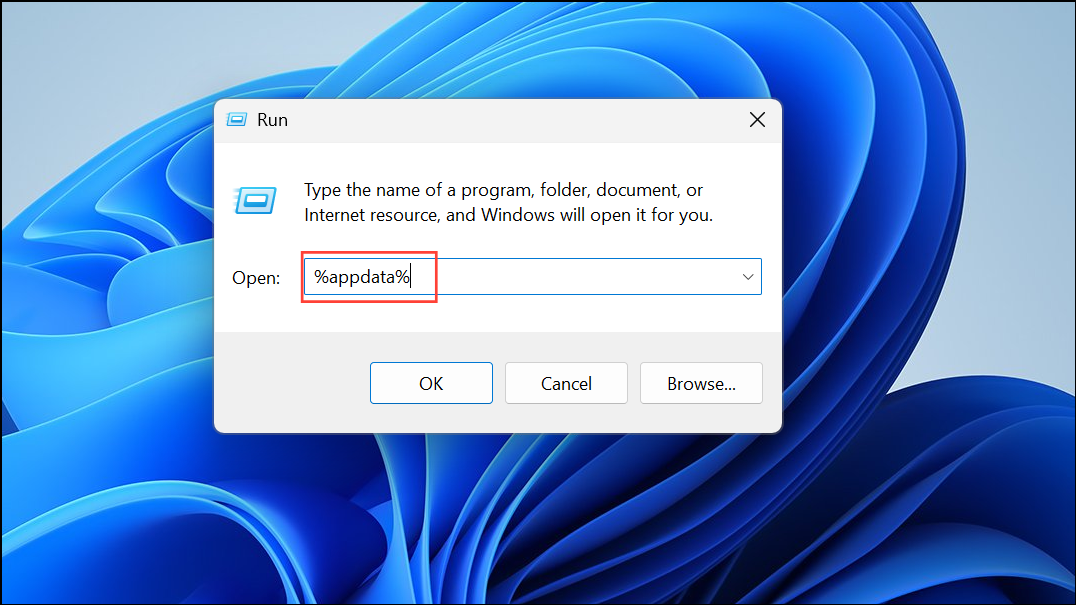
Check for Network and System Conflicts
Network issues or conflicting software can trigger Error Code 1.
Advanced: Reinstall Windows Without Data Loss
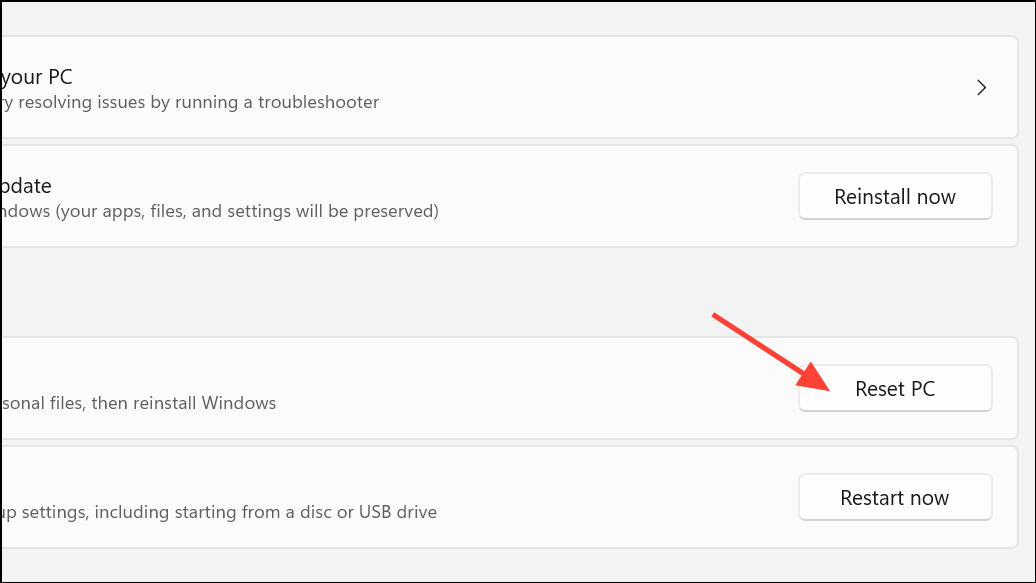
If all standard solutions fail and you continue to see Error Code 1, you can attempt a non-destructive Windows reinstall. This process refreshes system files without erasing your personal data. Search for Reset this PC in Windows settings, click Reset PC, select Keep my files, and follow the instructions. After the reset, reinstall Valorant and Riot Vanguard. This approach addresses deep system corruption that may block game processes.
Contact Riot Games Support
If none of the above methods resolve Error Code 1, contact Riot Games Support through their official website. Submit a detailed support ticket describing your troubleshooting steps and system configuration. The support team can provide tailored assistance and investigate issues beyond standard fixes.
Addressing Valorant Error Code 1 on Windows 11 involves targeted troubleshooting—starting with client restarts and progressing to system-level repairs. Keeping drivers updated and software clean reduces future disruptions and keeps your game running smoothly.



