
Network interruptions on Windows 11 systems often appear as sudden WiFi drops, even when other devices on the same network remain stable. These disruptions can interrupt video calls, gaming sessions, or file downloads, and sometimes require repeated restarts or toggling WiFi settings to temporarily restore connectivity. The following methods address the most effective solutions first, focusing on concrete actions to stabilize your Windows 11 WiFi connection.
Update and Reinstall WiFi Drivers from the Manufacturer
Outdated or incompatible WiFi drivers are a common cause of frequent disconnections on Windows 11. Even if Windows Update or third-party driver tools report the latest version, these may not be fully compatible with your hardware or the latest Windows 11 updates. Downloading and installing drivers directly from your laptop or WiFi adapter manufacturer often resolves persistent issues.
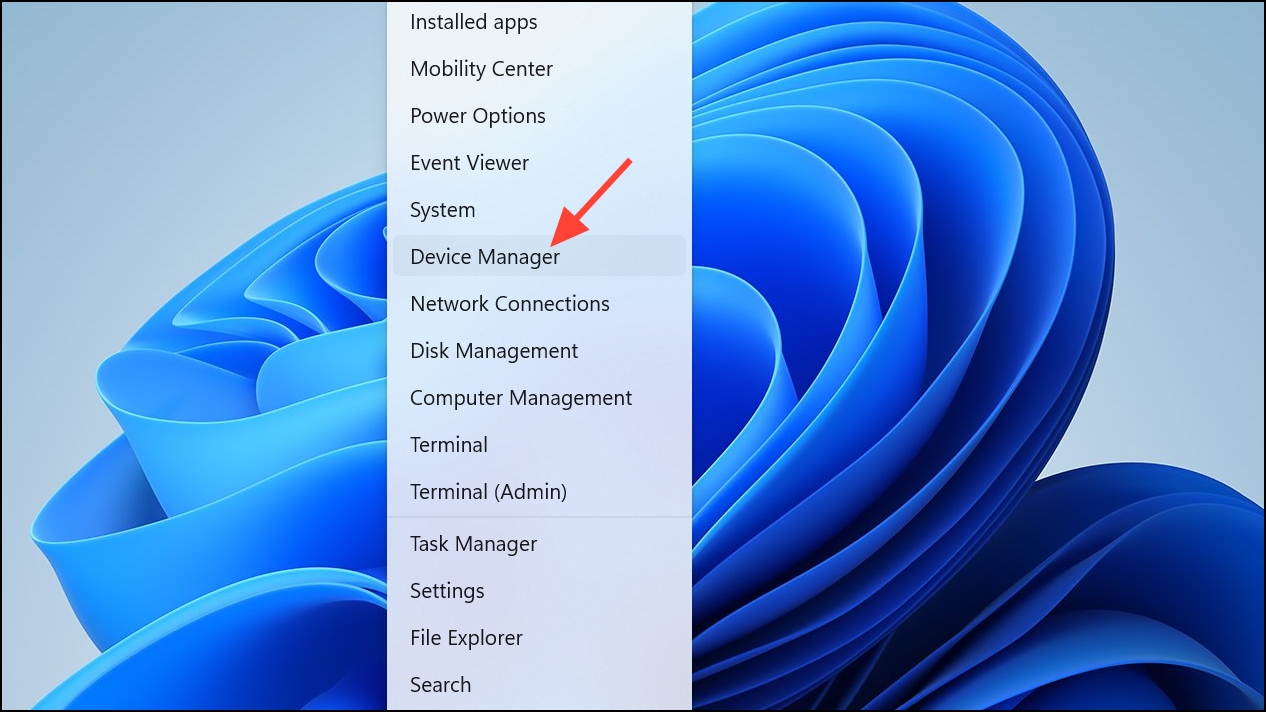
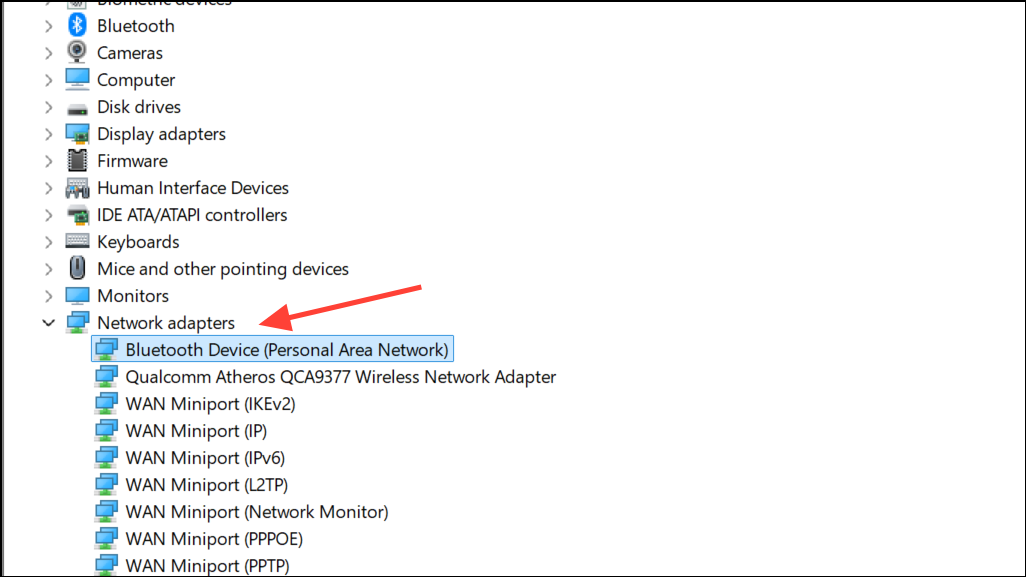
Network adapters, right-click your WiFi adapter, and select Uninstall device. On the confirmation screen, check Delete the driver software for this device if available, then click OK.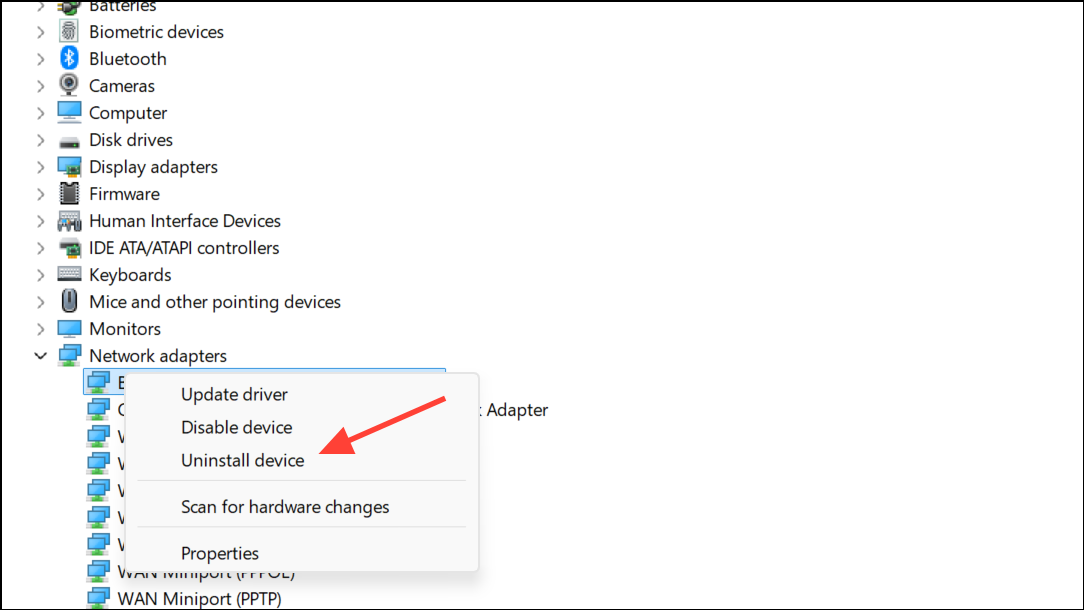
This process removes potentially incompatible drivers and ensures the correct, up-to-date software is managing your device’s wireless connection.
Adjust Power Management Settings for WiFi Stability
Windows 11 may turn off your WiFi adapter to save power, which can lead to unexpected disconnections, especially during periods of inactivity or when the device is plugged in. Disabling this power-saving feature often prevents these drops.
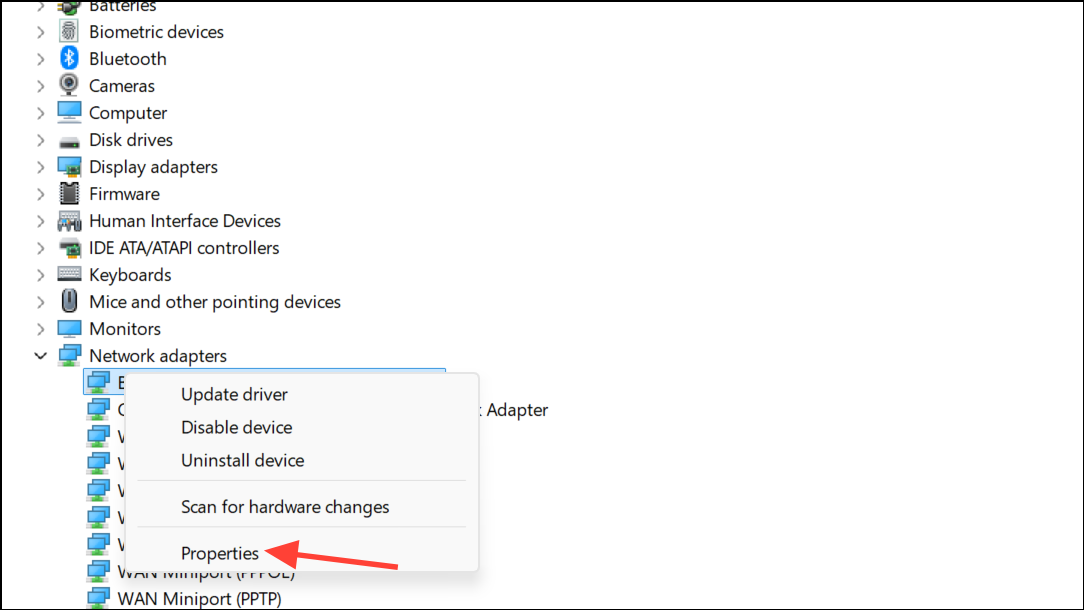
Power Management tab. Uncheck Allow the computer to turn off this device to save power and click OK.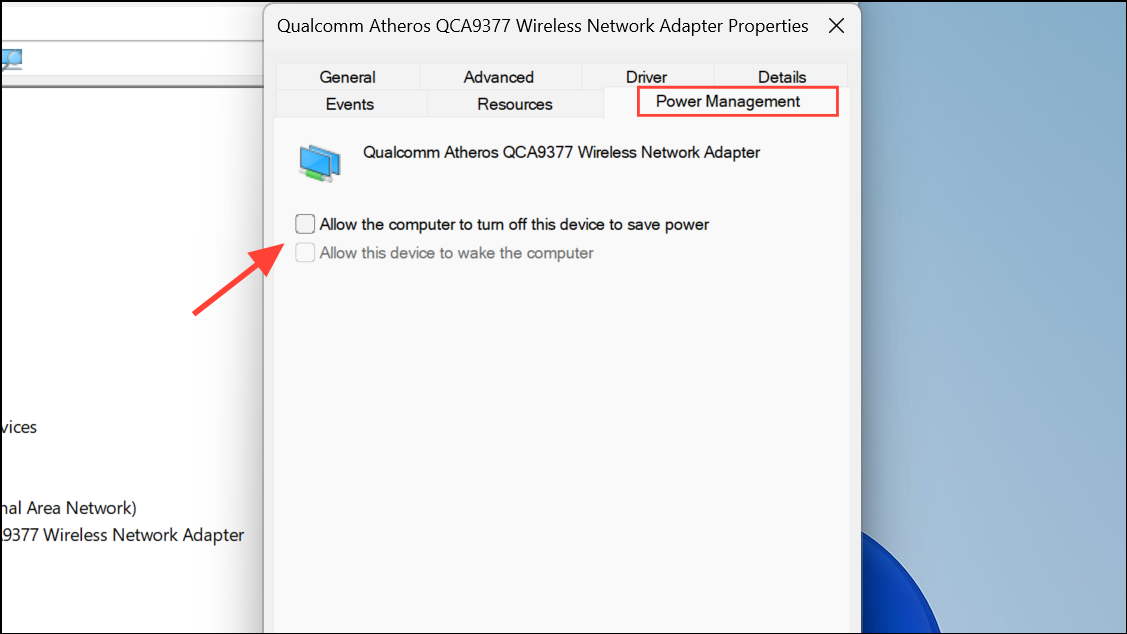
This setting keeps the WiFi adapter active regardless of your power plan, reducing the likelihood of random disconnects.
Change Advanced Adapter Settings in Windows 11
Some WiFi adapters allow you to fine-tune advanced settings such as roaming aggressiveness and wireless mode. Improper configuration can cause frequent WiFi drops, especially in environments with multiple access points or overlapping networks.
Advanced tab. Locate settings such as Roaming Aggressiveness and set it to Medium or Lowest to prevent the adapter from switching networks unnecessarily.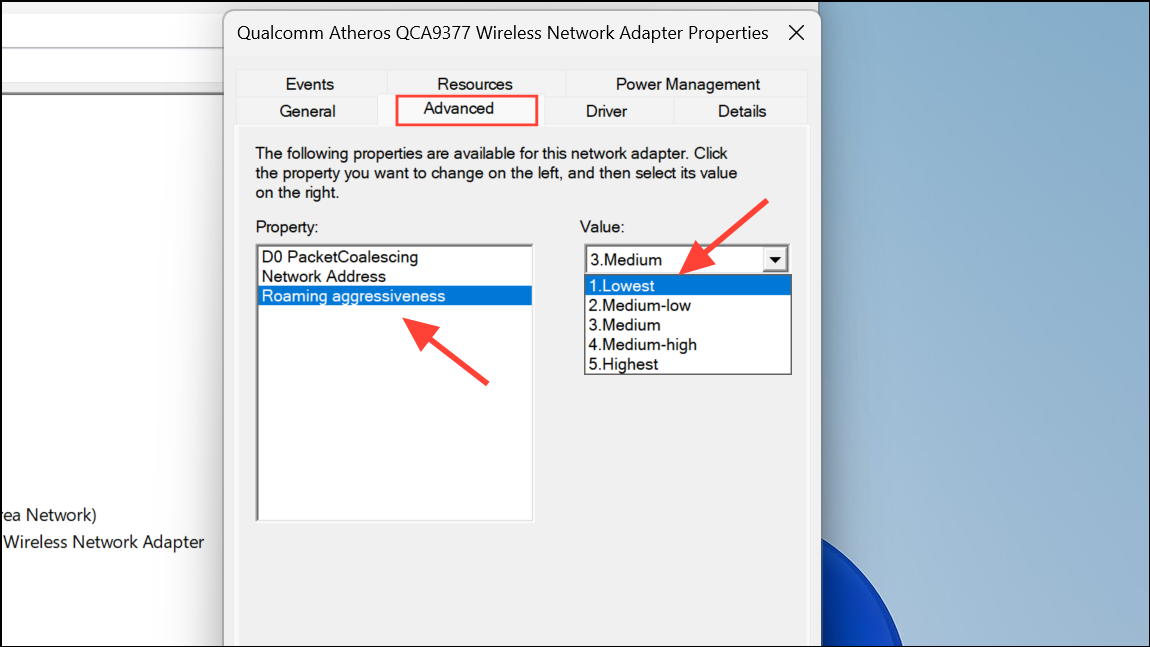
Wireless Mode and ensure it matches your router’s capabilities (for example, set it to 802.11ac if your router supports it).Adjusting these options can improve the adapter’s reliability in maintaining a stable connection.
Reset Network Settings in Windows 11
Corrupted network settings or conflicting configurations may persist after updates or driver changes. Performing a network reset restores all networking components to their default state and reinstalls network adapters, which often resolves persistent WiFi disconnects.
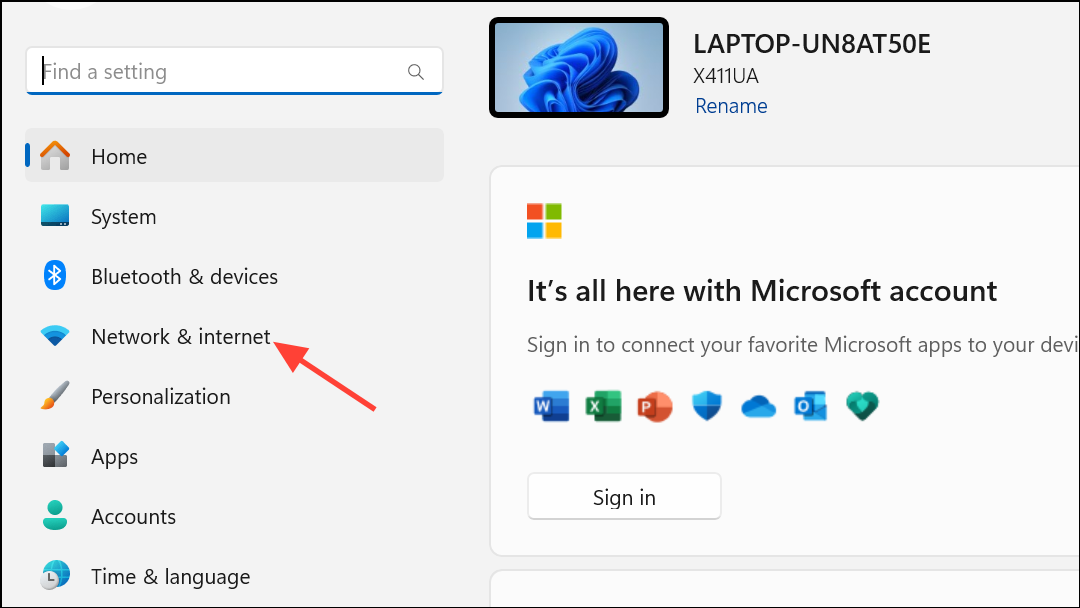
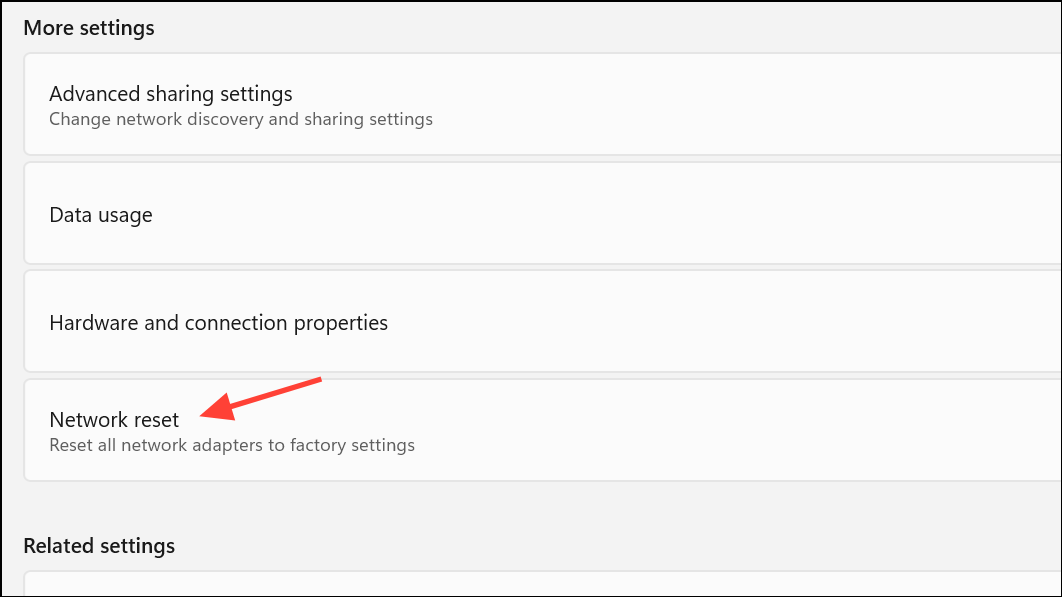
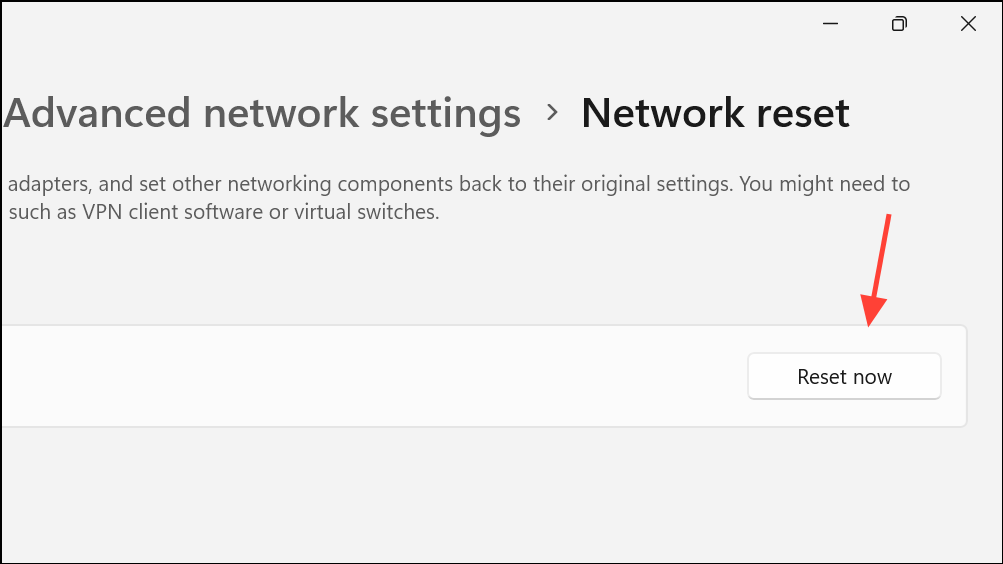
This process removes old configurations and resolves issues caused by conflicting or outdated network profiles.
Check Router and Channel Interference
WiFi interference from nearby networks or devices can cause repeated disconnects. Changing your router’s WiFi channel to one with less interference can improve signal reliability, especially in crowded apartment buildings or offices.
192.168.1.1 or 192.168.0.1.Channel option. Set it to a specific channel (such as 1, 6, or 11 for 2.4GHz) instead of Auto.If possible, use the 5GHz band for less interference and higher speeds, provided your device supports it.
Modify Windows 11 WiFi Sense and Metered Connection Settings
Features like WiFi Sense and Metered Connection can cause unexpected disconnects, especially if Windows tries to switch to a different network or restricts background data usage.
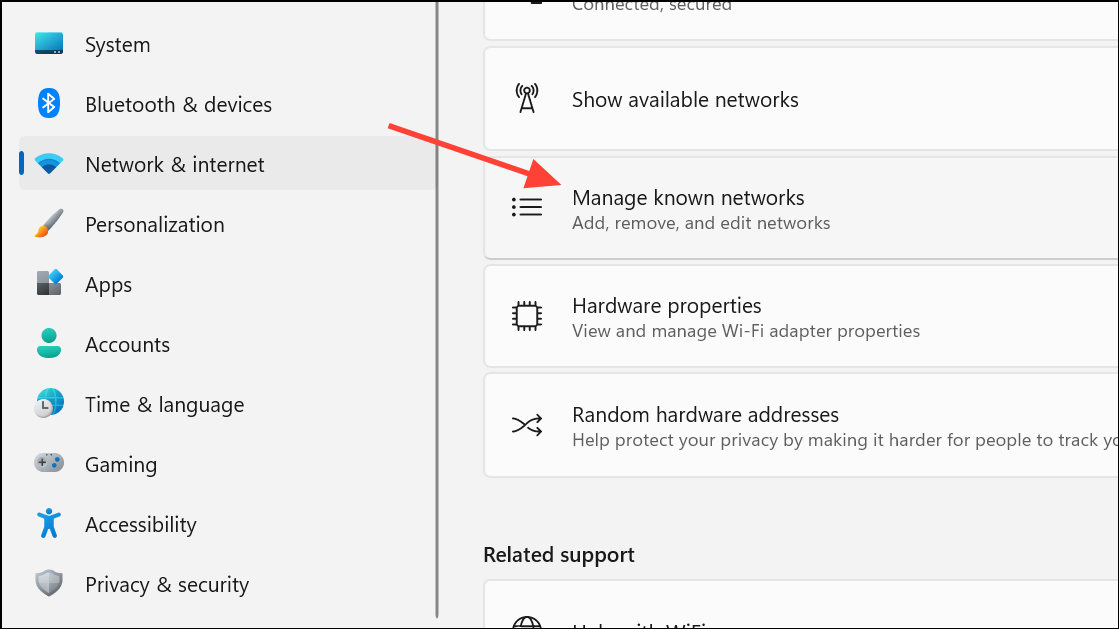
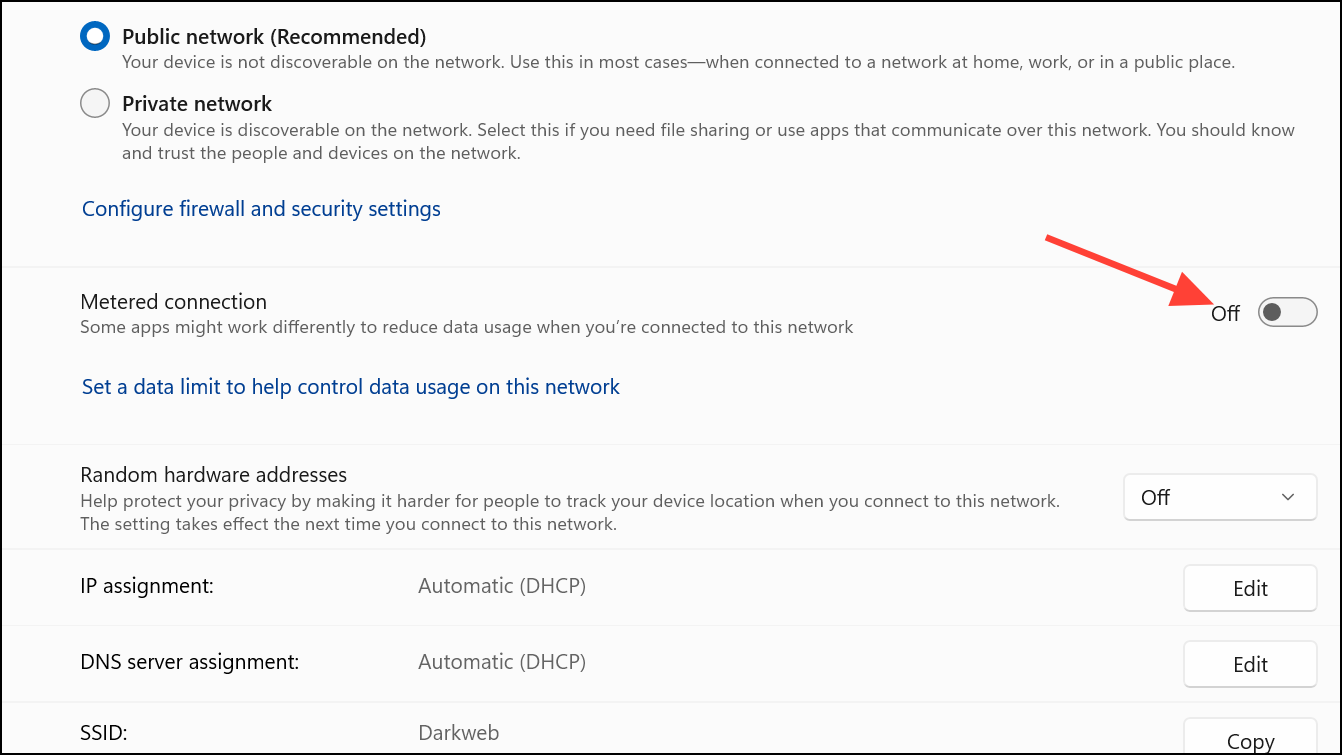
These adjustments stop Windows from automatically disconnecting or switching networks without your input.
Advanced: BIOS and Network Stack Configuration
On rare occasions, network issues may relate to BIOS-level settings, especially after major updates or hardware changes. Some users report success by enabling or modifying the network stack option in BIOS.
F2, Del, or Esc immediately after powering on).This step is more technical and should only be attempted if all software troubleshooting has failed and you are comfortable navigating BIOS menus.
Additional Tips for Persistent Issues
- Temporarily disable VPN or proxy services, as software conflicts can disrupt WiFi connectivity.
- If possible, test with a USB WiFi adapter to rule out hardware failure in your built-in adapter.
- Try connecting to a different router or hotspot to determine if the issue is specific to your network environment.
- Regularly reboot your router and keep its firmware updated for optimal compatibility with newer Windows versions.
Stabilizing WiFi on Windows 11 typically involves a mix of driver updates, power management tweaks, and router adjustments. If connection drops persist after these steps, hardware replacement or professional support may be necessary, but most users regain reliable connectivity by following these concrete solutions.



