

Windows 11 24H2 introduces several system improvements, but some users report random freezing and stuttering issues, especially during routine tasks like typing in VS Code or browsing the web. These freezes typically manifest as delayed text input, screen stuttering, or rendering glitches where parts of the screen fail to update properly. Often, these symptoms point to graphics driver conflicts, incompatible settings, or problematic system updates. Here are the most effective methods to fix Windows 11 24H2 freezing randomly.
Update Your Graphics Card Drivers
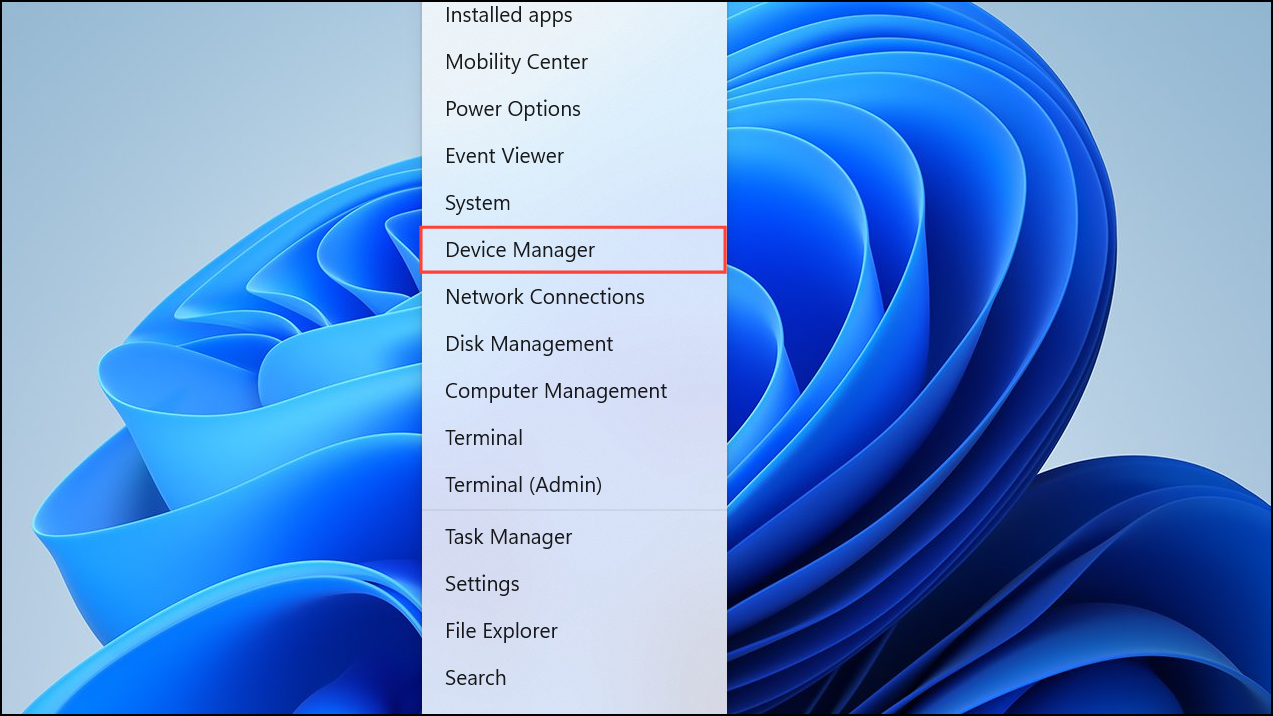
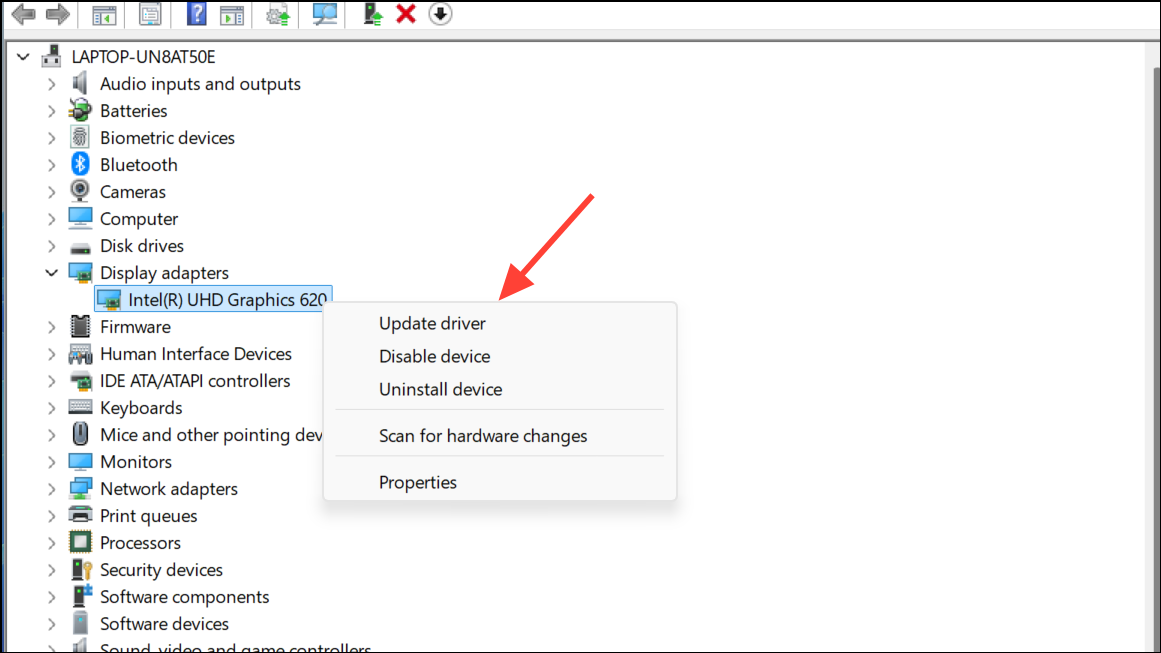
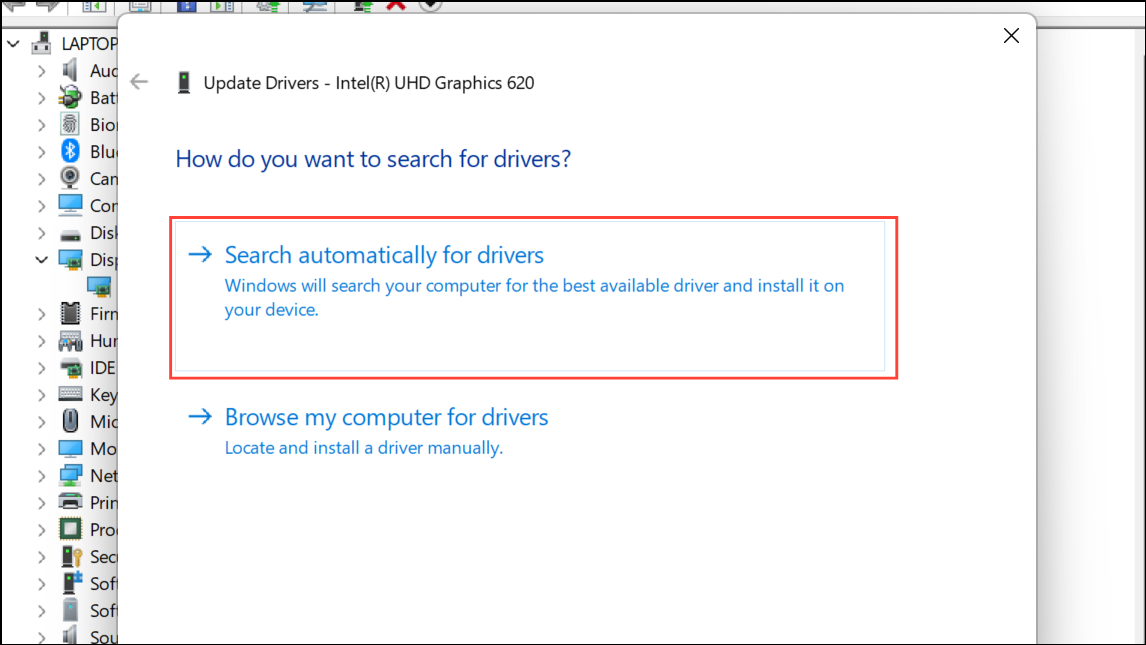
Outdated or incompatible graphics drivers frequently cause freezing and rendering issues. Updating your GPU drivers ensures compatibility with Windows 11 24H2 and often resolves these glitches.
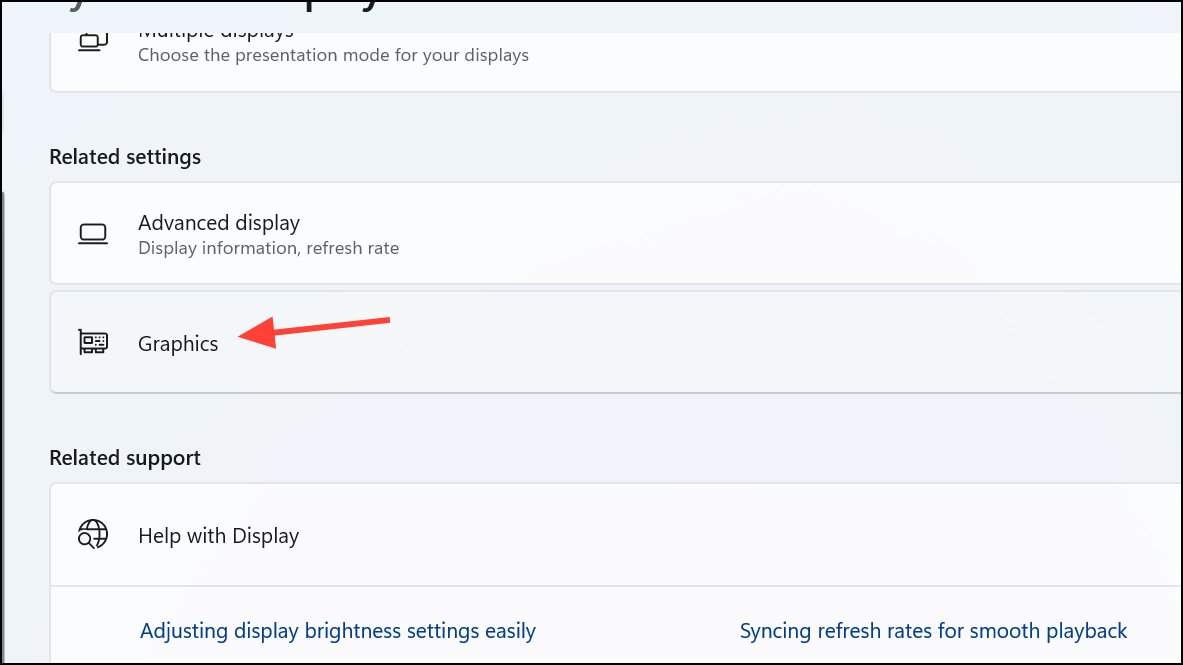
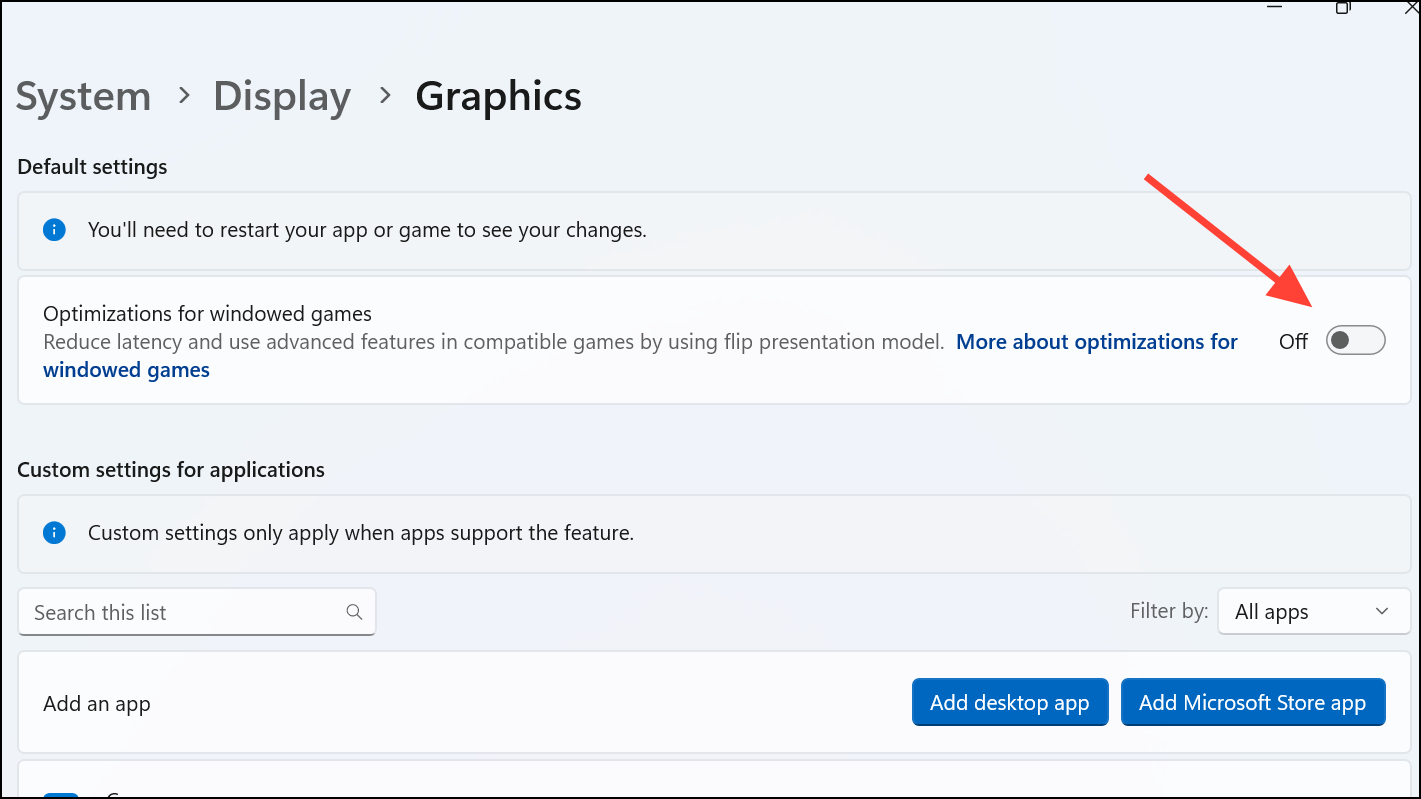
Disable Optimizations for Windowed Games
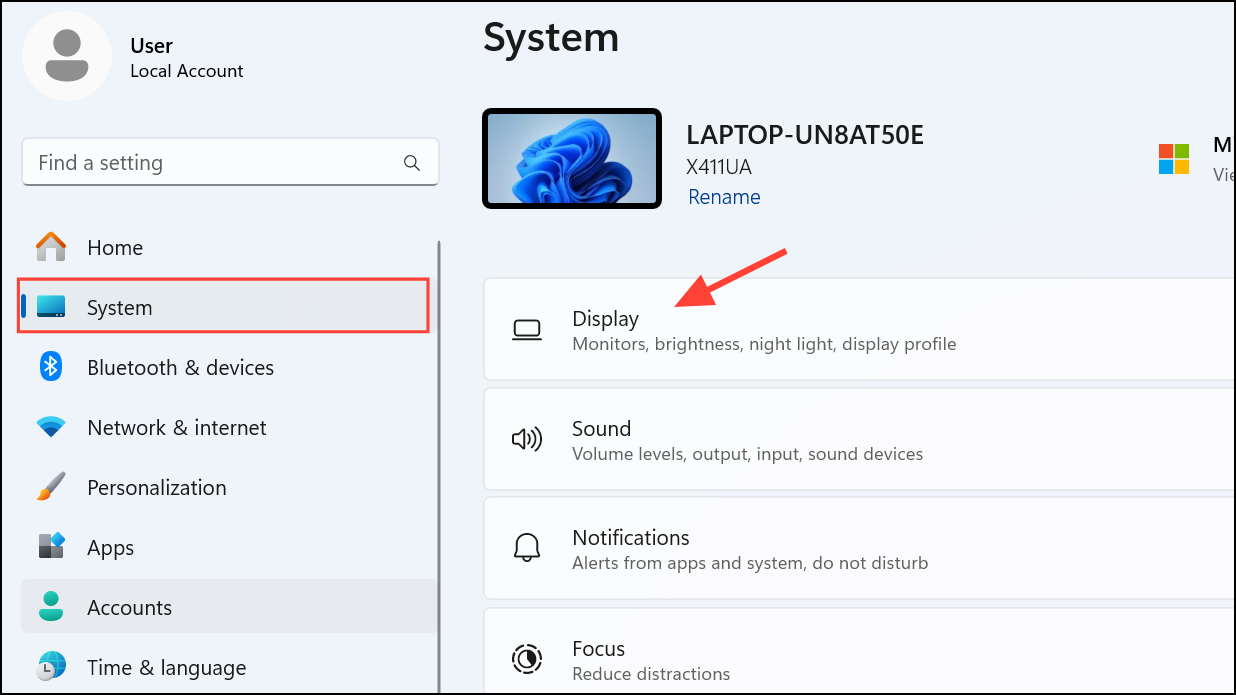
Windows 11’s optimization features for windowed games can inadvertently cause random freezing even outside games. Turning this feature off has resolved freezing issues for many users.
Disable Hardware Acceleration in Affected Applications
Hardware acceleration allows certain applications to utilize GPU resources for smoother rendering, but it can cause freezing if compatibility issues arise. Disabling this feature can improve system stability.
Ctrl + Shift + P, type “Preferences: Open Settings (JSON)” and add the line "disable-hardware-acceleration": true to the settings file.Adjust Graphics Preferences and Set High Priority
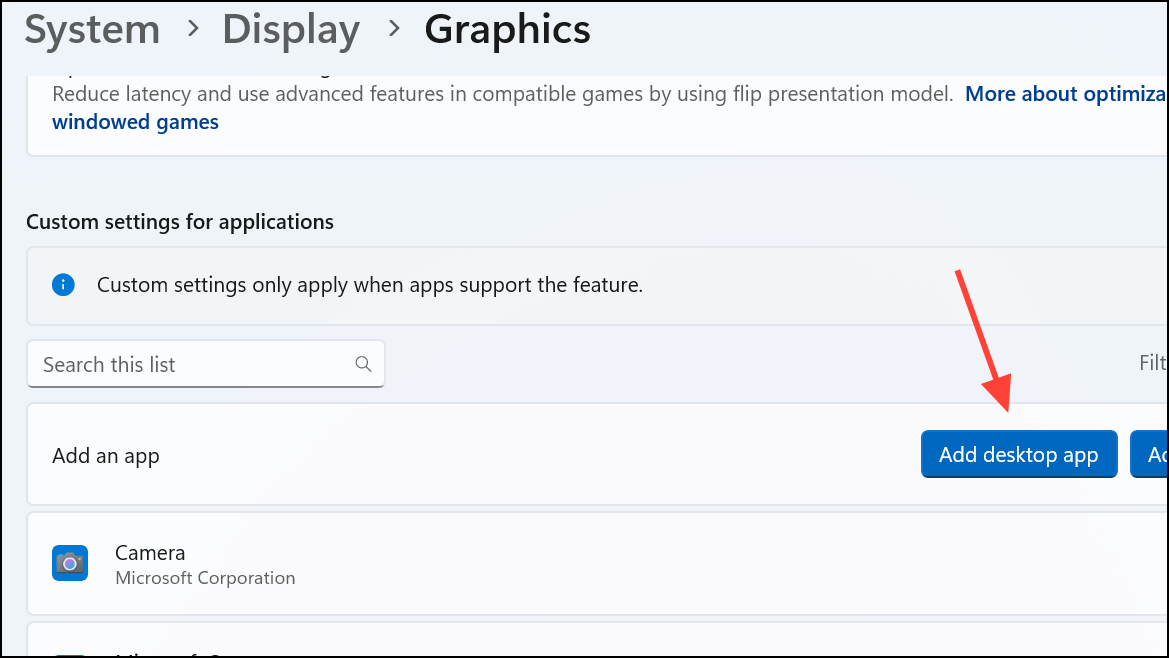
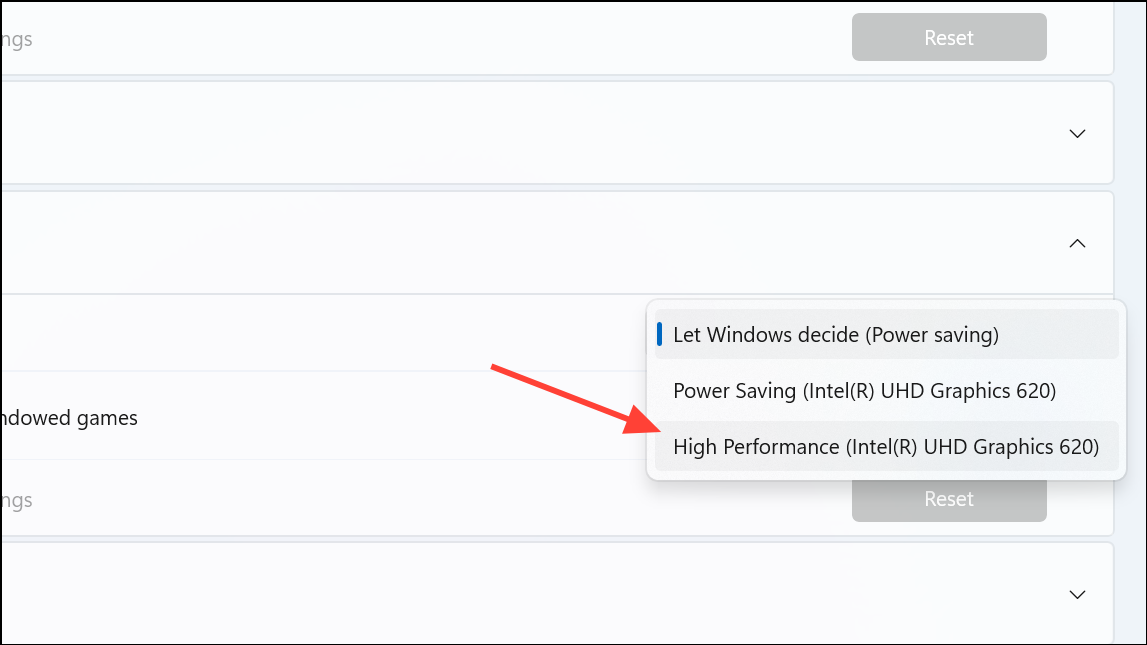
Assigning high priority and dedicated GPU resources to specific applications can eliminate freezing and stuttering. This ensures the apps receive adequate resources for smooth operation.
Ctrl + Shift + Esc to open Task Manager, navigate to the “Details” tab, right-click the application, and select “Set priority” > “High.”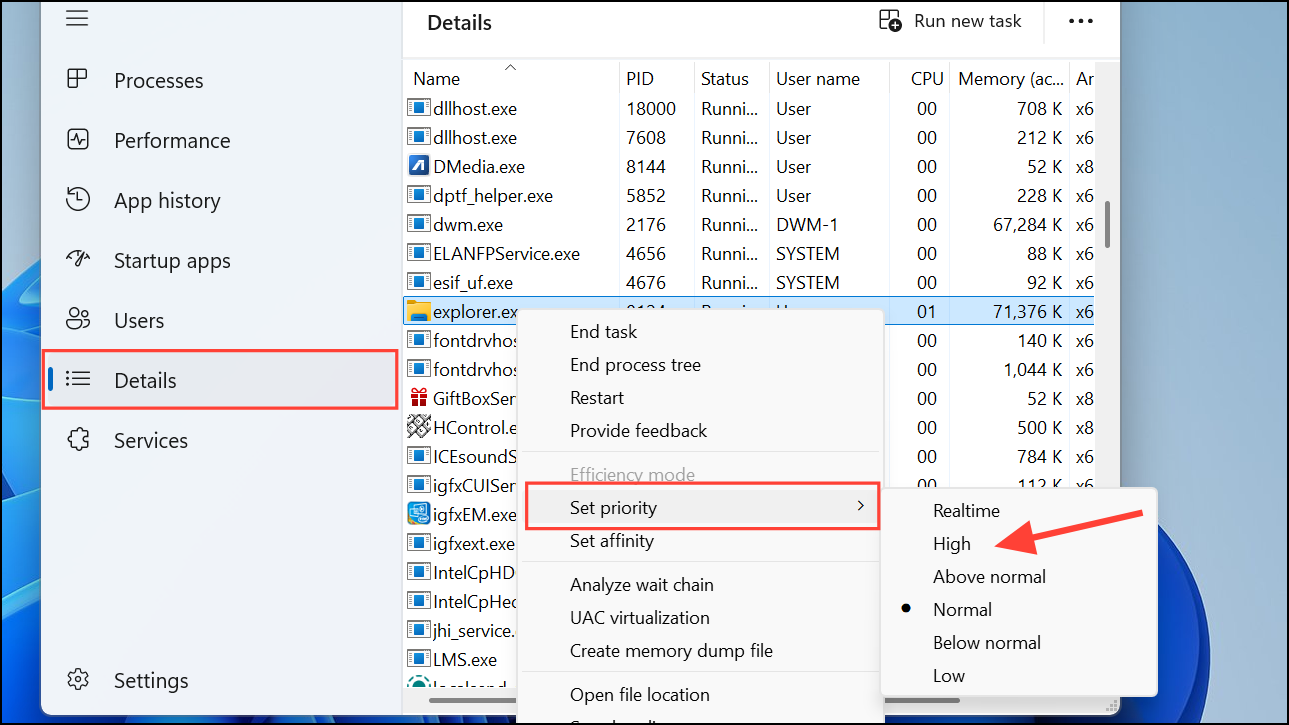
Uninstall Recent Problematic Updates
Occasionally, specific updates introduce system instability. Uninstalling problematic updates can restore system stability and eliminate freezing issues.
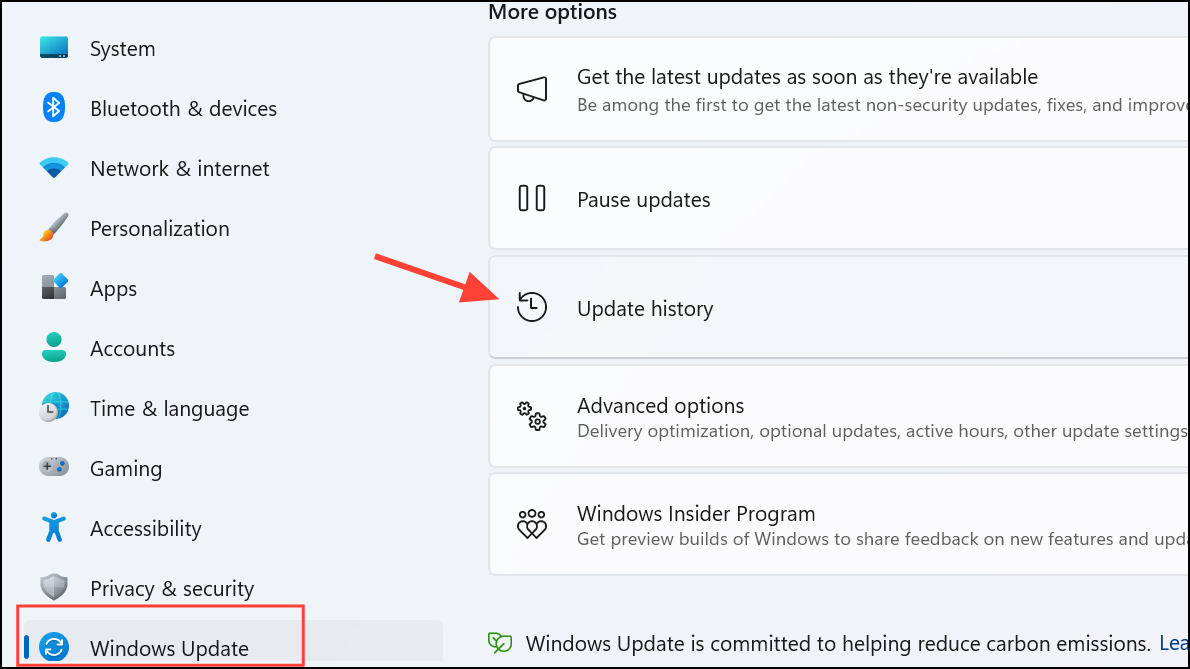
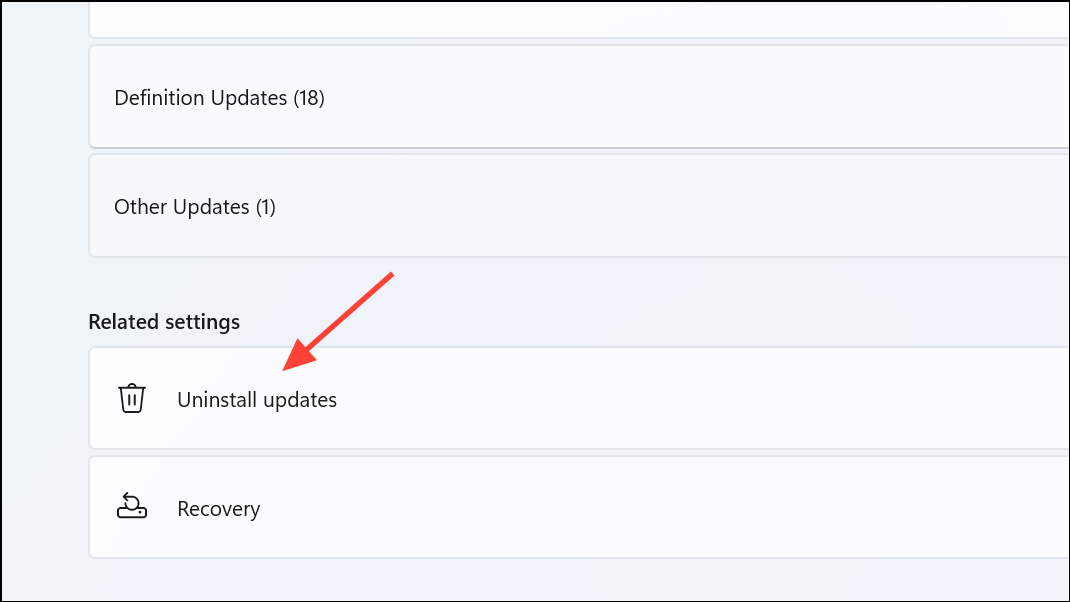
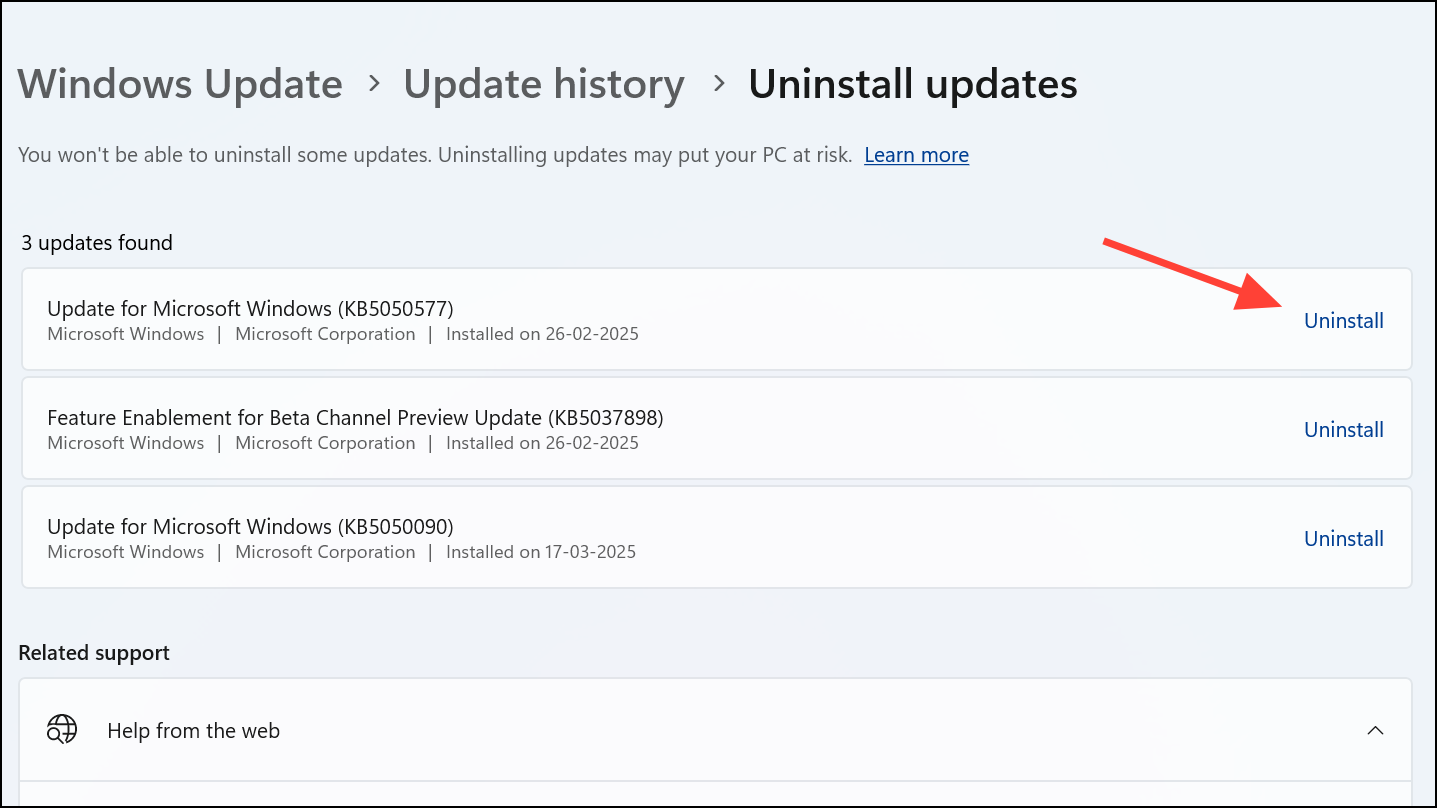
Roll Back to Previous Windows Version
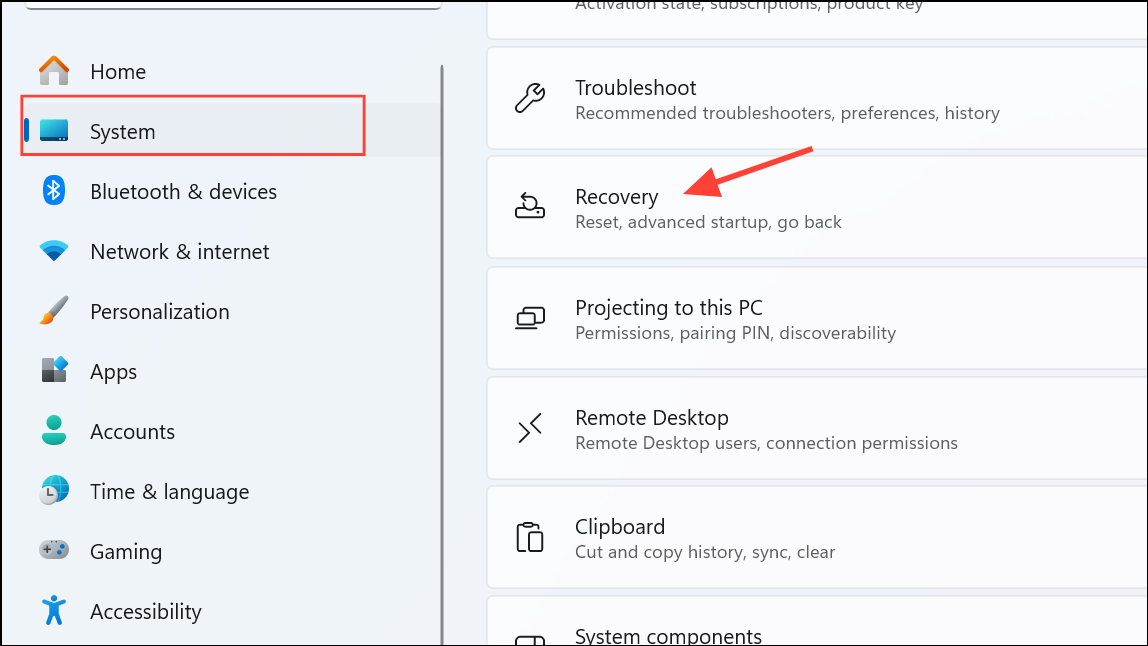
If the above methods fail, rolling back to the previous stable Windows 11 version (such as 23H2) can immediately resolve persistent freezing issues without losing personal data.
With these solutions, your Windows 11 24H2 system should run smoothly again, free from random freezing and stuttering. Remember to regularly update drivers and monitor system performance after major updates.



