

Seeing the error message “Windows cannot access the specified device, path, or file. You may not have the appropriate permission to access the item” when starting programs or opening files in Windows 11 points to a breakdown in file access permissions, blocked file locations, or security restrictions. This error can disrupt launching games, software, or even basic file operations, especially after system updates or changes in user profiles.
Method 1: Adjust File or Folder Permissions
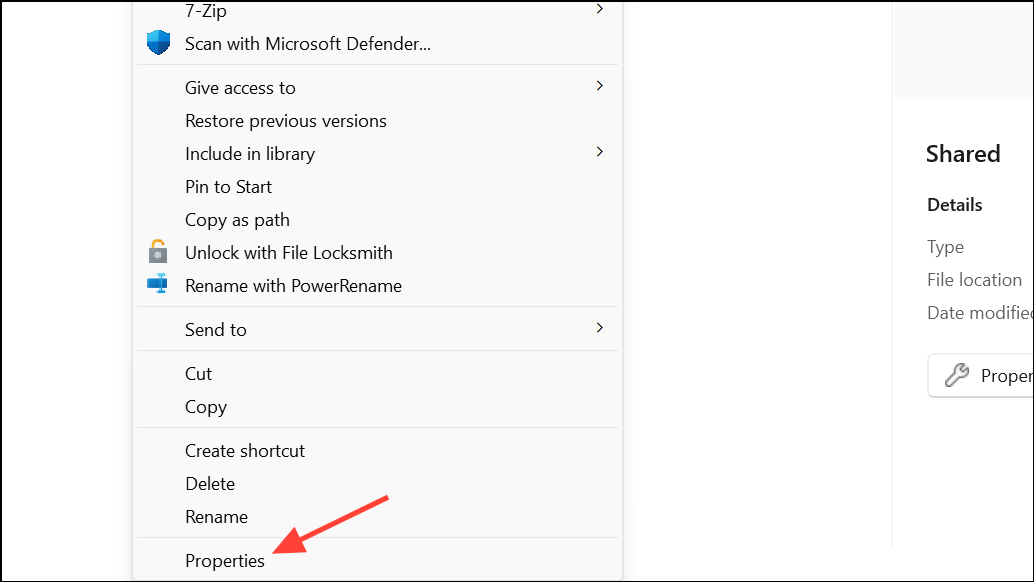
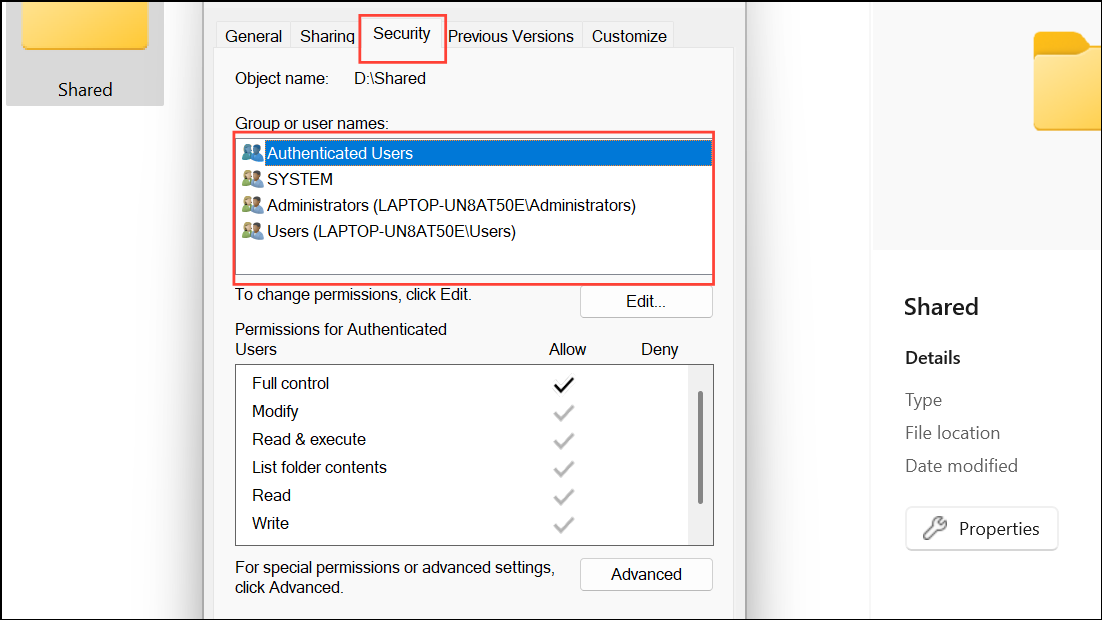
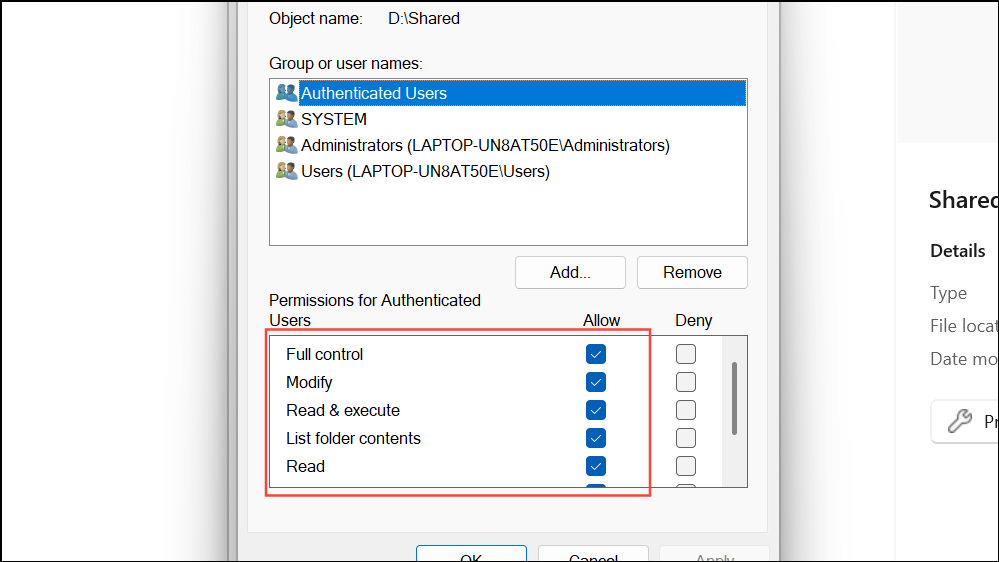
Correcting permissions grants your user account access to the file or folder, resolving many access errors caused by insufficient rights.
Method 2: Verify File Location and Accessibility
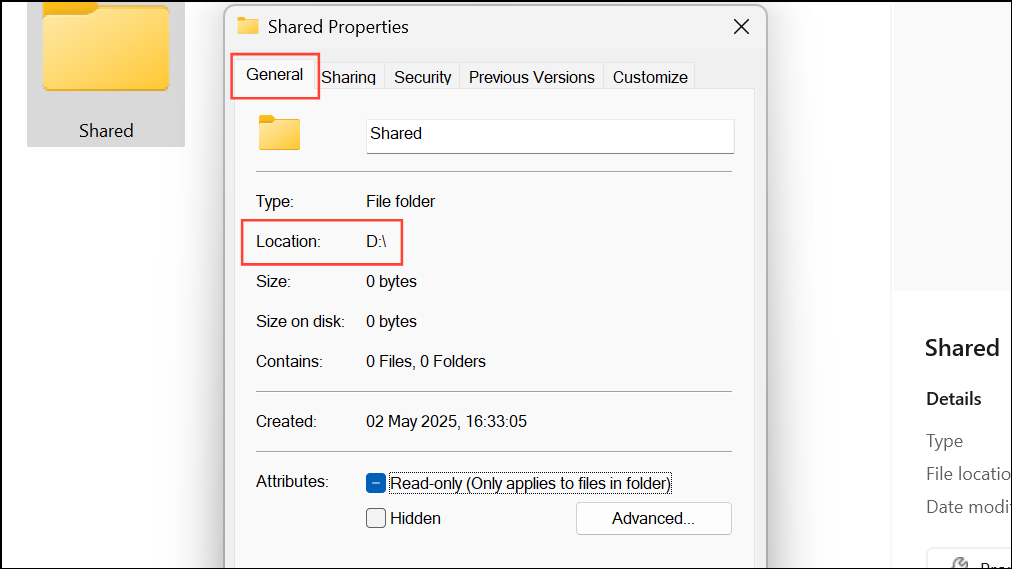
Attempting to access files on disconnected, moved, or deleted locations will always fail. If the file has been moved or deleted, restore it if possible or update the shortcut to point to the correct location.
Method 3: Remove File Blocking by Windows
Files downloaded from the internet or transferred from another PC may be blocked by Windows security. Unblocking restores normal access.
Method 4: Temporarily Disable Antivirus or Security Software
Overzealous antivirus programs sometimes block legitimate files. Disabling protection is only for testing—always restore it after troubleshooting to keep your system secure.
Method 5: Run as Administrator or Adjust Compatibility Settings
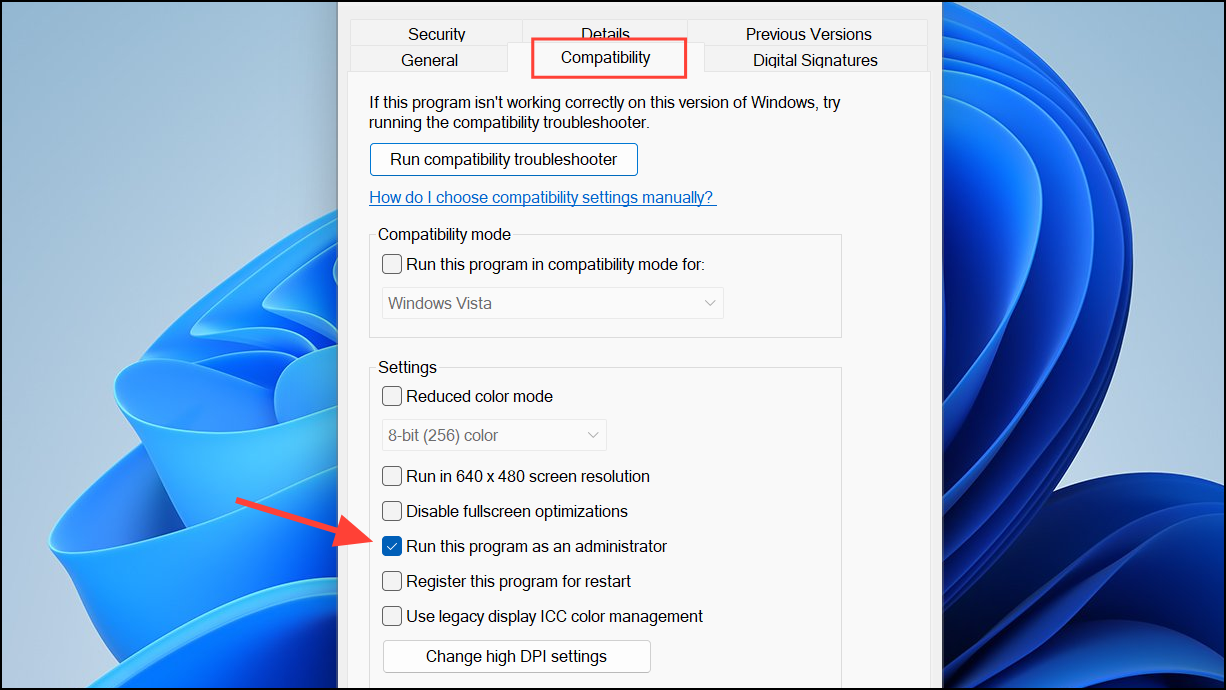
Some programs require administrator rights or are affected by compatibility settings. Adjusting these options can restore access, especially for games and older software.
Method 6: Address Issues Caused by Windows 11 Insider Builds or Updates
Recent reports indicate that certain Windows 11 Insider Preview builds introduce this error for games and applications. If the problem began after a system update or while using an Insider build, rolling back to a previous Windows version can resolve the issue.
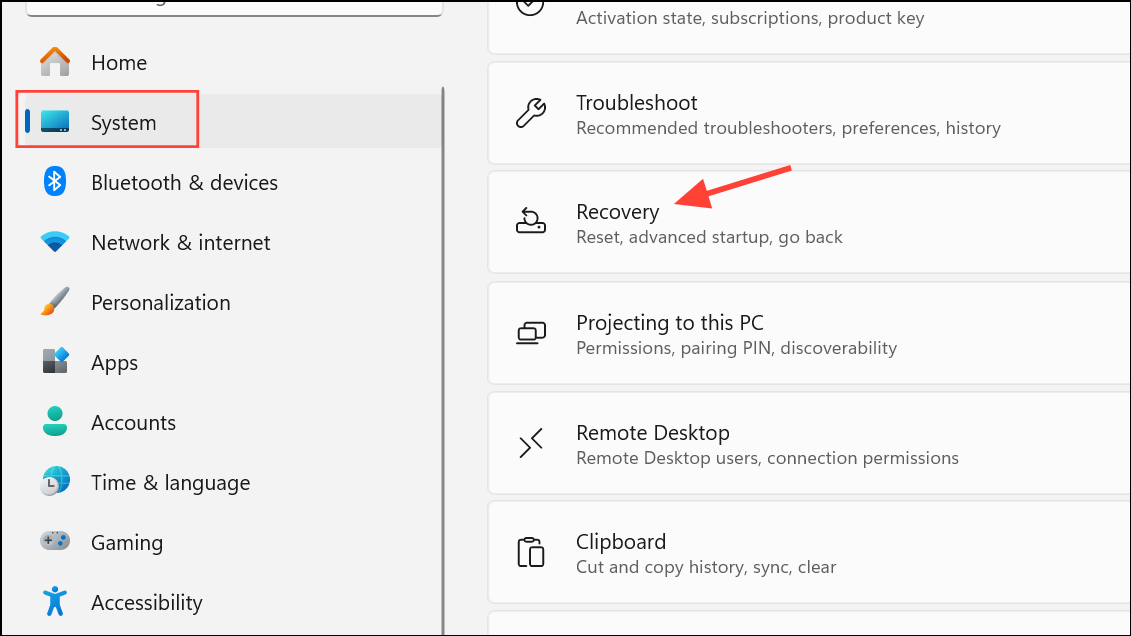
This approach is especially effective for users on Insider Preview channels experiencing sudden access issues after an update.
Method 7: Disable the Multipoint Connector Windows Feature
For users running programs from external drives, the Multipoint Connector Windows feature may restrict access to executables on USB or network drives.
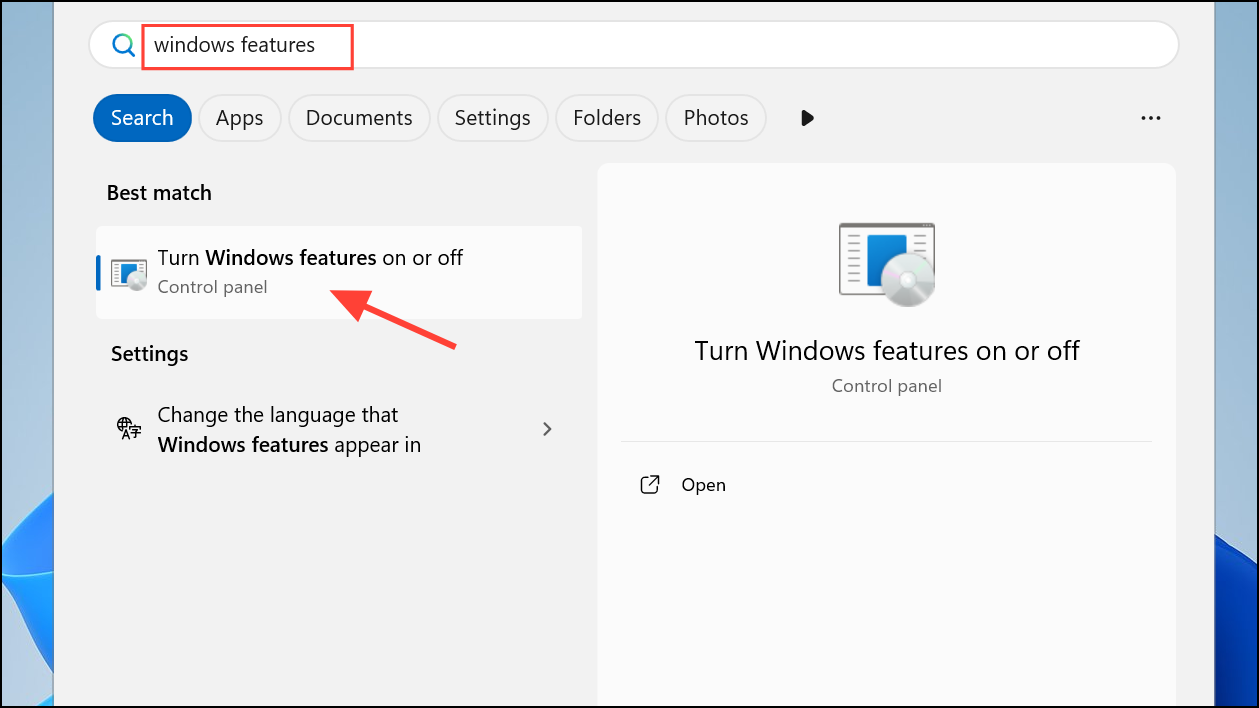
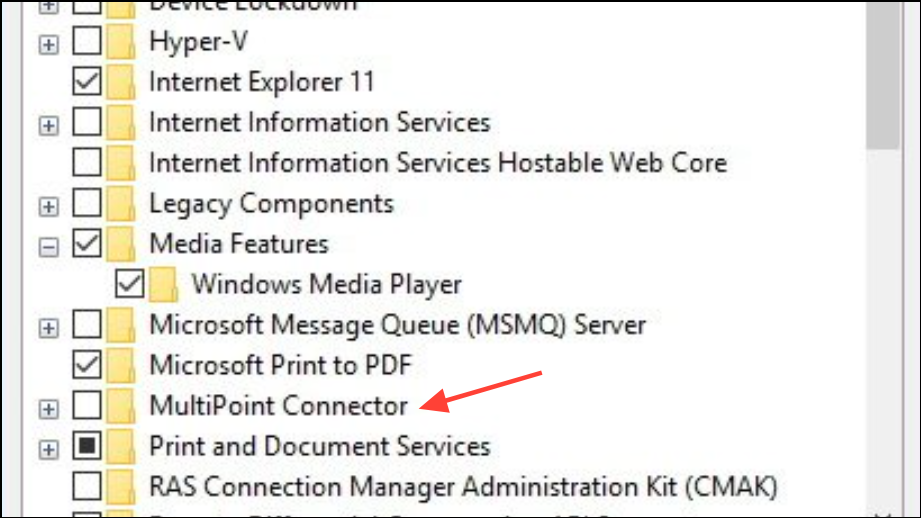
Disabling this feature has restored access for users unable to run files from external storage devices.
Method 8: Repair System Files and User Profile
Corrupted system files or a damaged user profile can cause persistent access errors, even for administrator accounts.
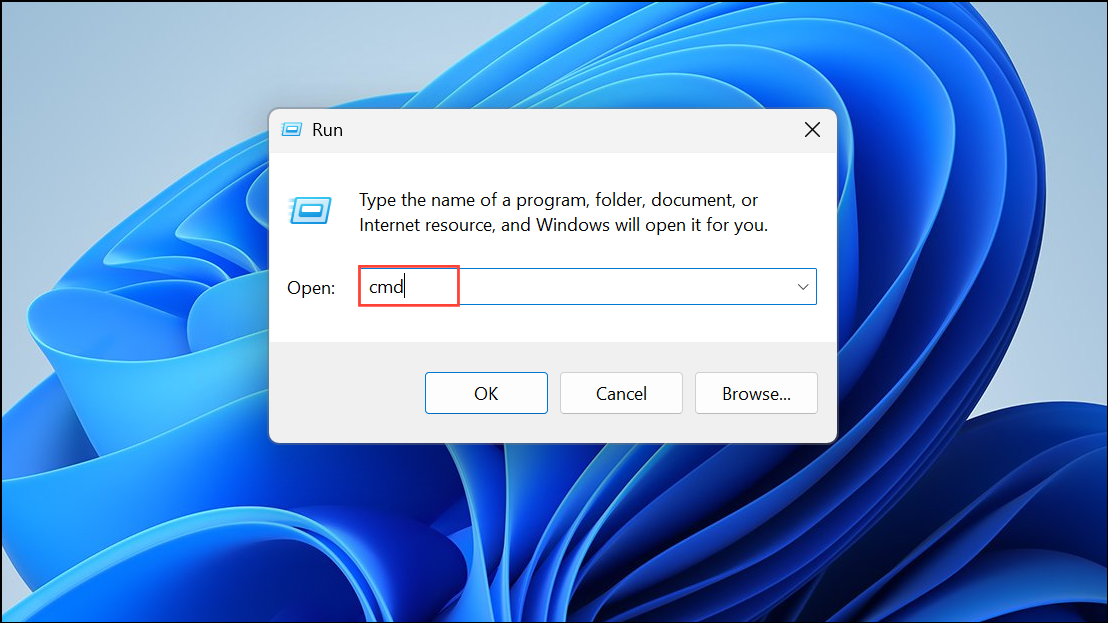
sfc /scannow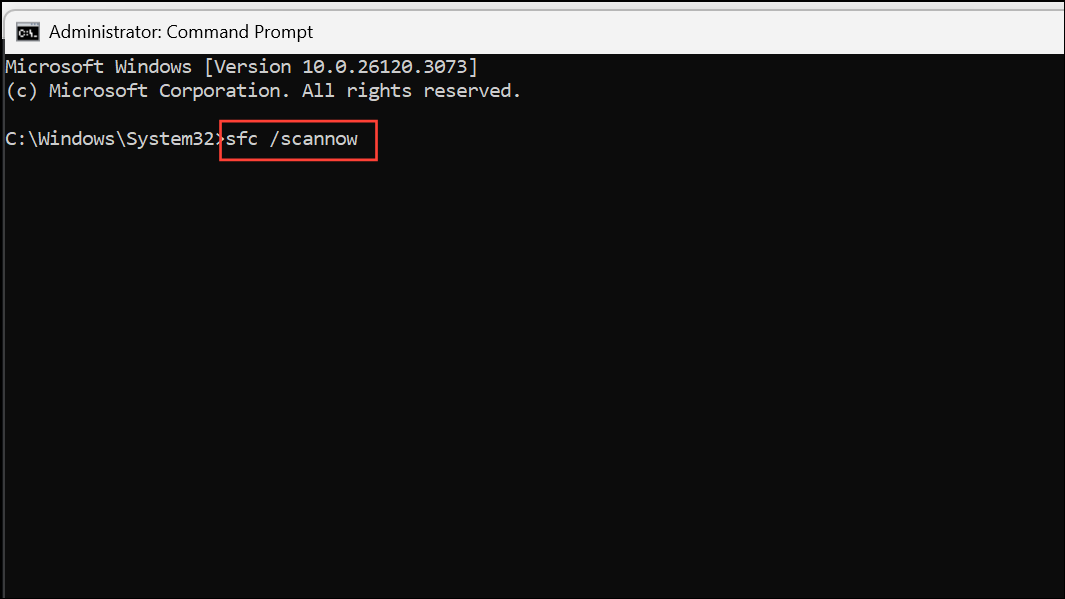
This scans and repairs corrupted system files.
net user newuser newpassword /add
net localgroup administrators newuser /add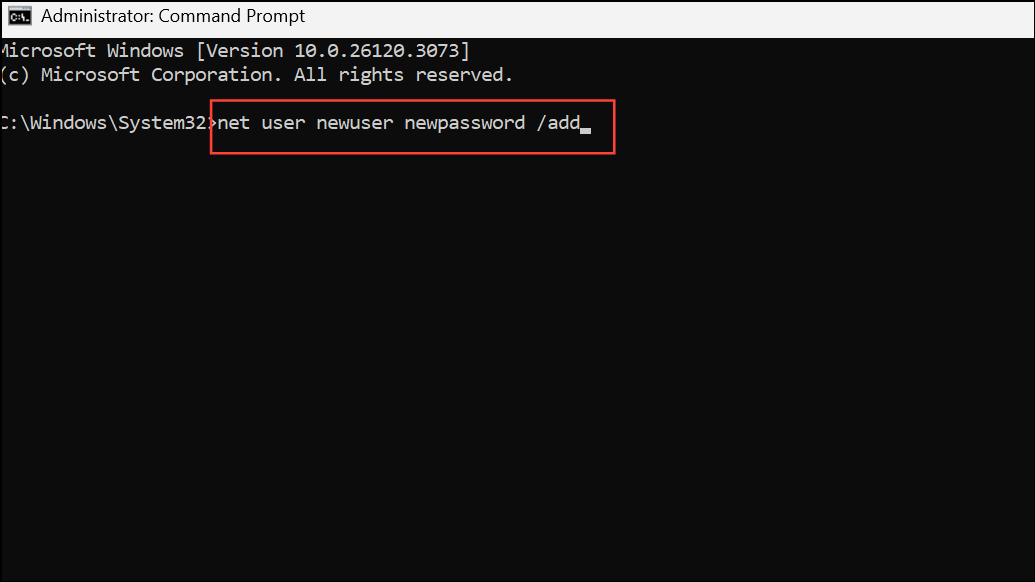
Replace newuser and newpassword with your chosen username and password. Log in to the new account and check if the issue persists.
If problems remain, a repair installation of Windows 11 may be necessary to restore system templates and account settings.
Additional Troubleshooting Tips
- For games or apps using anti-cheat tools, ensure all related services (like Vanguard or Battleye) are running and not blocked by security software.
- Try launching programs directly from their installation folder rather than through shortcuts.
- Remove unnecessary compatibility settings or “Run as administrator” flags if they are not required for the application.
- If the error affects only one file, check for file corruption or try redownloading/reinstalling it.
Resolving the “Windows cannot access the specified device, path, or file” error in Windows 11 involves a combination of permission checks, system configuration changes, and, when necessary, rolling back problematic updates. Applying these methods should restore normal access to your files and applications.



