

Event ID 7043, stating “The Windows Security Service did not shut down properly after receiving a pre-shutdown control,” appears in Windows 11’s Event Logs when the system’s security service fails to terminate as expected during shutdown or restart. This issue can disrupt system shutdowns, trigger reliability warnings, and potentially affect third-party services that depend on the Windows Security Service. Addressing this error is crucial to maintain system integrity and dependable security operations.
Restart the Windows Security Service
Win + R. Type services.msc and press Enter to launch the Services management console.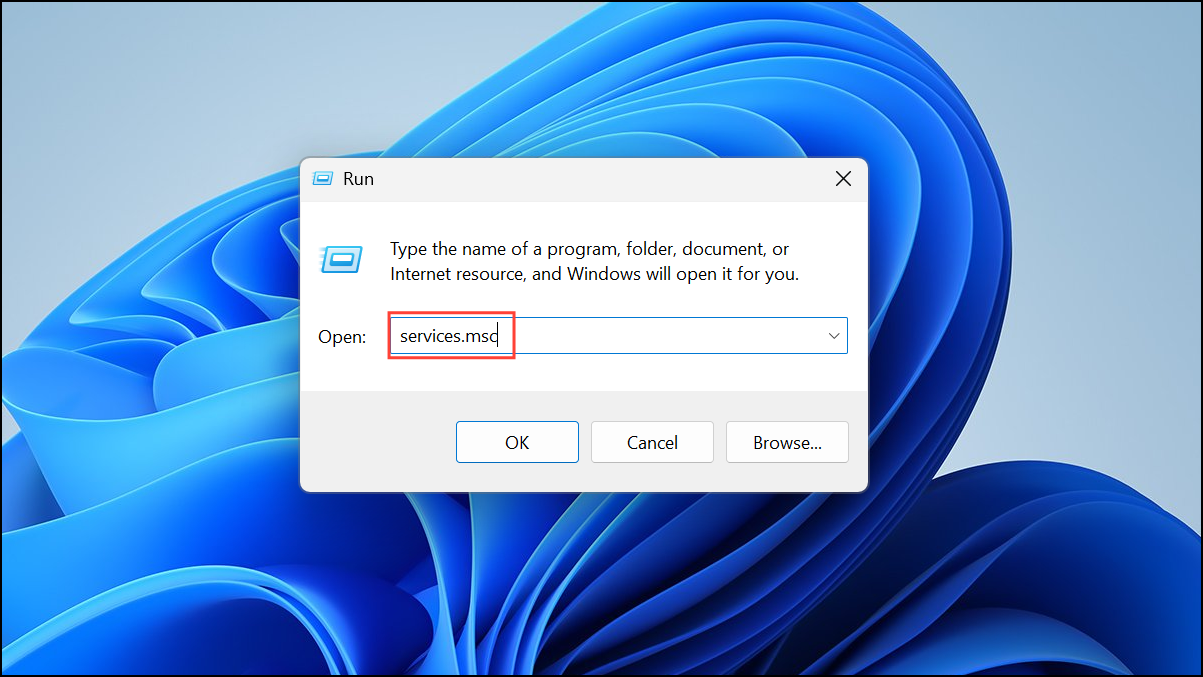
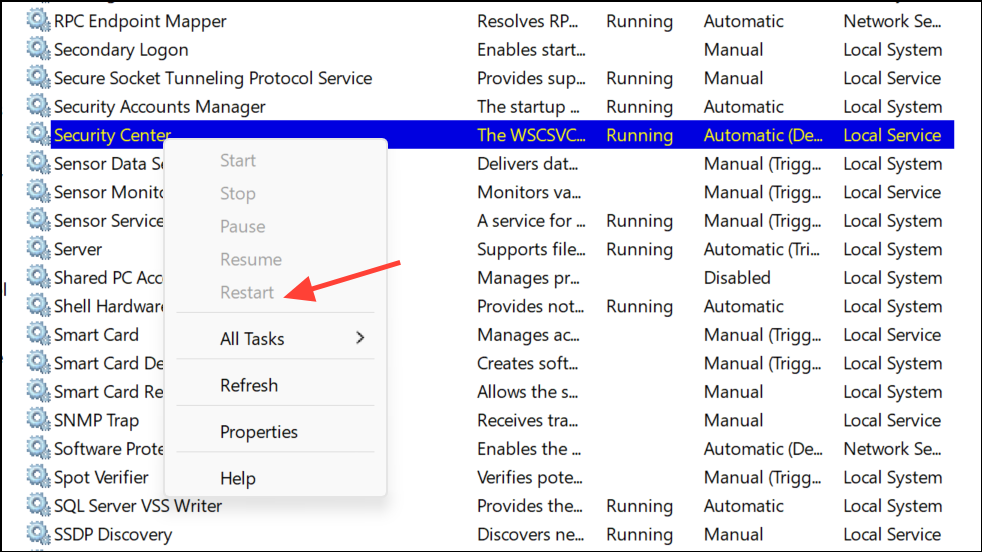
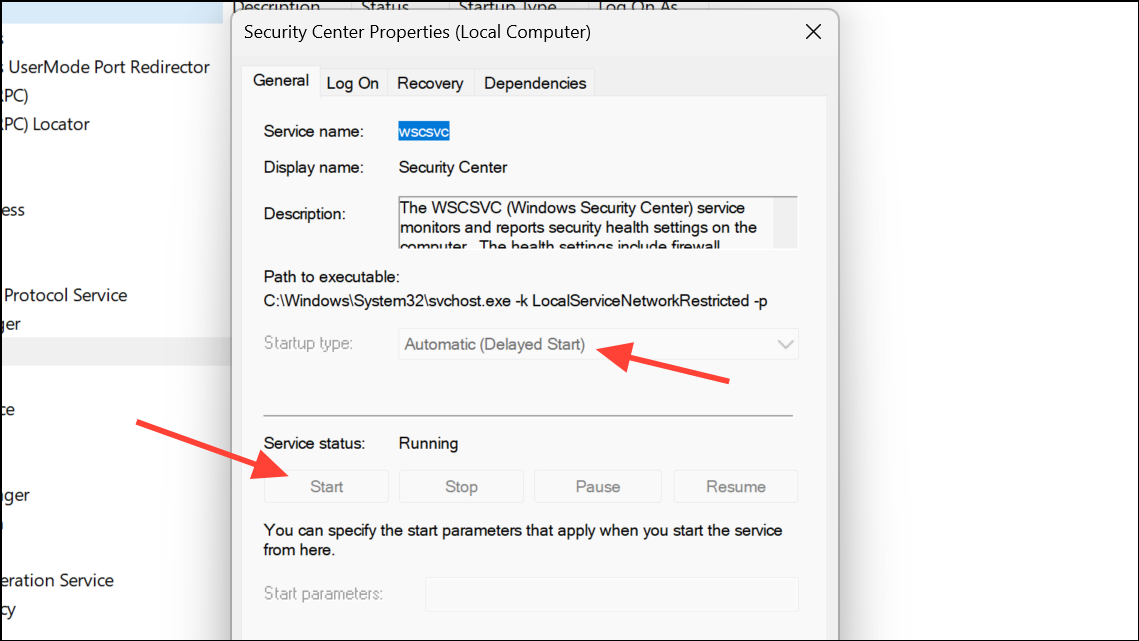
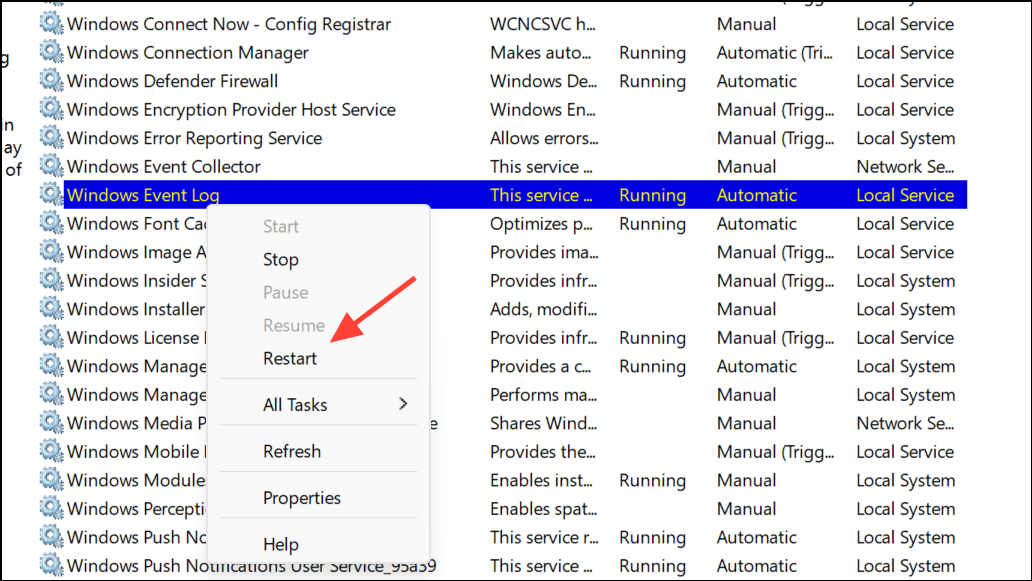
Reset the Windows Security App
Corrupted app data can prevent the Security Service from shutting down cleanly. Resetting the Windows Security app restores its default state without affecting your files.
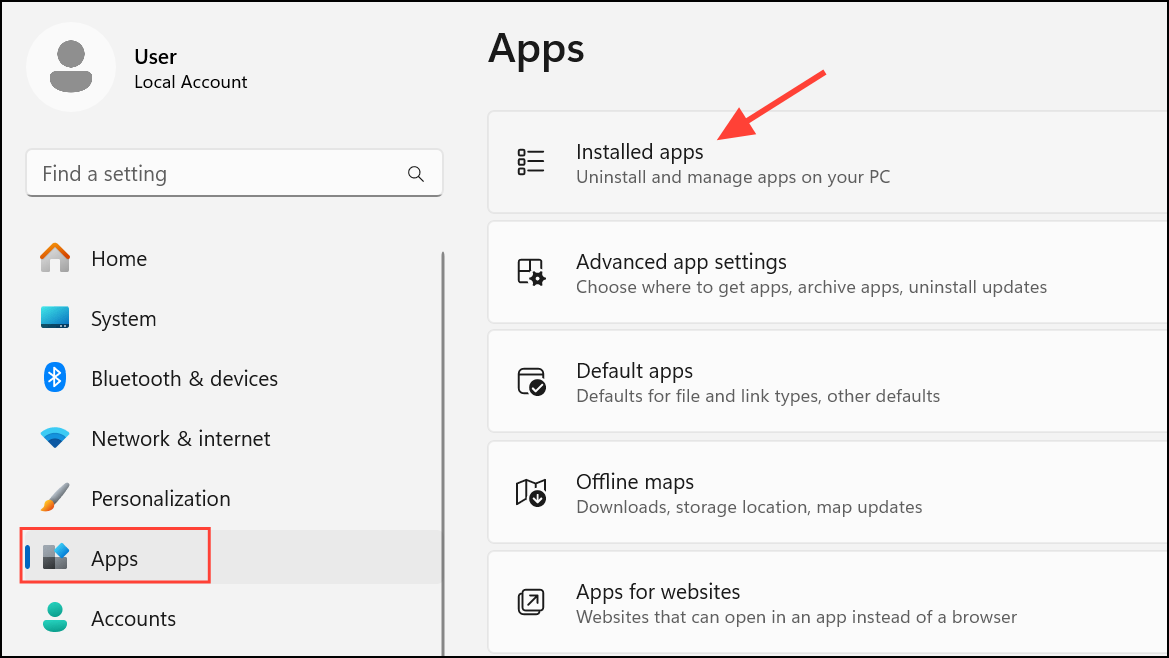
Get-AppxPackage Microsoft.SecHealthUI | Reset-AppxPackage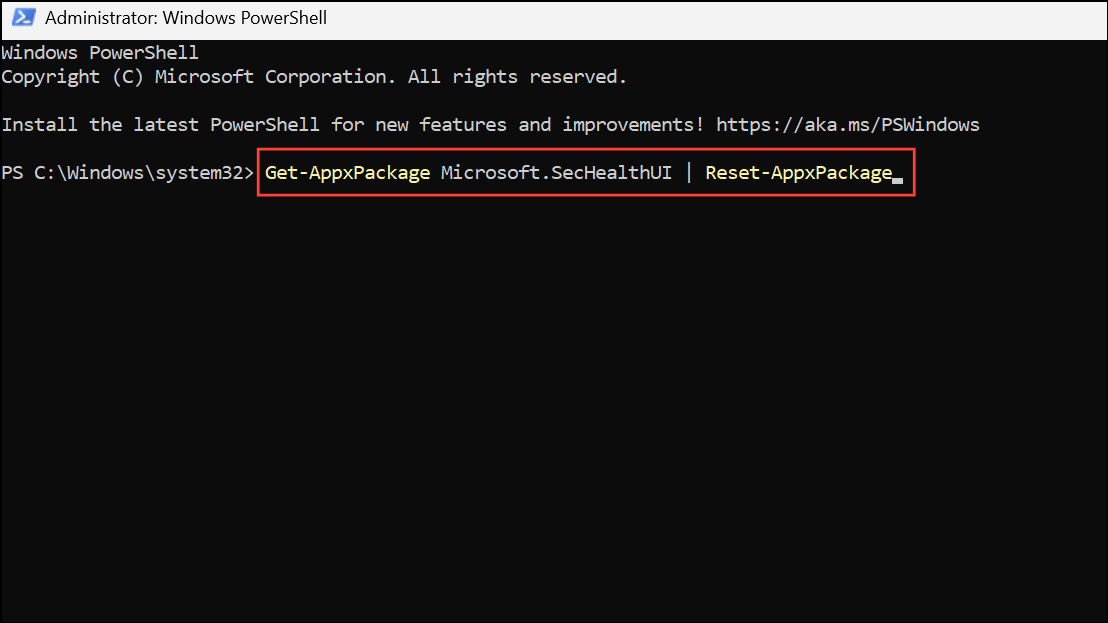
For all users, use:
Get-AppxPackage Microsoft.SecHealthUI -AllUsers | Reset-AppxPackage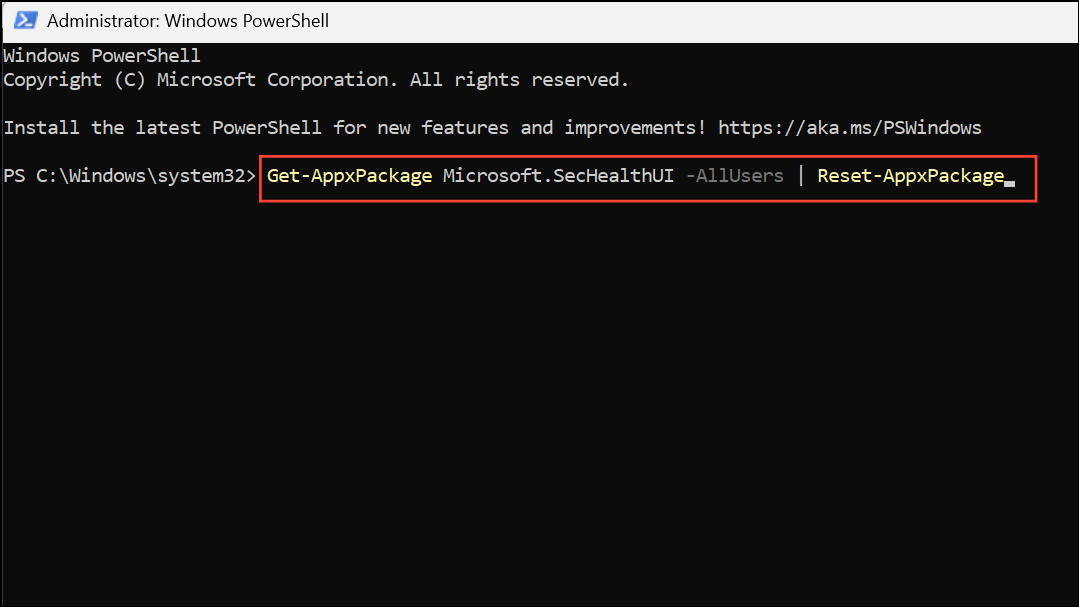
After resetting, restart your PC to apply changes.
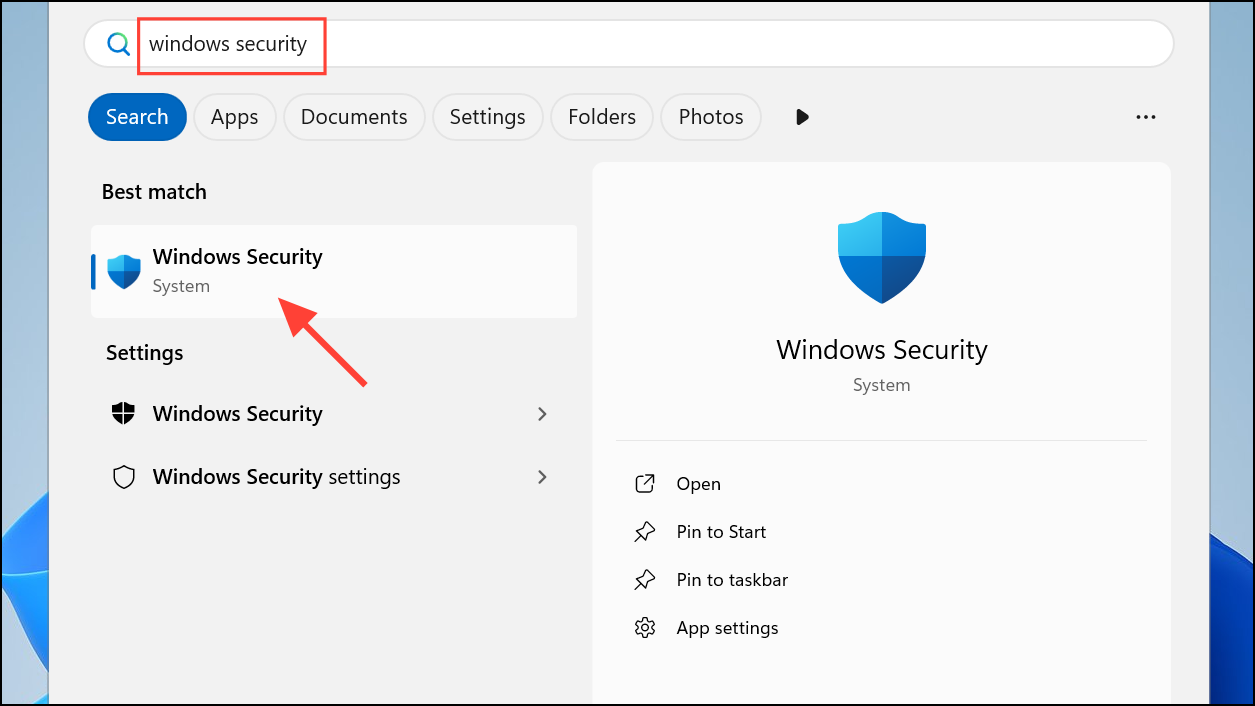
Run Antivirus and Malware Scans
Malware or conflicting security software can interfere with Windows Security Service. Running a full system scan helps identify and remove threats that may block proper shutdown.
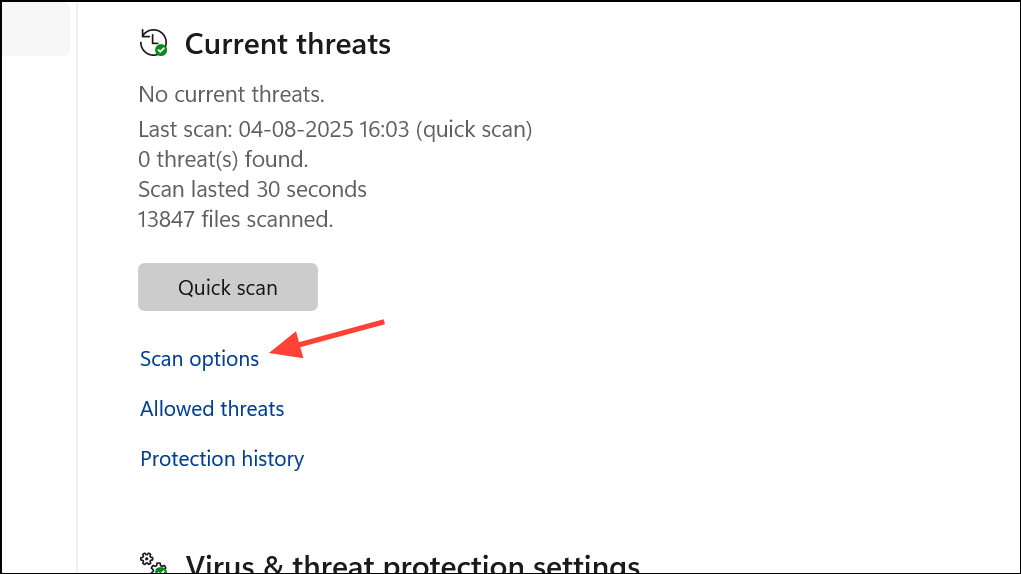
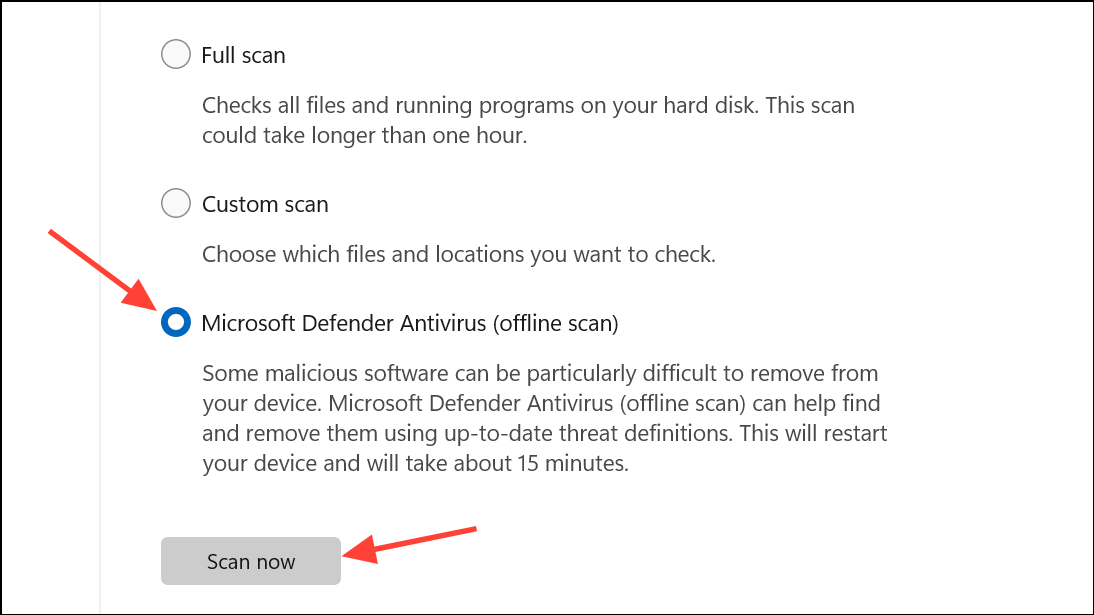
Repair System Files with SFC and DISM
Corrupted system files can prevent services from shutting down or starting correctly. System File Checker (SFC) and Deployment Imaging Service and Management Tool (DISM) can repair Windows components automatically.
cmd in the Start menu, right-clicking Command Prompt, and choosing Run as administrator.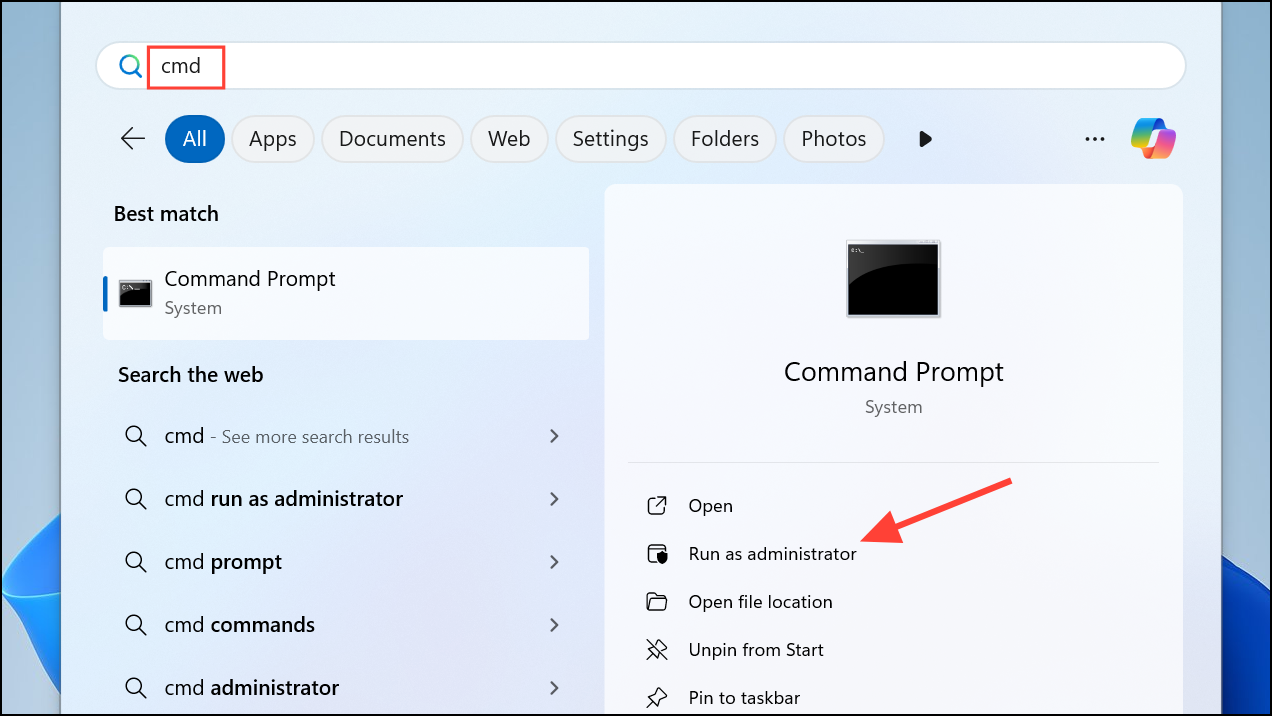
sfc /scannow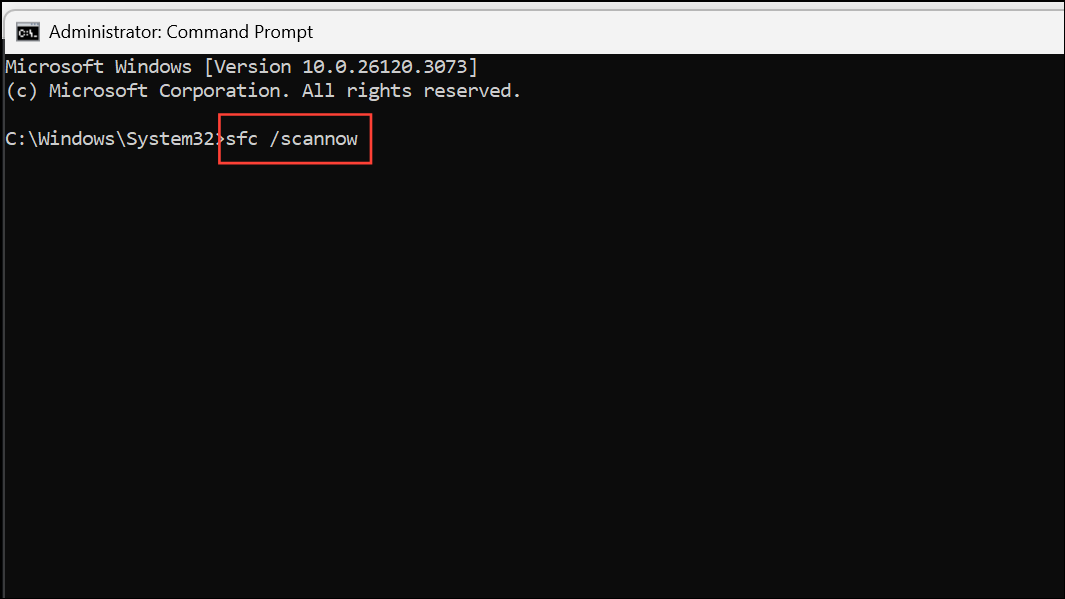
Wait for the scan to finish and follow any on-screen instructions.
DISM /Online /Cleanup-Image /RestoreHealth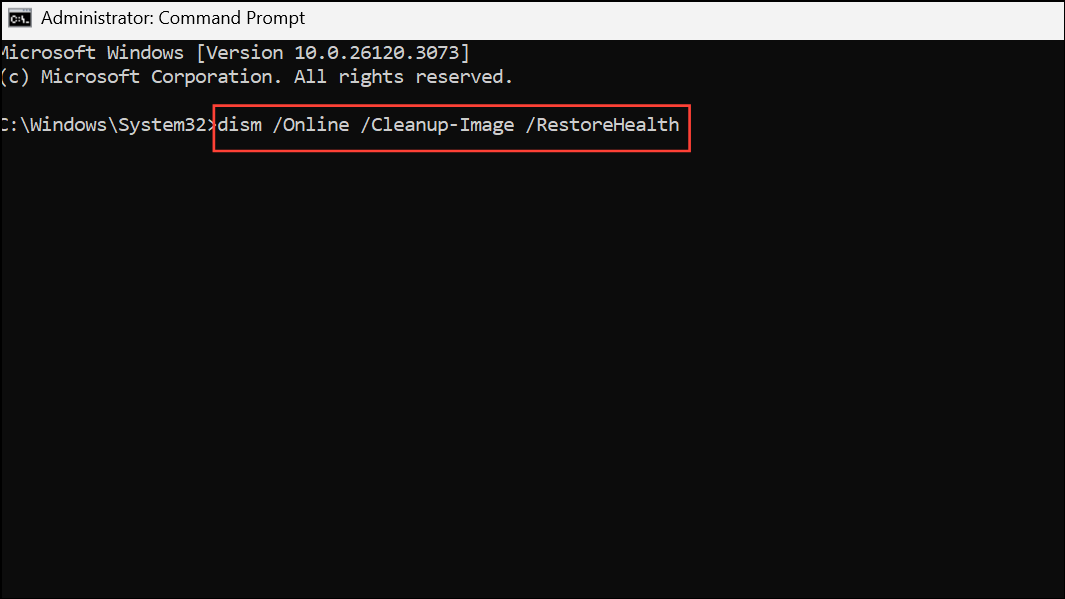
After the process completes, restart your computer to ensure repairs are applied.
Perform a Clean Boot to Isolate Conflicts
Background applications or startup services can interfere with Windows Security Service during shutdown. A clean boot loads Windows with only essential drivers and services, helping you pinpoint problematic software.
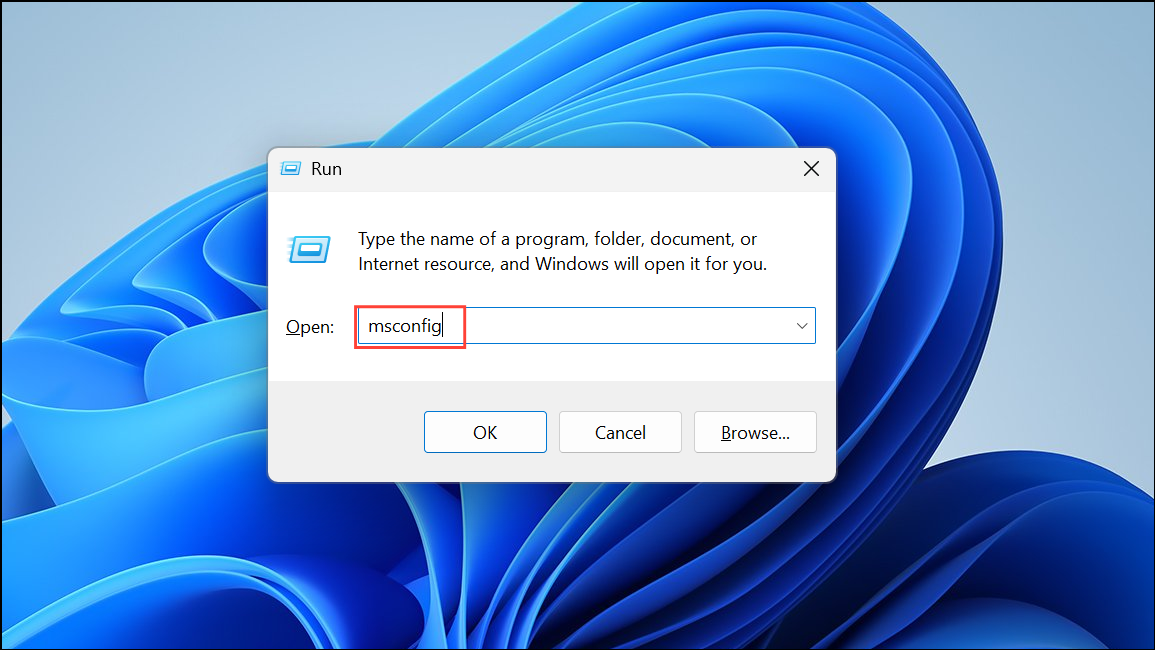
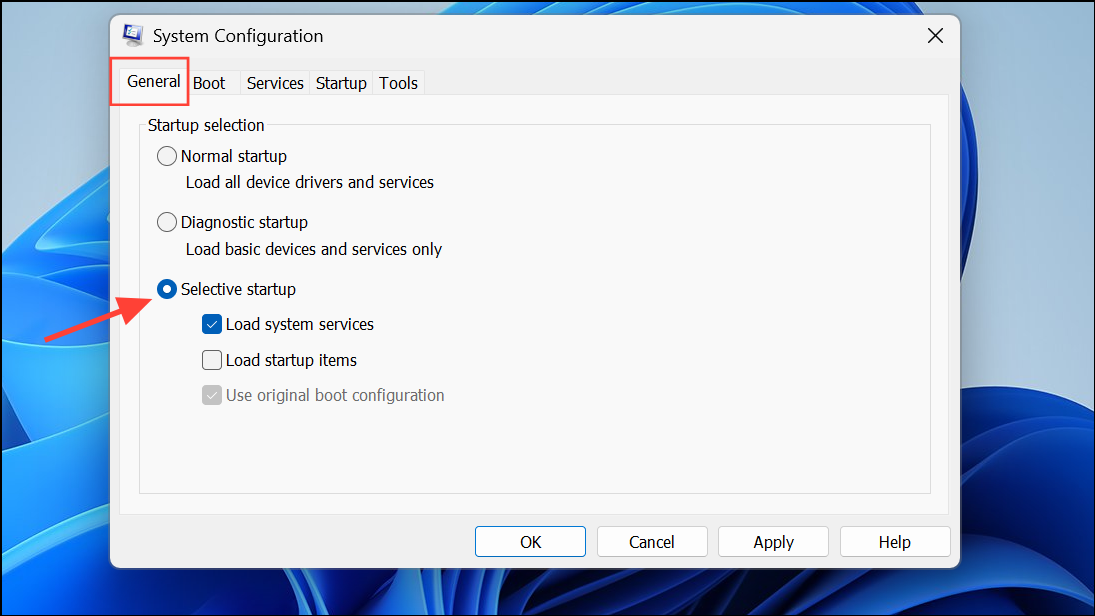
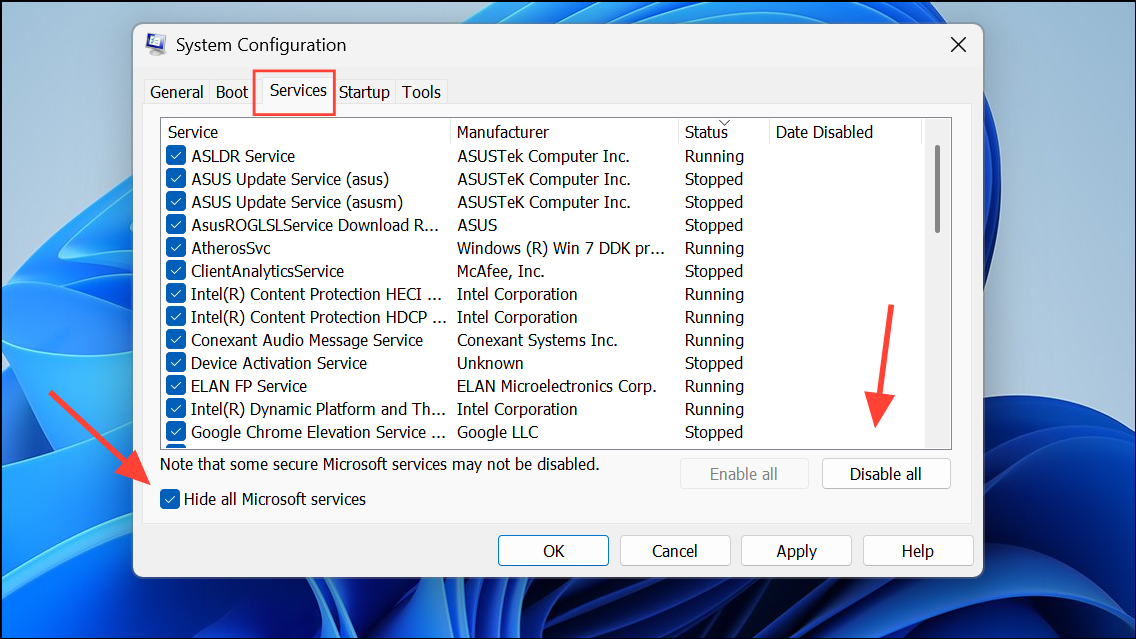
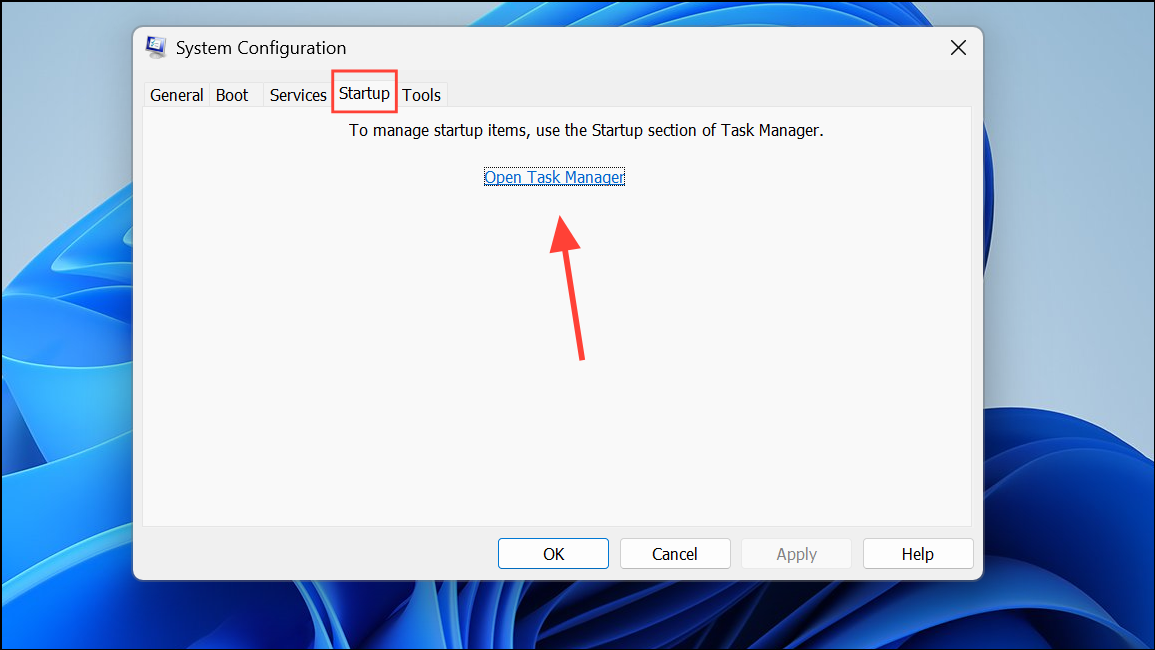
If the error disappears, re-enable services and startup items one at a time to identify the culprit.
Check Group Policy and Registry Settings
Incorrect Group Policy or Registry settings can prevent the Security Center from running or shutting down properly.
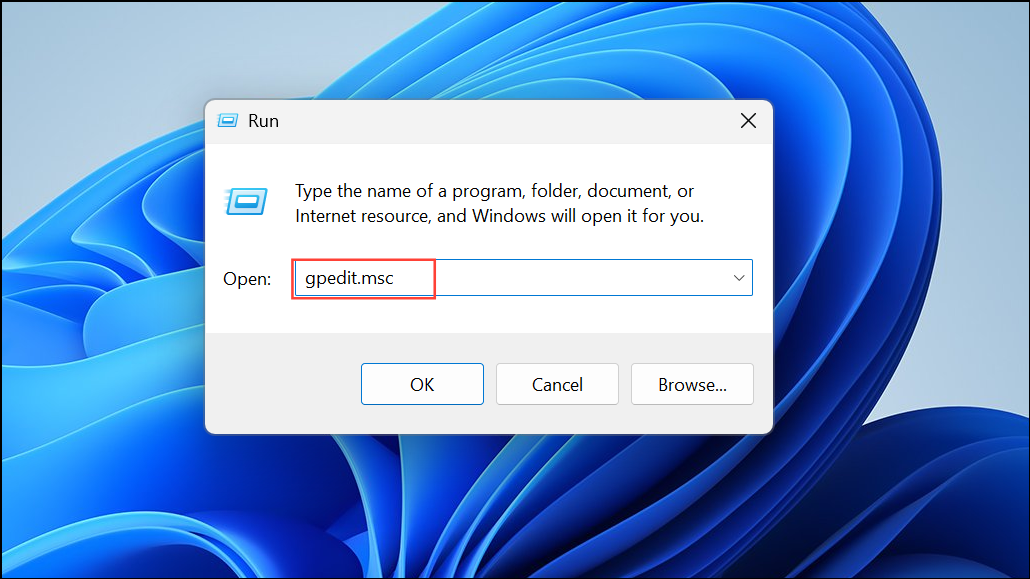
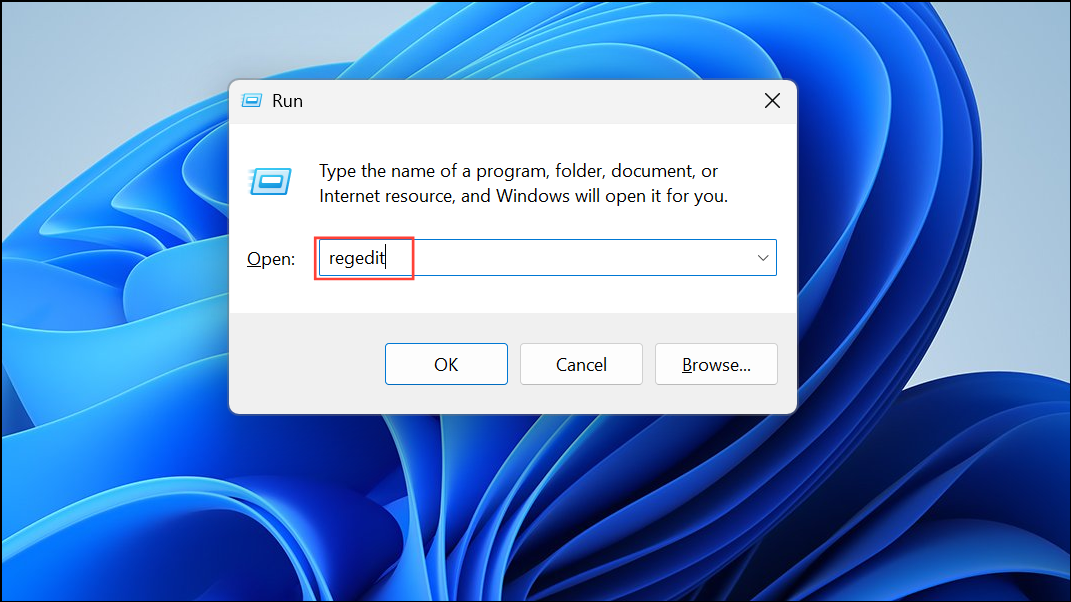
HKEY_LOCAL_MACHINE\SOFTWARE\Policies\Microsoft\Windows Security CenterCheck the Start value and set it to 2 (which means enabled). Close the editor and restart your system.
Repair or Reinstall Windows Security Components
If none of the above methods resolve the issue, a repair install (in-place upgrade) of Windows 11 can fix deep-seated system corruption without affecting your files or most applications.
This approach reinstalls Windows system files and resets built-in components, often resolving persistent service errors. Users have reported that this method typically resolves stubborn shutdown and security service issues, though in rare cases the problem may reappear if underlying bugs or hardware faults exist.
Addressing the “Windows Security Service did not shut down properly” error improves shutdown reliability and restores full security functionality. Regularly updating Windows and scanning for malware can help prevent future occurrences.



