
Allocating more RAM to your apps and games on Windows 11 can significantly boost responsiveness, decrease loading times, and reduce lag during intensive tasks. While Windows manages memory automatically, there are several effective methods to allocate additional RAM resources to your favorite applications and games. Here’s how you can optimize your Windows 11 system to run your software more efficiently.
Increase RAM Allocation Using Task Manager
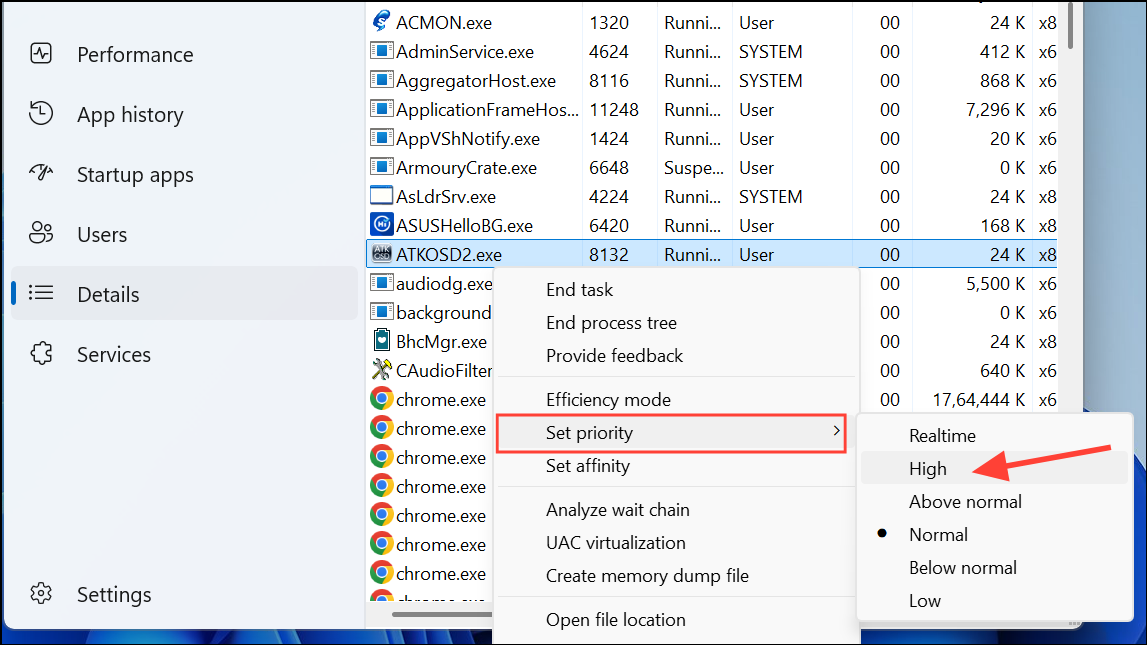
The quickest way to allocate more RAM to a specific app or game is by adjusting its priority through the Windows Task Manager. This method temporarily prioritizes the selected application, allowing it to access more memory resources.
Ctrl + Shift + Esc or right-clicking the taskbar and selecting “Task Manager.”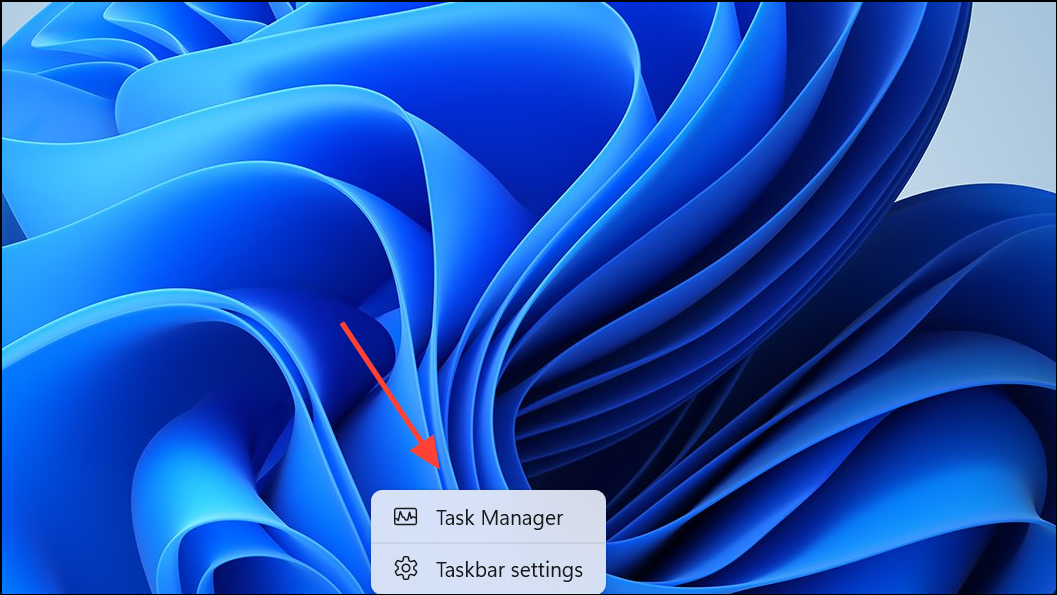
Adjust Windows to Prioritize Programs
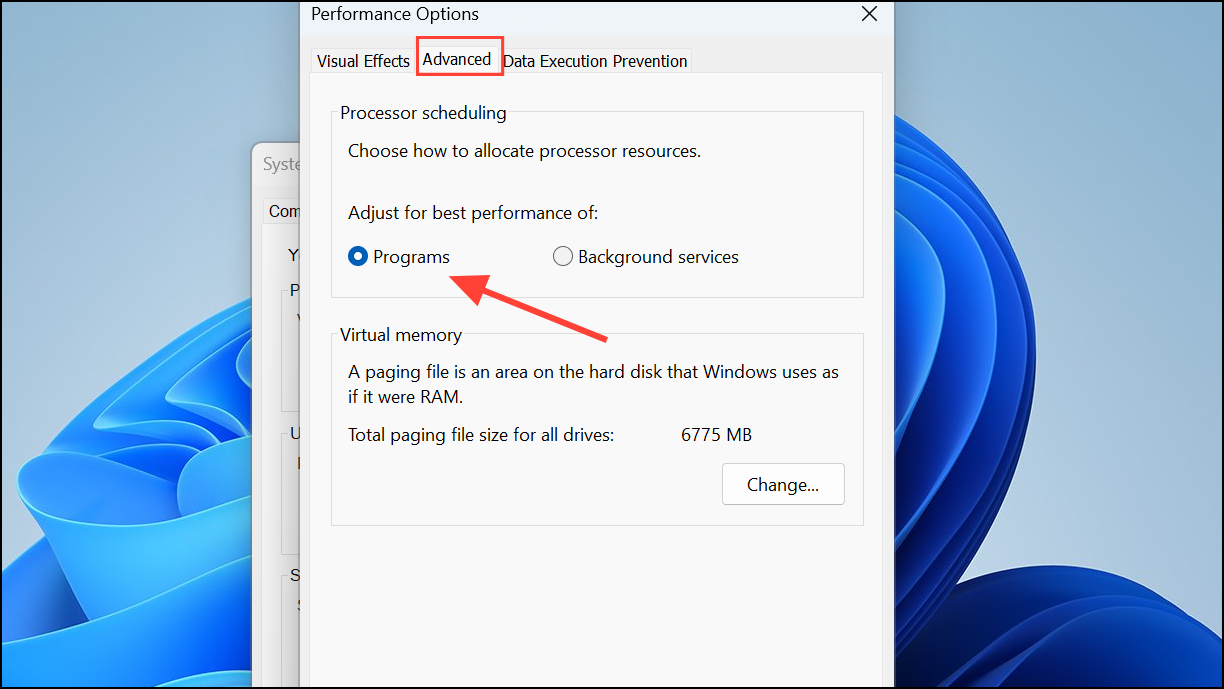
Windows 11 includes a built-in option that prioritizes foreground applications over background processes, which can improve memory allocation for active apps.
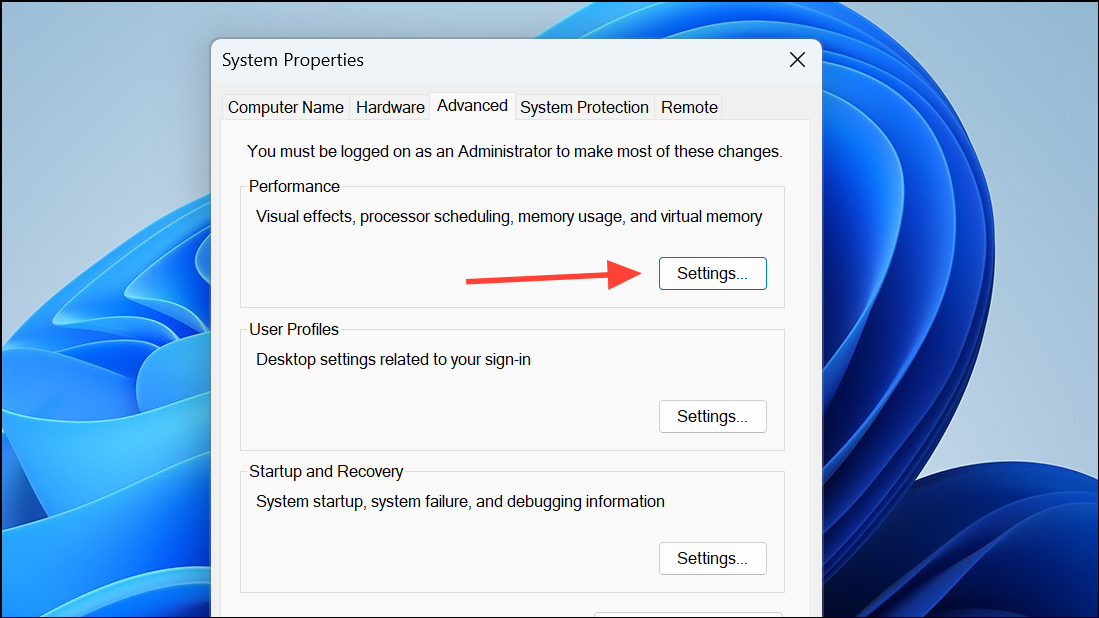
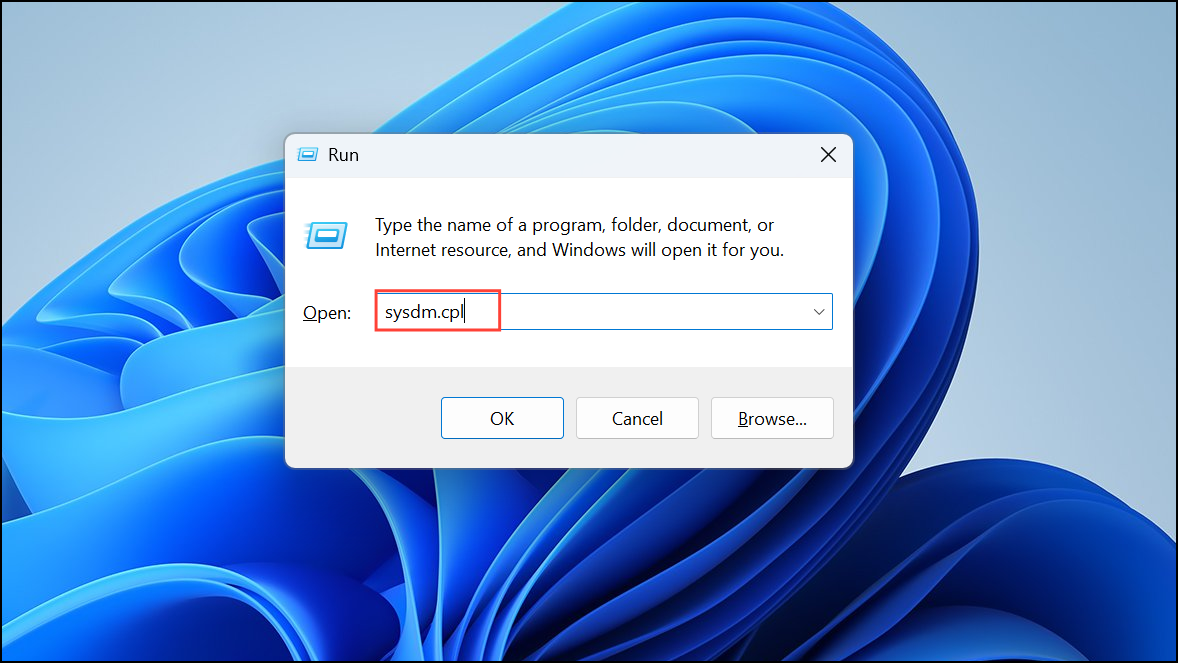
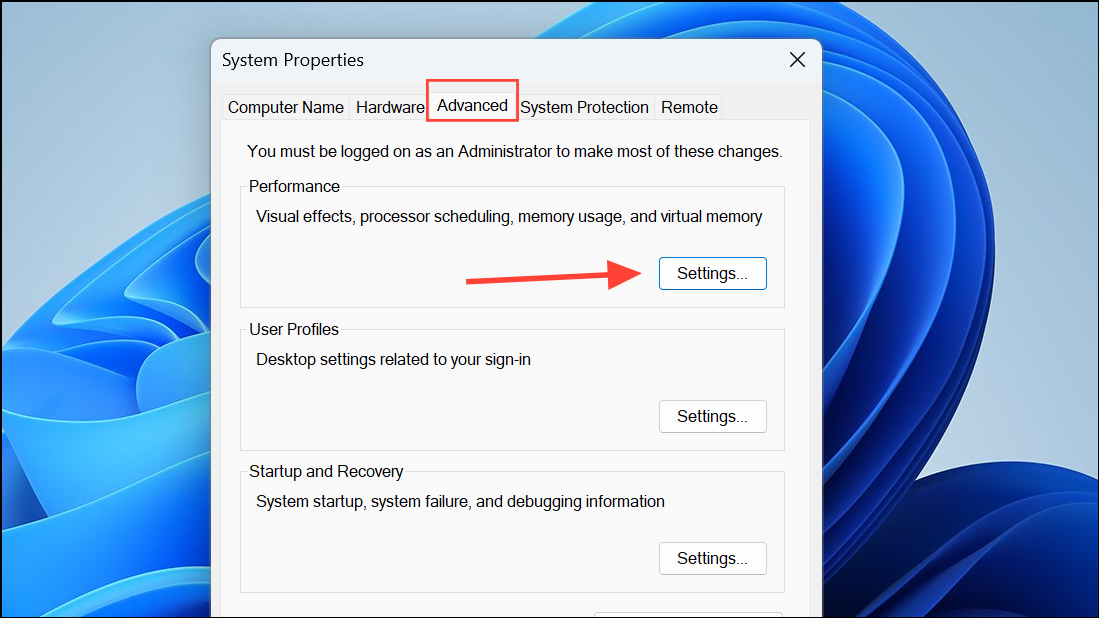
Windows + S, type “View Advanced System Settings,” and select the corresponding result. If the option is not available, click “System” and then click on “Advanced Sys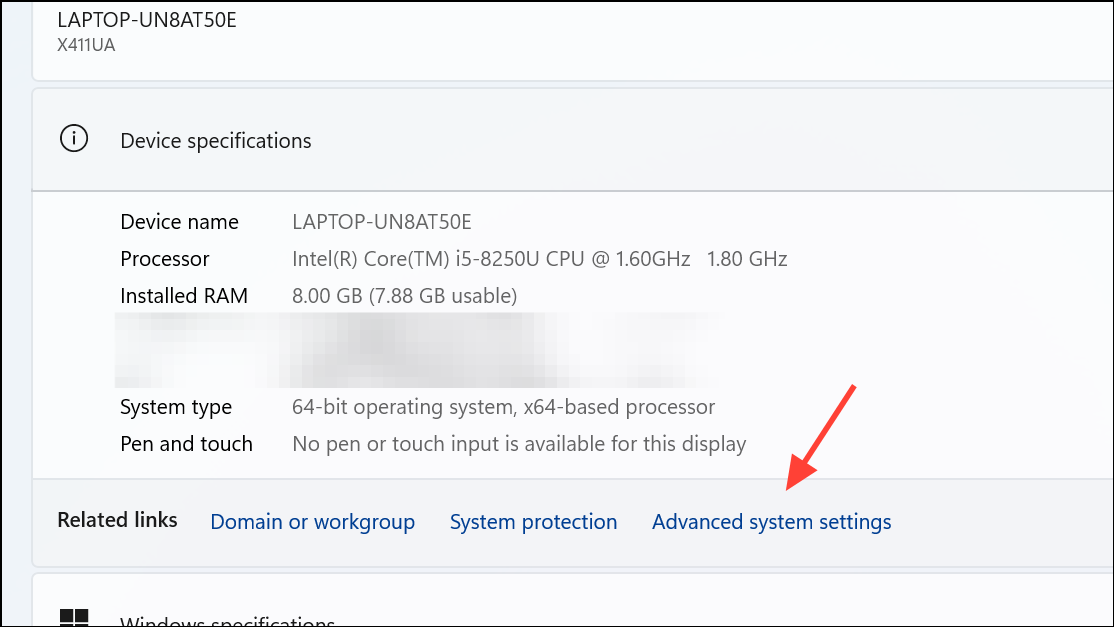
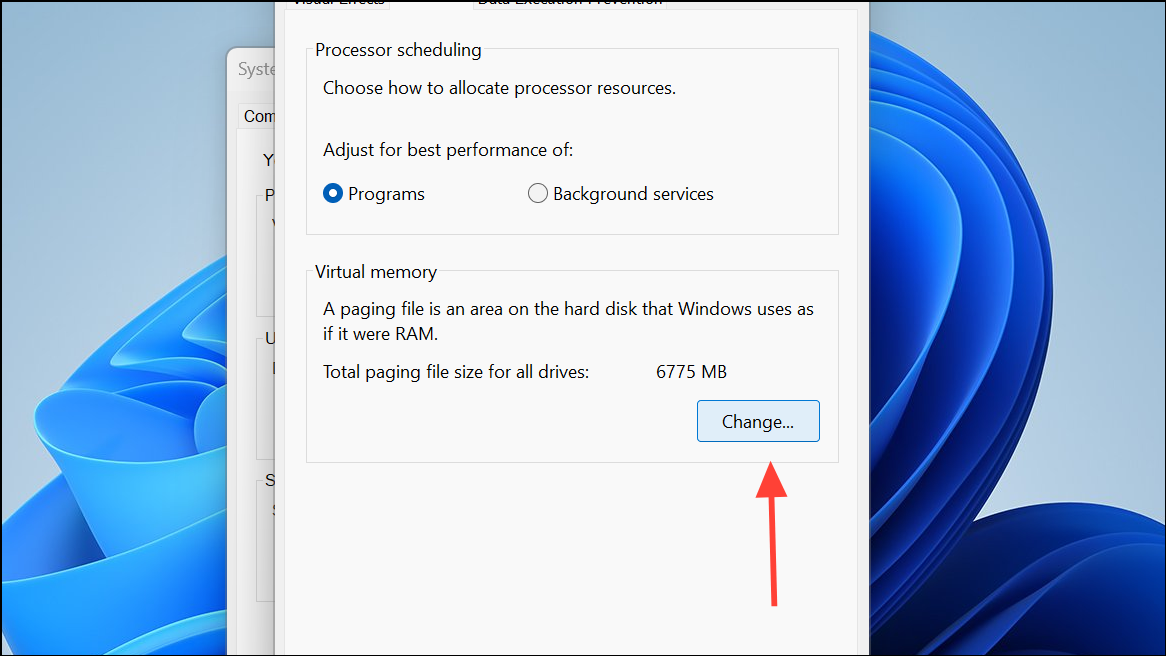
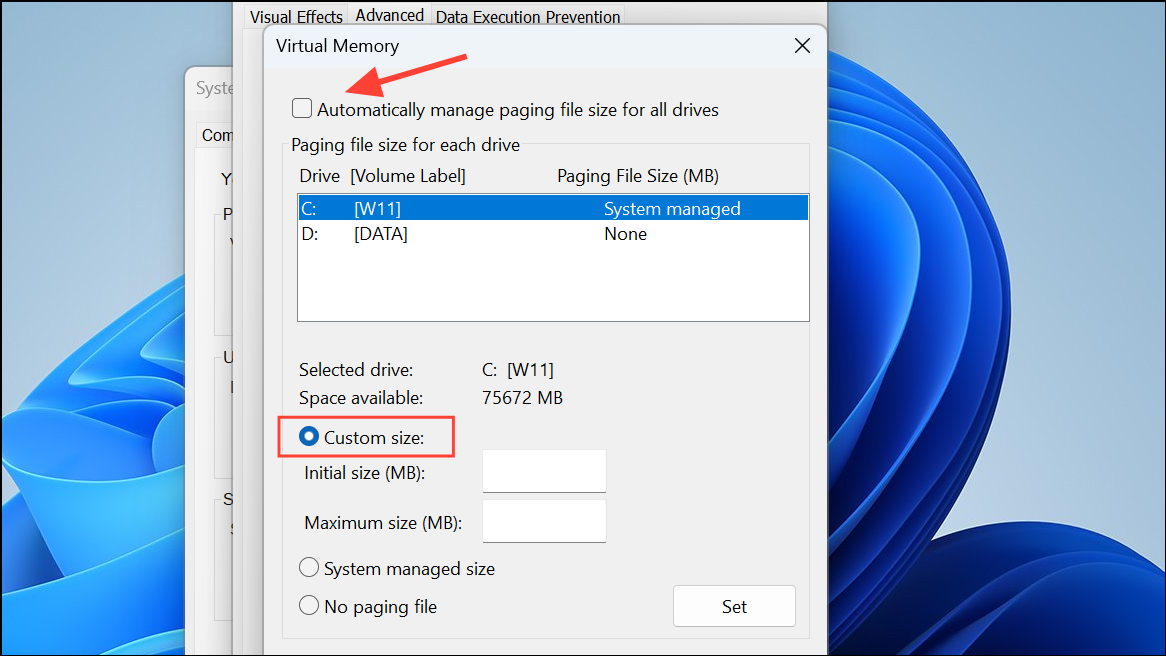
Increase Virtual Memory (Paging File)
Virtual memory acts as extra RAM by using disk space, useful when your physical RAM is fully utilized. Adjusting virtual memory can help prevent errors and slowdowns during heavy usage.
Optimize Using Razer Cortex (Third-Party Tool)
Razer Cortex is a popular third-party optimization tool specifically designed for gaming. It automatically manages RAM and system resources to boost gaming performance.
Razer Cortex also offers an auto-boost feature that activates optimizations each time you launch a game.
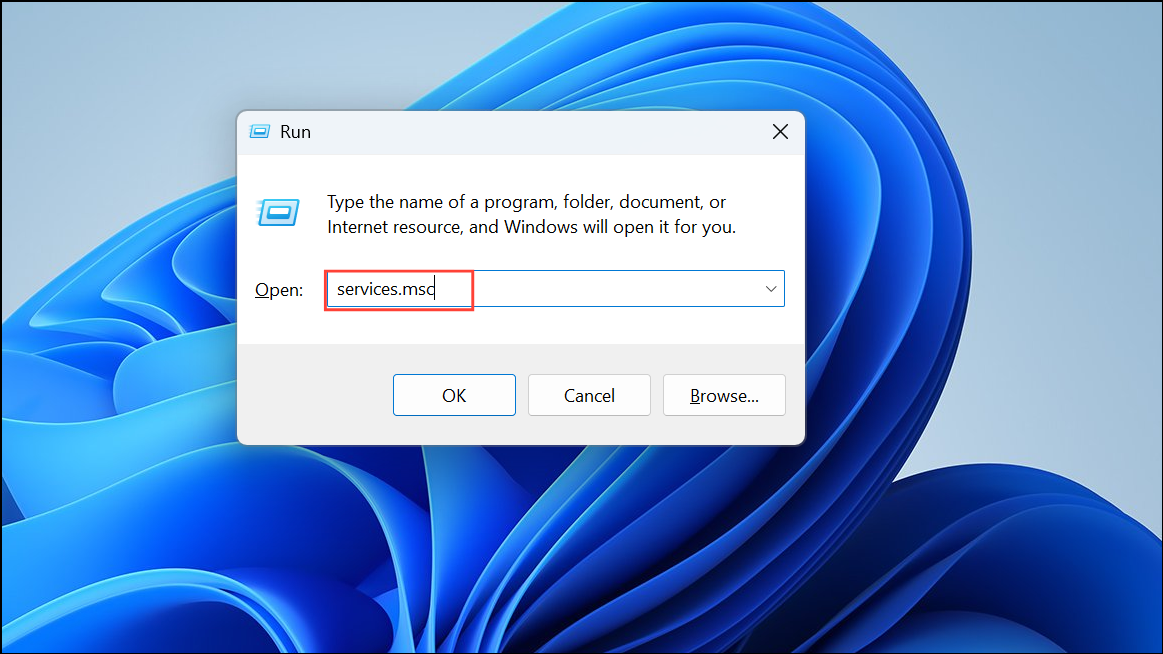
Disable SysMain Service (Superfetch)
SysMain (formerly known as Superfetch) preloads frequently used applications into RAM. Disabling it can free up additional RAM, beneficial if you’re running memory-intensive apps or games.
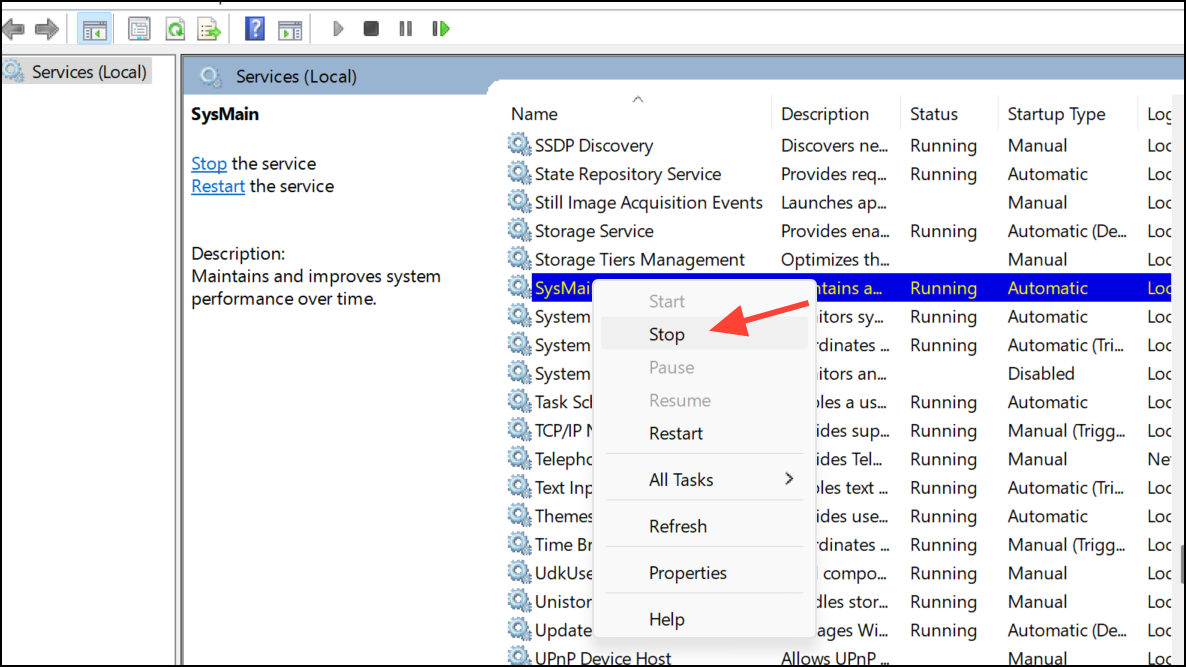
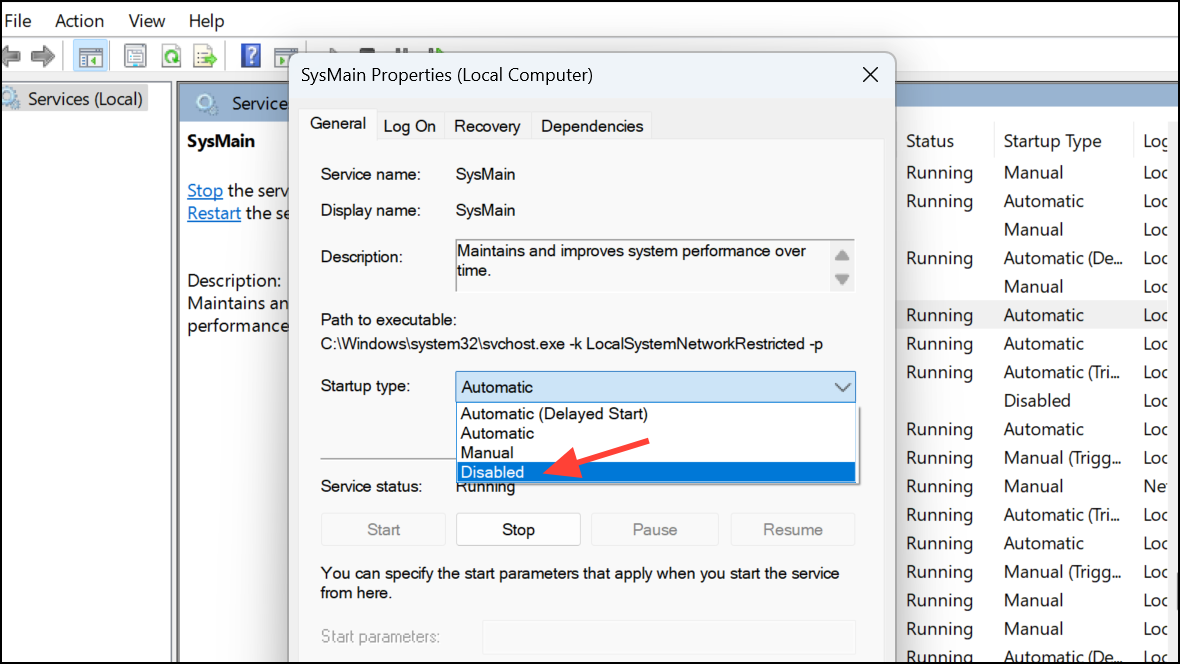
If you notice slower application loading times, you can re-enable SysMain by setting the startup type back to “Automatic.”
Physically Add More RAM to Your PC
If software optimizations aren’t sufficient, adding physical RAM modules provides the most effective, permanent solution.
Ctrl + Shift + Esc), go to the “Performance” tab, and click “Memory” to see available RAM slots.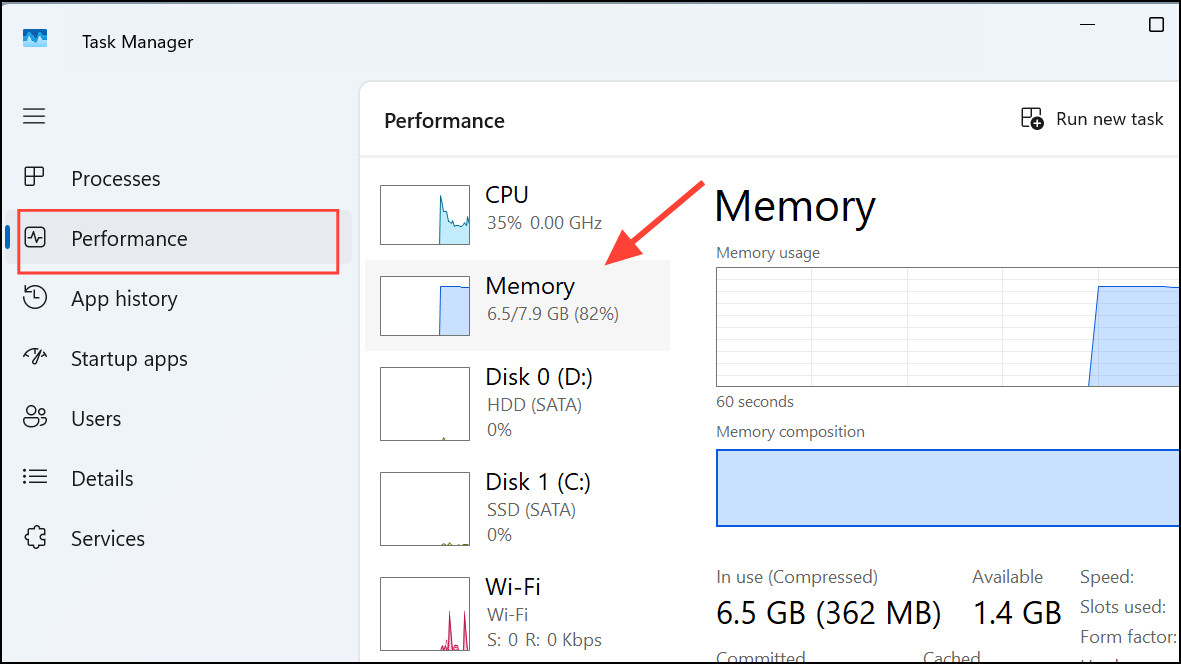
This hardware upgrade significantly boosts performance, especially for multitasking, gaming, and resource-intensive software.
Choosing the Best Method for Your Needs
- Temporary boost: Adjust Task Manager priorities.
- System-wide improvement: Modify Windows performance settings or virtual memory.
- Gaming optimization: Use Razer Cortex or similar tools.
- Freeing RAM quickly: Disable SysMain service.
- Long-term solution: Physically upgrade your RAM.
Each method above can significantly improve your Windows 11 app and game performance by optimizing RAM allocation. Regularly monitor your system’s performance and adjust accordingly to maintain optimal responsiveness.



