
Built-in laptop speakers and some headphones often fail to deliver sufficient loudness, especially in noisy environments or when playing quiet media. Windows 11 caps system volume at 100%, but this limit can be restrictive if your hardware or content is inherently quiet. Several proven methods allow you to push past this ceiling for louder, clearer audio.
Using Equalizer APO to Boost All System Audio
Equalizer APO is a free, open-source audio processor for Windows that lets you increase the gain (loudness) of all sounds played through your system. This method works system-wide, affecting every application and browser tab, not just media players. It’s the most robust solution for consistently low audio.
C:\Program Files\EqualizerAPO\config and open the config.txt file with Notepad. This file controls the audio processing settings.Preamp line to increase gain. For example, Preamp: +10 dB will boost all audio by 10 decibels. Save the file and test your audio output. Increase in small increments to avoid distortion or speaker damage.Enabling Loudness Equalization in Windows 11
Loudness Equalization is a built-in Windows feature that levels out volume differences and can provide a modest boost, particularly for quiet content. It’s accessible through the sound settings and does not require third-party downloads.
Sound settings or Sounds. In the new window, click on More sound settings to access the classic sound control panel.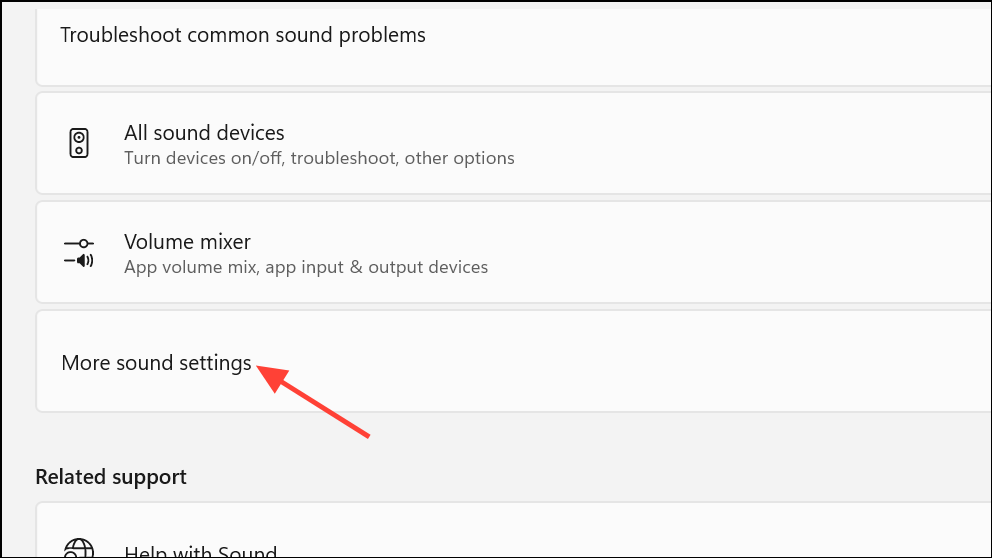
Playback tab, select your active playback device (such as Speakers or Headphones) and click Properties.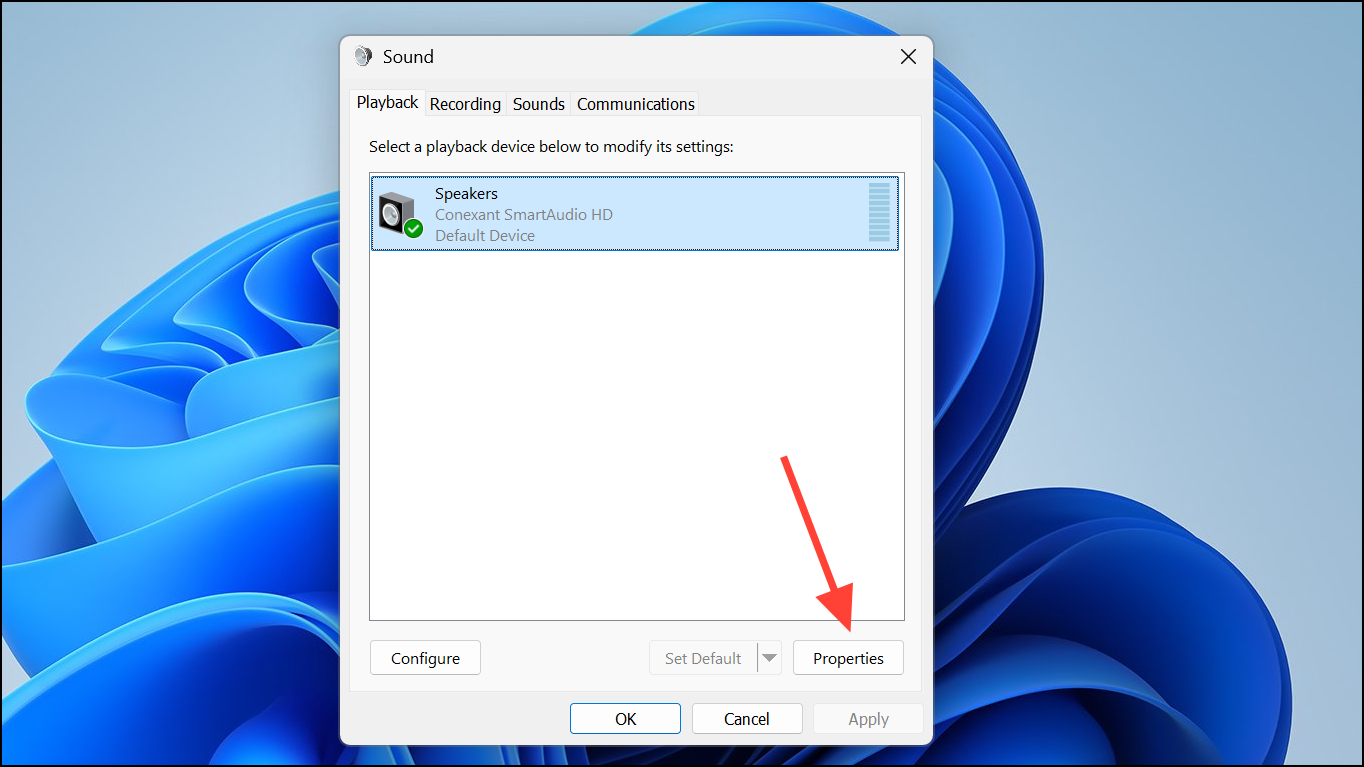
Enhancements tab and check the box labeled Loudness Equalization. Click Apply and OK to confirm your changes.This setting can increase overall perceived loudness and make quiet sounds more audible, but the effect is limited compared to software amplifiers. If the Enhancements tab is missing, try updating your audio drivers or check your hardware documentation.
Boosting Volume Within VLC Media Player
VLC Media Player offers an internal volume boost up to 300% for audio and video files played within the app. This is useful for files that are too quiet, but the setting does not affect other apps or browser audio.
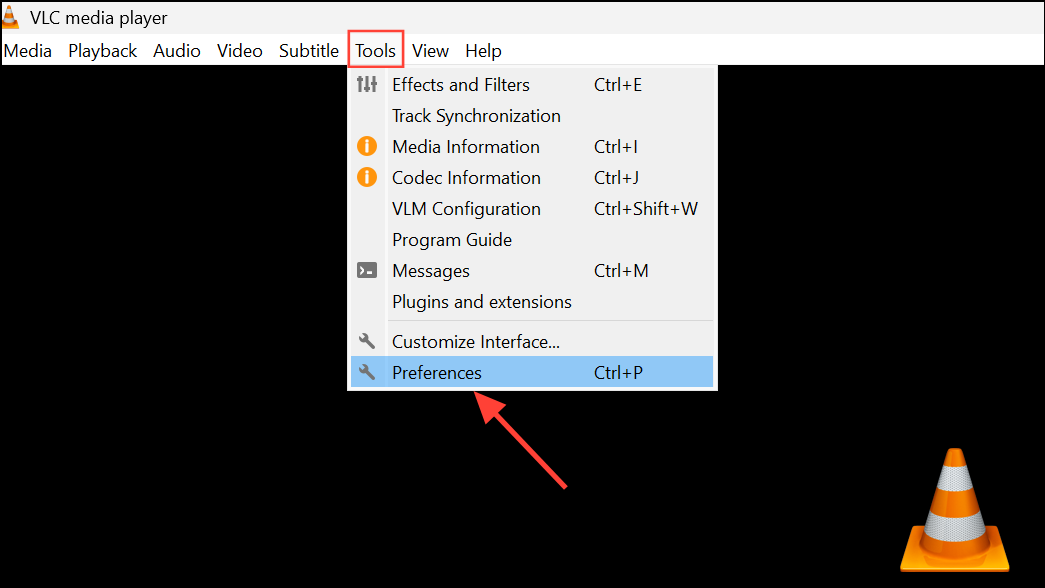
Show settings to All. In the left pane, expand Main interfaces and select Qt.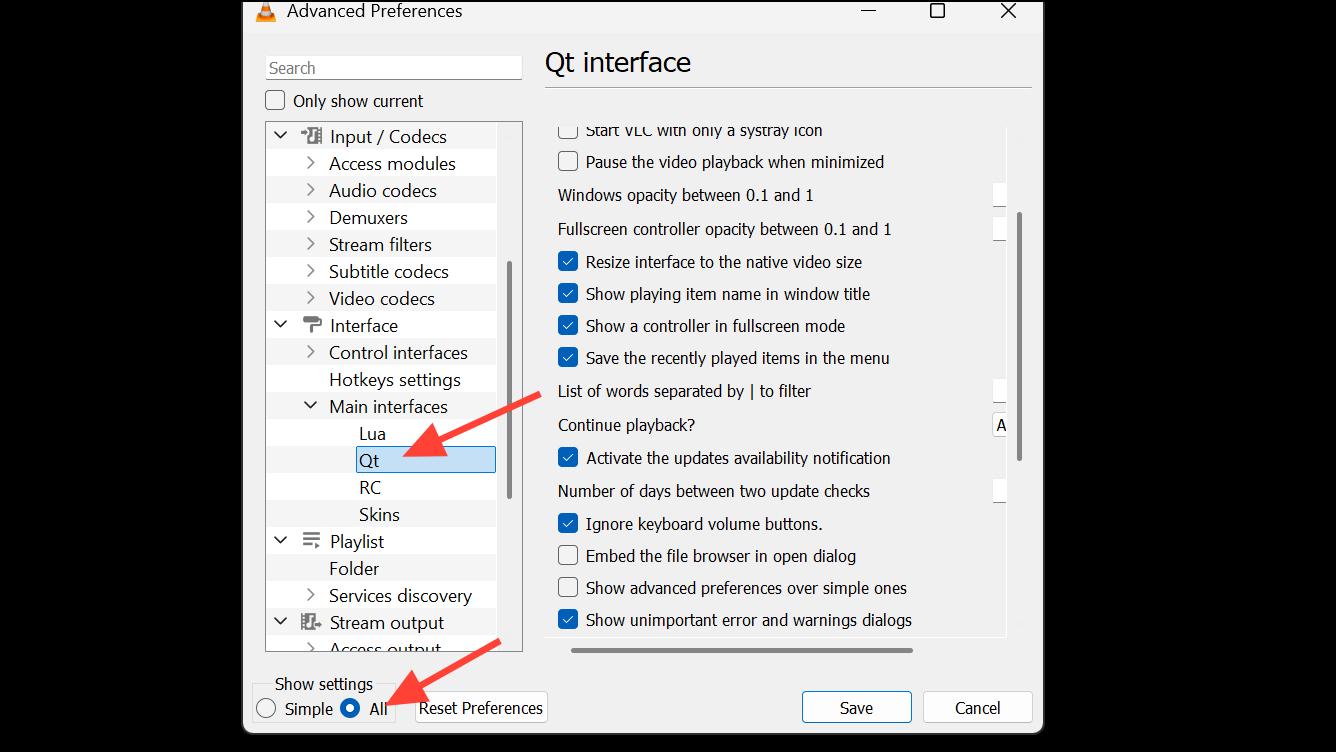
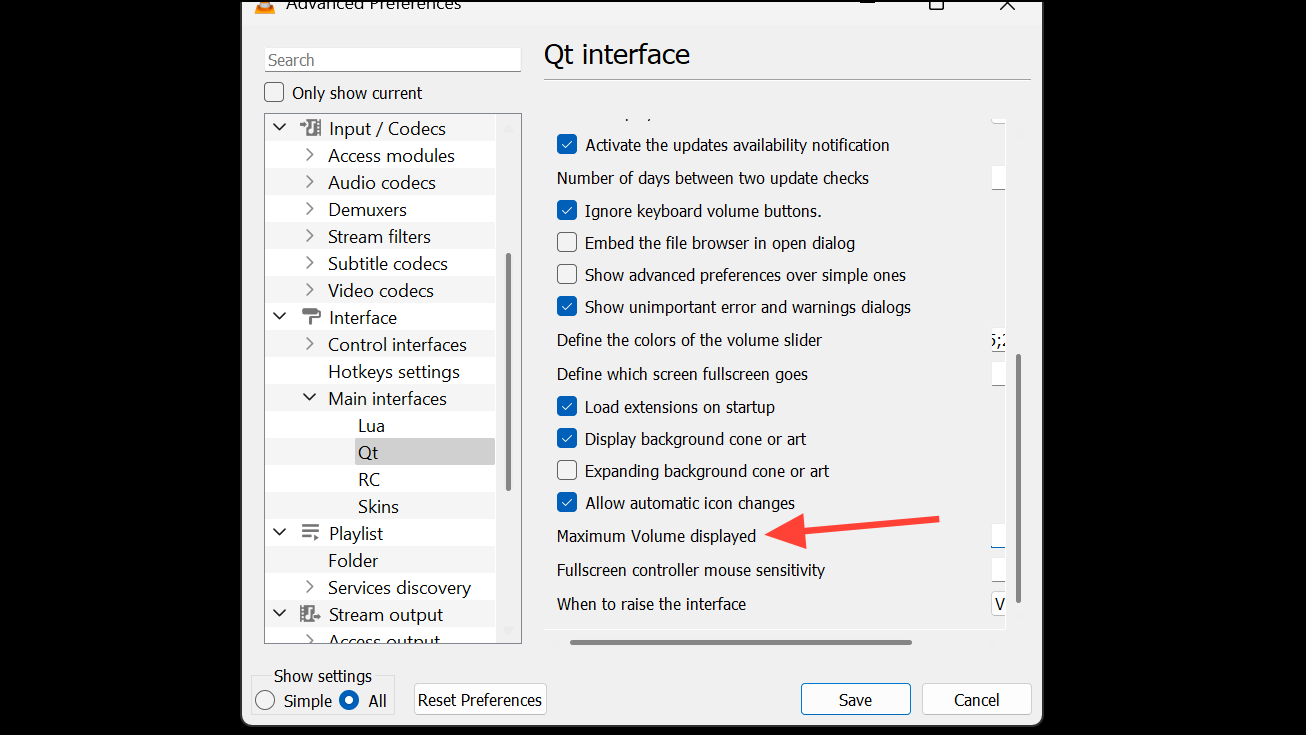
Using Browser Extensions for Online Content
For audio or video played in browsers (like YouTube), browser extensions can provide per-tab volume boosts. Volume Master for Chrome is a popular option.
Volume Master. Click Add to Chrome to install the extension.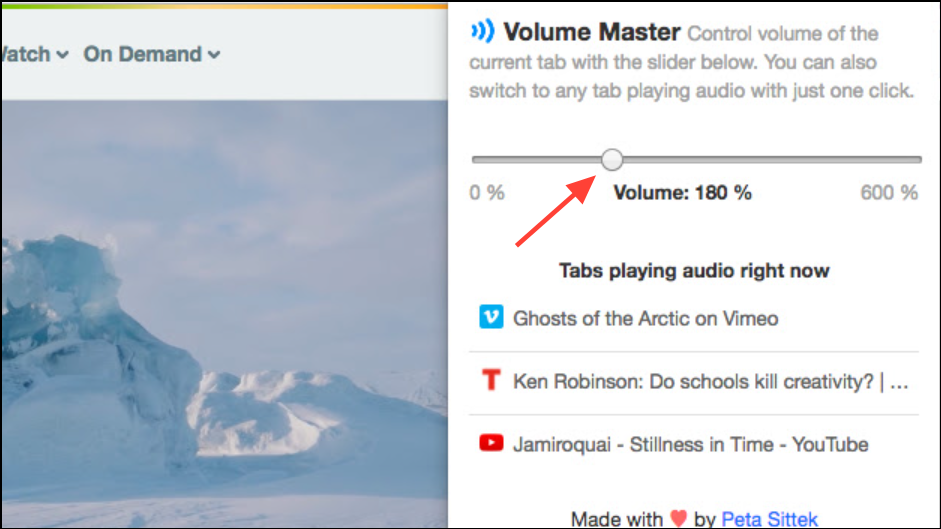
This method is quick for browser content but does not affect other apps or system sounds.
Checking and Adjusting Per-App Volume in Windows 11
Windows 11 allows separate volume control for each running application via the volume mixer. Sometimes, a specific app’s volume may be set below 100% even if the system volume is maxed out.
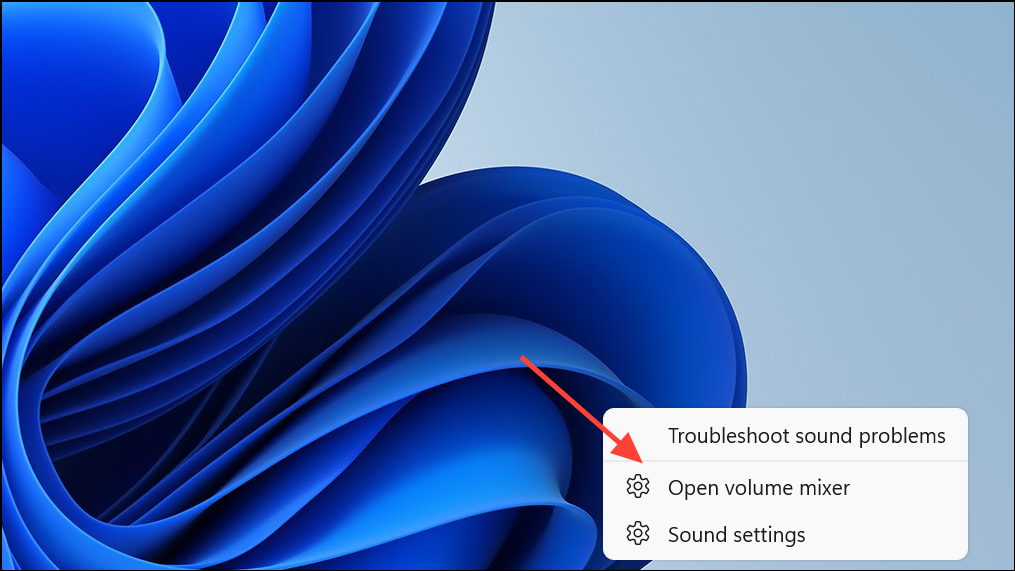
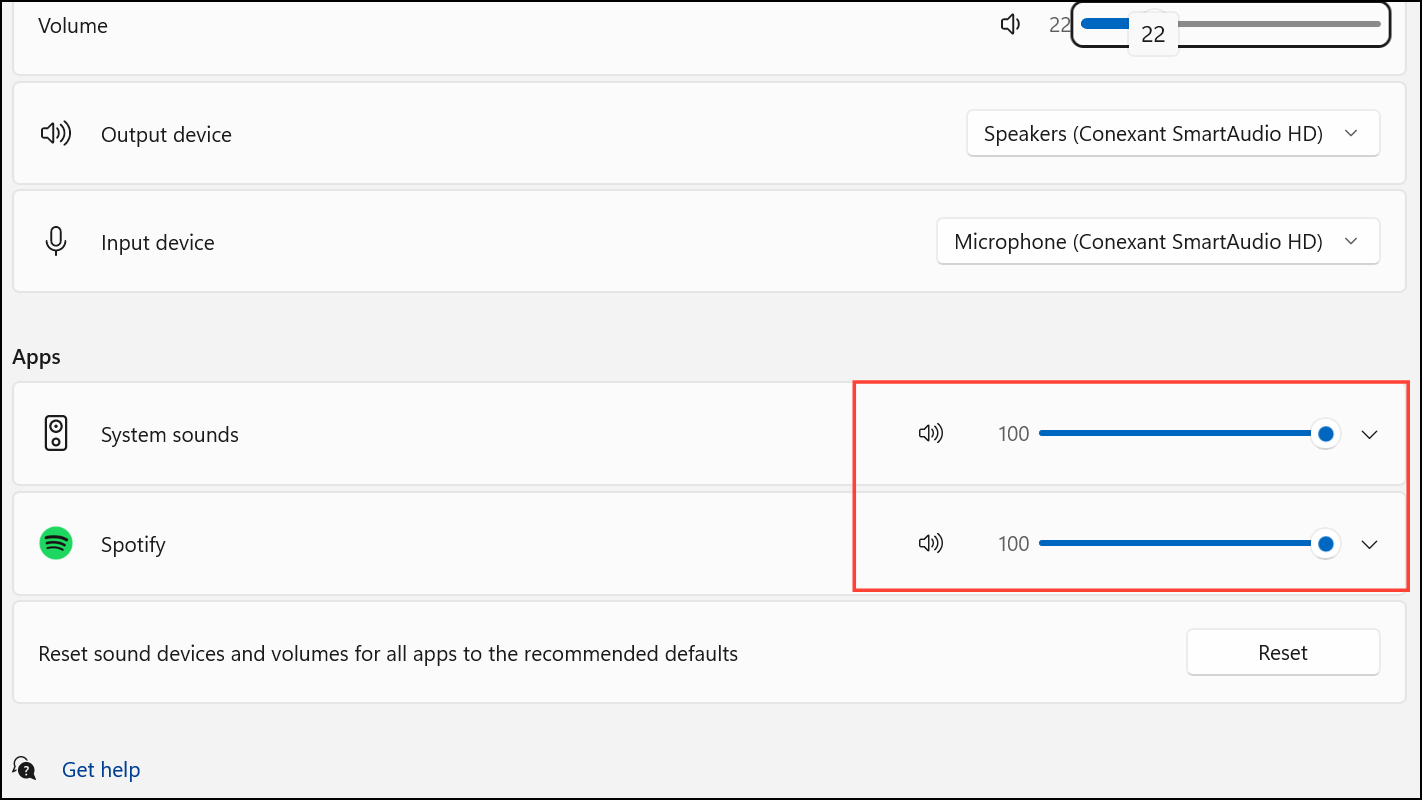
This is a simple fix for cases where only certain apps are too quiet, but it cannot push the output past the hardware/software maximum.
Hardware Solutions: External Amplifiers and Headphone Amps
If software methods are insufficient, external hardware can provide significant volume increases. USB headphone amplifiers and powered speakers bypass the limitations of your computer’s built-in audio hardware, delivering cleaner and stronger output.
Choose an amplifier or powered speaker set compatible with your device. Plug it in, select it as your playback device, and adjust the volume using the amp’s physical controls. This approach is especially effective for high-impedance headphones or large rooms.
Boosting audio beyond Windows 11’s default limit is possible using Equalizer APO, Loudness Equalization, VLC, browser extensions, or hardware amps. Carefully test each method to find the right balance between loudness and audio quality for your setup.



