
The Windows 25 mod is a community-created modification designed specifically to address common frustrations with Windows 11, such as its centered taskbar, limited context menus, and restrictive customization options. Developed by the modder AR 4789, this mod significantly transforms the Windows 11 user interface, bringing back familiar elements from earlier Windows versions while introducing modern visual improvements and streamlined usability.
Below, you’ll find detailed instructions on how to install and use the Windows 25 mod, ensuring a smooth transition and minimizing potential issues. Before you begin, it’s crucial to understand the process thoroughly and take precautionary measures to safeguard your system.
Preparing to Install the Windows 25 Mod
create a restore point into the Windows search box, open the resulting option, and follow the on-screen instructions.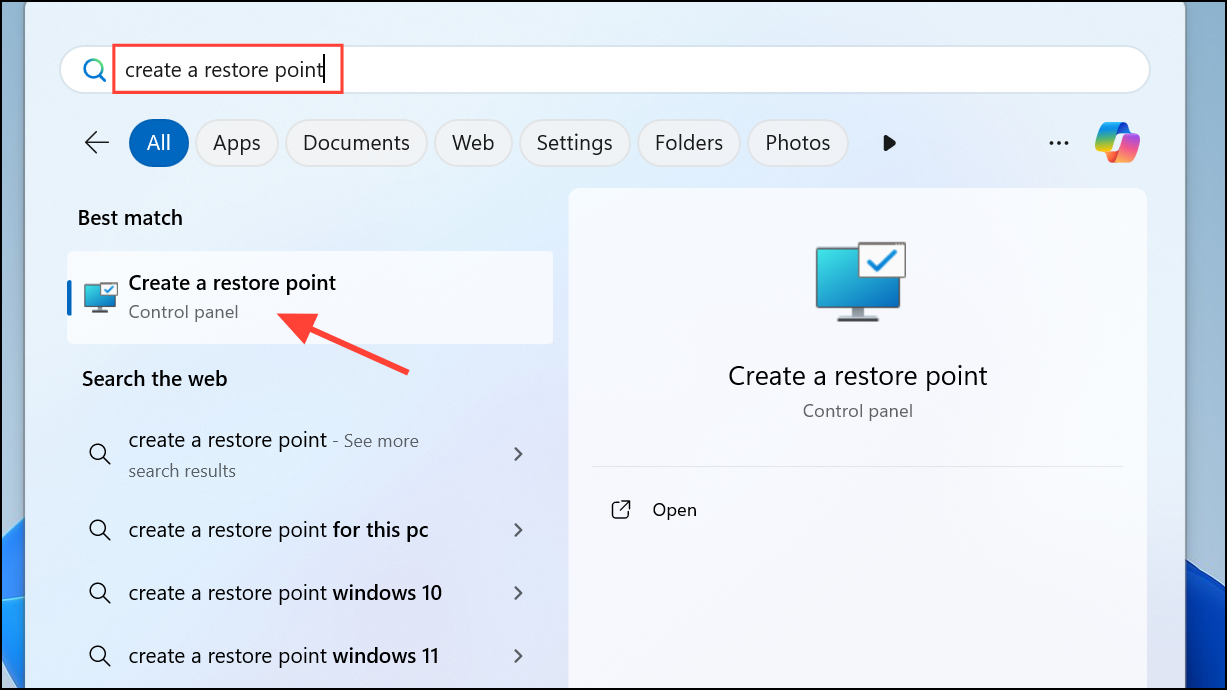
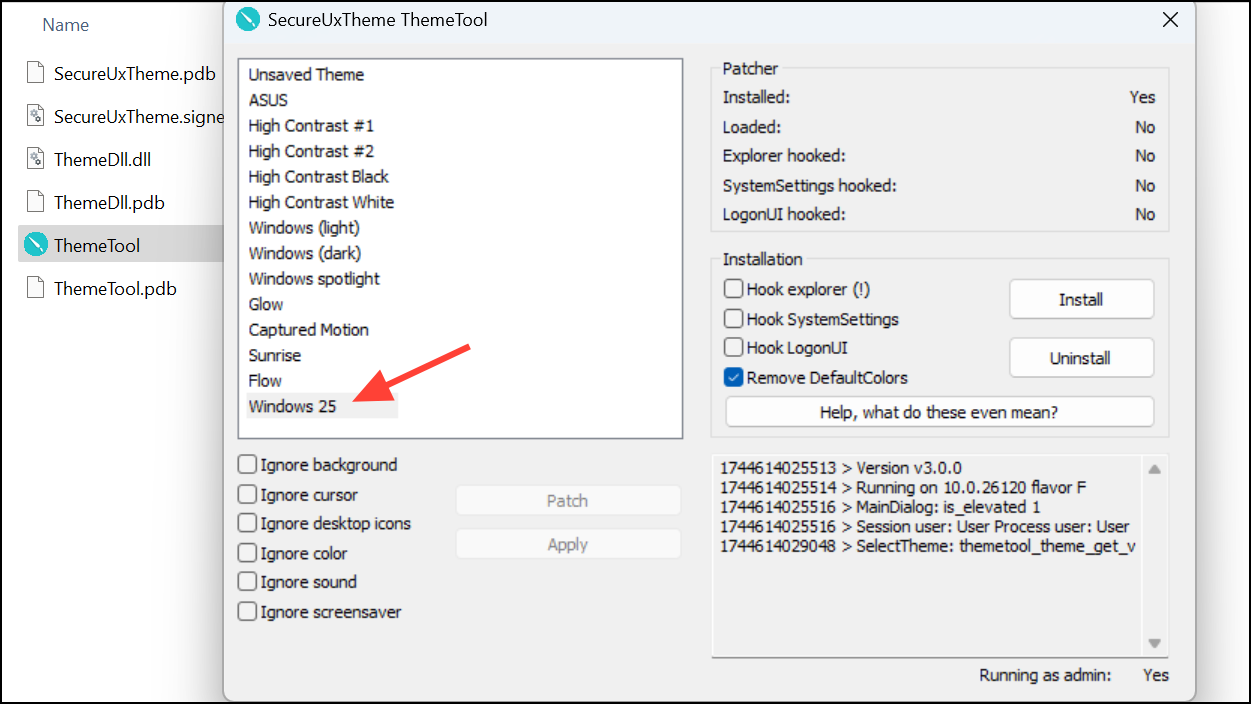
- SecureUxTheme (for theme application)
- Windows 25 Theme File
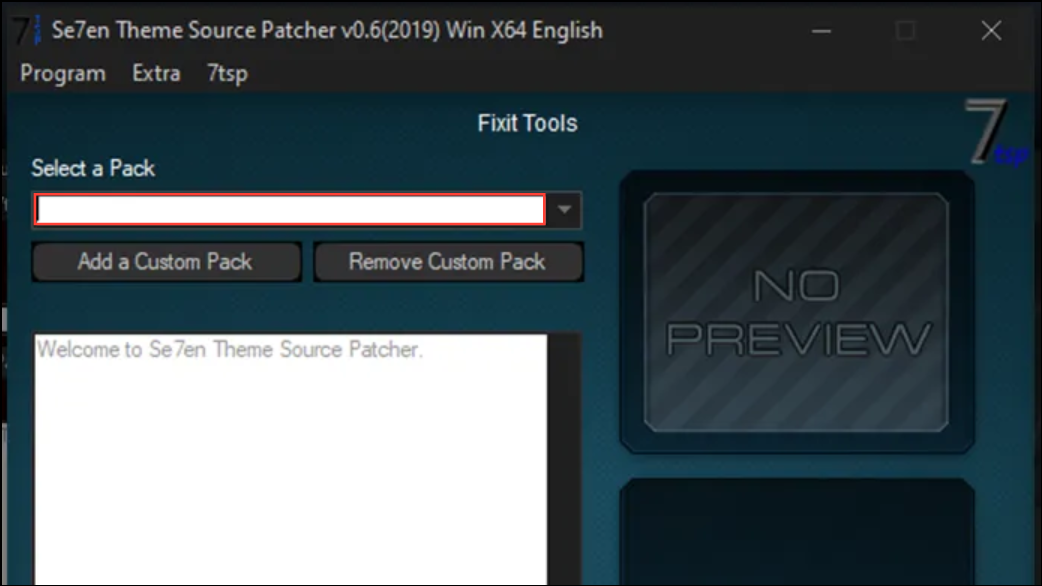
- 7TSP GUI Tool
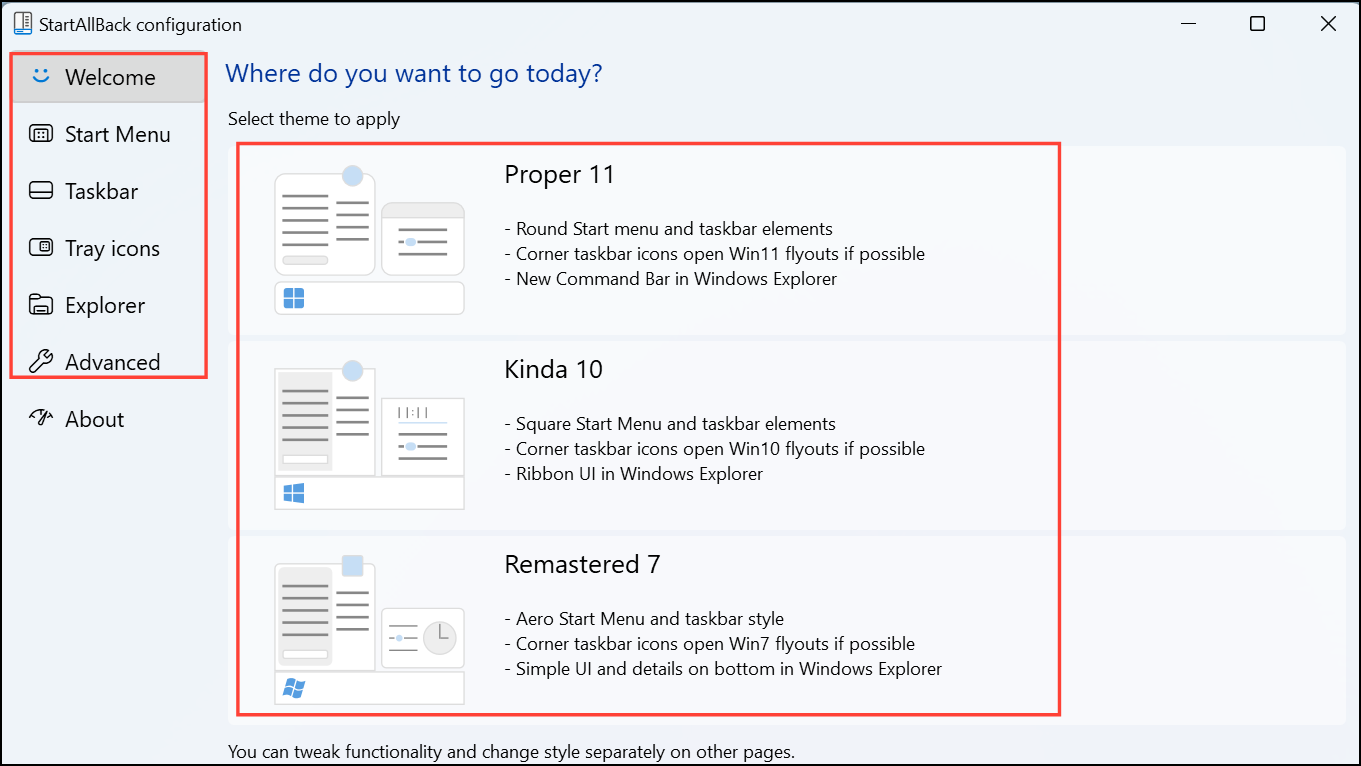
- StartAllBack (for taskbar customization)
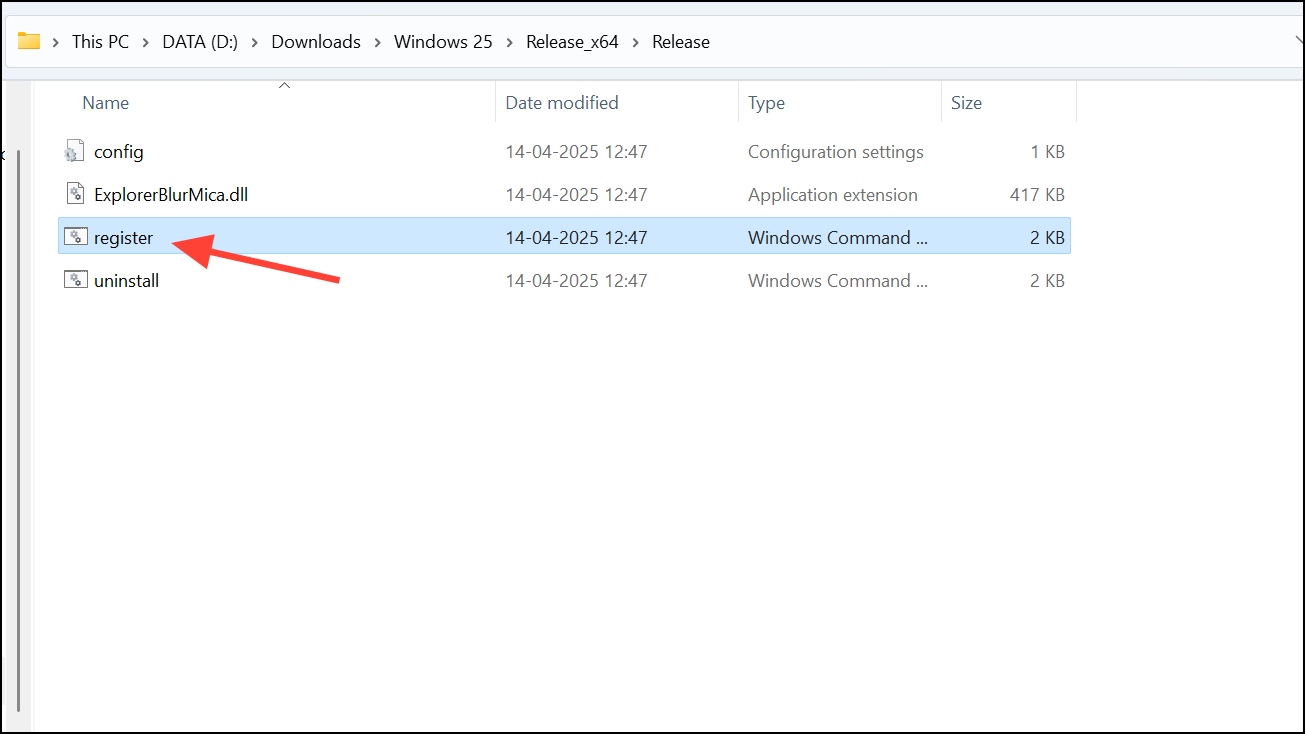
- Blurmica (for transparency effects)
- Windhawk (for additional UI tweaks)
Ensure you download these files from the provided official or trusted sources to avoid security risks. You can also use a trusted website like VirusTotal to check the files.
Installing the Windows 25 Mod
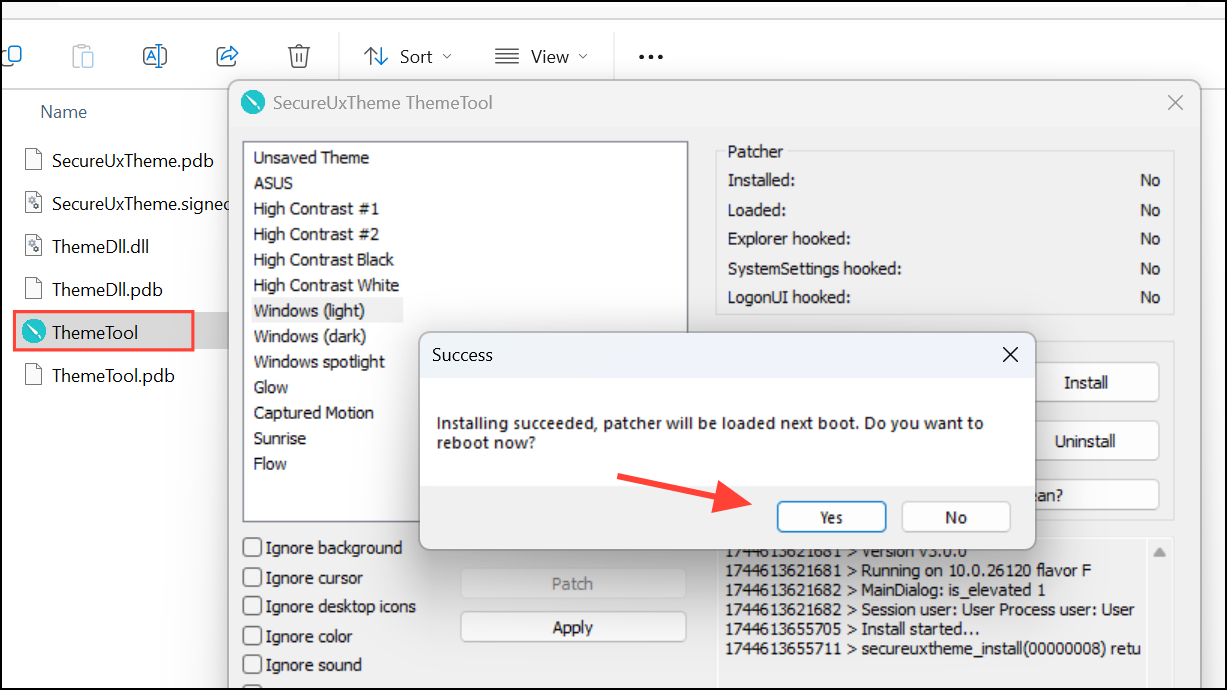
C:\Windows\Resources\Themes directory. You may need administrator permissions to copy files to this location.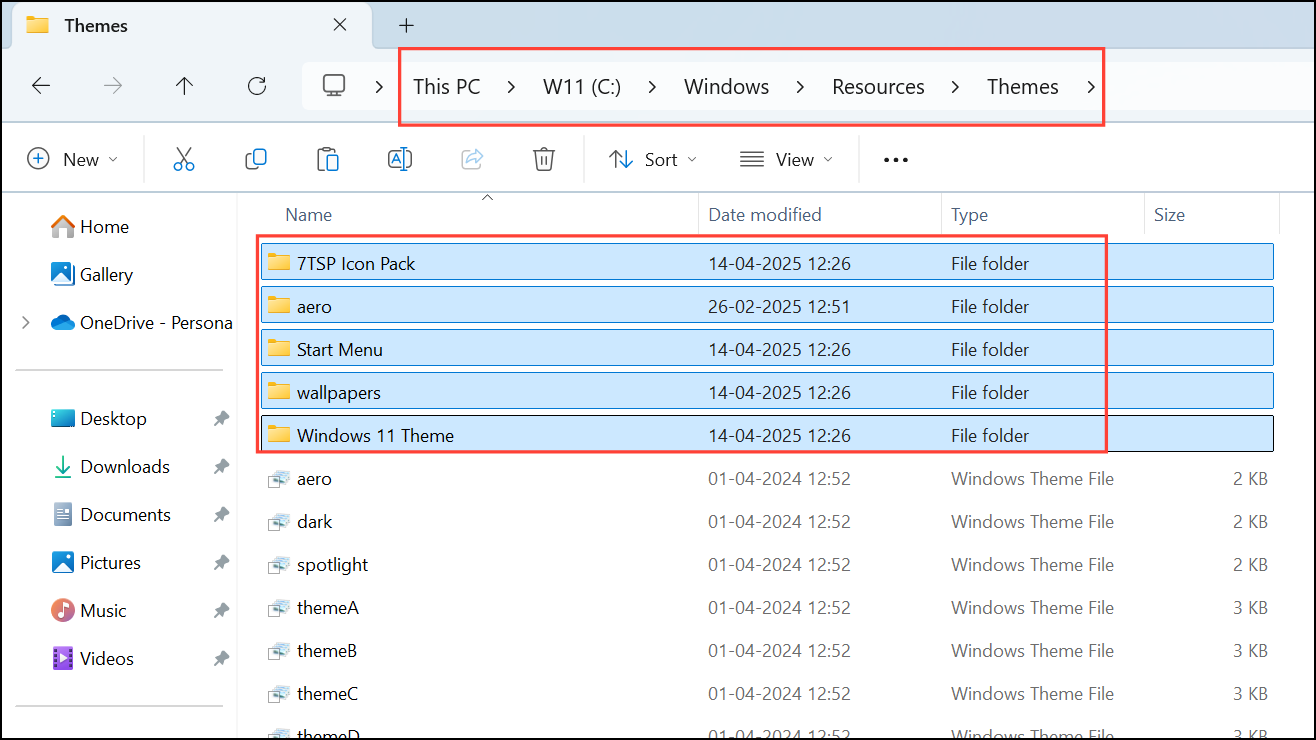
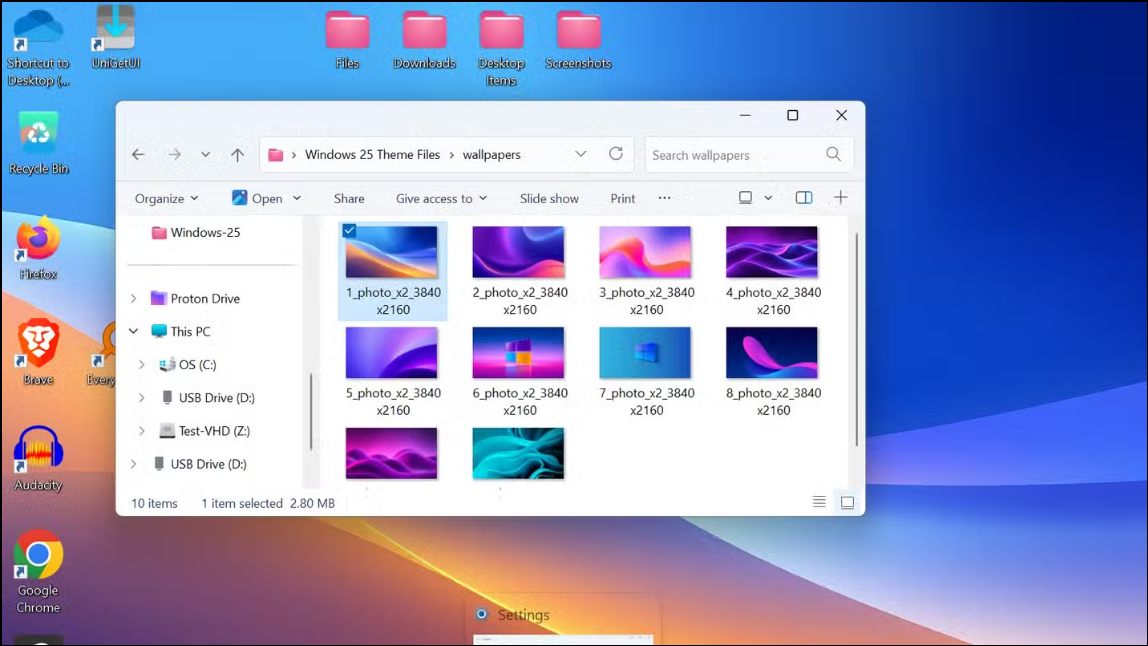
Experiencing Windows 25 Mod on Your PC
Once installation is complete, your Windows 11 desktop will feature a significantly redesigned interface. Notable improvements include a repositioned and more functional Start menu, restored classic context menus (eliminating the need for multiple clicks), and simplified icons and visual elements. The overall result is a more intuitive, efficient, and visually appealing desktop environment.
Customization doesn’t end with installation. You can continue tweaking the interface using Windhawk and StartAllBack, adjusting transparency, icon layout, and additional visual settings to match your workflow and aesthetic preferences precisely.
Security and Stability Considerations
While the Windows 25 mod offers substantial improvements, it’s important to be cautious. Always ensure that you download mod files from trusted sources and maintain regular system backups. Keep an eye on community forums and mod update pages, as Windows updates may occasionally conflict with third-party modifications, requiring additional adjustments or updates from mod developers.
If you encounter any instability or issues, you can revert your system to its previous state using the restore point created at the beginning of this process.
The Windows 25 mod provides a practical solution to many common user complaints about Windows 11, restoring familiar functionality and streamlining the interface without losing modern design elements. Give it a try, tailor your desktop to your liking, and enjoy a more productive Windows experience.



