
Gemma 3 is a powerful large language model (LLM) that allows you to perform various natural language processing tasks directly on your local machine. Installing Gemma 3 on your Windows 11 PC provides fast, offline access to advanced language processing capabilities without relying on cloud services. Follow these detailed steps to get Gemma 3 up and running smoothly on your system.
Prerequisites
Before starting, ensure your Windows 11 PC meets the following requirements:
- Windows 11 with administrator privileges.
- Python 3.10 or higher installed (download from official Python website).
- Git installed for cloning repositories (download Git here).
- Sufficient disk space (at least 20 GB recommended).
- An NVIDIA GPU with CUDA support is recommended for optimal performance, though CPU installation is also possible.
Method 1: Installing Gemma 3 Using Python and Git (Recommended)
python --version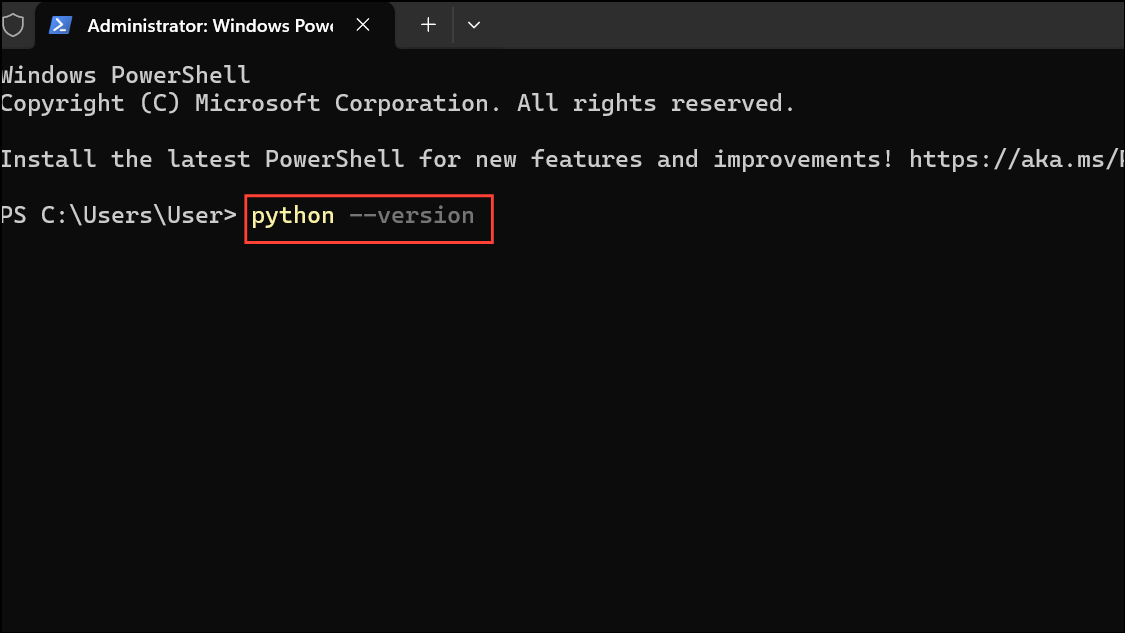
If Python is correctly installed, you’ll see something like Python 3.10.x. If not, download and install Python from the official website linked above.
git --version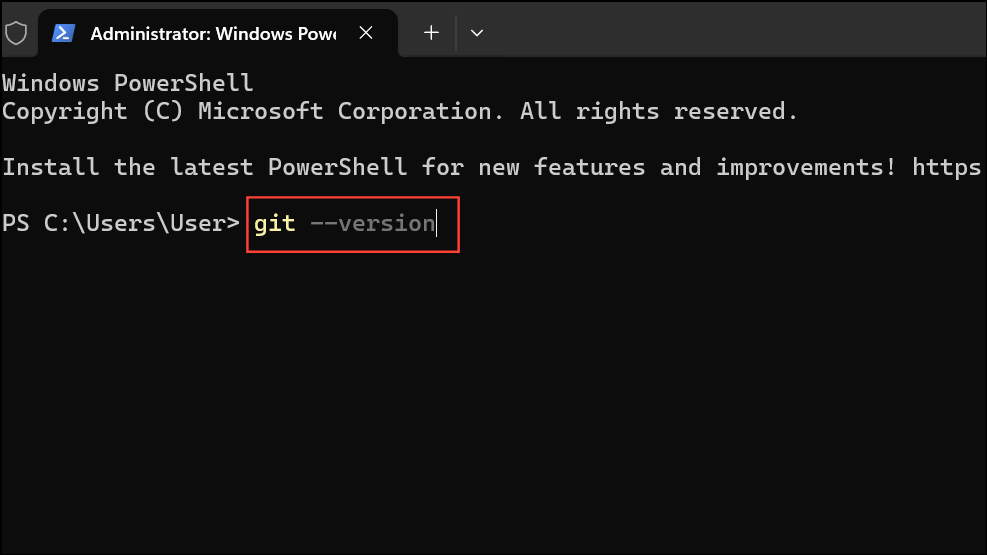
If Git is installed correctly, a version number will appear. Otherwise, install it from the official link provided in the prerequisites section.
git clone https://github.com/google/gemma.git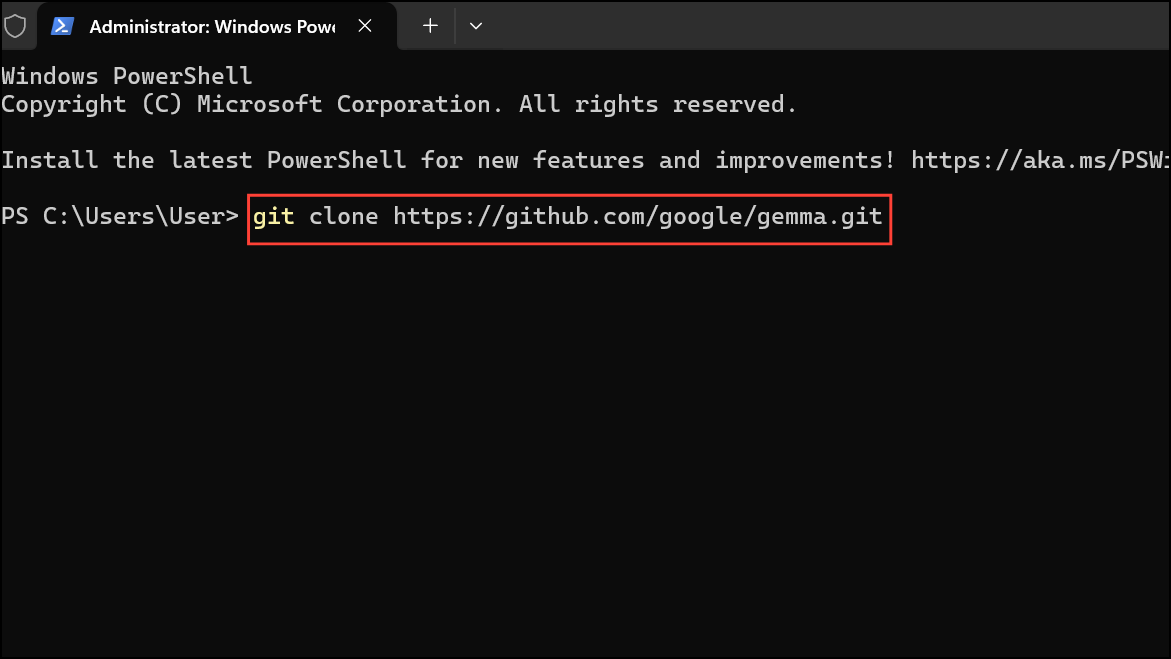
This command downloads the Gemma 3 repository to a new folder named gemma.
cd gemma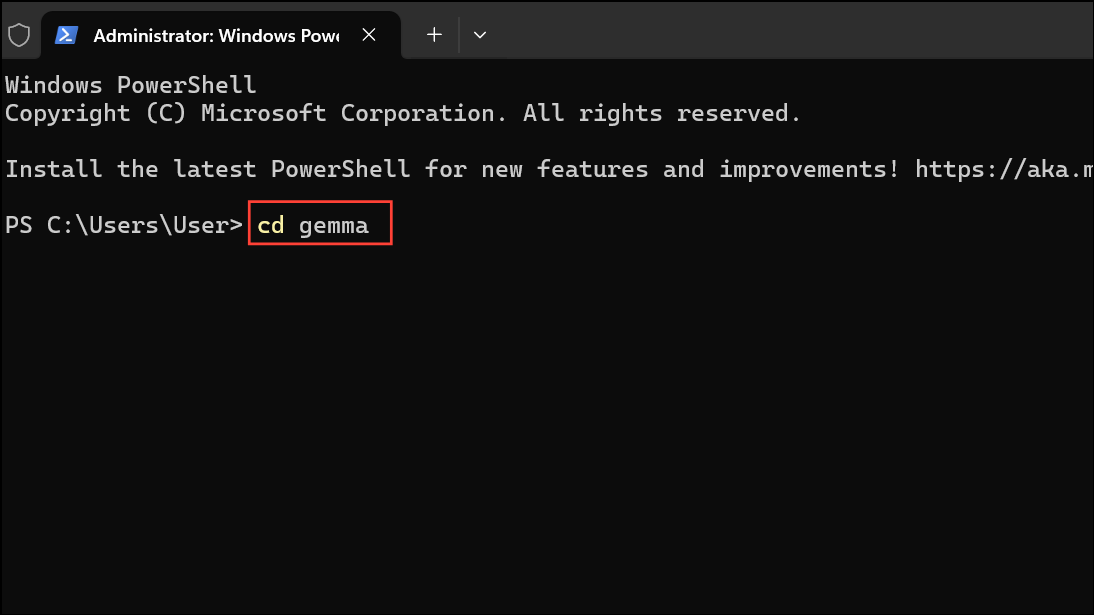
python -m venv gemma-env
gemma-env\Scripts\activate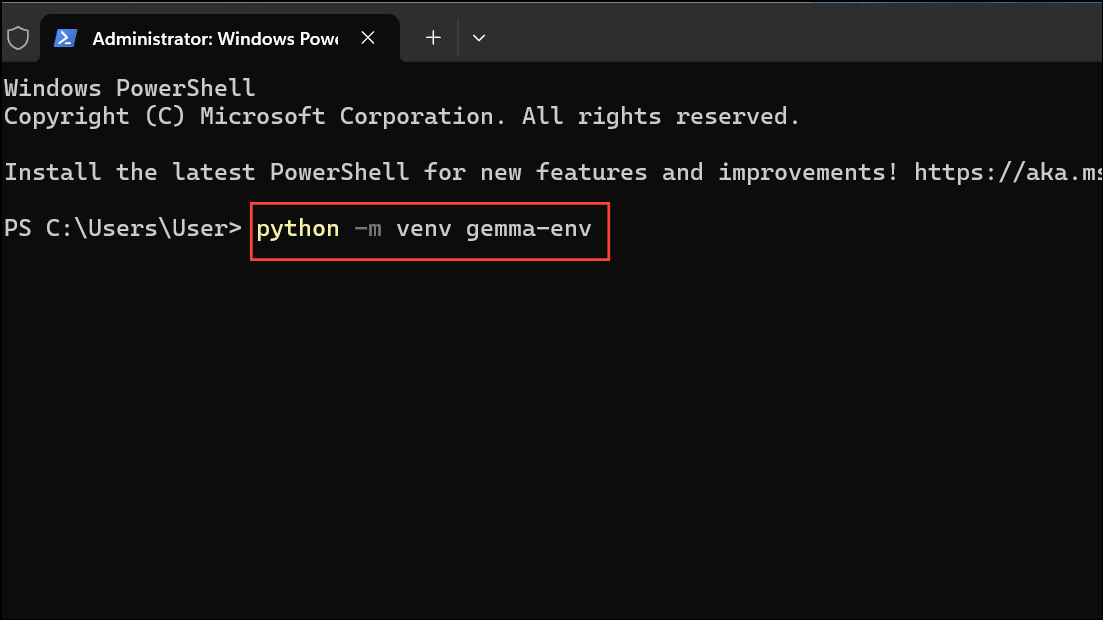
This isolates Gemma 3 dependencies from your global Python installation.
pip install -r requirements.txt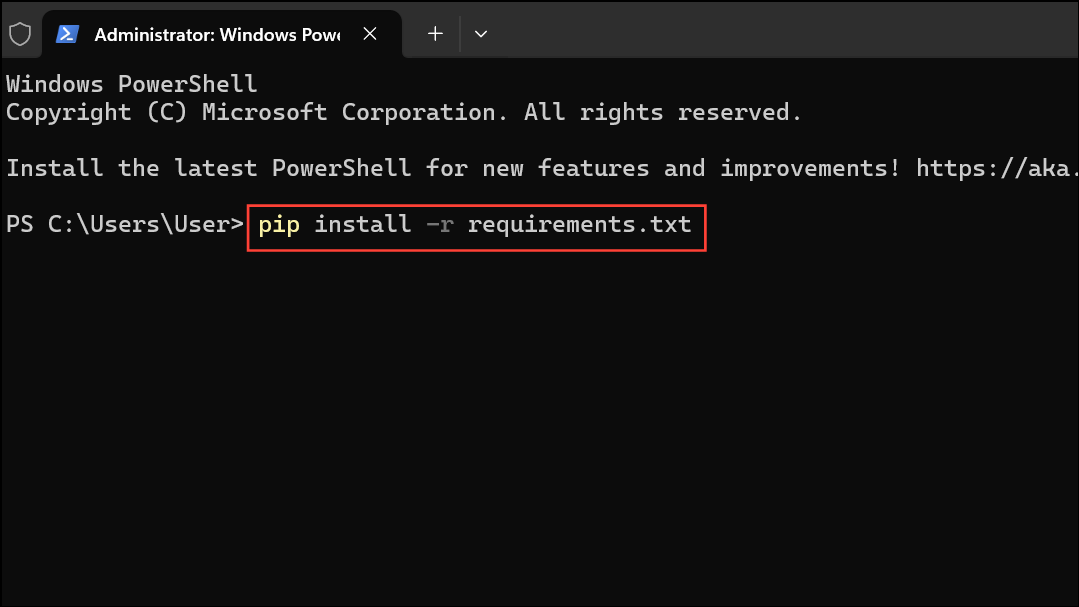
This command may take a few minutes to complete as it installs all necessary libraries.
python run_gemma.py --model gemma-3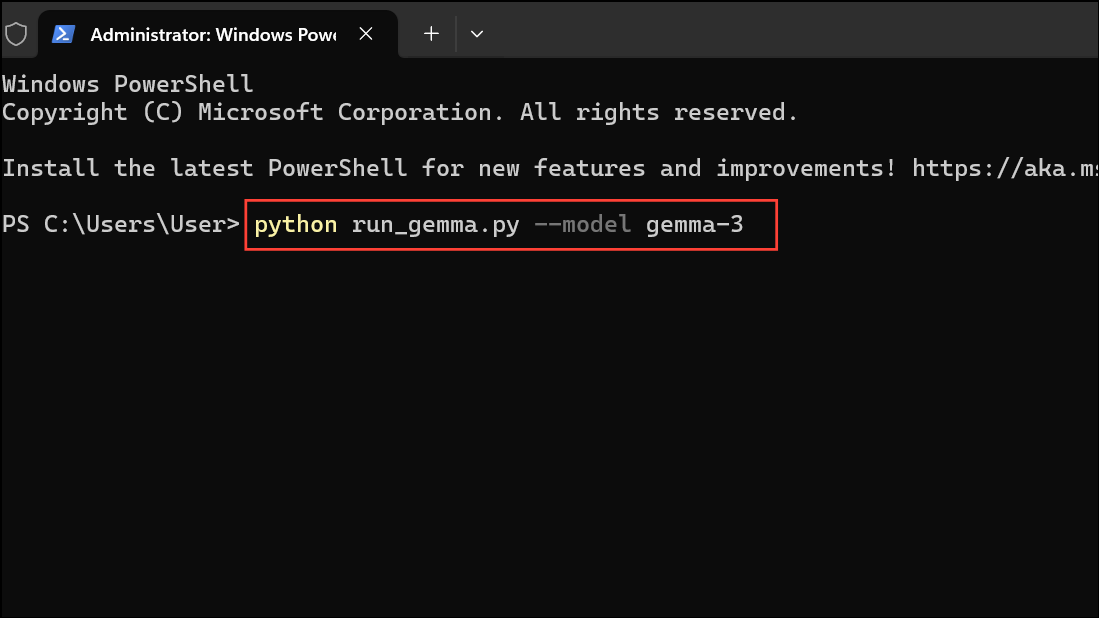
Replace run_gemma.py and gemma-3 with the actual script and model identifiers provided in the repository’s documentation.
If everything is set up correctly, Gemma 3 will start running locally, ready to process your inputs.
Method 2: Installing Gemma 3 Using Docker (Alternative)
If you prefer containerized solutions, Docker provides a convenient alternative to set up Gemma 3 quickly.
docker --version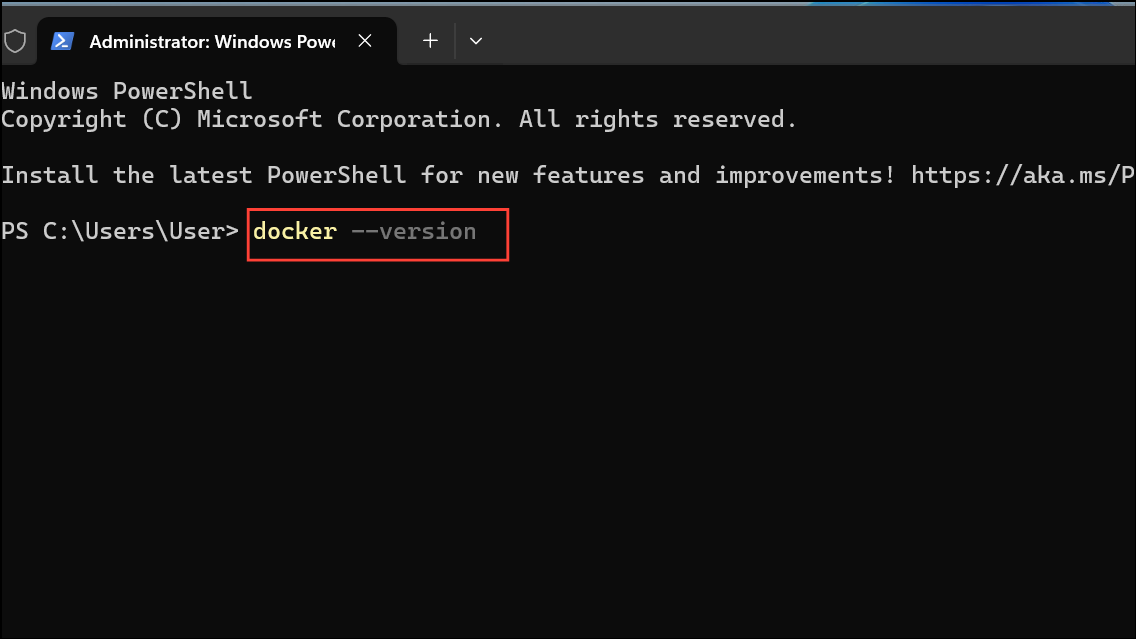
docker pull google/gemma:latest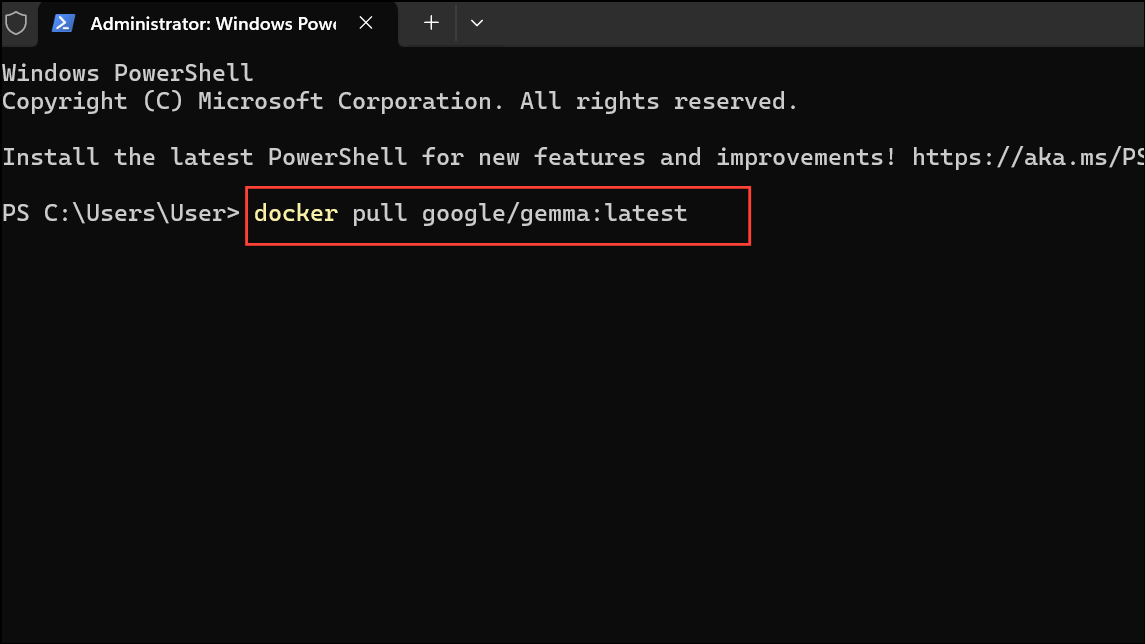
Replace google/gemma:latest with the actual Docker image name provided by the official Gemma documentation.
docker run -it --rm -p 8000:8000 google/gemma:latest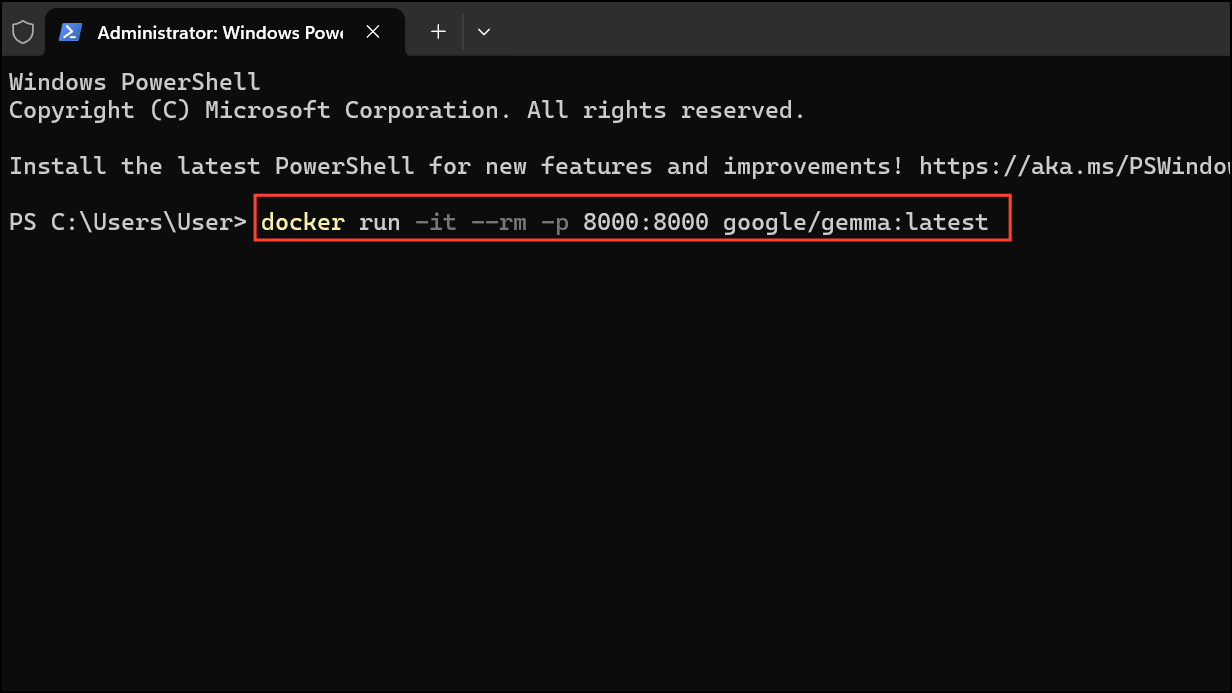
This command starts Gemma 3 in a Docker container, accessible via your browser or API client on port 8000.
http://localhost:8000 or the specific address indicated in the container documentation.Regularly update your Gemma 3 installation by pulling the latest changes from the official repository or Docker image. Keeping your environment updated ensures optimal performance, security patches, and new features.
Now you’re ready to use Gemma 3 locally on your Windows 11 PC. Enjoy experimenting with natural language processing tasks directly from your desktop!



