
Installing ChatGPT on Windows 11 provides users with direct access to AI-driven conversations, personalized assistance, and streamlined workflows. By integrating OpenAI’s popular chatbot into your operating system, you can quickly generate text, troubleshoot issues, or automate routine tasks without needing to open a browser each time. Here are three effective methods to integrate ChatGPT into your Windows 11 system.
Method 1: Install the Official ChatGPT App via Microsoft Store
The simplest and most efficient way to integrate ChatGPT with Windows 11 is by installing the official ChatGPT desktop application available through the Microsoft Store. This method ensures native integration, smoother performance, and quick accessibility directly from your desktop or taskbar.
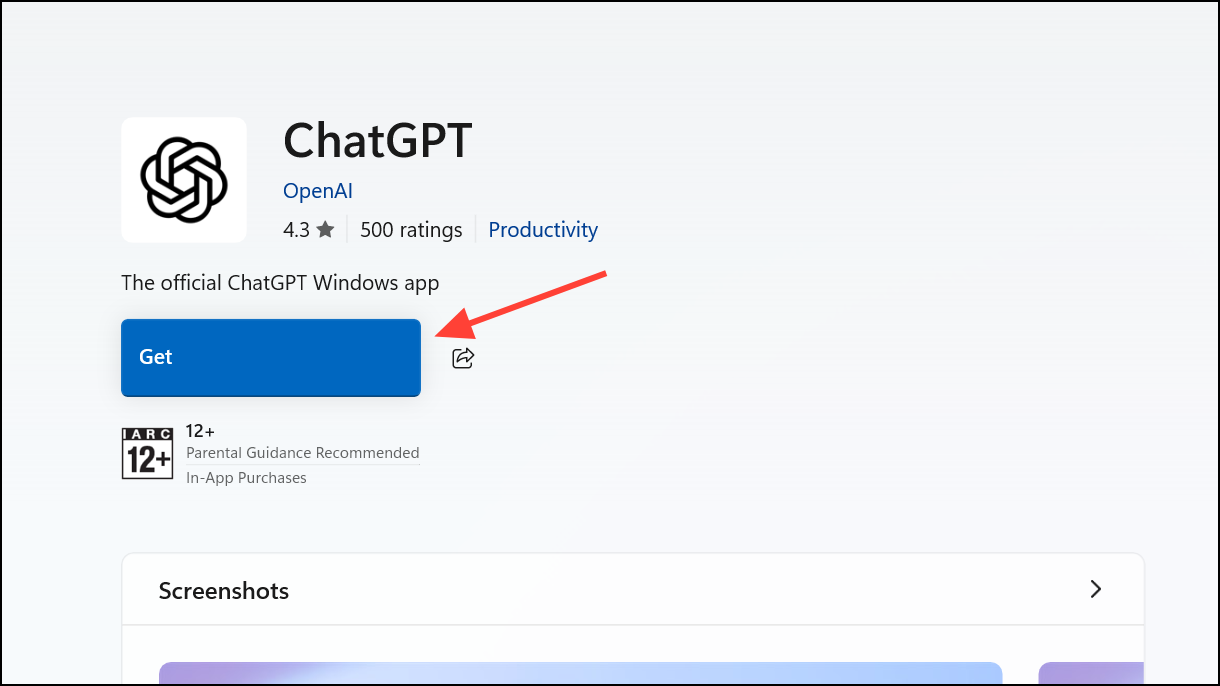
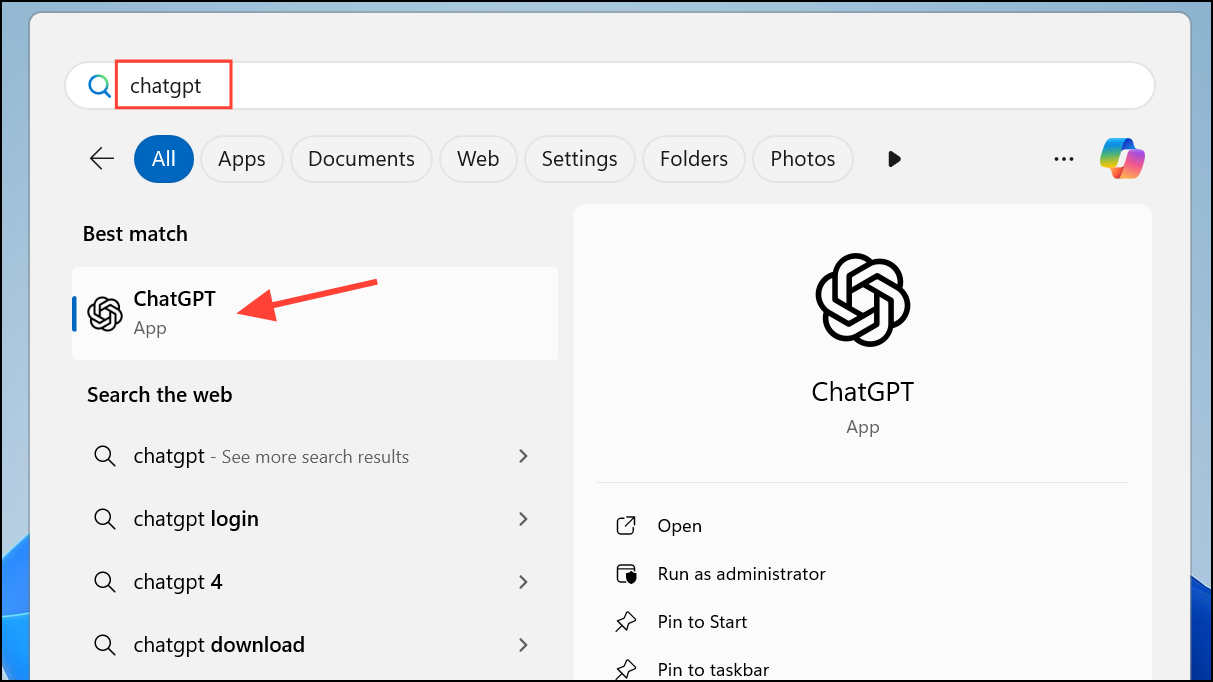
Windows + [number] (matching the app’s position) will quickly launch ChatGPT.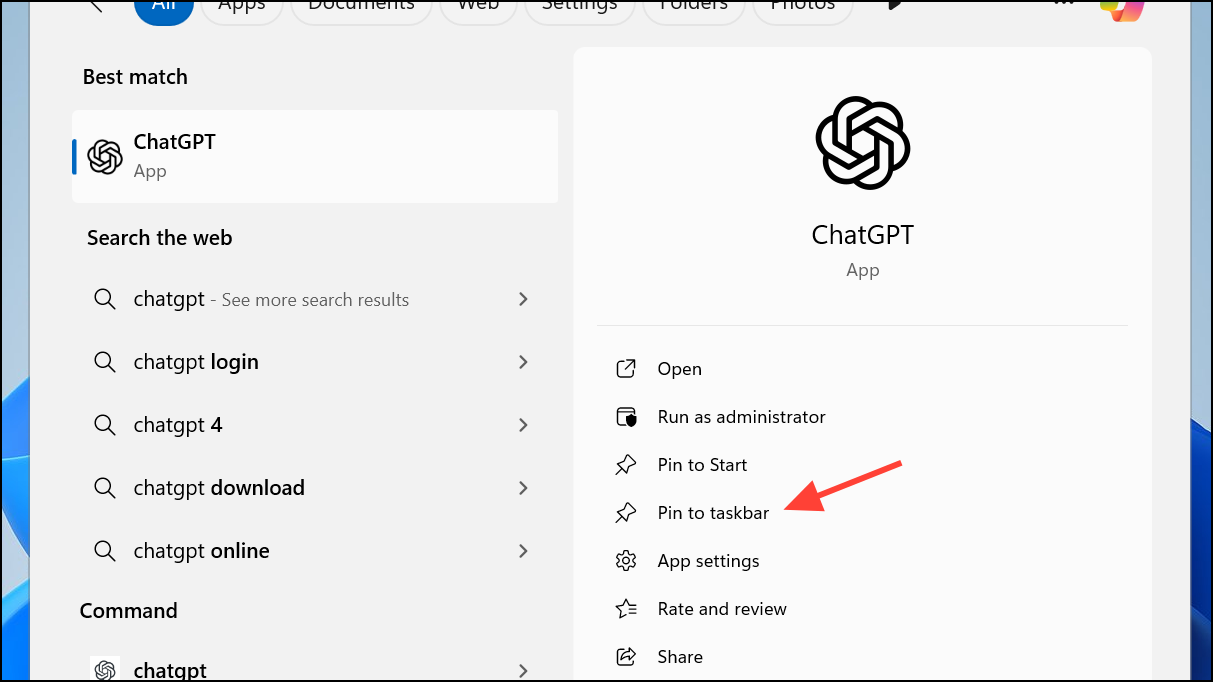
If you prefer installing ChatGPT through command-line tools, you can use Windows Package Manager (winget). Open Command Prompt as administrator and run:
winget install --id 9nt1r1c2hh7j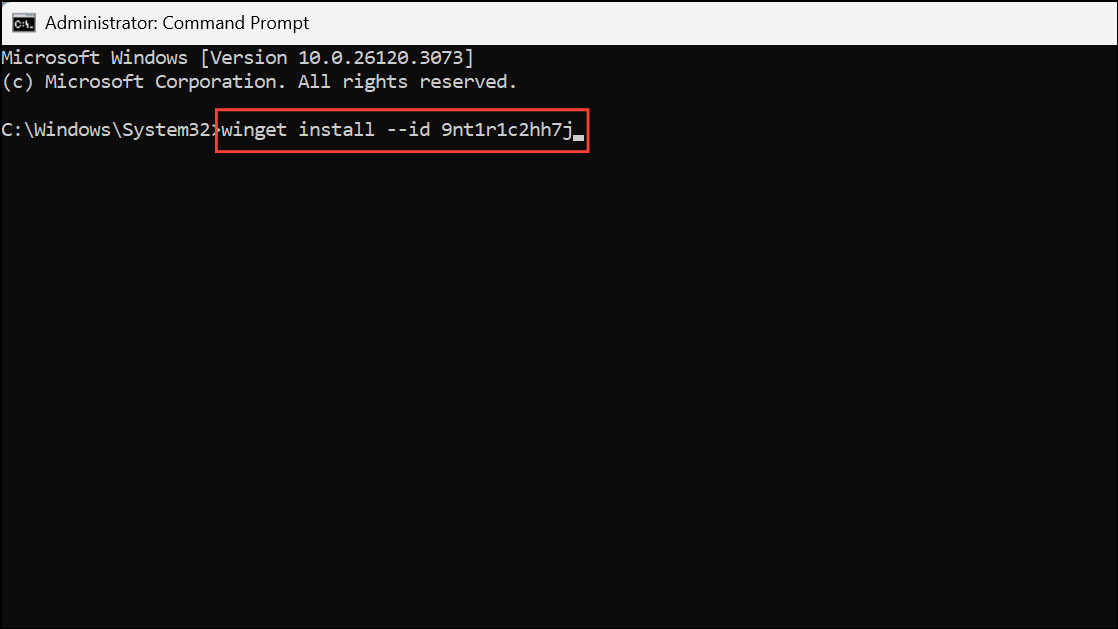
This method automatically downloads and installs the app without requiring manual navigation through the Microsoft Store interface.
Method 2: Use ChatGPT as a Progressive Web App (PWA) via Microsoft Edge or Google Chrome
If you prefer a lightweight solution, installing ChatGPT as a Progressive Web App (PWA) offers an app-like experience directly from your desktop without the overhead of a full application.
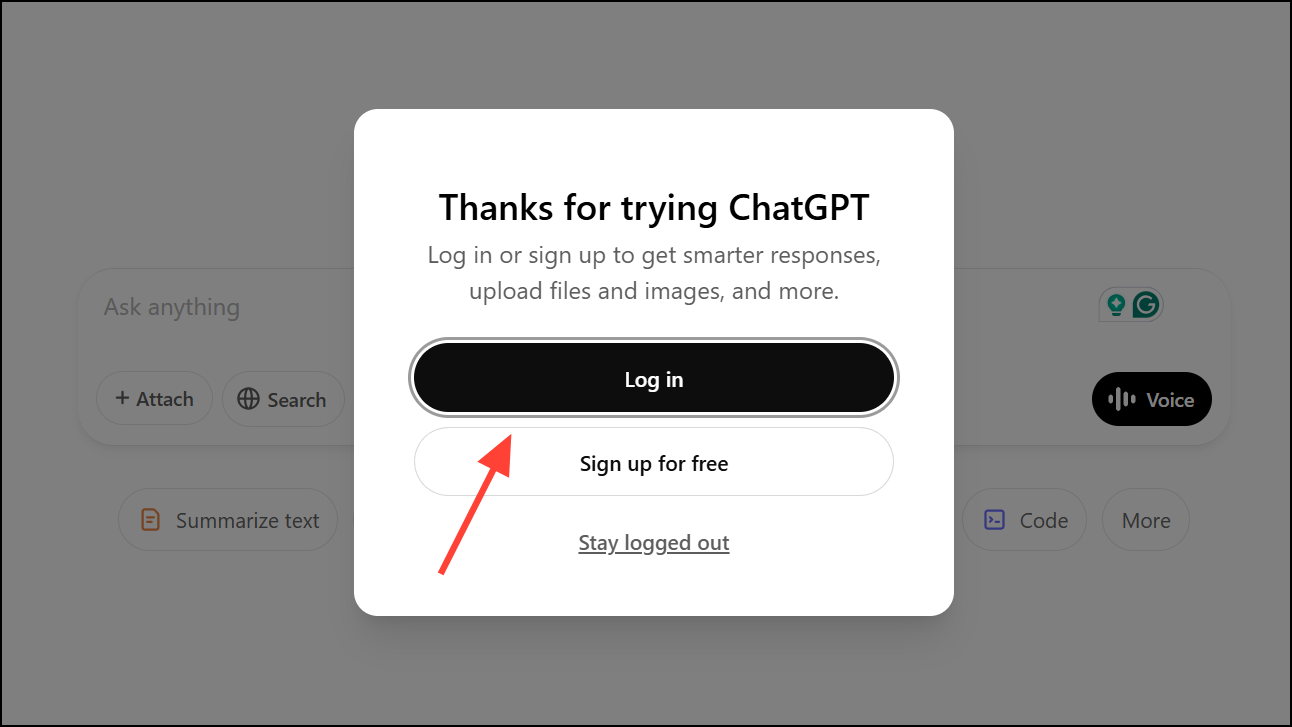
Step 2 (Edge): Click the three-dot menu icon in the upper-right corner. Select “Apps,” then choose “Install this site as an app.” Confirm by clicking “Install.”
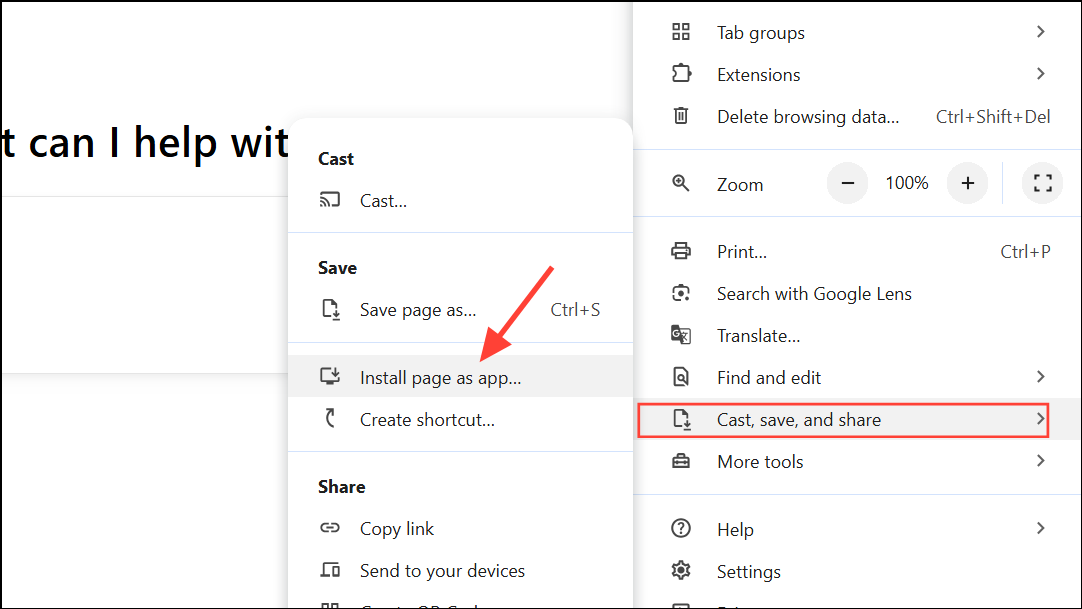
Step 2 (Chrome): Click the three-dot icon, select “Cast, save, and share,” then choose “Install pages as app.” Confirm the app name and click “Install.”
To uninstall the PWA, navigate to your browser’s app management settings (Edge: Apps > Manage apps, Chrome: chrome://apps), right-click the ChatGPT icon, and select “Remove.”
Method 3: Integrate ChatGPT via OpenAI API and Python Script
For users comfortable with coding, integrating ChatGPT using OpenAI’s API and Python scripts provides maximum flexibility and customization. This approach allows you to build personalized chatbot interactions directly from your desktop.
pip install openai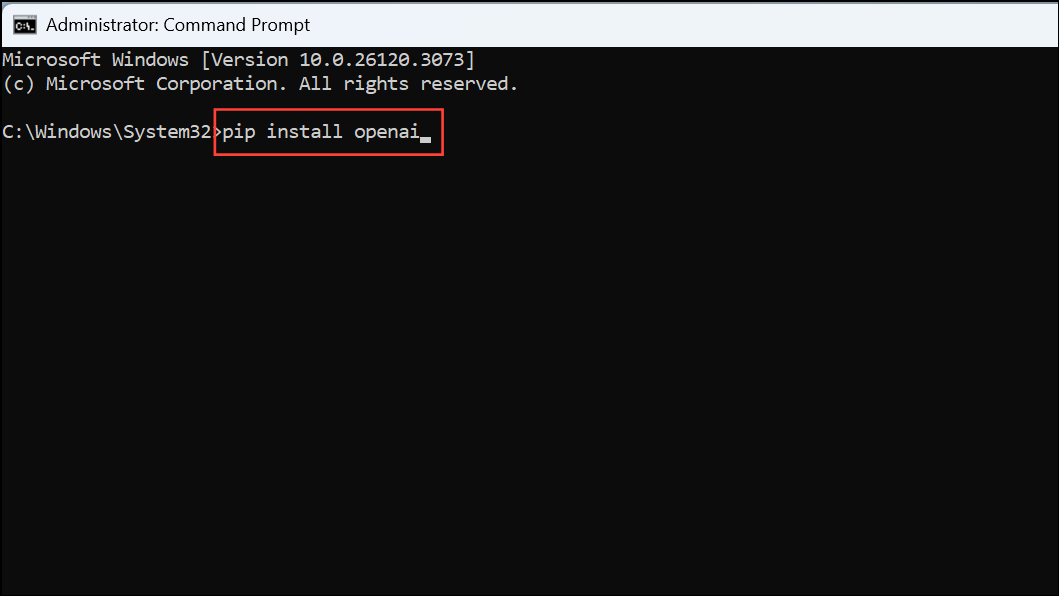
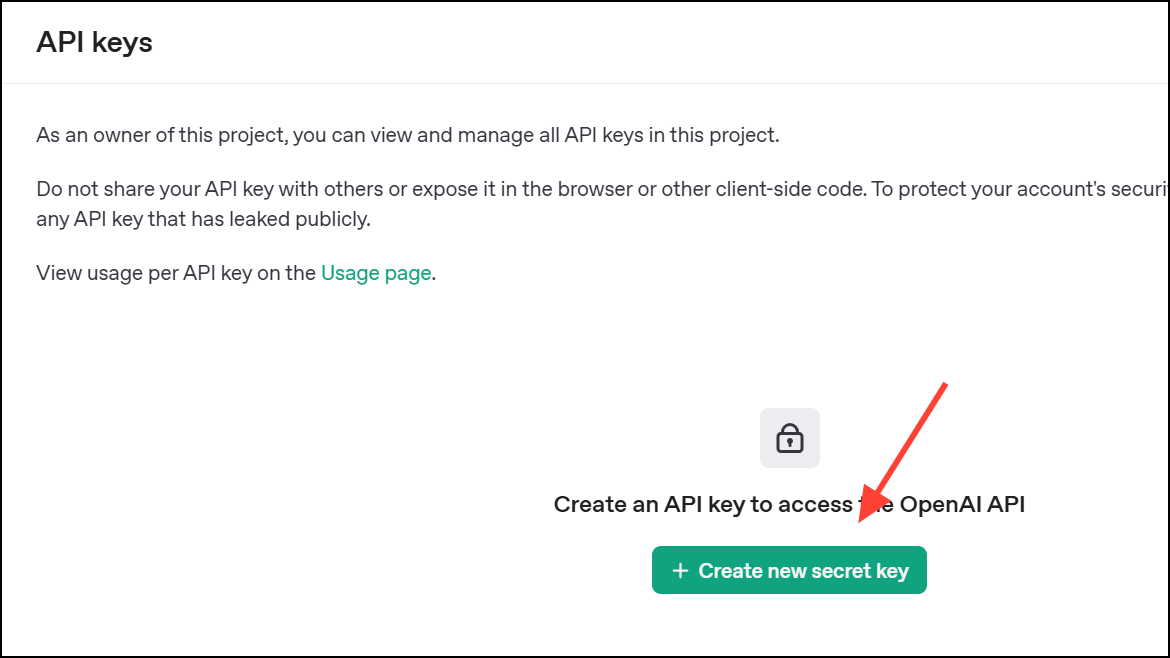
chatgpt_bot.py) with the following code, replacing 'your_api_key_here' with your actual API key:import openai
openai.api_key = 'your_api_key_here'
def chat_with_gpt(prompt):
response = openai.ChatCompletion.create(
model="gpt-3.5-turbo",
messages=[
{"role": "user", "content": prompt}
]
)
return response['choices'][0]['message']['content']
if __name__ == "__main__":
while True:
query = input("You: ")
if query.lower() in ["exit", "quit"]:
break
response = chat_with_gpt(query)
print("ChatGPT:", response)python chatgpt_bot.py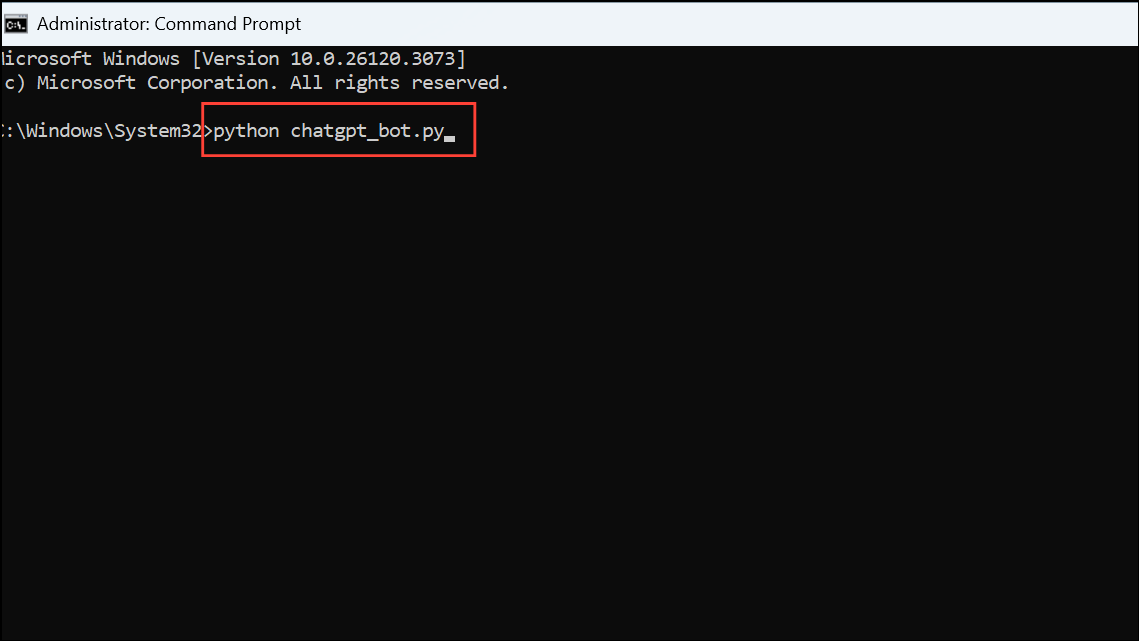
This method provides a highly customizable environment, ideal for users looking to integrate ChatGPT into more complex workflows or applications.
Integrating ChatGPT into Windows 11 simplifies your daily tasks and opens new possibilities for productivity. Choose the method that best suits your technical comfort level and start leveraging the power of AI directly from your desktop.



