
A transparent taskbar in Windows 11 provides a cleaner desktop appearance and allows your wallpaper to stand out clearly. Windows 11 offers several ways to make your taskbar transparent, ranging from built-in settings to third-party software. This guide explains each available method in detail, outlining clear steps to achieve the look you prefer.
Make Taskbar Transparent Using Windows Settings
The quickest way to achieve semi-transparency for your taskbar is by using the built-in transparency effect in Windows 11 settings. This built-in feature creates a slightly blurred, semi-transparent appearance that blends smoothly with your desktop wallpaper.
Windows key + I to open the Settings app. Alternatively, click the Start button and select “Settings” from the menu.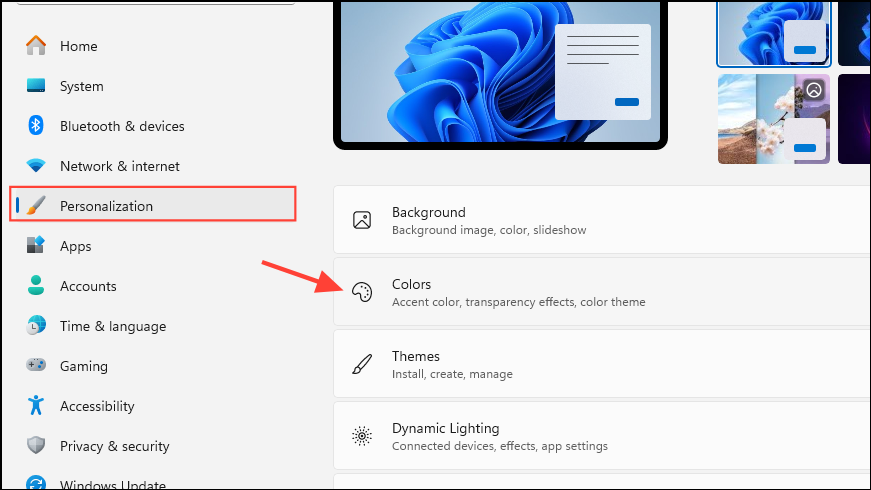
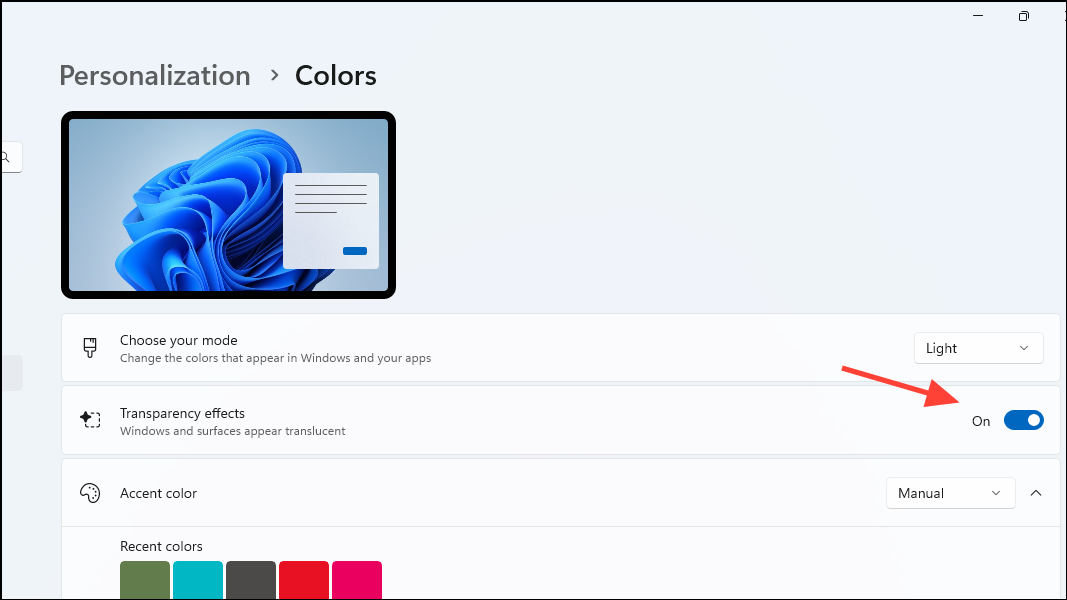
This setting immediately changes your taskbar to a semi-transparent, blurred state. Keep in mind that enabling this option also applies transparency effects to other UI elements such as the Start menu and title bars.
Make Taskbar Fully Transparent Using TranslucentTB
If you prefer complete transparency rather than the built-in semi-transparent effect, you can use a free third-party application called TranslucentTB. This lightweight tool allows you to achieve a fully transparent taskbar and offers further customization options.
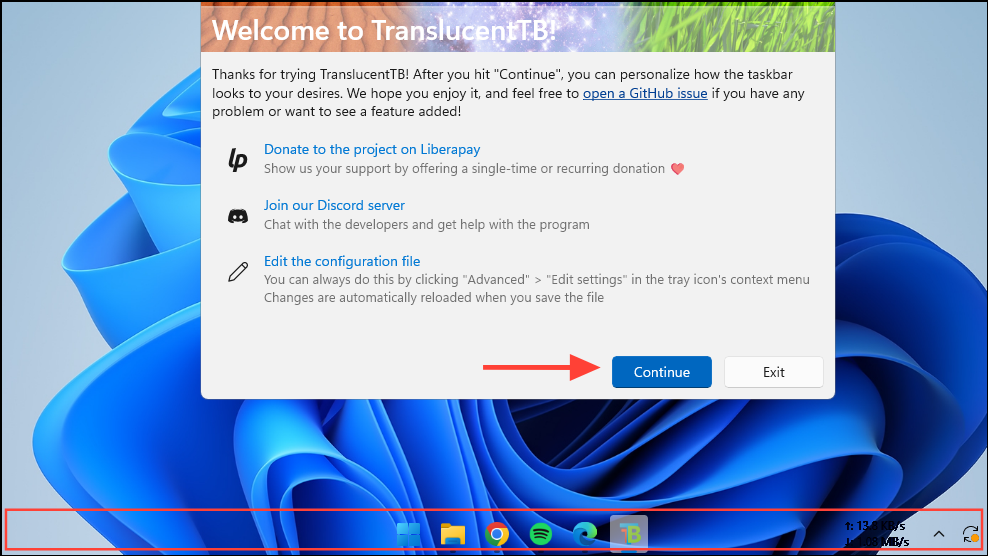
TranslucentTB runs in the background and maintains the transparency effect as long as it is active. You can access additional settings by right-clicking the TranslucentTB icon in the system tray. For example, you can adjust the taskbar’s appearance when windows are maximized to ensure better visibility and usability.
If you encounter occasional glitches or flashing of the taskbar, simply close and reopen TranslucentTB, or restart the Windows Explorer process through Task Manager.
Enable Transparent Taskbar via Windows Registry Editor
For users comfortable editing the Windows Registry, another method is available to achieve a more transparent taskbar. Note that editing the registry can affect system stability if done improperly, so always create a backup before proceeding.
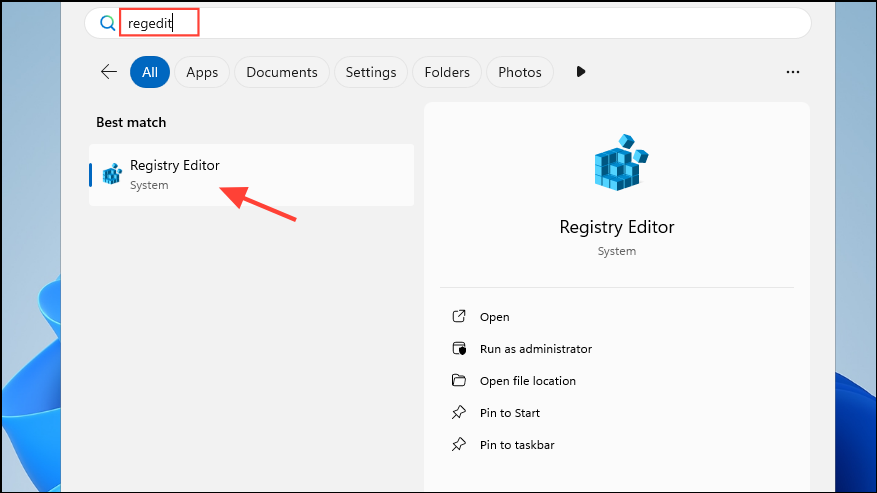
HKEY_LOCAL_MACHINE\Software\Microsoft\Windows\CurrentVersion\Explorer\Advanced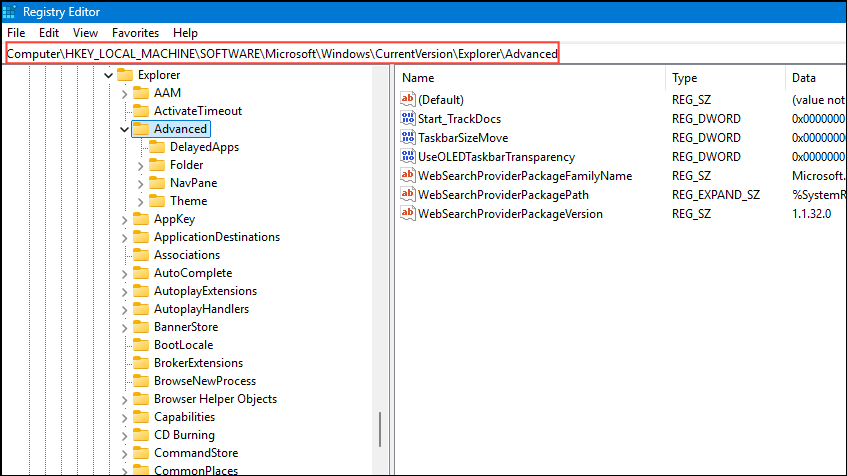
UseOLEDTaskbarTransparency.UseOLEDTaskbarTransparency value and set its value data to 1. Click OK.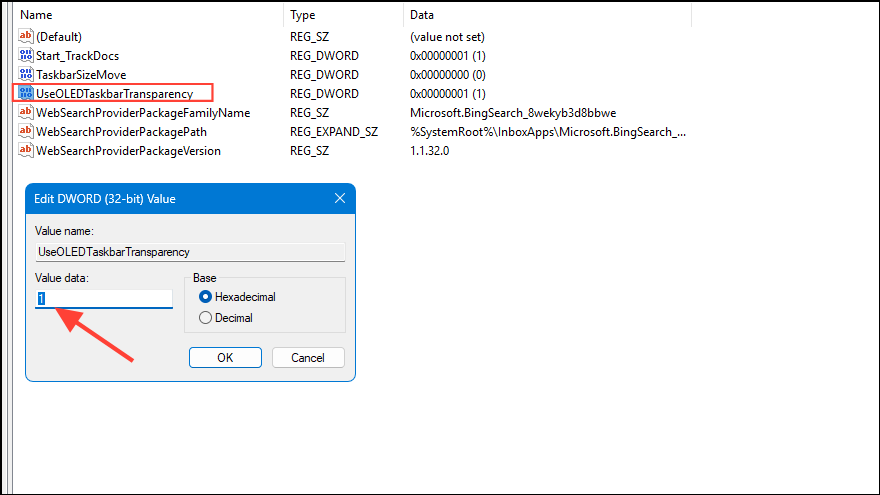
Additional Customization and Tips
For further customization, you might explore other third-party tools like TaskbarX or Classic Shell, which provide additional functionality and aesthetic adjustments beyond transparency. Each tool offers unique features, so choose the one that best matches your preferences.
Additionally, remember that transparency effects may not be clearly visible when using a light theme. Switching to a dark theme can make transparency effects more pronounced and visually appealing.
With these straightforward methods, you can easily customize your Windows 11 taskbar to achieve a transparent look that matches your personal style.



