

Open windows shifting position or shrinking in size after your Windows 11 PC wakes from sleep can disrupt workflows and waste time. This issue often surfaces after major system updates, when using DisplayPort connections, or if Windows retains outdated monitor configurations. The following methods address the most reliable solutions for keeping your window layouts consistent after sleep or monitor wake events.
Method 1: Clear Outdated Display Cache Entries from the Registry
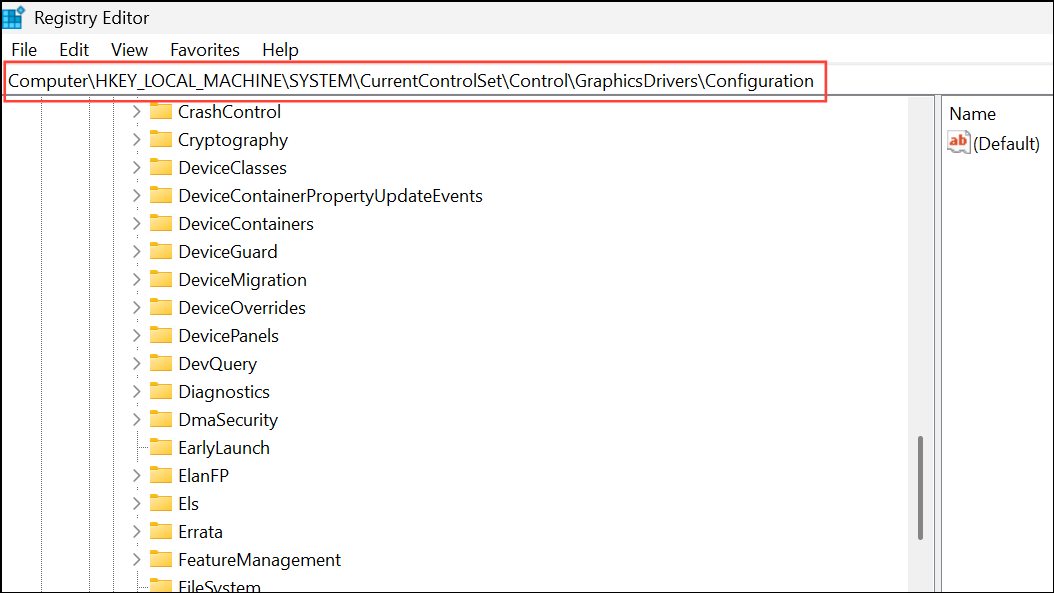
Windows stores monitor configurations and display data in the registry. Over time, especially after connecting or disconnecting different monitors, these entries can accumulate and cause Windows to misidentify your active display setup after waking from sleep. Removing outdated registry keys forces Windows to rebuild the display cache with current hardware information, which often resolves window movement and resizing problems.
Win + R, typing regedit, and pressing Enter. If prompted by User Account Control, click Yes to allow changes.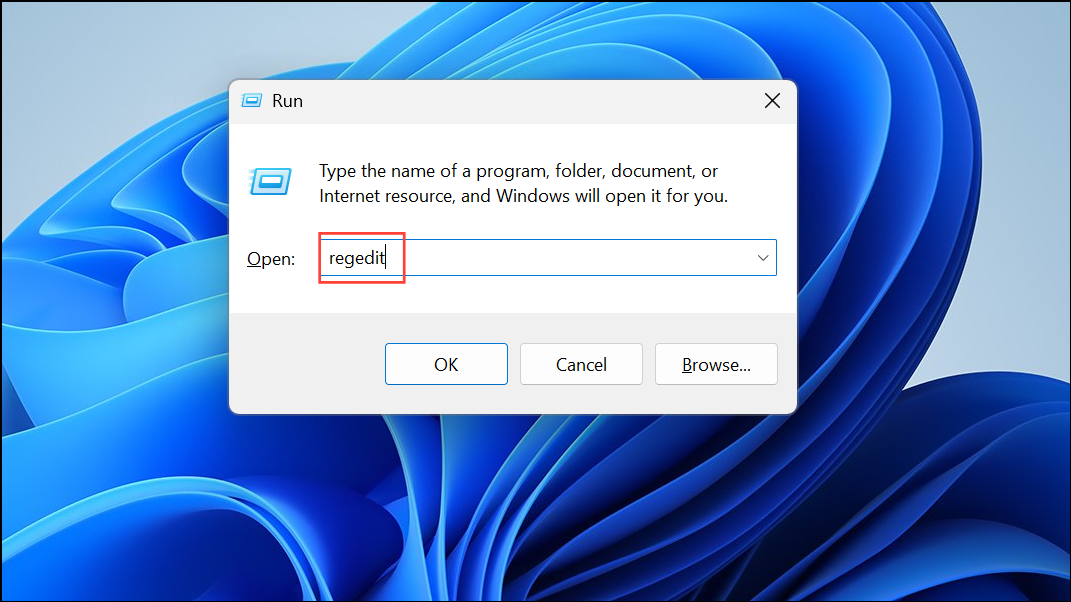
HKEY_LOCAL_MACHINE\SYSTEM\CurrentControlSet\Control\GraphicsDrivers\Configuration
HKEY_LOCAL_MACHINE\SYSTEM\CurrentControlSet\Control\GraphicsDrivers\Connectivity
HKEY_LOCAL_MACHINE\SYSTEM\CurrentControlSet\Control\GraphicsDrivers\ScaleFactors
Delete. This removes stored configurations for monitors that are no longer connected.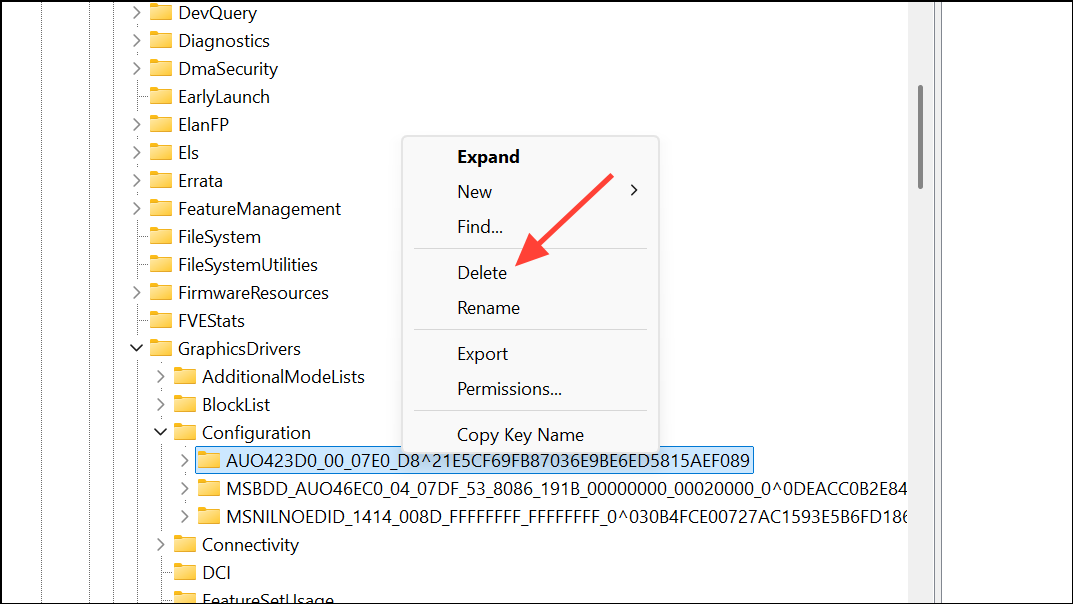
After rebooting, open and arrange your windows as desired. The system should now consistently remember window positions and sizes after sleep.
Method 2: Remove Old Monitors from Device Manager
Windows may keep records of previously attached monitors, which can interfere with window placement after waking from sleep. Clearing these unused monitor entries helps Windows recognize only the monitors currently in use.
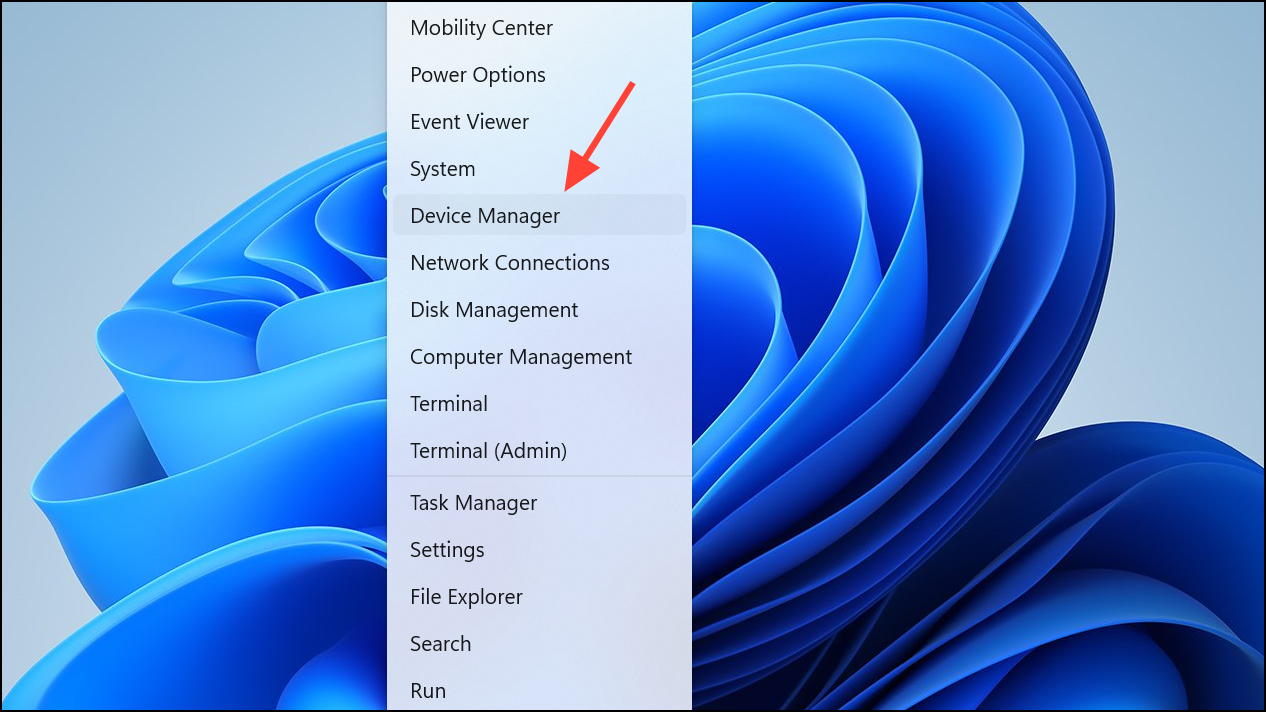
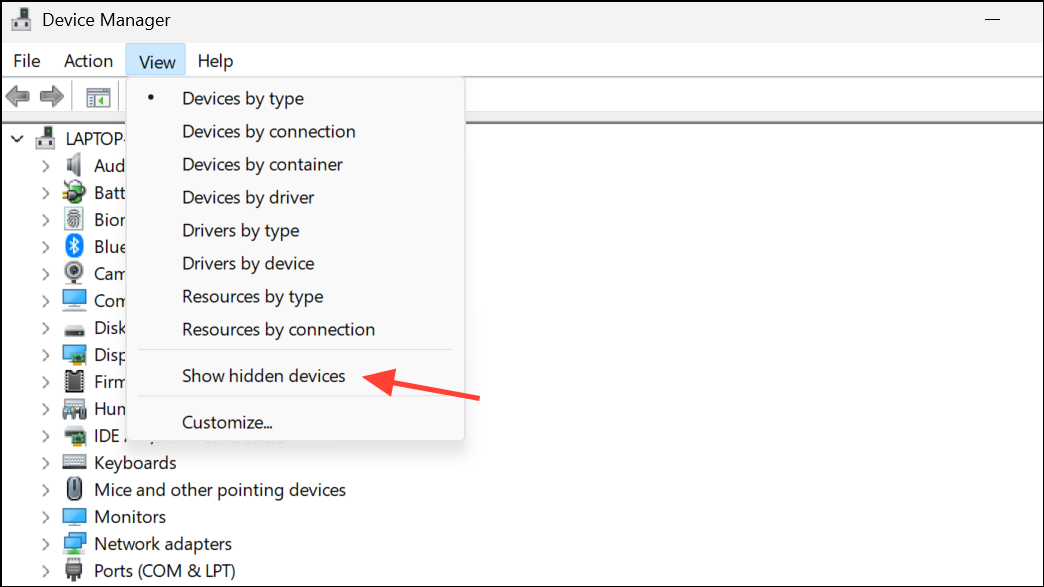
Monitors section. Right-click any grayed-out (disconnected) monitor entries and choose Uninstall device. Repeat for all inactive monitors.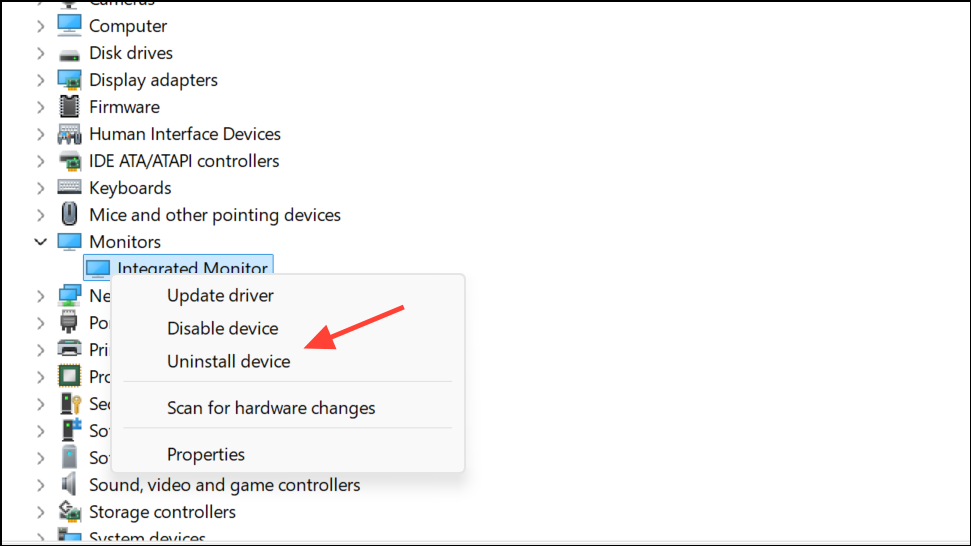
Method 3: Adjust Windows 11 Display and Multitasking Settings
Windows 11 includes settings that can help the operating system remember window locations, especially in multi-monitor setups. Adjusting these options can reduce unwanted window movement and resizing.
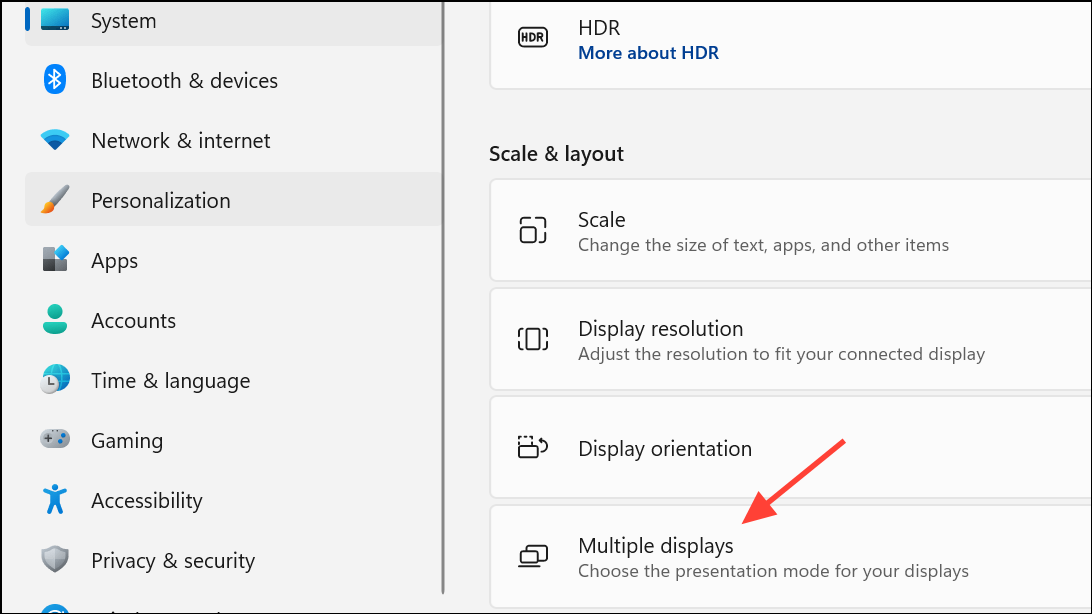
Remember window locations based on monitor connection. This prompts Windows to restore windows to their original monitor after sleep or disconnect events.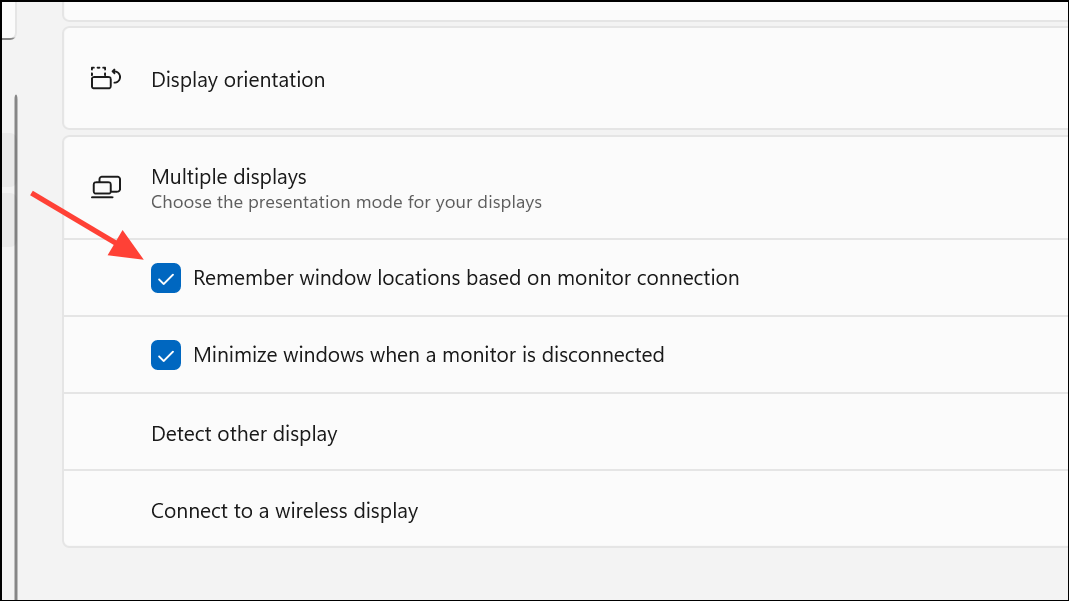
Settings > System > Multitasking, you can also try toggling Snap windows off if windows continue to reposition themselves automatically.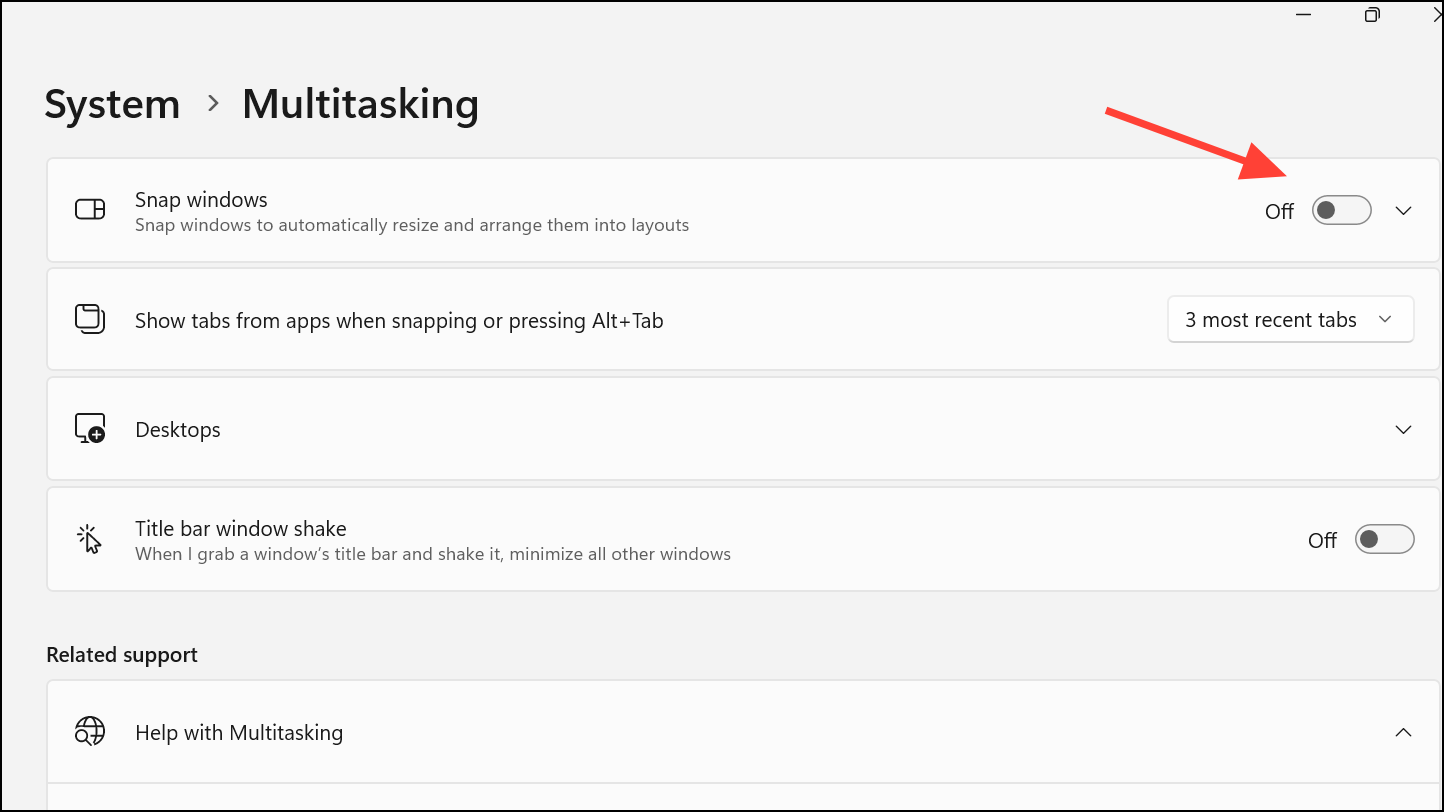
Method 4: Update Display Drivers and Monitor Firmware
Outdated or incompatible display drivers can cause Windows to misinterpret connected monitors during sleep and wake cycles. Ensuring you have the latest drivers and firmware can fix persistent window movement issues.
Method 5: Change DisplayPort or Cable Settings
Monitors connected via DisplayPort are more likely to be detected as disconnected during sleep, which can trigger window repositioning. Adjusting monitor settings or switching cables can sometimes resolve this issue.
- Switch from DisplayPort to HDMI or DVI if your monitor and graphics card support it. HDMI and DVI connections are less likely to trigger disconnect events during sleep.
- On some monitors, enabling or disabling settings like
DDC/CIorAuto Sourcecan influence how the monitor reports its status to Windows. Experiment with these options in your monitor’s on-screen display menu.
Method 6: Use Third-Party Utilities to Restore Window Positions
If built-in solutions fail, dedicated utilities can help restore window layouts after display changes or sleep events. These tools store window positions and restore them automatically or on demand.
- MonitorKeeper – Open source tool that saves and restores window positions based on the number of active monitors.
- PersistentWindows – Keeps track of window layouts and restores them after sleep or monitor disconnects.
- DisplayFusion – Offers advanced window management, including triggers to save and restore window positions when the desktop is locked or unlocked.
These tools can be especially valuable for complex multi-monitor setups or when Windows 11’s built-in features do not provide consistent results.
Window movement and resizing after sleep in Windows 11 can be solved by clearing outdated display configurations, adjusting system and monitor settings, updating drivers, or using specialized utilities. Try these solutions in order to restore a consistent and reliable desktop experience.



