
Opening files one by one just to find the right one wastes valuable time. Windows 11 provides several convenient ways to preview files directly from File Explorer, allowing you to instantly check the contents without launching separate applications. Below are four practical methods you can use to quickly preview files on Windows 11.
How to Use the Preview Pane in File Explorer
The Preview Pane is a built-in Windows 11 feature that lets you instantly view the contents of a file within File Explorer itself.
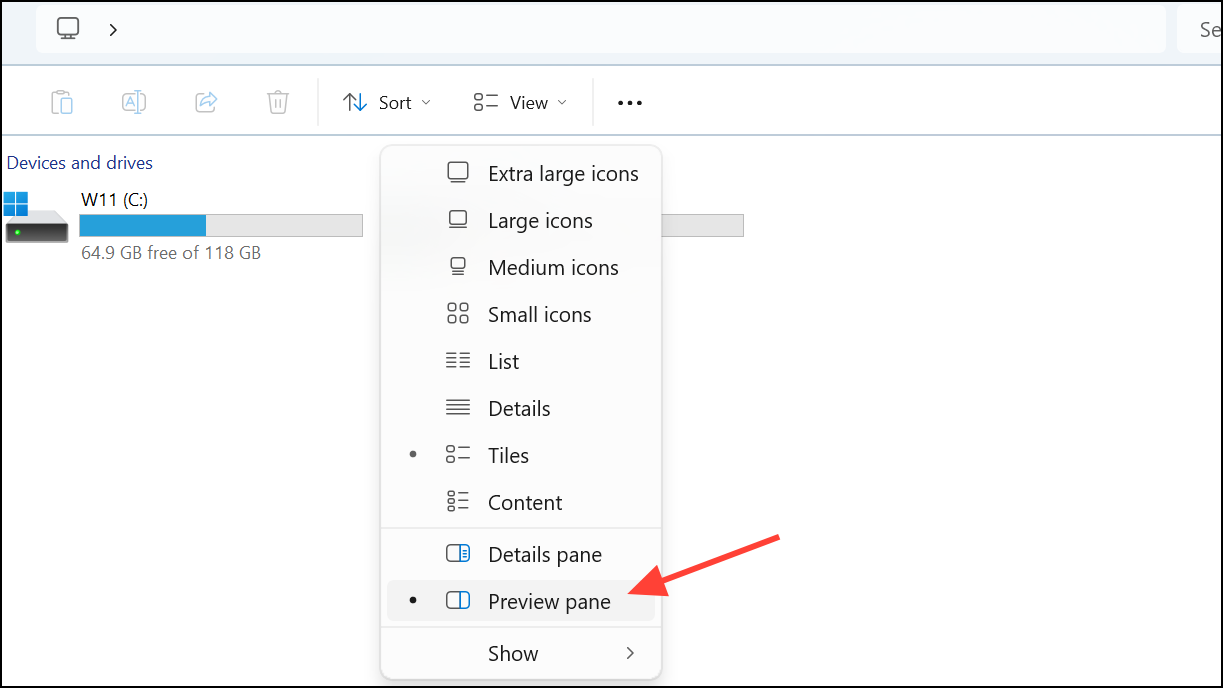
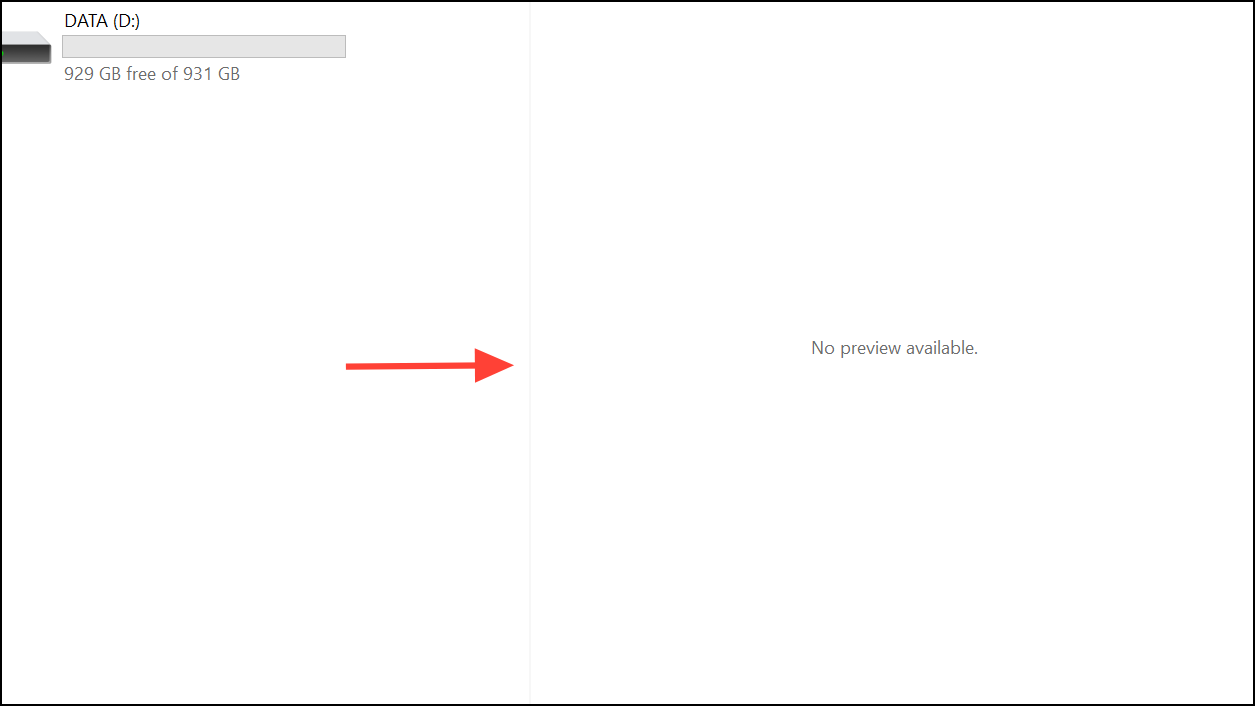
This method supports various file types, including images, PDFs, Office documents, and multimedia files, making it an ideal quick-view solution without additional software.
How to Preview Files with QuickLook
QuickLook is a free third-party application available from the Microsoft Store, bringing macOS-style file previewing to Windows 11. It allows you to preview a file by simply pressing the Spacebar.
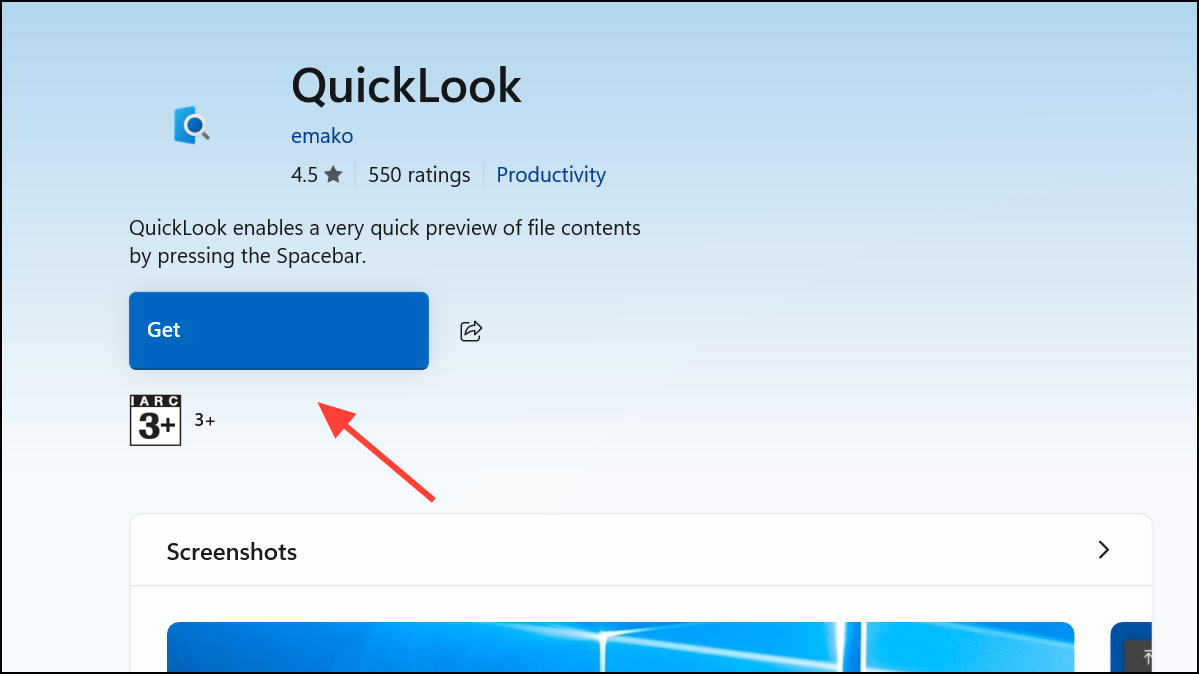
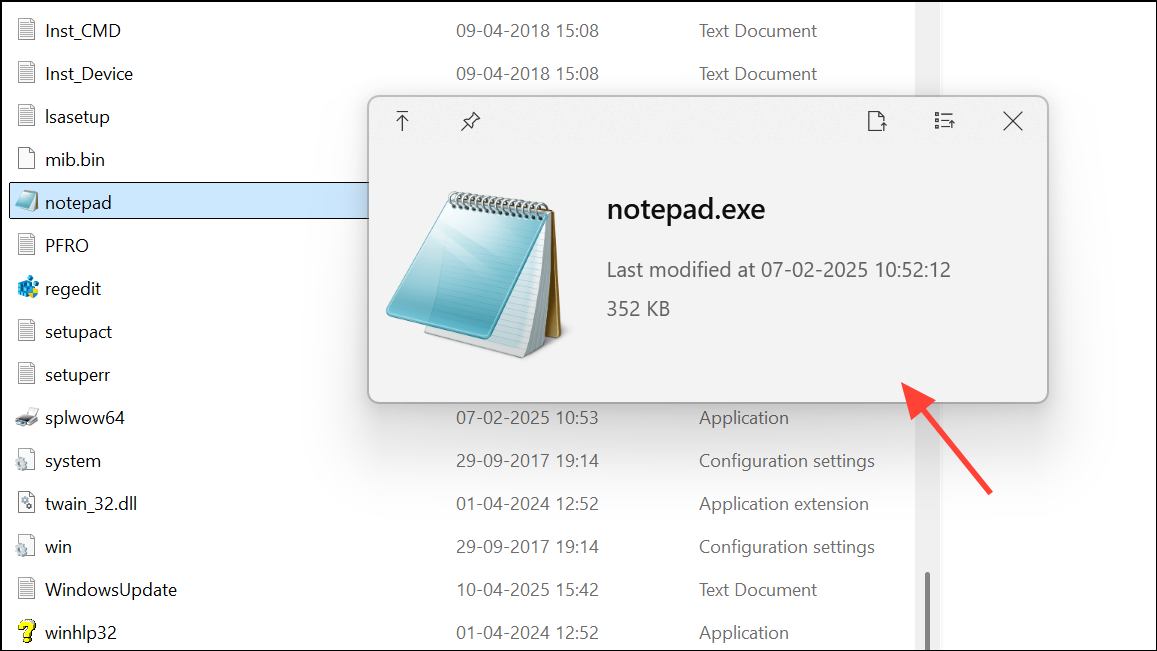
QuickLook supports a wide range of file types, from images and videos to documents and compressed archives, providing a swift, intuitive preview experience.
How to Display Larger Icon Thumbnails
If your folder contains mostly image or video files, enlarging icons to display bigger thumbnails can make visually identifying files much easier.
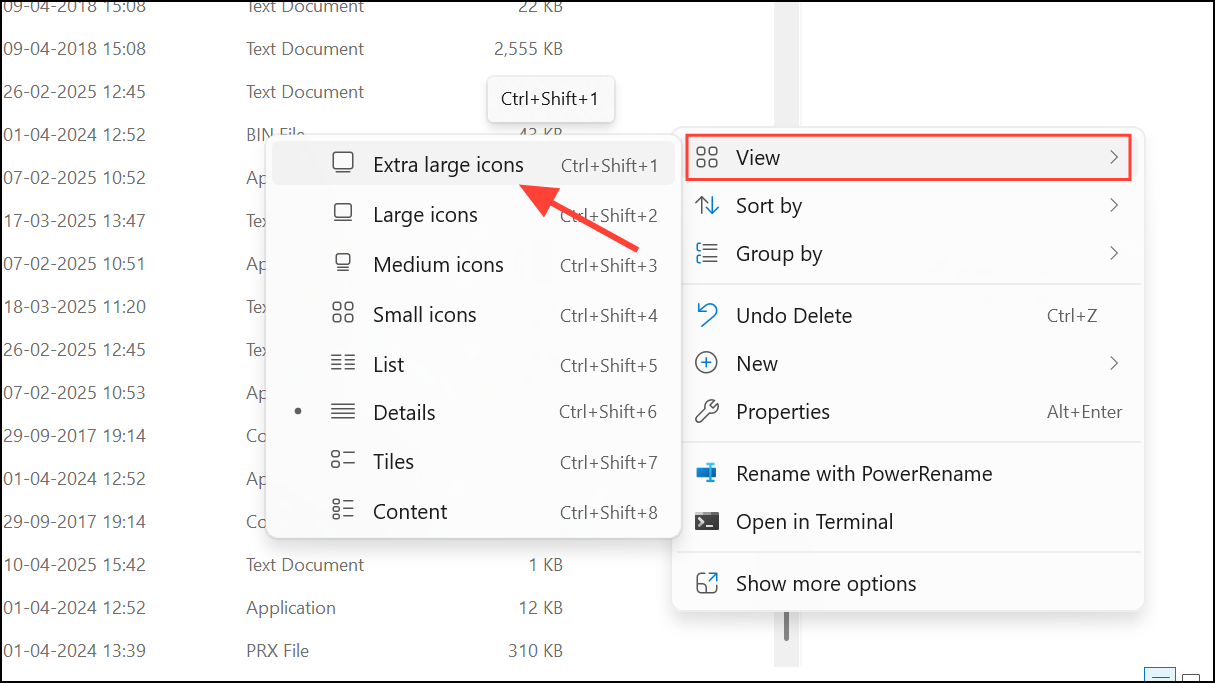
Step 3 (Optional): If thumbnails aren’t appearing, click the three-dot menu at the top of File Explorer, select “Options,” and then navigate to the “View” tab. Uncheck “Always show icons, never thumbnails,” and click “Apply,” then “OK.”
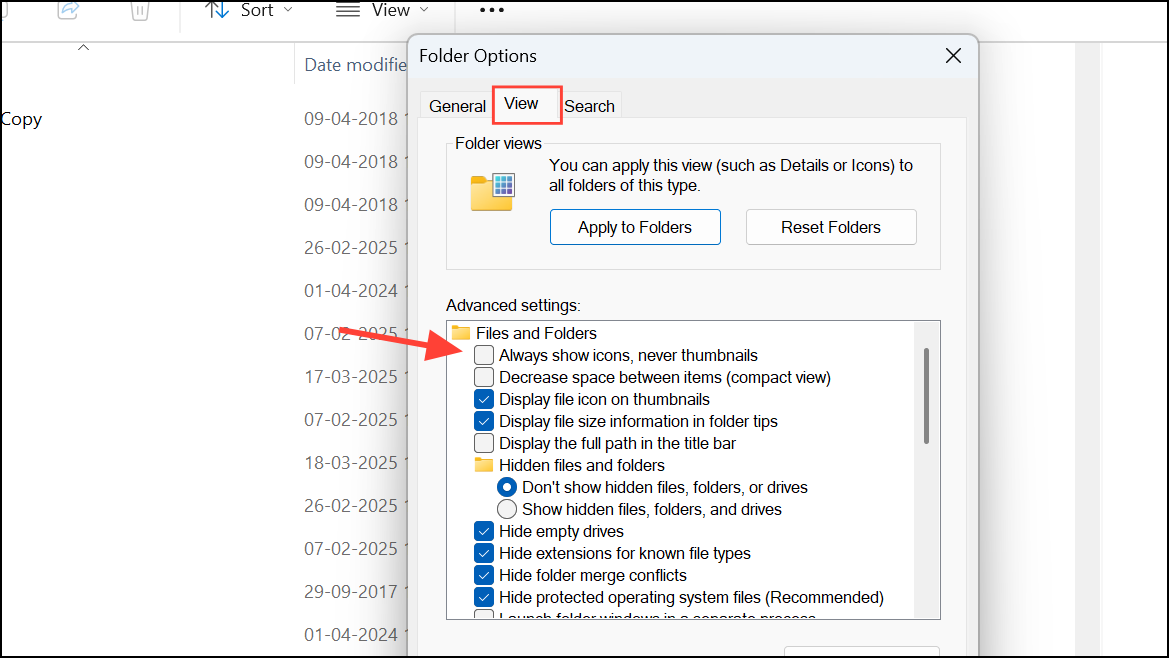
This method is particularly effective for quickly scanning through media-rich folders without opening each file individually.
How to Use PowerToys’ Peek Feature
Microsoft’s PowerToys is a versatile utility suite offering advanced file preview functionality through its Peek feature, activated by a customizable keyboard shortcut.
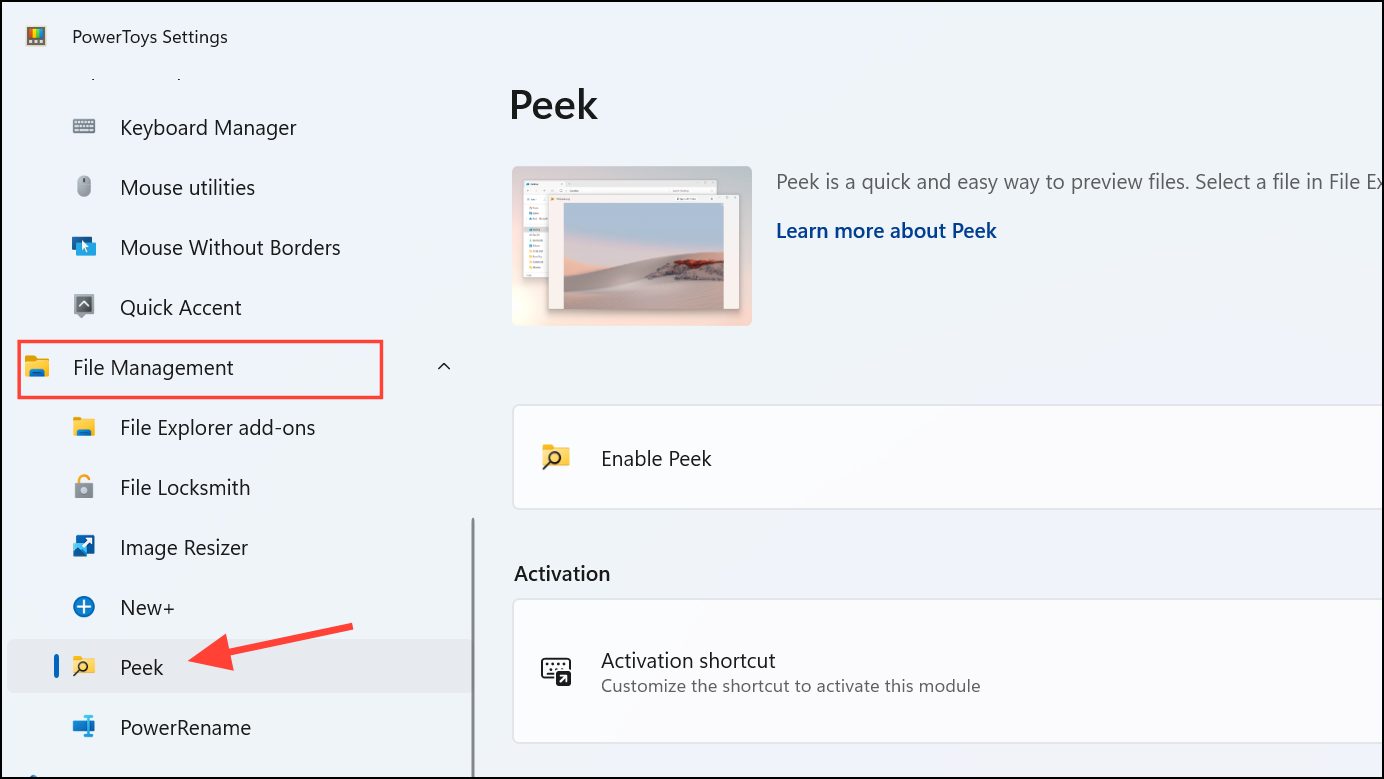
Ctrl + Space, but you can customize it by clicking the shortcut key field.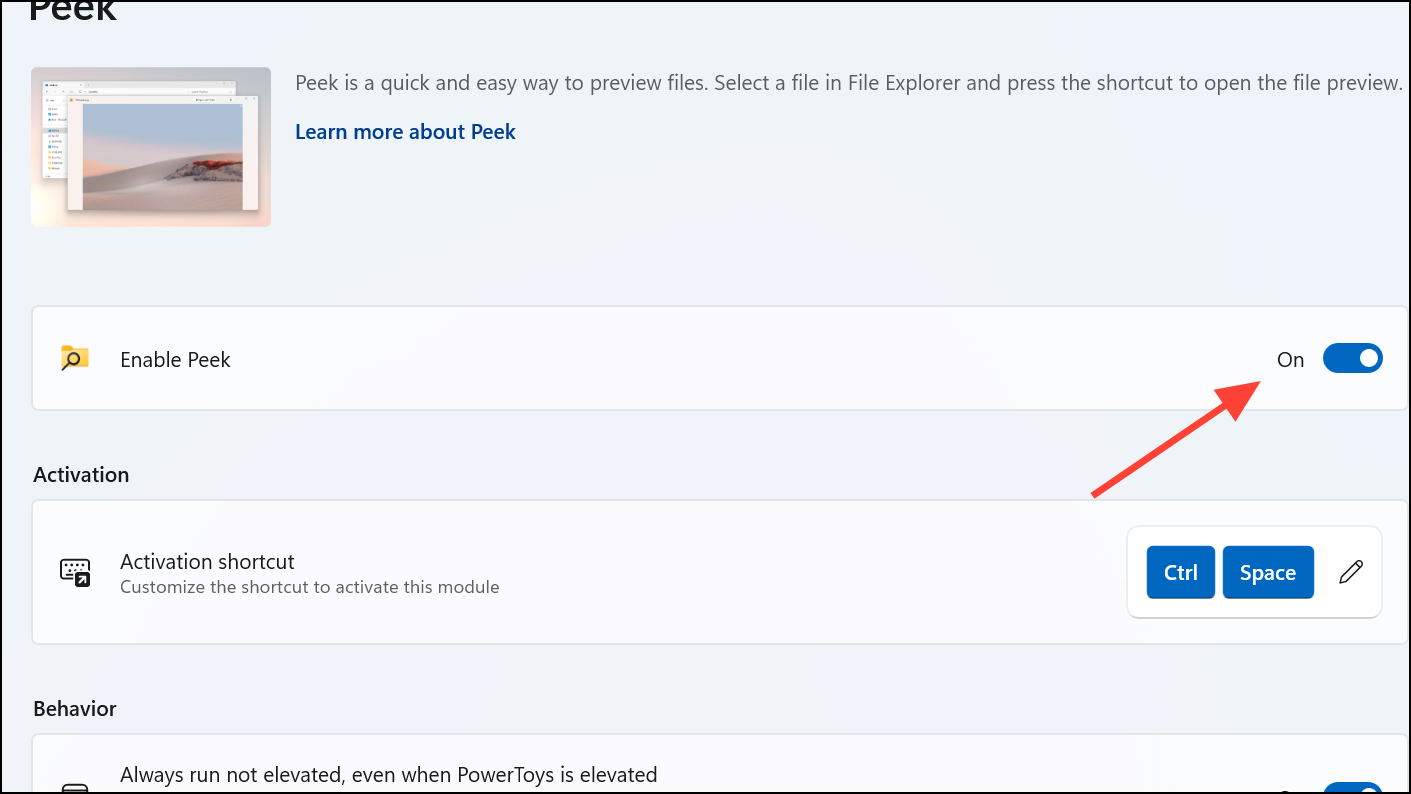
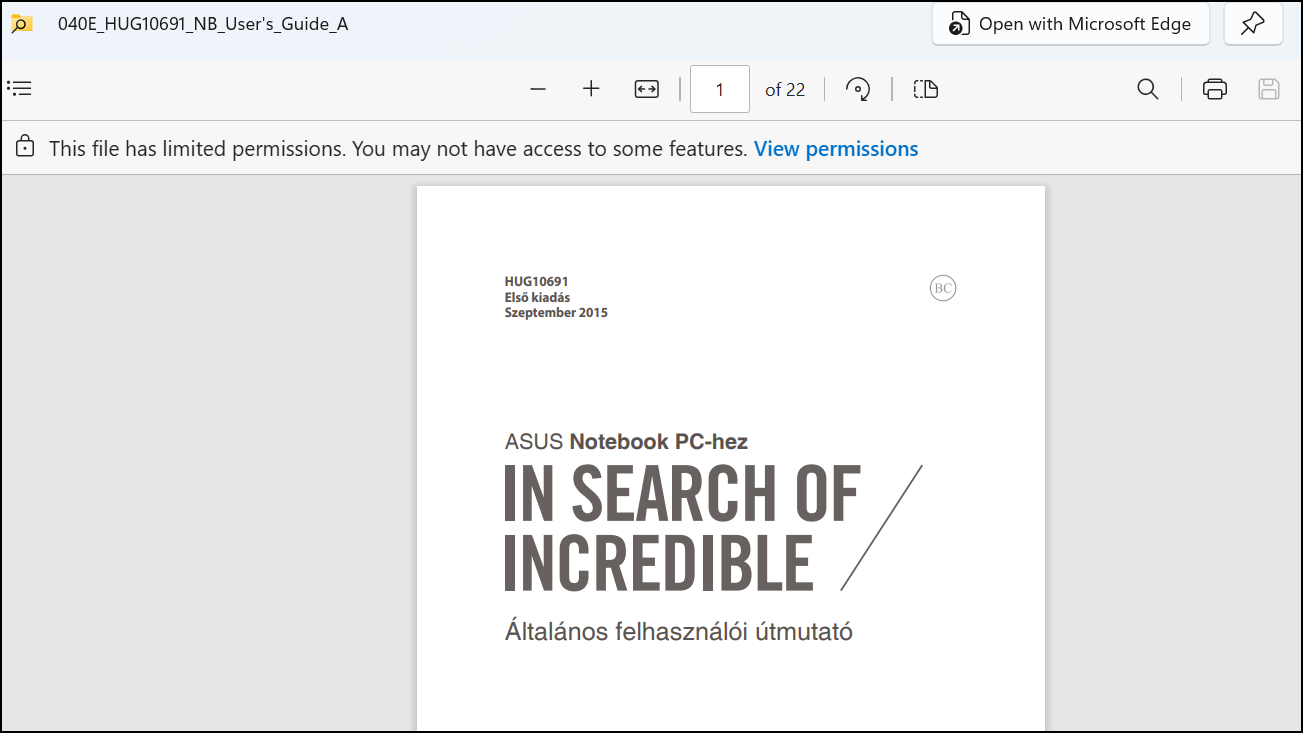
PowerToys Peek is especially useful for power users who prefer quick keyboard shortcuts and customization options, providing a streamlined file preview workflow.
These simple yet powerful methods allow you to preview files quickly without opening them fully, significantly cutting down on time spent searching and managing files. Try them out and find the best fit for your workflow!



