

Game stuttering occurs when your system struggles to deliver smooth, consistent frame rates, causing noticeable pauses and interruptions during gameplay. This issue often arises from outdated drivers, conflicting system settings, or resource-intensive background processes. Resolving game stuttering on Windows 11 involves several practical troubleshooting steps, beginning with the most effective solutions.
Update Your Graphics Drivers
Enable Windows 11 Game Mode
Windows Game Mode prioritizes gaming processes, dedicating more system resources to your game and minimizing background interruptions.
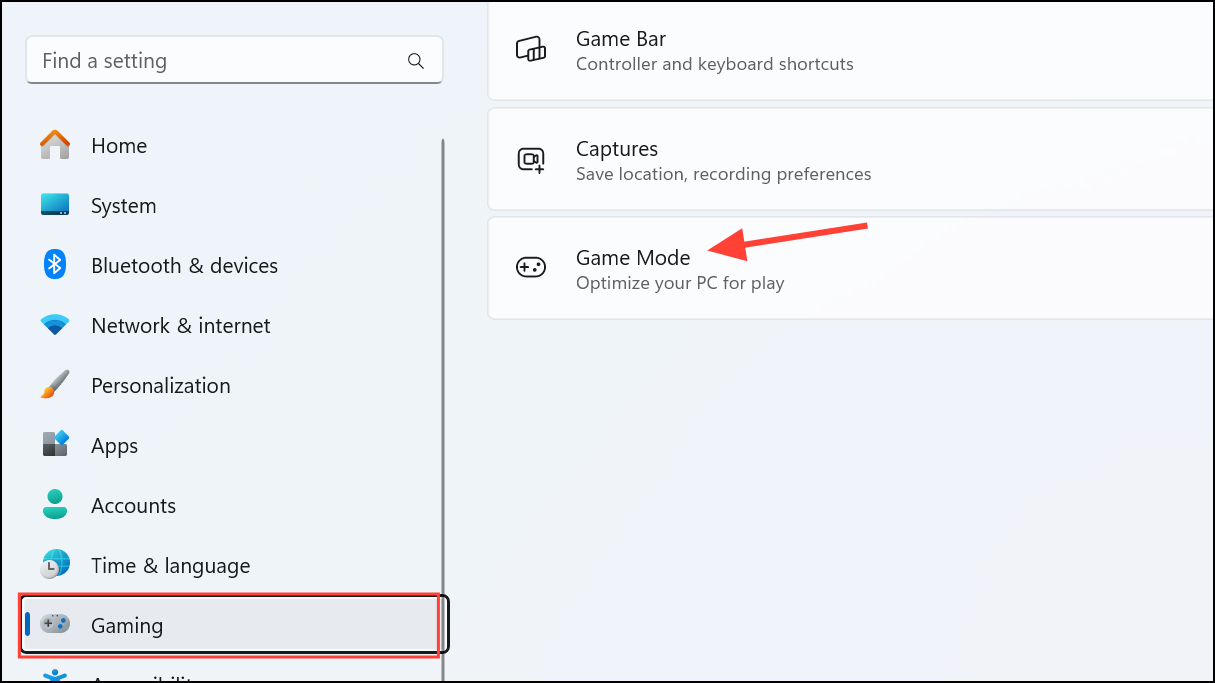
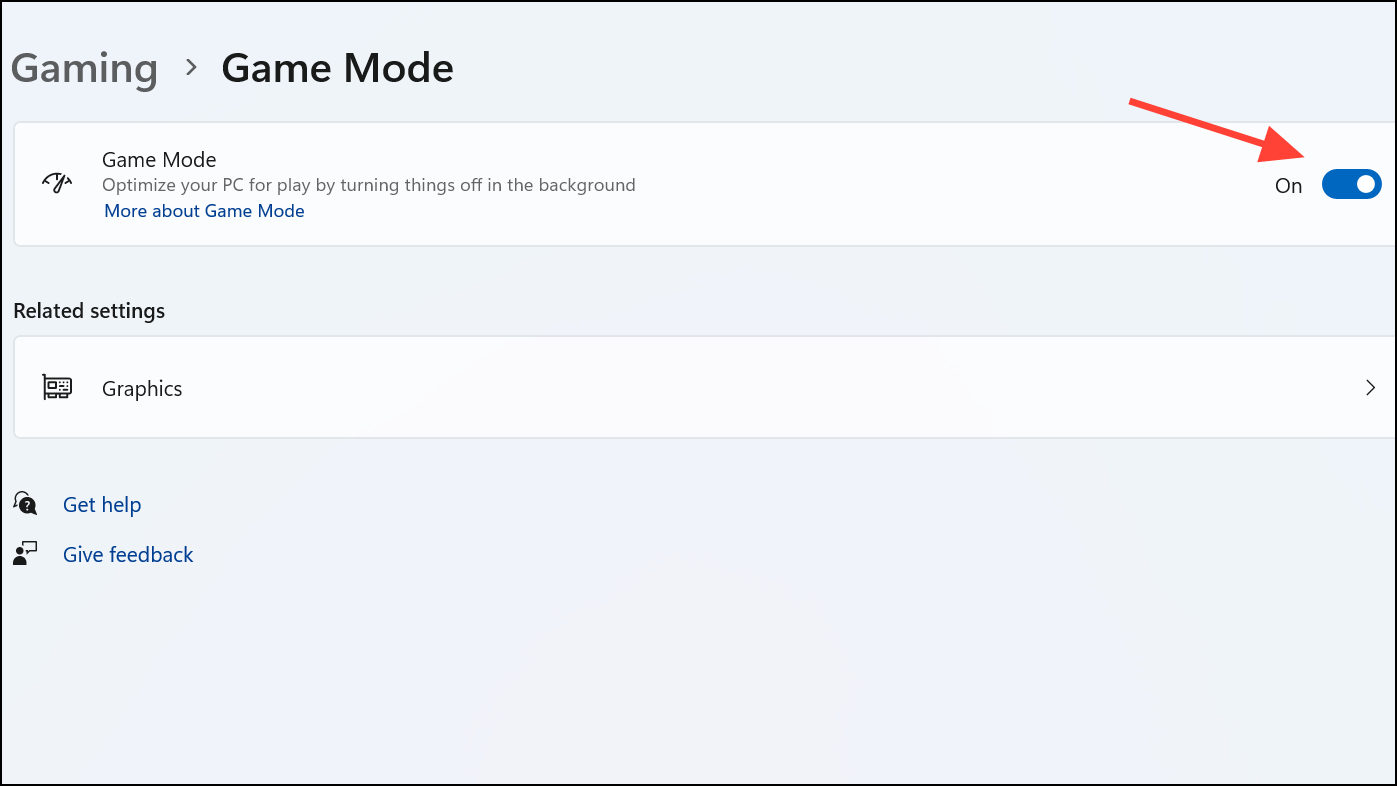
Game Mode helps stabilize your frame rate by temporarily pausing unnecessary system tasks during gameplay, resulting in smoother performance.
Disable Xbox Game Bar
While the Xbox Game Bar offers useful recording and social features, it can consume system resources and cause stuttering in some games.
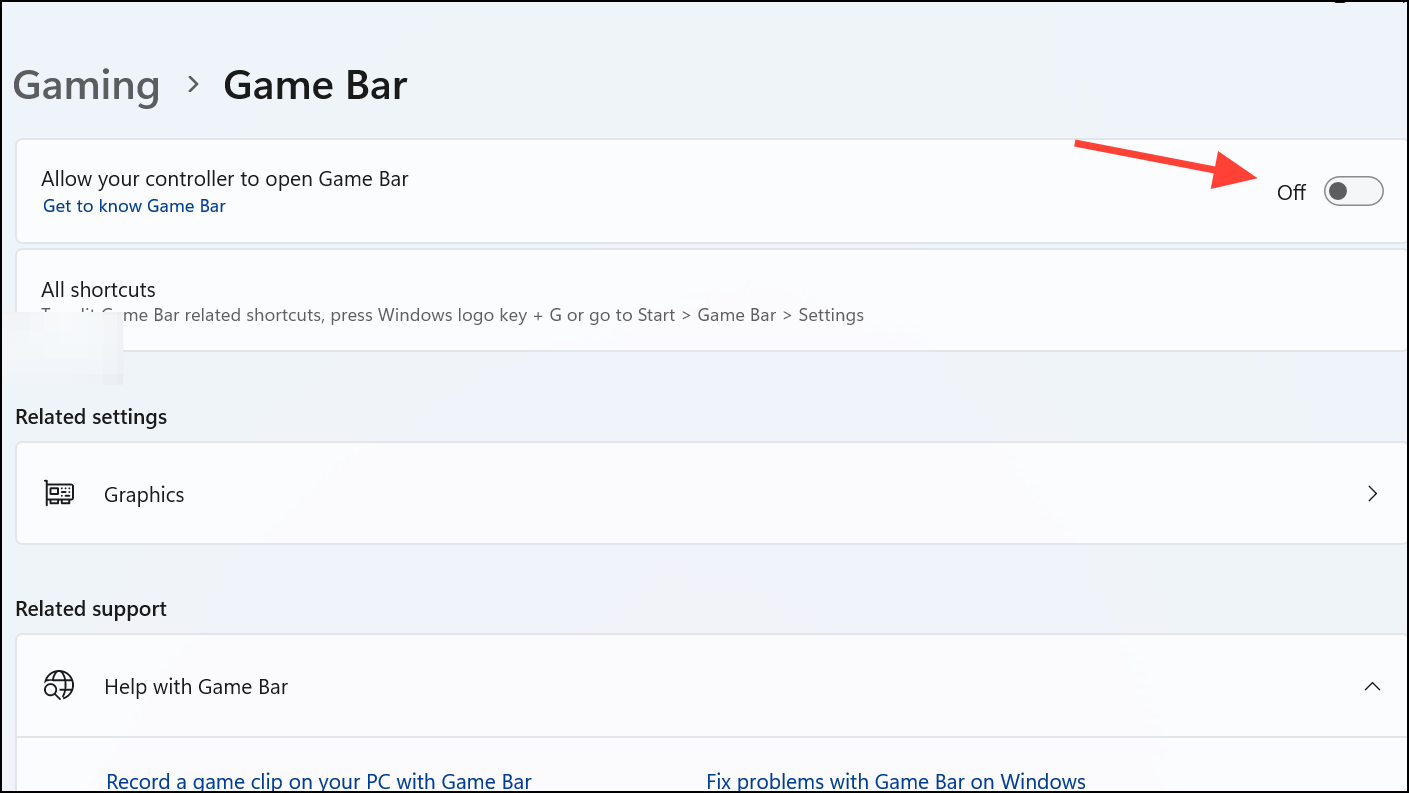
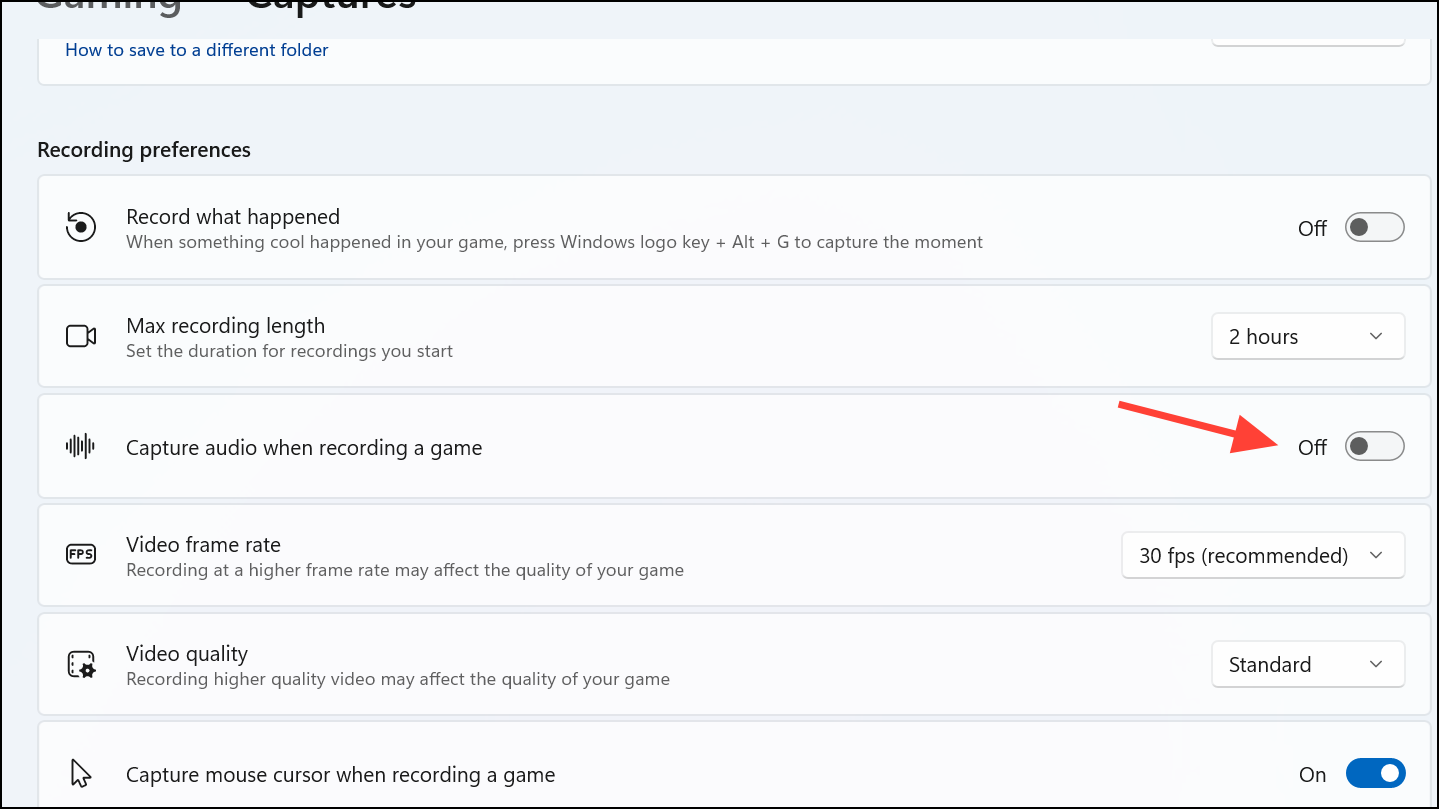
Disabling these features frees up resources, allowing your system to focus entirely on running your game.
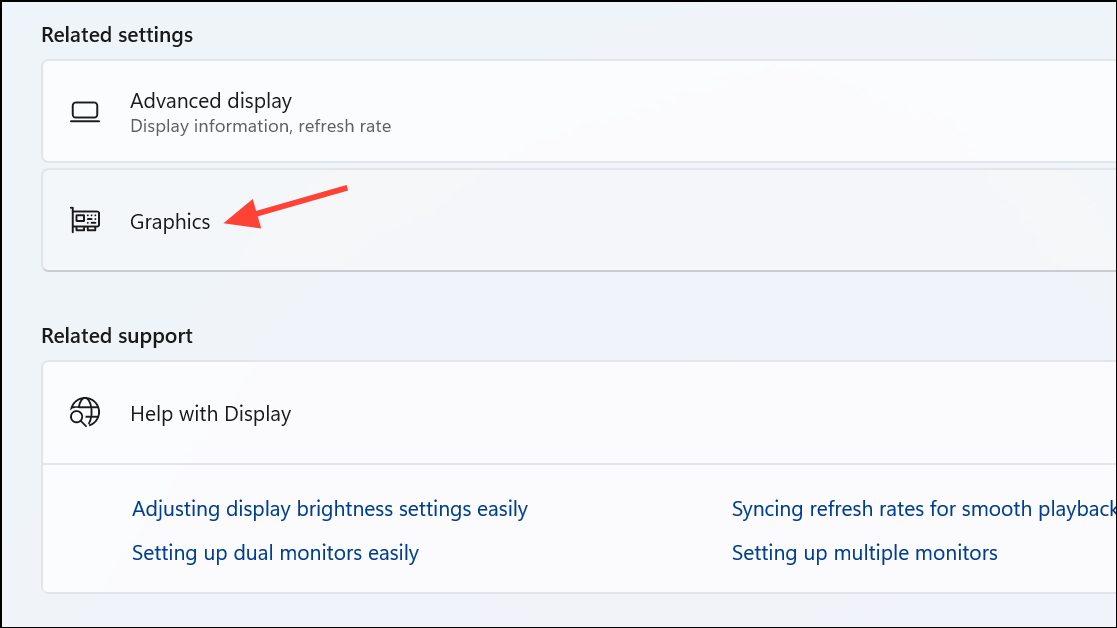
Set High-Performance Graphics for Your Game
Windows 11 allows you to specify which GPU your game should use, ensuring it utilizes the most powerful graphics hardware available.
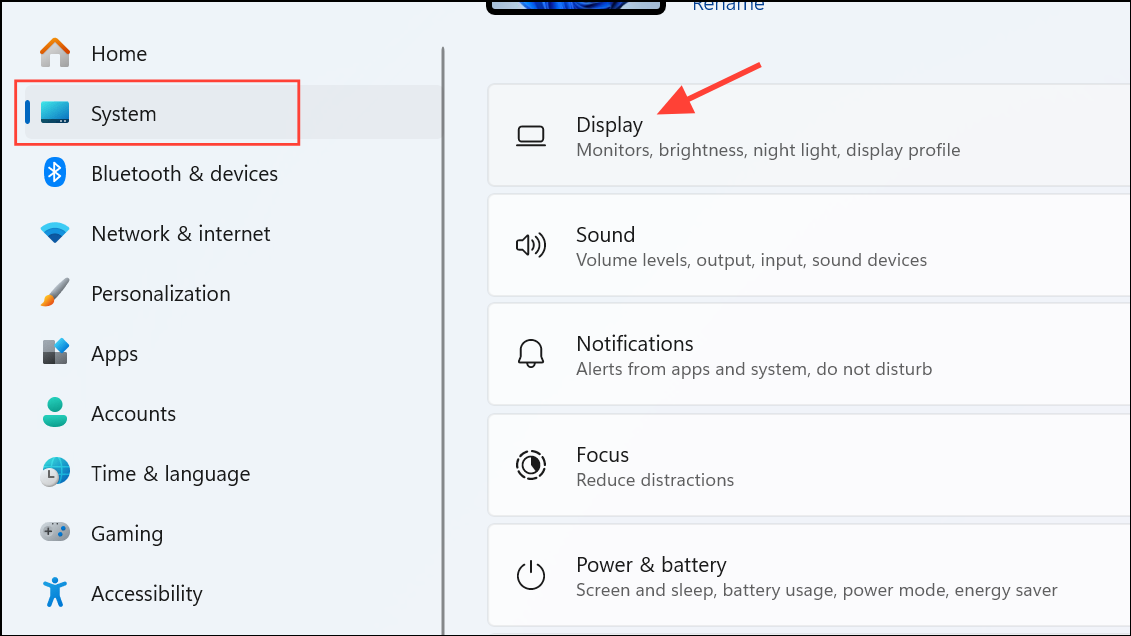
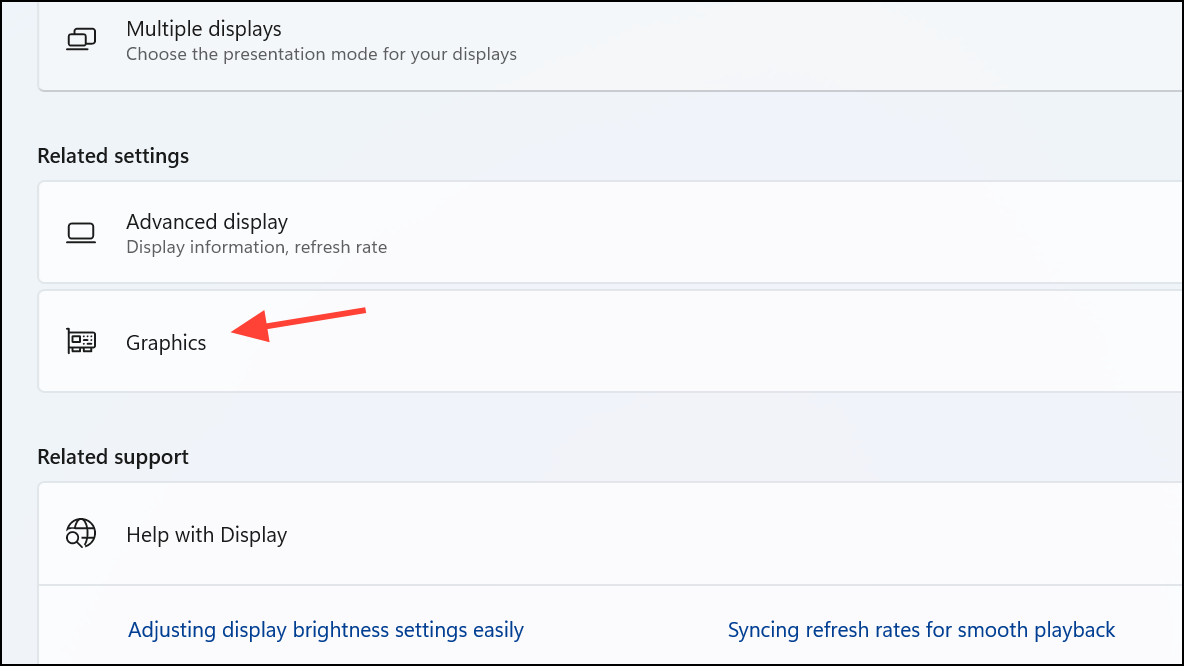
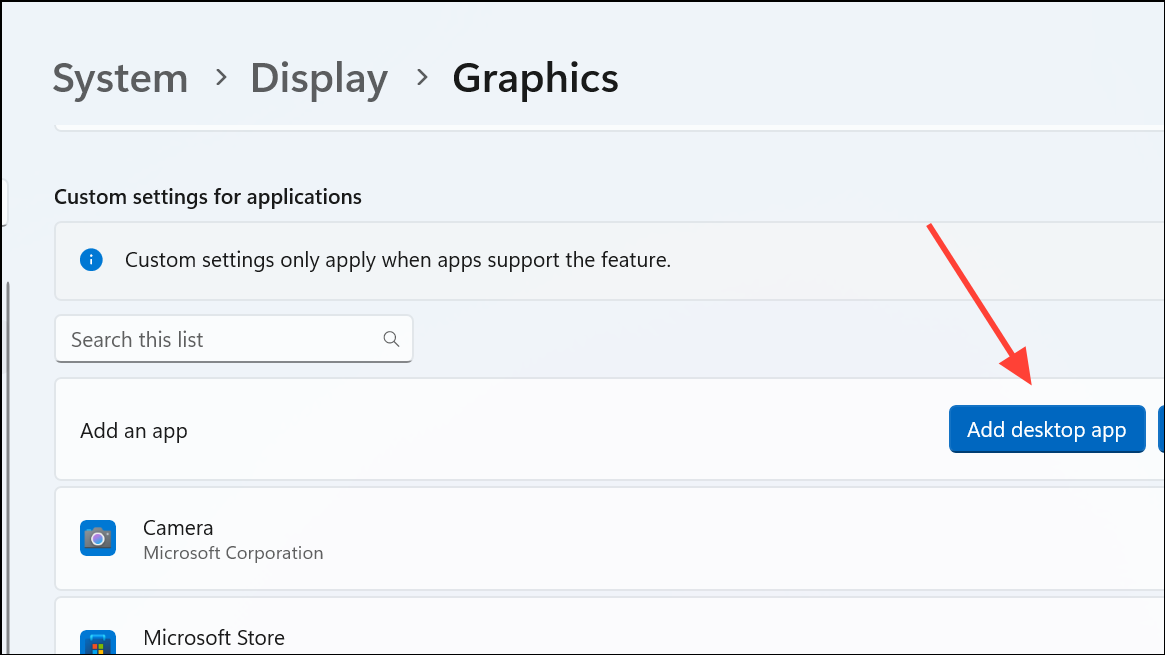
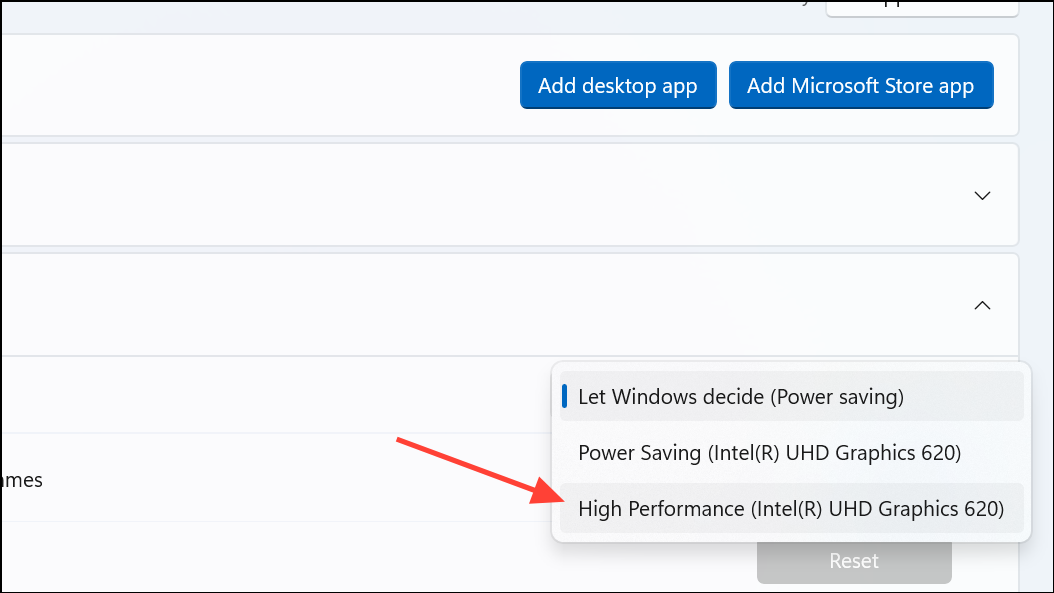
This ensures your game leverages your GPU’s full capabilities, reducing the likelihood of stuttering due to insufficient graphical power.
Disable Hardware-Accelerated GPU Scheduling
Although designed to reduce CPU overhead, hardware-accelerated GPU scheduling can sometimes introduce latency that causes stuttering.
Switch to a High-Performance Power Plan
Windows power settings can limit CPU and GPU performance to save energy, negatively impacting gaming performance.
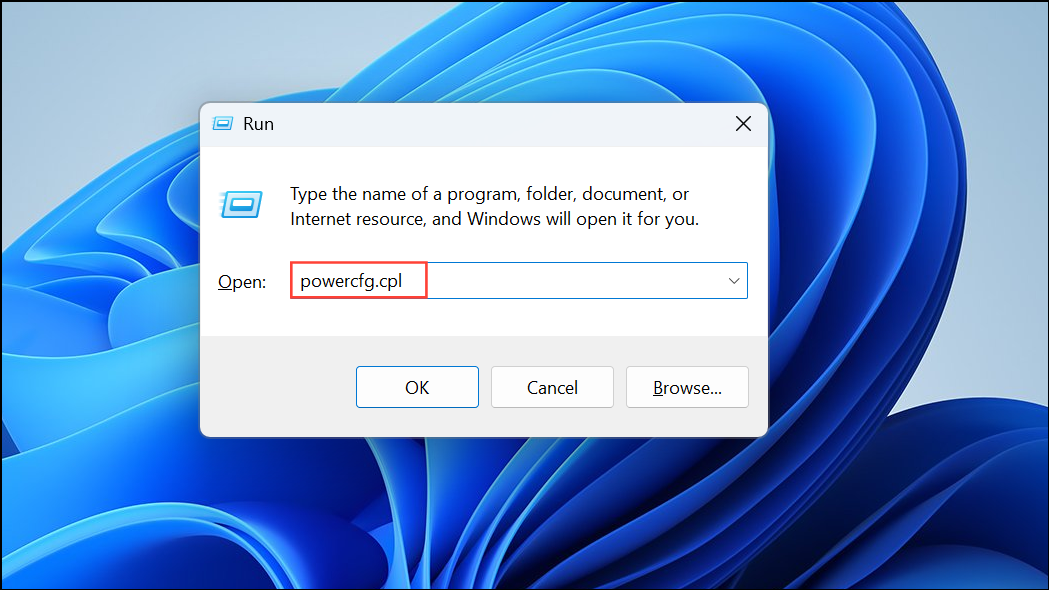
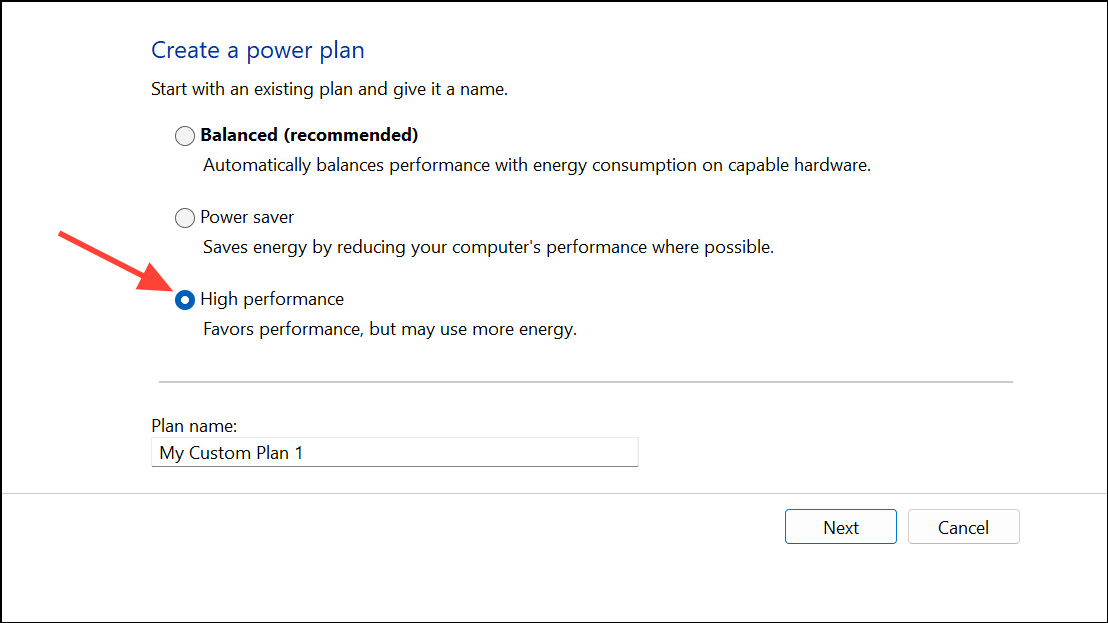
This adjustment ensures your system’s hardware operates at maximum capacity, reducing performance bottlenecks.
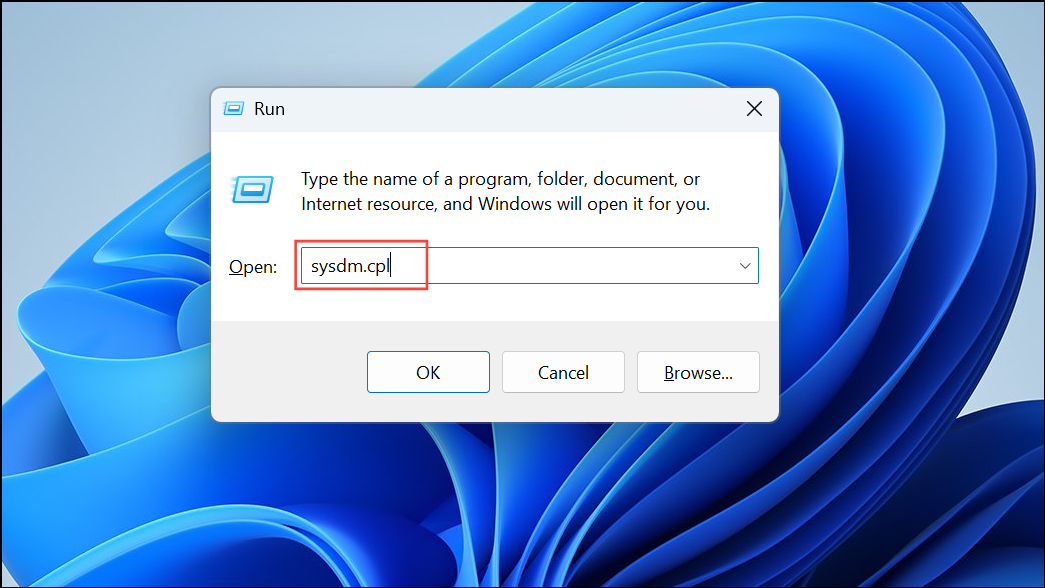
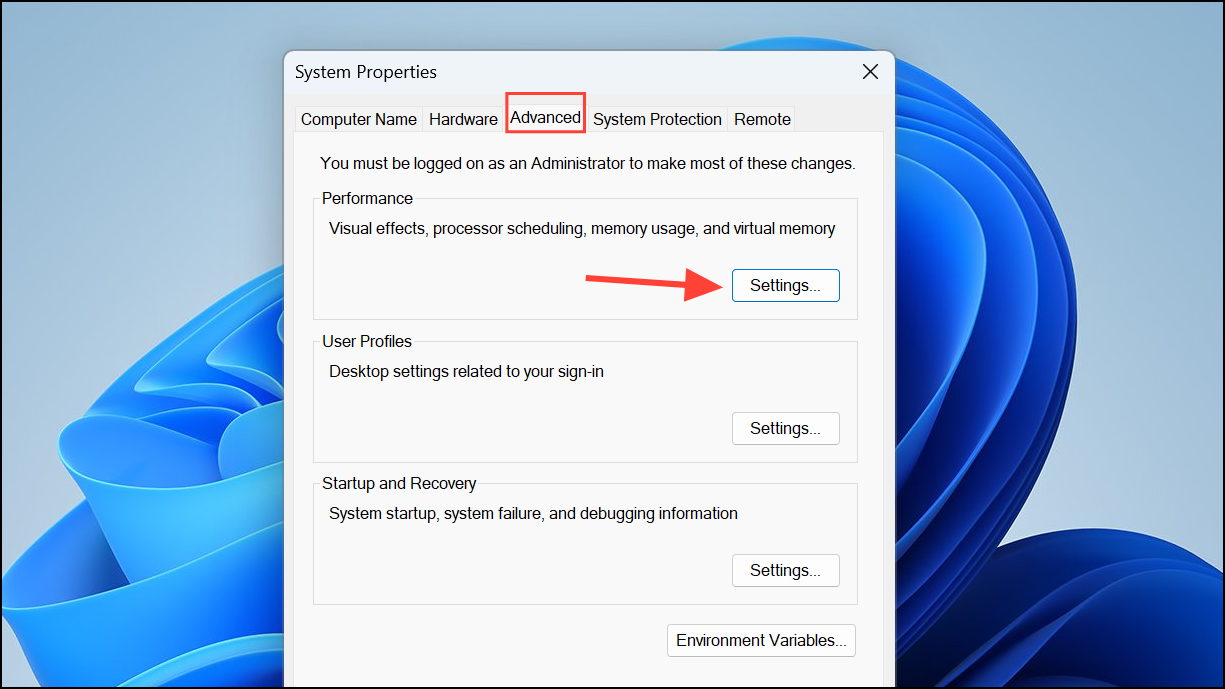
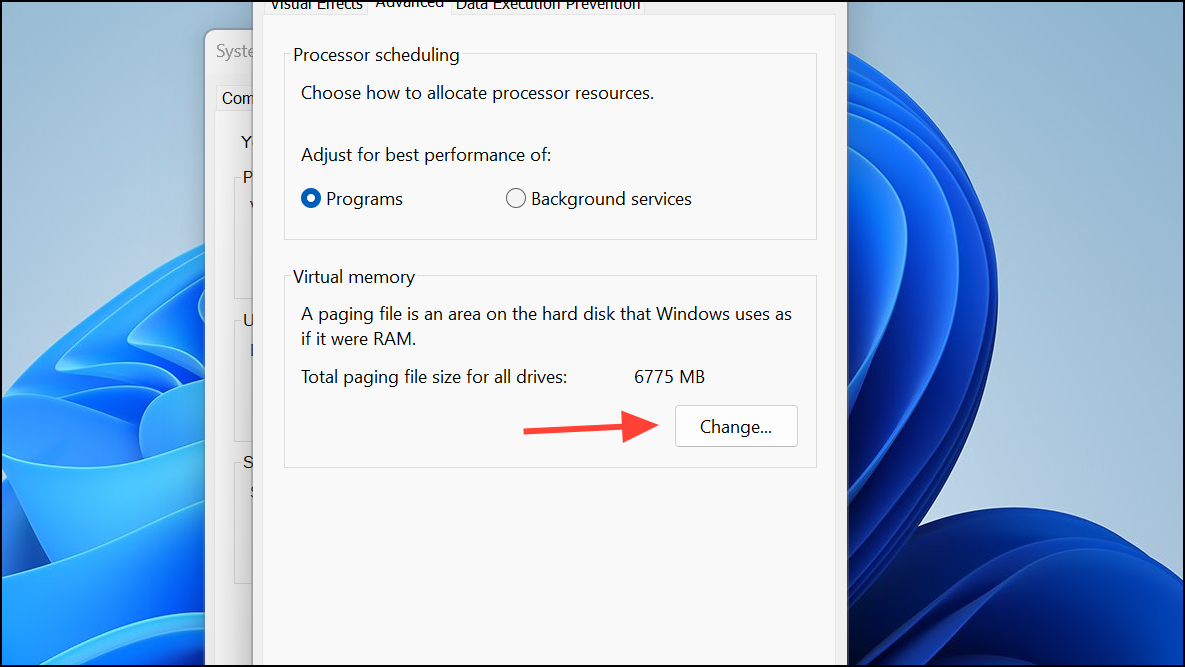
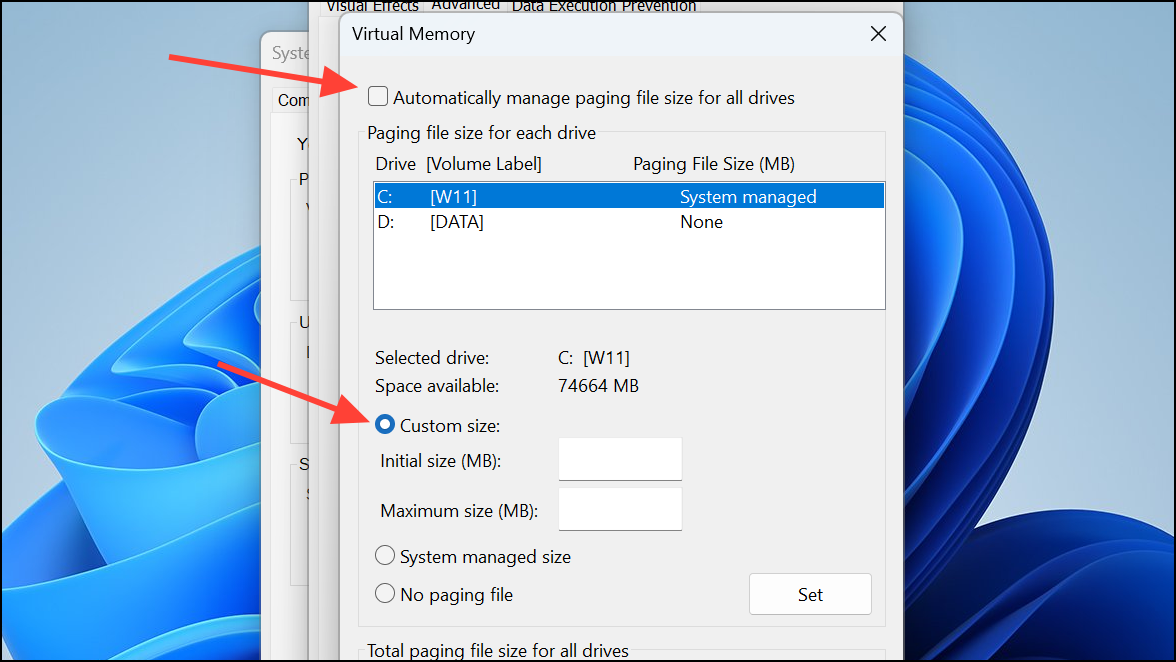
Increase Virtual Memory
Virtual memory supplements your physical RAM, providing additional resources when memory runs low, which can help prevent stuttering.
Update Games and Adjust In-Game Settings
Game developers regularly release patches that address performance issues. Additionally, in-game settings can significantly impact frame rates.
These adjustments can dramatically improve gaming smoothness without requiring hardware upgrades.
By following these detailed steps, you can effectively reduce or eliminate game stuttering on Windows 11, ensuring consistent, smooth gameplay. Keep your drivers updated, optimize system settings, and regularly monitor game updates for the best performance.



