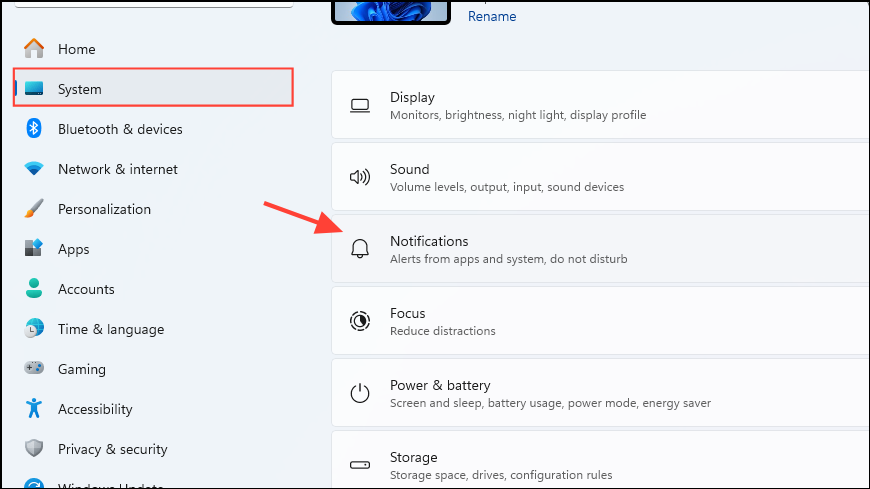
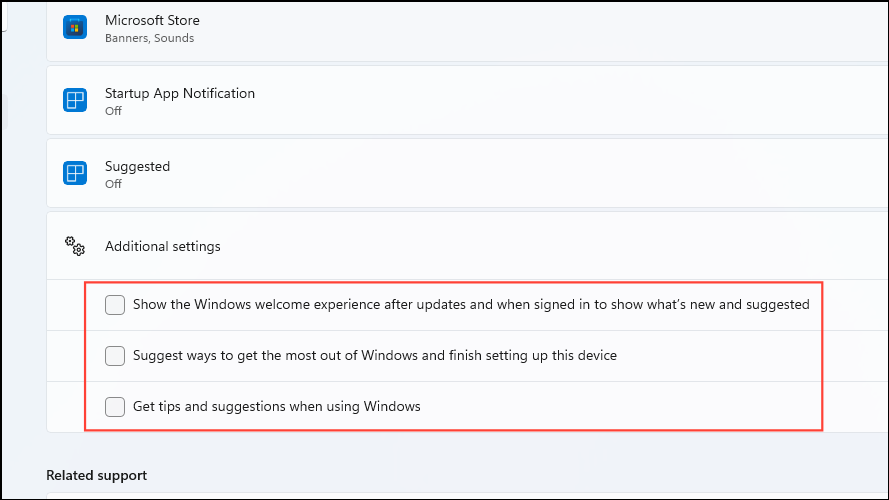
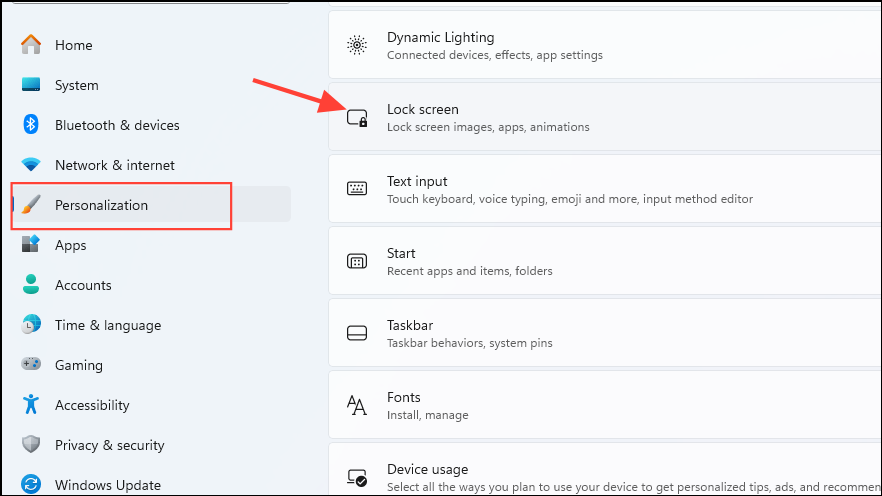
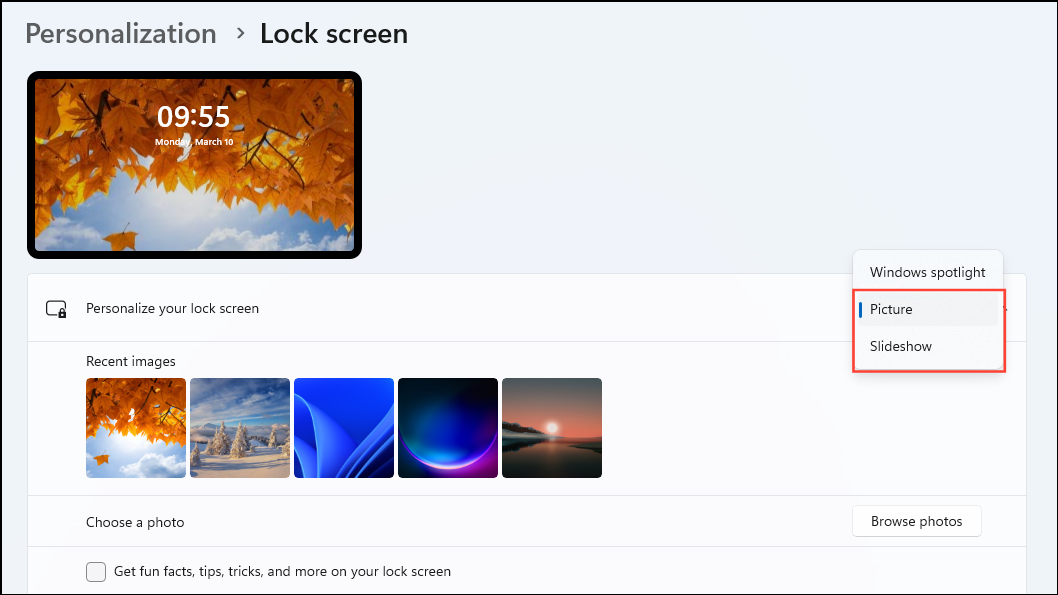
Follow these simple steps to disable built-in advertisements throughout Windows 11.
Follow these simple steps to disable built-in advertisements throughout Windows 11.
by Pallav Pathak
Windows 11 frequently displays built-in advertisements, including app recommendations, sponsored suggestions, and promotional notifications. These ads appear in various places such as the Start menu, lock screen, notifications area, File Explorer, and even within the Settings app. Disabling these advertisements can streamline your system, reduce distractions, and simplify navigation. The most effective method involves manually adjusting settings within Windows itself, as third-party tools can sometimes cause unintended issues.
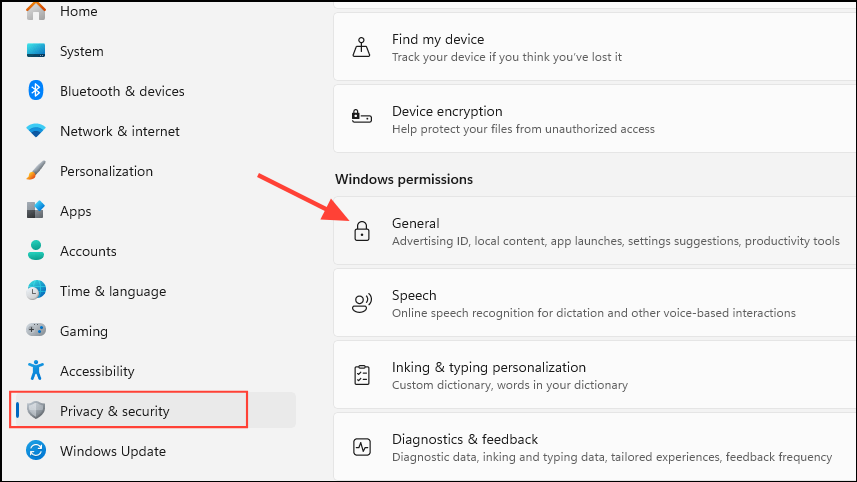
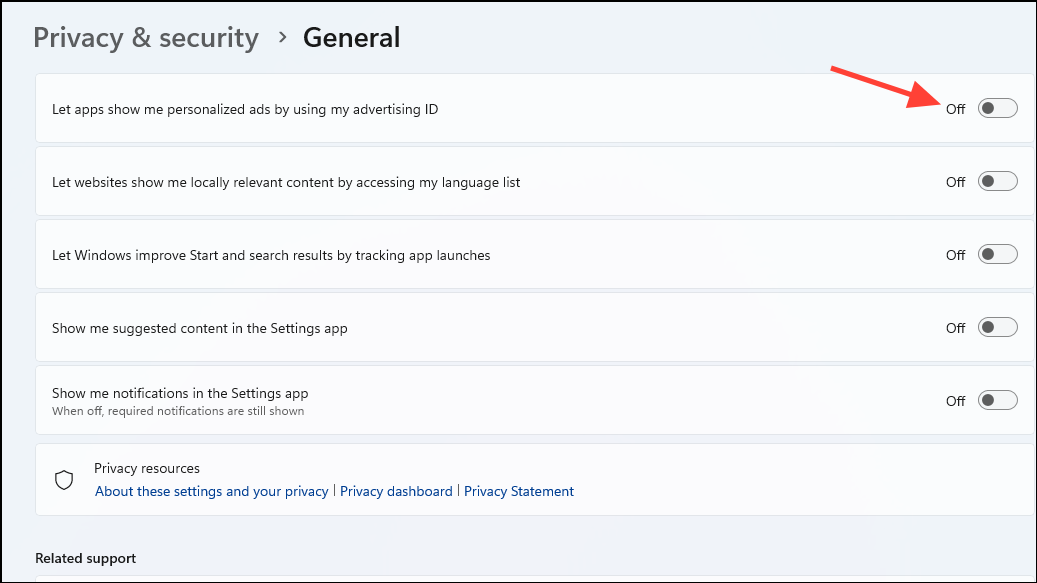
Toggle off the option labeled “Let apps show me personalized ads by using my advertising ID”. This prevents Windows from displaying targeted advertisements based on your usage habits.
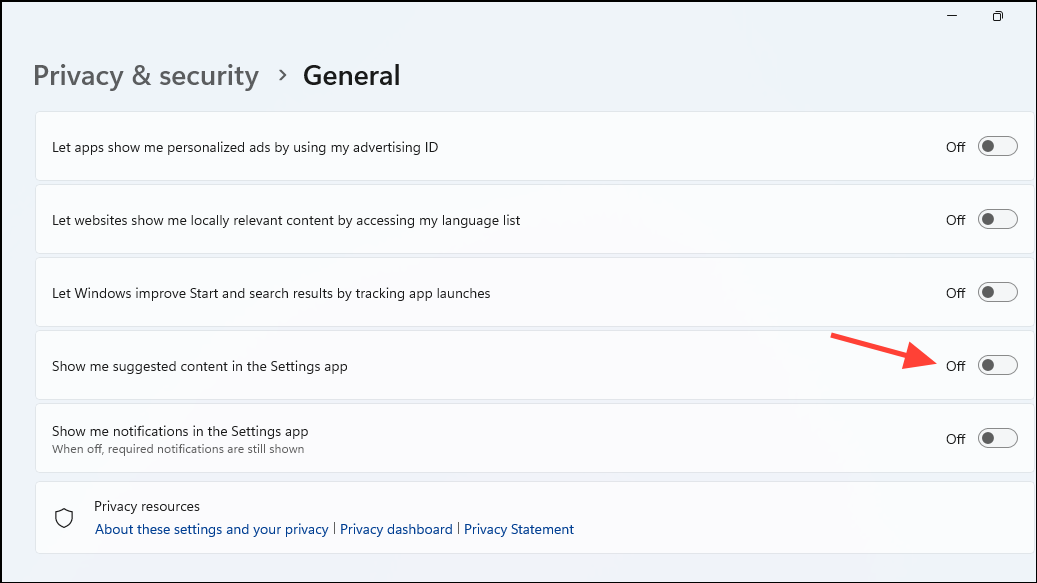
Also disable “Show me suggested content in the Settings app” to remove promotional suggestions from the Settings menus. You may also consider disabling the other two options on this page to limit additional tracking of your activity.
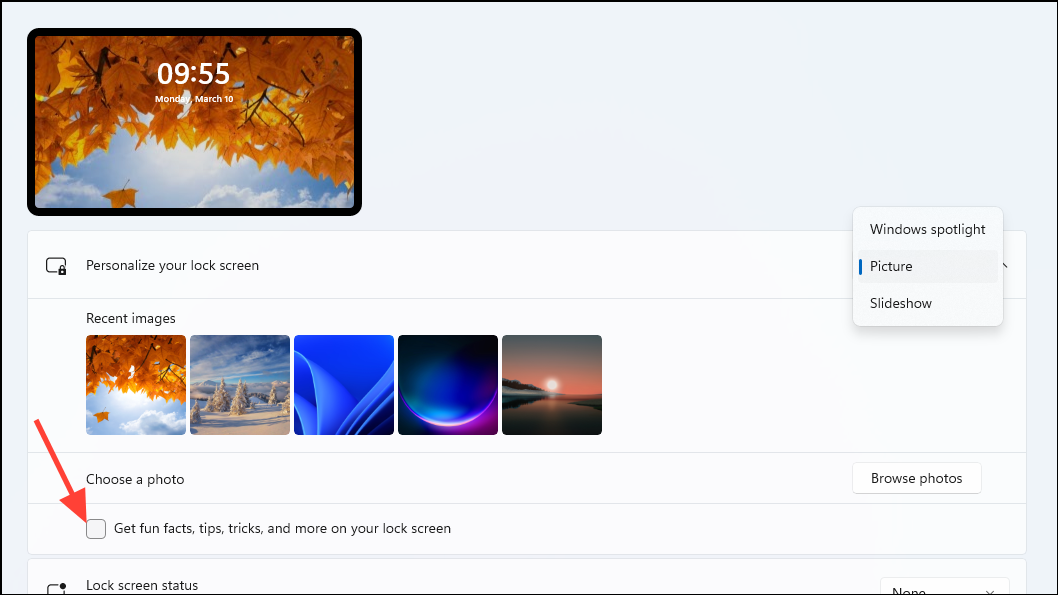
Turn off the toggle labeled “Get fun facts, tips, and more from Windows and Cortana on your lock screen.” This removes promotional text and suggestions from your lock screen.
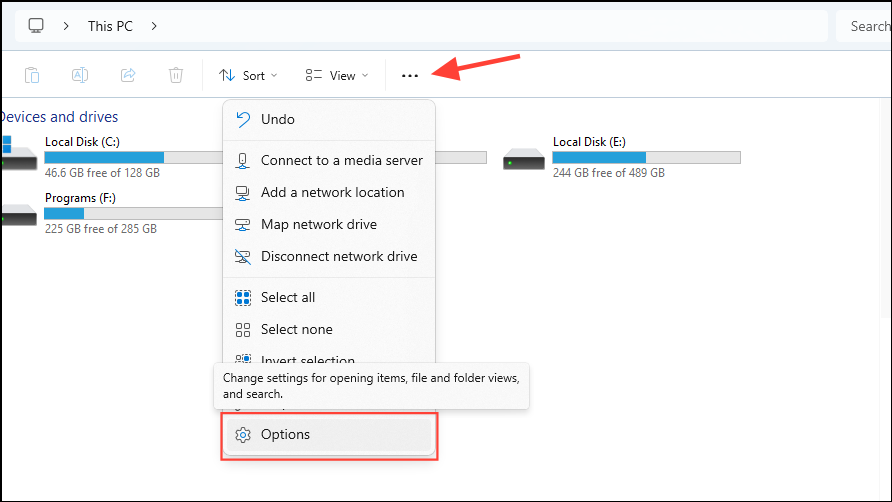
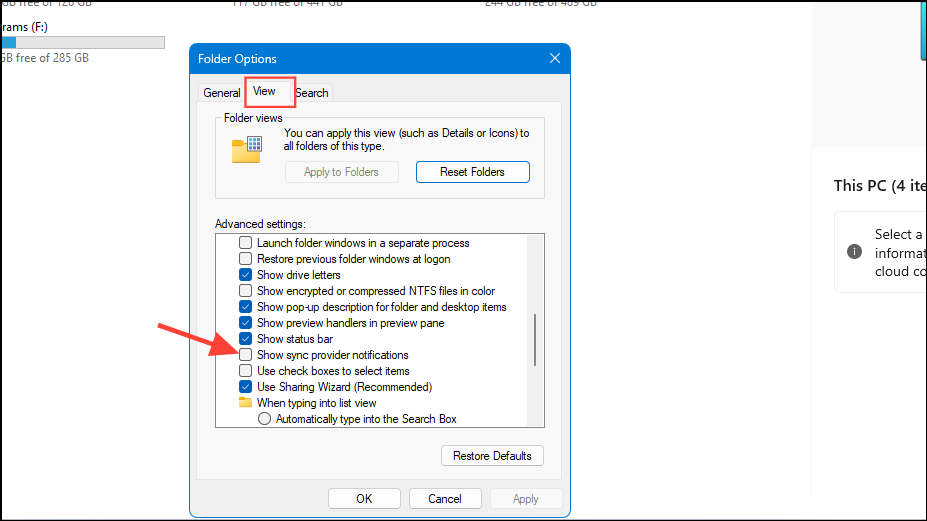
Scroll down through the Advanced settings list and uncheck the box labeled “Show sync provider notifications”. Click Apply and then OK to save your changes. This prevents Microsoft from displaying ads for services like OneDrive within File Explorer.
Uninstall Pre-installed Promotional Apps and Bloatware
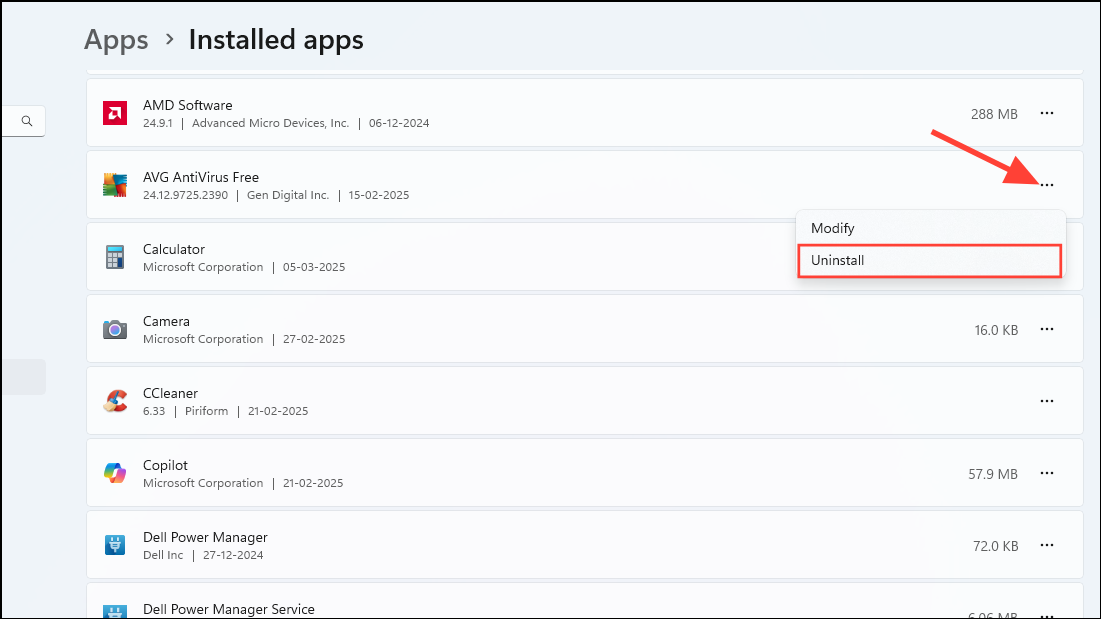
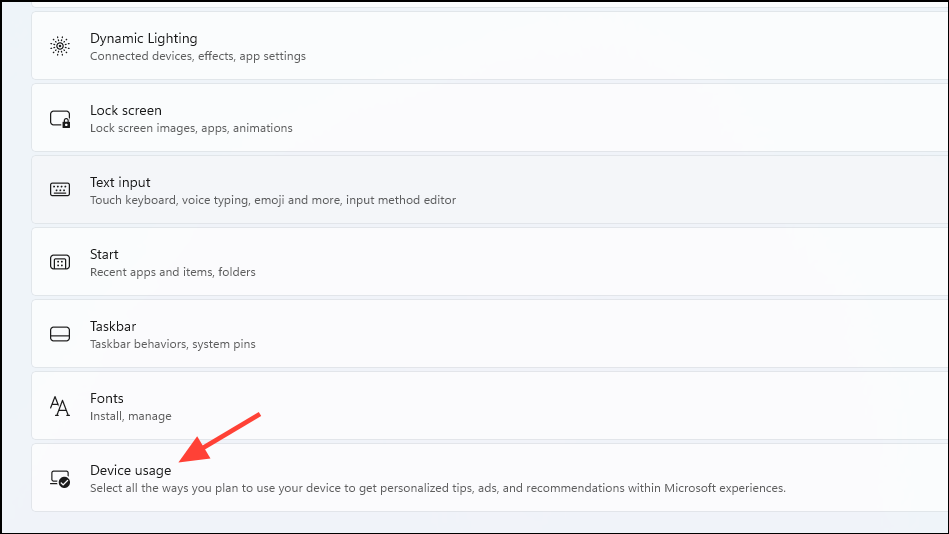
Scroll through the list of installed applications. Identify and uninstall any unwanted pre-installed apps or promotional software by clicking the ellipsis (…) next to the app name and selecting Uninstall. Removing these apps can reduce unnecessary notifications and promotional content.
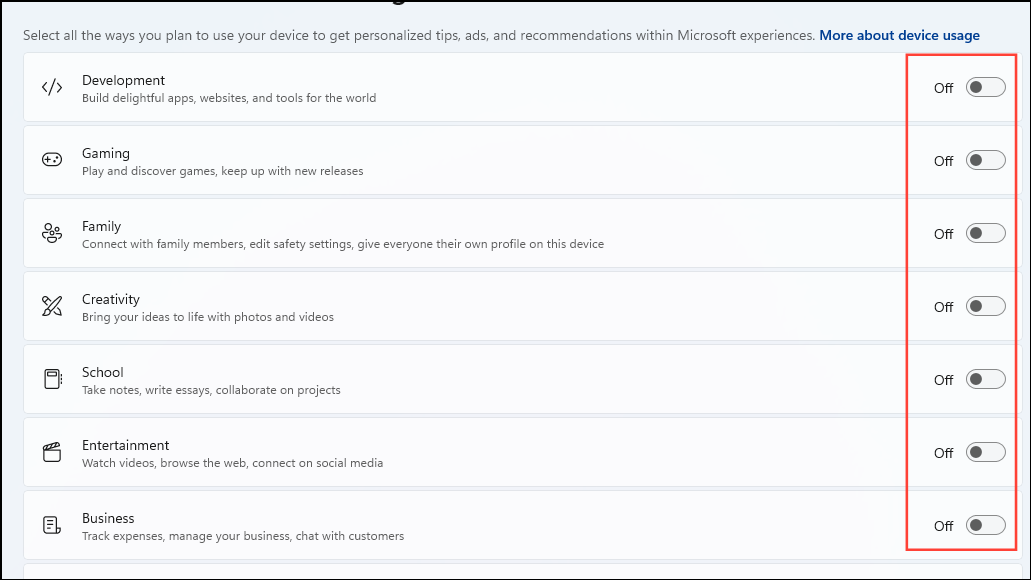
Toggle off all listed options to prevent Windows from recommending apps and services based on your device usage habits.
By following these steps, your Windows 11 experience should become significantly cleaner and less cluttered with promotional content. Remember to periodically check these settings after major Windows updates, as Microsoft occasionally re-enables some ads and suggestions.