
A Virtual Private Network (VPN) encrypts your internet connection, keeping your online activities private and secure from prying eyes. Windows 11 includes a built-in VPN client that allows you to securely connect to remote networks without needing additional software. Follow this guide to set up a secure VPN connection on your Windows 11 device.
Method 1: Configure VPN via Windows 11 Settings
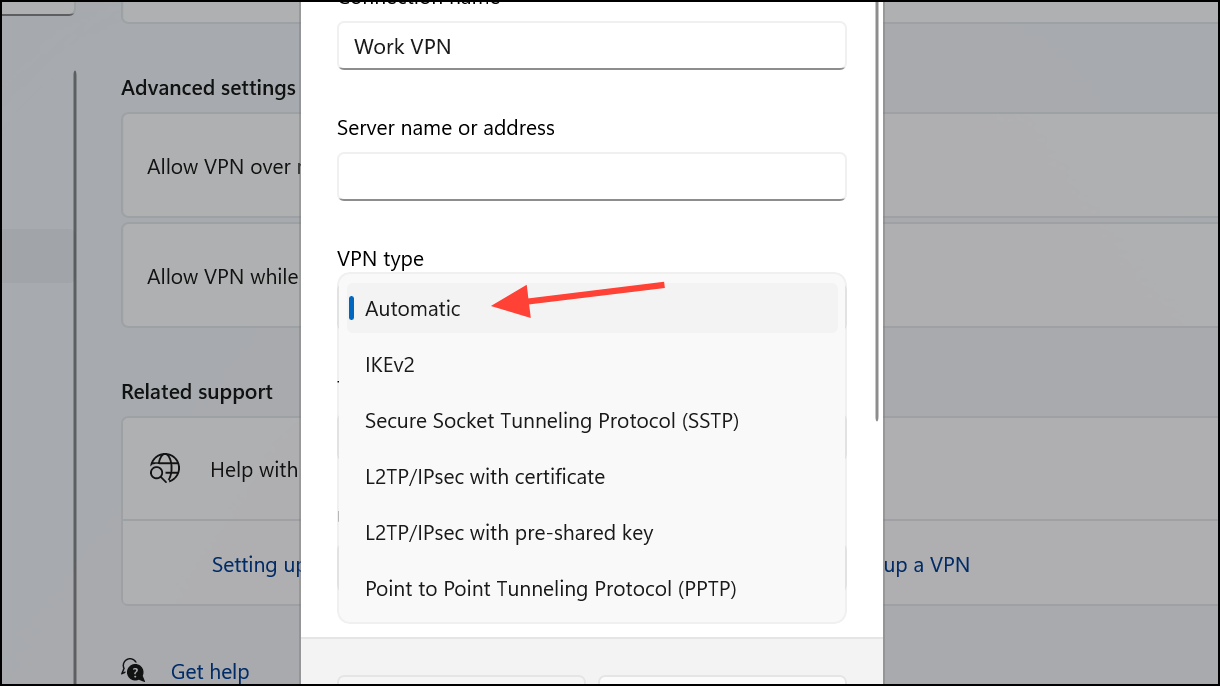
This method uses the built-in VPN client provided by Windows 11. You’ll need the VPN server details from your VPN provider or network administrator before proceeding.
Windows key + I. In the left pane, select “Network & internet,” then click on “VPN” in the right pane.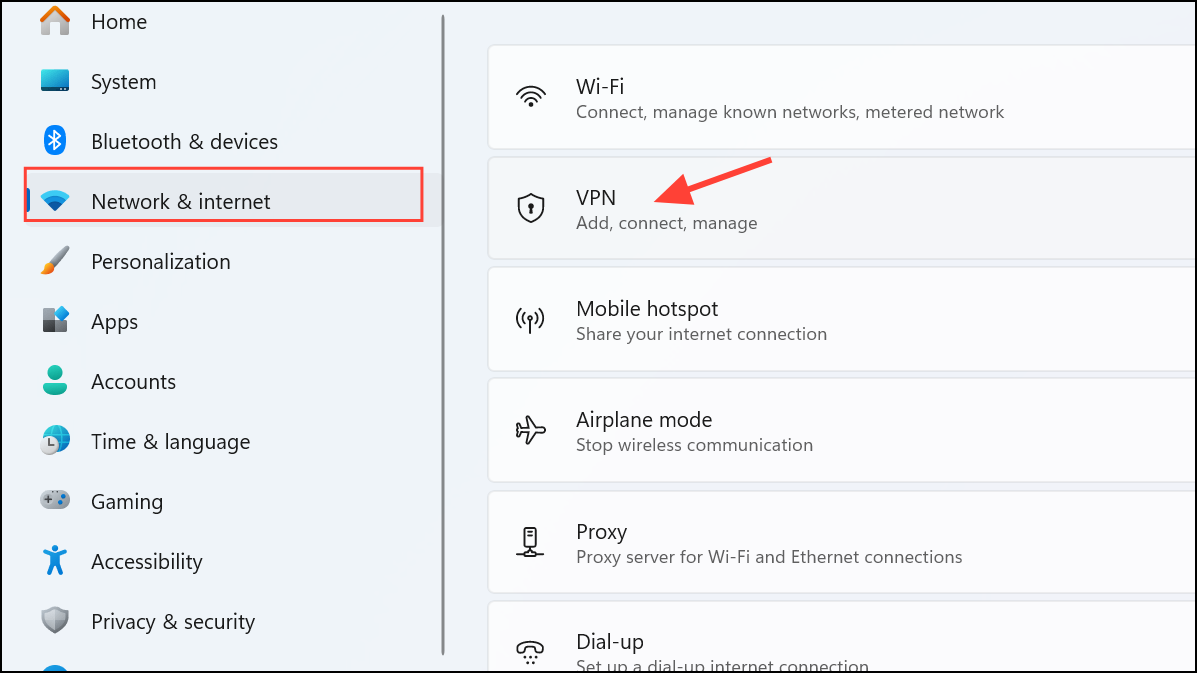
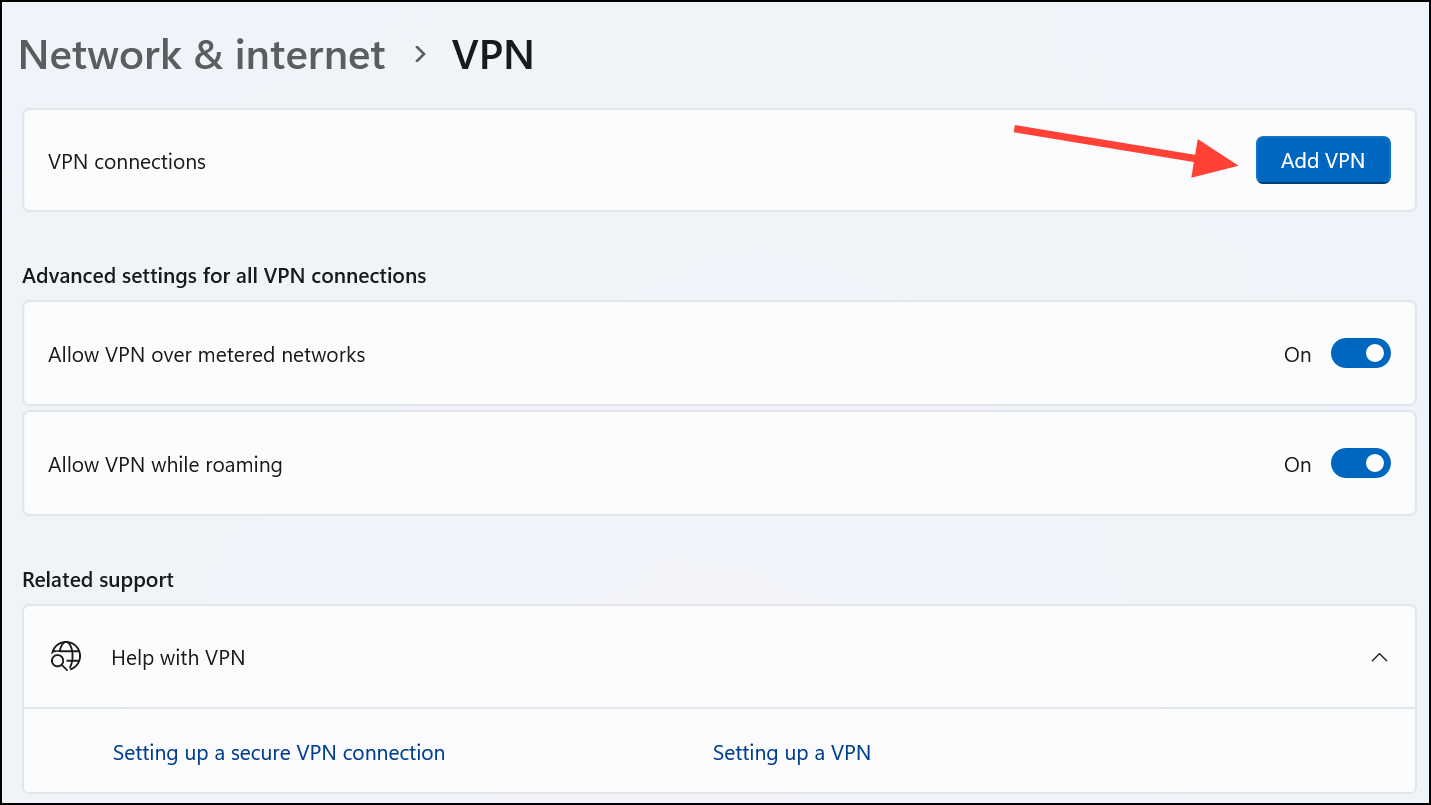
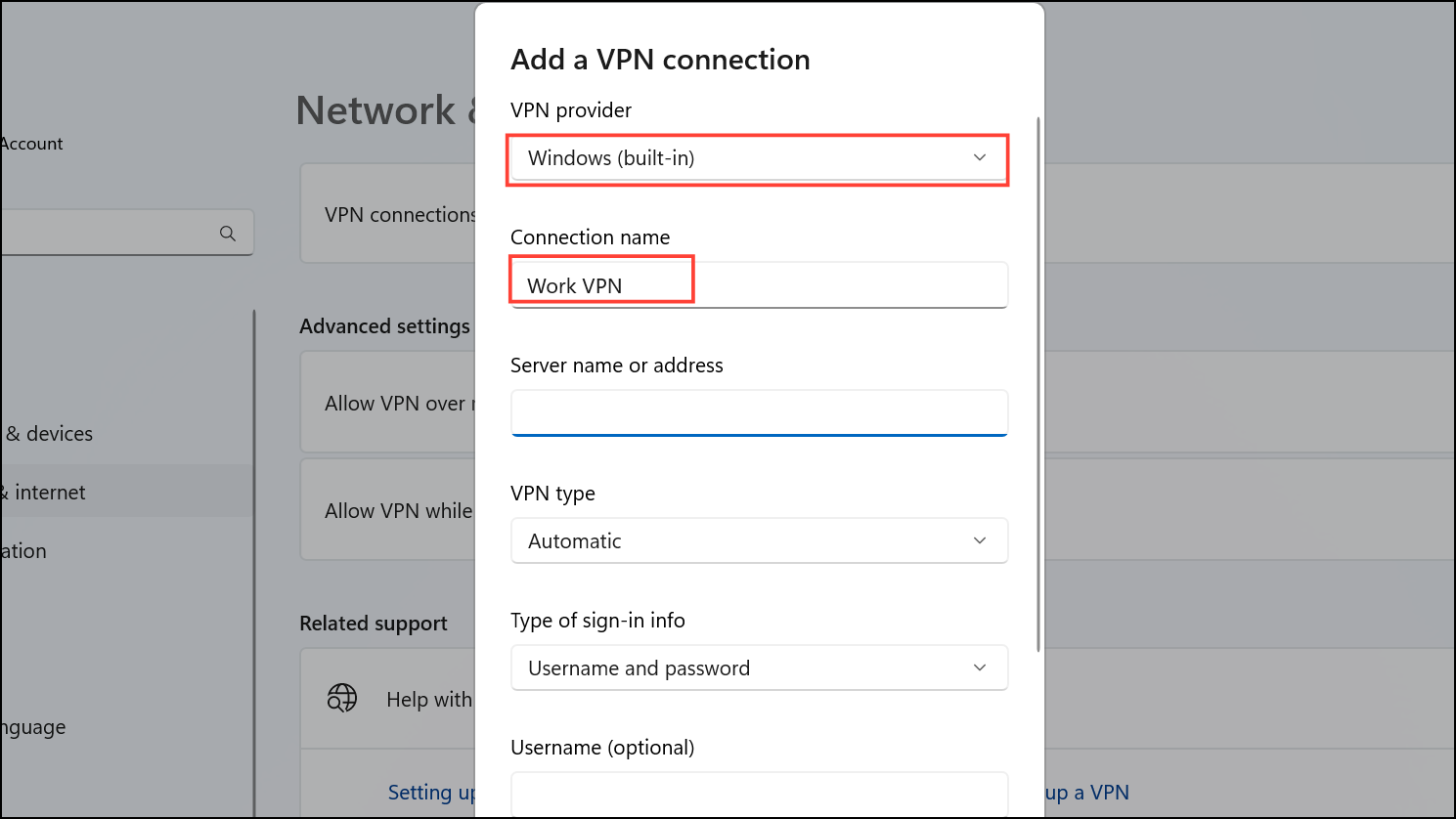
Method 2: Set Up VPN via Control Panel
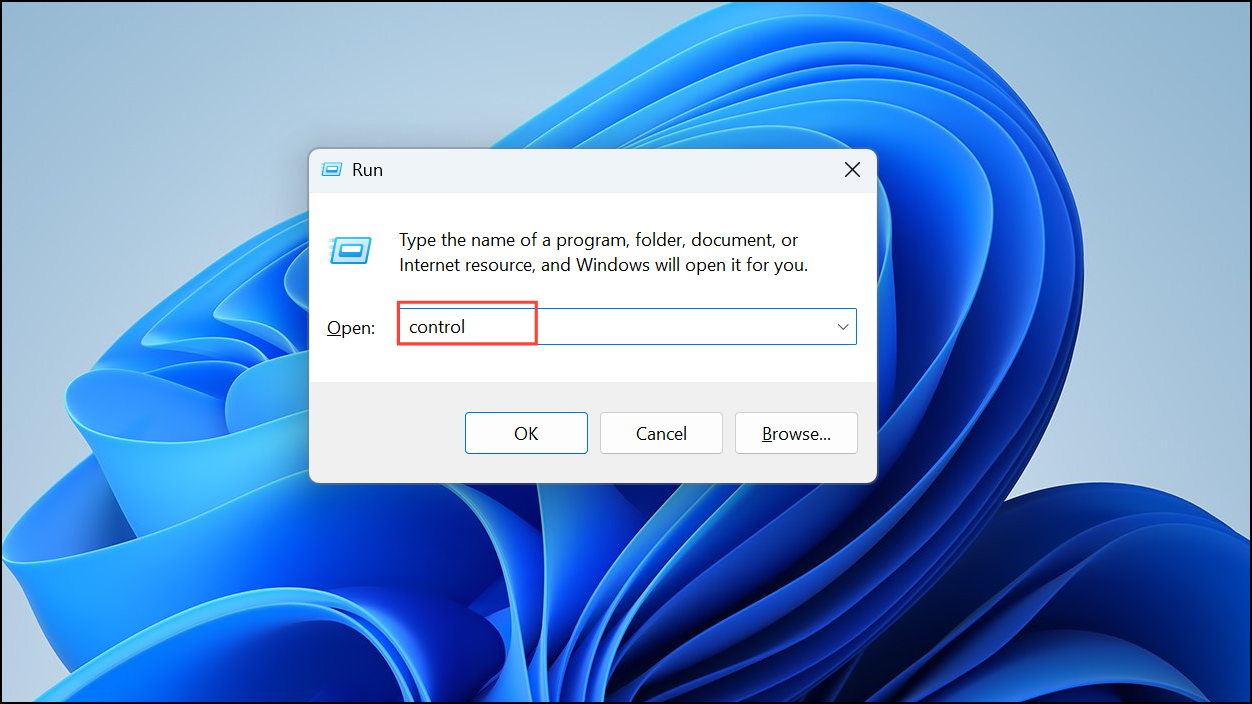
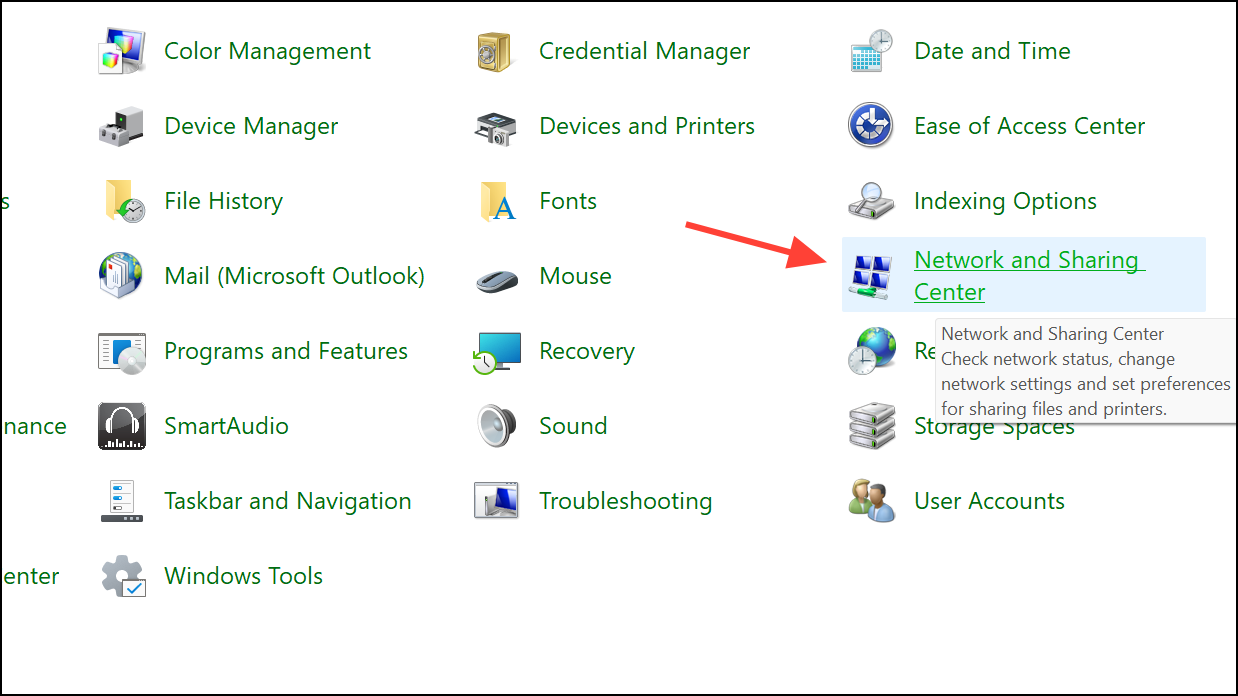
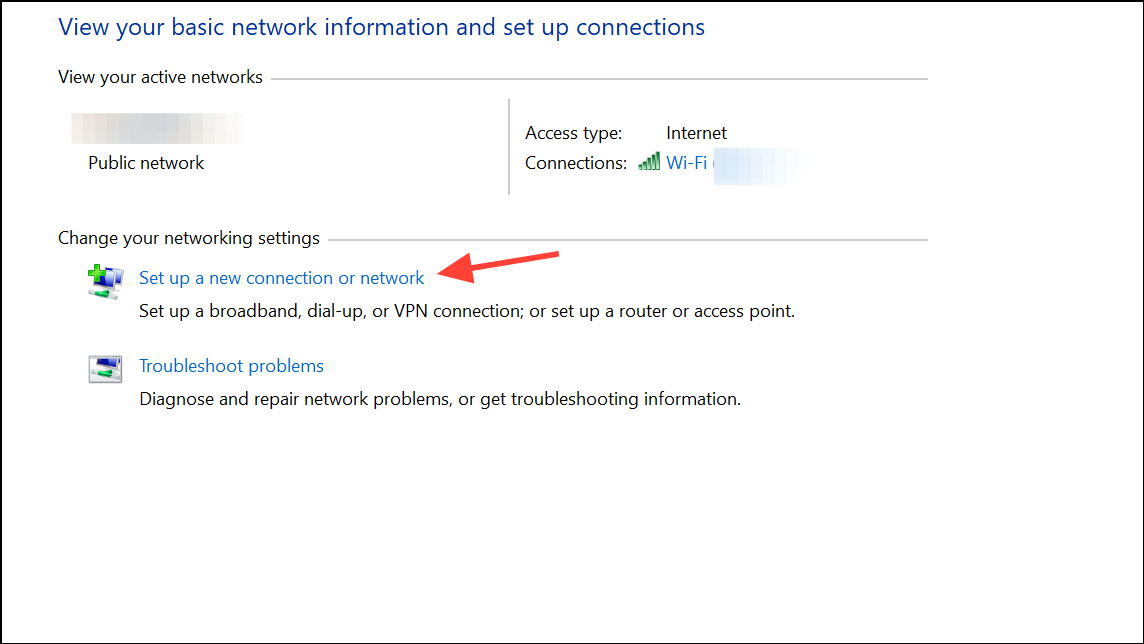
If you prefer using the traditional Control Panel interface, follow these steps:
Common Issues and Troubleshooting Tips
If you’re experiencing issues with your VPN connection, try these common troubleshooting steps:
- Ensure your internet connection is stable.
- Double-check your VPN credentials (username and password).
- Try connecting to a different VPN server location if available.
- Restart your computer and router to clear temporary network issues.
- Update your VPN client software or check Windows updates.
- Temporarily disable your firewall or antivirus software to see if they’re blocking the VPN.
Advanced VPN Settings to Consider
Windows 11 provides advanced options to optimize your VPN connection:
- Kill Switch: Some third-party VPN providers include a “kill switch” feature that disconnects your internet if the VPN drops, preventing data leaks. Consider enabling this feature if available.
- Split Tunneling: This allows you to route specific applications through the VPN while others access the internet normally. This can improve performance for certain apps.
- DNS Leak Protection: Ensure your VPN provider offers DNS leak protection to prevent your ISP from tracking your browsing activity.
Setting up a secure VPN connection in Windows 11 protects your online privacy and secures your data, especially when using public Wi-Fi or accessing sensitive information remotely. Always choose a reputable VPN provider and regularly update your VPN client and Windows software to maintain optimal security.



