How to Set Up and Customize Widgets for Personalized Information in Windows 11
Follow these simple steps to add, remove, and customize widgets on your Windows 11 desktop.
Follow these simple steps to add, remove, and customize widgets on your Windows 11 desktop.
by Pallav Pathak
Widgets in Windows 11 offer quick access to personalized information like weather updates, news headlines, calendar events, and more, directly from your desktop. Unlike Windows 10’s live tiles, Windows 11 widgets are neatly organized in a dedicated panel, making it easy to view relevant information without cluttering your workspace. Here’s how you can set up and customize widgets to streamline your desktop experience.
First, ensure your Windows 11 installation is updated. Open Settings, navigate to Windows Update, and click Check for updates. If any updates are available, install them to ensure widgets function correctly.
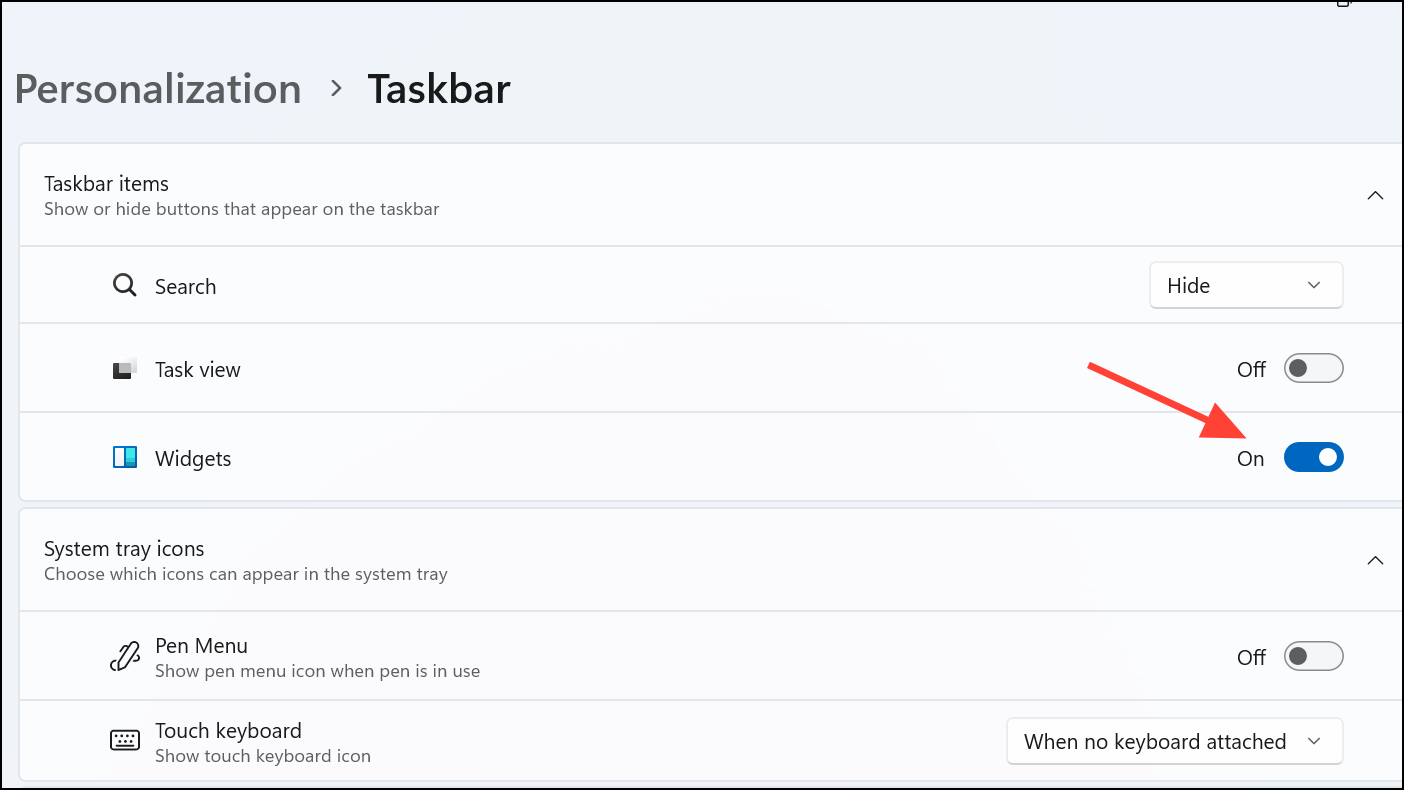
Widgets are typically enabled by default. However, if the widgets icon isn’t visible on your taskbar, right-click the taskbar, select Taskbar settings, and ensure the toggle next to Widgets is turned on.
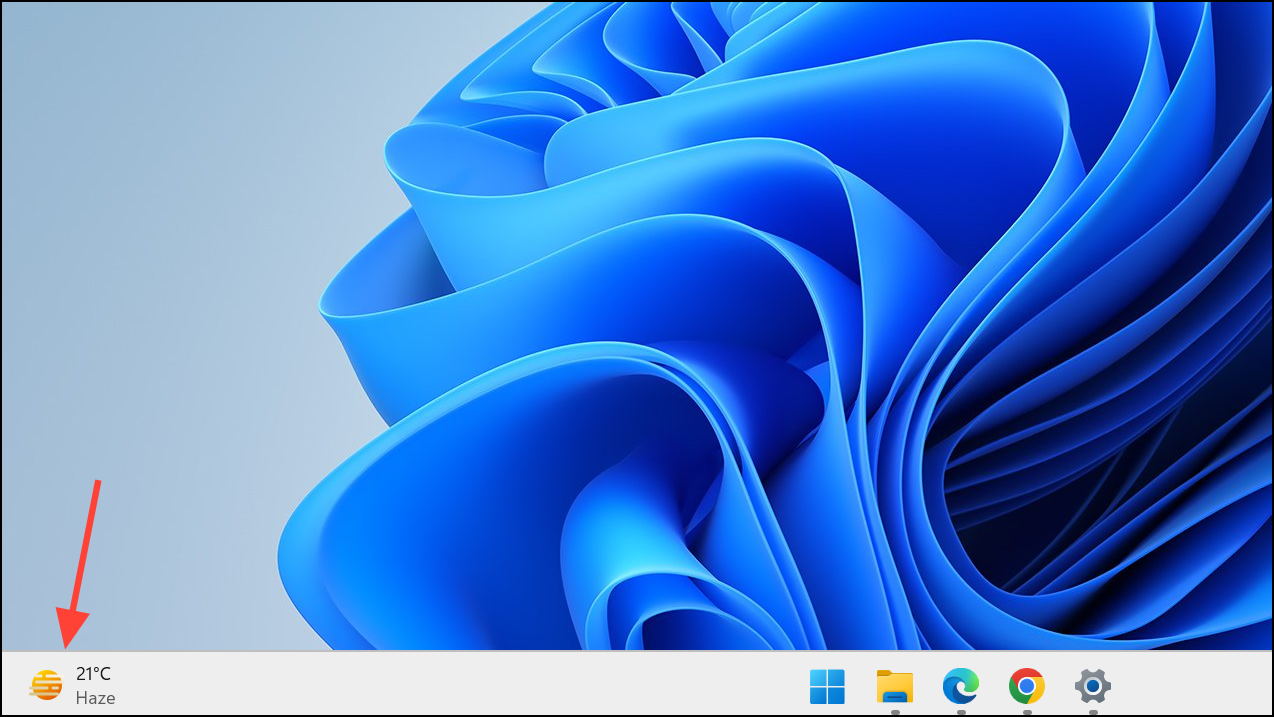
Open the widgets panel by clicking the widgets icon on your taskbar (it looks like a square divided into sections) or using the keyboard shortcut Windows + W. If you see the weather widget on the extreme left of the taskbar, click on that in case you cannot see the widget icon.
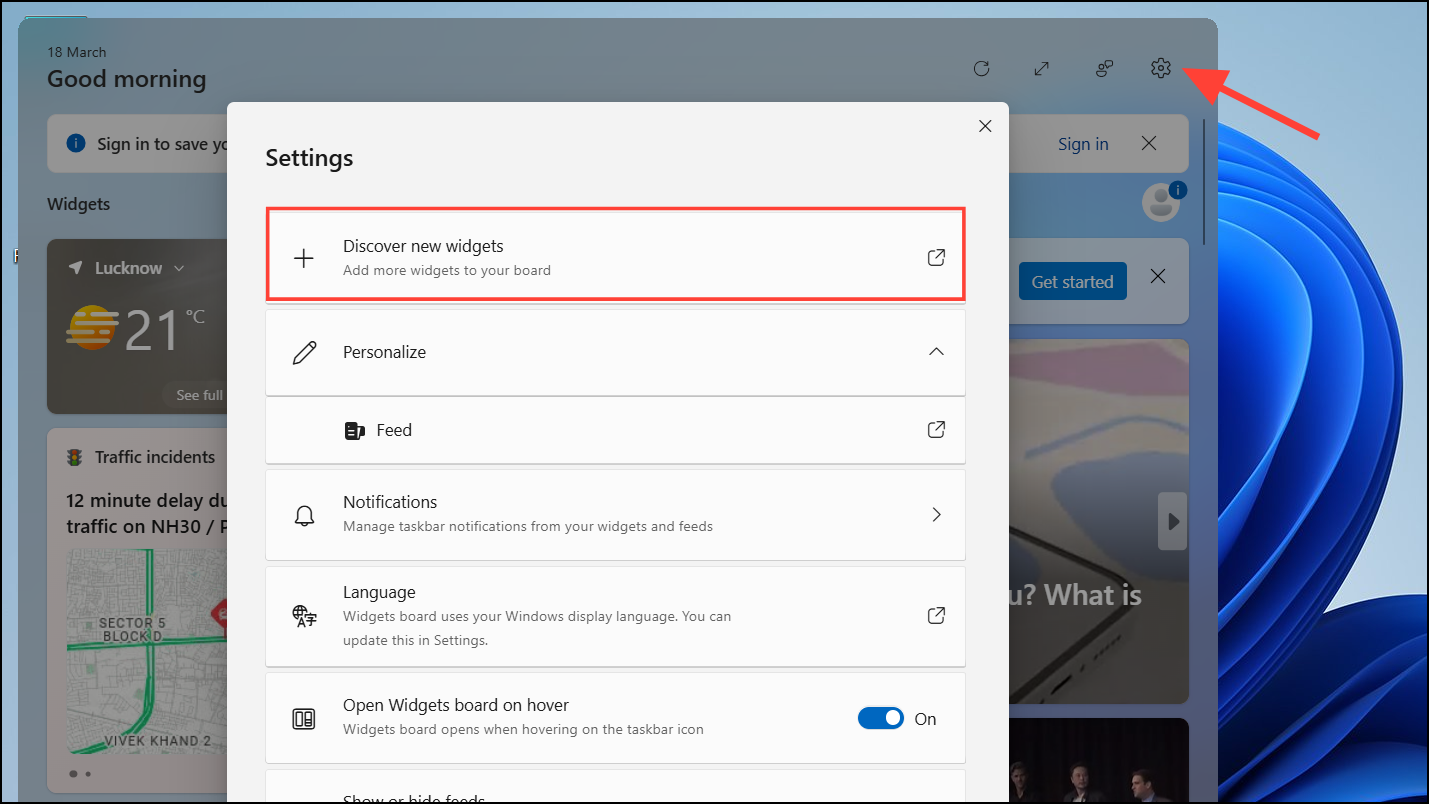
The widgets panel will show various available widgets, including Weather, Calendar, To-Do, Sports, Traffic, Microsoft Family Safety, and more. Click the gear icon at the top right of the widgets panel and then click “Discover new widgets.”
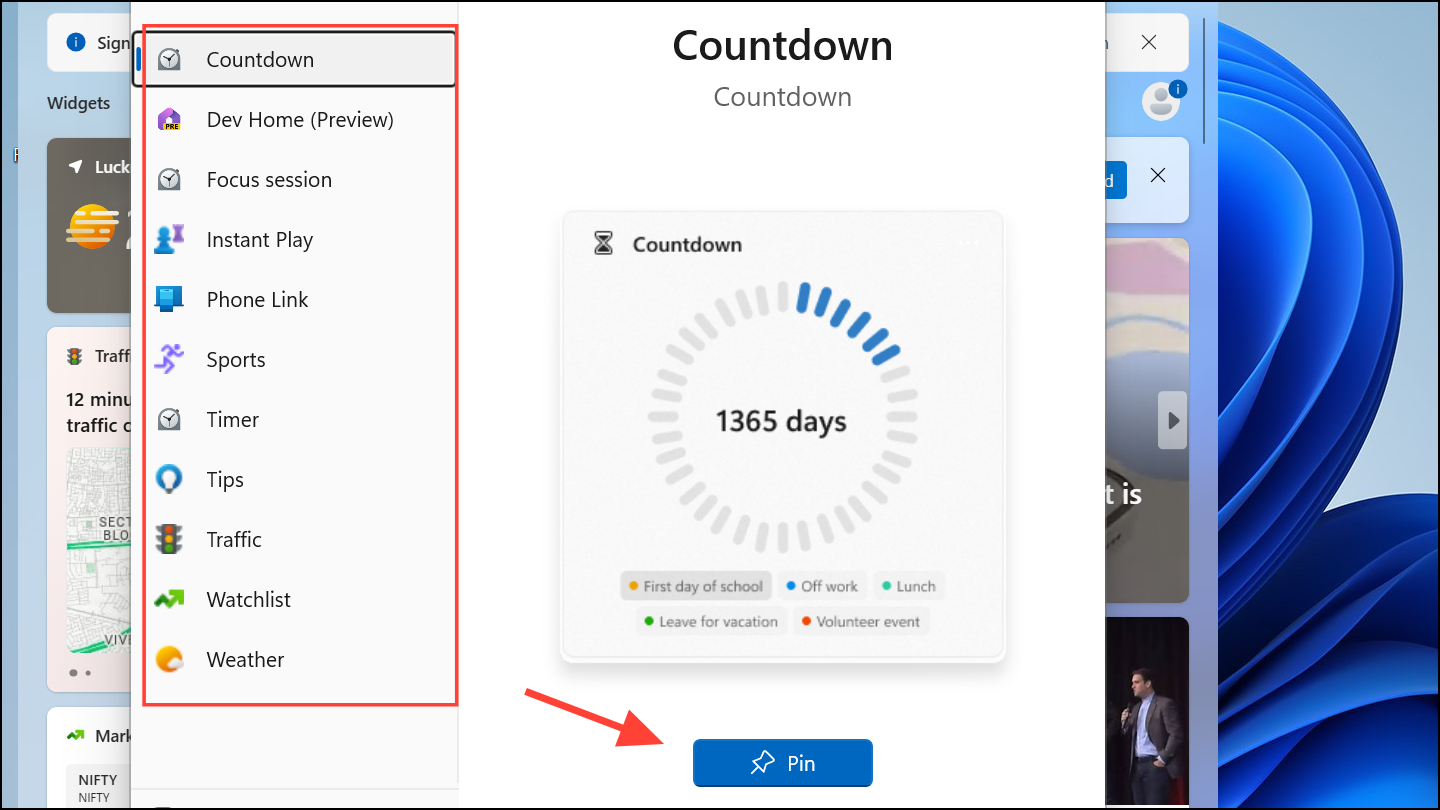
Different widget categories will appear on the left and the widgets in each category will appear on the right. Click the “Pin” button below a widget to add it to the widgets panel.
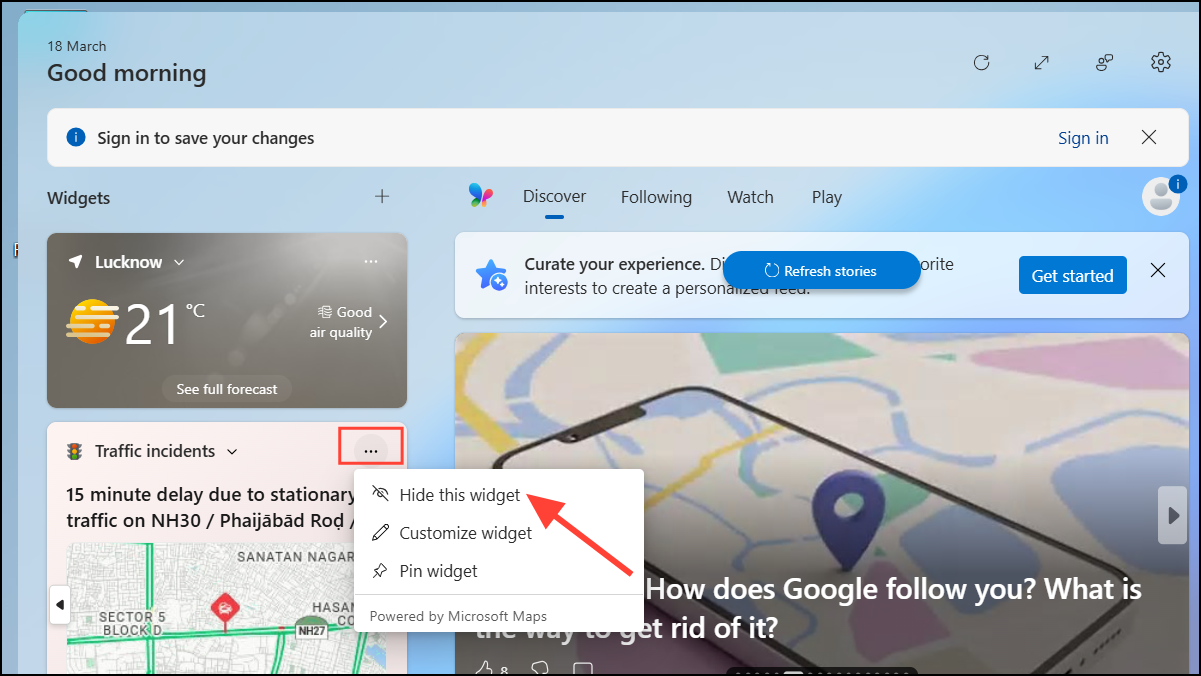
Click the three-dot icon in its top-right corner and select Hide this widget from the dropdown menu. This will immediately remove the widget from your panel.
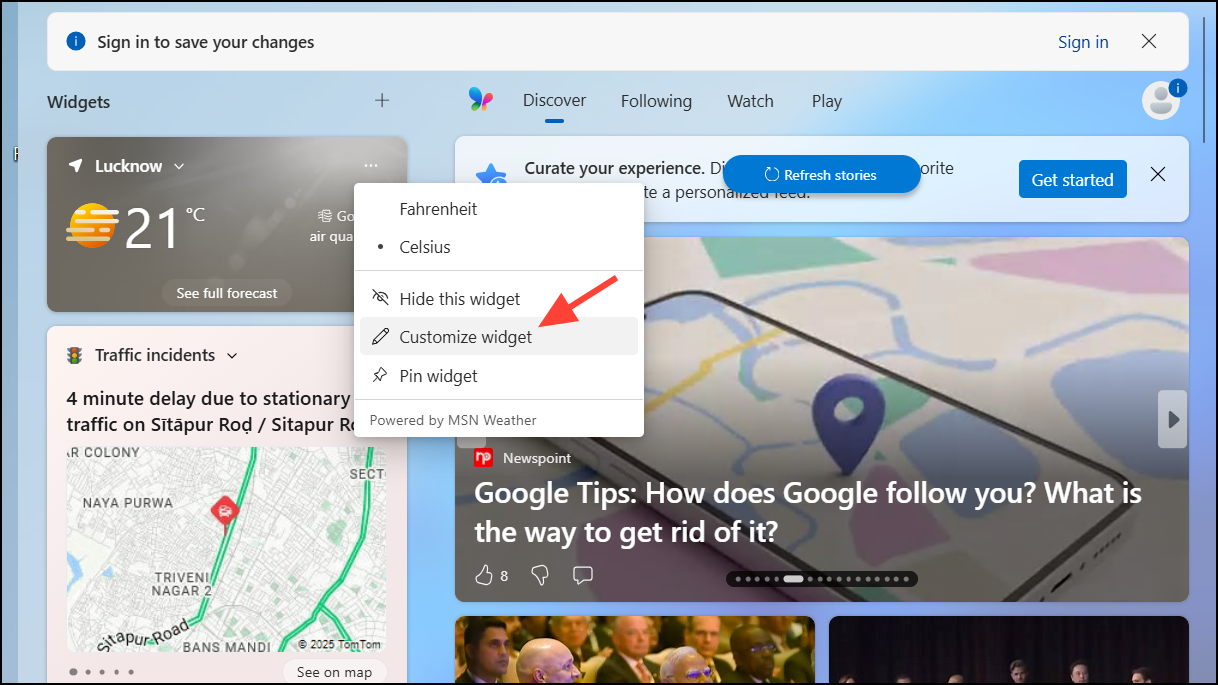
Open your widgets panel and click the three-dot icon on the widget you want to customize. Choose Customize widget from the dropdown menu (if available).
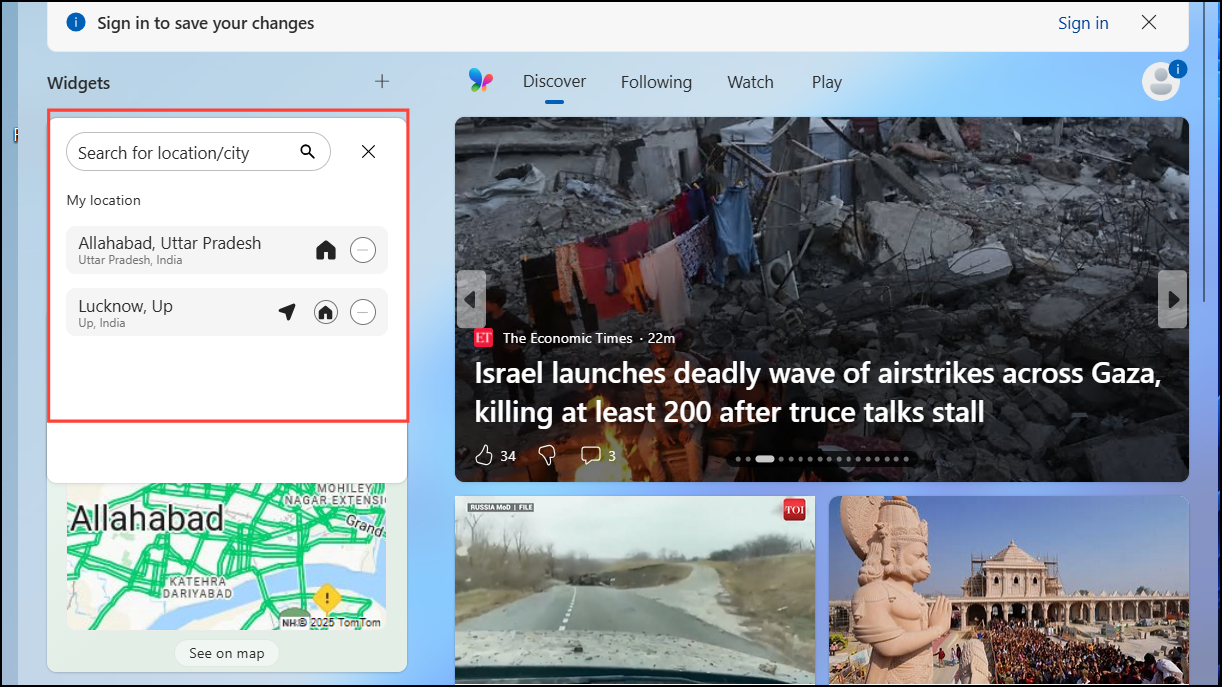
Adjust the available settings based on your preferences. For example, the Weather widget lets you select your preferred location and temperature units, while the Sports widget lets you add your favorite teams or leagues.
To resize a widget, click the three-dot icon in the widget’s corner, then choose from the available sizes (small, medium, large). Different sizes display varying levels of detail, so select one based on your preference.
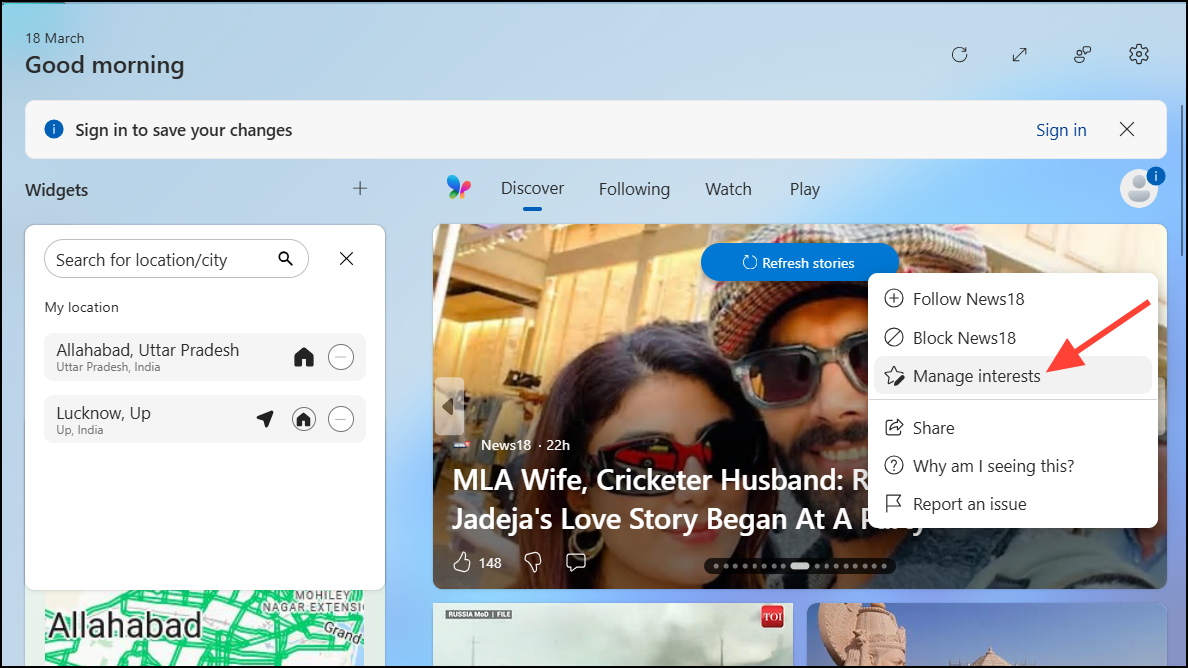
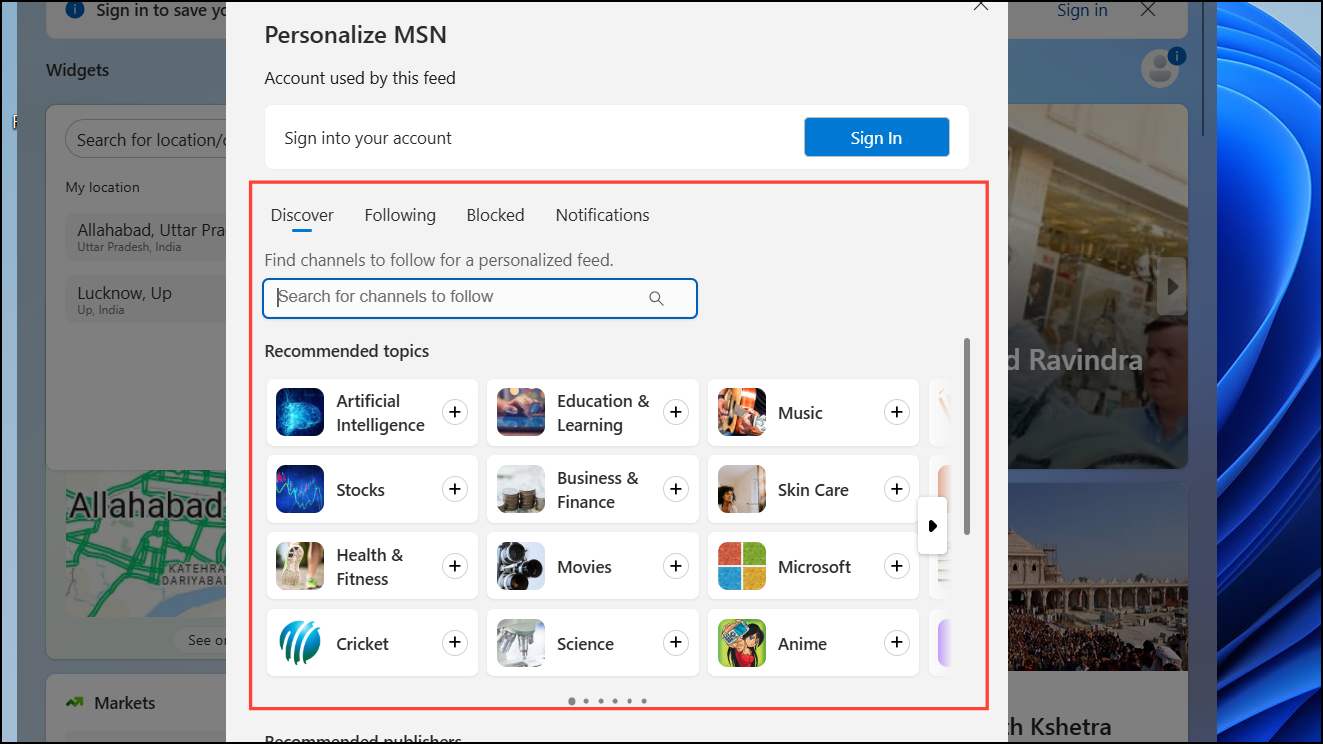
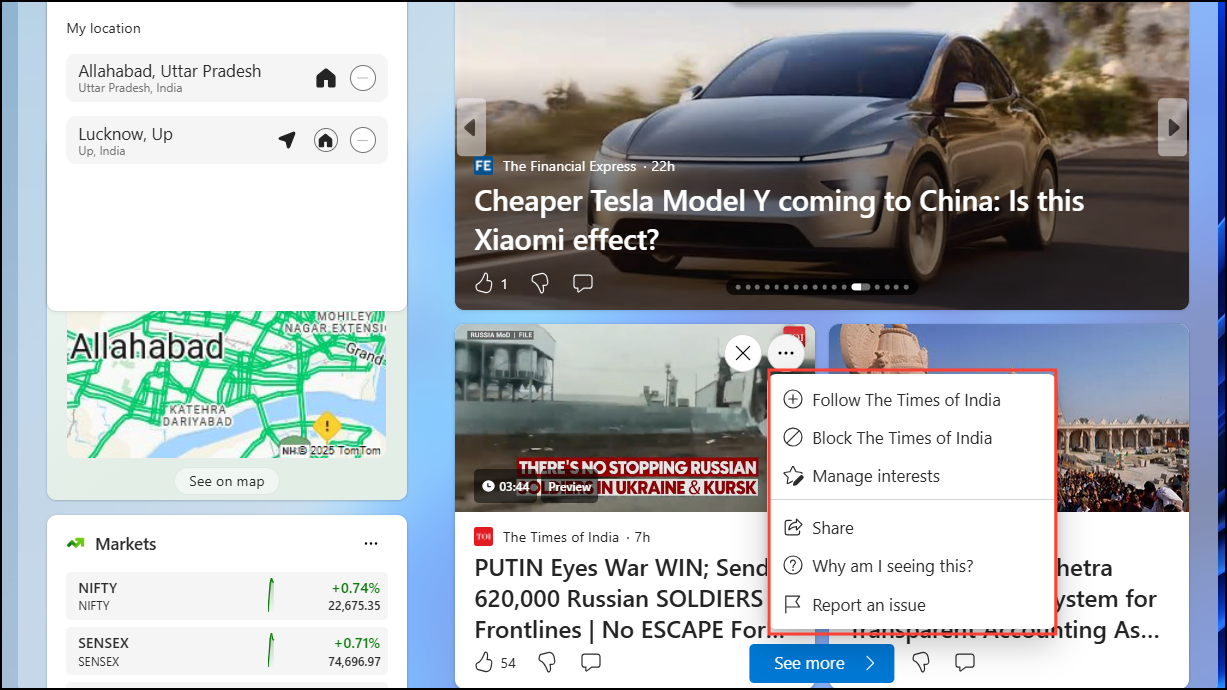
You can also directly hide stories, follow and block topics, and even share stories from the widgets panel. Choose options to see more or less content from specific publishers or topics.
Troubleshooting Common Widget Issues
If widgets aren’t opening or updating correctly, ensure you’re signed into your Microsoft account, as widgets rely on personalization features tied to your account. If issues persist, consider restarting your computer or setting Microsoft Edge as your default browser, as widgets depend on Edge and Bing for content updates.
Widgets in Windows 11 offer quick, personalized access to important information right from your desktop. With these simple steps, you can easily set up and customize widgets to match your specific needs and preferences—making your desktop both informative and streamlined.