

Windows 11 often prompts users to install updates before allowing a system shutdown or restart. This default behavior can interrupt urgent tasks, delay packing up a laptop, or complicate situations when immediate shutdown is necessary—such as low battery or overheating. Fortunately, there are several practical ways to power off or restart Windows 11 without triggering the update process, each with its own advantages and limitations.
Shut Down Using Command Prompt
Issuing a shutdown command through Command Prompt bypasses the standard update prompt and can be especially useful when the usual shutdown options are unavailable or overridden by pending updates.
cmd. Right-click on Command Prompt in the results and select Run as administrator. This ensures you have the necessary permissions to execute system commands.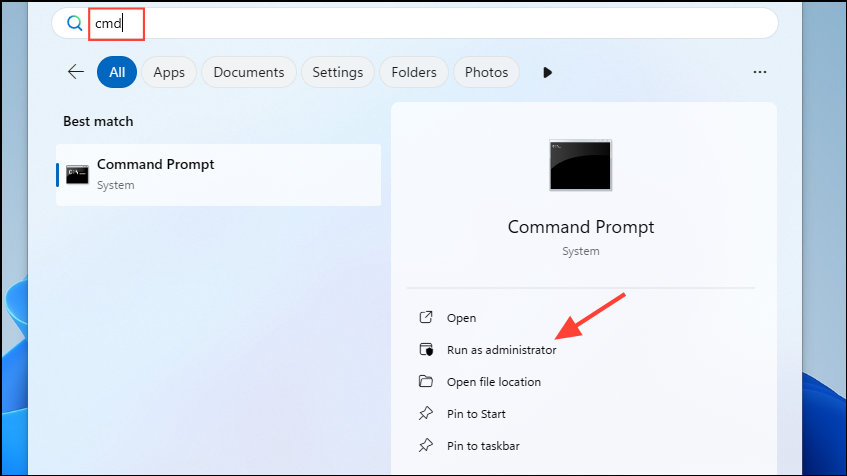
shutdown /s /t 0 and press Enter. This command tells Windows to shut down immediately, skipping the update process.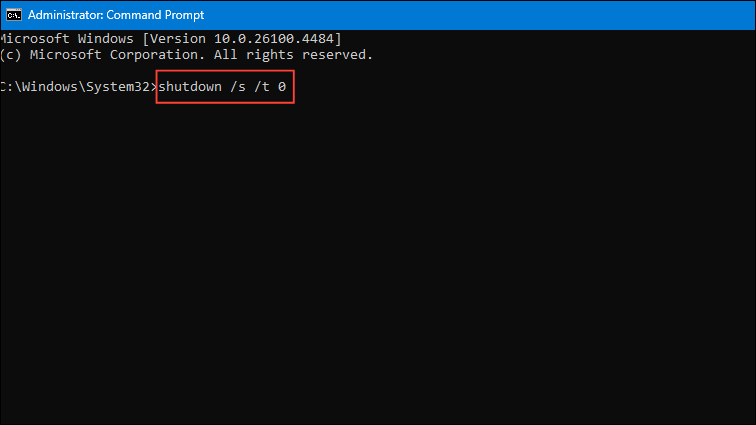
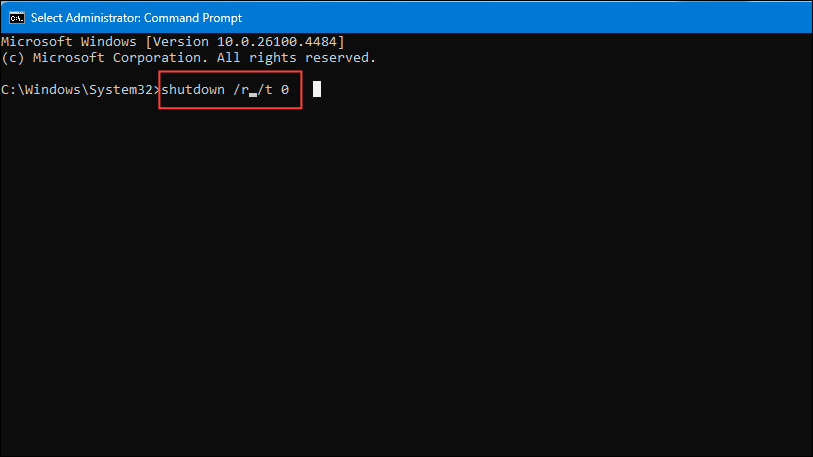
This method is widely recommended by users and tech forums because it initiates a direct shutdown or restart, often skipping the update requirement. However, if an update is already partially installed and Windows has locked out standard shutdown options, this approach may not always bypass the update process. In such cases, Windows may still apply updates on the next boot or shutdown.
Pause Updates Before Shutdown
Temporarily pausing Windows Update can prevent the system from forcing updates during shutdown or restart. This is a useful strategy if you anticipate needing to power off the device multiple times before you’re ready to install updates.
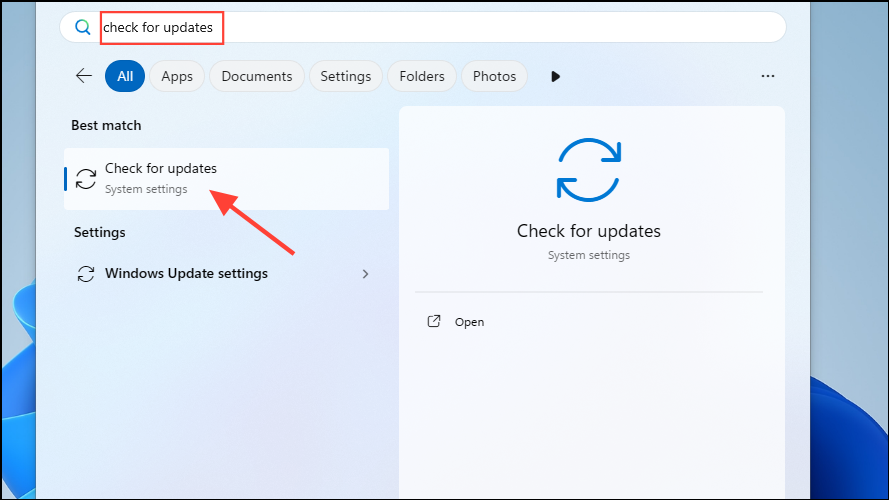
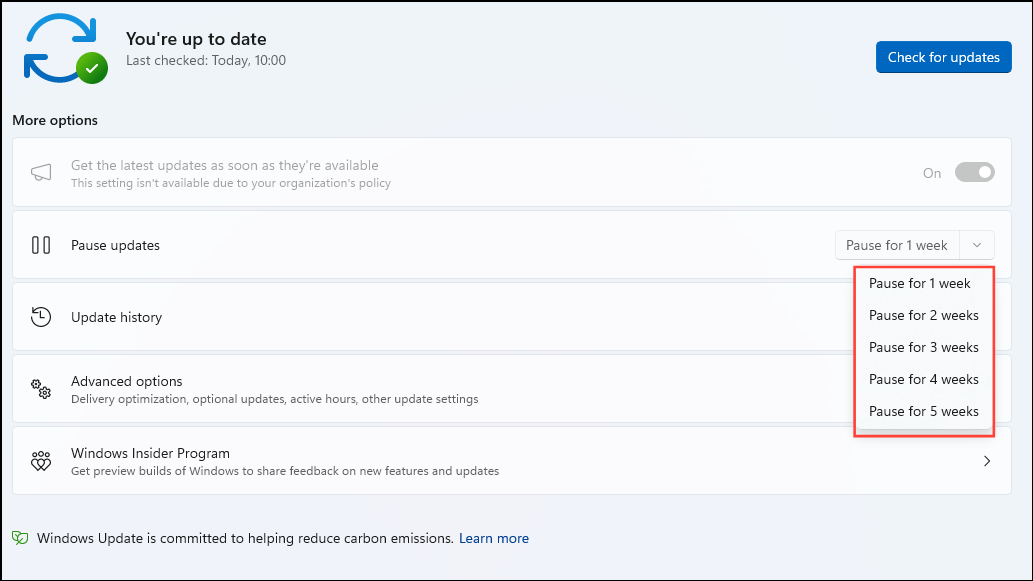
Pausing updates is a temporary measure. Once the pause period ends, Windows will resume prompting for updates. Use this option when you need short-term control over update timing.
Delete Downloaded Update Files
Windows stores downloaded update files in a dedicated folder. Removing these files can prevent updates from installing during shutdown or restart, particularly if the update process hasn’t yet begun. This method requires stopping the Windows Update service before deleting files.
cmd in the Start menu, right-click, and select Run as administrator.net stop wuauserv and press Enter to stop the Windows Update service. Then type net stop bits and press Enter to stop the Background Intelligent Transfer Service.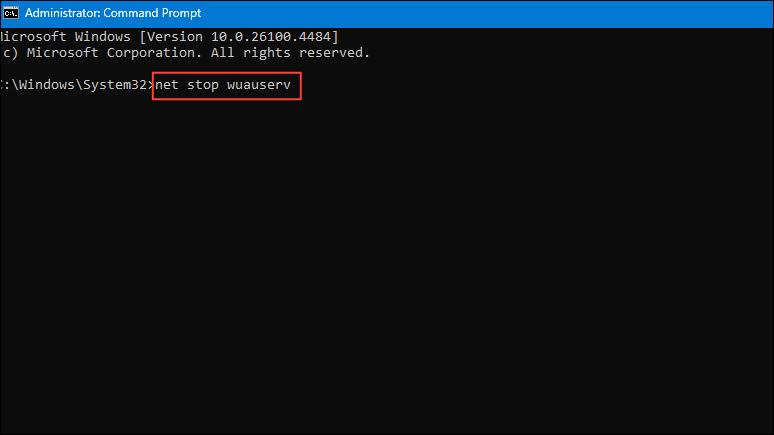
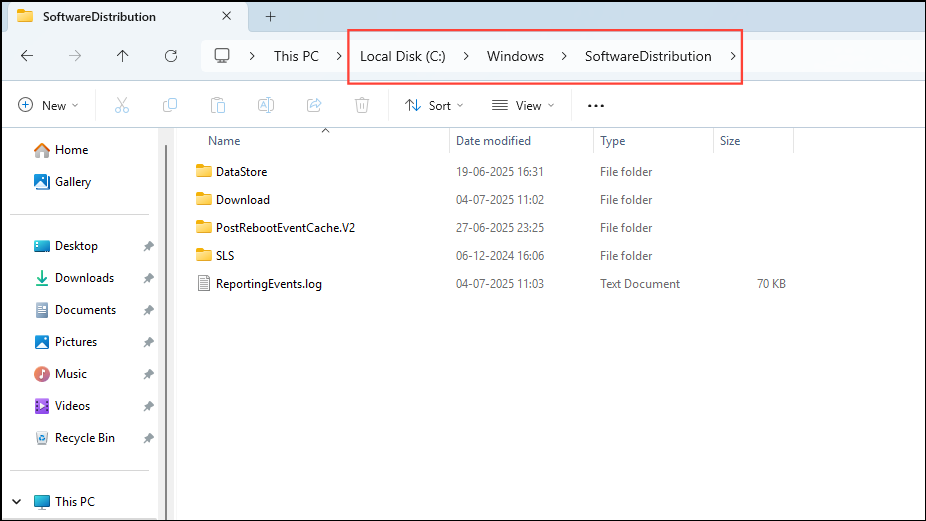
SoftwareDistribution (use Ctrl + A), then right-click and choose Delete. This removes any downloaded update files.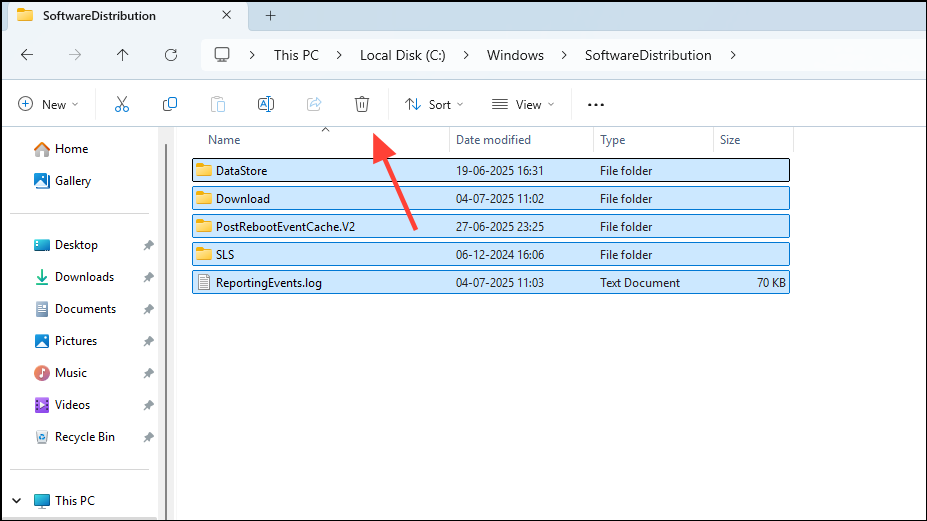
This method is effective when you need to avoid an imminent update but should be used with caution, as deleting update files can occasionally cause update errors in the future.
Change Power Button Settings
Modifying how the power button behaves can help you avoid the update prompt and perform a direct shutdown. This is particularly useful for desktop users or those who prefer using physical controls.
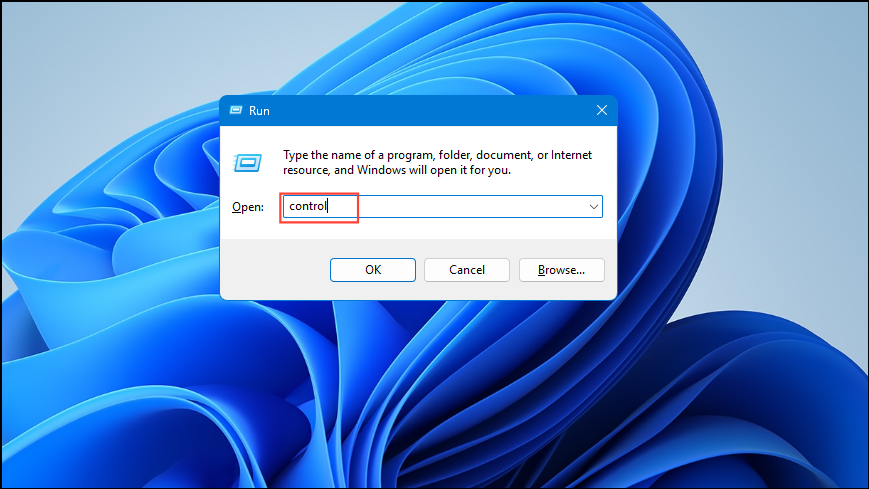
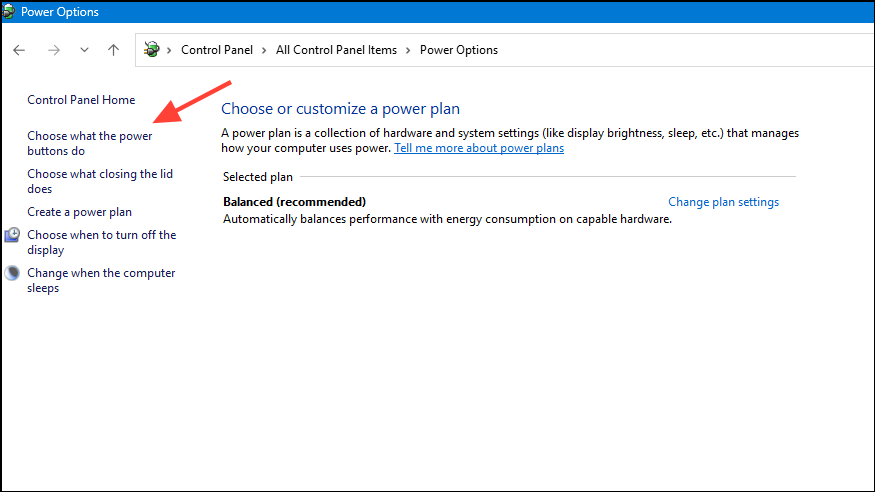
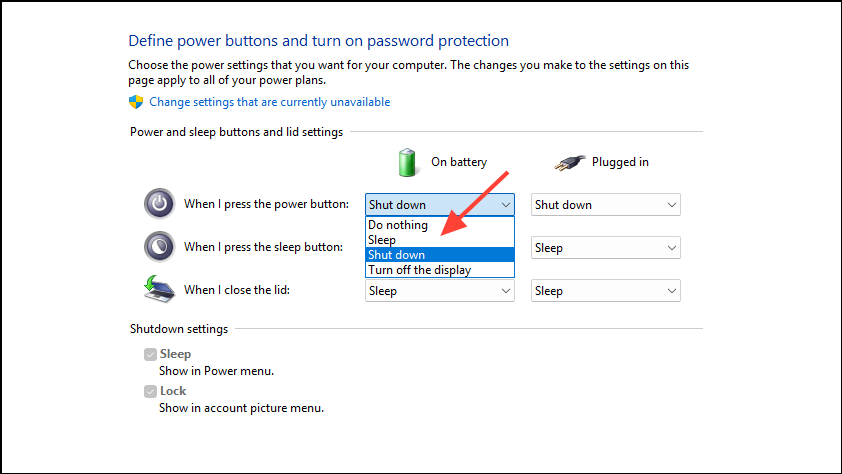
Now, pressing the power button will immediately initiate a standard shutdown, often bypassing the update process. However, if updates are already in a forced state, this method may not always succeed in avoiding them.
Disable Windows Update Service
Turning off the Windows Update service at the system level prevents updates from being downloaded or installed, including during shutdown or restart. This method is more drastic and should be used only if you need to completely block updates for an extended period.
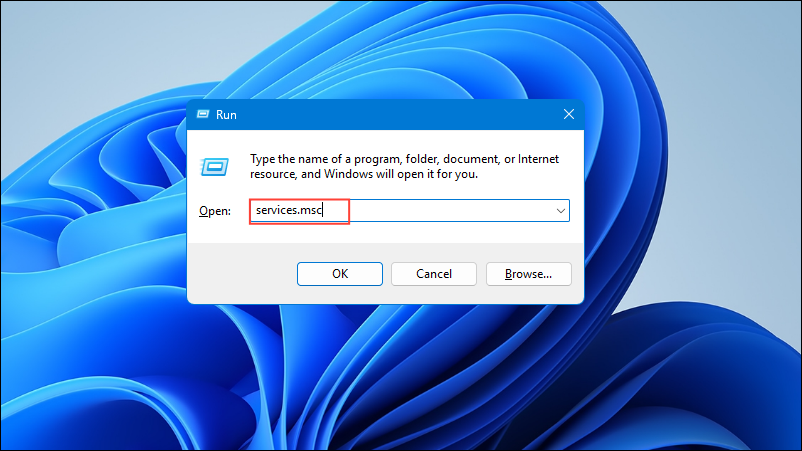
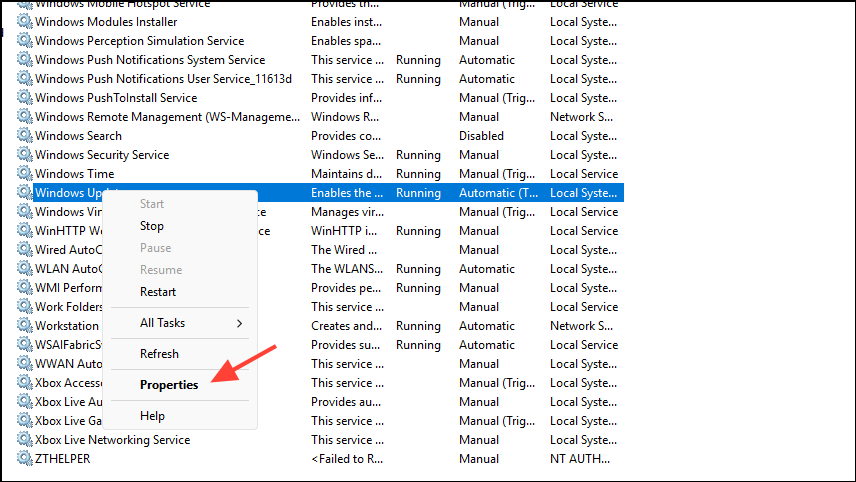
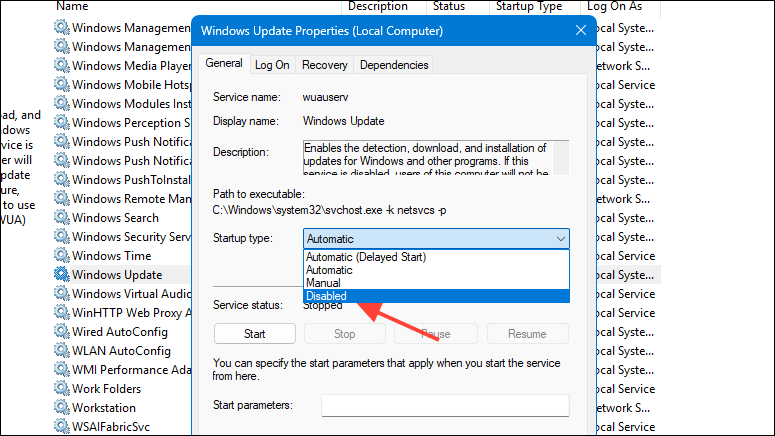
This stops Windows from automatically downloading or installing updates. To re-enable updates in the future, repeat these steps and set the service back to Manual or Automatic. Disabling updates long-term can increase security risks, so use this method with caution and only when necessary.
Shutting down Windows 11 without installing updates is possible through several methods, each suited to different scenarios and urgency levels. Regularly allowing updates is recommended for security, but these options give you more control when timing is critical.



