Hytale includes its own screenshot shortcut and also works smoothly with standard Windows and Mac capture tools, so recording what you see on screen is straightforward once you know the key combinations and file locations.
Hytale built-in screenshot shortcut (F12)
The quickest way to capture Hytale while using a keyboard is the built-in screenshot command on the F12 key. This tells the game to save an image of whatever is currently visible on screen.
Hytale does not support controllers, so there is no way to trigger screenshots directly from a gamepad. Use a keyboard key such as F12 or the operating system shortcuts instead.
Find Hytale screenshots on Windows
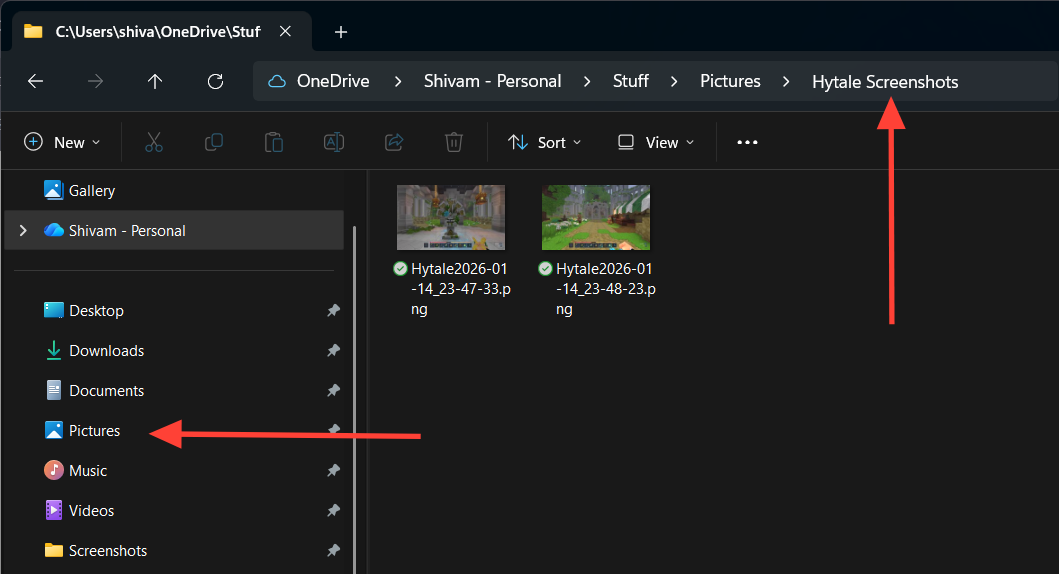
Screenshots created with F12 are stored automatically in a dedicated folder under your Windows user account. The default location follows this path (replace XXX with your Windows username):
C:\Users\XXX\Pictures\Hytale Screenshots
Take HUD-free screenshots in Hytale (F8)
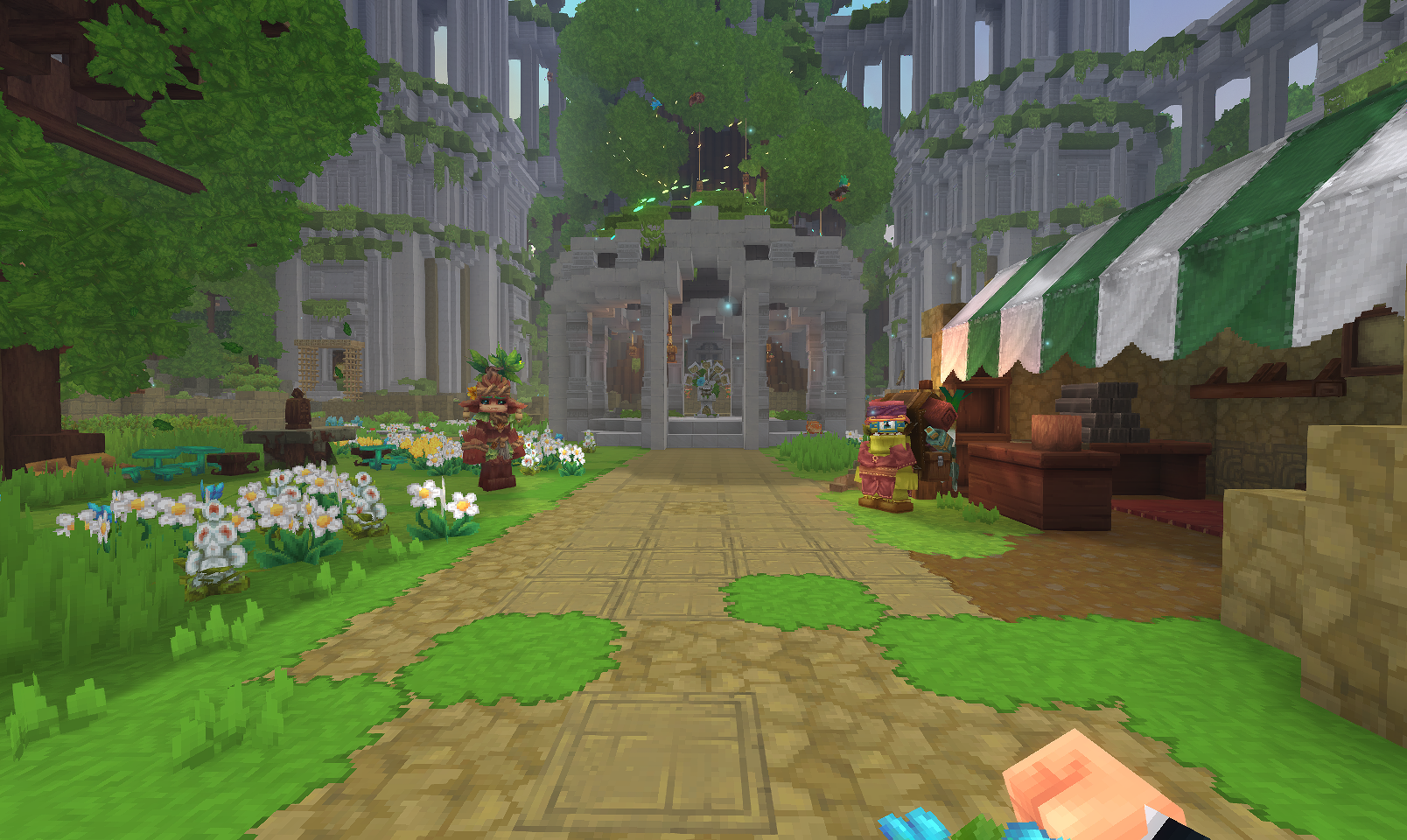
The on-screen interface can get in the way when you want a clean view of the environment. Hytale allows you to hide the head-up display (HUD) before capturing an image.
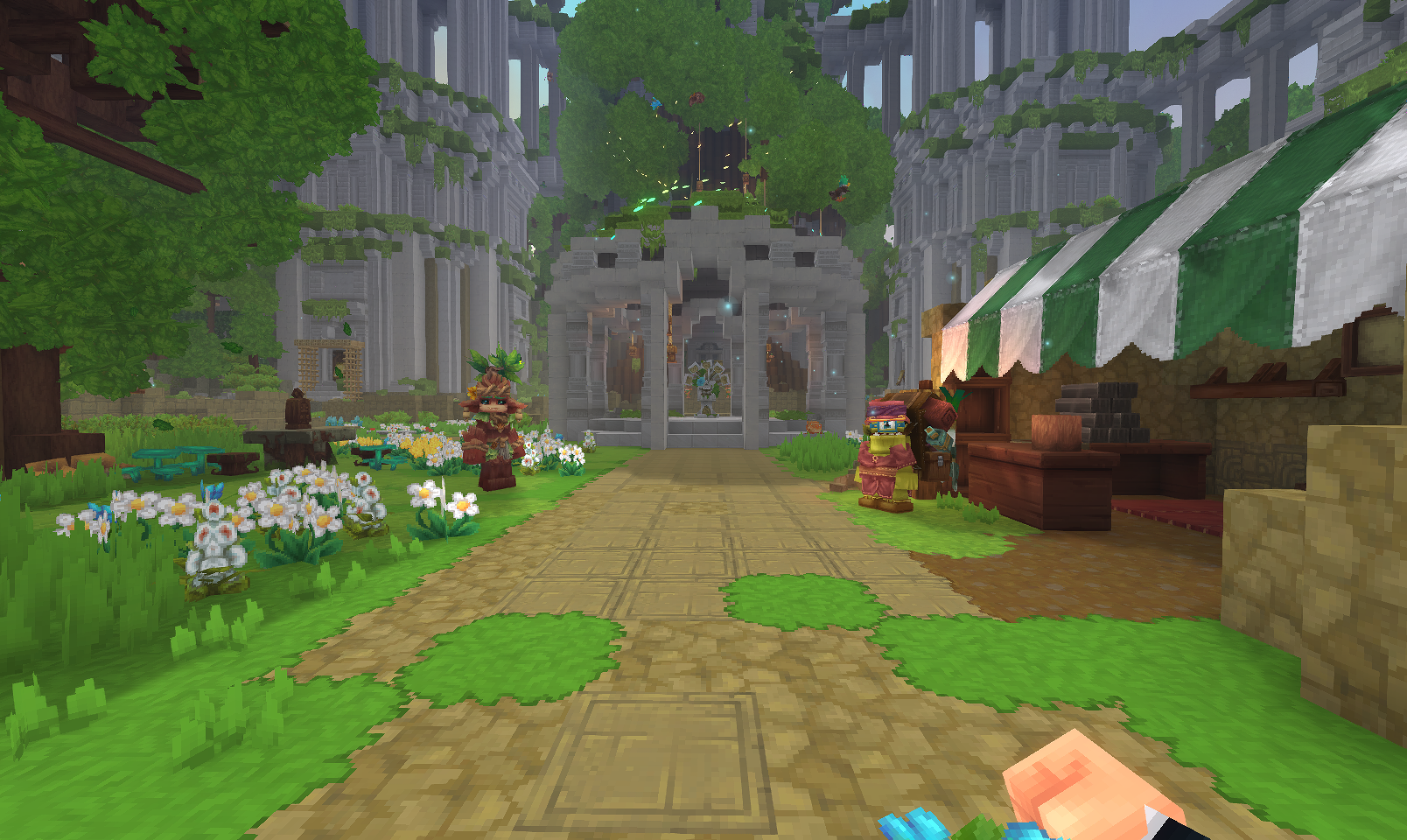
Using F8 together with F12 is useful when you want environment shots that focus only on the world and not on UI elements.
Use Windows screenshot tools while playing Hytale
On Windows, built-in shortcuts can capture the whole screen or a chosen part of it while Hytale is running. These methods place the image on the clipboard, so you can paste it into another application to save or edit.
| Shortcut | Capture | Result |
|---|---|---|
PrintScreen |
Entire screen | Image copied to clipboard |
Windows key + Shift + S |
Selected area | Image copied to clipboard |
Full-screen capture with PrintScreen
Region capture with Windows key + Shift + S
These Windows shortcuts are useful if you want to include desktop elements along with Hytale or capture only a specific region of the game window.
Use Mac screenshot tools while playing Hytale
Mac systems also provide built-in shortcuts that work while Hytale is in focus. You can capture the entire display or a selected part of it, and macOS saves the resulting image file for you.
| Shortcut | Capture | Default save location |
|---|---|---|
Shift + Command + 3 |
Entire screen | Desktop |
Shift + Command + 4 |
Selected area | Desktop |
Full-screen capture with Shift + Command + 3
Region capture with Shift + Command + 4
These shortcuts are helpful when you need standard image files placed directly on the desktop without using the clipboard.
Game recording tools when a screenshot is not enough
Sometimes a static image does not show an issue or event clearly, especially when timing or movement is involved. In those cases, a short video recording of Hytale can be more effective than a screenshot.
- Open Broadcaster Software (OBS) – A free and open-source application for recording video and live streaming, with extensive configuration options and support for multiple platforms. It can be downloaded from obsproject.com.
- Bandicam – Recording software designed to be lightweight and simple to use while capturing high-quality videos and screenshots, with features such as real-time drawing and scheduled recording.
- Nvidia ShadowPlay – Recording functionality available to users of Nvidia graphics cards, intended to provide high-quality captures while keeping performance impact low.
- AMD ReLive – A feature set for newer AMD graphics cards that offers functionality similar to Nvidia ShadowPlay for recording gameplay.
Using one of these tools while playing Hytale produces video clips that can be shared with other players or attached when reporting bugs, giving a clearer picture of what happened in game.
Combining Hytale’s F12 shortcut, the F8 HUD toggle, and the screenshot features built into Windows and Mac makes it straightforward to capture the game the way you want, keep track of where each image is stored, and share clear visual information whenever it is needed.