
Copying a phone number or date in Windows 11 often triggers pop-up suggestions, such as creating a calendar event or making a call via Teams or Phone Link. While these prompts aim to streamline common tasks, they can disrupt your workflow if you don’t use them. Disabling these suggested actions and Phone Link tips restores a more predictable clipboard and notification experience, especially if you prefer handling tasks manually or with different apps.
Disable Suggested Actions for Clipboard in Windows 11 Settings
Settings app by pressing Win + I on your keyboard. This shortcut takes you directly to system configuration without searching through menus.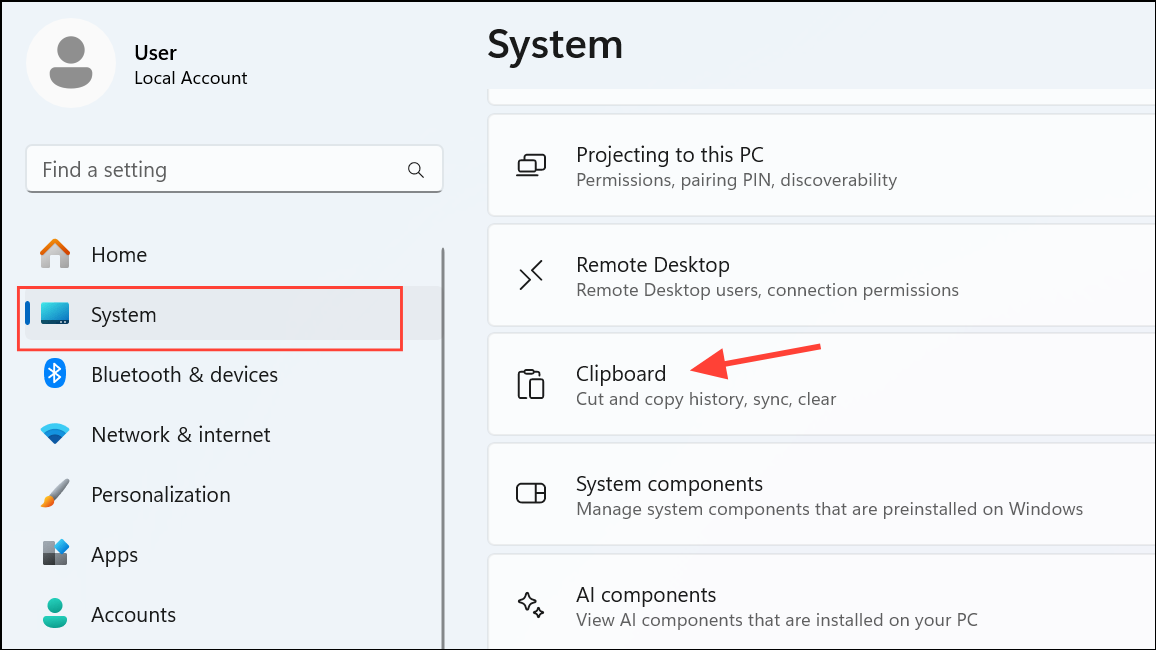
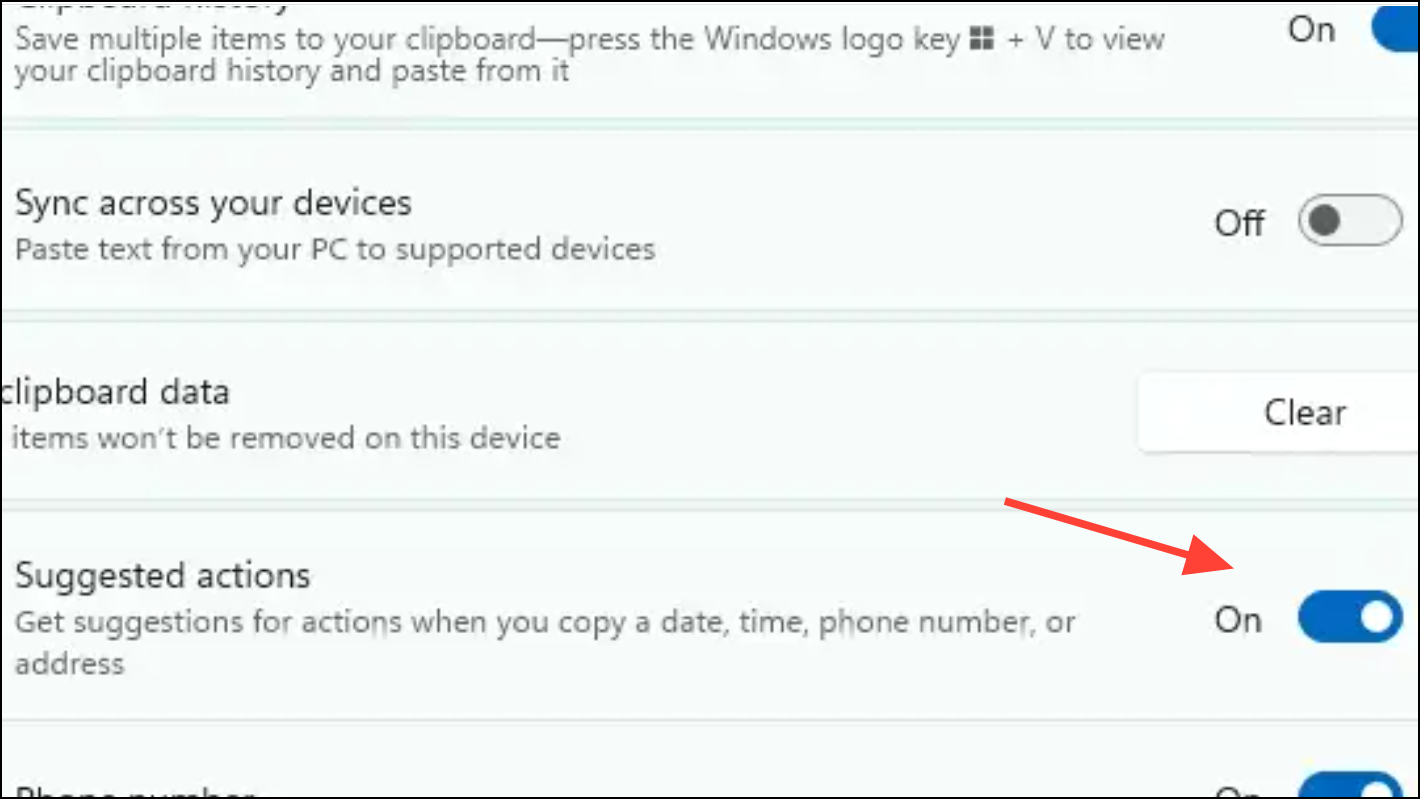
Turn Off Suggested Actions Using the Windows Registry
For users managing multiple PCs or preferring a more direct approach, editing the Windows Registry disables suggested actions system-wide. This method is especially useful for IT administrators or for deploying the setting across several devices.
Win + R to open the Run dialog. Type regedit and press Enter to launch the Registry Editor. If prompted by User Account Control, click Yes to allow changes.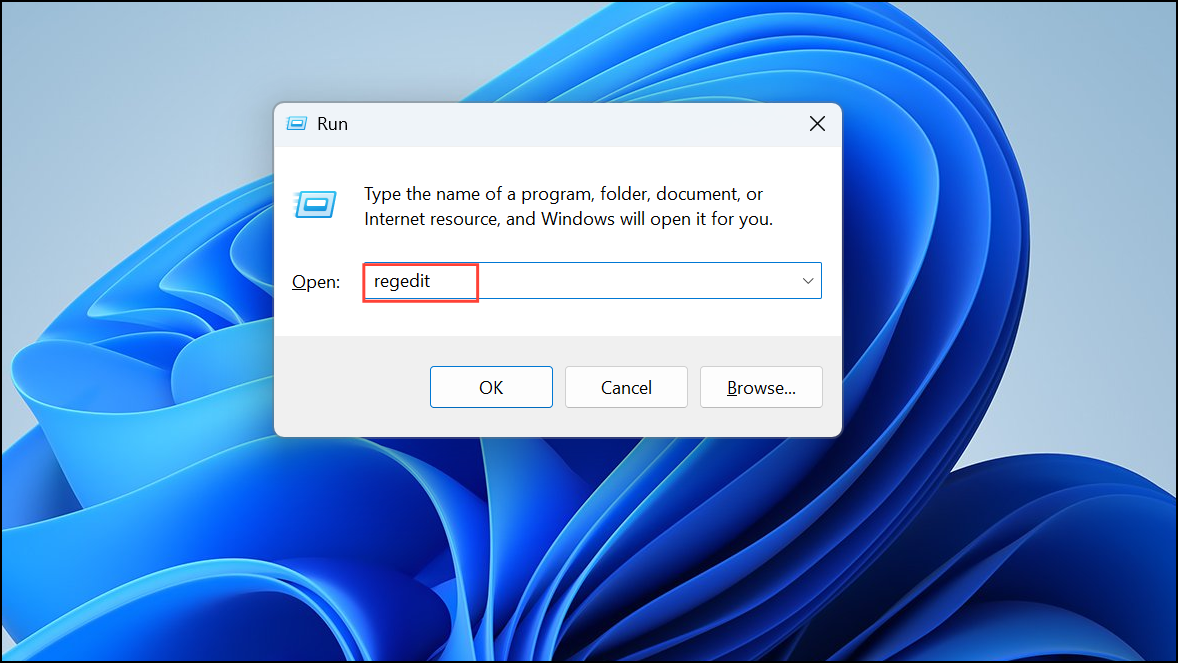
HKEY_CURRENT_USER\Software\Microsoft\Windows\CurrentVersion\SmartActionPlatform\SmartClipboard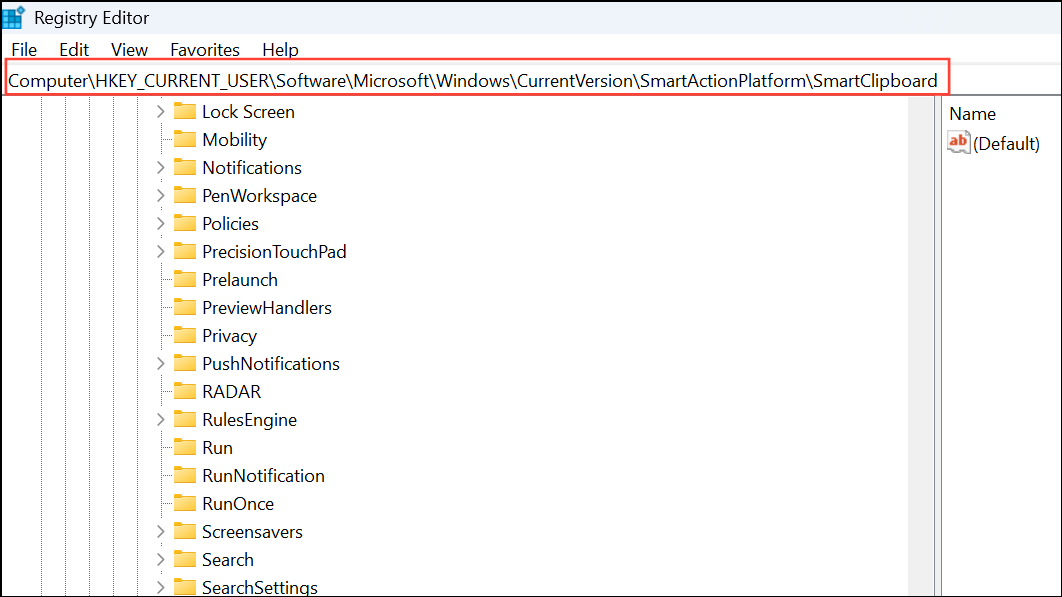
DWORD (32-bit) Value named Disabled. Set its value to 1 to turn off suggested actions. Changing this value to 0 re-enables the feature if you want to restore suggestions later.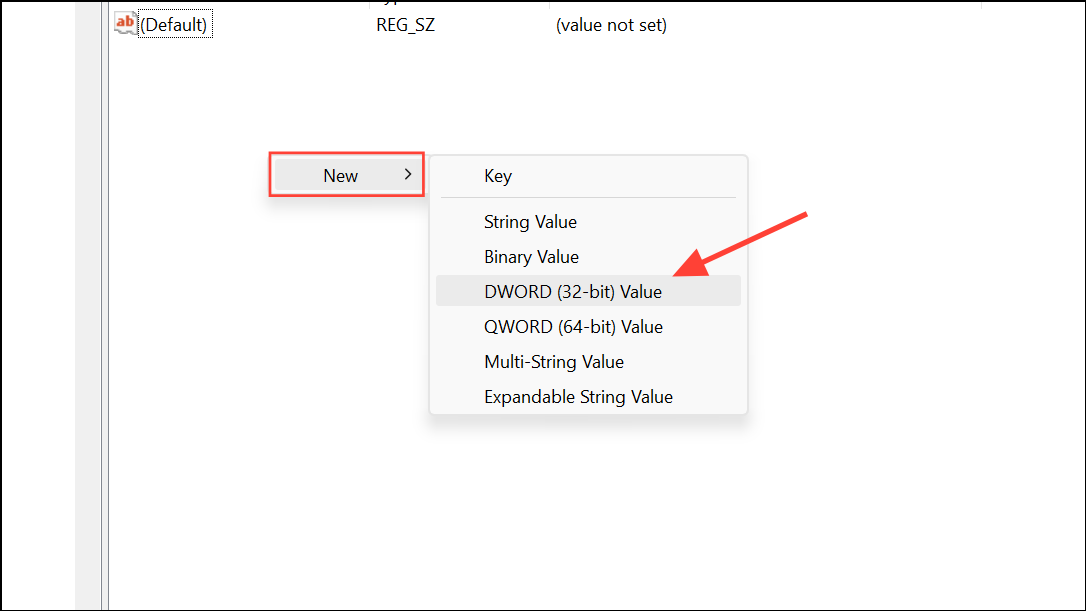
Stop Phone Link Suggestions for Android Devices
Windows 11 often displays prompts about using your Android phone with the Phone Link app, pushing notifications and tips to encourage device integration. If you prefer not to see these suggestions, you can turn them off in Settings or via the Registry.
Disable Phone Link Suggestions in Settings
Settings using Win + I. Select Bluetooth & devices from the sidebar, then click Mobile devices on the right. If your Windows version labels this as Phone Link instead, choose that option.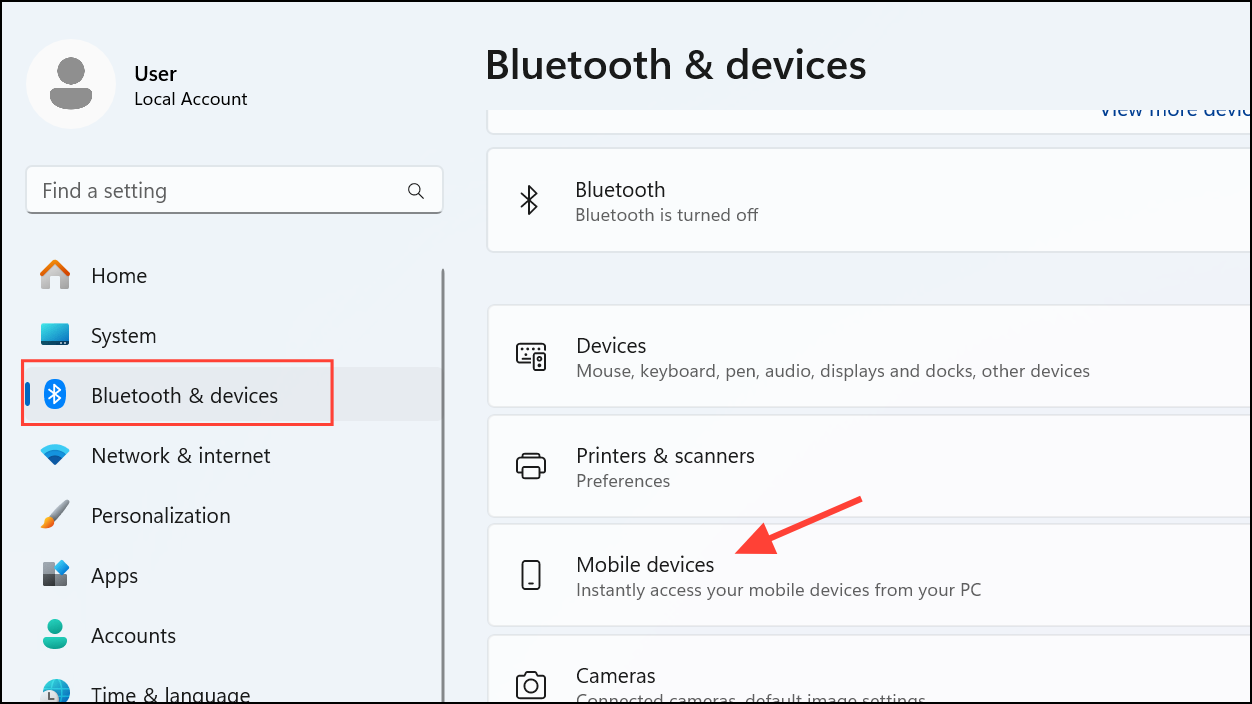
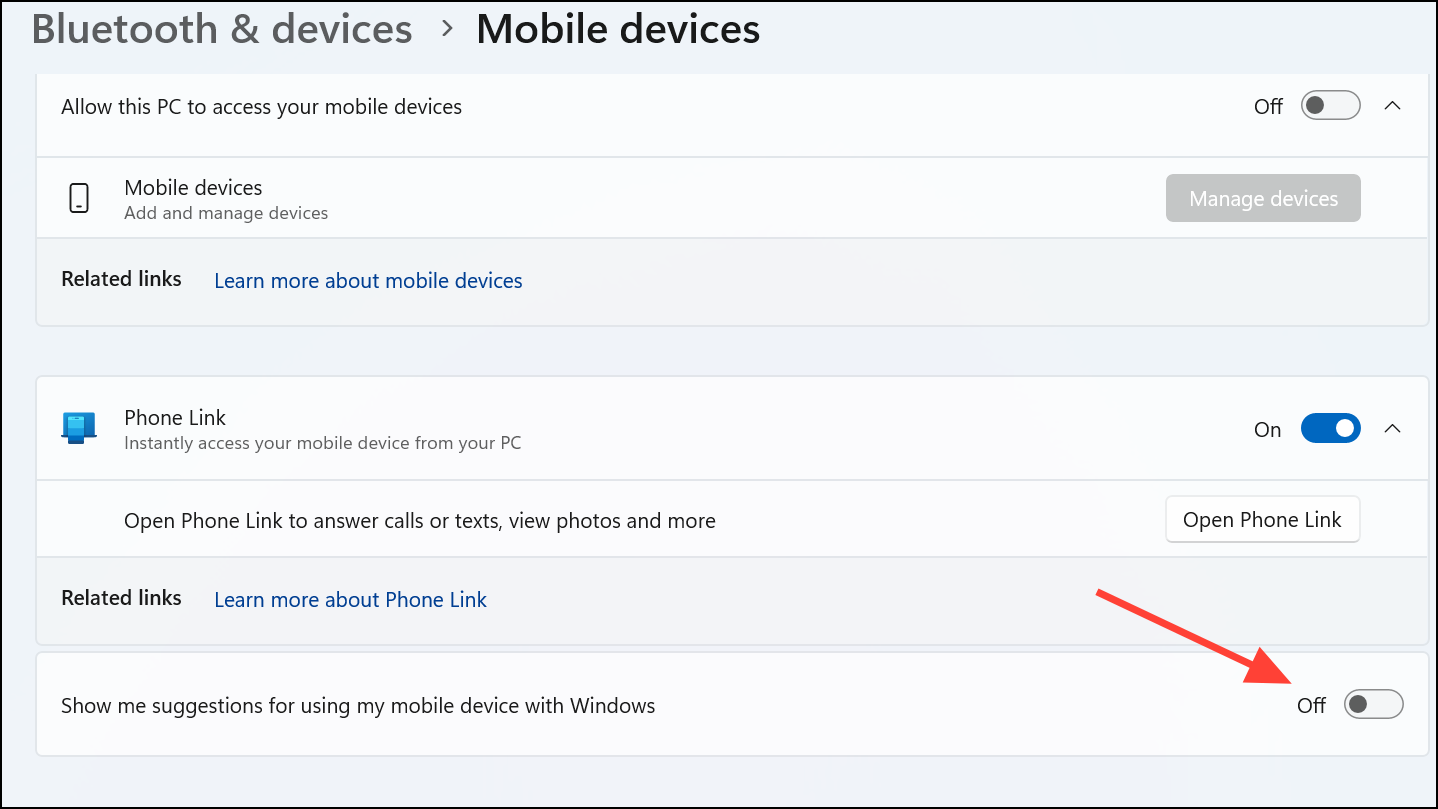
Disable Phone Link Suggestions via the Registry
If you want to automate this setting or apply it on several machines, use the Registry Editor:
HKEY_CURRENT_USER\Software\Microsoft\Windows\CurrentVersion\Mobility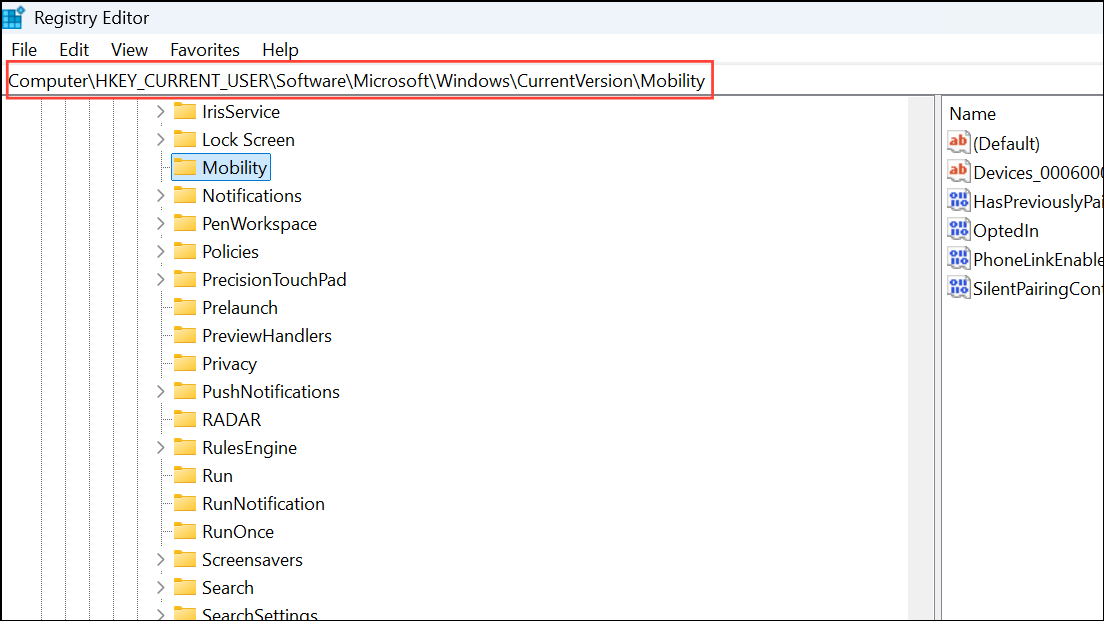
DWORD (32-bit) Value named OptedIn. Set its value to 0 to turn off Phone Link suggestions. To turn them back on, change the value to 1.Disabling clipboard and Phone Link suggestions in Windows 11 gives you back control over notifications and pop-ups, so you can copy, paste, and use your devices without extra distractions. If you ever want the convenience of suggested actions again, reversing these steps is quick and straightforward.



