
The Rewrite feature in Windows 11 Notepad uses an integrated ChatGPT-powered AI model to quickly rephrase, shorten, lengthen, or change the tone of your text directly within the app. This built-in capability simplifies editing tasks, reduces manual rewriting, and helps you quickly produce polished content without switching between multiple apps or browser tabs. Here’s how to use ChatGPT in Notepad on Windows 11 effectively.
Prerequisites and Availability
Before you start, confirm that your Windows 11 Notepad app is updated to version 11.2412.16.0 or later. You can update Notepad through the Microsoft Store. Also, ensure you’re signed in with your Microsoft account, as the Rewrite feature requires authentication.
The Rewrite feature is currently available to all users in the United States, France, UK, Canada, Italy, and Germany. Outside these regions, you must have a Microsoft 365 Personal or Family subscription, or a Copilot Pro subscription in Australia, New Zealand, Malaysia, Singapore, Taiwan, and Thailand to access this feature. Users receive a limited number of AI credits monthly, which are consumed each time you use the Rewrite feature. Credits automatically renew monthly for subscribers. You can check your credit balance by clicking your Microsoft account icon in Notepad.
How to Rewrite Text Using ChatGPT in Notepad
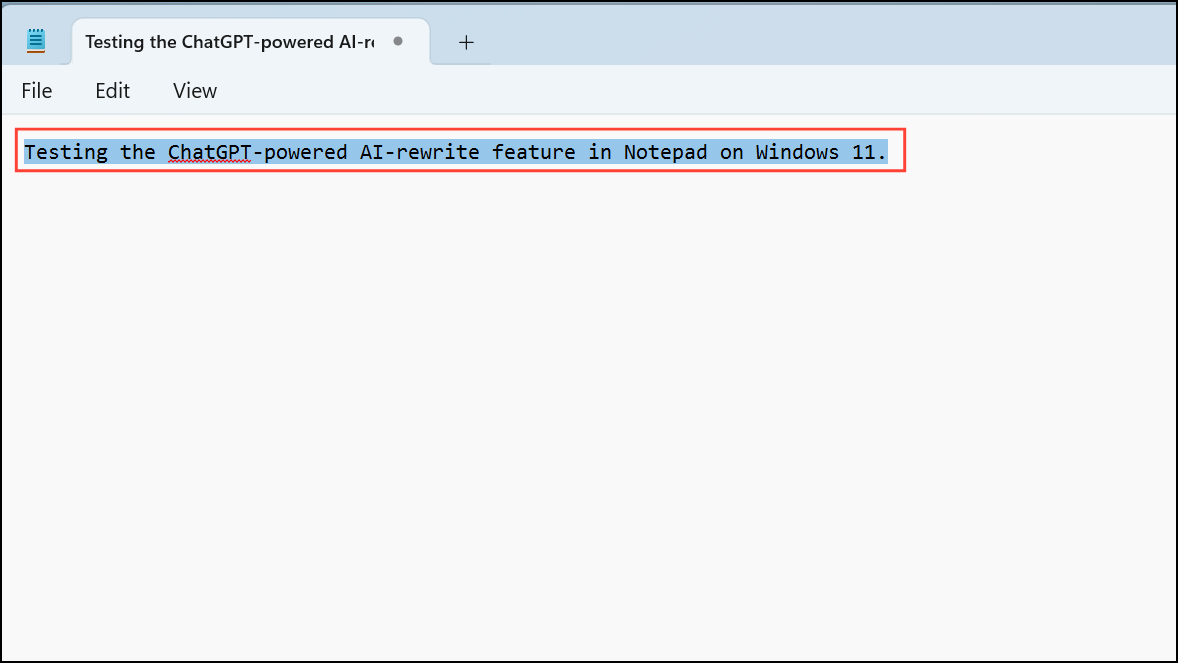
Ctrl + I shortcut.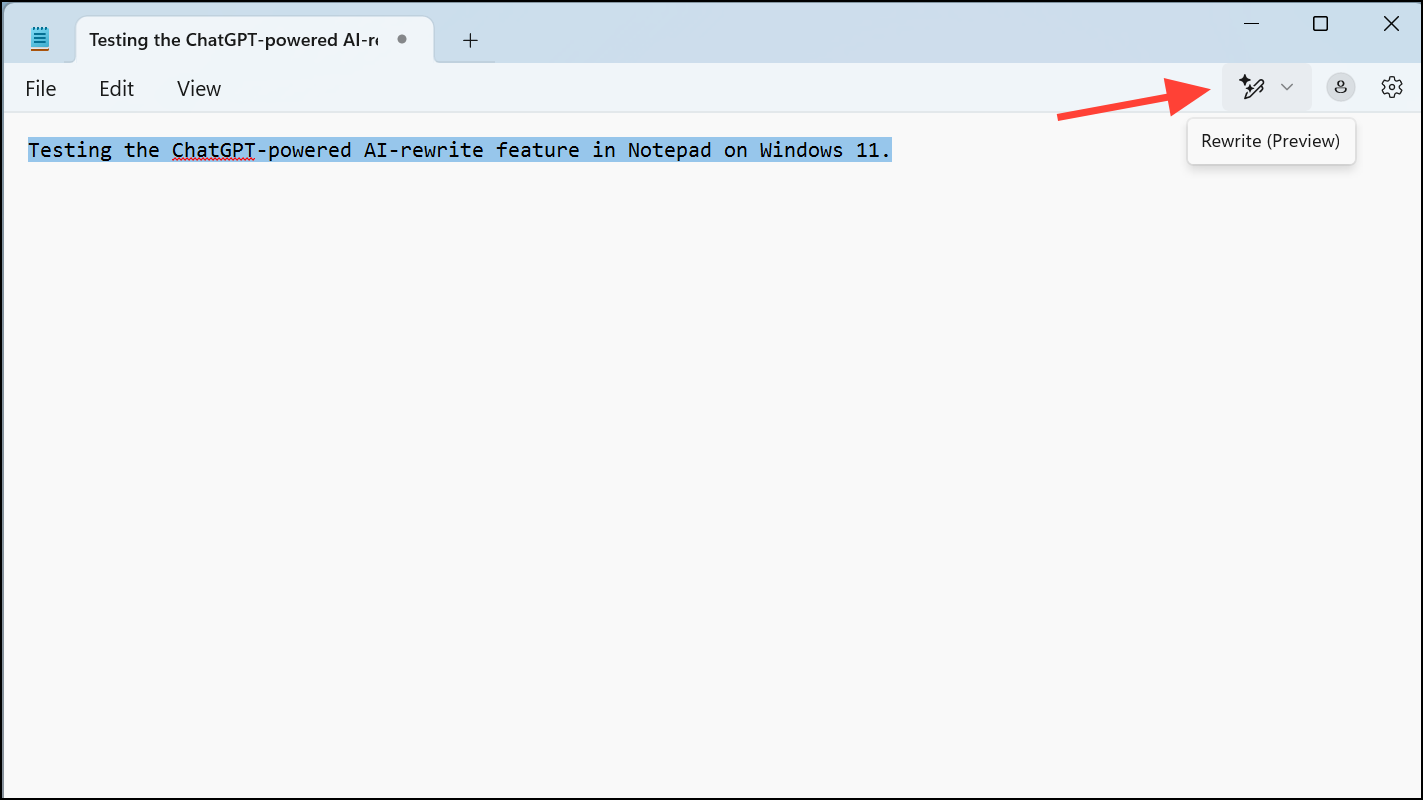
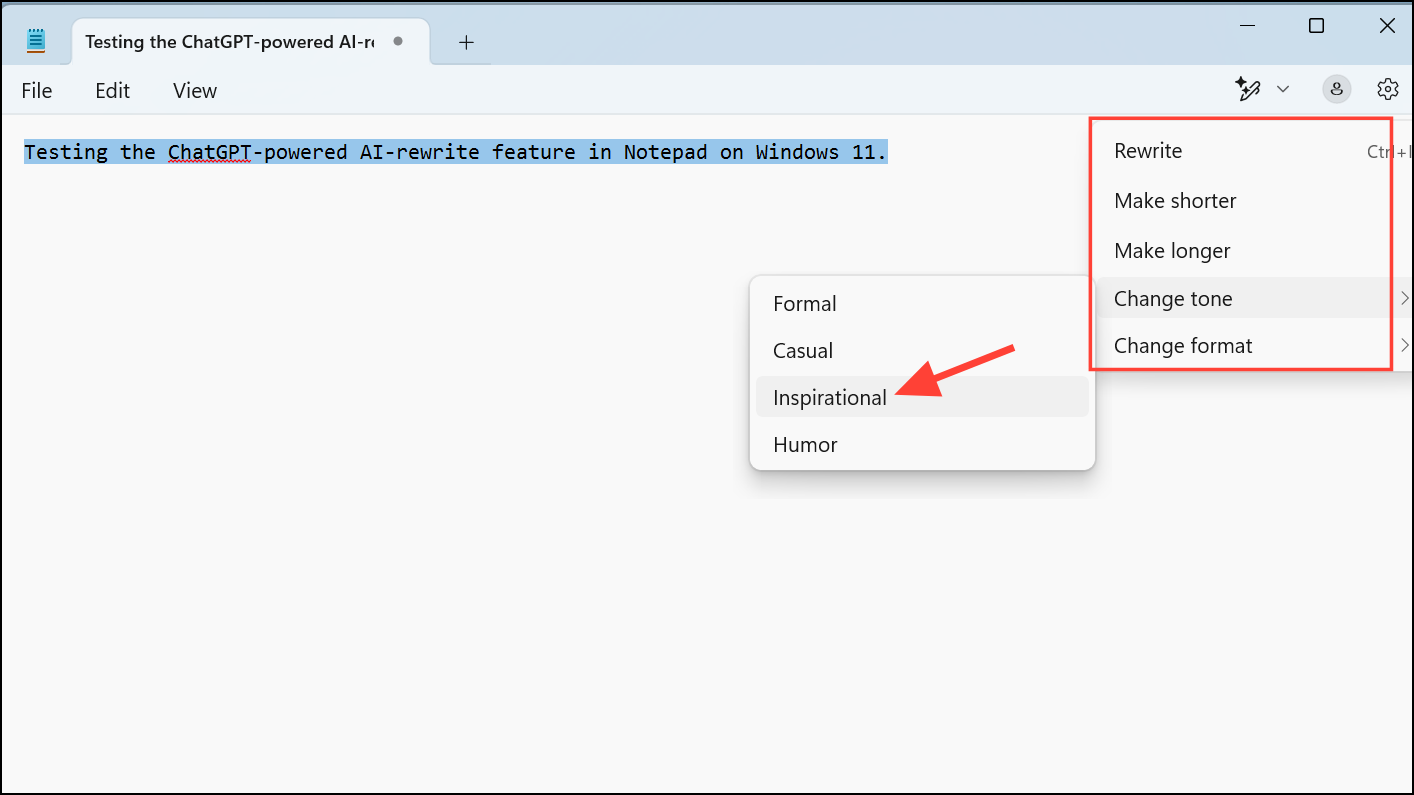
- Rewrite: Automatically rephrases the text using default settings.
- Make shorter: Condenses your text, removing unnecessary words while preserving meaning.
- Make longer: Expands your text by adding relevant details and elaborations.
- Change tone: Alters the text tone to Formal, Casual, Inspirational, Humor, or Persuasive.
- Change format: Converts your text into specific formats such as Paragraph, List, Business, Academic, Marketing, or Poetry.
Select the option that suits your needs. Notepad will then generate three rewritten versions of your text.
If none of the provided versions match your expectations, you can adjust the rewrite parameters (Length, Tone, Format) and click the “Try again” button. Each attempt consumes one AI credit.
If you encounter inappropriate or incorrect content, use the “Report” button to alert Microsoft via the Feedback Hub.
How to Enable Rewrite if Unavailable
If you live outside the supported regions or don’t see the Rewrite feature, you can still enable it by temporarily changing your Windows region settings.
Win + I. Go to “Time & language” > “Language & region.”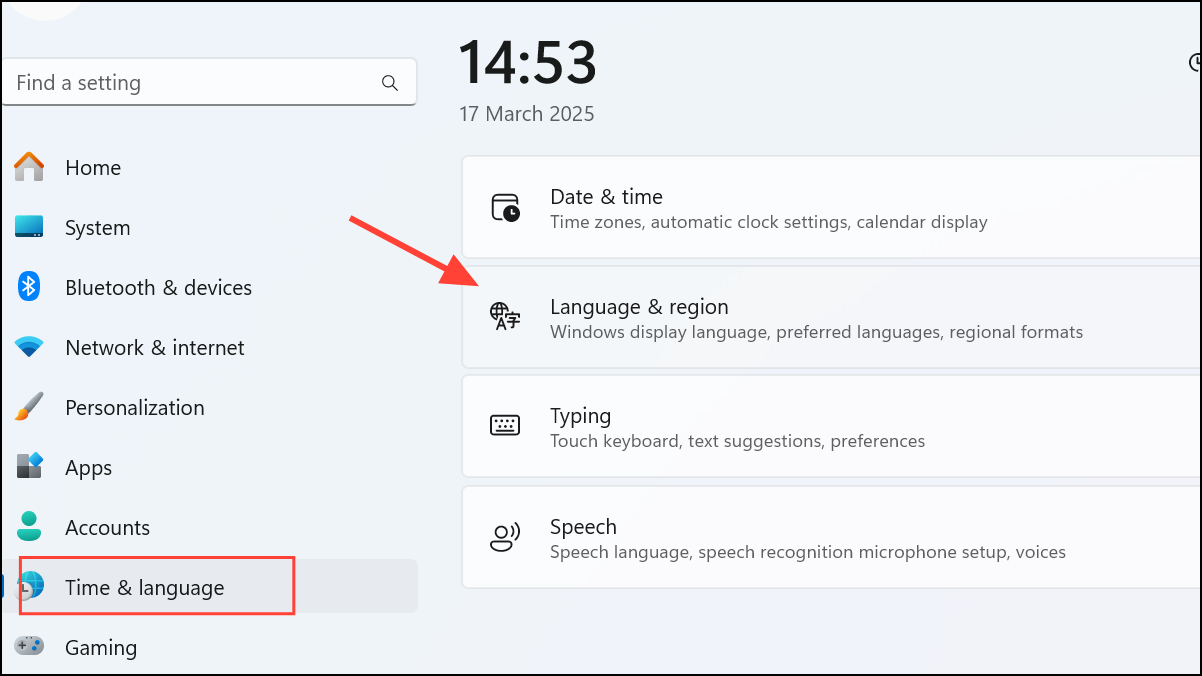
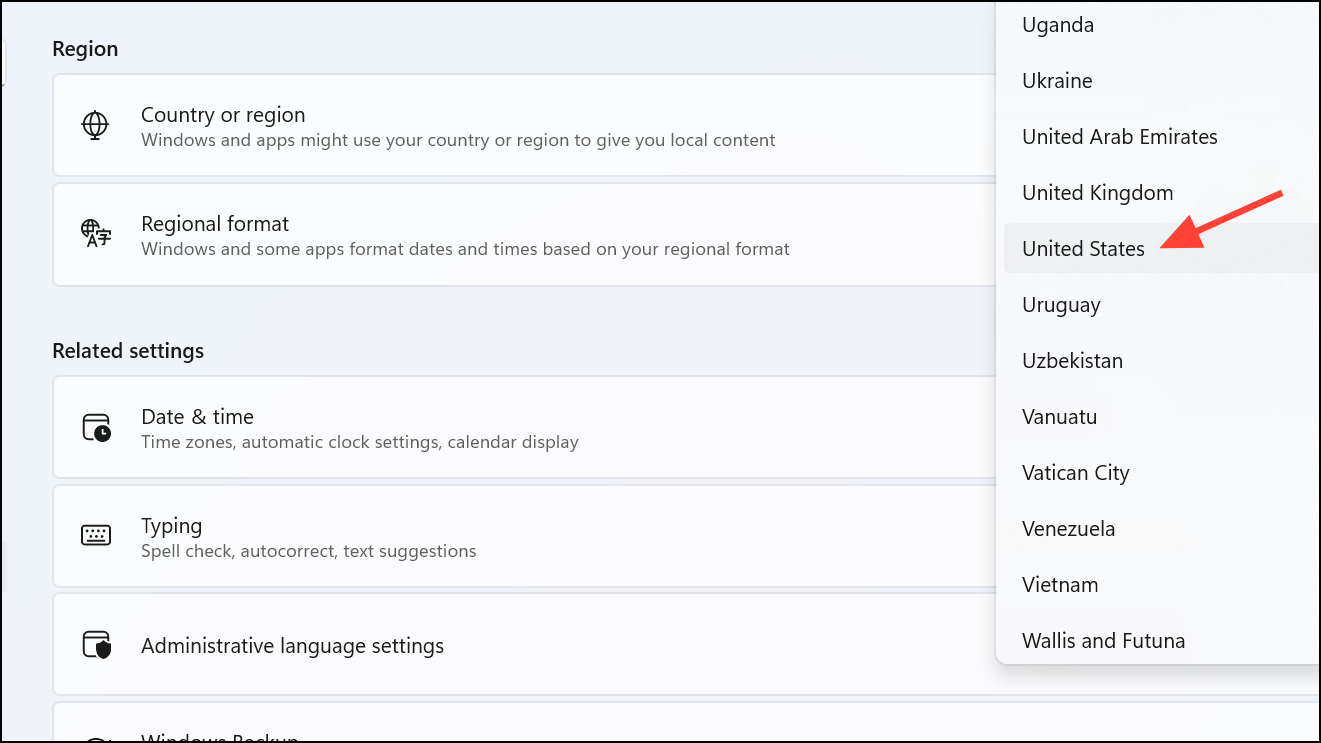
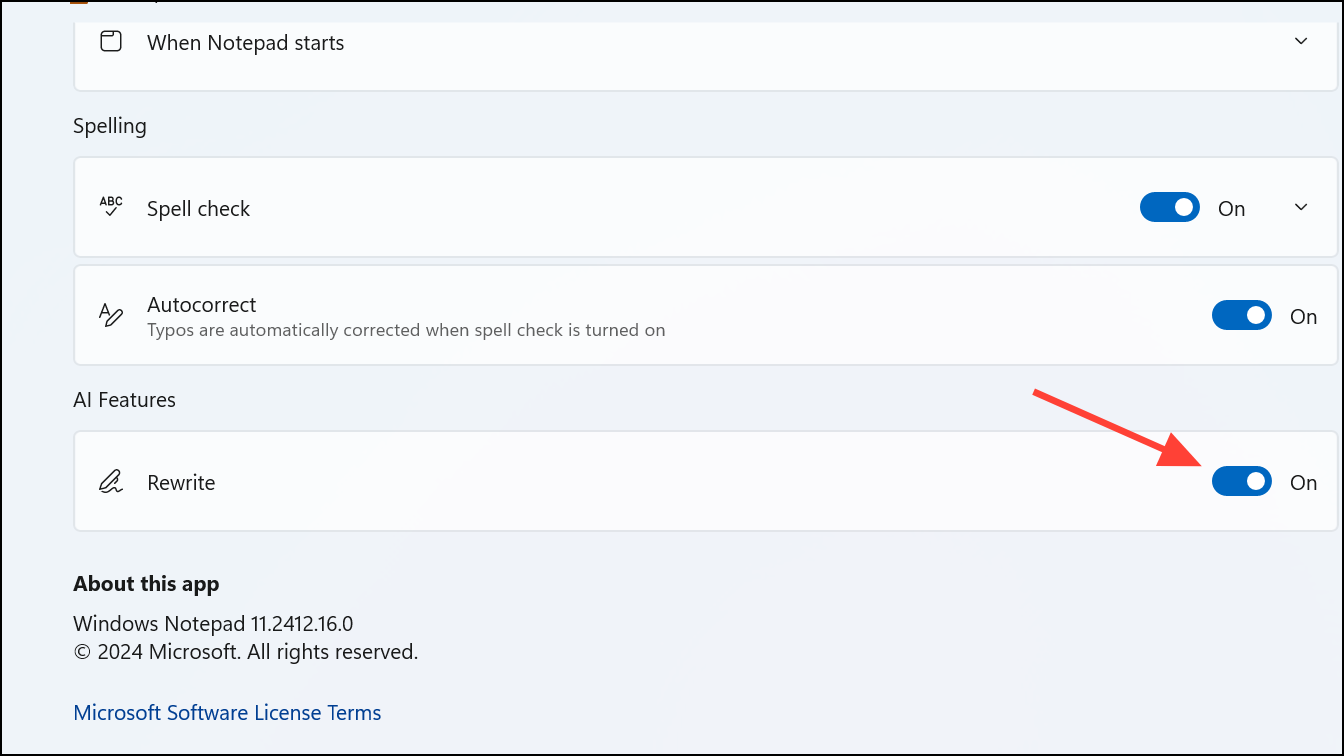
If the Rewrite button still doesn’t appear, open Notepad settings (gear icon in the upper-right corner) and ensure the “Rewrite” toggle under “AI Features” is enabled.
Important Privacy and Usage Information
Rewrite uses Microsoft’s Azure cloud-based AI service to process your text. According to Microsoft’s official statement, your text and the generated content are not stored after processing, ensuring your data remains private and secure.
Additionally, Microsoft applies content filtering to prevent the generation of harmful, offensive, or inappropriate content. Users are responsible for using Rewrite respectfully and lawfully, avoiding infringement on intellectual property rights or the creation of harmful or misleading content.
Using the ChatGPT-powered Rewrite feature in Windows 11 Notepad simplifies the editing process, speeds up text refinement, and helps you quickly produce clear, effective writing. Give it a try next time you’re working in Notepad!



