

Excel may freeze, crash, or behave unpredictably due to various software conflicts or settings issues on Windows 11. The Excel Troubleshooter built into Windows 11 provides a straightforward and effective way to identify and resolve these common problems automatically, saving you time and preventing data loss.
Method 1: Run Excel Troubleshooter via Windows Settings
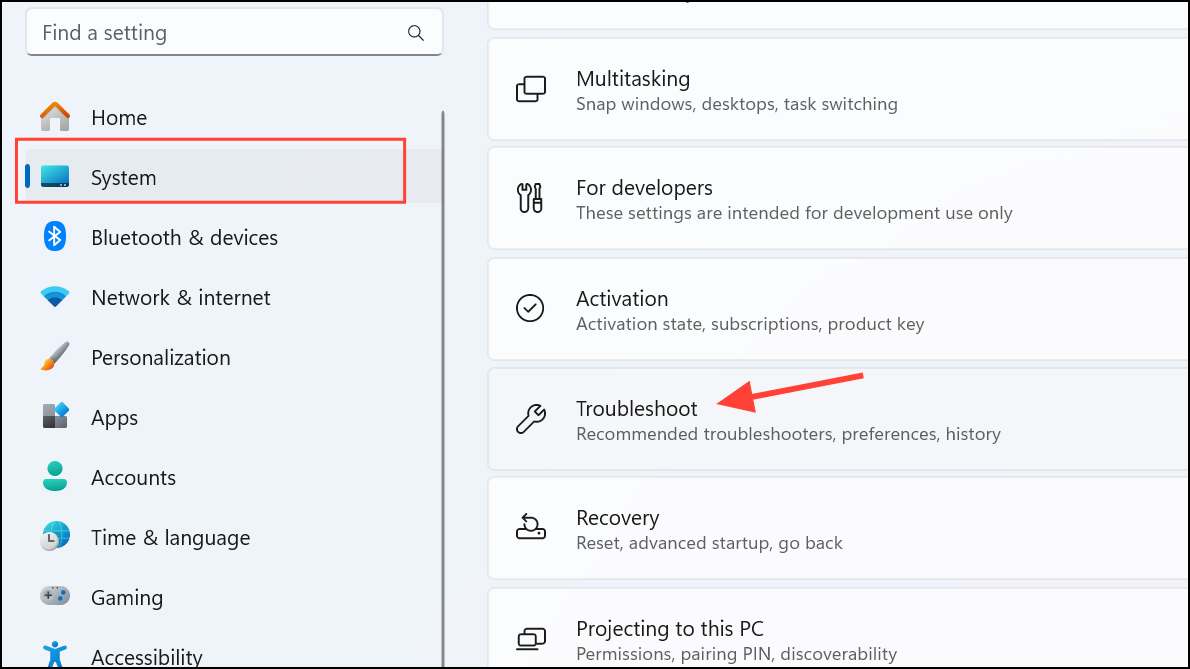
In the Settings window, choose System from the left-hand menu, then click on Troubleshoot from the right pane.
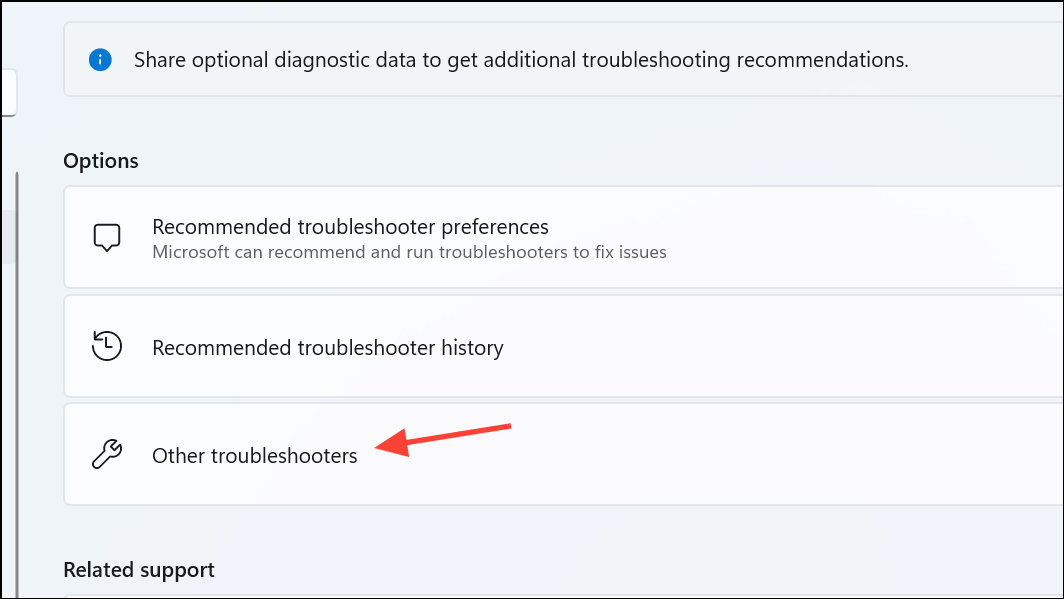
Look for the Program Compatibility Troubleshooter or any troubleshooter related specifically to Microsoft Office or Excel. Click the Run button next to it.
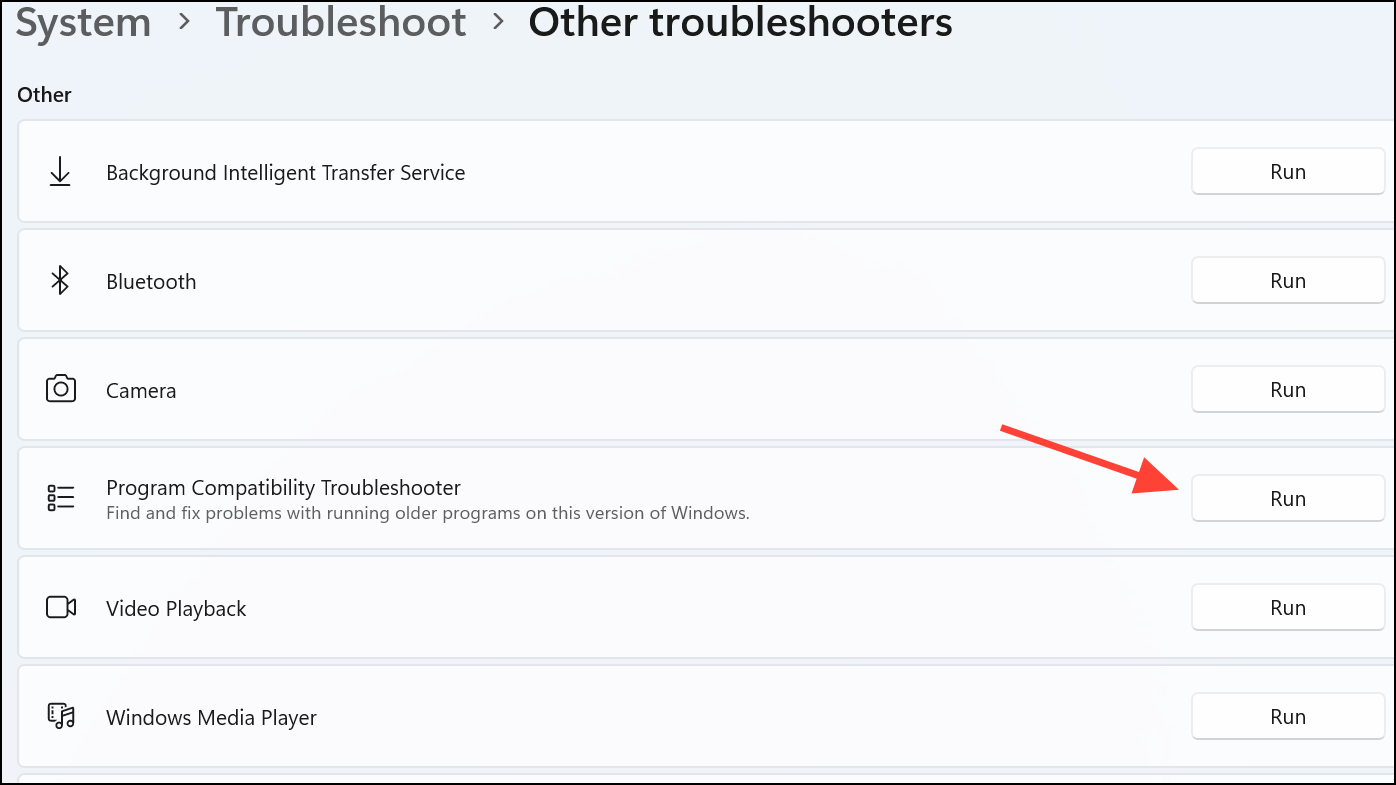
Follow the on-screen prompts as the troubleshooter scans for issues. If prompted, select Microsoft Excel from the list of applications to troubleshoot. Allow the tool to detect and automatically fix any compatibility or performance issues it finds.
After the troubleshooting is complete, close the troubleshooter window and restart Excel to verify that the problem has been resolved.
Method 2: Run Excel Troubleshooter Using Control Panel
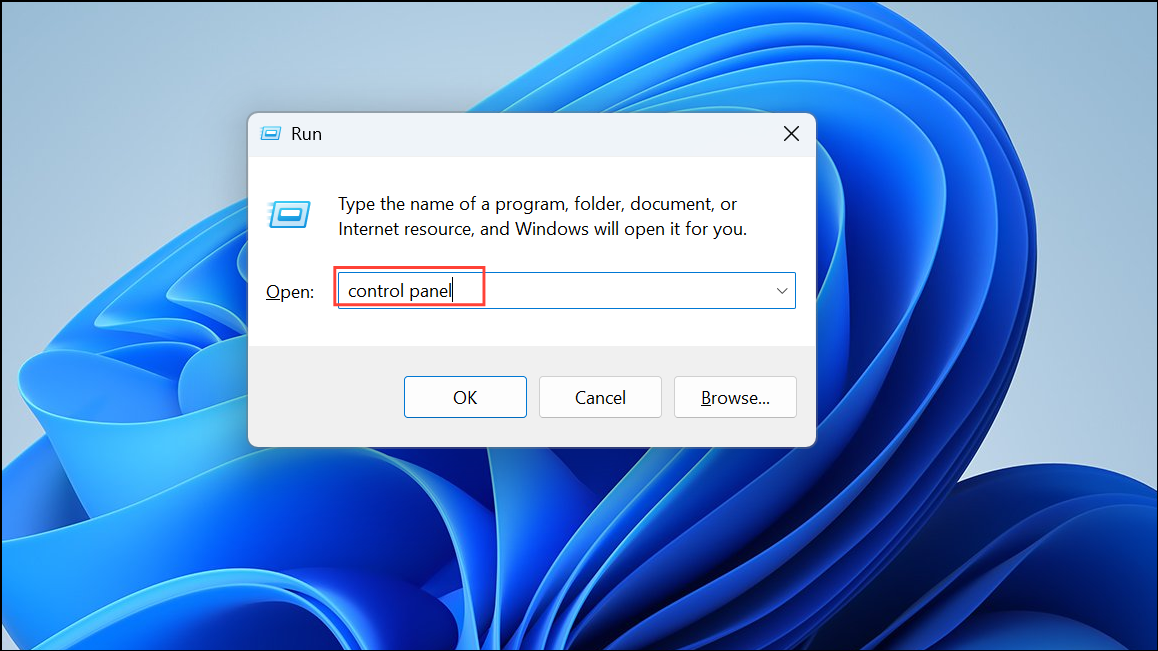
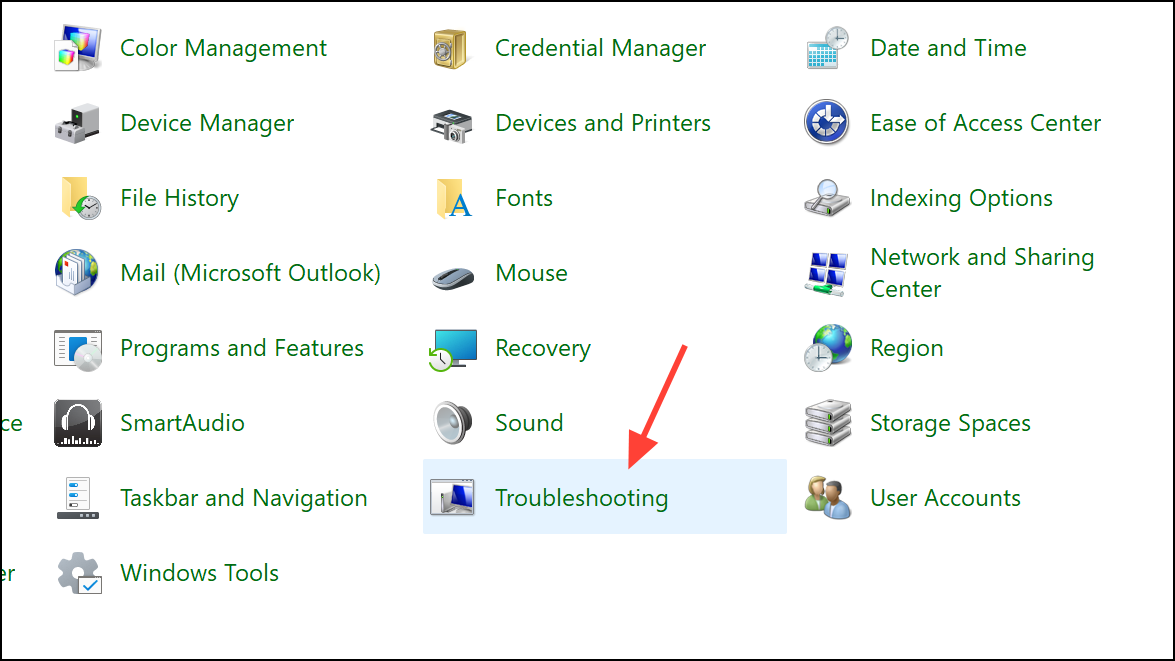
In the Control Panel window, set the View by dropdown to Large icons or Small icons, then click on Troubleshooting.
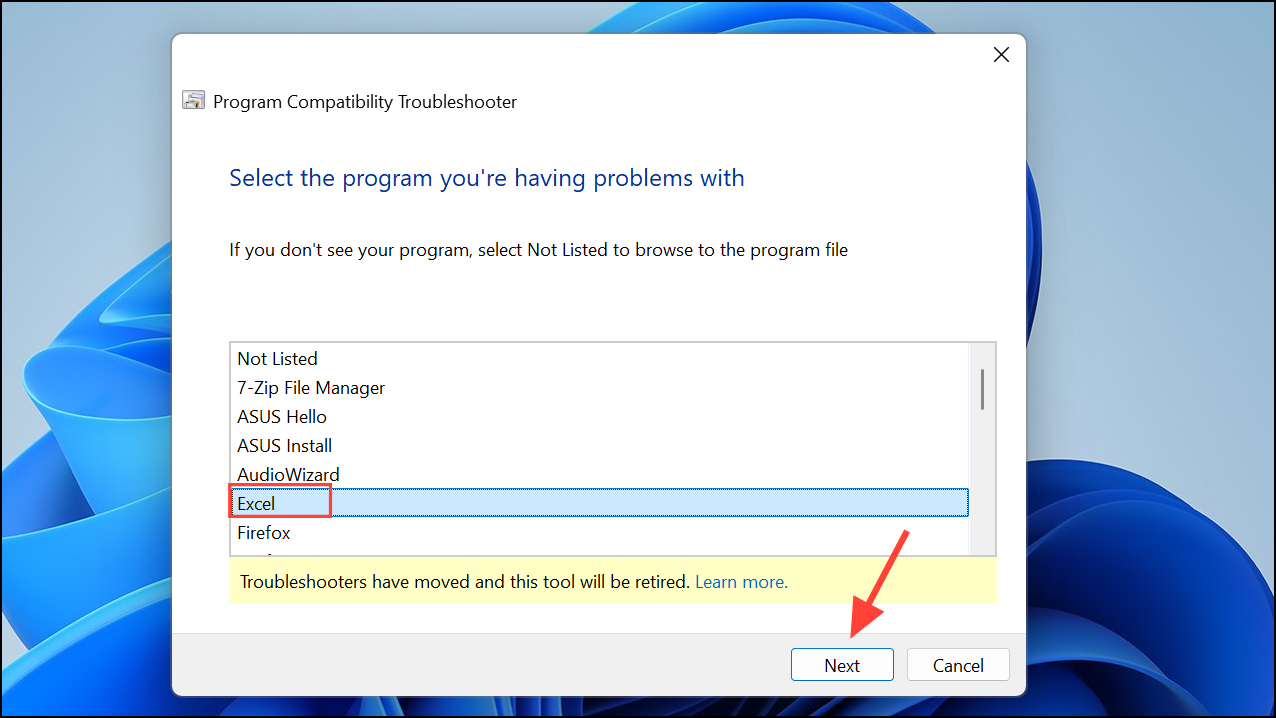
Click Next and wait for the troubleshooter to detect installed applications. Select Microsoft Excel from the list provided, then click Next.
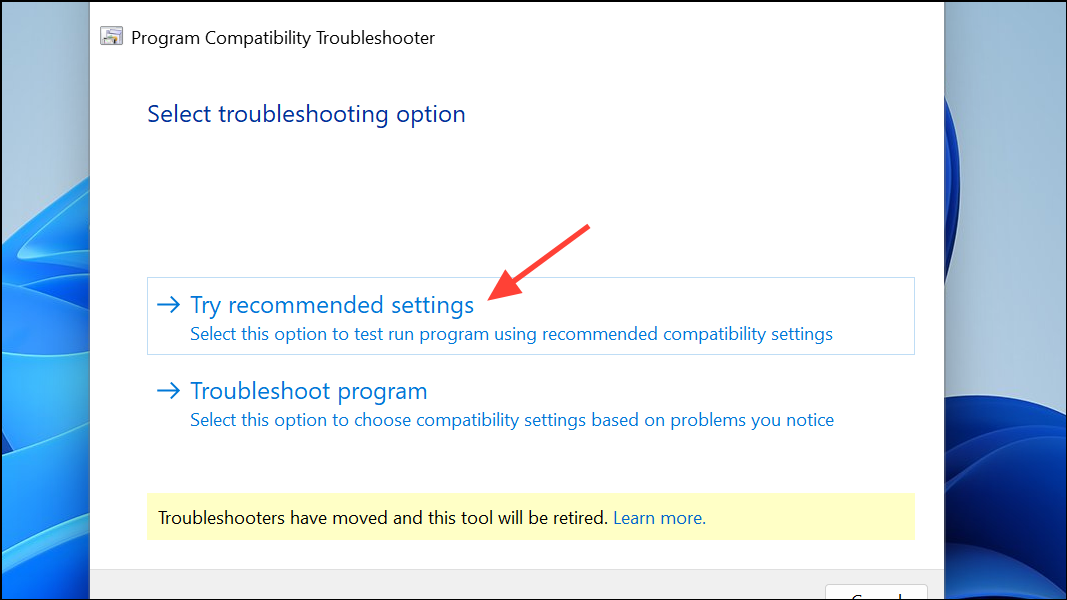
The troubleshooter will suggest compatibility settings or fixes. Choose the recommended option and click Test the program to verify that Excel works correctly. If successful, confirm and apply the settings.
Additional Tips for Persistent Excel Issues
If the troubleshooter doesn’t fully resolve your Excel problems, consider the following steps:
- Ensure that Excel and Windows are updated to their latest versions by checking for updates in Windows Update and Microsoft Office updates.
- Disable Excel add-ins that might cause conflicts. Navigate to Excel’s File menu, select Options, then click Add-ins, and manage or disable suspicious add-ins.
- Perform a repair of Microsoft Office through Control Panel by selecting Programs and Features, clicking on Microsoft Office, and choosing Change to initiate a Quick or Online Repair.
Using the Excel Troubleshooter built into Windows 11 can quickly resolve most common Excel issues, making your workflow smoother and more reliable. Regularly checking for updates and managing add-ins can further optimize Excel’s performance.



