
The latest update to Microsoft’s PowerToys introduces the “Command Palette,” a powerful launcher designed to simplify app launching and command execution on Windows 11. This new feature provides users with a streamlined method to access applications and perform tasks without navigating through multiple menus or windows. Here’s how you can set up and effectively use the Command Palette for a faster and more productive workflow.
Setting Up PowerToys Command Palette on Windows 11
First, ensure you have the latest version of PowerToys installed on your Windows 11 device. If you haven’t installed PowerToys yet, download it from the official Microsoft GitHub repository. Once downloaded, open the installer and follow the on-screen prompts to complete the installation.
After installation, launch PowerToys by clicking its icon from the Start menu or system tray. In the PowerToys settings interface, locate the “Command Palette” option in the sidebar menu and select it to access the settings associated with this feature.
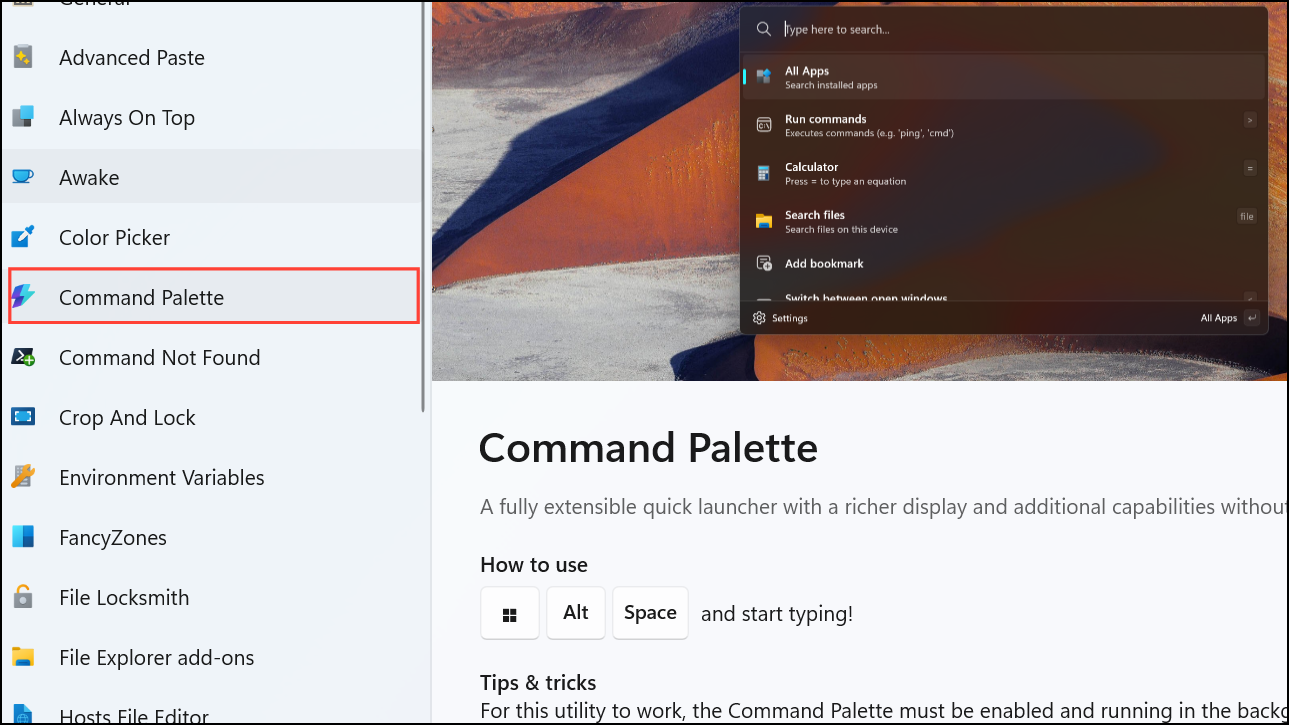
Enable the Command Palette feature by toggling the “Enable Command Palette” switch. You can also customize the keyboard shortcut used to open the Command Palette. By default, the shortcut is set to
Windows + Alt+ Space, but you can modify it to your preference by clicking the shortcut field and pressing your desired key combination.Using Command Palette to Quickly Launch Apps and Commands
Invoke the Command Palette by pressing the assigned keyboard shortcut, such as
Windows + Alt + Space. A floating search bar will appear in the center of your screen, ready for input.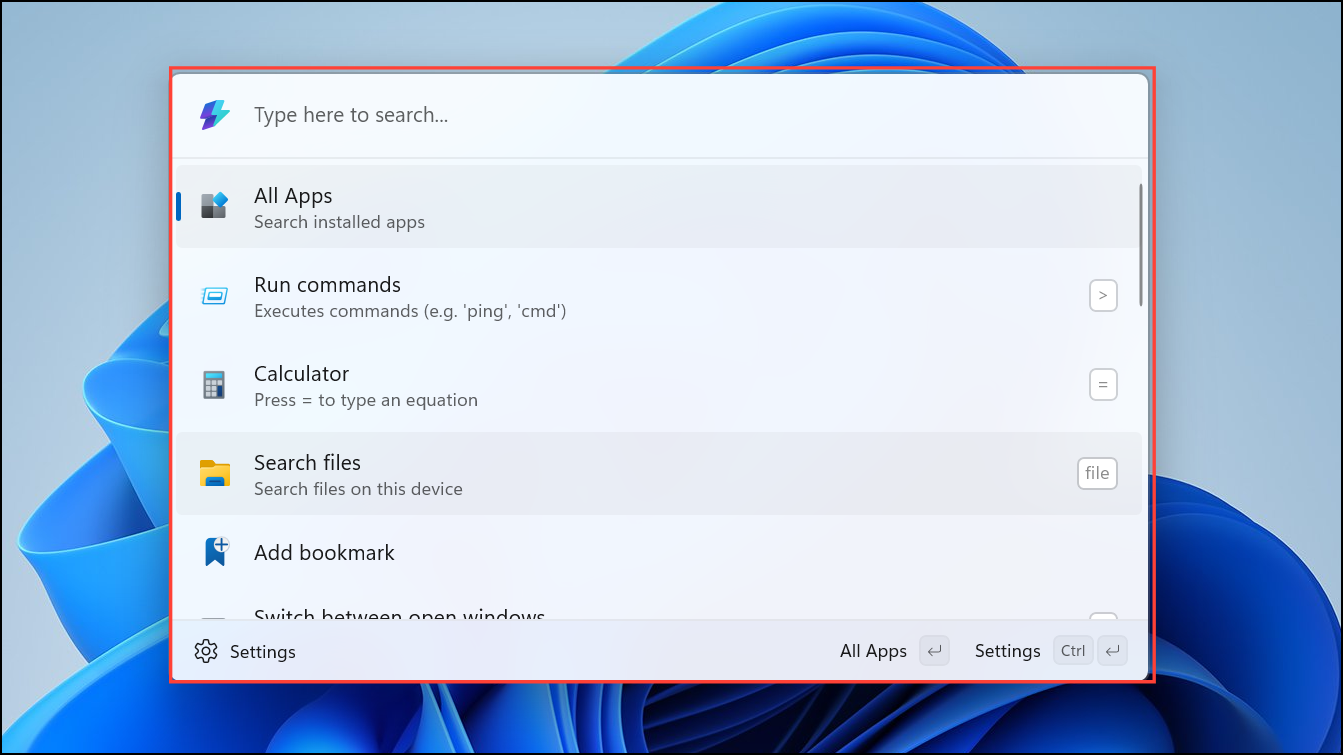
Begin typing the name of the application, file, or command you wish to execute. The Command Palette dynamically filters results as you type, displaying matching items instantly. For example, typing “Edge” will instantly display Microsoft Edge along with other relevant results.
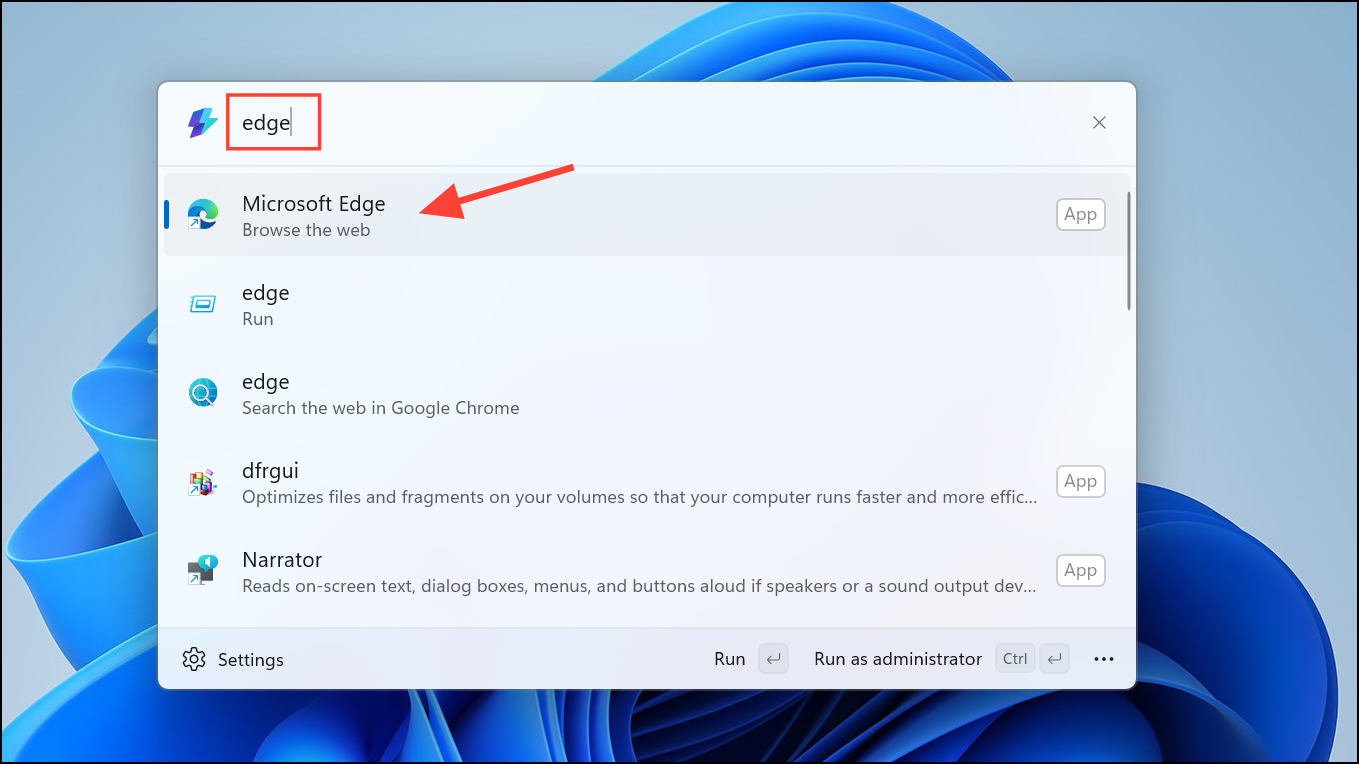
Use the arrow keys to navigate through the list of filtered results, or simply continue typing to narrow down the choices further. Once you’ve highlighted the desired option, press the
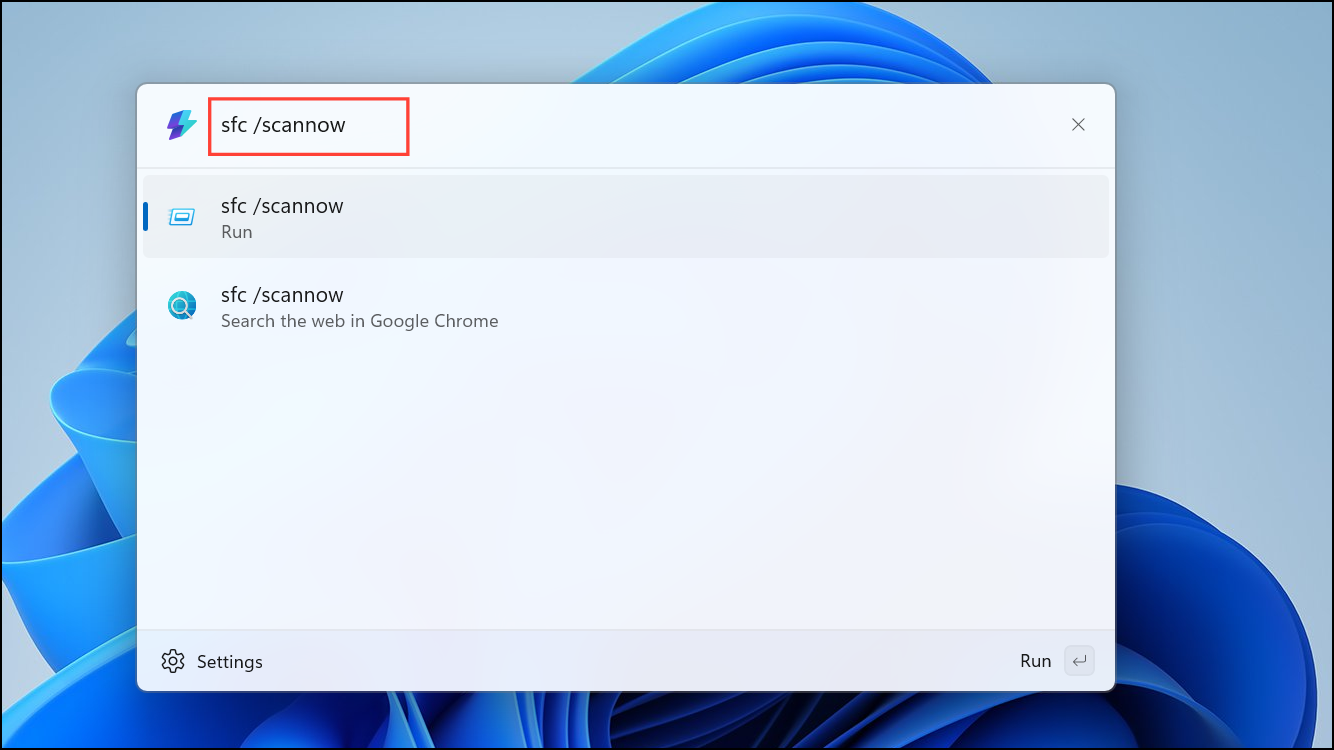
Enter key to launch it immediately.In addition to launching applications, the Command Palette also supports executing system commands, such as restarting your computer, opening specific settings pages, or even performing calculations. Simply type the command you want, and the palette will offer relevant suggestions.
Advanced Tips for Optimizing Command Palette Usage
- Customize the indexing behavior in the Command Palette settings to include or exclude certain file types or folders. This helps speed up searches by limiting results to the most relevant items.
- Use specific keywords or partial names to quickly access frequently used commands or applications. The Command Palette learns from your usage patterns and prioritizes frequently selected items.
- Regularly update PowerToys to benefit from ongoing improvements and new functionalities added to the Command Palette feature by Microsoft.
The Command Palette in PowerToys simplifies daily tasks by drastically reducing the steps needed to launch apps and execute commands. Give it a try, and you’ll soon notice a significant improvement in your everyday computing experience.



