Error code 211 in Marvel Rivals is a Steam connection failure that blocks the game before it ever reaches a match. The screen reads “Failed to connect to Steam. Error code 211,” which means your Steam account and the Marvel Rivals servers could not establish a session. The game can’t authenticate, so it won’t launch or let you queue for multiplayer.
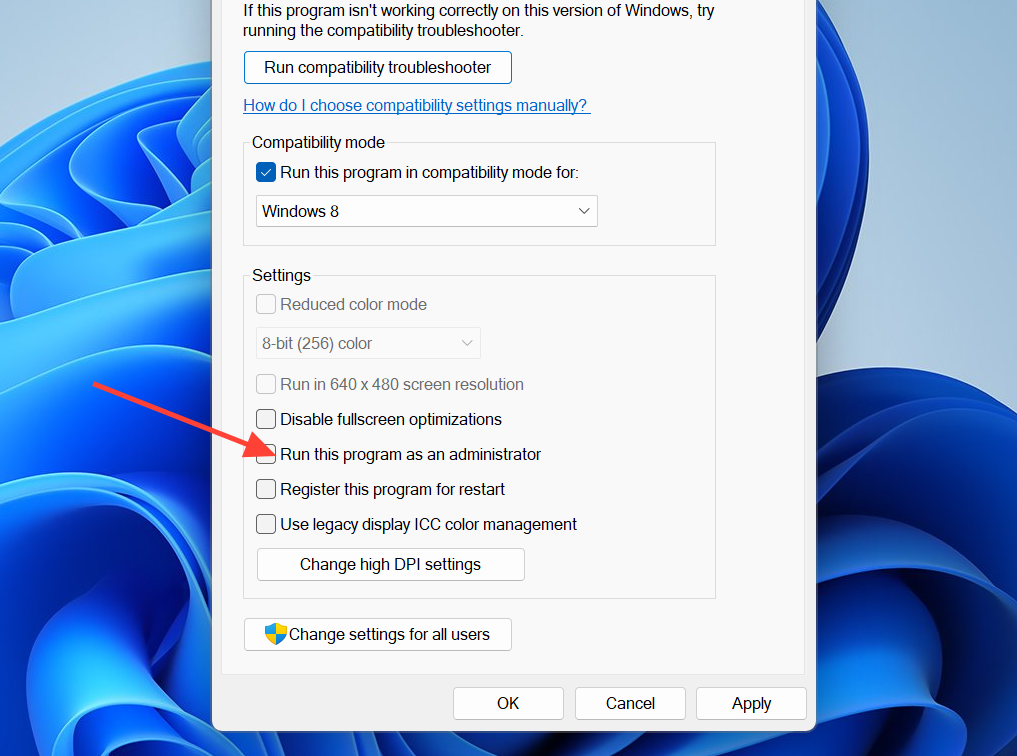
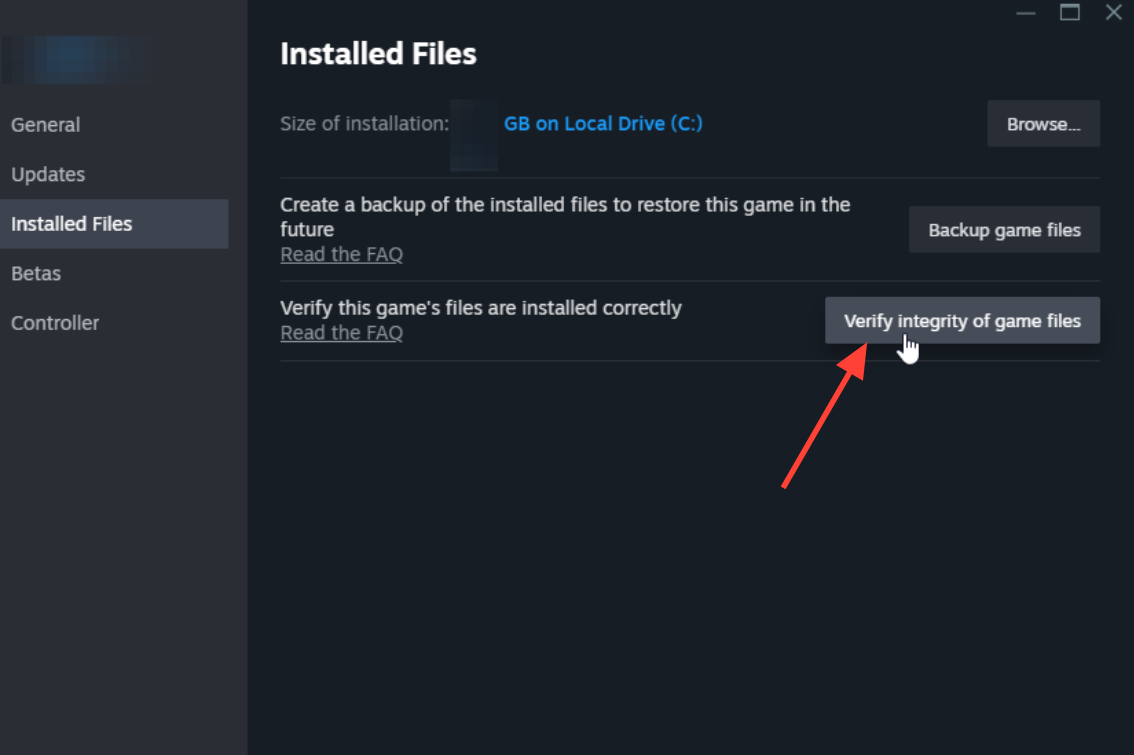
Quick answer: Fully close Steam through Task Manager, reopen it as Administrator, and relaunch Marvel Rivals. If the error returns, set your DNS to Google’s 8.8.8.8 / 8.8.4.4, then verify the game files in Steam. The error is cleared when the game loads past the login screen into the main menu.
Who hits error code 211 and when
This error only affects players running Marvel Rivals through Steam. The standalone build and console versions don’t use the same Steam authentication layer, so they aren’t impacted. It most often appears on PC setups with strict firewall rules, broken Steam sessions, or unstable internet and DNS routing.
The failure tends to show up at predictable moments. Knowing which one applies to you usually points to the right fix.
| When it happens | Likely reason |
|---|---|
| Right after clicking Play on Steam | Stuck or duplicated Steam background process |
| After a Steam password reset | Broken or outdated authentication session |
| After an update or patch | The new build needs a refreshed login token |
| On a first install or reinstall | Improper token exchange during setup |
What causes the Steam error code 211
NetEase has not published an official diagnosis, but the consistent triggers are connection and authentication problems between the Steam client and the game. The most common ones are:
- A corrupted or expired Steam authentication token, often after a login change or client error.
- Outdated or damaged game files left behind by an interrupted download or update.
- A firewall or antivirus blocking Steam’s authentication traffic or ports.
- Misconfigured DNS or an unstable Wi-Fi connection causing handshake timeouts.
- A stuck or duplicated Steam background task, such as steamwebhelper.
- VPN routing, which can either cause or resolve the problem depending on your region.
- Server-side maintenance or load on the developer’s end, which is less common.
Fix Marvel Rivals error code 211 (basic steps)
Work through these in order. The early steps fix the most frequent cause, a broken Steam session, and take only a minute.
8.8.8.8 and an alternate of 8.8.4.4 (Google), or use Cloudflare’s 1.1.1.1. Restart the PC afterward.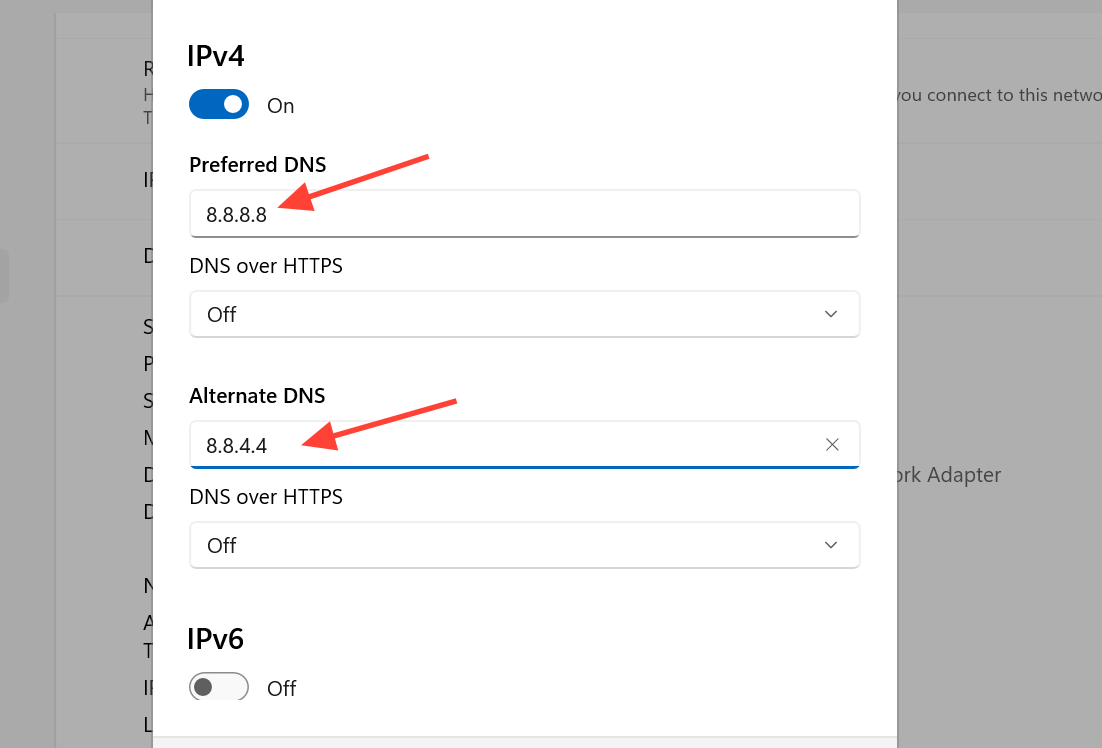
ipconfig /flushdns
netsh winsock reset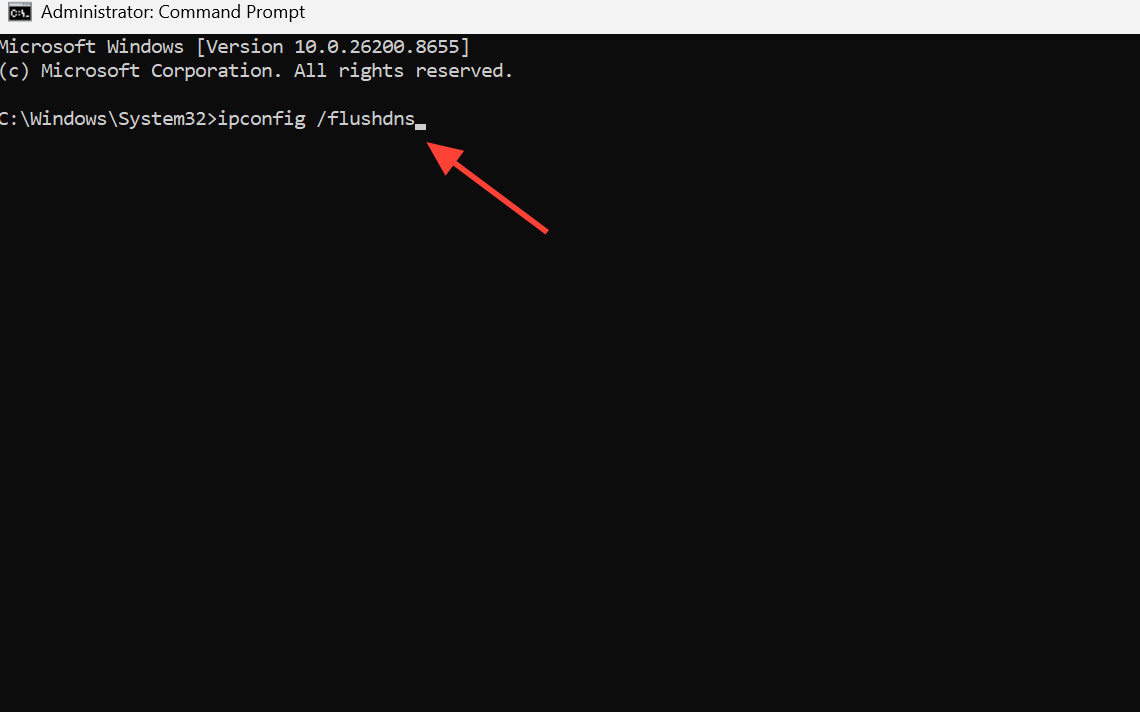
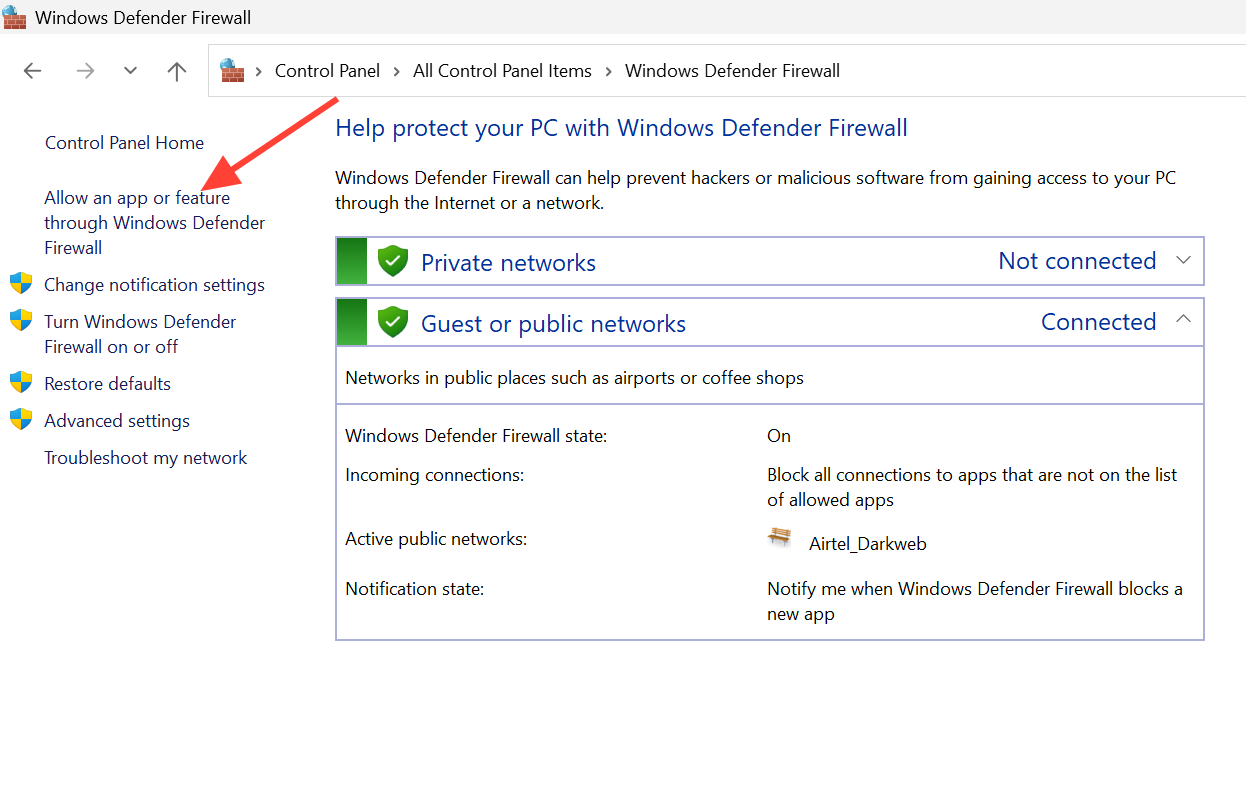
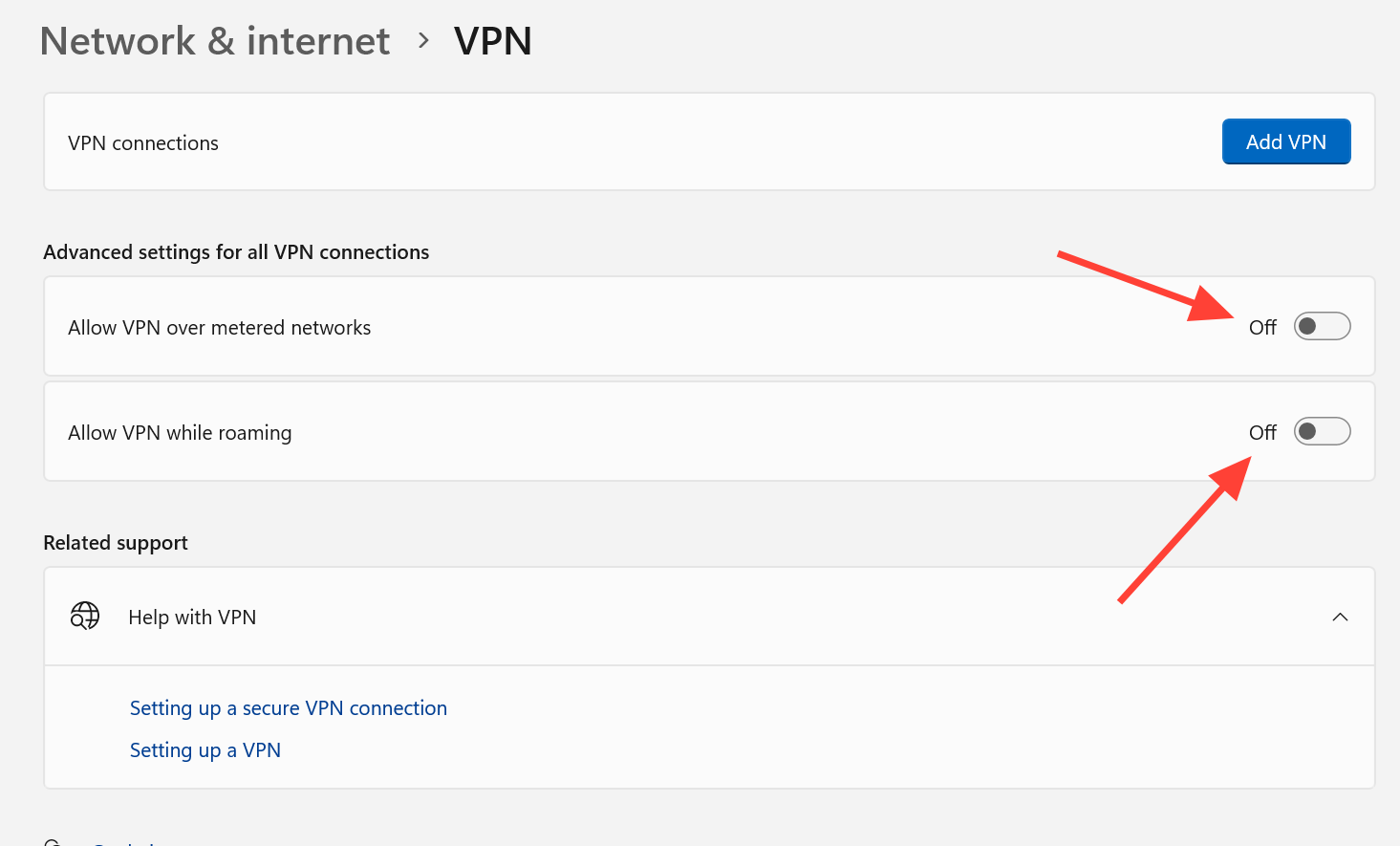
Advanced fixes if 211 keeps returning
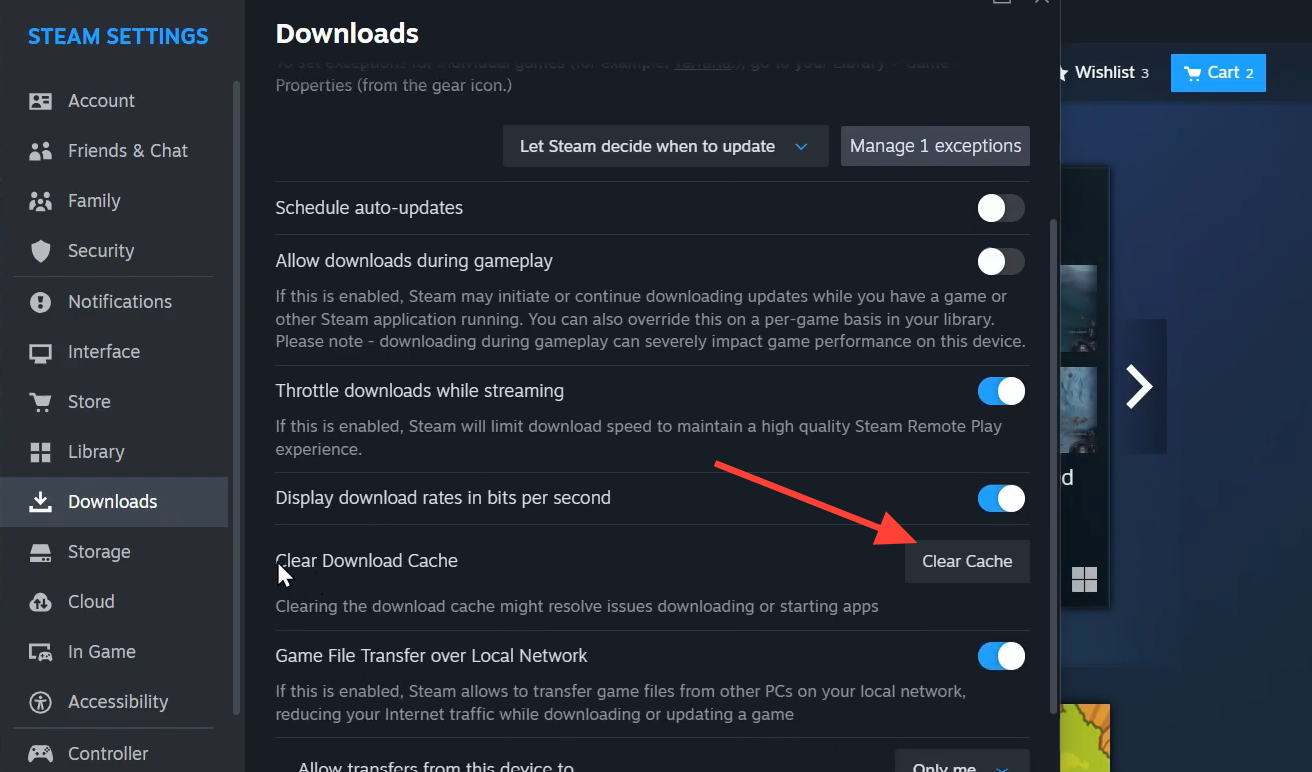
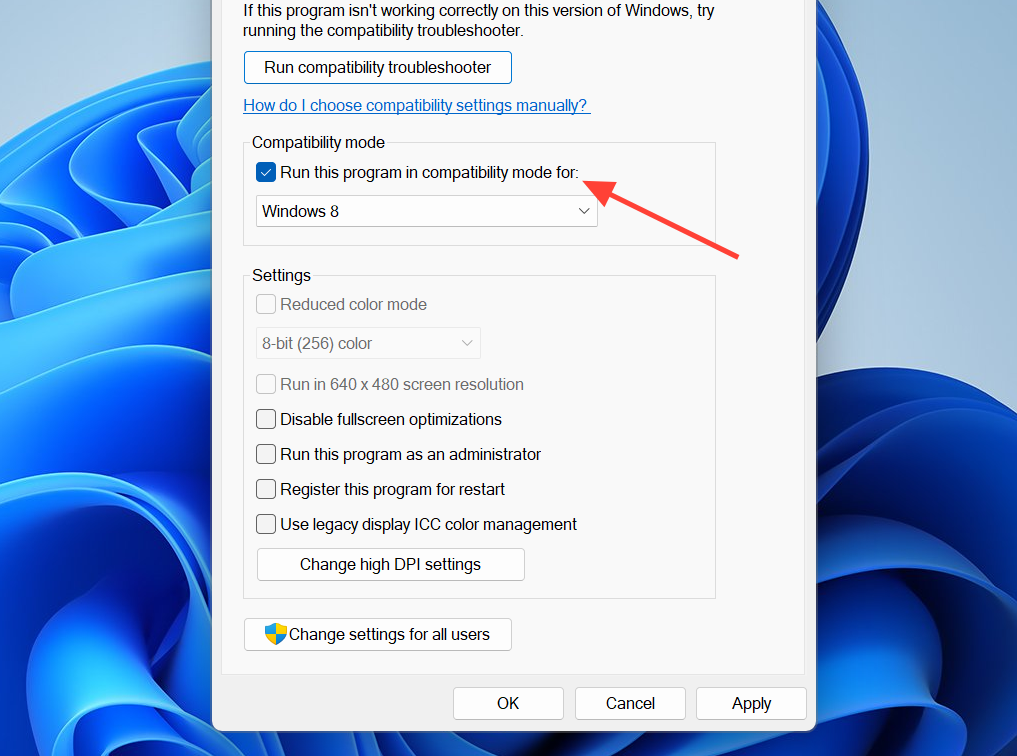
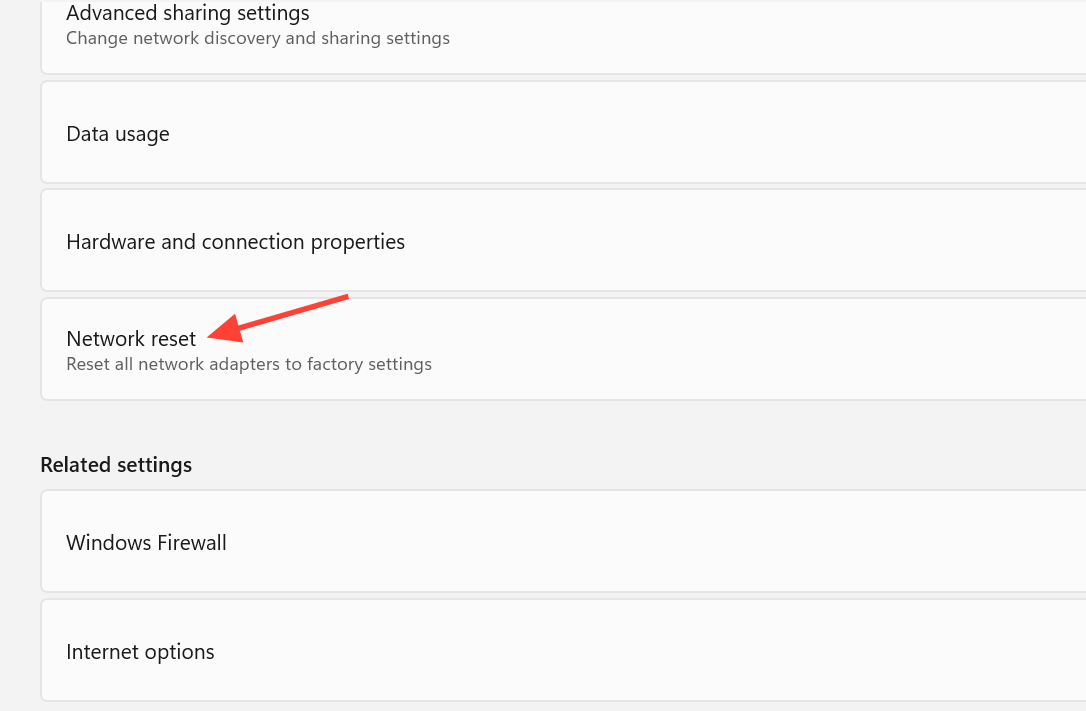
When the standard steps don’t hold, the problem is usually deeper in Windows networking, Steam’s cache, or your system configuration.
Some players avoid the Steam authentication layer entirely by running Marvel Rivals through the Epic Games Store instead. Treat this as a last resort. It isn’t available in every region, your progress may not carry over, and cross-store accounts aren’t always compatible.
Confirm the fix and rule out server outages
You know the error is cleared when the game moves past the “Failed to connect to Steam” login screen and loads the main menu, letting you queue normally. If it still appears across every fix, the issue may be on the server side rather than your PC. Check the official Marvel Rivals accounts on X (@MarvelRivals) and the Marvel Rivals Discord for maintenance and patch notices before troubleshooting further.
When nothing resolves it, gather your log files before reinstalling again and send them to Marvel Rivals support with your system specs and the steps you’ve tried. The game logs sit in AppData\LocalLow\Netease\MarvelRivals\Logs, and Steam’s connection logs are in Steam\logs\connection_log.txt and content_log.txt. Those files give support the detail needed to trace a persistent authentication failure.