
Windows 11 applications sometimes shift partially or entirely off the visible desktop, leaving the title bar unreachable. This can occur after disconnecting an external monitor, changing display settings, or due to software glitches, making it impossible to drag the window in the usual way. Regaining control over these windows is crucial for maintaining workflow, especially when you can’t access the title bar directly. Below are reliable methods to move or recover windows without needing to click the title bar, starting with the most direct and widely compatible solutions.
Using Keyboard Shortcuts to Move an Off-Screen Window
Alt + Spacebar. This opens the window control menu, which typically appears near the window’s title bar, even if it’s off-screen.M on your keyboard. This activates Move mode, indicated by your cursor changing to a four-way arrow.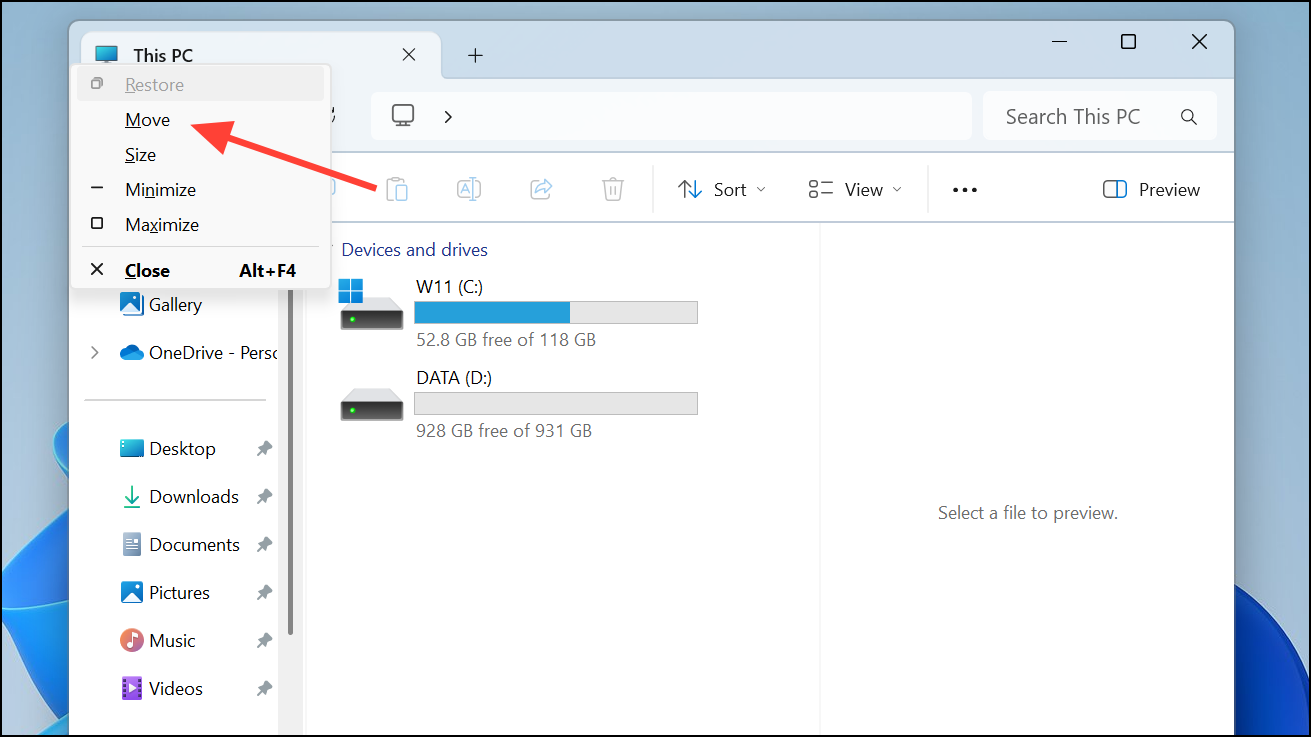
This method works for most application windows in Windows 11, except when the window is maximized. If you have PowerToys installed with the default Alt + Space hotkey assigned to PowerToys Run, you may need to disable or reassign that shortcut to use this method.
Snapping Windows Using Windows Key Shortcuts
Windows Key and tap either the Left Arrow or Right Arrow keys. This instantly snaps the window to the respective side of your screen, making it visible and ready for further adjustment.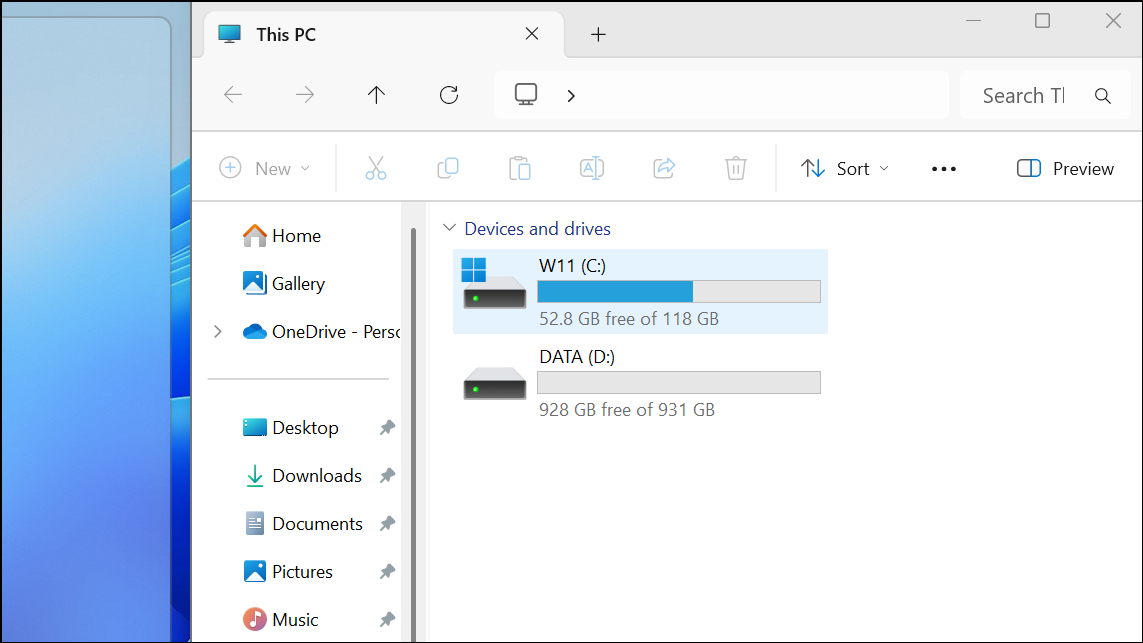
This approach is especially useful when the window is completely off-screen or if you have multiple monitors. It also works for bringing windows back into view after disconnecting a secondary display.
Moving Windows with Task View and Snap Assist
Windows Key + Tab. Task View shows all open windows and desktops.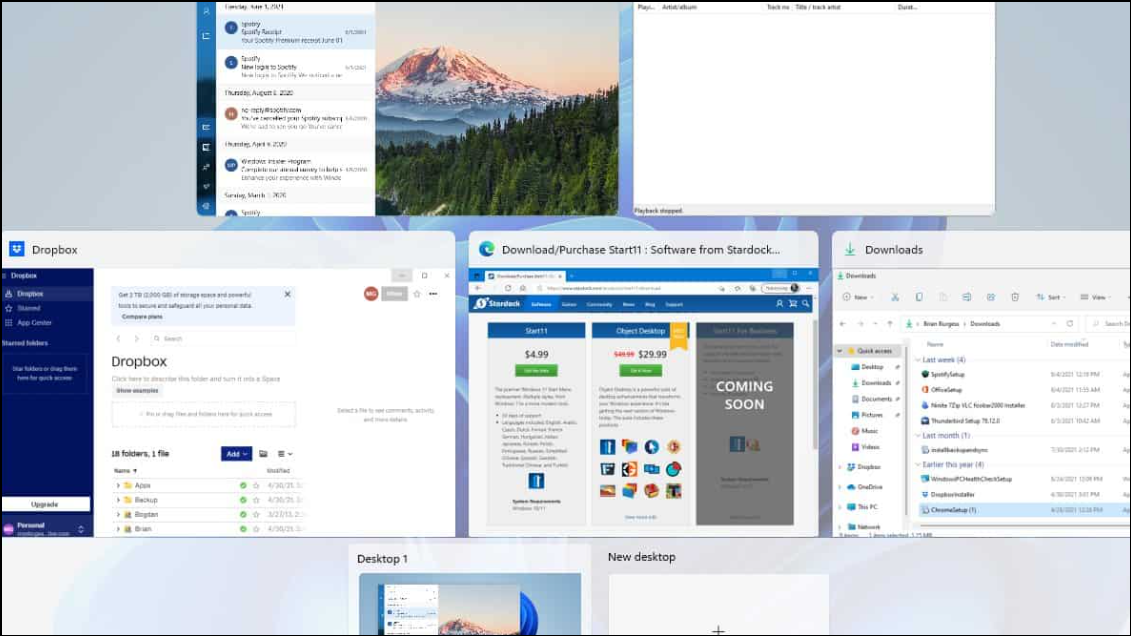
This method is particularly effective if you have many windows open and want a visual overview before moving a specific one.
Shift + Right-Click Move for Taskbar Windows
Shift and right-click the application’s icon on the taskbar. This brings up a classic context menu with additional options.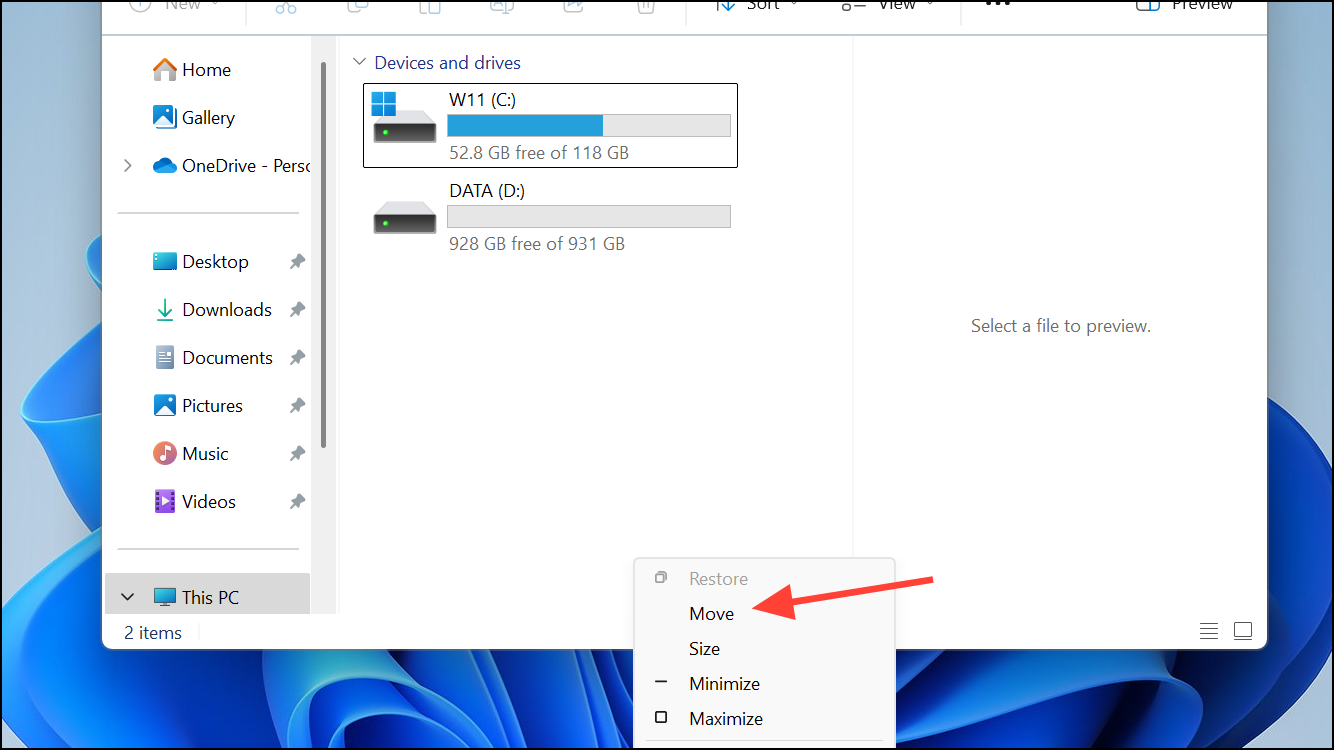
This technique is handy for non-maximized windows and works across most traditional Windows applications.
Adjusting Display Resolution to Recover Hidden Windows
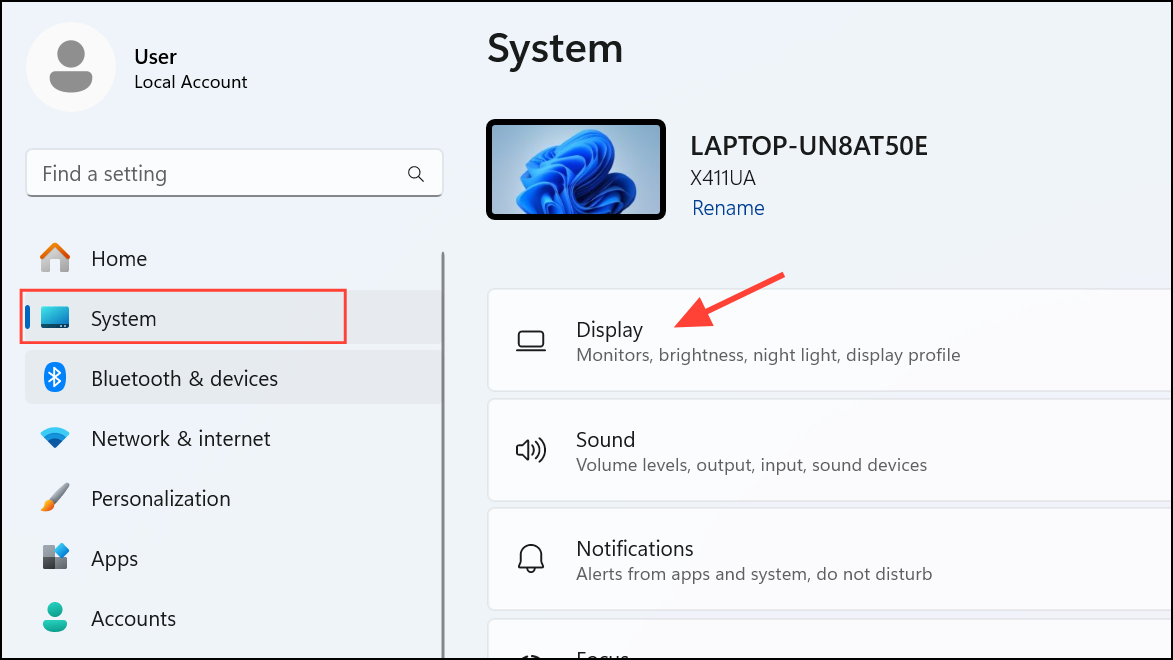
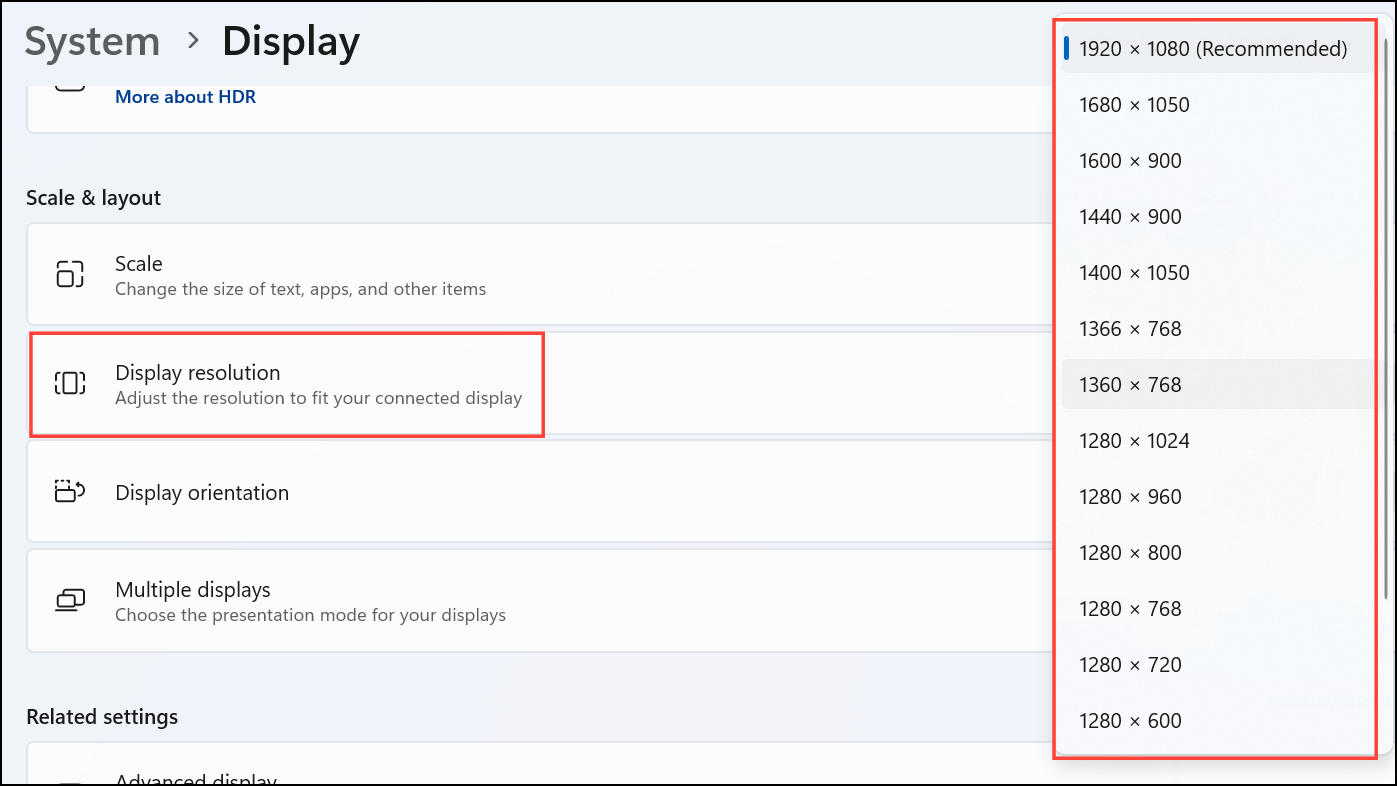
This method is a workaround for persistent display issues, especially after hardware changes or when using remote desktop sessions.
Registry Reset for Persistent Window Position Issues
For applications that always open off-screen due to corrupted window position data, you can reset their position values in the Windows Registry. For example, to reset Notepad’s window position:
Regaining control of off-screen or stubborn windows in Windows 11 is straightforward with these built-in shortcuts and features. Keeping these methods in mind will save time and reduce frustration when application windows slip out of reach.



