
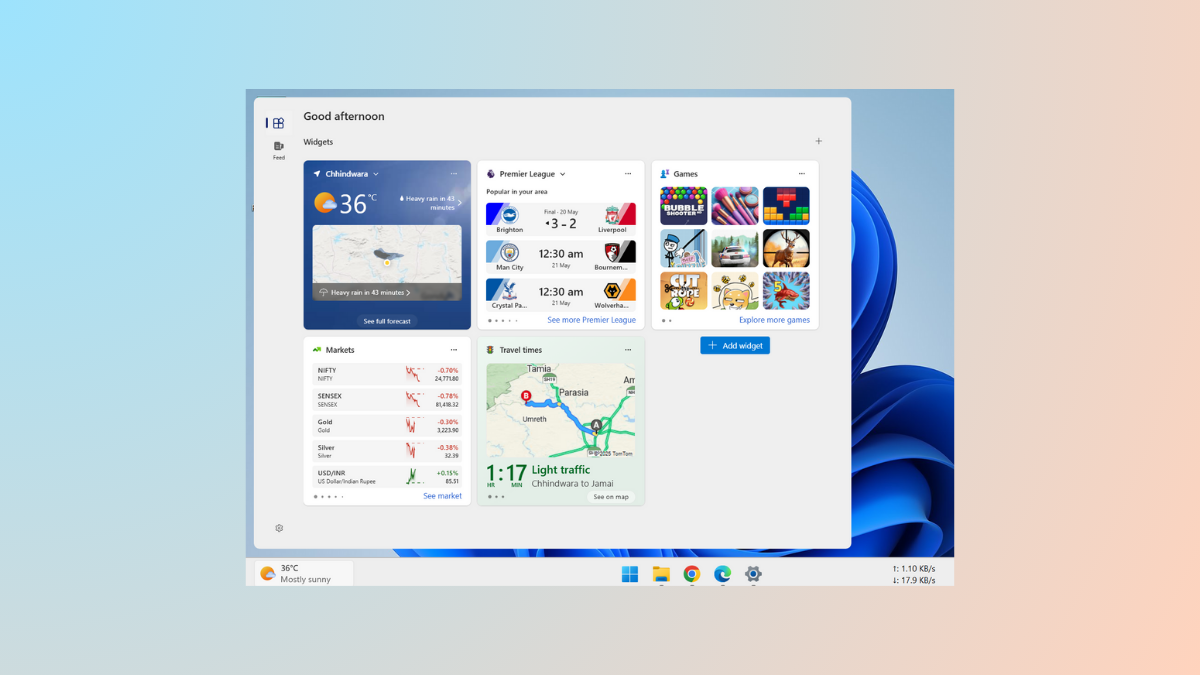
Sudden shifts in widget placement after a Windows 11 update can disrupt your workflow and make your desktop feel less organized. Users have reported that the Widgets button, previously located near the Start menu or search bar, sometimes migrates to the right side of the taskbar or changes size unexpectedly. While Windows 11 offers robust tools for arranging and resizing individual widgets within the Widgets board, relocating the Widgets panel itself or moving the Widgets button to a preferred taskbar position remains restricted by current system design.
Move Widgets Within the Widgets Board
Optimizing your Widgets board layout starts with rearranging individual widgets to suit your daily routine. This process allows you to keep your most-used widgets easily accessible and group similar information together.
Windows + W keyboard shortcut.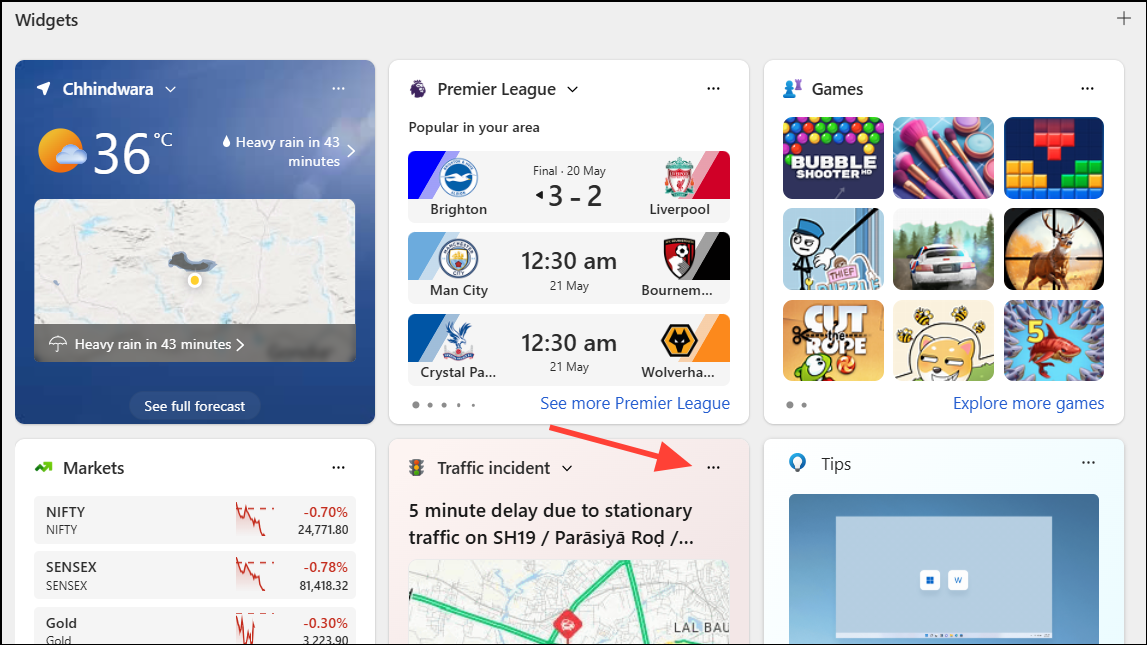
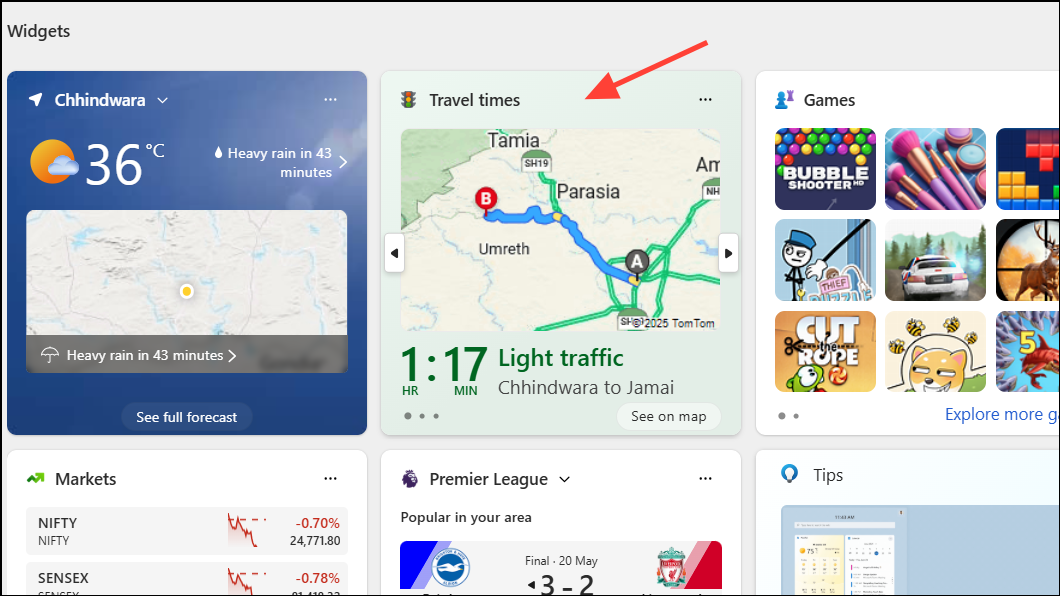
Resize Widgets for Better Information Density
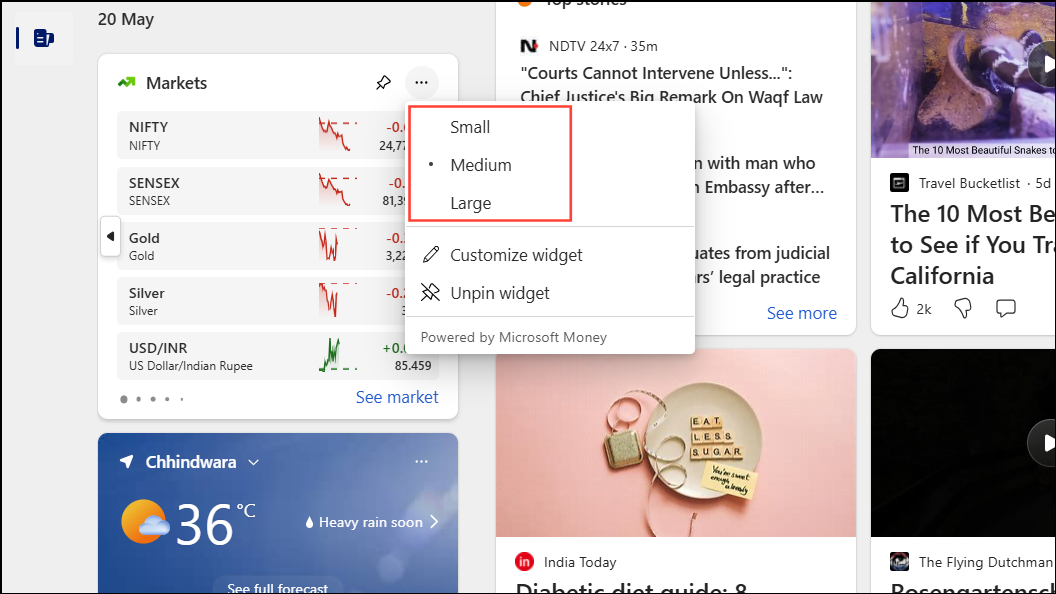
Adjusting widget size can help you display more details or save space for a cleaner look. Different widgets support different size options, typically Small, Medium, or Large.
Current Limitations: Moving or Resizing the Widgets Panel and Taskbar Button
The Widgets panel itself—the area that slides out from the left or bottom edge of the screen—cannot be moved to a different screen location or monitor. Its position is fixed by Windows 11’s design. Similarly, the width of the panel is not adjustable; you can expand or collapse the board using the expand/collapse button, but you cannot set a custom width or restrict it to a single column.
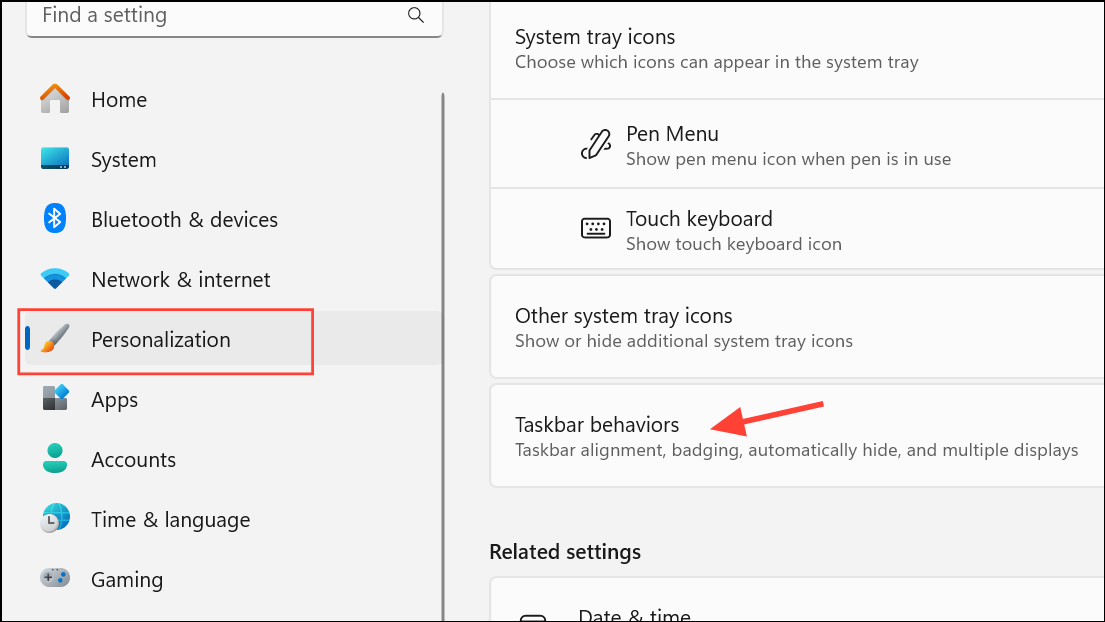
As for the Widgets button on the taskbar, its location is also determined by Windows 11’s system rules and recent updates. Some users have found the button moves from the left side (near the Start menu or search bar) to the far right (near the system tray) after updates, with no built-in option to change its position. Adjusting the overall taskbar alignment to “Left” in Settings > Personalization > Taskbar > Taskbar behaviors only affects the alignment of all taskbar items; it does not allow the Widgets button to be moved independently.
Remove or Show the Widgets Button on the Taskbar
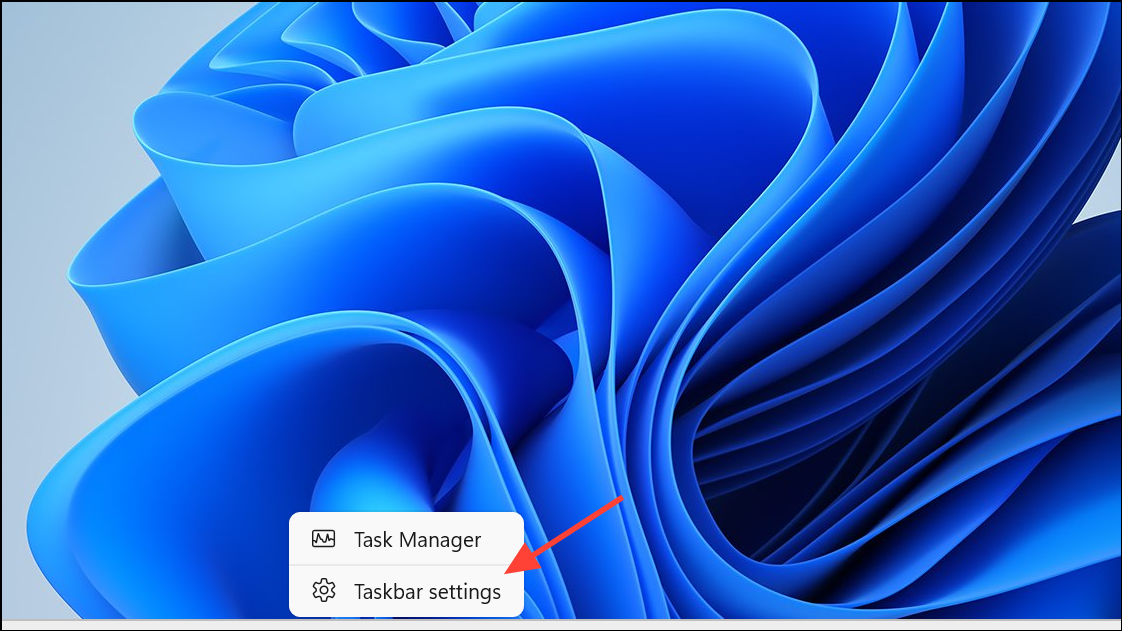
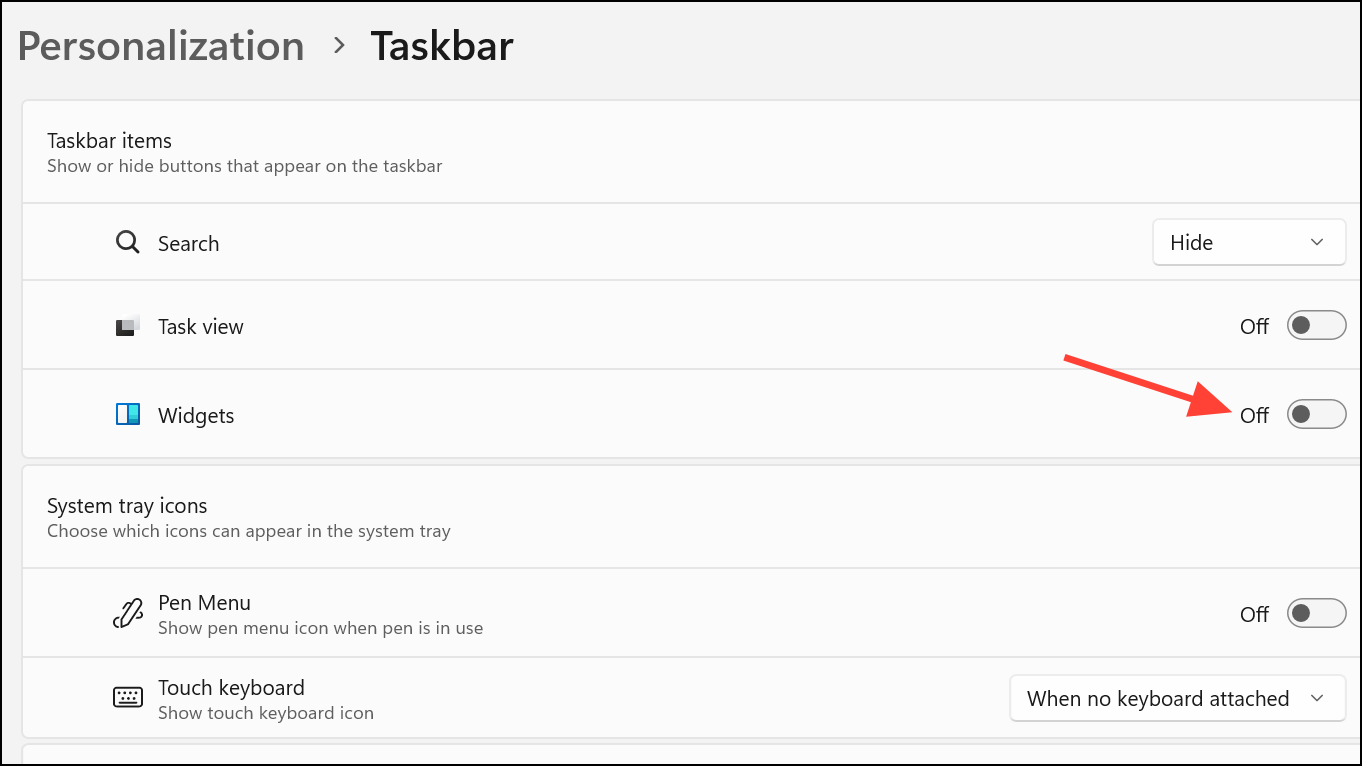
If the new placement of the Widgets button is disruptive or you simply don’t use it, you can remove it from the taskbar:
Pin, Unpin, or Hide Widgets
Managing which widgets appear on your board helps you focus on relevant information.
- To pin a widget, click the Add widgets button at the bottom of the Widgets board and select from the available options.
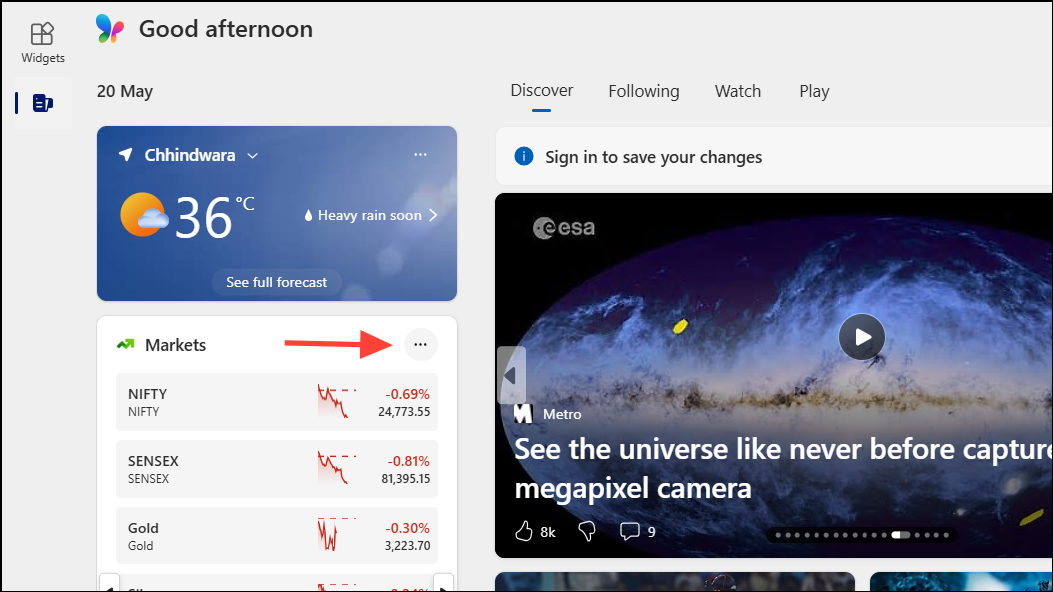
- To unpin, click the three-dot menu on a widget and select Unpin widget. This removes it from the board but keeps it available for future use.
- To hide a widget completely, use the Hide this widget option in the same menu.
Tips and Maintenance
If you experience issues with widgets not updating or behaving erratically, ensure that both the Windows Web Experience Pack and Microsoft Edge are up to date. These components power the Widgets feature and may cause problems if outdated. You can check for updates in the Microsoft Store and Windows Update settings.
For feature requests such as moving the Widgets panel or customizing the button’s location, use the Feedback Hub (Windows + F) to submit your suggestions directly to Microsoft. This increases the likelihood of these options being added in future Windows 11 releases.
While Windows 11 offers flexible ways to move and resize individual widgets within the Widgets board, moving the panel itself or the taskbar button is not currently supported. Keeping your system updated and providing feedback to Microsoft are the best ways to influence future options.



