
Running a dedicated Palworld world means you decide who stays, who gets teleported, and when the server saves. All of that runs through a set of admin commands typed straight into the in-game chat box, but none of them work until you prove you own the server. The full command set carried over into the 1.0 release, so the same authentication step and command strings apply on PC, PlayStation 5, and Xbox servers.
Quick answer: Open chat with the Enter key, type /AdminPassword YourPassword using the password saved in PalWorldSettings.ini, and wait for the confirmation message. After that, any command below runs for the rest of your session.
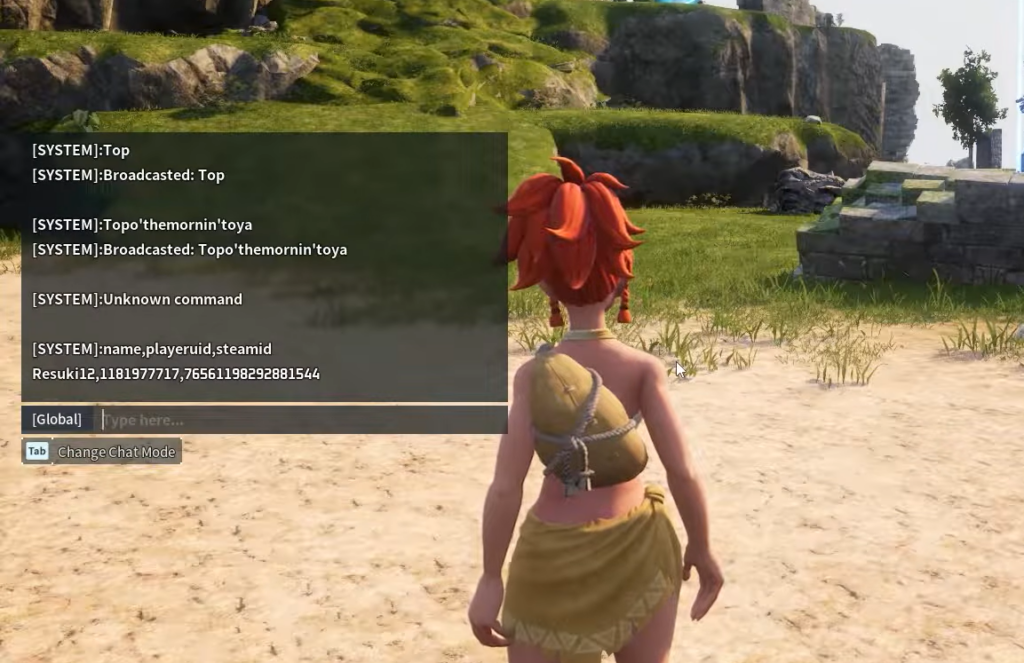
Set the admin password before anything else
The server refuses every command until you authenticate, and it will not authenticate against a blank password field. You set that password by editing a configuration file while the server is stopped, then entering the same string in-game.
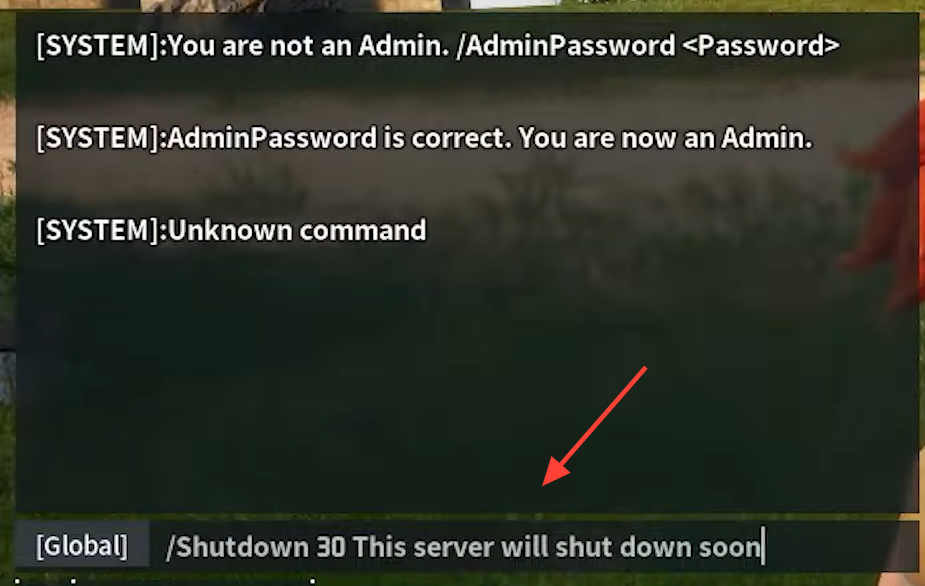
steamapps\common\PalServer\Pal\Saved\Config\WindowsServer.PalWorldSettings.ini in a plain text editor such as Notepad. Use the search function to jump to the line that reads AdminPassword="".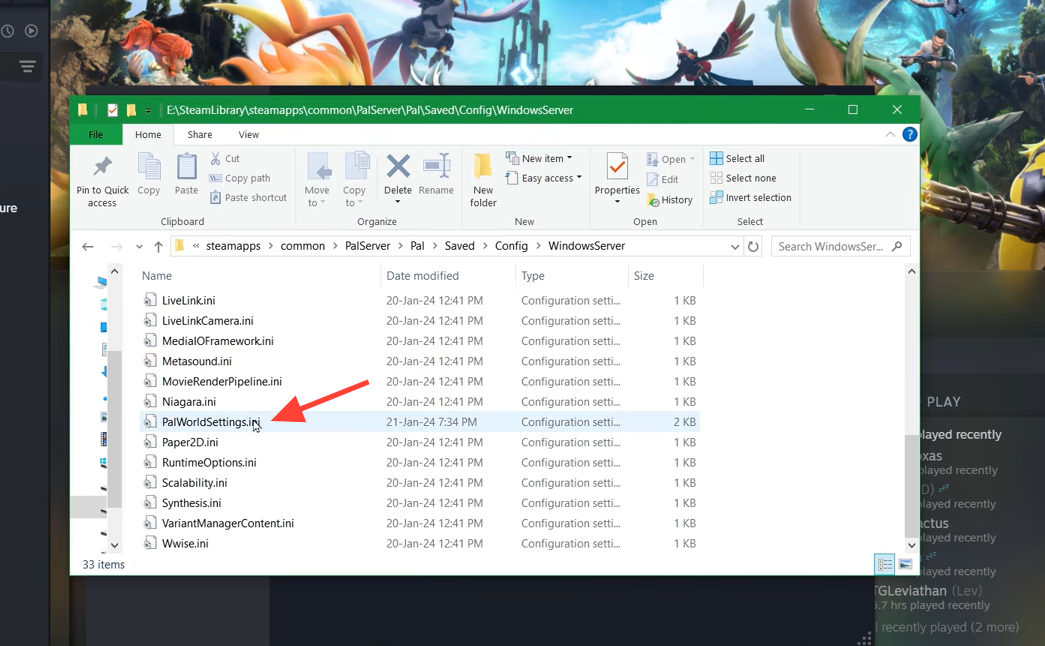
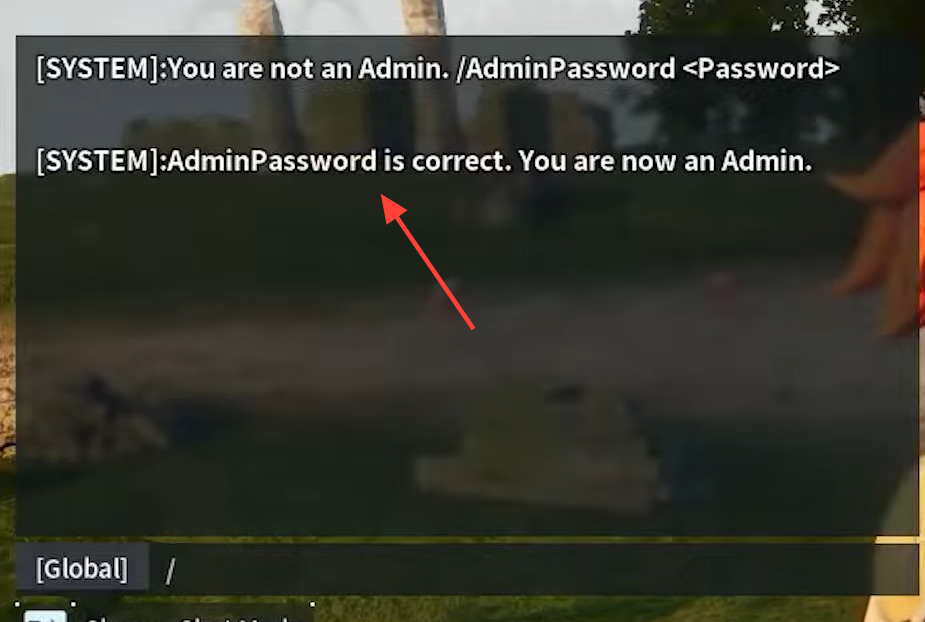
Once you spawn in, press Enter to open chat and run /AdminPassword followed by a space and the exact password string. A success message confirms you have admin rights. Anyone on a shared world can gain the same privileges by entering the identical command and password, so hand it out only to people you trust.
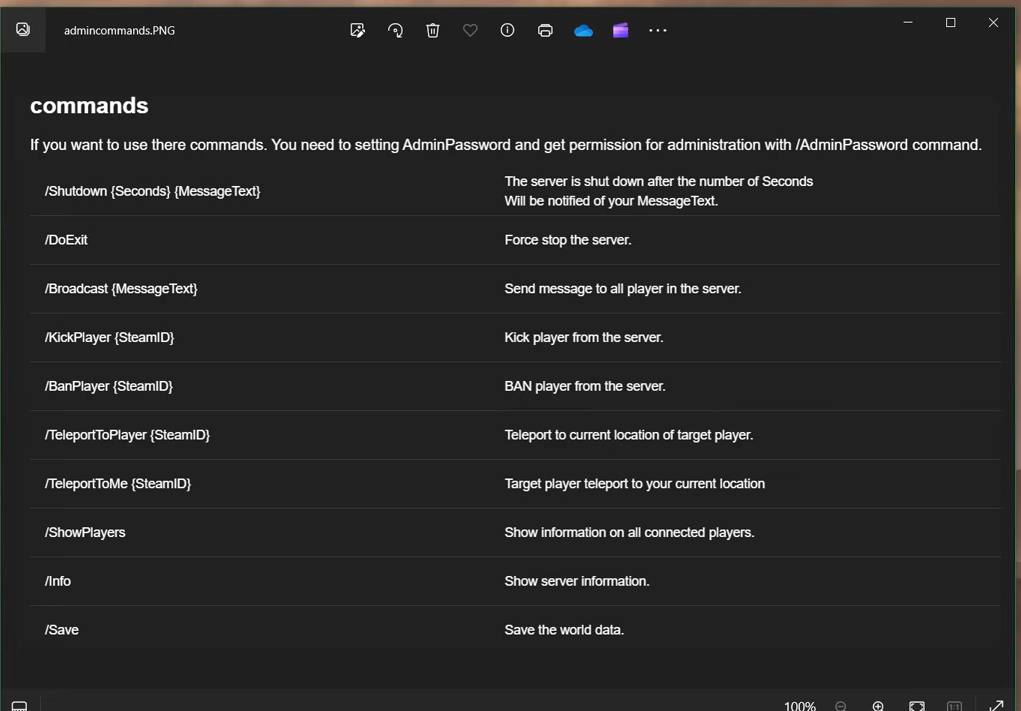
Every Palworld server command and what it does
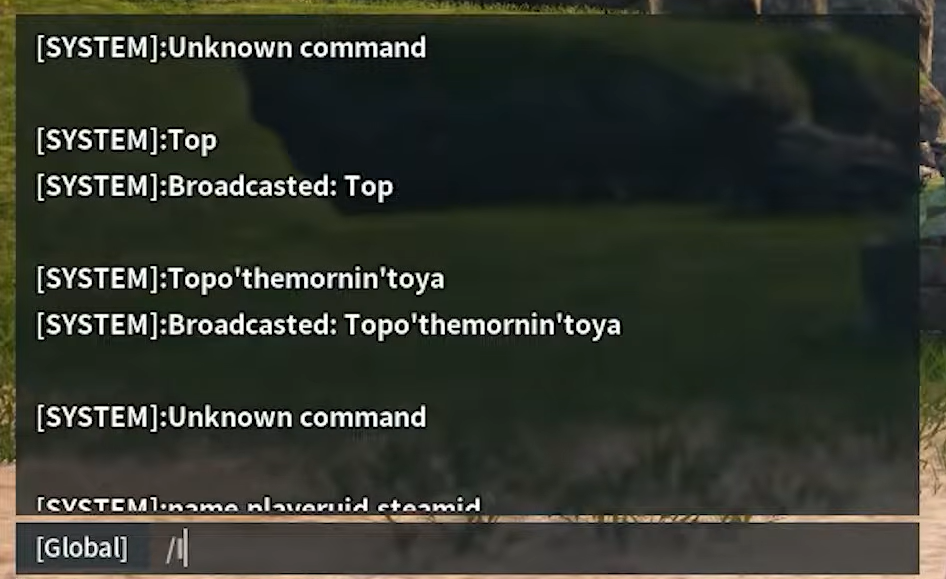
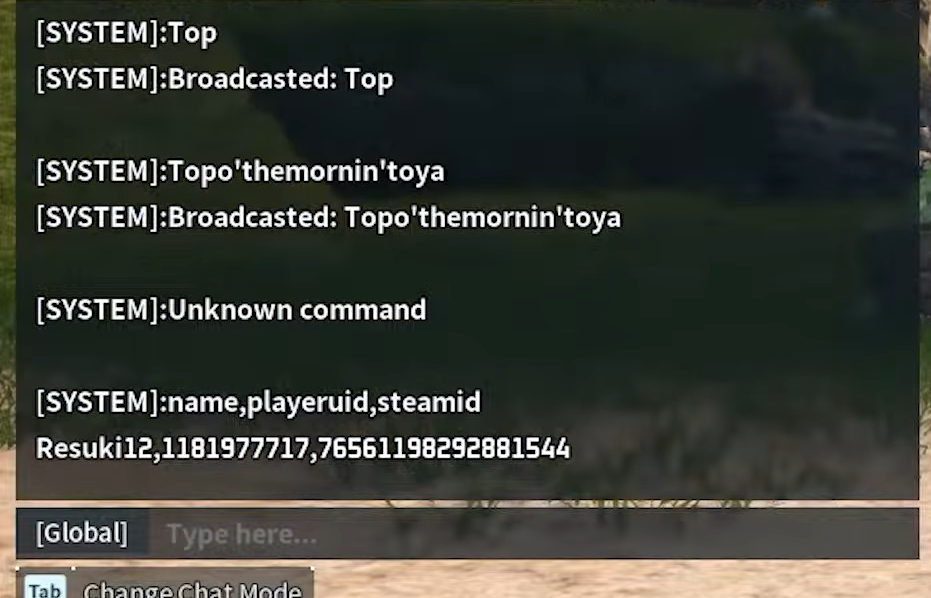
All commands are triggered from the chat window after authentication. Several moderation commands need a player’s SteamID, which you pull from the /ShowPlayers output rather than a Steam friend code.
| Command | Effect |
|---|---|
/AdminPassword YourPassword | Authenticates your chat session and grants admin rights. Required before any other command. |
/ShowPlayers | Lists every connected player with their name, PlayerUID, and SteamID. |
/Info | Prints server name, version, and basic system information. |
/KickPlayer SteamID | Disconnects the named player. They can rejoin unless banned. |
/BanPlayer SteamID | Permanently bans a player and writes them to the ban list. |
/UnBanPlayer SteamID | Removes a player from the ban list so they can reconnect. |
/BanList | Prints the current ban list, the same as reading BanList.txt. |
/TeleportToPlayer SteamID | Teleports you to the target player’s location. |
/TeleportToMe SteamID | Pulls a player to your current position. |
/Save | Force-writes the world to disk. Run this before any manual stop. |
/Shutdown Seconds Message | Graceful shutdown after a countdown, with an optional broadcast message. |
/DoExit | Hard stop that closes the server immediately without flushing the save. |
/Broadcast Message | Sends a message to everyone currently on the server. |
/ToggleSpectate | Enters spectator mode. Cycle camera views with the backslash key. |
Commands are case-sensitive. /Save works, but /save does not. If a command with a message would contain spaces, wrap the text in quotation marks, for example /Shutdown 60 "Restart in 60s".
Change server settings live
A handful of settings can be updated without restarting the server, using the /ChangeSettings command. These affect how the server appears and who can join.
| Command | Effect |
|---|---|
/ChangeSettings ServerName "New Name" | Renames the server without a restart. |
/ChangeSettings ServerDescription "Desc" | Updates the description shown in the server browser. |
/ChangeSettings ServerPassword "secret" | Sets or clears the join password on the fly. |
Balance options such as XP rate, tame multiplier, and drop rate are not safely changed at runtime. Those still require editing PalWorldSettings.ini and restarting the server.
Run the same commands over RCON
RCON is a TCP socket version of the chat console, useful for managing the server without being logged into the game. Enable it once in PalWorldSettings.ini.
RCONEnabled=True
RCONPort=25575
AdminPassword=YourAdminPassword
Connect with any Source RCON client and drop the leading slash when sending commands. For example, with mcrcon you would run the commands below.
mcrcon -H your.server.ip -P 25575 -p YourAdminPassword "ShowPlayers"
mcrcon -H your.server.ip -P 25575 -p YourAdminPassword "Save"
mcrcon -H your.server.ip -P 25575 -p YourAdminPassword "Shutdown 30 "Hot patch incoming""
Automate with the REST API
Palworld also exposes an HTTP REST API for automation. It ships disabled, so you enable it in the same config file, then authenticate with HTTP Basic auth using the username admin and your admin password.
RESTAPIEnabled=True
RESTAPIPort=8212| Endpoint | Method | Purpose |
|---|---|---|
/v1/api/info | GET | Server name, version, world id. |
/v1/api/players | GET | JSON list of online players with name, SteamID, ping, and location. |
/v1/api/settings | GET | Effective server settings. |
/v1/api/metrics | GET | FPS, CPU, memory, and uptime. |
/v1/api/announce | POST | Broadcast a message. Body: {"message":"text"}. |
/v1/api/kick | POST | Kick a player. Body: {"userid":"steam_xxx","message":"reason"}. |
/v1/api/ban | POST | Ban a player. Body: {"userid":"steam_xxx","message":"reason"}. |
/v1/api/save | POST | Trigger a world save. |
/v1/api/shutdown | POST | Graceful shutdown. Body: {"waittime":30,"message":"text"}. |
/v1/api/stop | POST | Hard stop, equivalent to /DoExit. |
Do not expose port 8212 to the public internet. Firewall it to trusted IPs, since anyone who reaches it with your password can control the server.
Confirming it worked and common failures
You know authentication succeeded when the chat returns a confirmation line after /AdminPassword. From there, /ShowPlayers should print a populated list rather than doing nothing, which is the fastest way to verify your admin session is active.
If commands do nothing, the usual causes are a blank AdminPassword field in the config, a mismatch between the saved password and the one you typed, or wrong capitalization on the command itself. Moderation commands that seem to fail almost always come down to using a Steam friend code instead of the SteamID from /ShowPlayers.
Because /DoExit and the API stop endpoint do not flush the save, always run /Save first when closing the server manually. That single habit prevents rollbacks that wipe out recent progress, and it keeps a mixed group of Steam, Xbox, and PlayStation players from losing hours of work when you cycle the world.