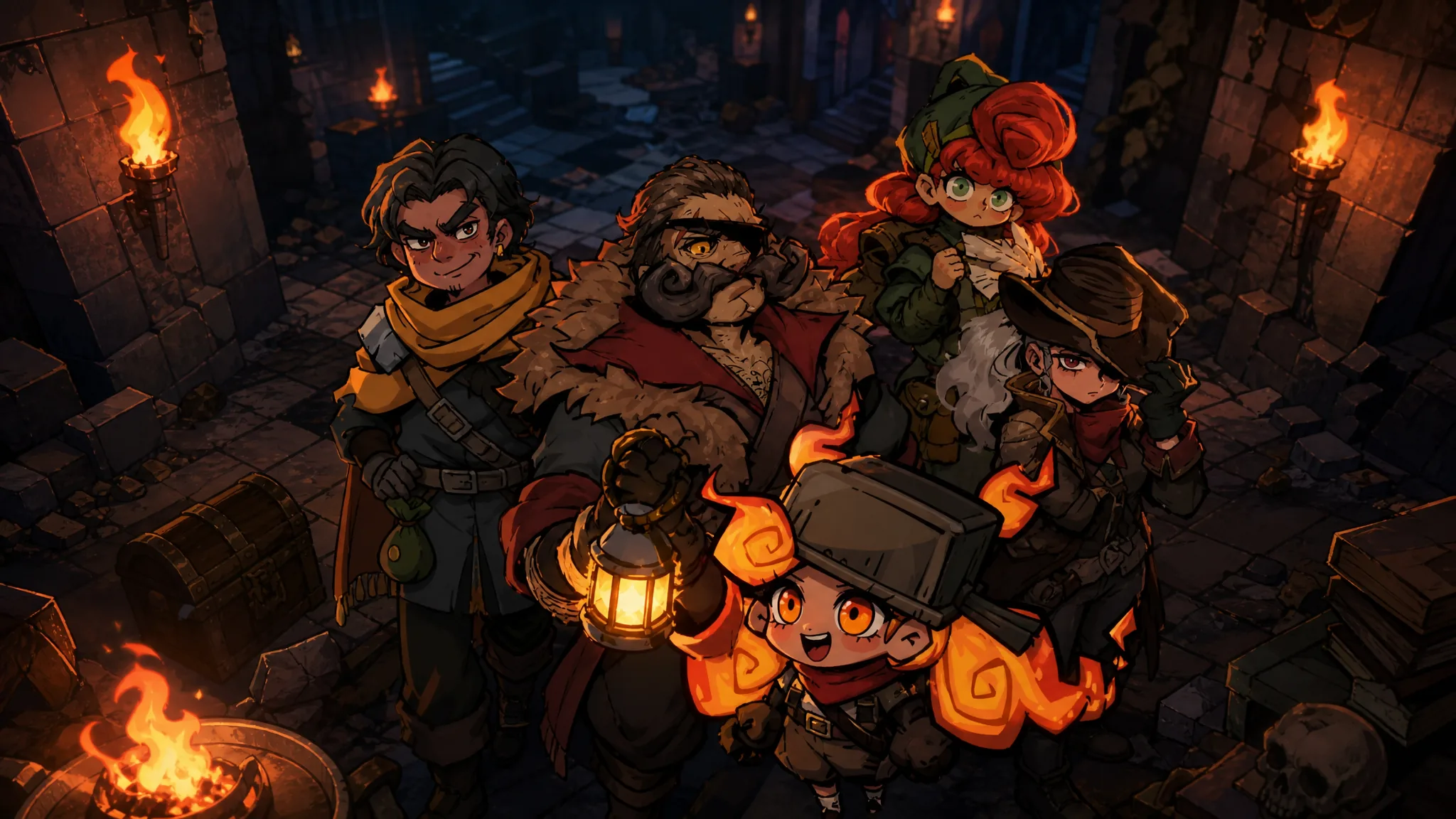
Pass the Fear supports co-op runs for up to four players, and you can invite friends through a Steam lobby or over LAN. Both connection types follow the same rules, and both open up shared mechanics that solo play does not have, including item sharing, reviving, and a live damage panel.
Quick answer: From the main menu, open Multiplayer (Beta), choose Steam or LAN as the server type, set your difficulty and player limit, then set the lobby to Public for open joining or Private for a shareable code. Everyone must join during the camp preparation phase before you start the run.
What you need before starting a co-op run
Pass the Fear is a roguelite bullet-hell shooter available on PC through its Steam page. Co-op is an online and LAN feature, and every player needs their own copy of the game. There is no shared-screen or split-screen option, so each participant plays on a separate machine.
The two ways to connect differ mainly in how the session is reached. A Steam lobby is the simplest path for friends online, while LAN suits players on the same local network. Whichever you pick, the player cap for a single run is four.
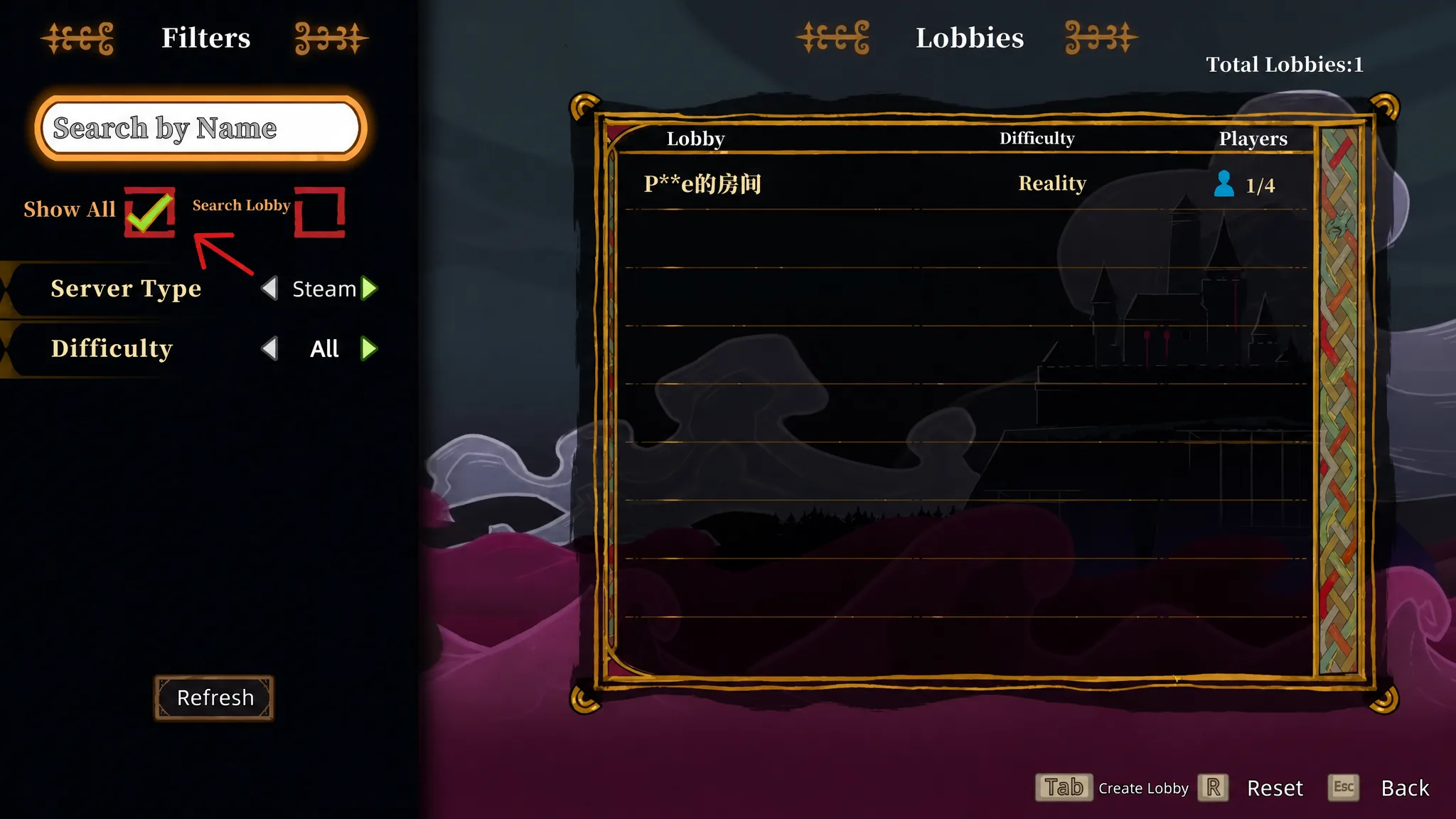
How to create a co-op lobby in Pass the Fear
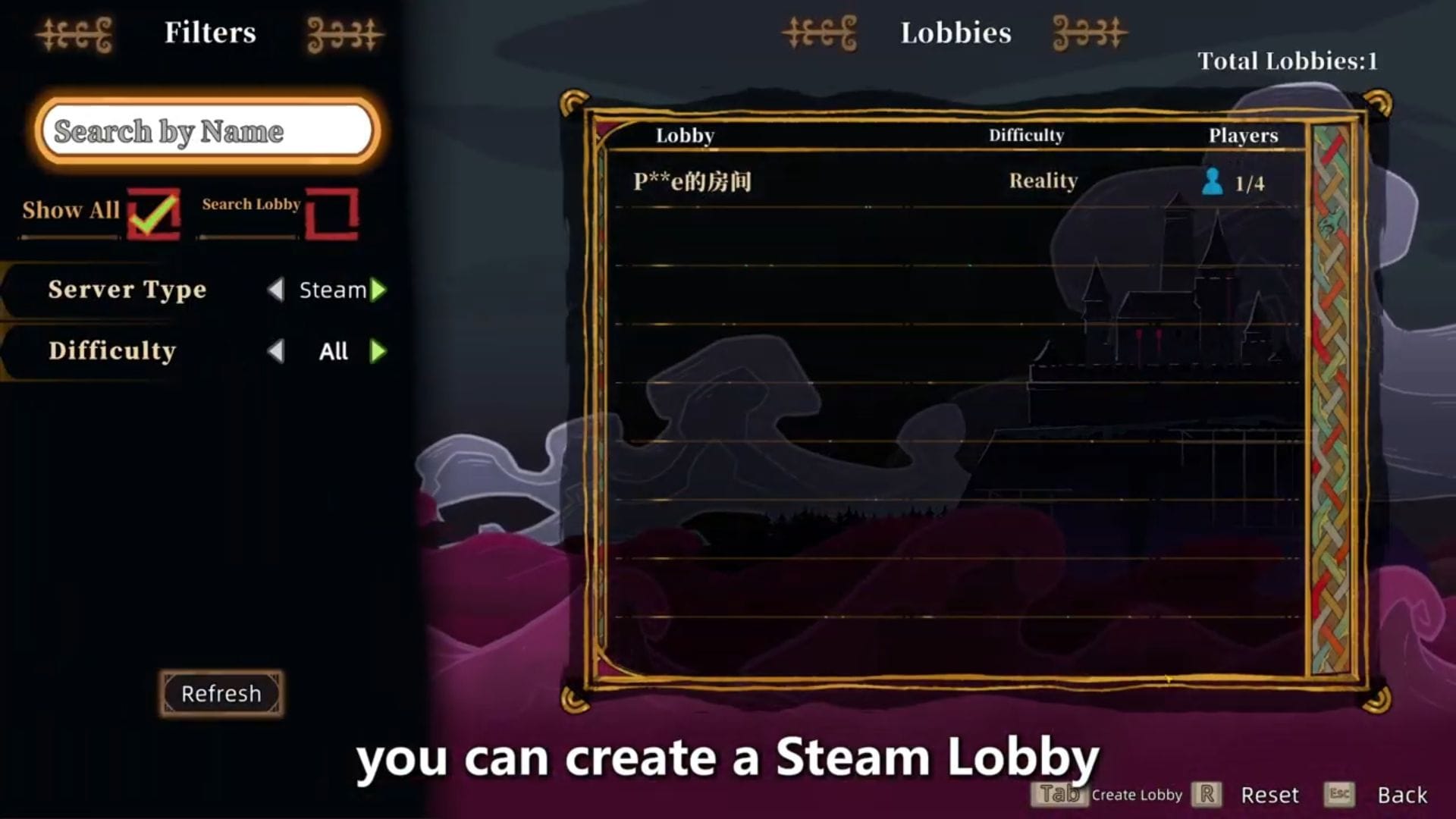
Other players can only join during the camp preparation phase. Once the run begins, no one else can drop in, so confirm that everyone is present before you start.
Co-op mechanics: item sharing, reviving, and damage tracking
Co-op changes how a run plays out compared to going solo. You can pass gear to teammates, pull downed players back into the fight, and watch how everyone stacks up on damage during the session.
| Mechanic | How it works |
|---|---|
| Item sharing | Drop weapons, relics, and weapon parts on the ground with E, then press F to share the dropped item with a teammate. |
| Reviving | A downed player keeps crawling and can call for help. A teammate revives them by holding E. The run only ends when every player is down at once. |
| Damage panel | A stats panel shows total run damage and single-stage damage. The top DPS player’s ID is highlighted in gold. |
The revive rule is the biggest shift from single player. On your own, the run ends the instant your character goes down. In co-op, a single knockout is recoverable as long as at least one teammate is still standing to pull you up.
If friends cannot join your run
The most common reason a friend cannot get in is timing. Joining is only allowed during the camp preparation phase, so if the run has already started, the session is closed to new players. Return to the lobby stage and have everyone connect before you launch.
When friends are joining a Private lobby, make sure they enter the exact code the host’s session generated. For a Public lobby, no code is needed, and any online player can join directly up to the limit you set.
You will know co-op is working when your friends appear in the lobby during camp preparation and the shared mechanics become available in the run, such as the drop-and-share prompts and the damage panel showing more than one player’s ID.