

Switching off the login password in Windows 11 allows for immediate access to your desktop at startup, speeding up the boot-to-usage process and reducing friction for users who don’t need strict security on their device. This is especially useful for shared computers in trusted environments, or for users who want to automate tasks at boot without manual intervention. Below are the most effective methods to remove or bypass the login password requirement on Windows 11, with clear instructions and important considerations for both local and Microsoft account scenarios.
Remove Login Password for Local Accounts Using Windows Settings
Windows + I on your keyboard. This brings up the main settings panel where all account and sign-in options reside.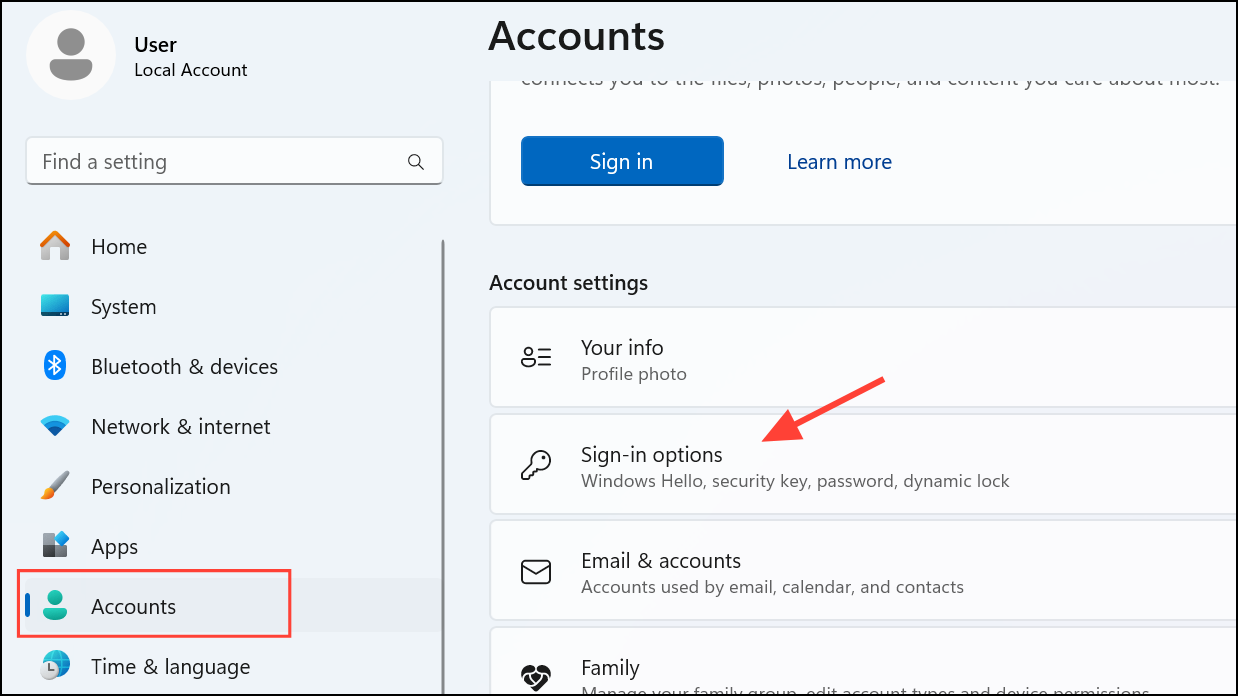
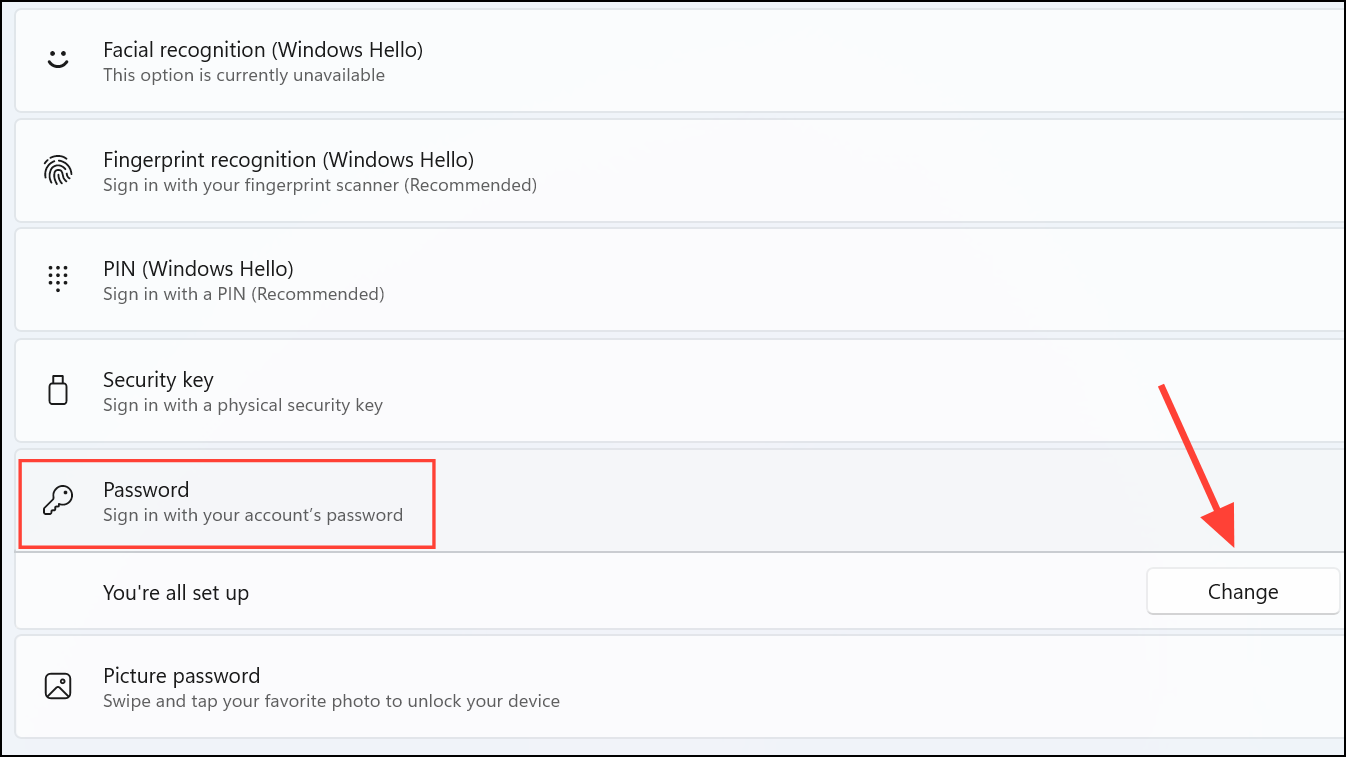
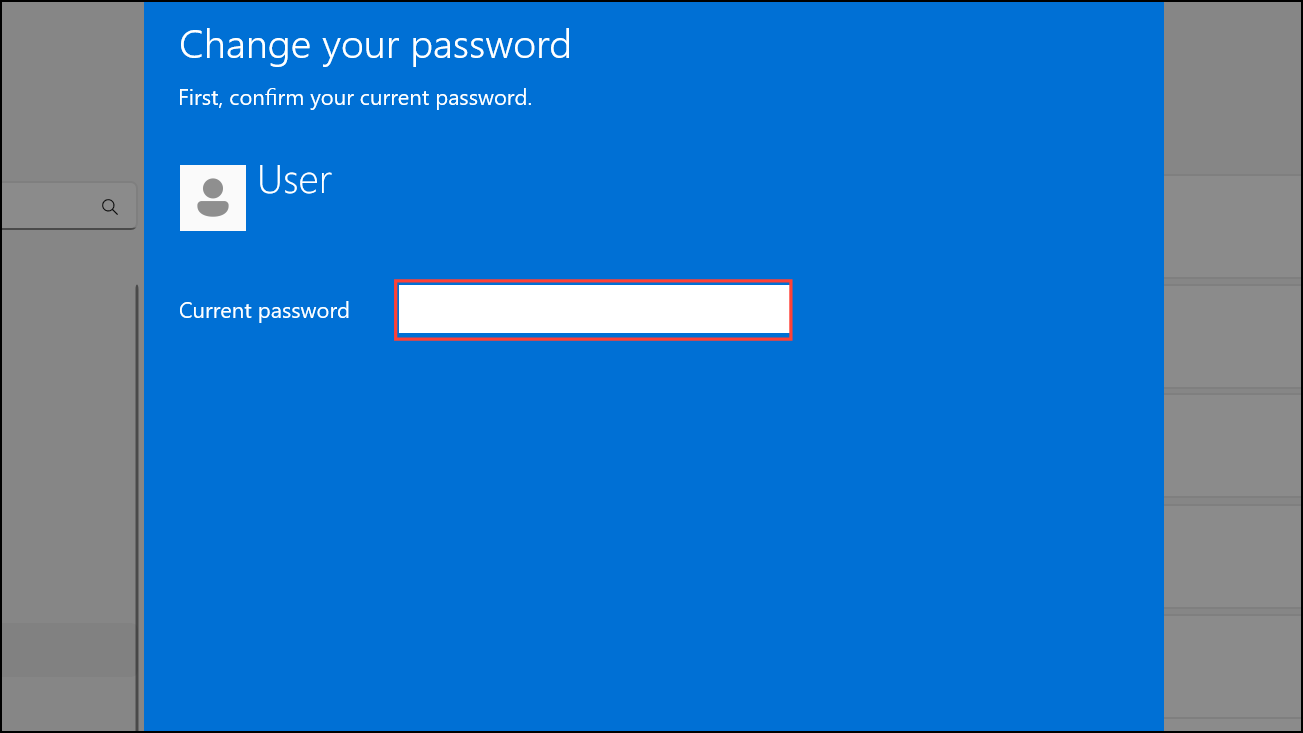
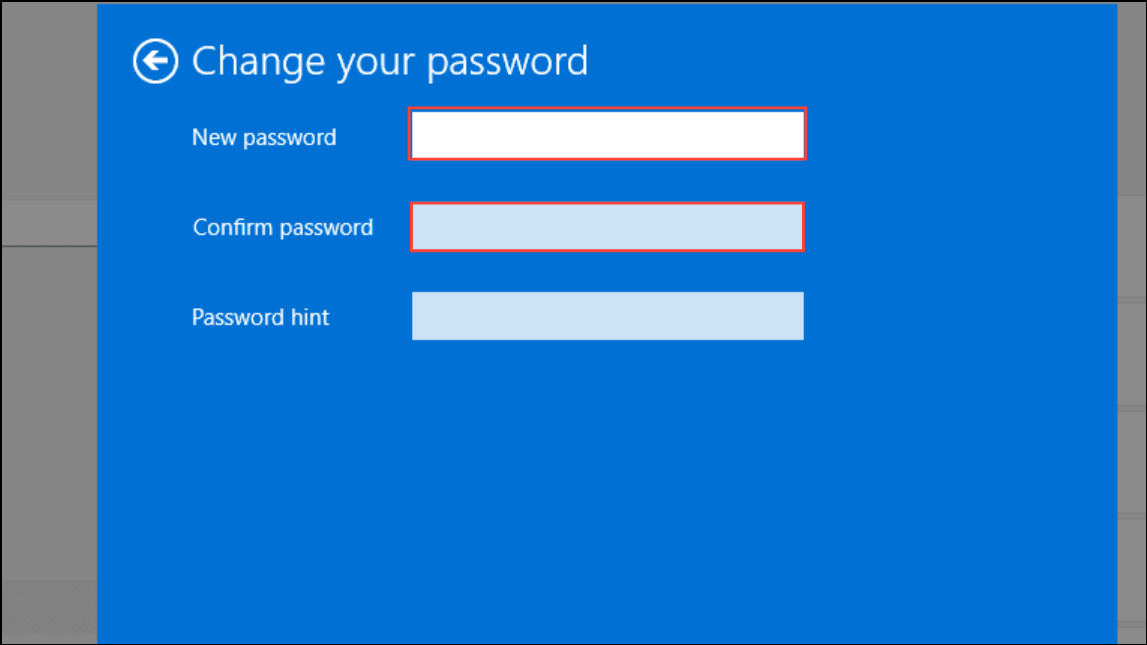
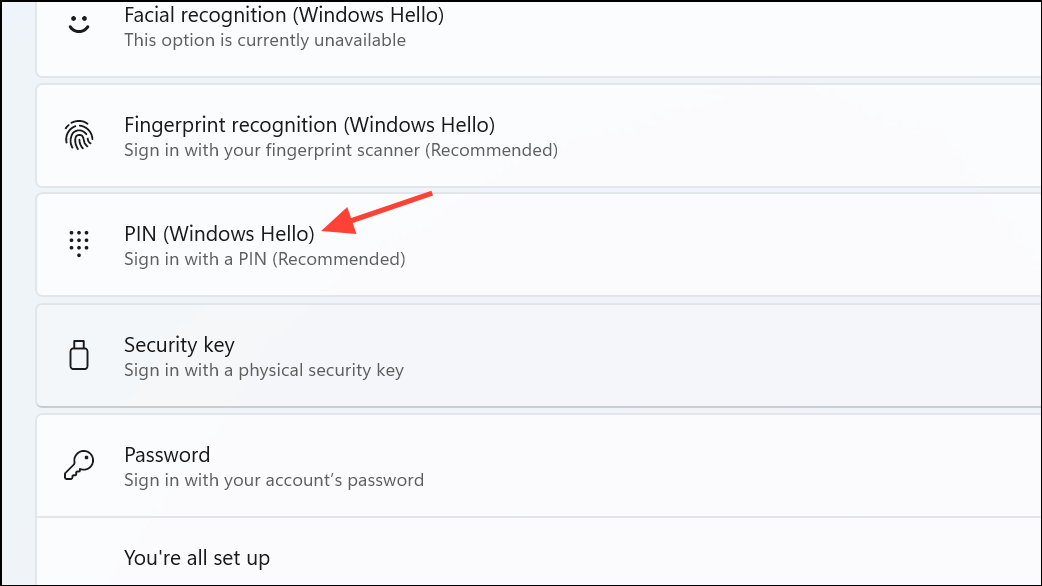
For users who previously set up a PIN, go back to Sign-in options and remove the Windows Hello PIN as well. This ensures full passwordless access at sign-in.
Remove Login Password for Microsoft Accounts by Switching to Local Account
Microsoft accounts are designed to require a password for online security and sync features. To fully remove the login password, you must switch to a local account. This breaks the sync with Microsoft services but allows for a password-free sign-in.
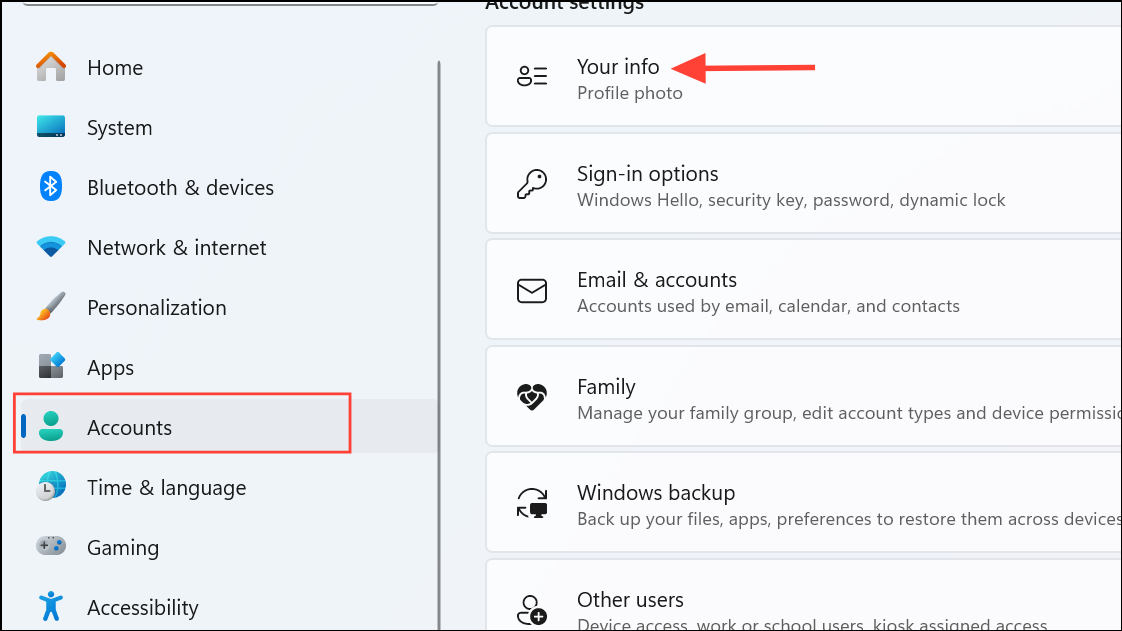
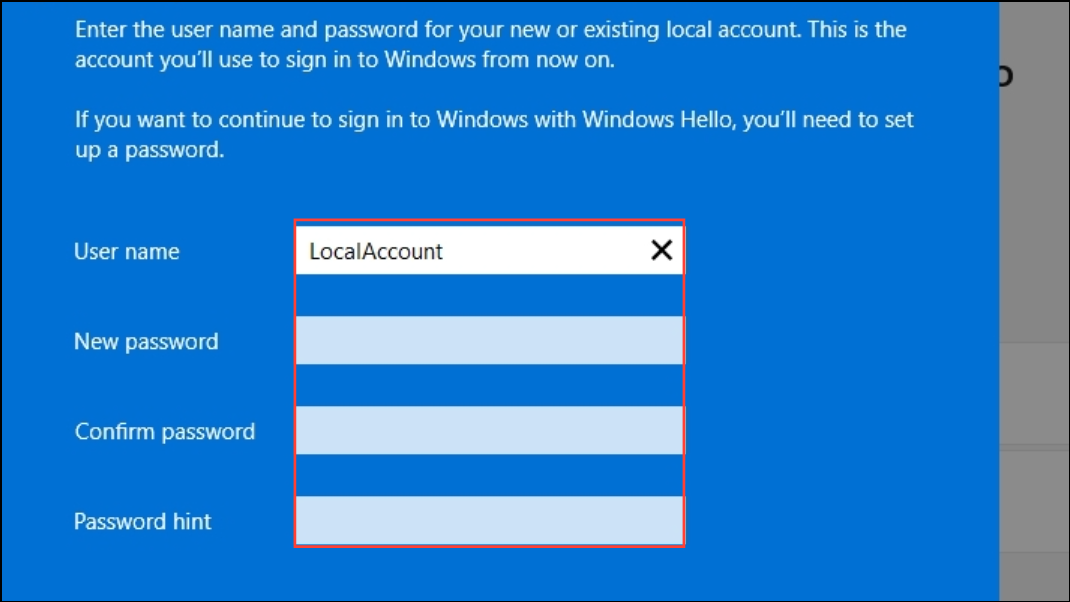
Upon the next login, you’ll be able to access Windows 11 without entering any password or PIN.
Enable Automatic Sign-In Using netplwiz
For users who prefer to keep their Microsoft account linked but want to skip the password prompt at startup, Windows offers an automatic sign-in feature. This method keeps the password set on the account but logs you in automatically.
Windows + R to open the Run dialog, then type netplwiz and press Enter. This opens the User Accounts panel.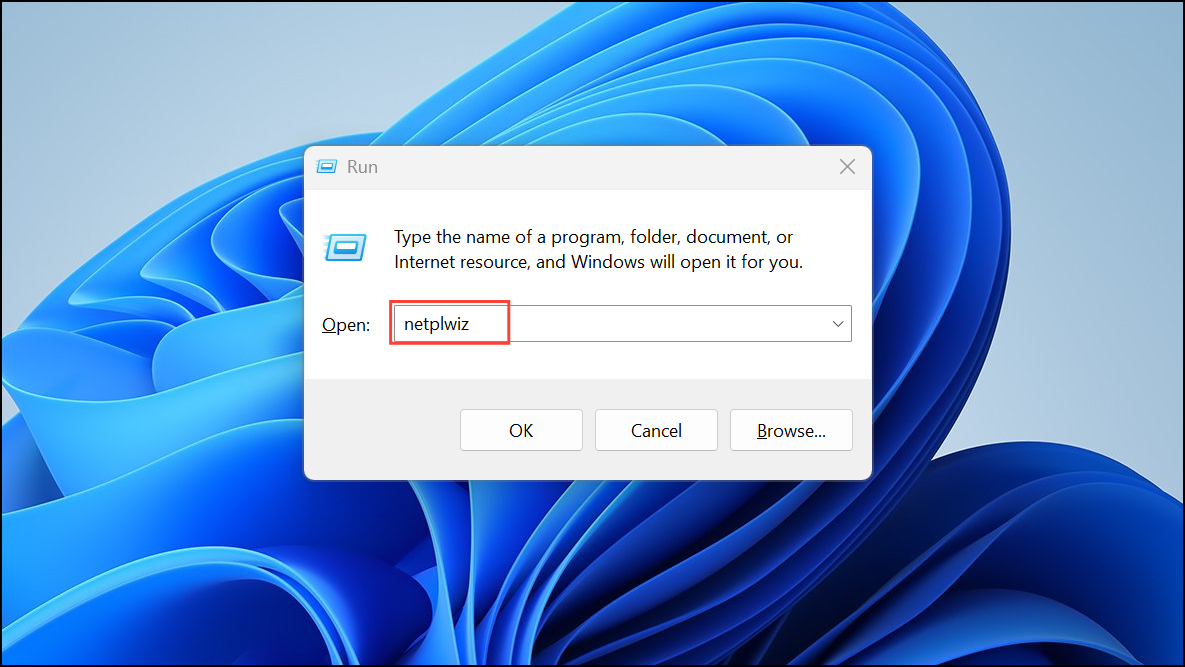
If the option to uncheck the password requirement is missing, open Settings > Accounts > Sign-in options and turn off For improved security, only allow Windows Hello sign-in for Microsoft accounts on this device. This will make the option reappear in netplwiz.
Remove Password Using Windows Terminal
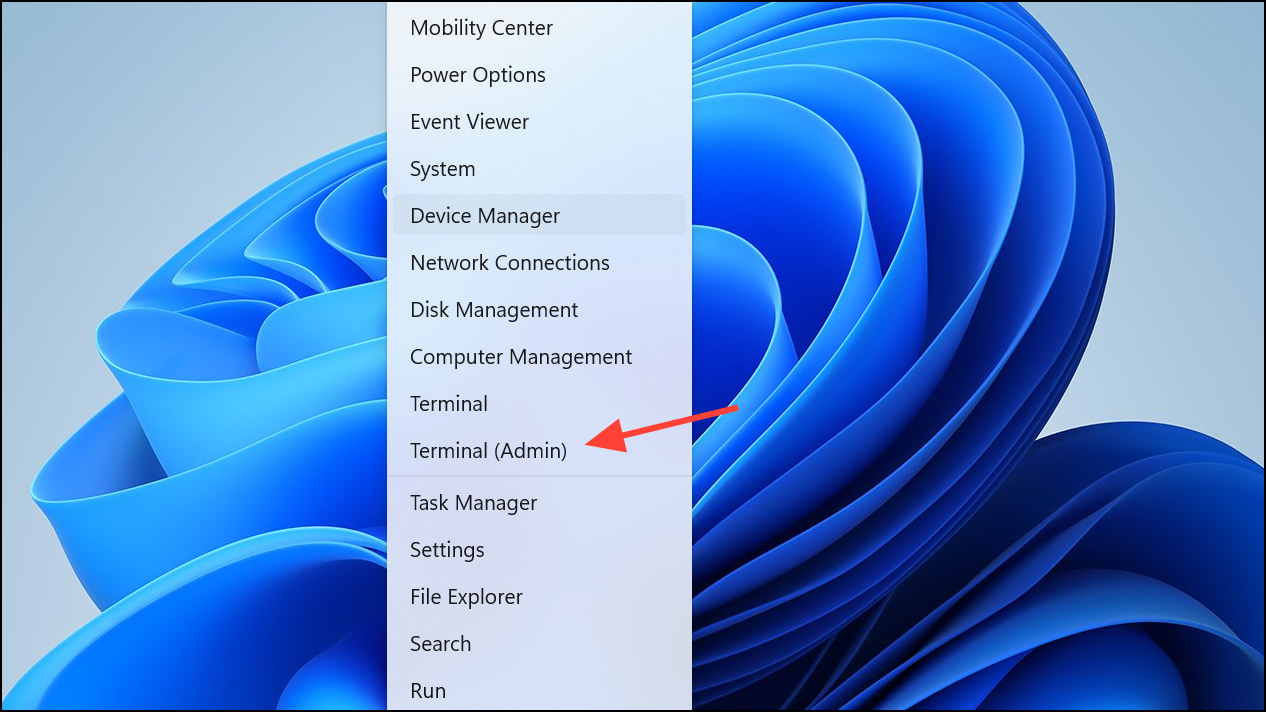
Advanced users can remove the local account password using the command line. This method is direct but requires administrator privileges.
net user "USERNAME" ""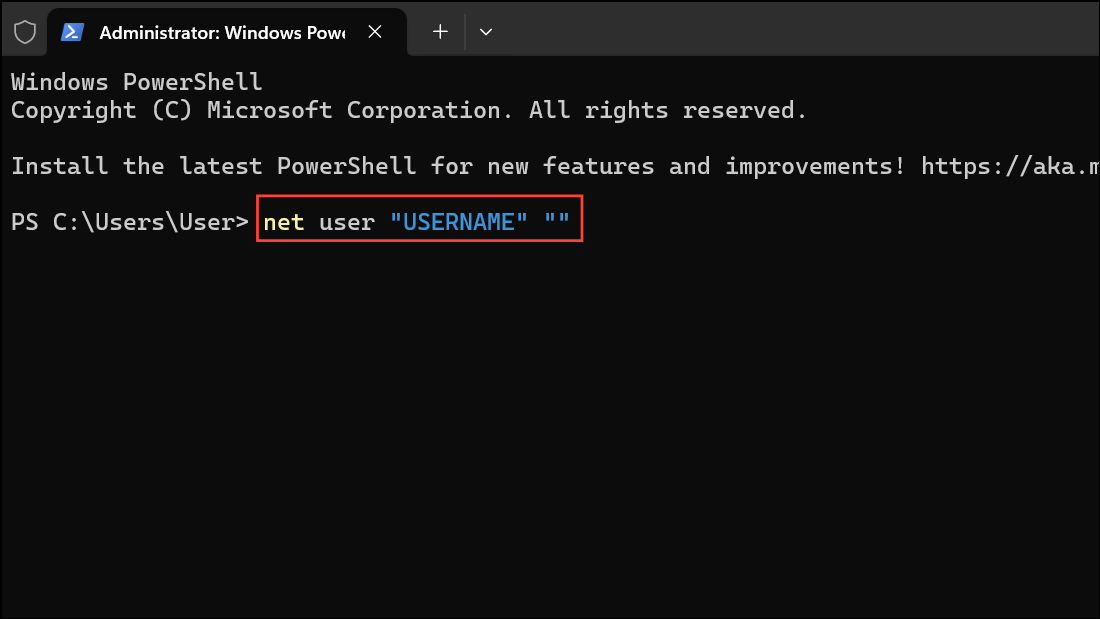
Press Enter to execute. If successful, your local account password will be removed.
Alternative: Registry Editor Method for Automatic Login
This approach configures Windows to log in automatically by storing your credentials in the registry. It is less secure, as the password is stored in plain text, and should only be used in controlled environments.
Windows, type Registry Editor, right-click, and choose Run as administrator. Approve the UAC prompt.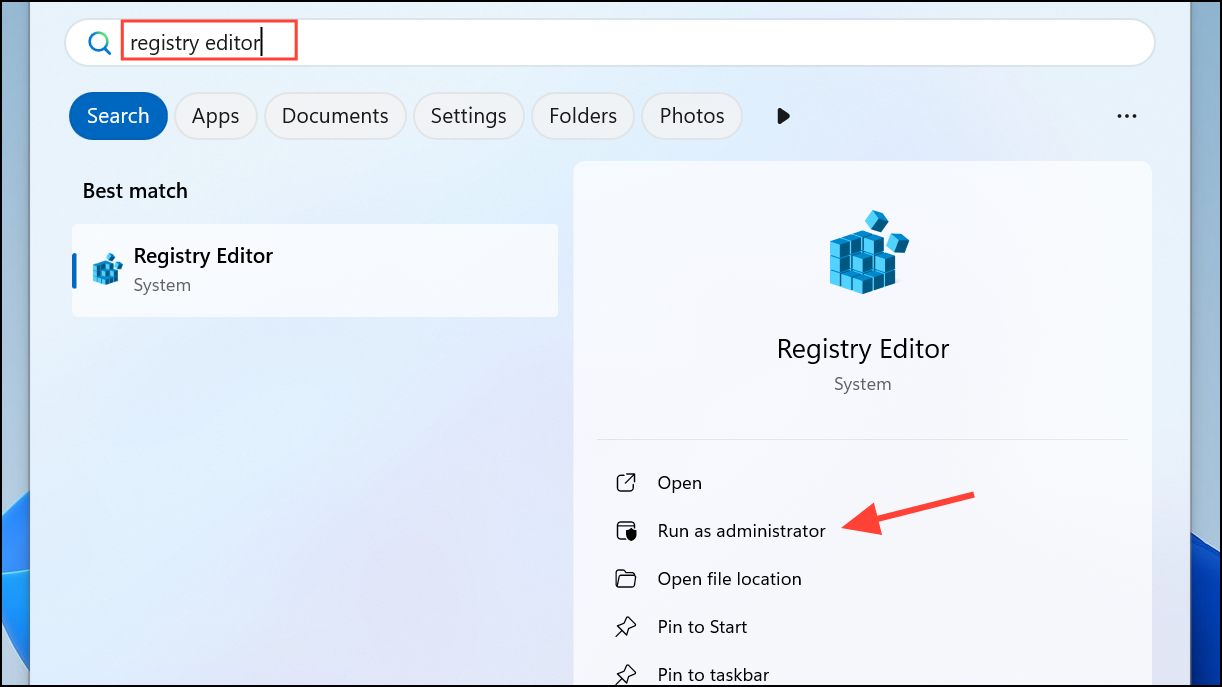
HKEY_LOCAL_MACHINE\SOFTWARE\Microsoft\Windows NT\CurrentVersion\Winlogon using the address bar.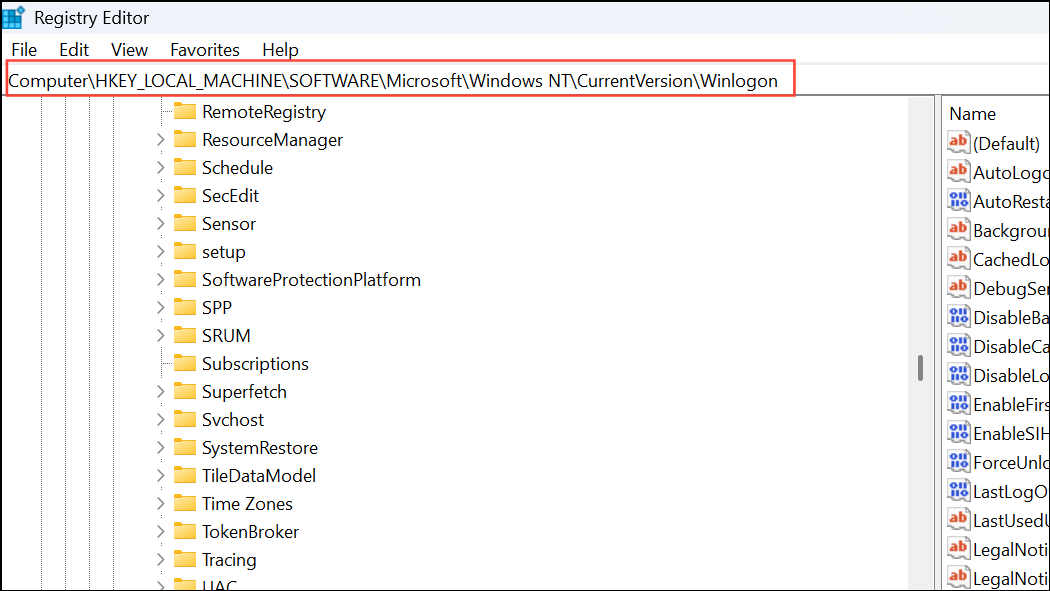
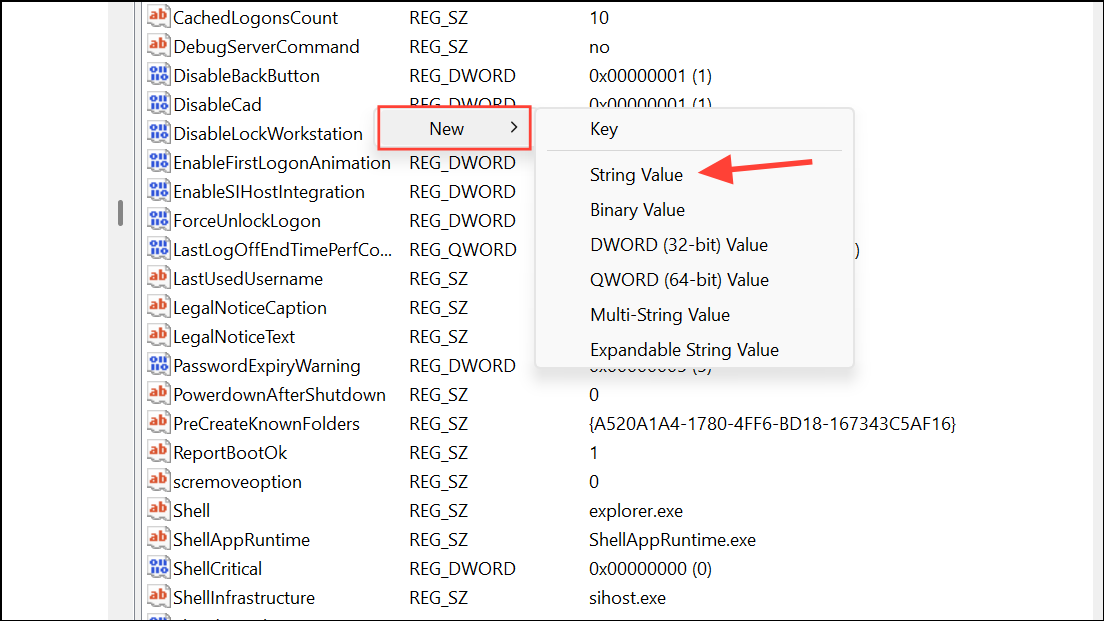
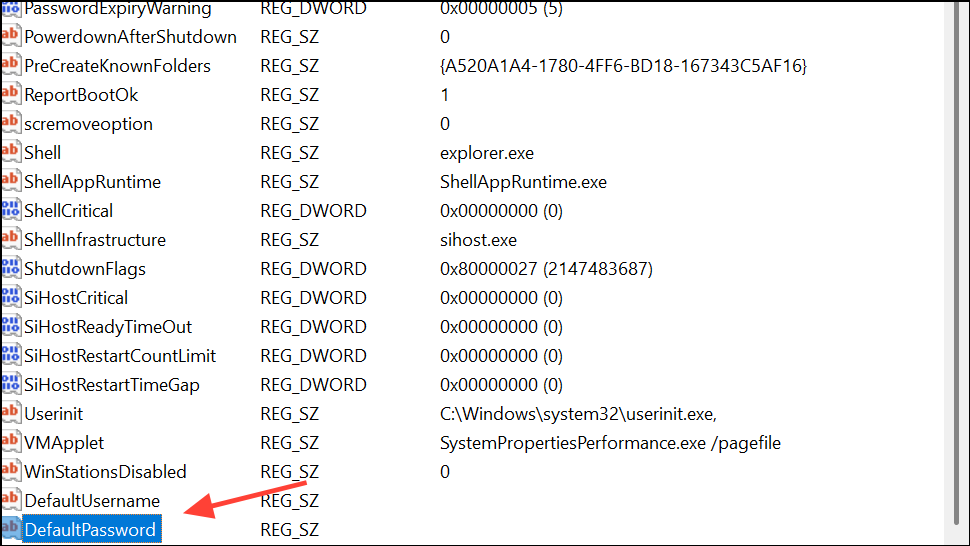
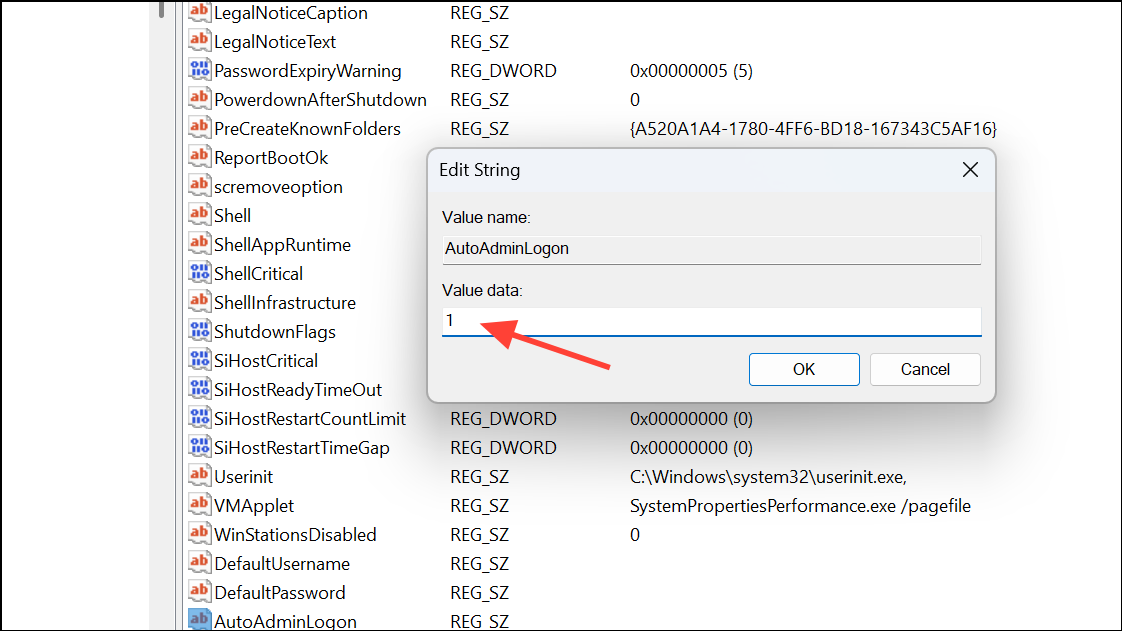
Restart your PC to enable automatic login. Remember, this method exposes your password to anyone with access to the registry.
Cautions and Considerations
Disabling the login password removes a layer of security from your device. Anyone with physical access can start your PC and access your files. Sensitive data stored in browsers or apps may also become accessible without protection. For laptops or devices in public or shared spaces, keep the password enabled to prevent unauthorized access. If you need to leave your PC unattended during the day, use Windows + L to lock the screen manually.
- Switching to a local account disables Microsoft account sync features, such as OneDrive, Microsoft Store, and settings backup.
- Methods that use the registry or command line should be performed with care to avoid system misconfiguration.
- Always back up important data before making significant account changes.
Removing the login password on Windows 11 streamlines access for trusted users and specific scenarios. Always weigh convenience against security before making this change.



