
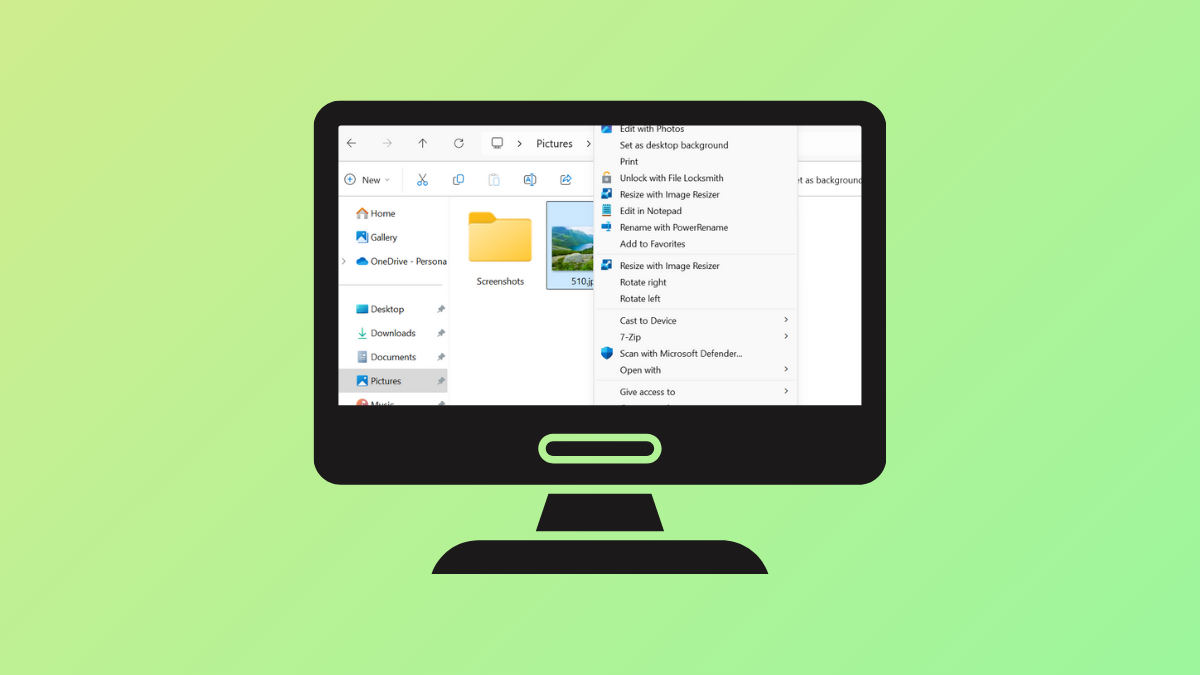
Windows 11 displays Rotate Left and Rotate Right options in the context menu when you right-click on image files. For users who rely on third-party image editors or want a cleaner right-click menu, removing these rotate options can simplify daily workflows and reduce accidental clicks. The most direct way to achieve this involves editing the Windows Registry, either manually or with a prepared registry script.
Remove Rotate Left and Rotate Right Using Registry Editor
Windows Key + R, typing regedit, and pressing Enter. Approve any User Account Control prompts to continue.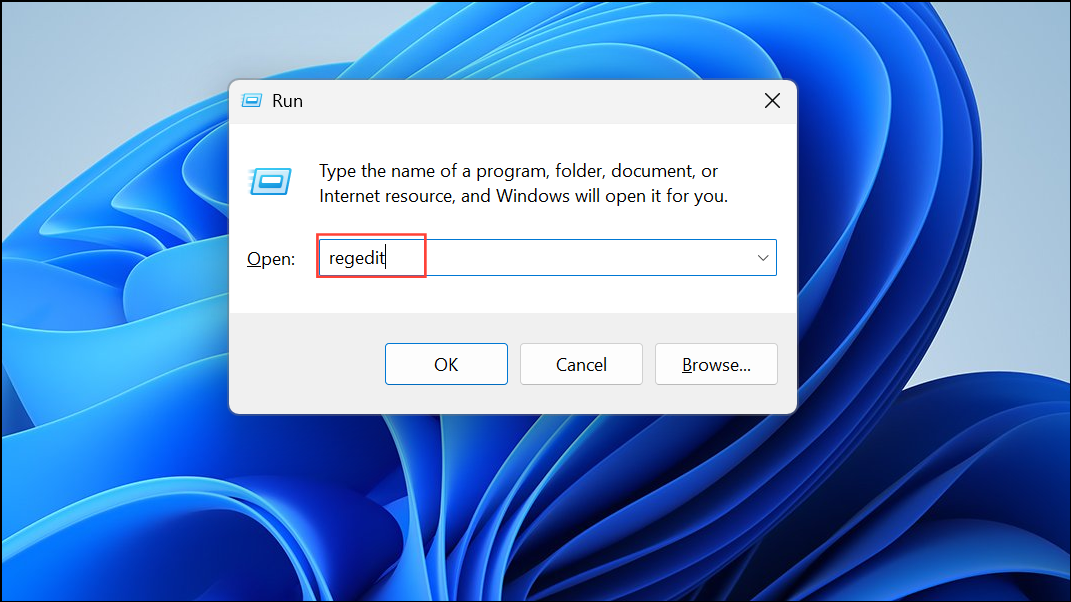
HKEY_CLASSES_ROOT\SystemFileAssociations\.jpg\ShellEx\ContextMenuHandlers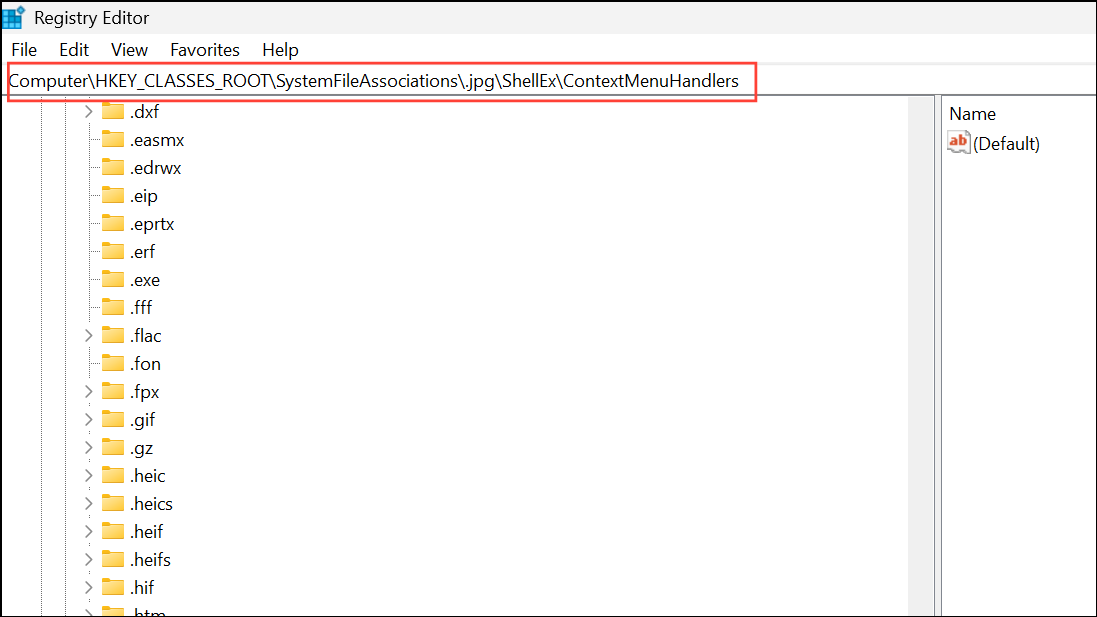
ShellImagePreview subkey under ContextMenuHandlers. This subkey controls the rotate context menu items for that image type.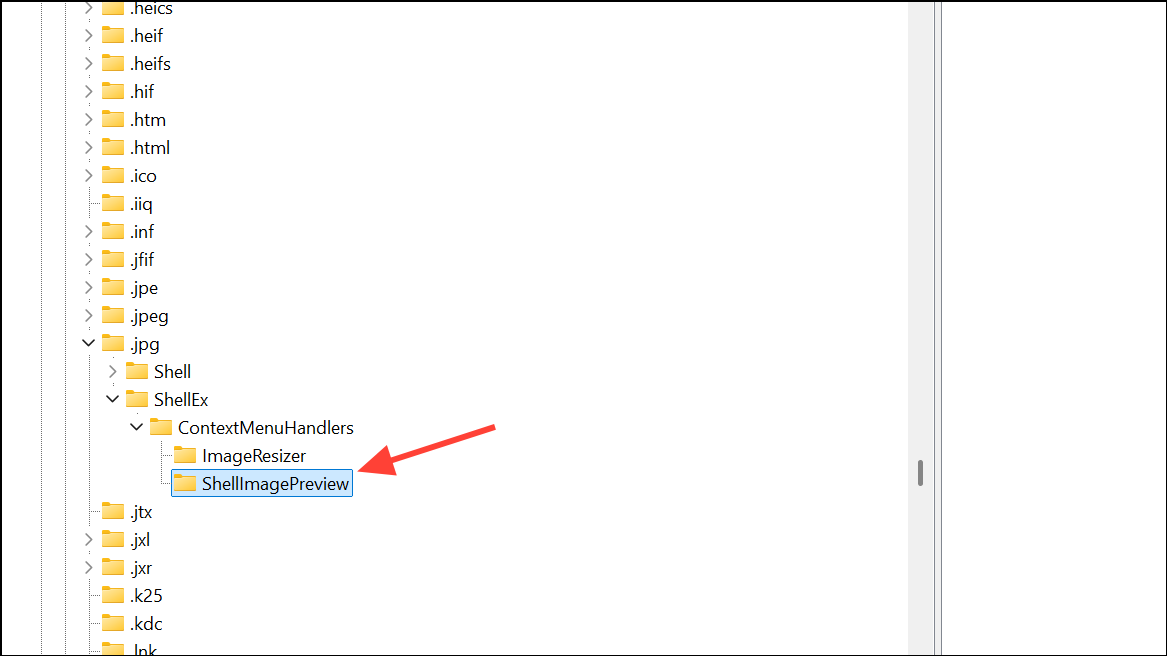
ShellImagePreview subkey and select Delete. Confirm the deletion when prompted. This action removes the rotate options for that specific image format.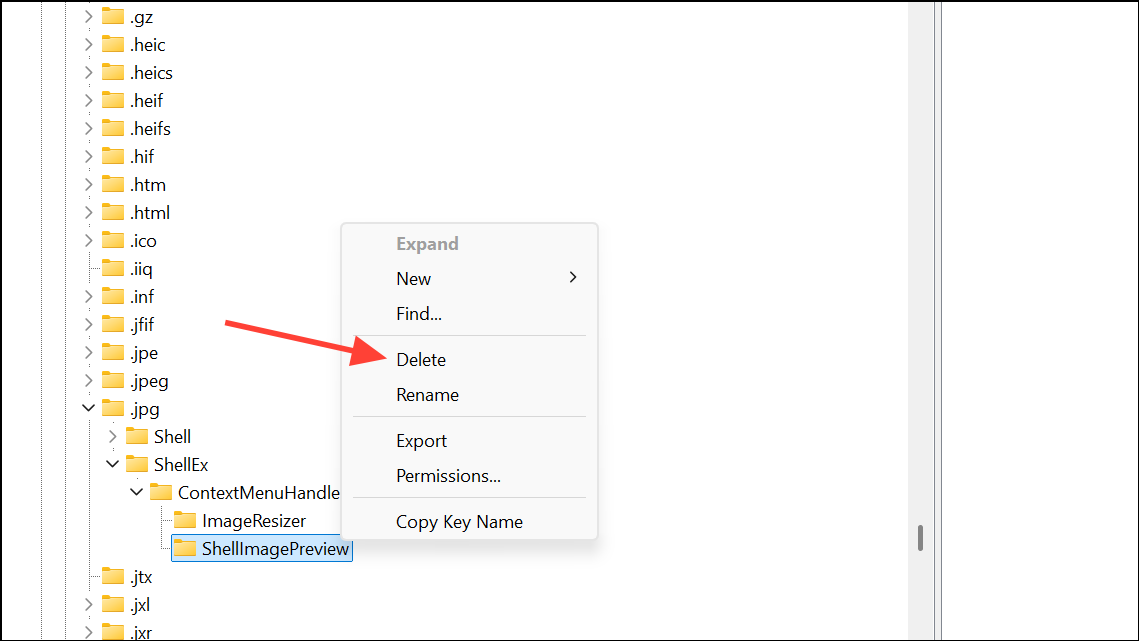
.bmp, .png, .gif, .tiff, .heic, and others. Navigate to each key and remove the ShellImagePreview subkey as needed.This approach gives you granular control, allowing you to keep the rotate options for certain file types while removing them for others.
Remove Rotate Options for Multiple Image Types Using a Registry Script
For those who want to remove the rotate options for several image file types at once, creating and running a registry script streamlines the process.
Windows Registry Editor Version 5.00

[-HKEY_CLASSES_ROOT\SystemFileAssociations\.bmp\ShellEx\ContextMenuHandlers\ShellImagePreview]
[-HKEY_CLASSES_ROOT\SystemFileAssociations\.dib\ShellEx\ContextMenuHandlers\ShellImagePreview]
[-HKEY_CLASSES_ROOT\SystemFileAssociations\.gif\ShellEx\ContextMenuHandlers\ShellImagePreview]
[-HKEY_CLASSES_ROOT\SystemFileAssociations\.heic\ShellEx\ContextMenuHandlers\ShellImagePreview]
[-HKEY_CLASSES_ROOT\SystemFileAssociations\.heif\ShellEx\ContextMenuHandlers\ShellImagePreview]
[-HKEY_CLASSES_ROOT\SystemFileAssociations\.ico\ShellEx\ContextMenuHandlers\ShellImagePreview]
[-HKEY_CLASSES_ROOT\SystemFileAssociations\.jfif\ShellEx\ContextMenuHandlers\ShellImagePreview]
[-HKEY_CLASSES_ROOT\SystemFileAssociations\.jpe\ShellEx\ContextMenuHandlers\ShellImagePreview]
[-HKEY_CLASSES_ROOT\SystemFileAssociations\.jpeg\ShellEx\ContextMenuHandlers\ShellImagePreview]
[-HKEY_CLASSES_ROOT\SystemFileAssociations\.jpg\ShellEx\ContextMenuHandlers\ShellImagePreview]
[-HKEY_CLASSES_ROOT\SystemFileAssociations\.jxr\ShellEx\ContextMenuHandlers\ShellImagePreview]
[-HKEY_CLASSES_ROOT\SystemFileAssociations\.png\ShellEx\ContextMenuHandlers\ShellImagePreview]
[-HKEY_CLASSES_ROOT\SystemFileAssociations\.rle\ShellEx\ContextMenuHandlers\ShellImagePreview]
[-HKEY_CLASSES_ROOT\SystemFileAssociations\.tif\ShellEx\ContextMenuHandlers\ShellImagePreview]
[-HKEY_CLASSES_ROOT\SystemFileAssociations\.tiff\ShellEx\ContextMenuHandlers\ShellImagePreview]
[-HKEY_CLASSES_ROOT\SystemFileAssociations\.wdp\ShellEx\ContextMenuHandlers\ShellImagePreview]
[-HKEY_CLASSES_ROOT\SystemFileAssociations\.webp\ShellEx\ContextMenuHandlers\ShellImagePreview]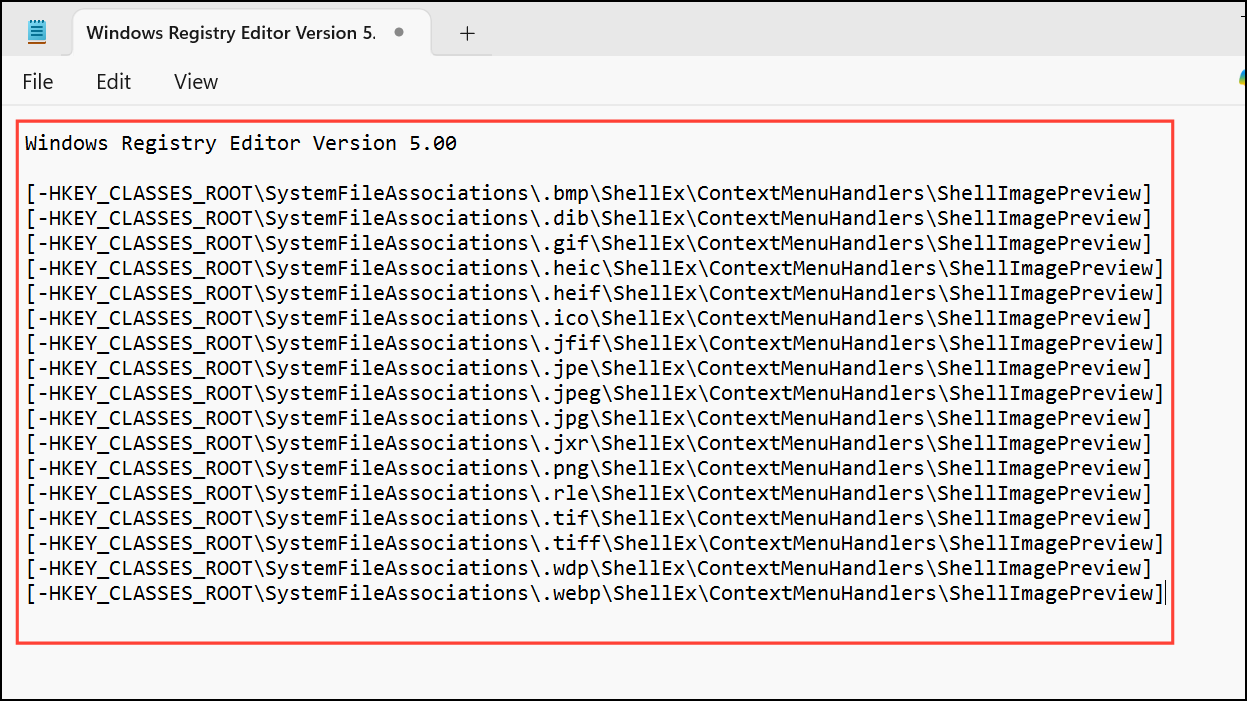
.reg extension, such as remove_rotate_options.reg. In the Save dialog, ensure Save as type is set to All Files so the extension is correct.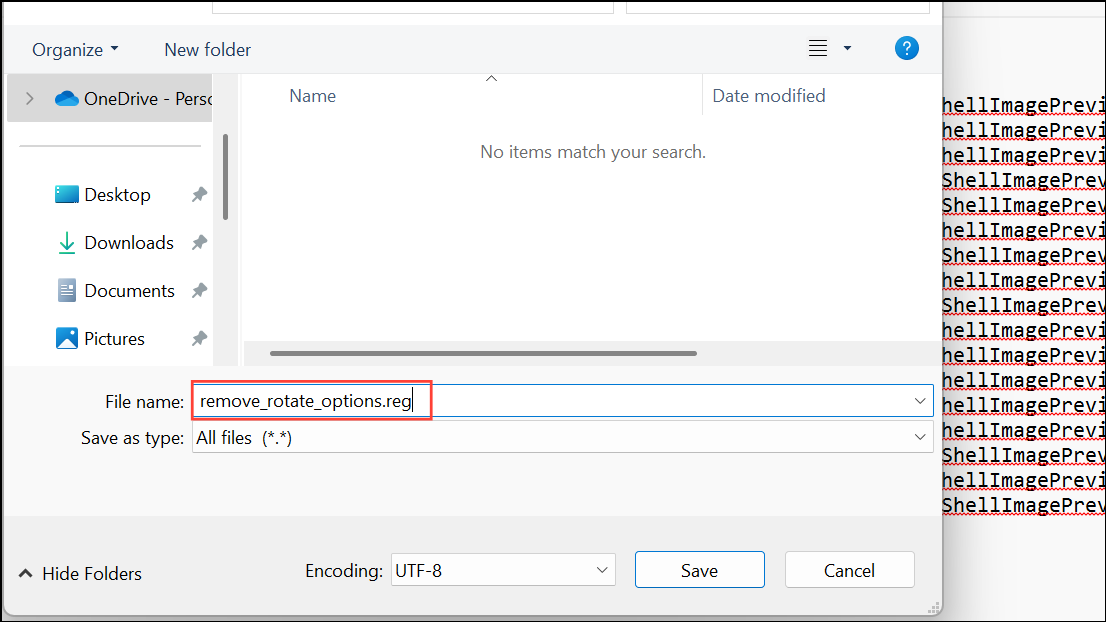
.reg file you just created. Approve any User Account Control and Registry Editor prompts to apply the changes.This method is efficient for removing the rotate options across multiple formats in one action. You can edit the script to exclude any file types you want to keep unchanged by deleting their respective lines.
Restore Rotate Left and Rotate Right to the Context Menu
If you later decide to bring back the rotate options, you can do so by reversing the registry changes. Either manually create the ShellImagePreview subkey for each file type and assign it the value {FFE2A43C-56B9-4bf5-9A79-CC6D4285608A}, or use a registry script like the following:
Windows Registry Editor Version 5.00

[HKEY_CLASSES_ROOT\SystemFileAssociations\.jpg\ShellEx\ContextMenuHandlers\ShellImagePreview]
@="{FFE2A43C-56B9-4bf5-9A79-CC6D4285608A}"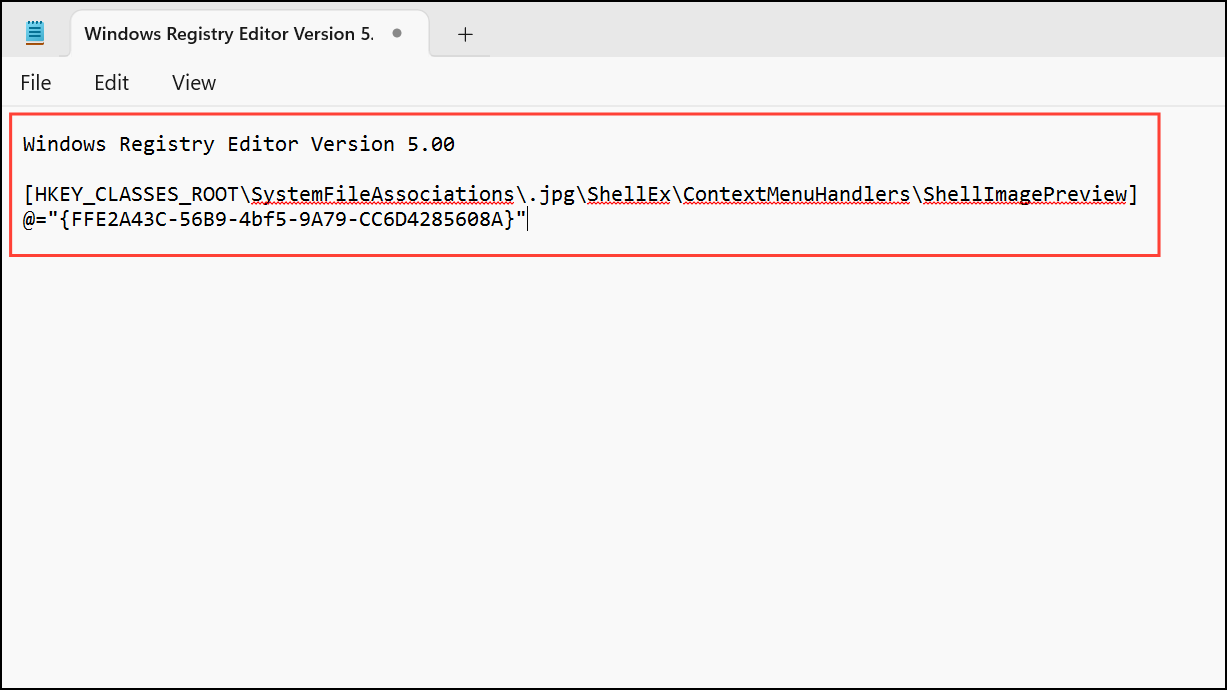
Repeat or expand this block for each image extension as needed. Save and run the script as described above.
Alternative: Use Third-Party Context Menu Editors
Some users prefer graphical tools for editing context menus. Utilities like ShellExView or other context menu editors allow you to disable or remove context menu items without directly editing the registry. However, for the specific rotate options, manual registry editing remains the most reliable approach, as these tools may not expose every shell extension tied to image file types.
Removing the Rotate Left and Rotate Right options from the Windows 11 context menu gives you a tidier right-click experience and helps avoid accidental image changes. If you ever want to restore these options, the process is fully reversible with a quick registry edit or script.



