

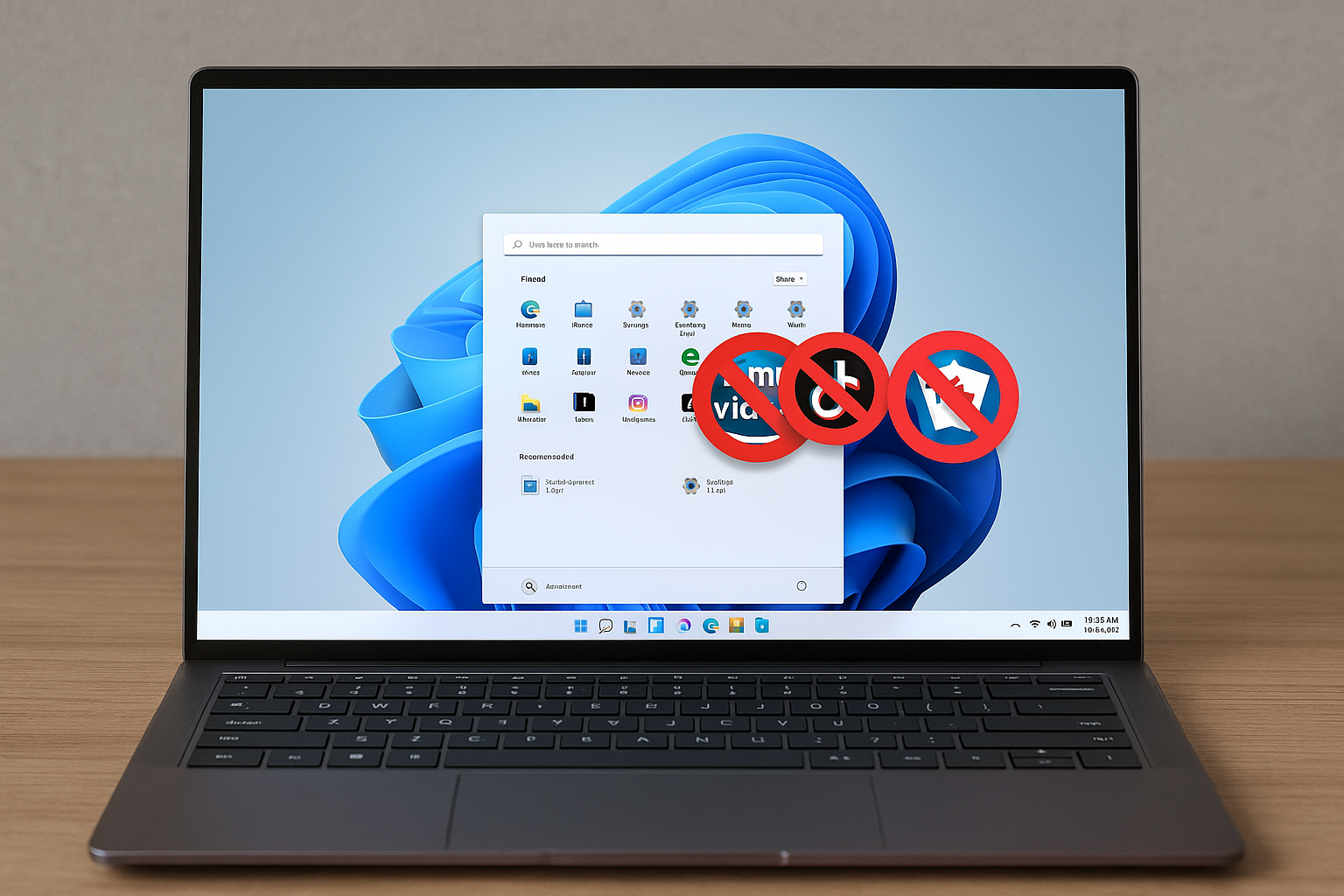
Enable the “Remove Default Microsoft Store packages from the system” setting to stop Windows 11 from installing bundled Store apps when new user profiles are created. This policy is built into 24H2 and 25H2 and removes selected Microsoft Store inbox apps at first sign-in for new accounts. It does not touch existing profiles and does not remove third‑party OEM software.
What this policy does and what to expect
- Scope: Applies when a new user profile is created. Existing users are unaffected.
- Coverage: Targets Microsoft’s built‑in Store apps. It does not remove OEM/promotional software shipped by PC vendors.
- Editions: Group Policy is available on Windows 11 Pro, Enterprise, and Education. Windows 11 Home can use the Registry method (results may vary).
- Timing: Removal runs at first sign‑in for a new user. Some removed apps may leave Start menu shortcuts until the user signs out and back in.
- Diagnostics: App removal is logged under the Microsoft‑Windows‑AppXDeploymentServer Operational log (e.g., summary Event ID 327; failures may show as 698).
Method 1 — Configure Group Policy (recommended for Pro/Enterprise/Education)
Computer Configuration > Administrative Templates > Windows Components > App Package Deployment.Method 2 — Configure the Registry (works on Pro, may work on Home)
Warning: Editing the registry can cause system issues if done incorrectly. Back up the registry or take a system backup first.
RemoveDefaultMicrosoftStorePackages named exactly as the app’s package family name (examples below).Common package family names you can target:
Microsoft.WindowsFeedbackHub_8wekyb3d8bbwe.Microsoft.Copilot_8wekyb3d8bbwe.Clipchamp.Clipchamp_yxz26nhyzhsrt.Microsoft.BingNews_8wekyb3d8bbwe.Microsoft.Windows.Photos_8wekyb3d8bbwe.Microsoft.MicrosoftSolitaireCollection_8wekyb3d8bbwe.Microsoft.MicrosoftStickyNotes_8wekyb3d8bbwe.MSTeams_8wekyb3d8bbwe.Microsoft.Todos_8wekyb3d8bbwe.Microsoft.BingWeather_8wekyb3d8bbwe.Microsoft.OutlookForWindows_8wekyb3d8bbwe.Microsoft.Paint_8wekyb3d8bbwe.MicrosoftCorporationII.QuickAssist_8wekyb3d8bbwe.Microsoft.ScreenSketch_8wekyb3d8bbwe(Snipping Tool).Microsoft.WindowsCalculator_8wekyb3d8bbwe.Microsoft.WindowsCamera_8wekyb3d8bbwe.Microsoft.ZuneMusic_8wekyb3d8bbwe(Media Player).Microsoft.WindowsNotepad_8wekyb3d8bbwe.Microsoft.WindowsSoundRecorder_8wekyb3d8bbwe.Microsoft.WindowsTerminal_8wekyb3d8bbwe.Microsoft.GamingApp_8wekyb3d8bbwe(Xbox).Microsoft.Xbox.TCUI_8wekyb3d8bbwe.Microsoft.XboxIdentityProvider_8wekyb3d8bbwe.Microsoft.XboxSpeechToTextOverlay_8wekyb3d8bbwe.
Optional — Deploy via Intune/MDM using Policy CSP
Organizations can deploy this setting at scale via the Policy CSP under the ApplicationManagement node. Use a device configuration profile (custom OMA‑URI) to set ./Device/Vendor/MSFT/Policy/Config/ApplicationManagement/RemoveDefaultMicrosoftStorePackages. See Microsoft’s Policy CSP reference for details on ApplicationManagement nodes: Policy CSP – ApplicationManagement.
Clean up Start menu “stubs” (optional)
After removal, some Start menu entries may remain as non‑functional shortcuts until a user logoff/login. You can proactively reduce these “ghost” entries with a cloud content policy and a one‑time Start menu reset for the current user.
Computer Configuration > Administrative Templates > Windows Components > Cloud Content and enable “Turn off cloud optimized content.”C:\Users\<user>\AppData\Local\Packages\Microsoft.Windows.StartMenuExperienceHost_cw5n1h2txyewy\LocalState. Restart or sign out and back in.Example: one‑time batch script to configure Registry removal
Run elevated. Edit the list to suit your environment.
@echo off
:: Enable policy base key
reg add "HKLM\SOFTWARE\Policies\Microsoft\Windows\Appx\RemoveDefaultMicrosoftStorePackages" /v Enabled /t REG_DWORD /d 1 /f

:: Add apps to remove for new users (package family names)
for %%A in (
"Clipchamp.Clipchamp_yxz26nhyzhsrt"
"Microsoft.BingNews_8wekyb3d8bbwe"
"Microsoft.BingWeather_8wekyb3d8bbwe"
"Microsoft.Copilot_8wekyb3d8bbwe"
"Microsoft.GamingApp_8wekyb3d8bbwe"
"Microsoft.MicrosoftOfficeHub_8wekyb3d8bbwe"
"Microsoft.MicrosoftSolitaireCollection_8wekyb3d8bbwe"
"Microsoft.MicrosoftStickyNotes_8wekyb3d8bbwe"
"Microsoft.OutlookForWindows_8wekyb3d8bbwe"
"Microsoft.Paint_8wekyb3d8bbwe"
"Microsoft.ScreenSketch_8wekyb3d8bbwe"
"Microsoft.Todos_8wekyb3d8bbwe"
"Microsoft.Windows.Photos_8wekyb3d8bbwe"
"Microsoft.WindowsCalculator_8wekyb3d8bbwe"
"Microsoft.WindowsCamera_8wekyb3d8bbwe"
"Microsoft.WindowsFeedbackHub_8wekyb3d8bbwe"
"Microsoft.WindowsNotepad_8wekyb3d8bbwe"
"Microsoft.WindowsSoundRecorder_8wekyb3d8bbwe"
"Microsoft.WindowsTerminal_8wekyb3d8bbwe"
"Microsoft.Xbox.TCUI_8wekyb3d8bbwe"
"Microsoft.XboxIdentityProvider_8wekyb3d8bbwe"
"Microsoft.XboxSpeechToTextOverlay_8wekyb3d8bbwe"
"Microsoft.ZuneMusic_8wekyb3d8bbwe"
"MicrosoftCorporationII.QuickAssist_8wekyb3d8bbwe"
"MSTeams_8wekyb3d8bbwe"
) do (
  reg add "HKLM\SOFTWARE\Policies\Microsoft\Windows\Appx\RemoveDefaultMicrosoftStorePackages\%%~A" /v RemovePackage /t REG_DWORD /d 1 /f
)

echo Policy configured. New user profiles will receive app removal on first sign-in.
pause
Limitations and tips
- This feature removes Microsoft inbox apps; it will not uninstall OEM utilities (e.g., Dell/HP tooling). Use deployment scripts,
winget, or ask your vendor for a clean “vanilla” image to address OEM software. - For existing users, consider targeted uninstalls via management tools or migrate users to fresh profiles to receive the policy.
- If removal events fail, review the AppXDeploymentServer Operational log for detailed error codes and confirm package family names are exact.
With Group Policy or the Registry configured ahead of first sign‑in, new Windows 11 profiles start without the selected default apps, cutting first‑login noise and reducing follow‑up cleanup.



