

Seeing the message “We can’t sign in to your account” or “You can’t sign in with this account. Try a different account” in Windows 11 indicates that the system failed to load your user profile, often dropping you into a temporary account where changes are not saved. This issue blocks access to your files, settings, and apps, and can result from profile corruption, failed updates, or credential problems. Recovering your main account and preventing data loss requires a methodical approach, starting with the most effective solutions.
Reset Your Windows PIN or Password
Windows 11 often links sign-in credentials to a PIN or password, especially for Microsoft accounts. When the PIN is out of sync or corrupted, resetting it is the fastest way to restore access.
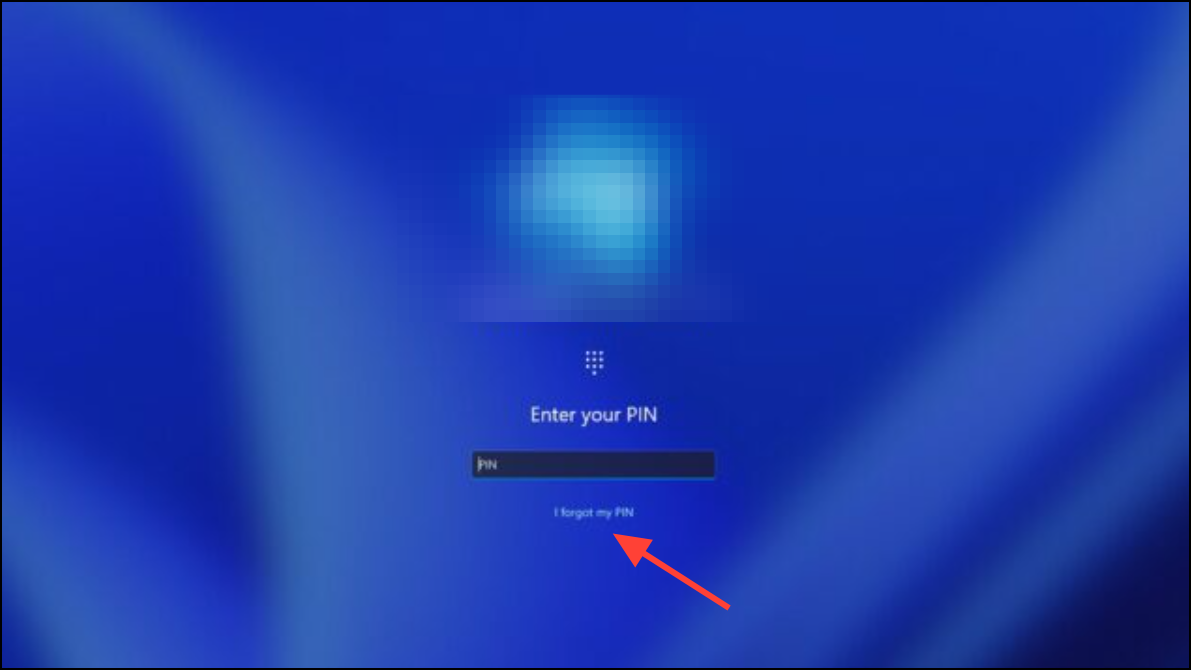
If you use a local account and forgot your password, select the Reset password link and follow the prompts. For domain or organization accounts, contact your IT administrator for credential reset options.
Sign In With Another Administrator Account
Profile errors can sometimes be bypassed by logging into a different administrator account. This method is especially useful if your device is part of a work or school network.
Settings > Accounts > Other users and verify the status of your main account. You can reset passwords, assign admin rights, or create a new account as needed.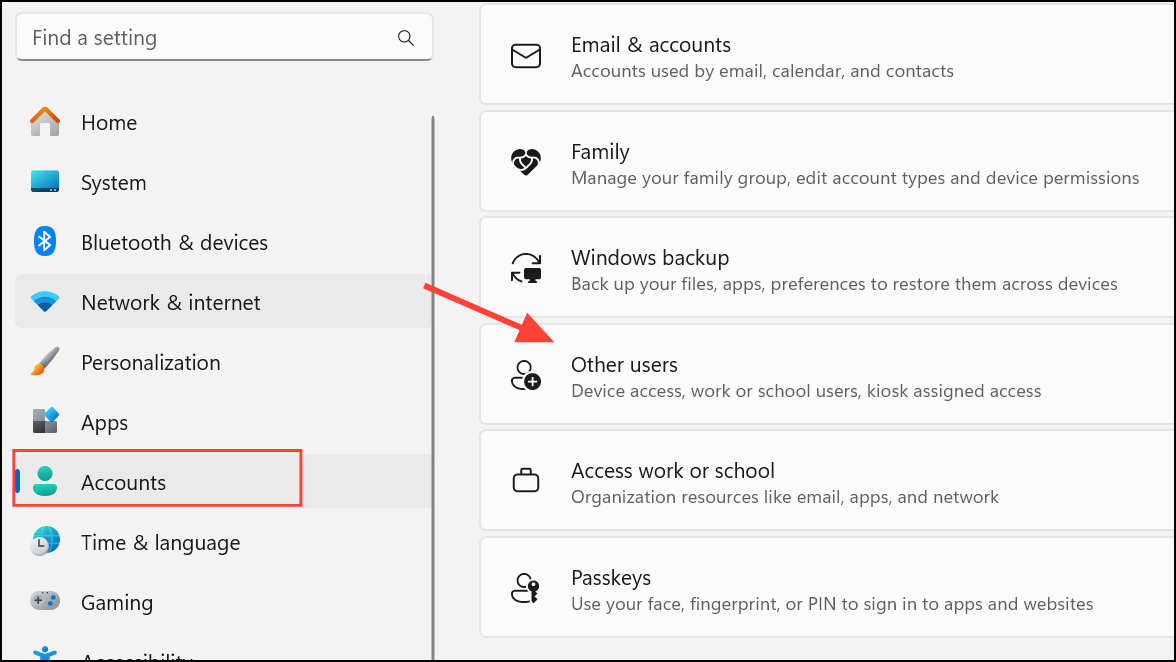
If no other admin account is available, you can enable the hidden Administrator account using Safe Mode and Command Prompt:
Shift while clicking Restart at the sign-in screen. Go to Troubleshoot > Advanced options > Command Prompt.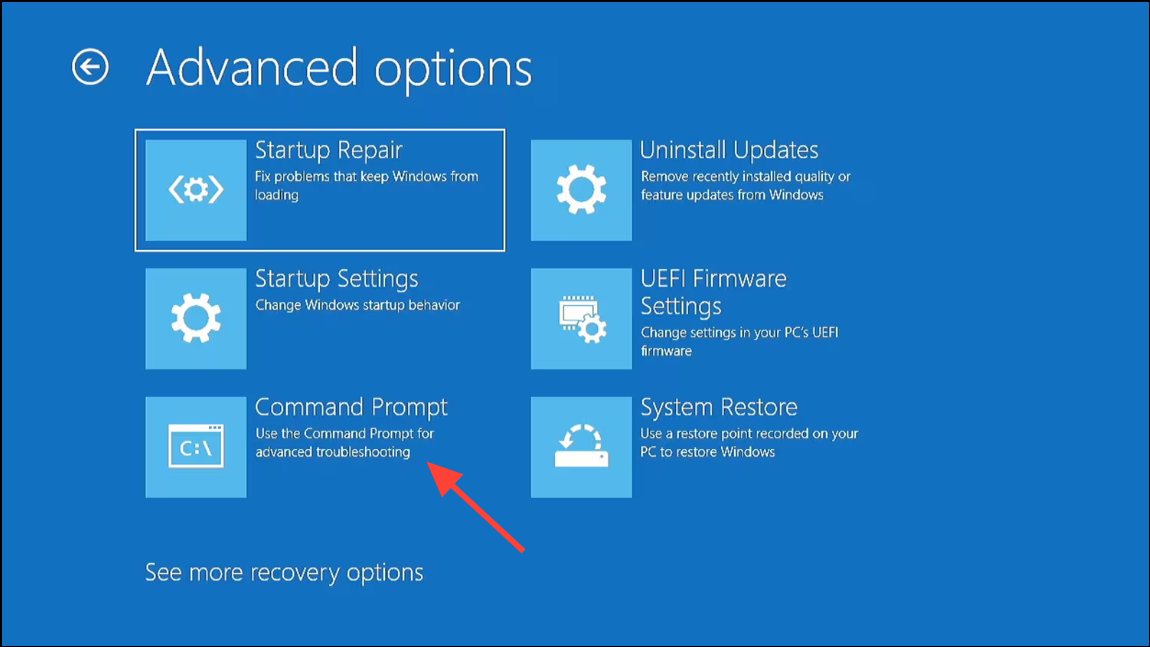
net user administrator /active:yes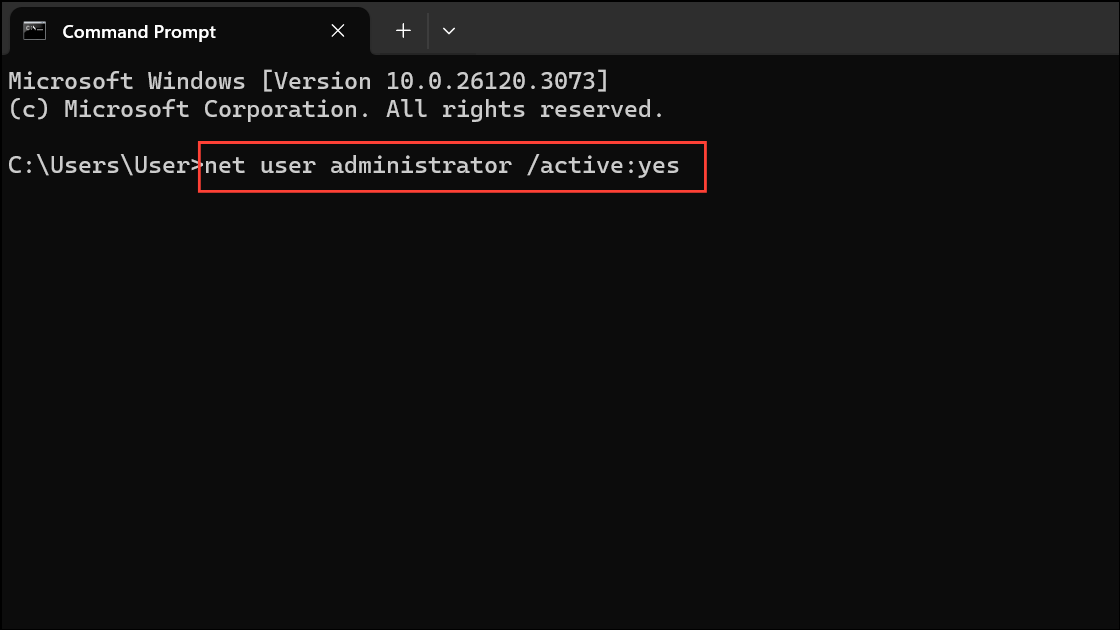
Restart and select the Administrator account at the sign-in screen. Use this account to repair or create user profiles.
Restore Your User Profile Using Registry Editor
Windows may create a temporary profile if it cannot load your main profile due to registry inconsistencies. Carefully modifying the registry can point Windows back to your correct user folder.
Win + R, type regedit, and press Enter to open Registry Editor.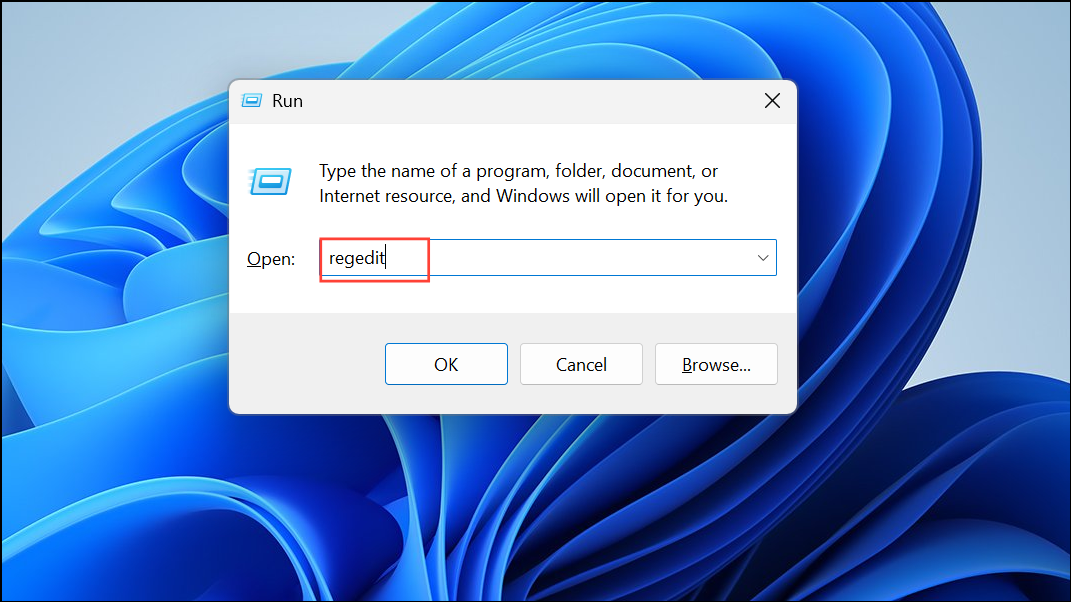
HKEY_LOCAL_MACHINE\SOFTWARE\Microsoft\Windows NT\CurrentVersion\ProfileList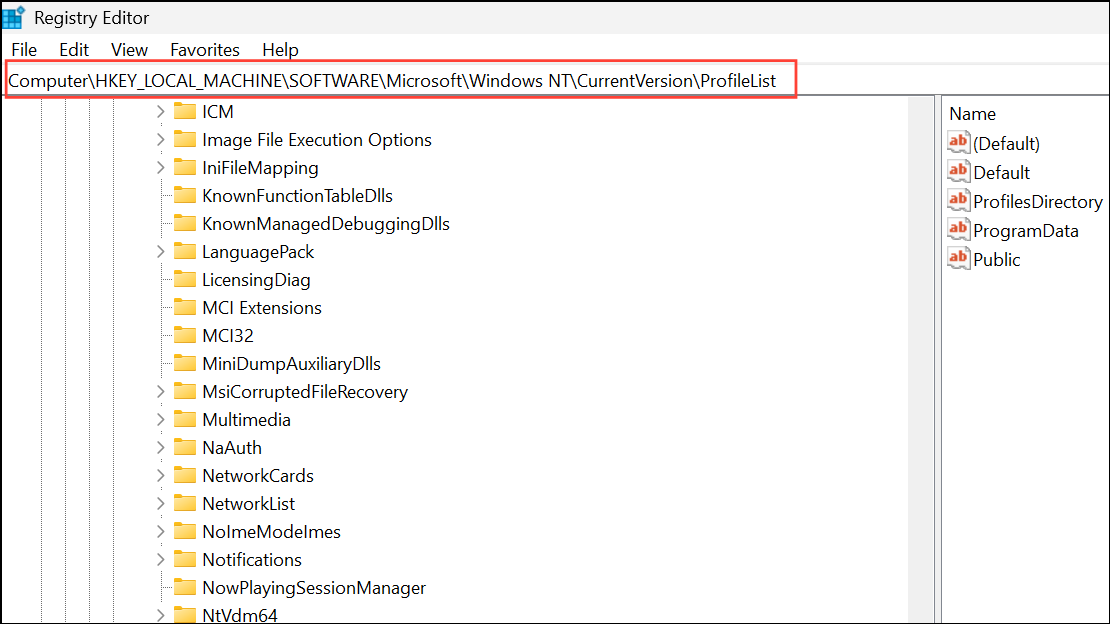
S-1-5, one of which ends in .bak. These represent your original and temporary profiles.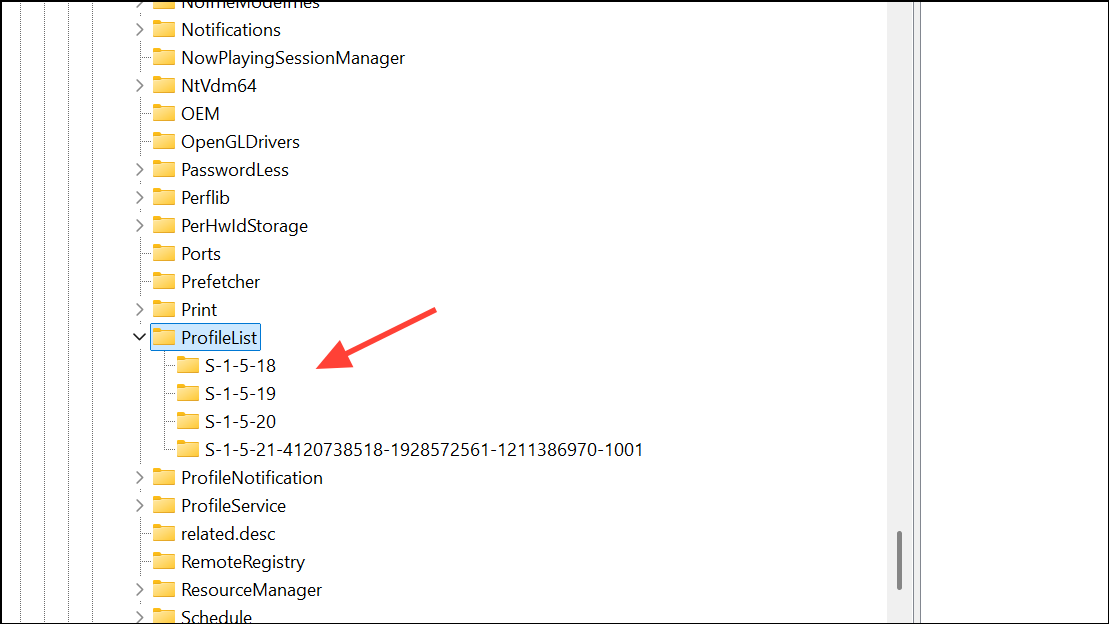
ProfileImagePath points to your correct user folder (e.g., C:\Users\YourName)..bak if its ProfileImagePath refers to Temp. Then, rename the .bak key to remove .bak.Run System File Checker and Repair Disk Errors
Corrupted system files or disk errors can prevent Windows from accessing user profiles. Use built-in tools to scan and repair these issues.
Win + S, type cmd, right-click, and select Run as administrator.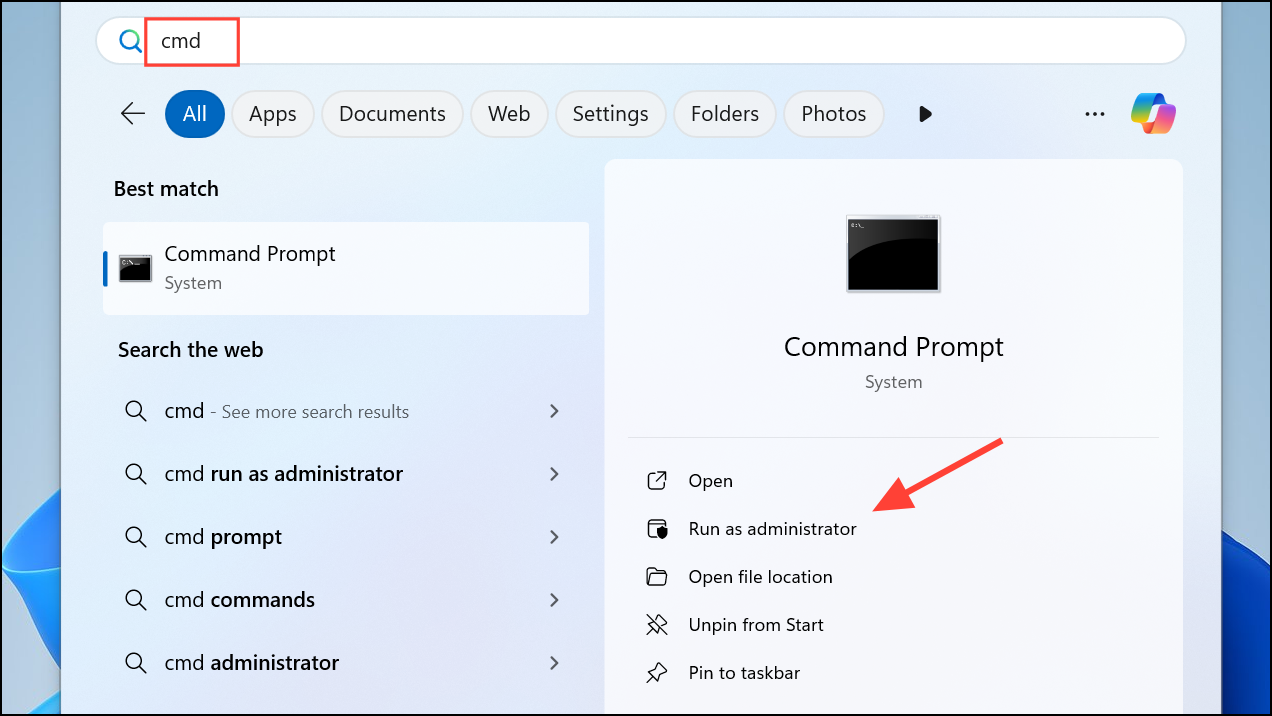
sfc /scannow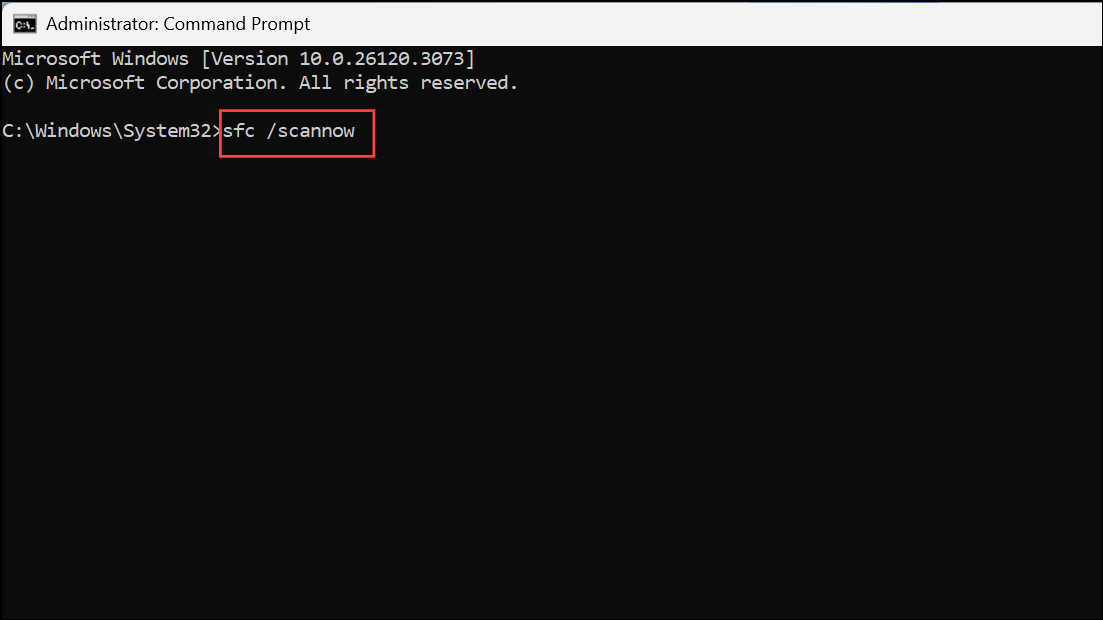
chkdsk /f /r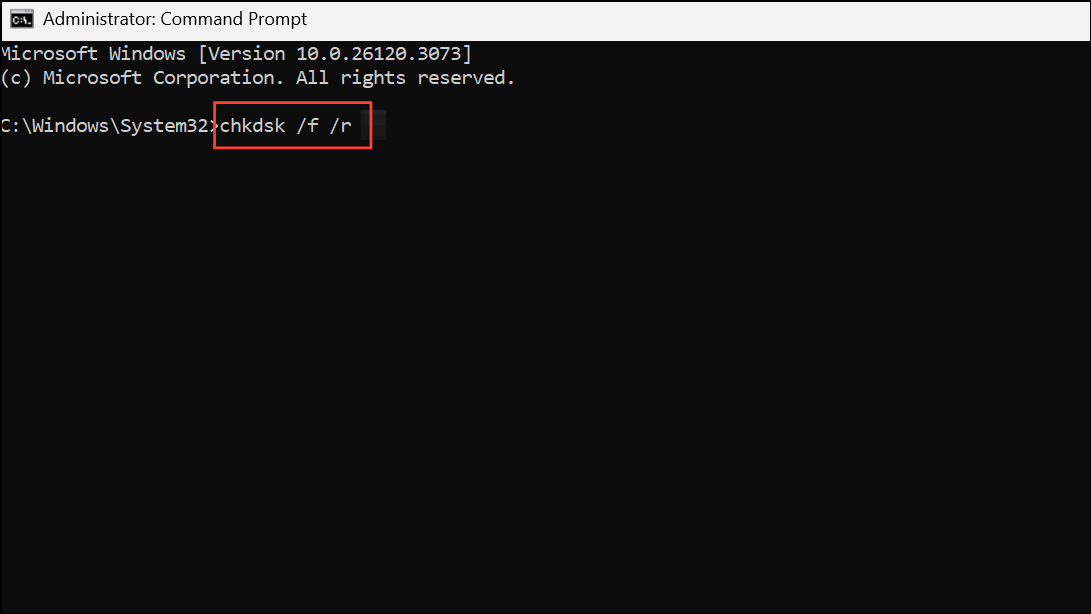
You may be prompted to restart your PC to allow chkdsk to run.
DISM /Online /Cleanup-Image /RestoreHealth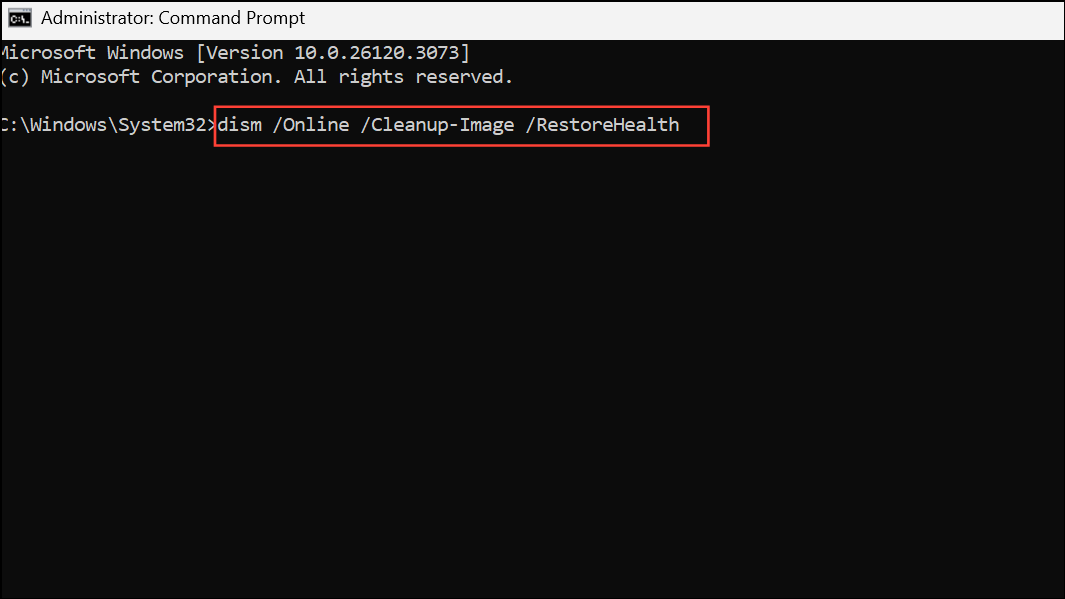
These steps address system-level corruption that can trigger account sign-in failures.
Uninstall Recent Windows Updates
Major Windows updates occasionally introduce bugs or profile migration problems. Rolling back the latest update can restore normal sign-in behavior.
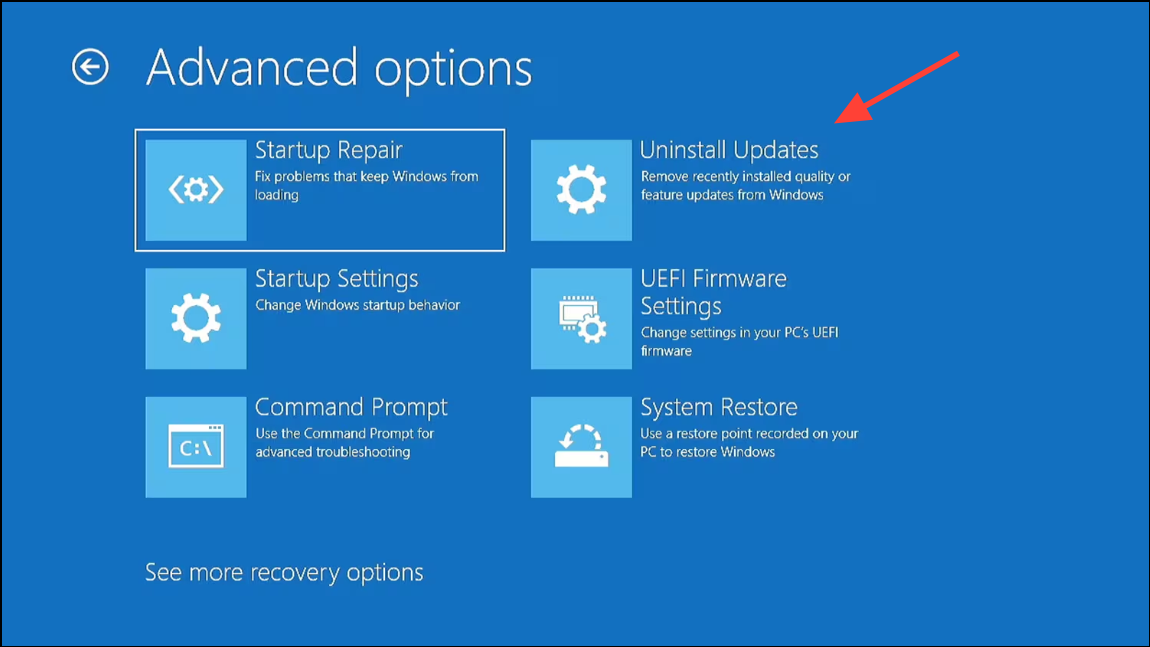
This method is especially effective if the error appeared immediately after a Windows Update.
Create a New User Account and Transfer Data
When profile corruption is severe, creating a new user account is the most reliable way to restore access. Afterward, you can transfer files from the old profile.
Settings > Accounts > Other users and click Add account.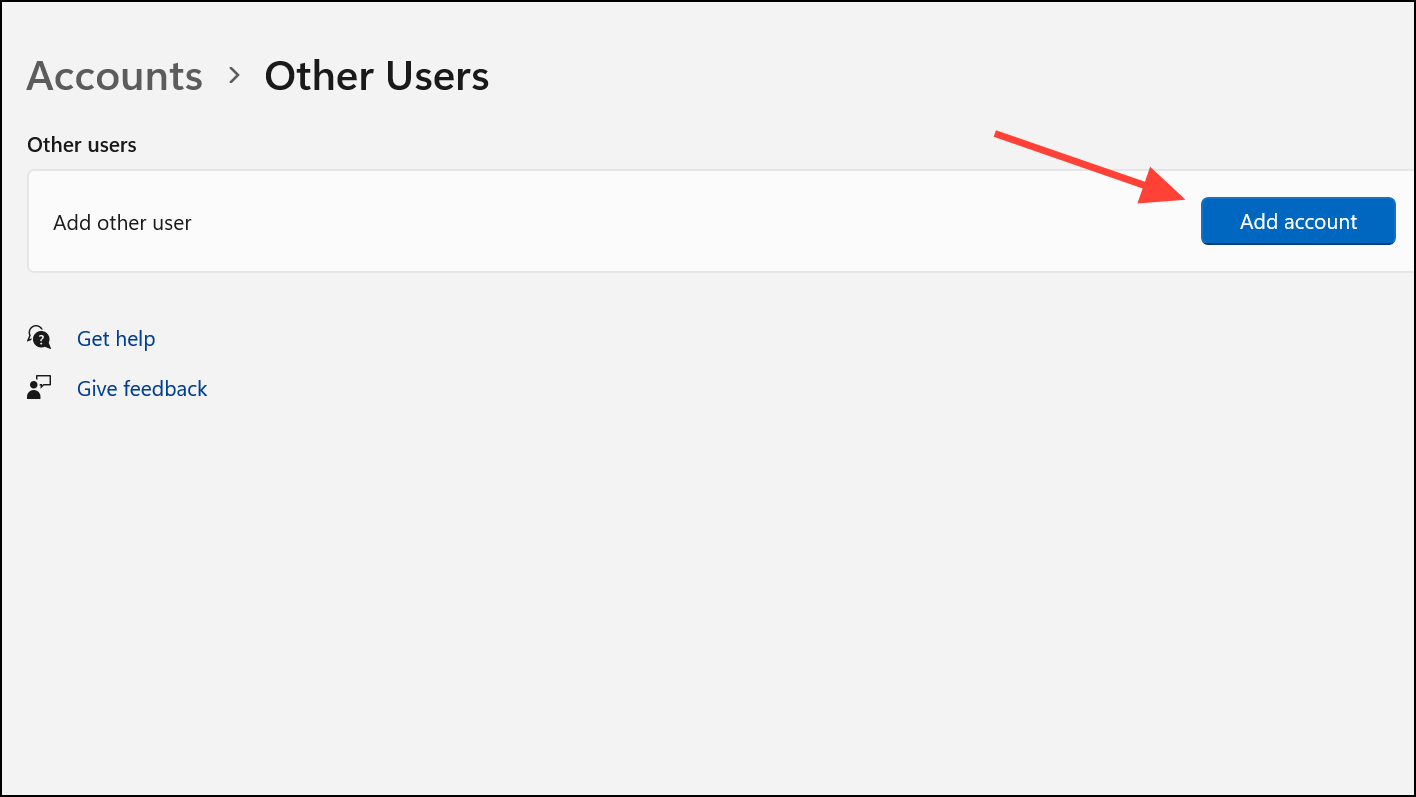
C:\Users. Copy files from your old profile folder (documents, desktop, downloads, etc.) into the corresponding folders in your new profile.Settings > Accounts > Other users to avoid confusion.Back Up Data Using Rescue Media If Locked Out
If you cannot access any account or are completely locked out, use a bootable rescue tool such as Hiren’s BootCD PE to back up your data before reinstalling Windows.
Additional Tips and Preventive Measures
- Keep regular backups using File History, OneDrive, or other cloud solutions to prevent data loss from future profile errors.
- Enable System Restore so you can roll back to a working state after major changes or updates.
- Allow Windows Updates to complete fully and avoid forced shutdowns during install phases to reduce profile corruption risk.
- Monitor disk health periodically with tools like CrystalDiskInfo to catch hardware issues early.
- Limit use of aggressive third-party security or registry utilities that can interfere with profile loading.
- For organizational devices, coordinate with IT support for domain or group policy-related account issues.
Resolving “can’t sign in with this Windows account” errors in Windows 11 requires a careful, stepwise approach—starting with credential resets and administrative access, then progressing to registry repair and data backup as needed. Keeping backups and knowing these recovery steps can save you from losing important files or facing extended downtime.



