
Mapped network drives allow quick access to shared folders between Windows 11 computers, but misconfigured settings or network issues can prevent successful drive mapping. Ensuring both systems are properly set up for file sharing and network communication is essential for seamless access.
Enable File and Printer Sharing
Open the Control Panel on both computers by pressing
Windows + R, typing control, and pressing Enter. Navigate to Network and Internet > Network and Sharing Center.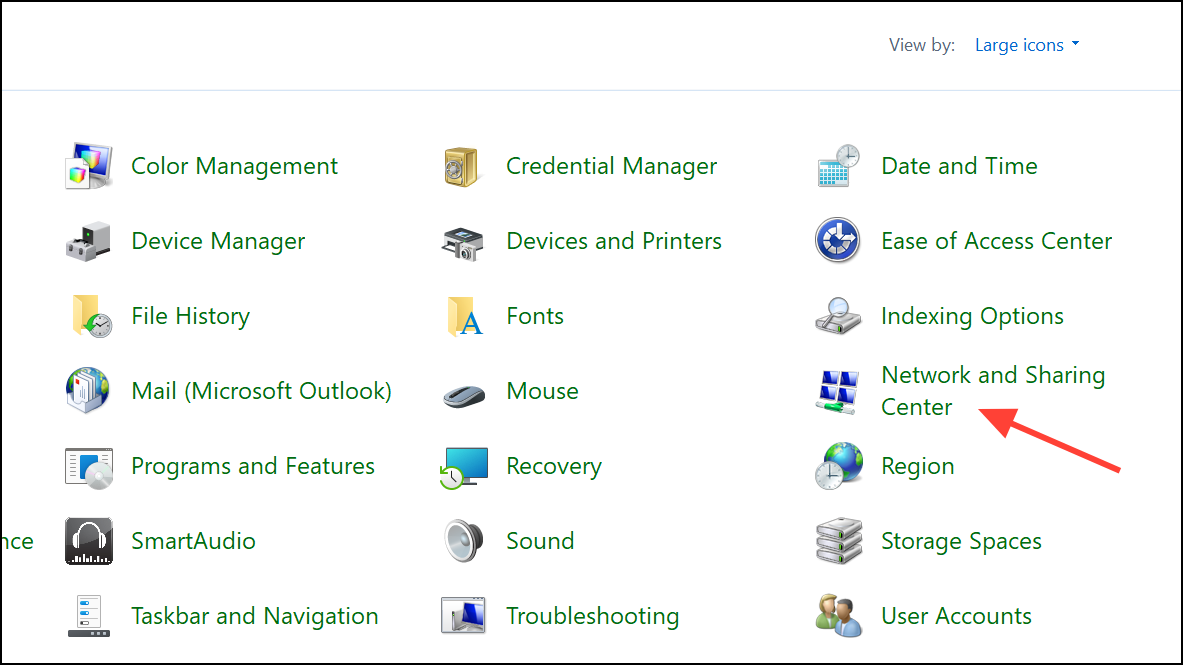
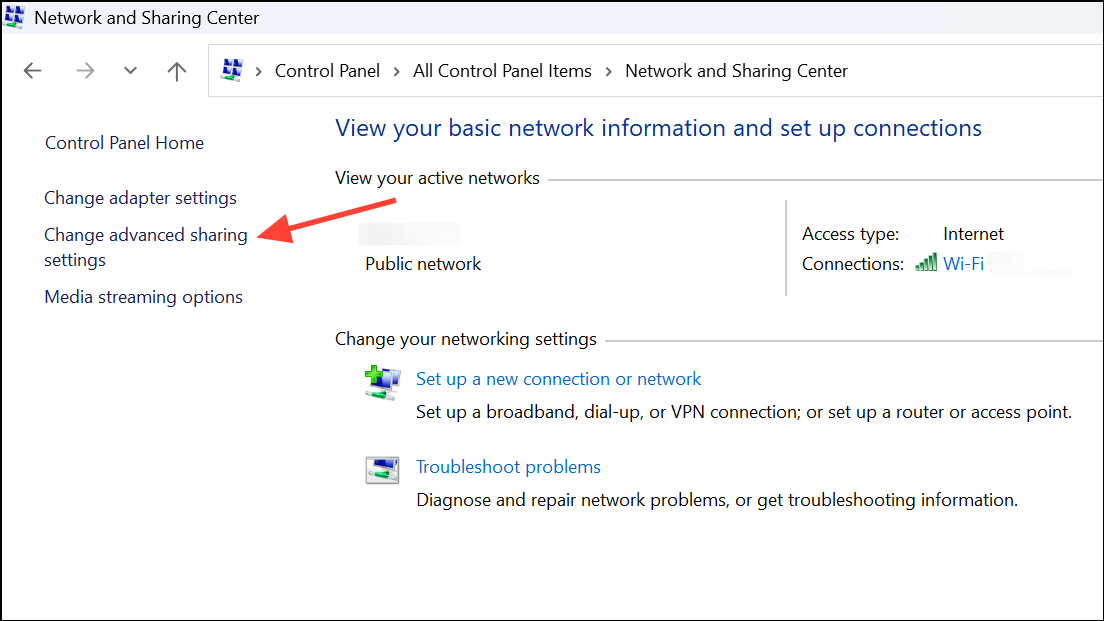
Under Private (current profile), select Turn on network discovery and Turn on file and printer sharing. Repeat these steps for the Guest or Public profile if needed.
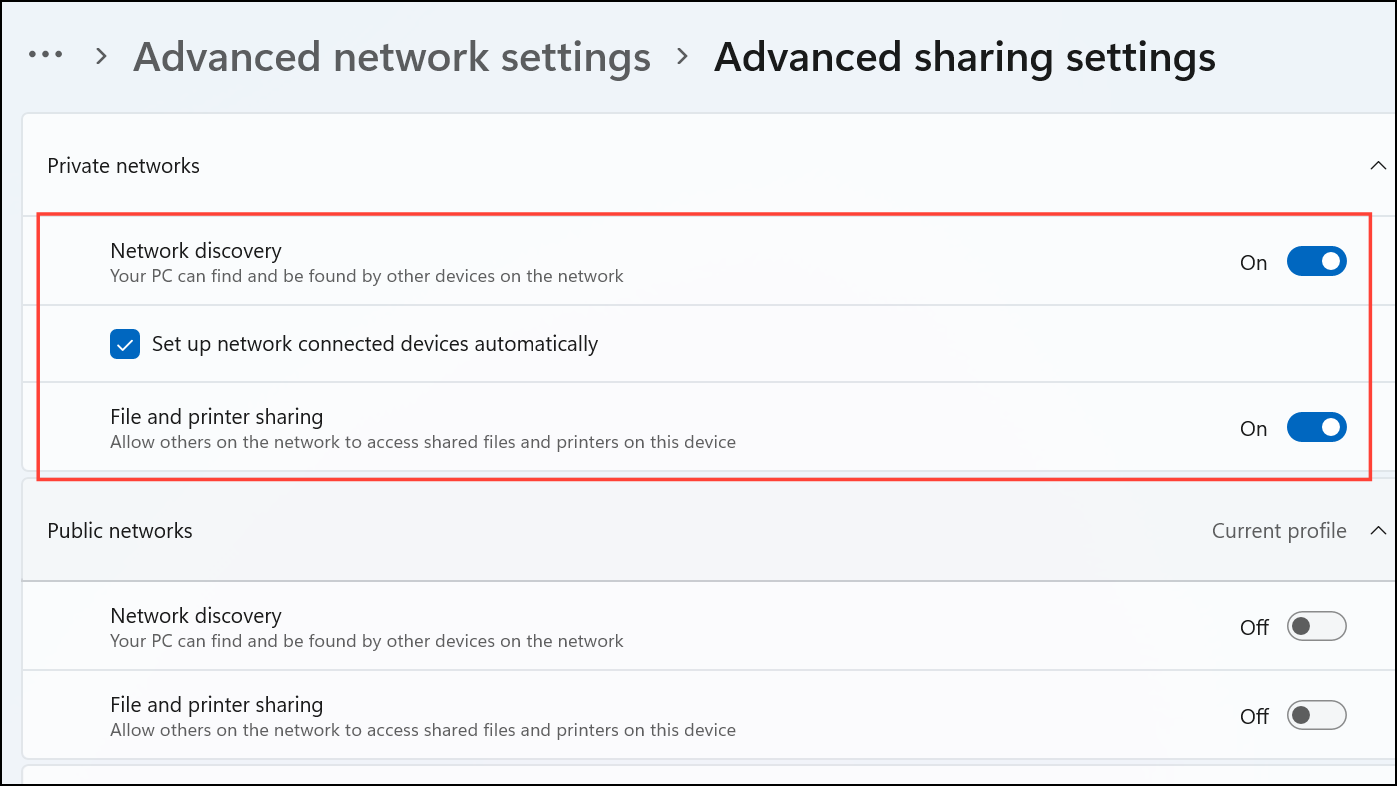
Click Save changes at the bottom. This ensures that both computers are visible and can share files across the network.
Check SMB Protocol Support
Windows 11 may have the SMB 1.0/CIFS File Sharing Support feature disabled by default, which is required for older devices but not recommended for security reasons. To check, open Windows Features by pressing
Windows + R, typing optionalfeatures, and pressing Enter.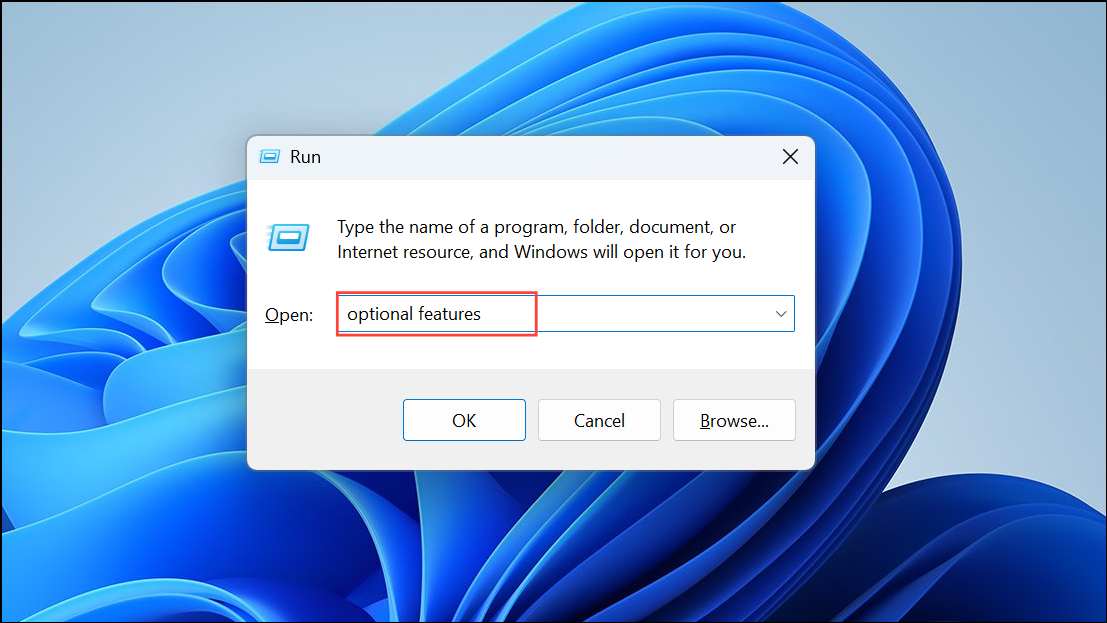
Scroll down and ensure SMB 1.0/CIFS File Sharing Support is checked only if you’re connecting to legacy systems. For Windows 11-to-Windows 11 connections, ensure SMB Direct and SMB 2.0/3.0 are enabled by default. Click OK to apply changes and restart your computer if prompted.
Caution: Enabling SMB 1.0 is not recommended unless necessary for compatibility with older devices, as it exposes the system to security risks.
Verify User Permissions and Sharing Settings
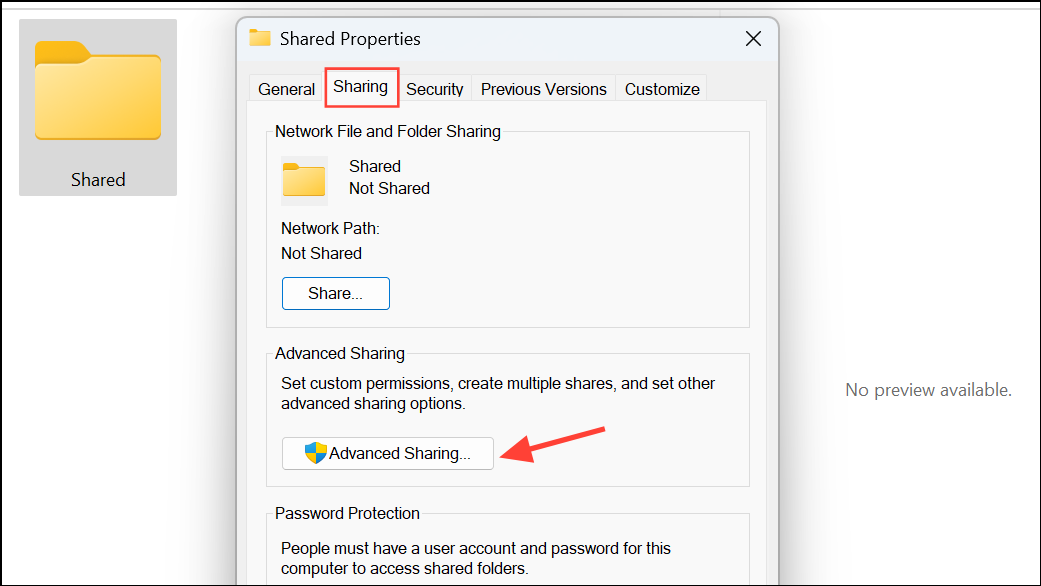
On the computer hosting the shared folder, right-click the folder you want to share and select Properties. Go to the Sharing tab and click Advanced Sharing.
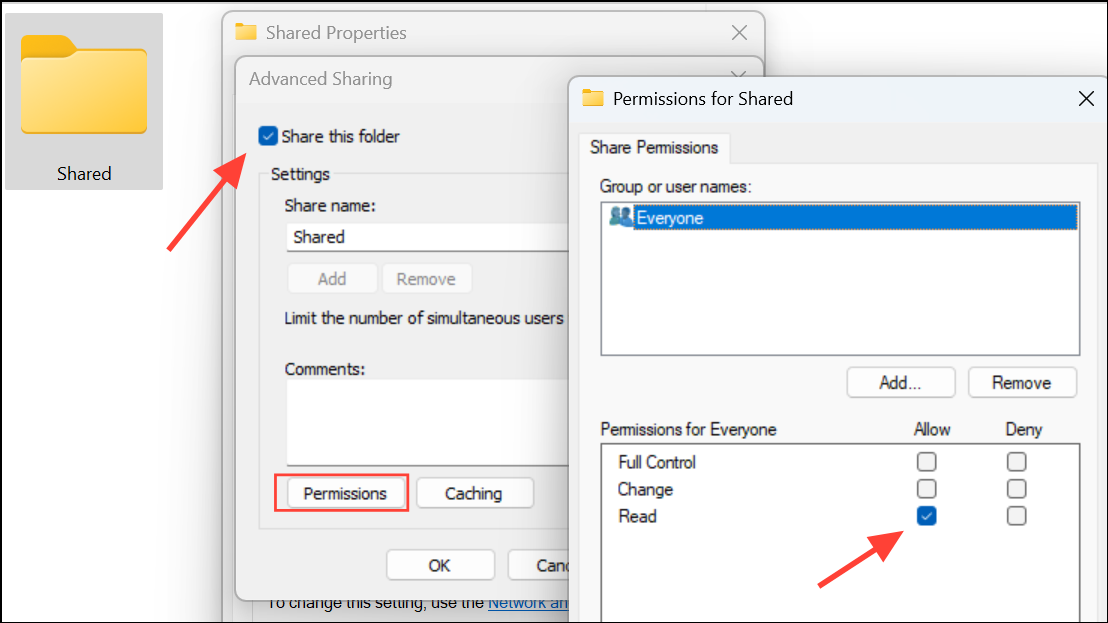
Check Share this folder. Click Permissions and ensure the intended user or Everyone group has at least Read permission. Click OK to save.
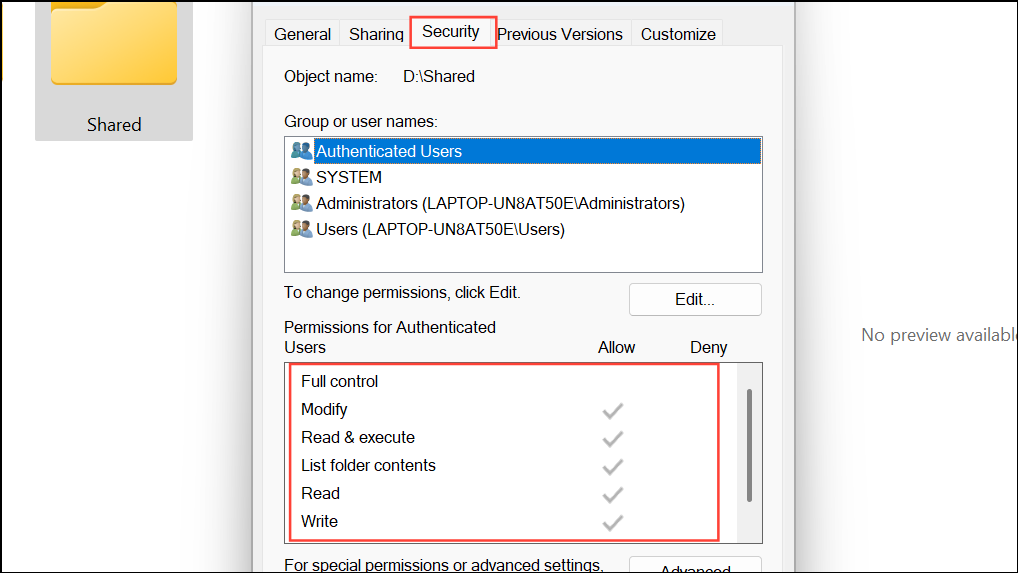
Switch to the Security tab and confirm that the user account used for mapping the drive has the necessary NTFS permissions (Read, Write, or Full Control as needed).
Map the Network Drive Using File Explorer
On the client computer, open File Explorer and click This PC from the sidebar. Click the three dots in the toolbar and select Map network drive.
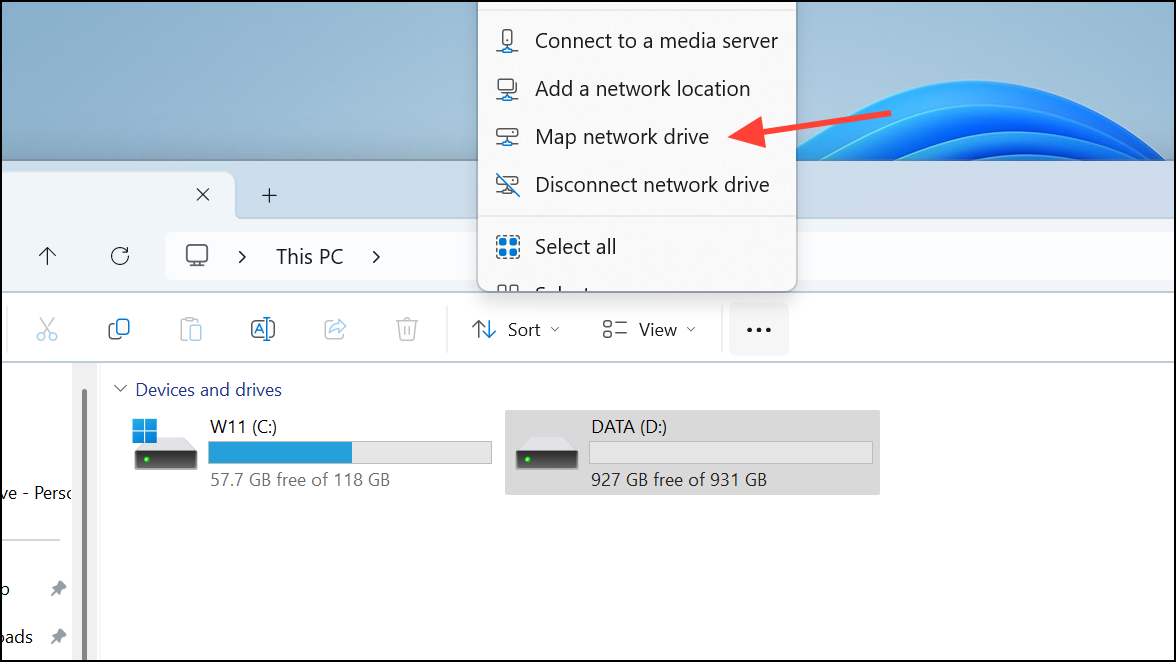
Choose a drive letter and enter the shared folder path in the format
\\ComputerName\SharedFolder or \\IPaddress\SharedFolder. Check Reconnect at sign-in if you want the drive to be mapped automatically on startup.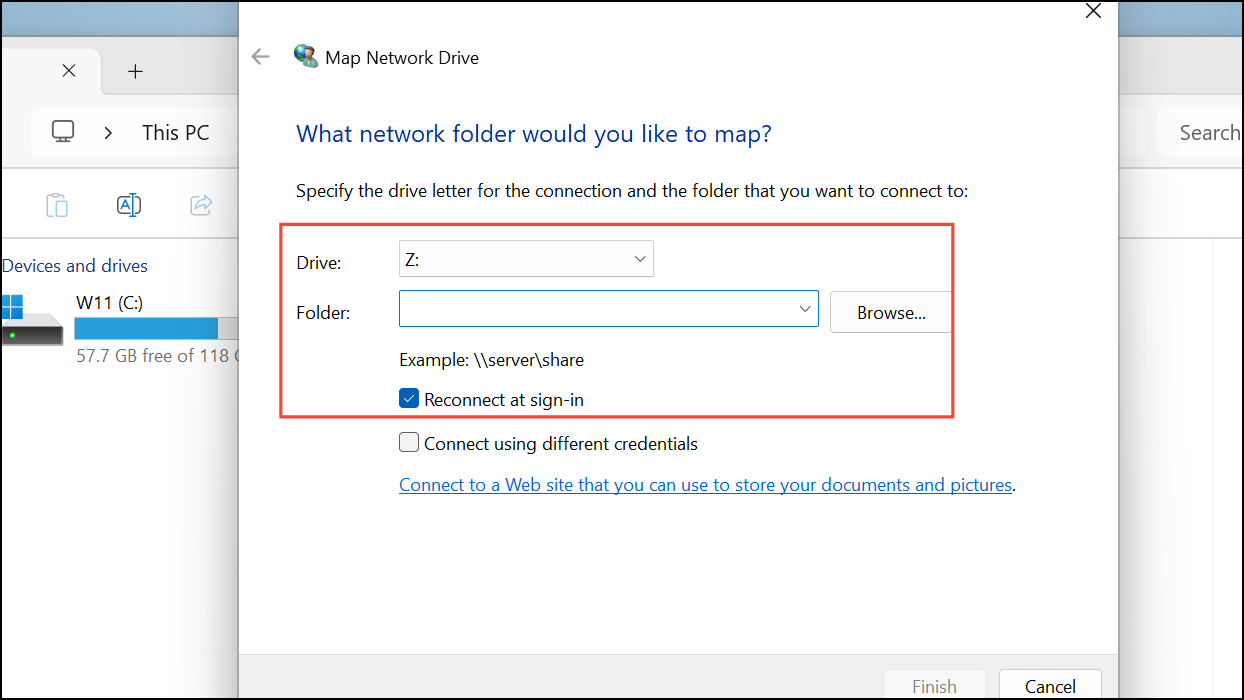
If prompted, enter the credentials for the user account that has access to the shared folder. Click Finish to complete mapping.
Disable Password Protected Sharing (Optional)
If you encounter credential errors, you may disable password protected sharing for easier access (not recommended for unsecured networks). In the Network and Sharing Center, click Change advanced sharing settings.
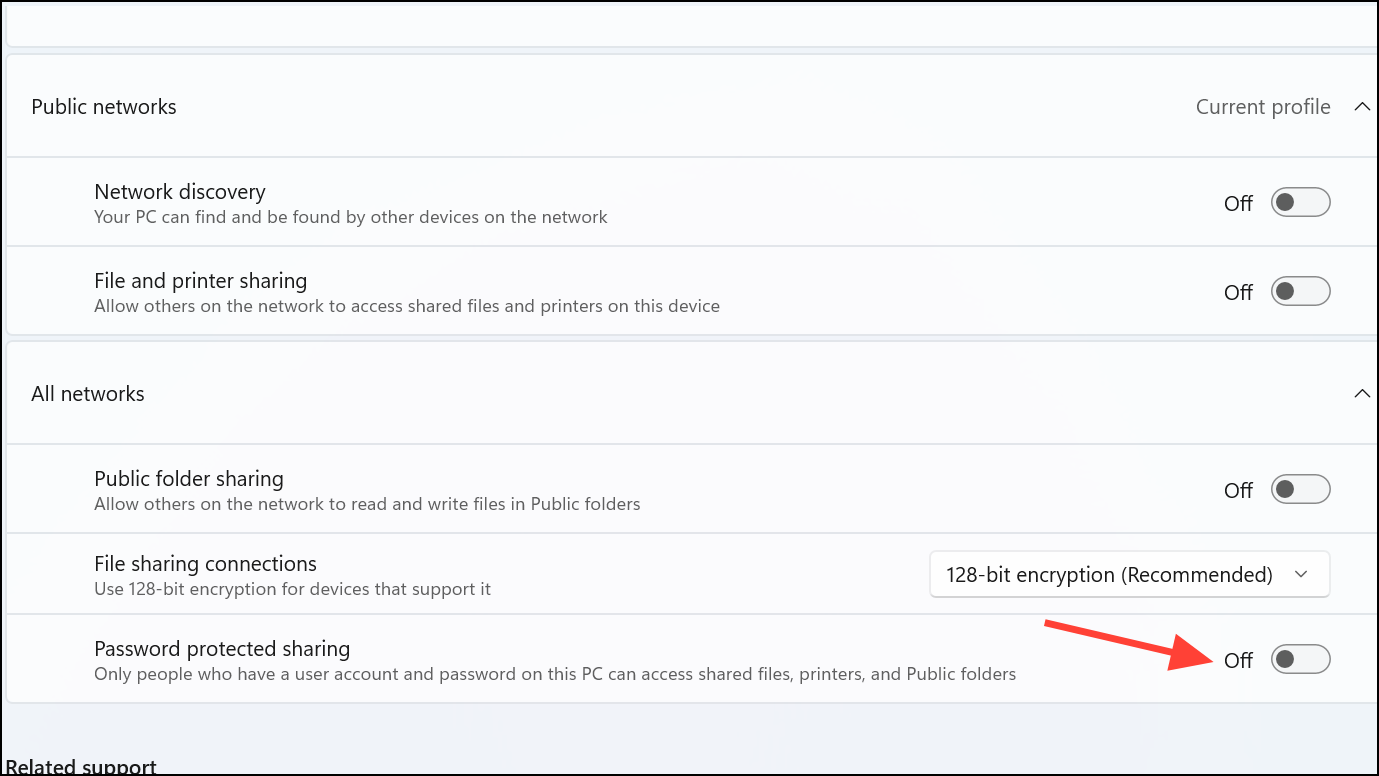
Note: Disabling password protection allows anyone on the network to access shared files, so use this setting only in trusted environments.
Troubleshoot Network Connectivity and Firewall Settings
Confirm both computers are on the same network and can ping each other. Open Command Prompt and type
ping ComputerName or ping IPaddress to test connectivity.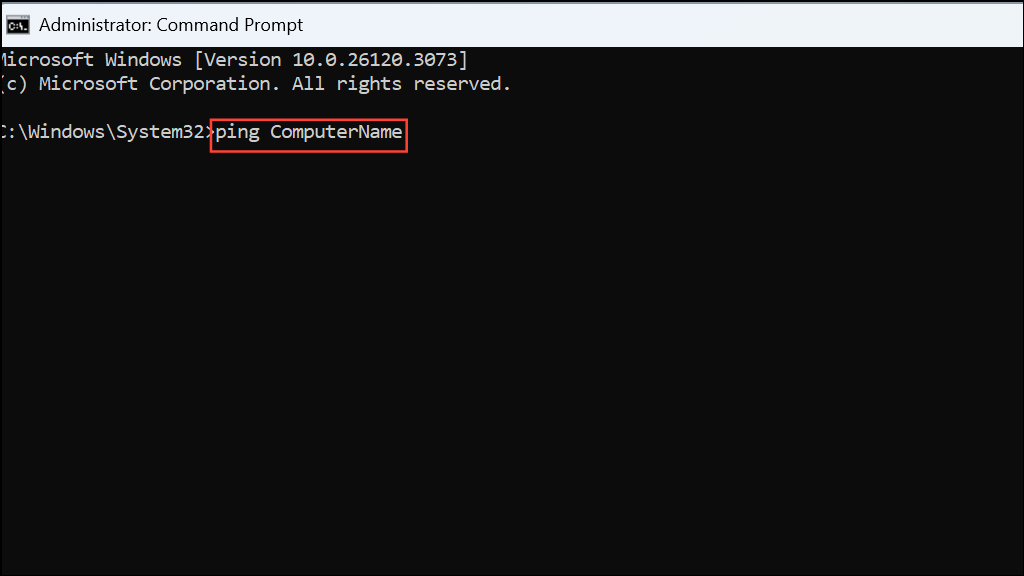
If the ping fails, check your network configuration and ensure both devices are connected to the same subnet and not isolated by guest Wi-Fi or VLAN separation.
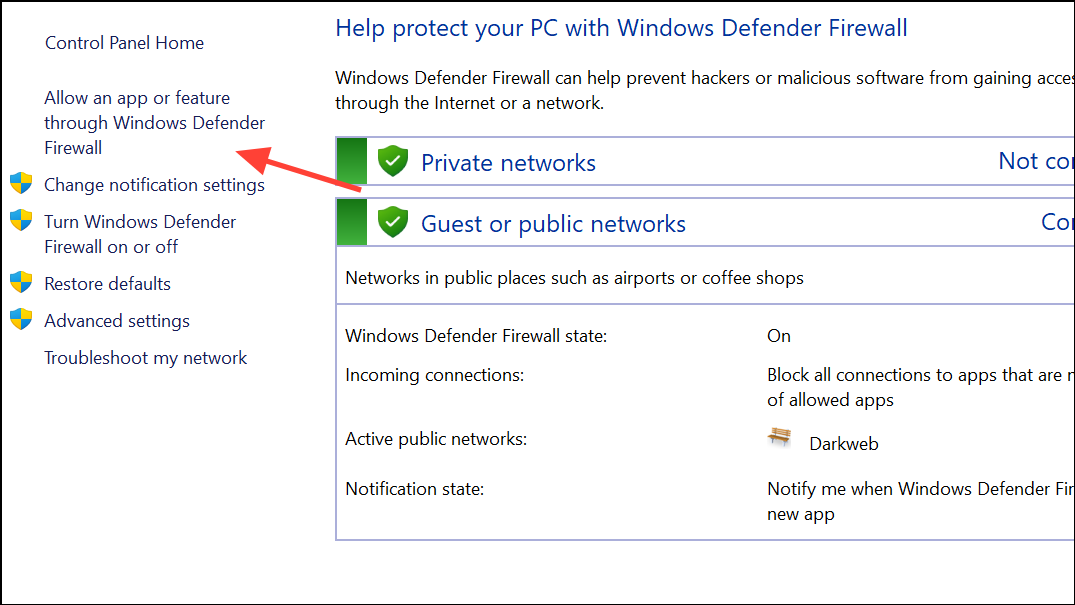
Check Windows Defender Firewall settings. Open Control Panel > Windows Defender Firewall > Allow an app or feature through Windows Defender Firewall. Ensure File and Printer Sharing is enabled for both Private and Public networks.
Following these steps resolves most drive mapping issues between Windows 11 computers, making shared folders accessible and streamlining file transfers across your network. If issues persist, double-check all settings and consider restarting both systems for changes to take effect.



