
System lockups during “Scan for hardware changes” in Device Manager on Windows 11 typically indicate a conflict with connected peripherals, faulty drivers, or underlying system file corruption. This issue can prevent new devices from being recognized and disrupt normal hardware operations, making it critical to identify and resolve the underlying cause before attempting further hardware changes or updates.
Disconnect All Peripherals to Isolate Faulty Hardware
Unresponsive behavior during a hardware scan is frequently triggered by malfunctioning or incompatible external devices. To pinpoint the culprit, disconnect all non-essential peripherals such as printers, USB drives, webcams, and external storage, leaving only the keyboard, mouse, and monitor connected.
Scan for hardware changes. If the system no longer freezes, this confirms the issue is linked to one of the removed peripherals.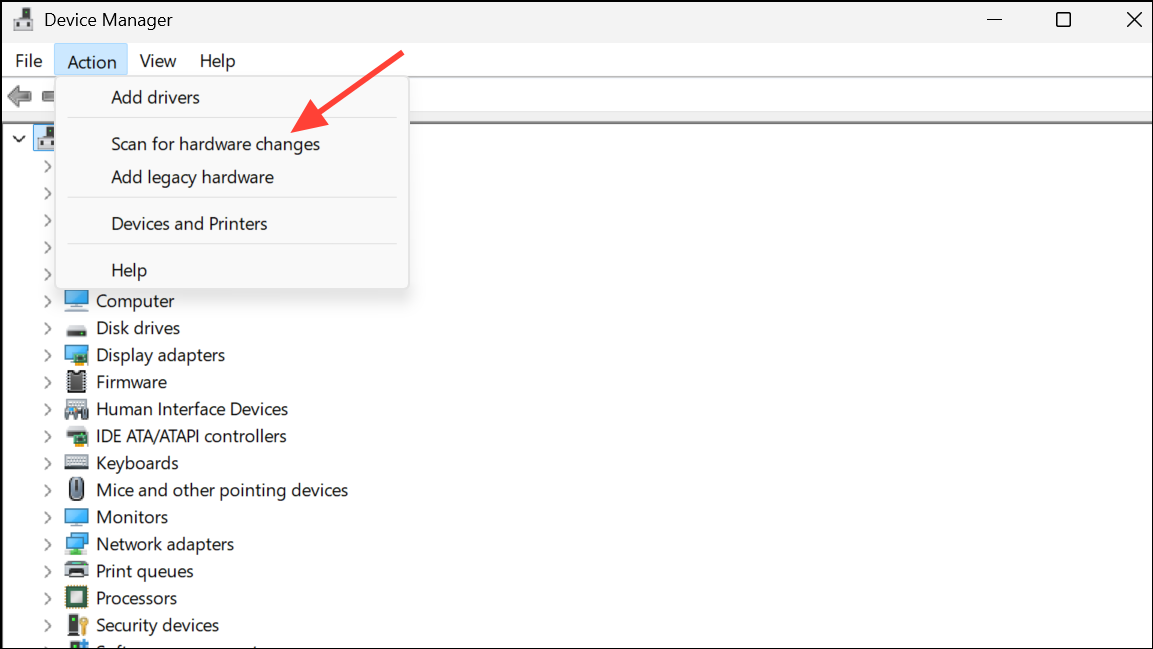
Manually Install or Update Device Drivers
Outdated or corrupted drivers can cause hardware enumeration to stall. Relying on Windows Update for drivers may not always provide the most stable or compatible version, especially for newer or specialized hardware.
Update driver, and selecting Browse my computer for drivers.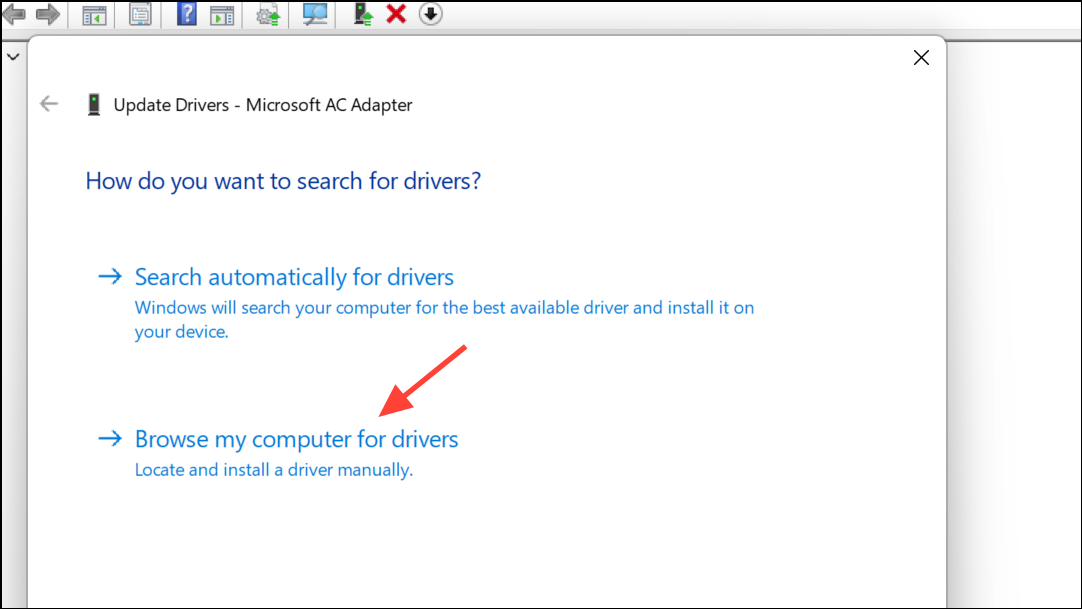
Roll Back Storage Controller or Chipset Drivers
Driver updates, especially for storage controllers, sometimes introduce incompatibilities that disrupt hardware detection. Rolling back to a previous driver version can restore normal operation.
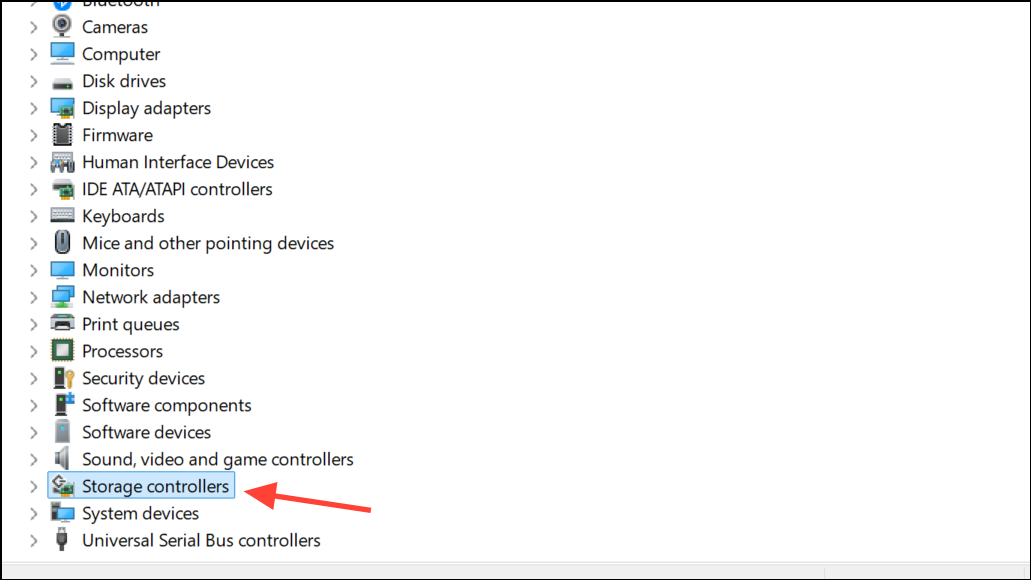
Properties. Go to the Driver tab and click Roll Back Driver if the option is available.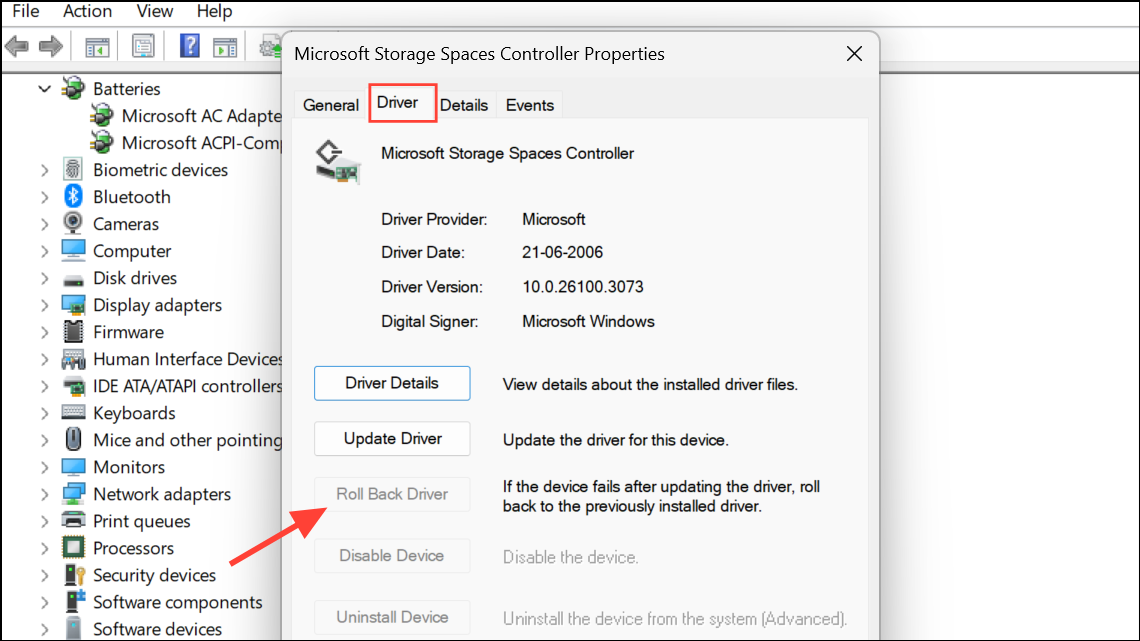
Creating a system restore point before making driver changes is highly recommended, as this allows you to revert if new issues arise.
Repair System Files with SFC and DISM
Corrupted Windows system files can interfere with hardware detection and driver management, leading to freezes during hardware scans. The System File Checker (SFC) and Deployment Imaging Service and Management Tool (DISM) utilities can automatically detect and repair damaged files.
cmd in the Start menu, right-clicking, and selecting Run as administrator.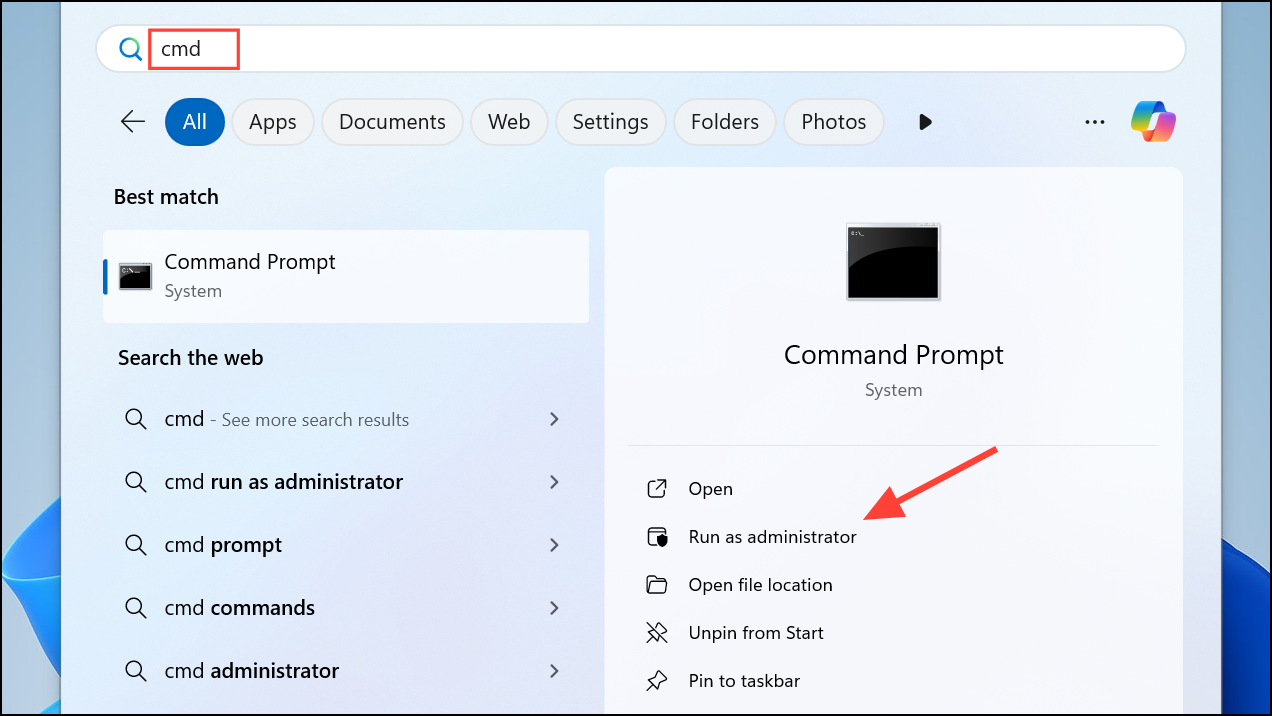
sfc /scannow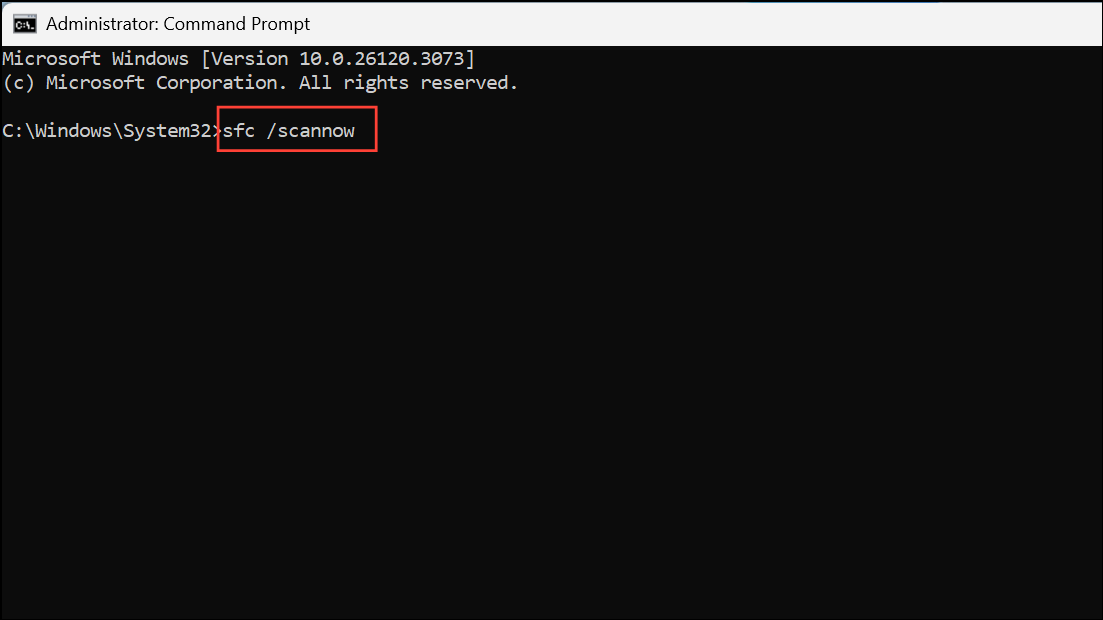
DISM /Online /Cleanup-Image /RestoreHealth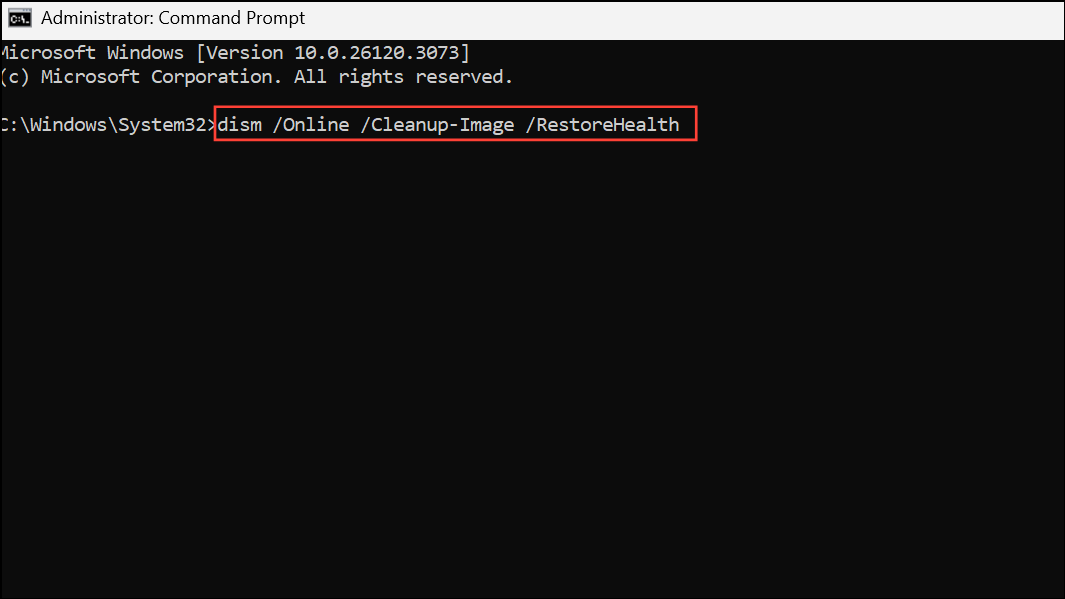
Perform a Clean Boot to Identify Third-Party Conflicts
Background services or third-party drivers can interfere with Windows’ hardware detection routines. A clean boot starts Windows with only essential Microsoft services, helping to identify if a non-Microsoft service is responsible for the freeze.
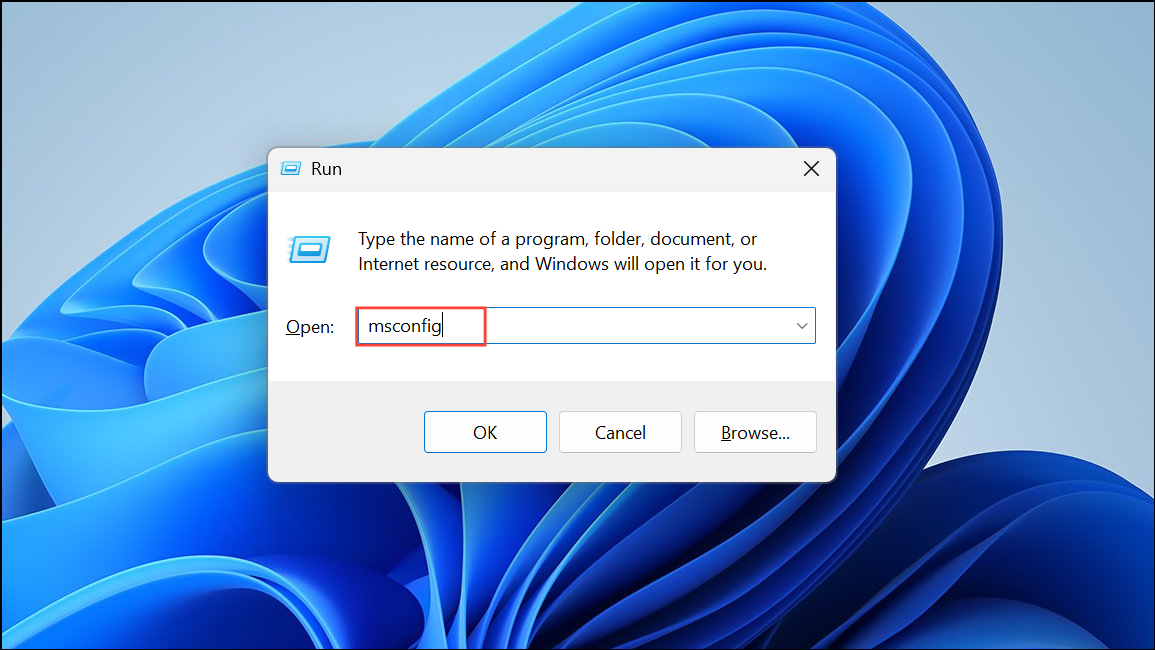
Services tab, check Hide all Microsoft services, then click Disable all.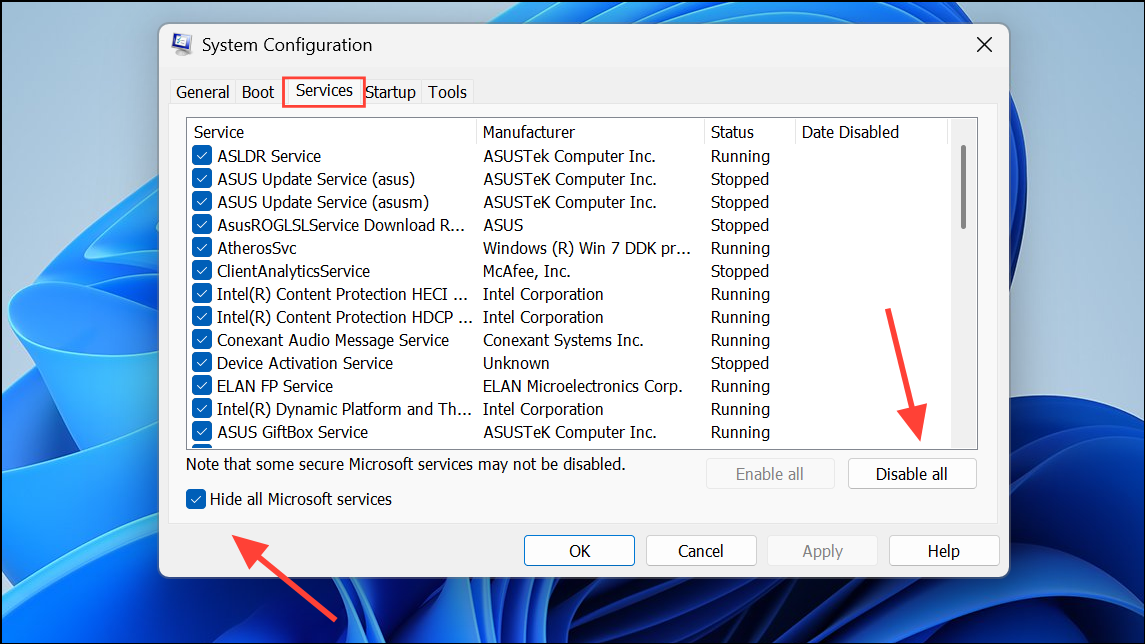
Startup tab and click Open Task Manager. Disable all enabled startup items, then close Task Manager and click OK in System Configuration.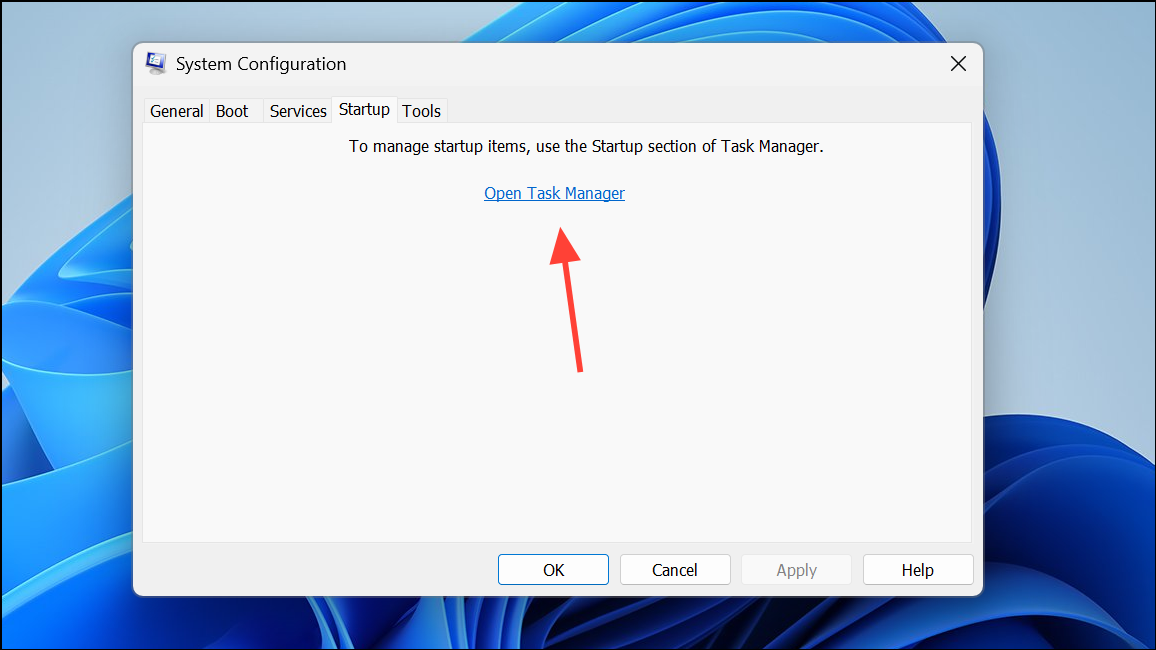
Update BIOS to Improve Hardware Compatibility
Outdated BIOS firmware can cause hardware detection issues, particularly with newer components. Updating the BIOS can improve compatibility and resolve low-level hardware conflicts.
msinfo32 to view the current BIOS version and system manufacturer details.Restore or Reset Windows 11 as a Last Resort
If none of the previous methods resolve the freezing issue, consider restoring Windows to a previous state or resetting the operating system. System Restore allows you to revert the system to a point before the problem began, while Reset reinstalls Windows without removing personal files.
System Restore in the Start menu and follow prompts to choose a restore point from before the issue started. Complete the restoration and reboot.Settings > System > Recovery and select Reset this PC. Choose the option to keep personal files, then follow on-screen instructions to reinstall Windows 11.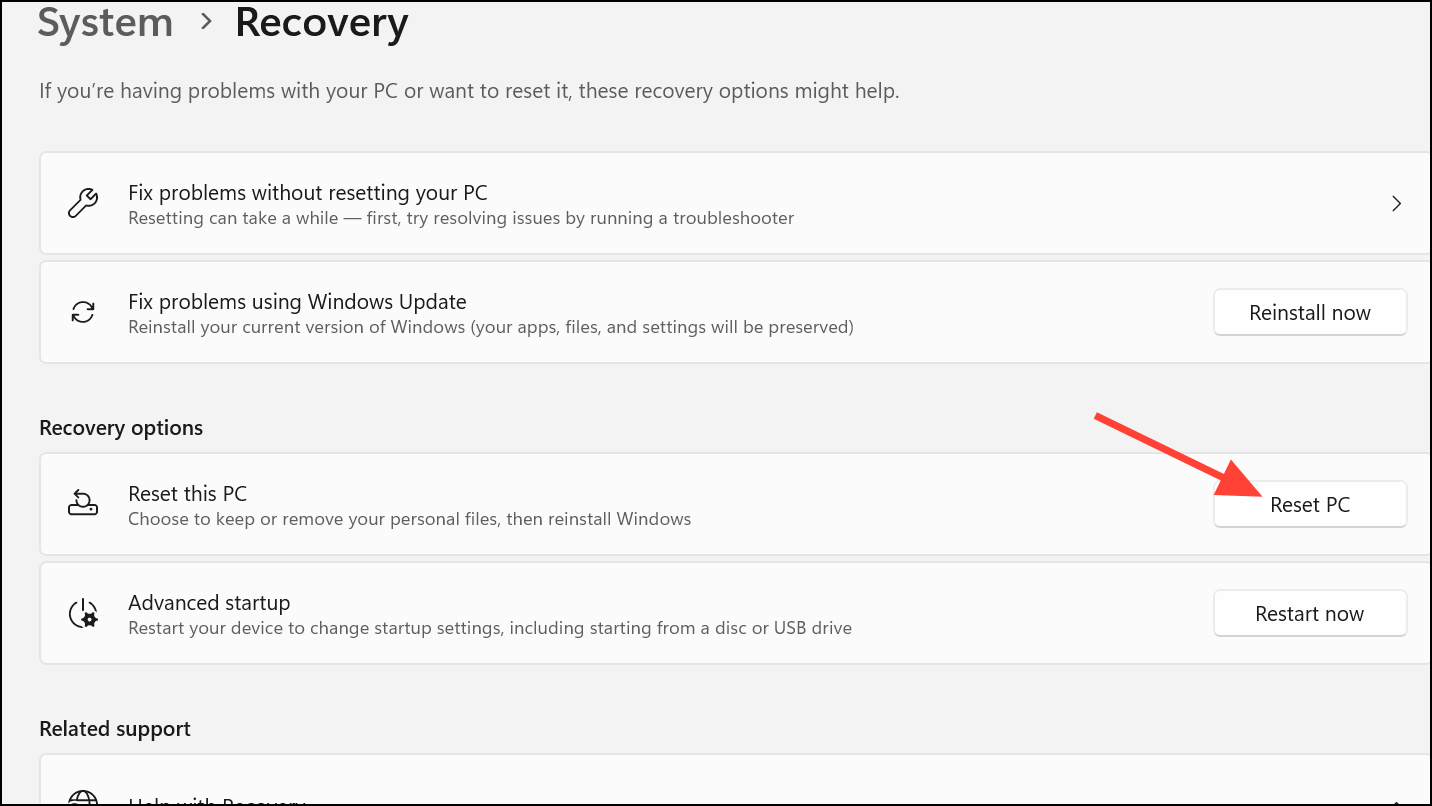
Back up important data before performing a reset, as installed applications and some settings will be removed.
Careful troubleshooting—starting with hardware isolation and progressing through driver management, system repairs, and BIOS updates—typically resolves freezing during hardware scans in Windows 11. If problems persist, restoring or resetting the system provides a reliable path to regaining stable hardware detection.



