
Persistent “Your printer needs your attention” notifications on Windows 11 often block print jobs and disrupt workflow. This error can stem from driver problems, print queue jams, connection faults, or configuration issues. Addressing the underlying cause directly restores reliable printing and eliminates the distracting alert.
Restart the Print Spooler Service
Windows + R to open the Run dialog. Type services.msc and press Enter. This opens the Services management window.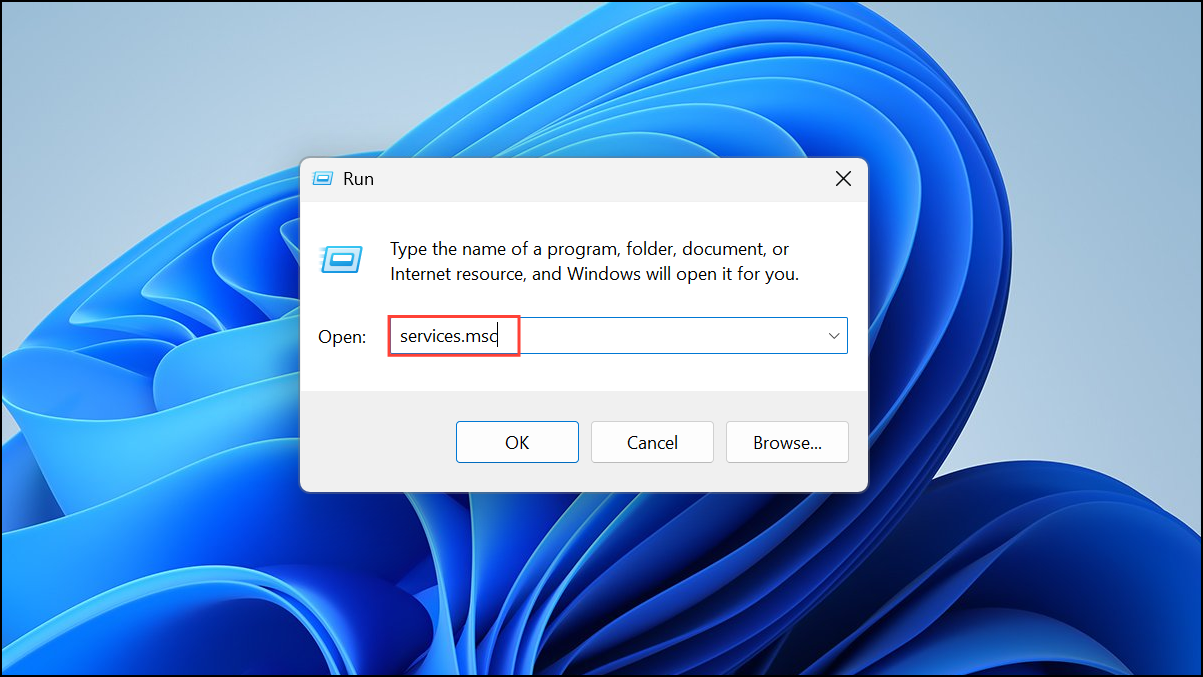

Update or Reinstall Printer Drivers
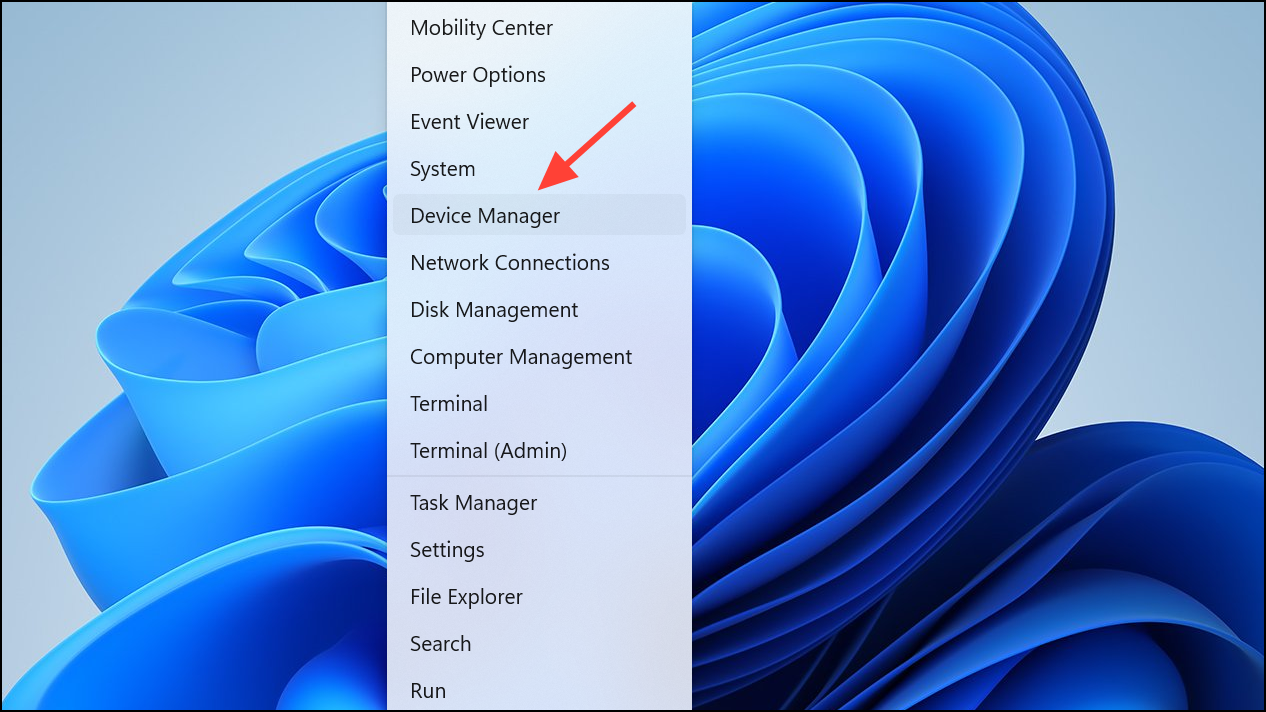
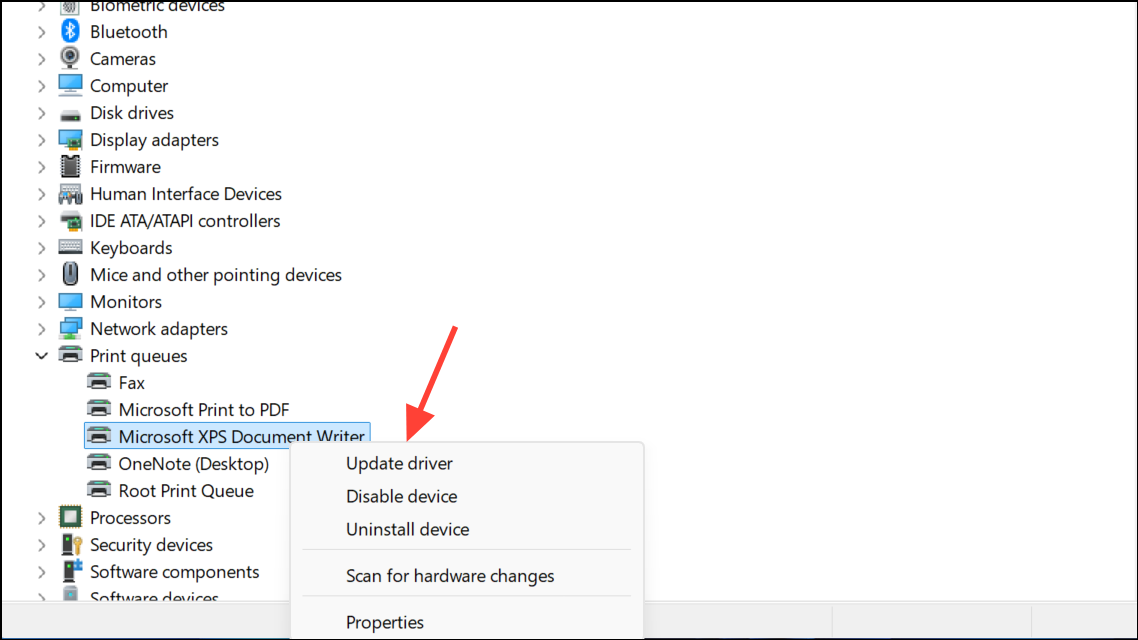
If Windows does not find a new driver, visit your printer manufacturer’s website, download the latest driver for your model, and install it manually. Outdated or corrupt drivers are a common cause of attention-required errors.
Run the Windows Printer Troubleshooter
Windows + I. Go to System, then Troubleshoot, and select Other troubleshooters.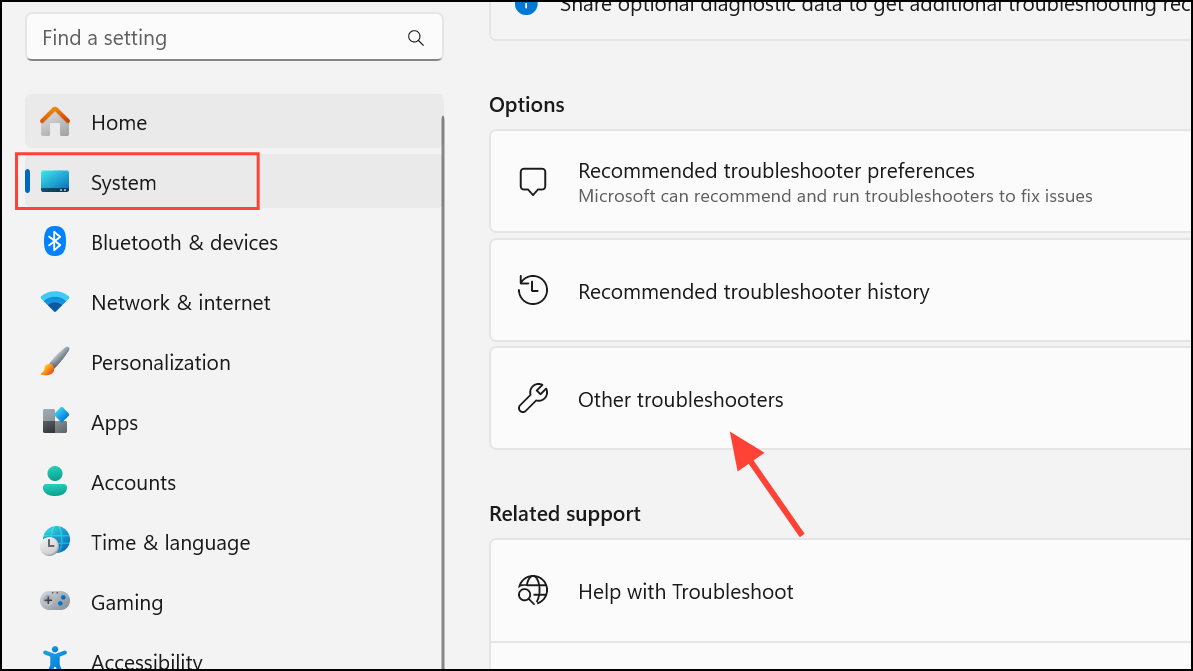
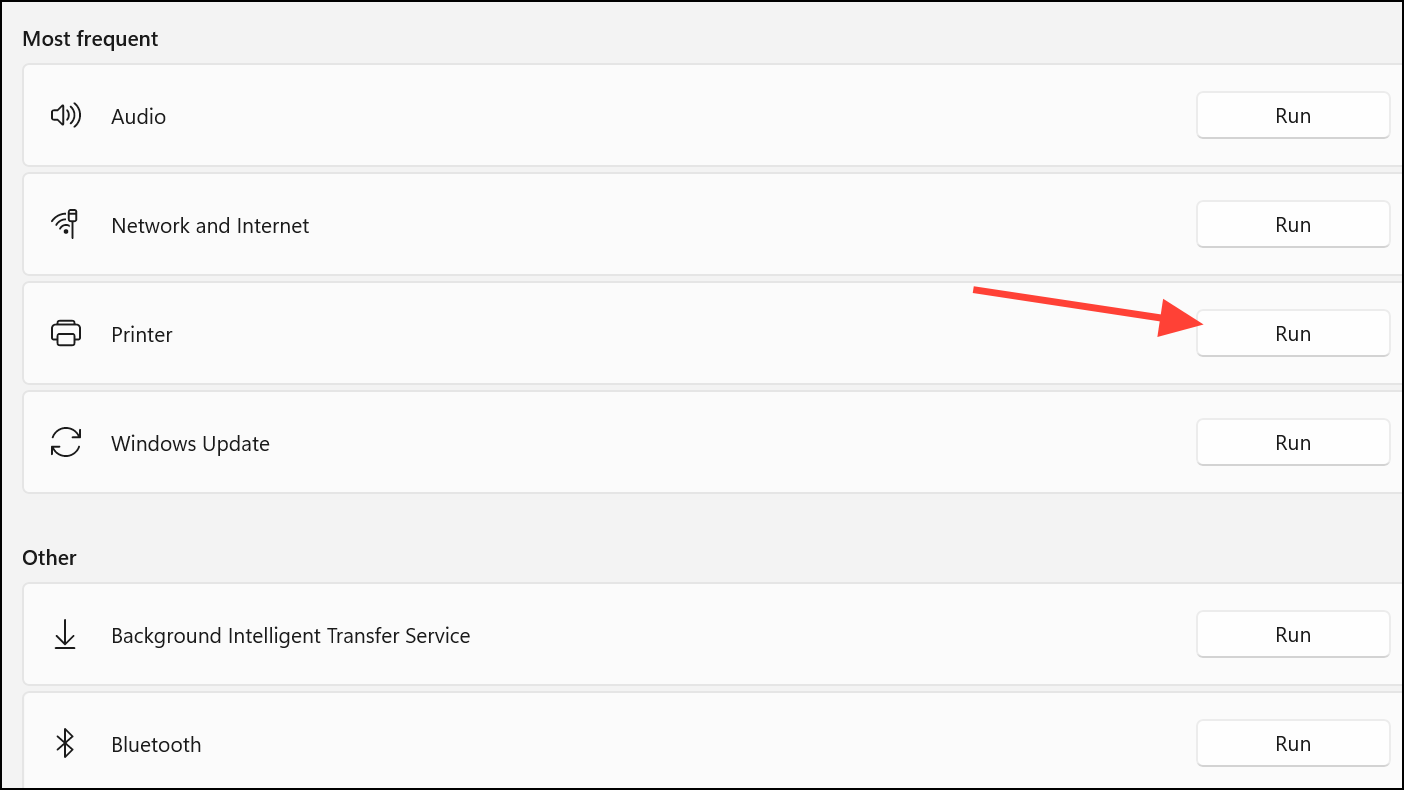
Check Physical Connections and Printer Status
Clear the Print Queue
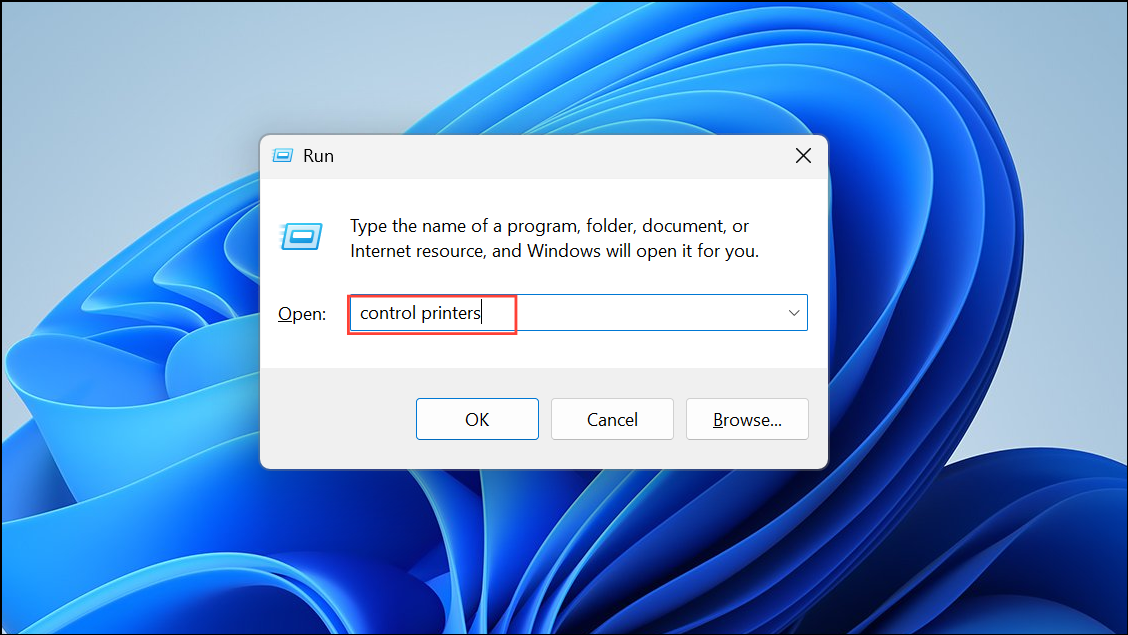
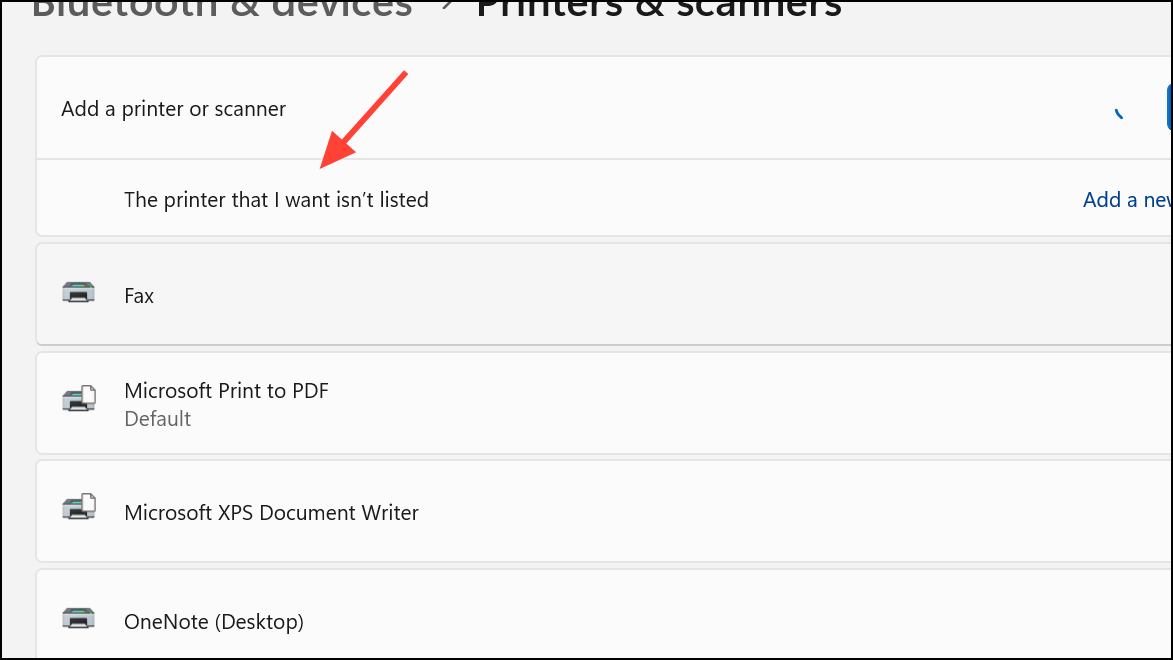
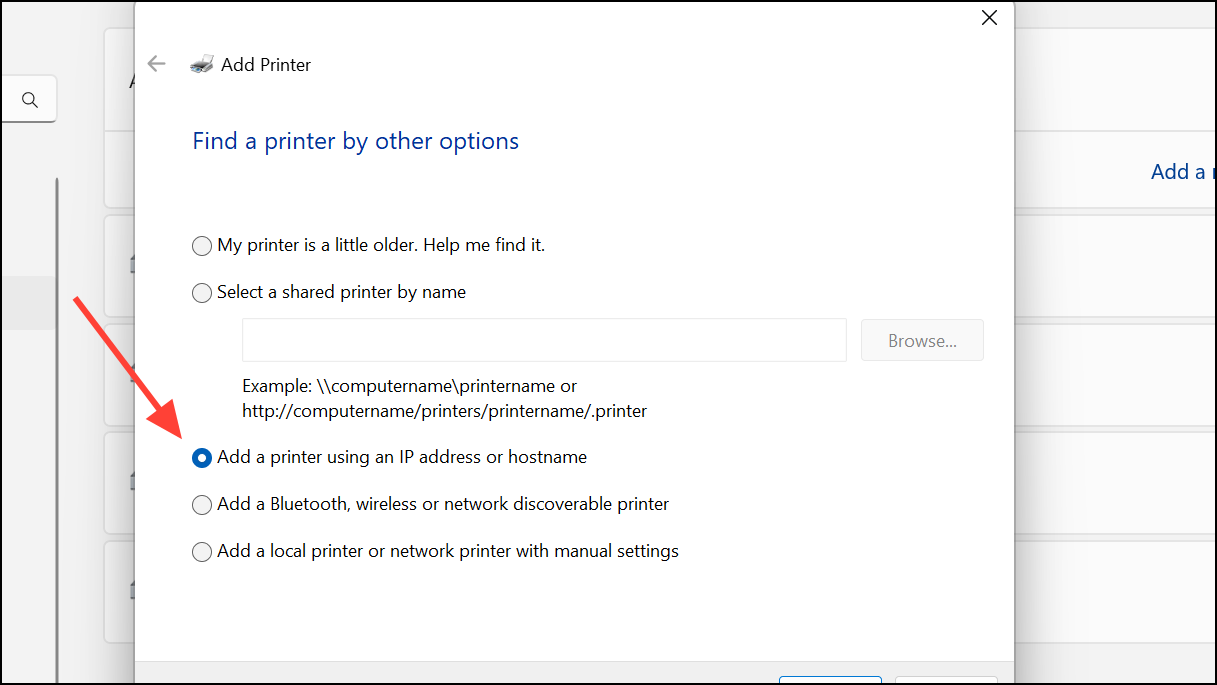
Assign a Static IP Address or Add Printer via TCP/IP
For network printers, Windows’ automatic detection (WSD) can sometimes cause unstable connections. Assigning a static IP address or adding the printer manually via TCP/IP streamlines communication and reduces errors.
Check Ink or Toner Levels
Low ink or toner can trigger attention-required messages. Use your printer’s control panel or companion software (such as HP Smart or Epson Utility) to check supply levels. If any cartridge is low or empty, replace it. For a temporary fix, gently remove and shake the cartridge before reinserting, but plan to replace it soon for consistent results.
Reinstall the Printer
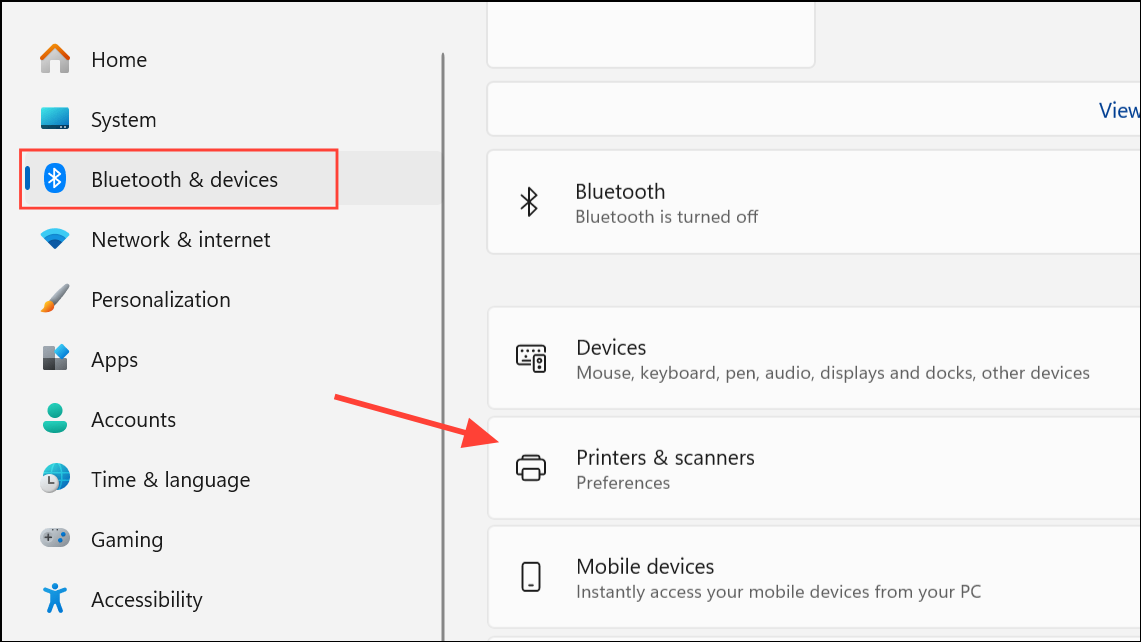
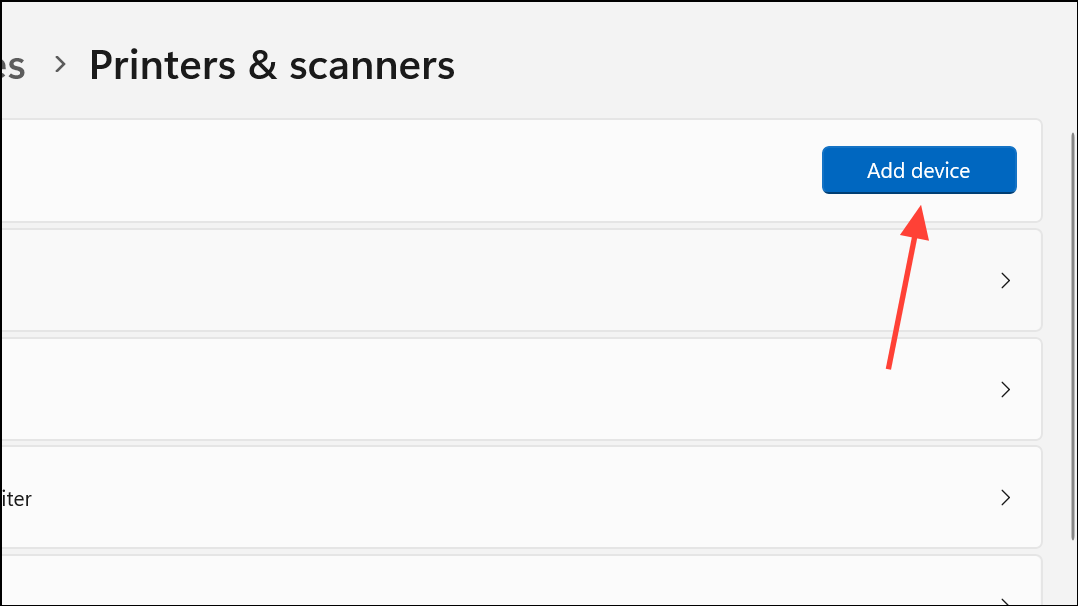
If the error persists, uninstall and reinstall the printer. Go to Settings > Bluetooth & devices > Printers & scanners, select your printer, and choose Remove. Then, click Add device to reinstall. Follow all prompts and use the latest drivers for your model.
Additional Tips and Maintenance
- Keep Windows 11 updated by regularly checking for system updates under Settings > Windows Update.
- For network printers, avoid IP address conflicts by setting a static IP through your printer’s web interface or router.
- Check the printer’s display for paper jams, cover open errors, or other hardware alerts, and resolve them as indicated.
- If printing from a specific browser causes issues, try a different browser to rule out browser-related problems.
Resolving the “Your printer needs your attention” notification on Windows 11 restores normal printing and removes workflow interruptions. Regular driver updates, print queue management, and stable network setup help prevent future alerts.



