
Unsolicited notifications with tips and suggestions in Windows 11 can disrupt your workflow and clutter your screen. You can regain control over these pop-ups directly through the Windows Settings application, which allows you to disable them entirely or manage them on an app-by-app basis. For more comprehensive control, advanced options are also available through the Group Policy Editor and Registry Editor.
Disable Notifications via the Settings App
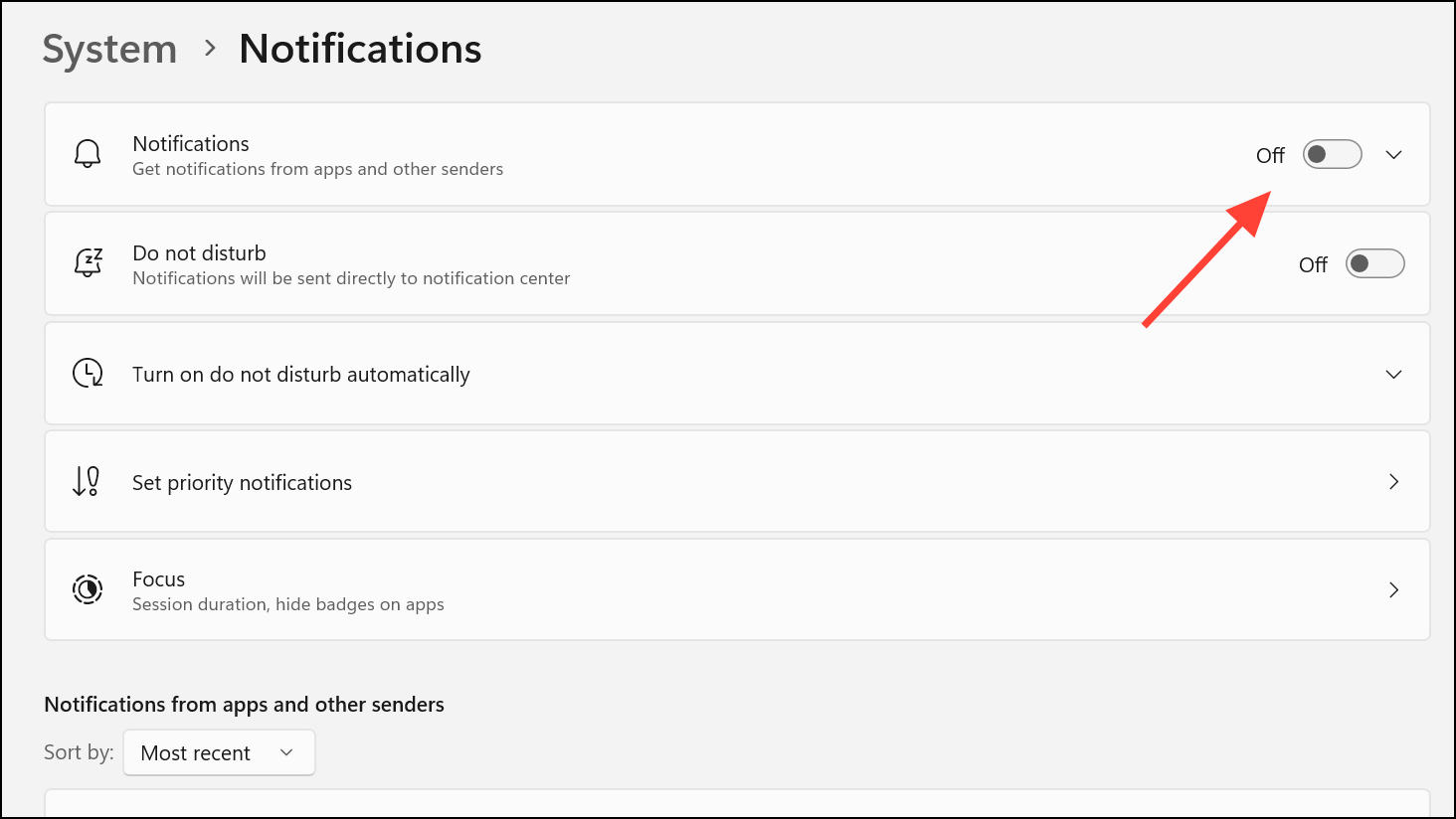
The most direct way to manage notifications is through the Windows 11 Settings menu. Here, you can turn off all notifications, disable specific types of suggestions, or control which apps are allowed to send you alerts. If you prefer a completely interruption-free experience, you can disable all notifications from apps and the system with a single setting.
Windows key + I or by right-clicking the Start icon and selecting Settings.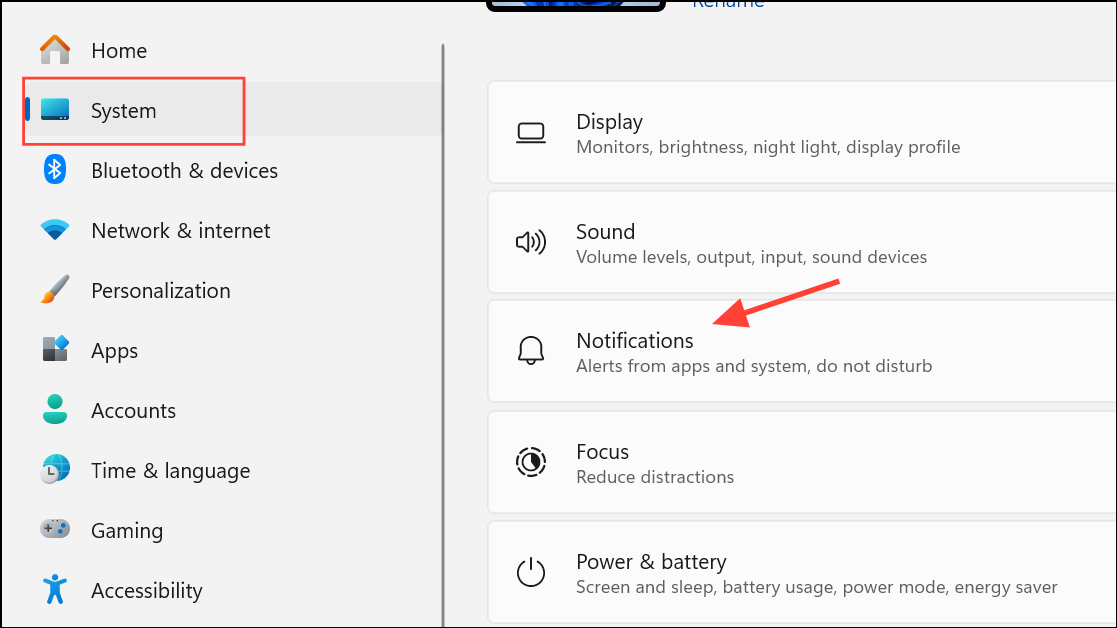
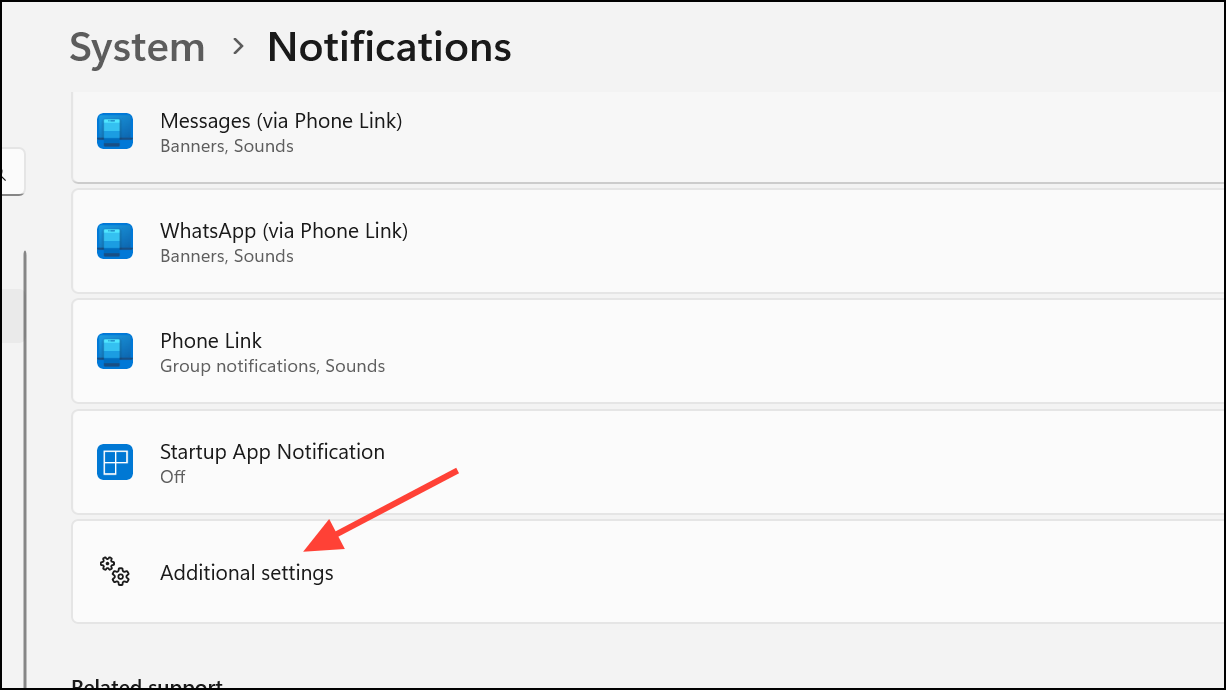
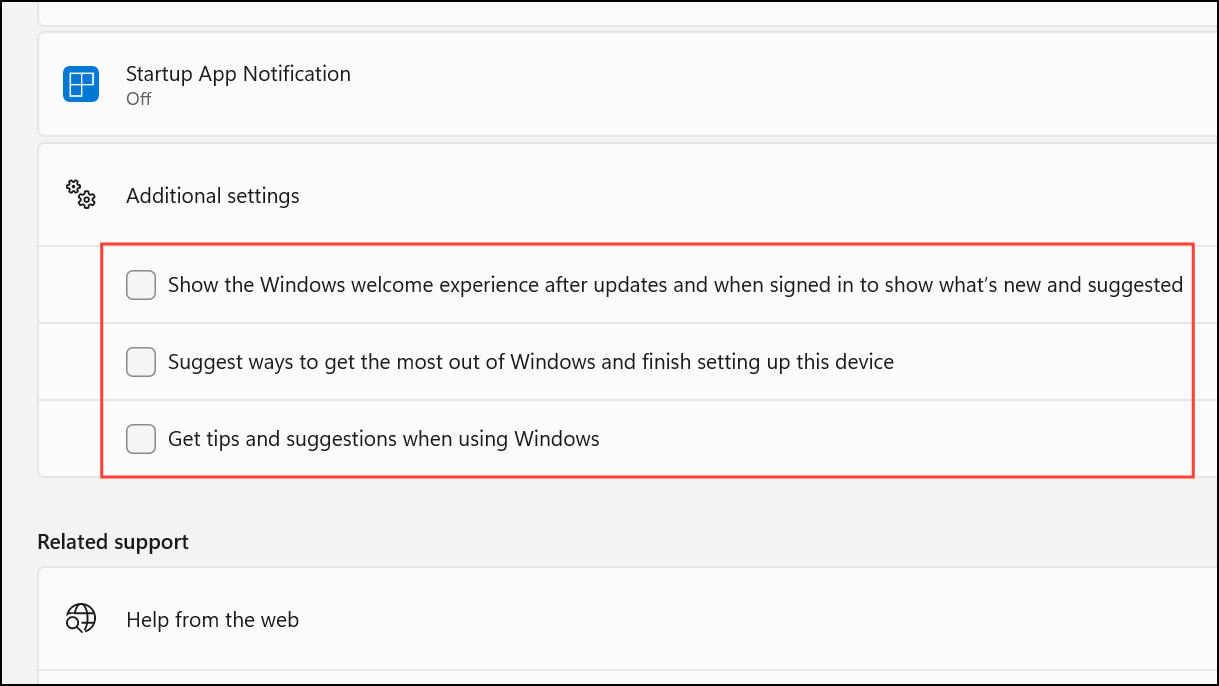
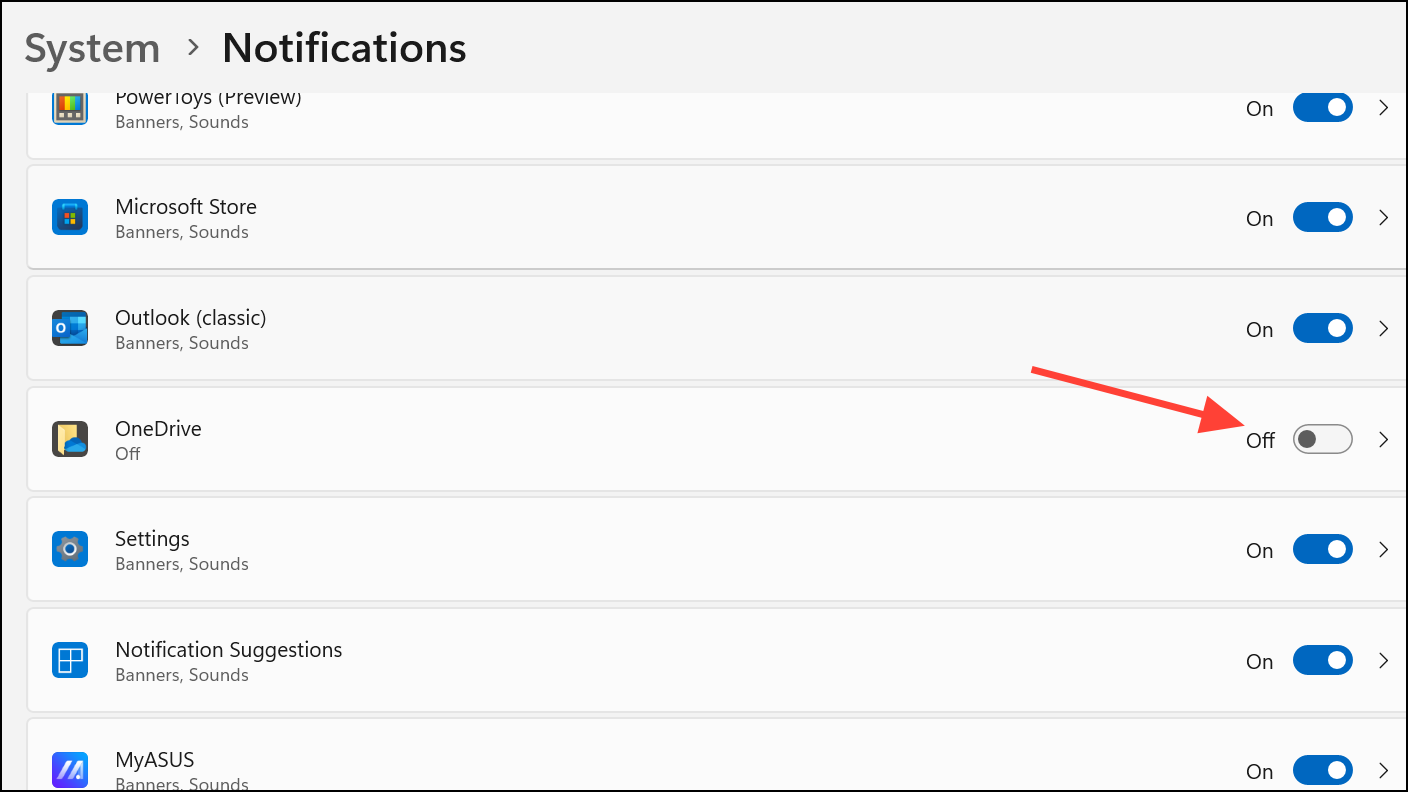
For more granular control, you can disable notifications from individual applications that you find disruptive, such as Microsoft Edge.
Disable Windows Tips with the Group Policy Editor
For users running Windows 11 Pro, Enterprise, or Education editions, the Local Group Policy Editor provides a system-wide policy to block Windows tips.
Windows key + R. Type gpedit.msc into the field and press Enter to launch the Local Group Policy Editor.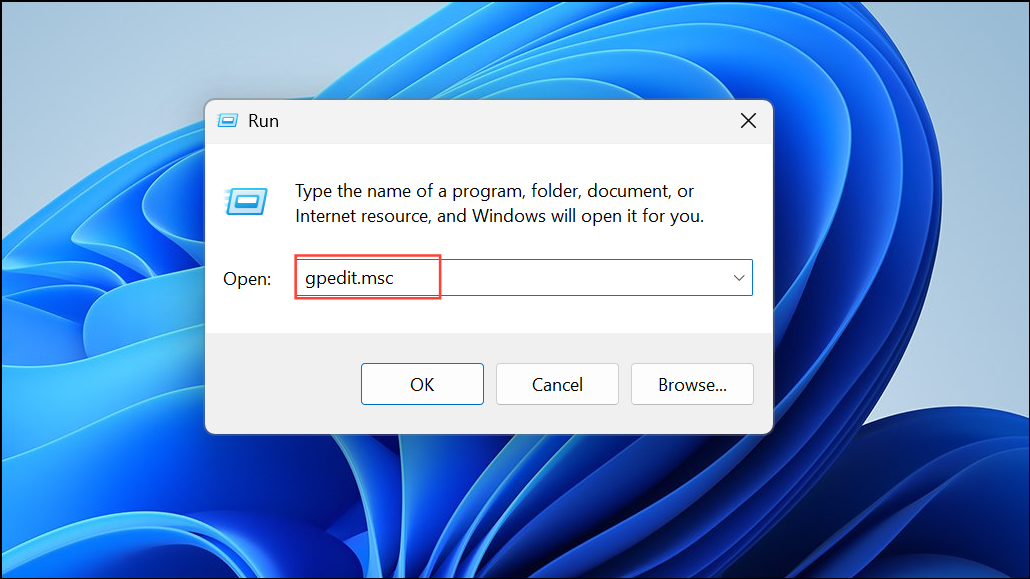
User Configuration > Administrative Templates > Windows Components > Cloud Content.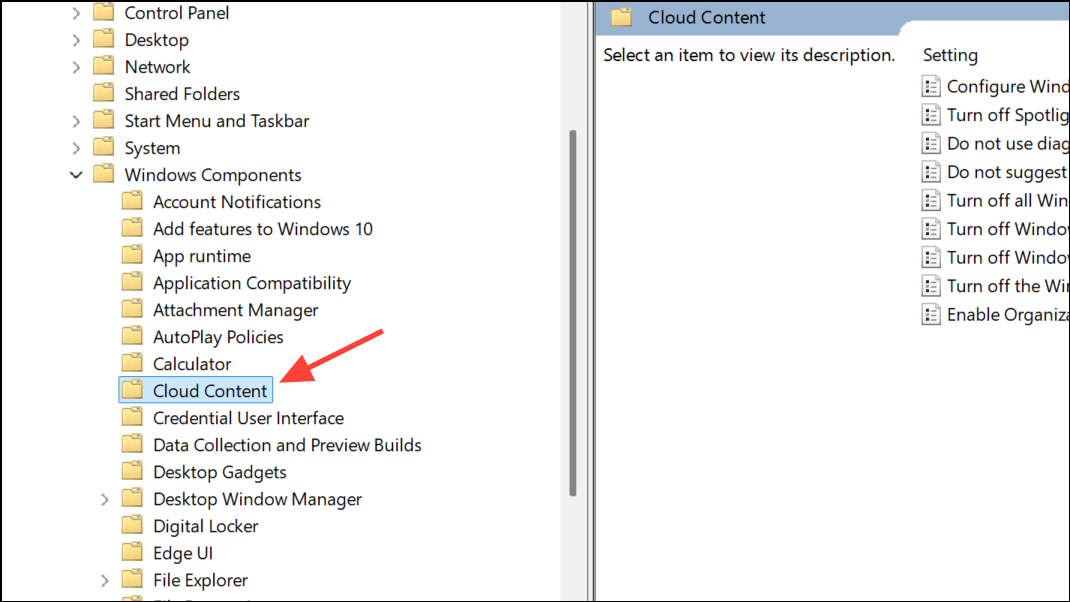
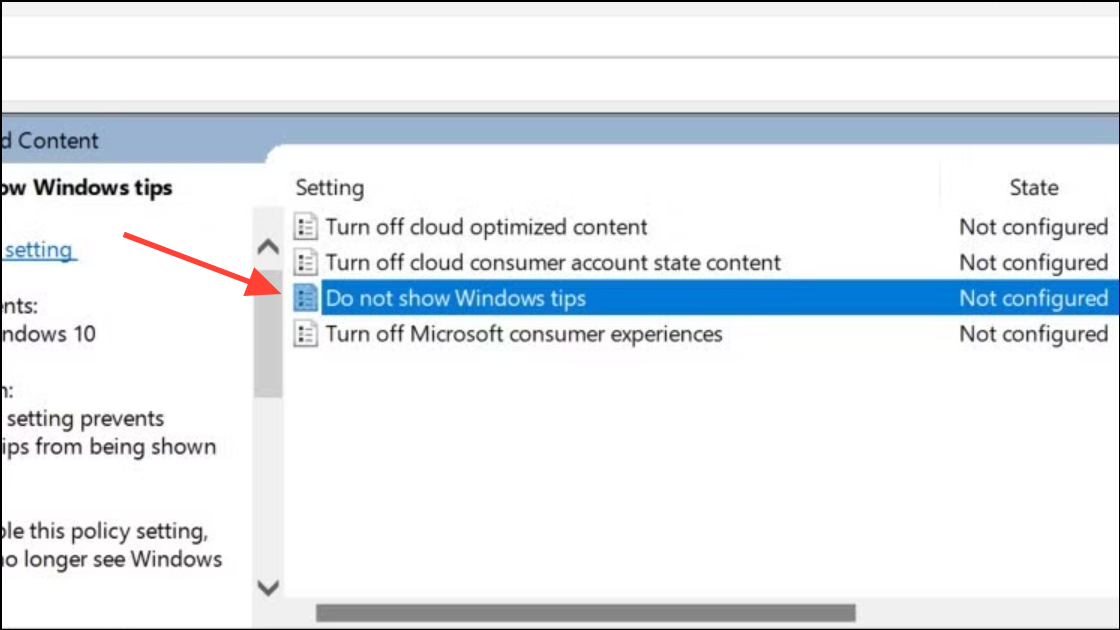
Disable Pop-ups Using the Registry Editor
Modifying the Windows Registry is a powerful method that works on all editions of Windows 11, but it carries risks. Incorrect changes can cause system instability. Before proceeding, it is highly recommended that you back up your registry.
Windows key + R to open the Run dialog. Type regedit and press Enter to open the Registry Editor.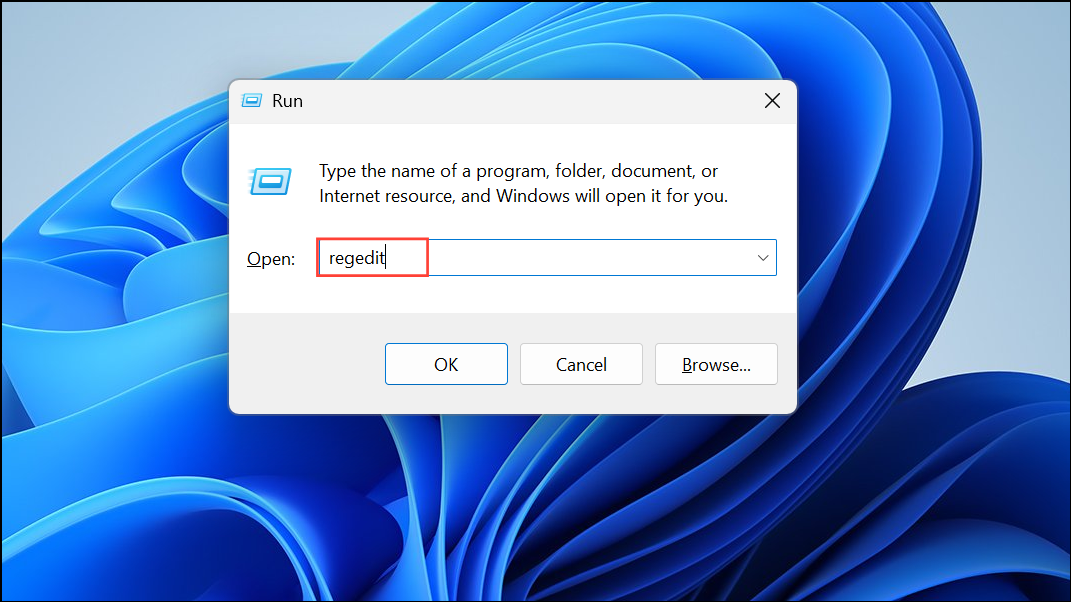
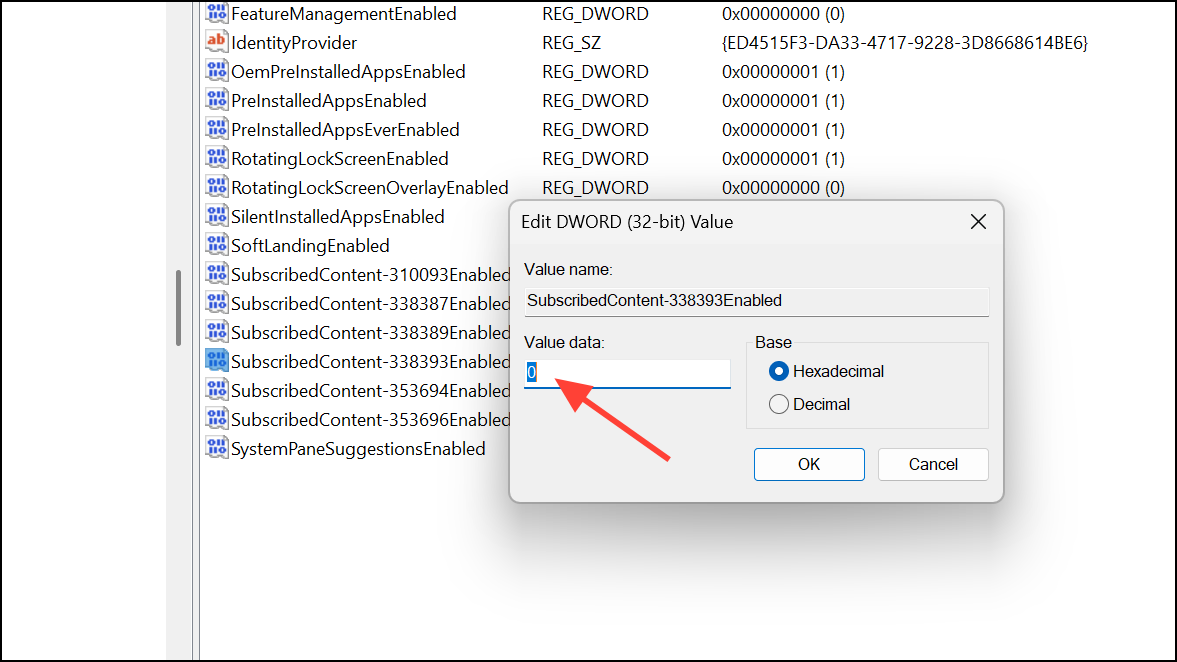
HKEY_CURRENT_USER\Software\Microsoft\Windows\CurrentVersion\ContentDeliveryManager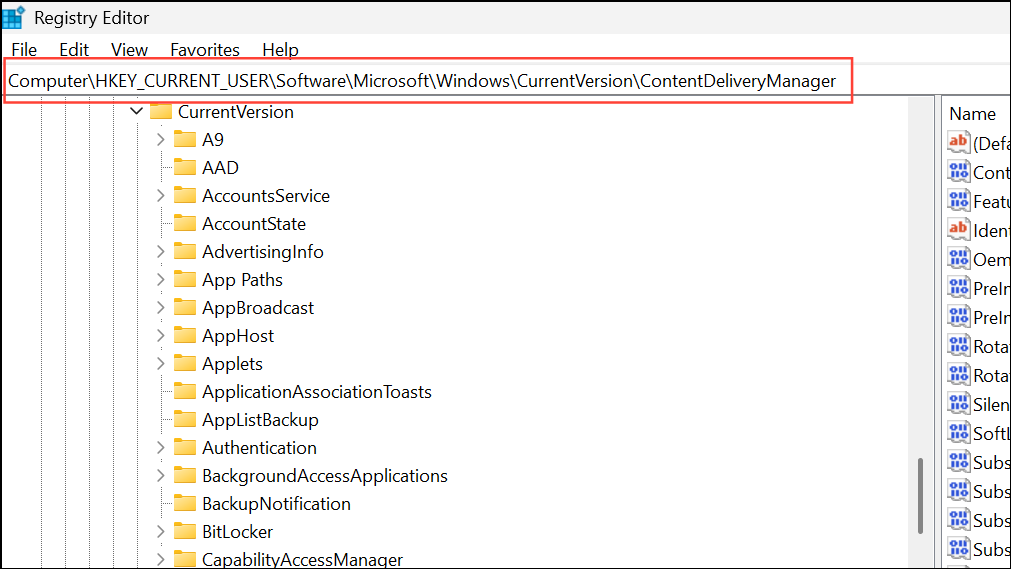
SubscribedContent-338393Enabled. If you do not see this specific value, other similar keys like SubscribedContent-338389Enabled may also control these features.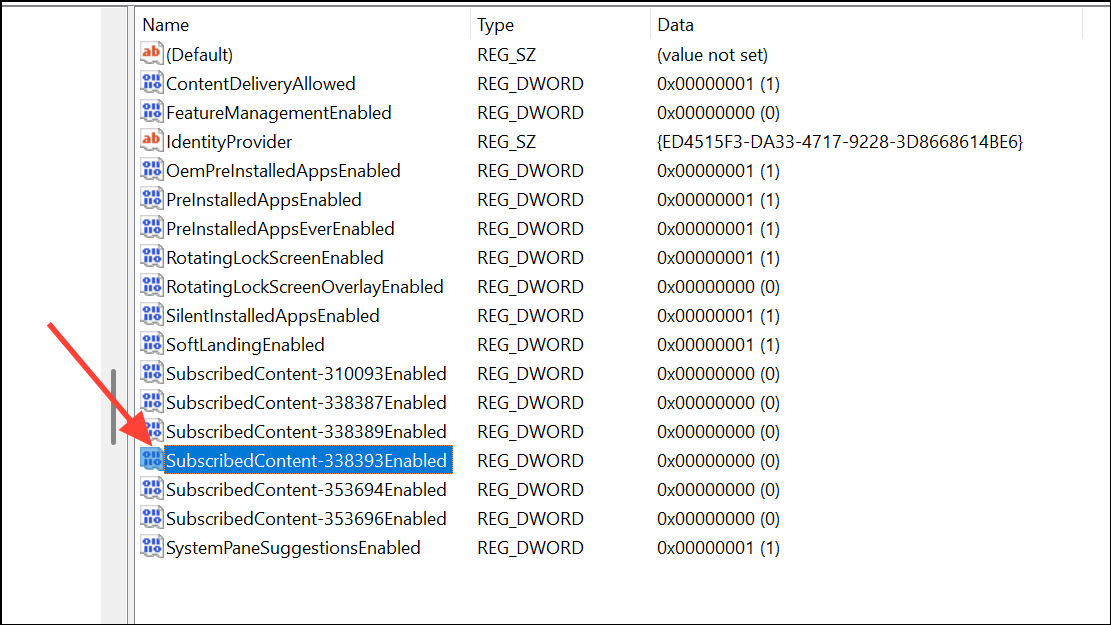
By using these methods, you can customize your notification settings to eliminate unwanted interruptions and create a more focused computing environment.



