

Disabling location tracking on a Windows 11 device prevents the system from periodically sending your device’s location to Microsoft. This adjustment is especially important if you no longer wish to use the Find My Device feature, are changing device ownership, or want to address privacy concerns. Windows 11 offers several methods to turn off Find My Device, each suited to different levels of user experience and administrative access.
Turn Off Find My Device Using Windows Settings
Windows + i on your keyboard. This shortcut provides direct access to all system configuration options.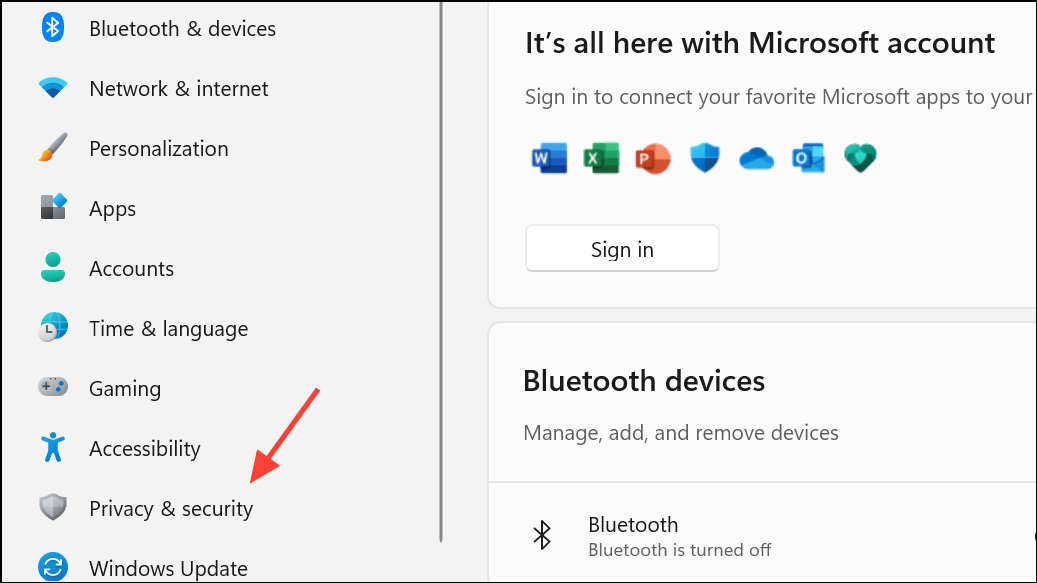
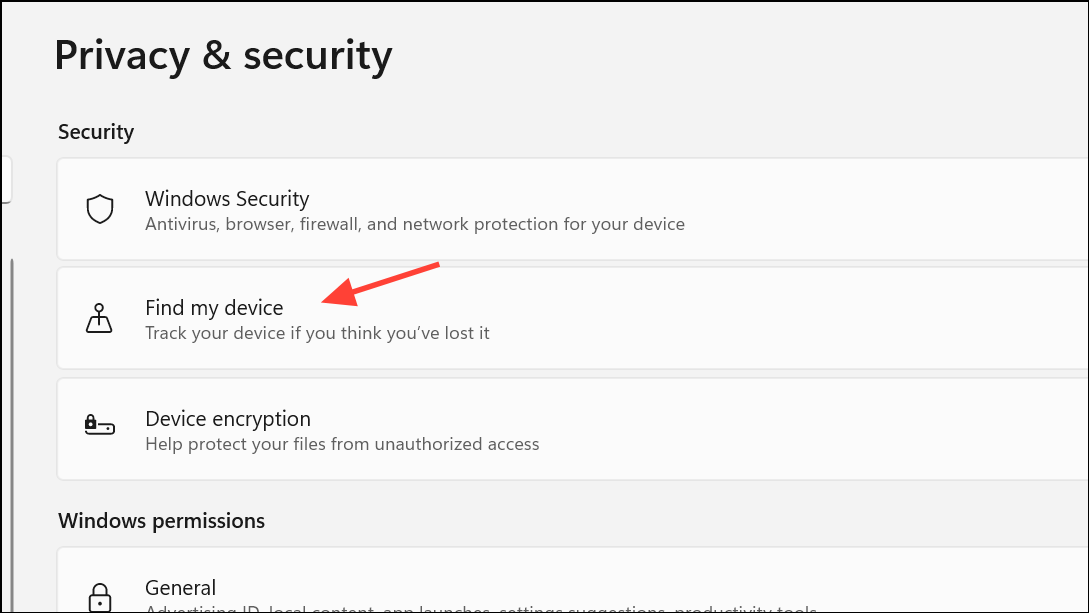
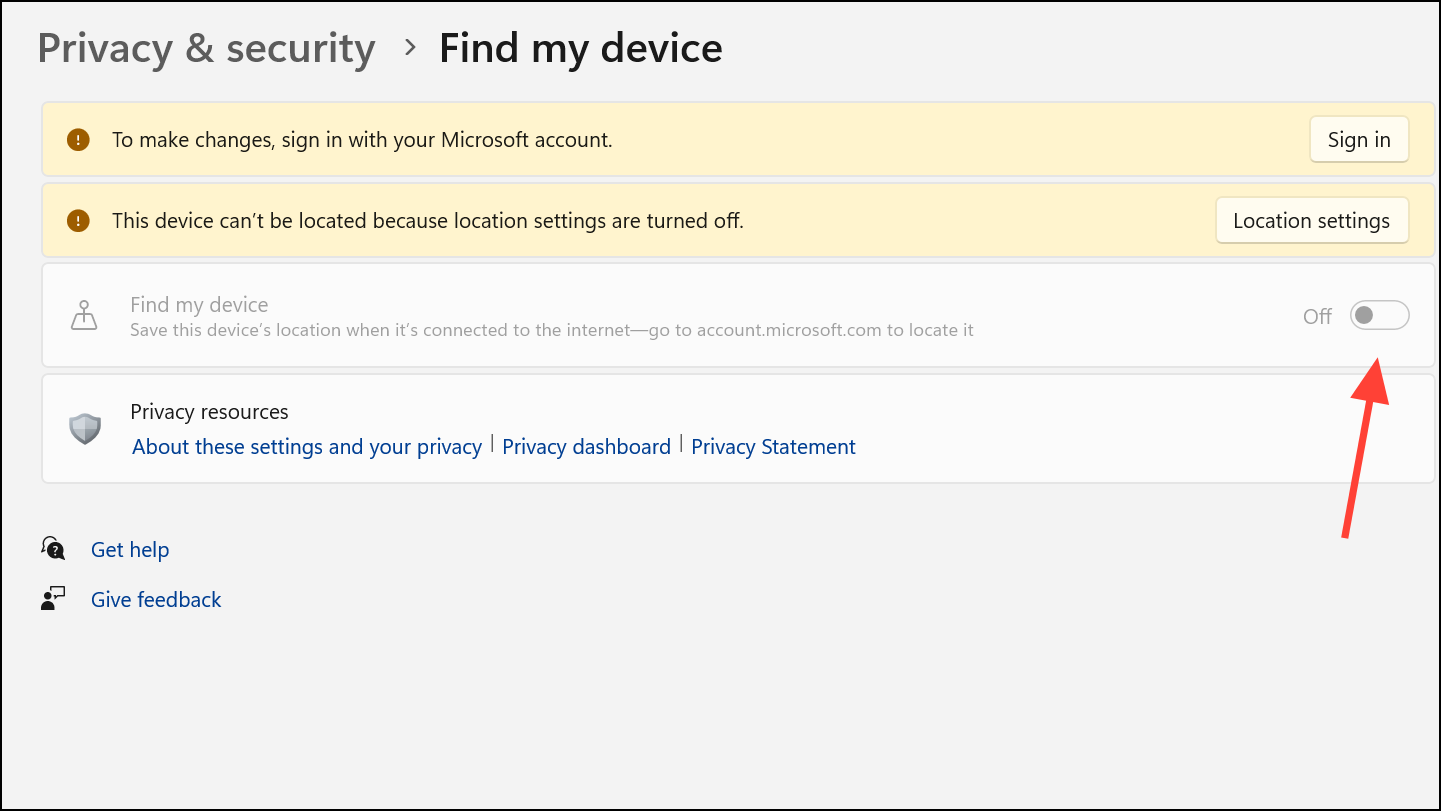
Disable Find My Device Using the Registry Editor
Advanced users and IT administrators may prefer using the Registry Editor to enforce this setting, especially on devices where Settings access is restricted or for bulk configuration.
Windows + r to open the Run dialog, then type regedit and press Enter. If prompted by User Account Control, click Yes to grant permission.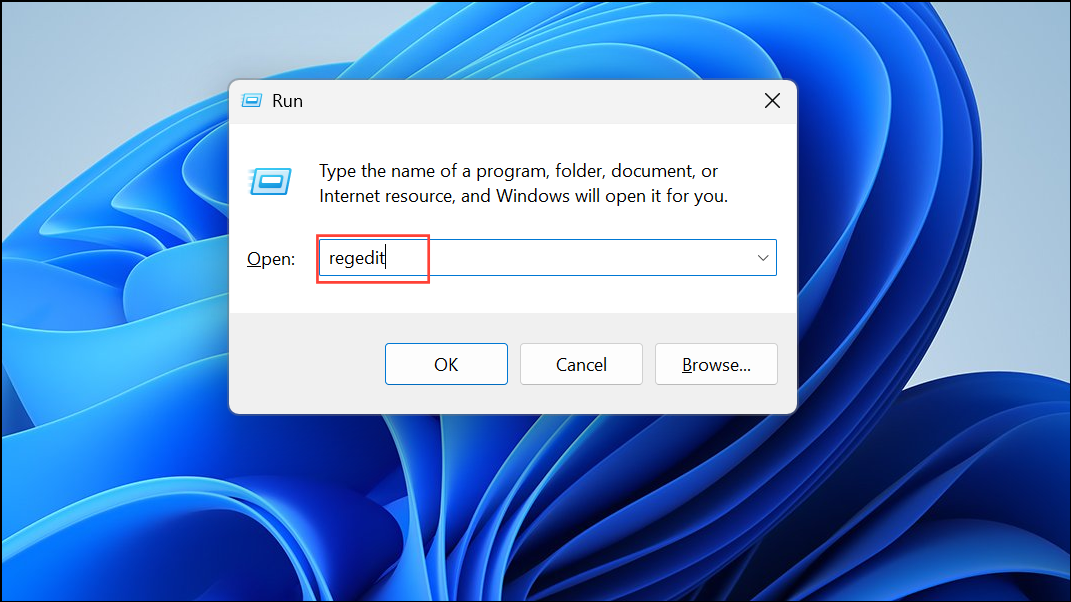
HKEY_LOCAL_MACHINE\SOFTWARE\Policies\Microsoft\FindMyDevice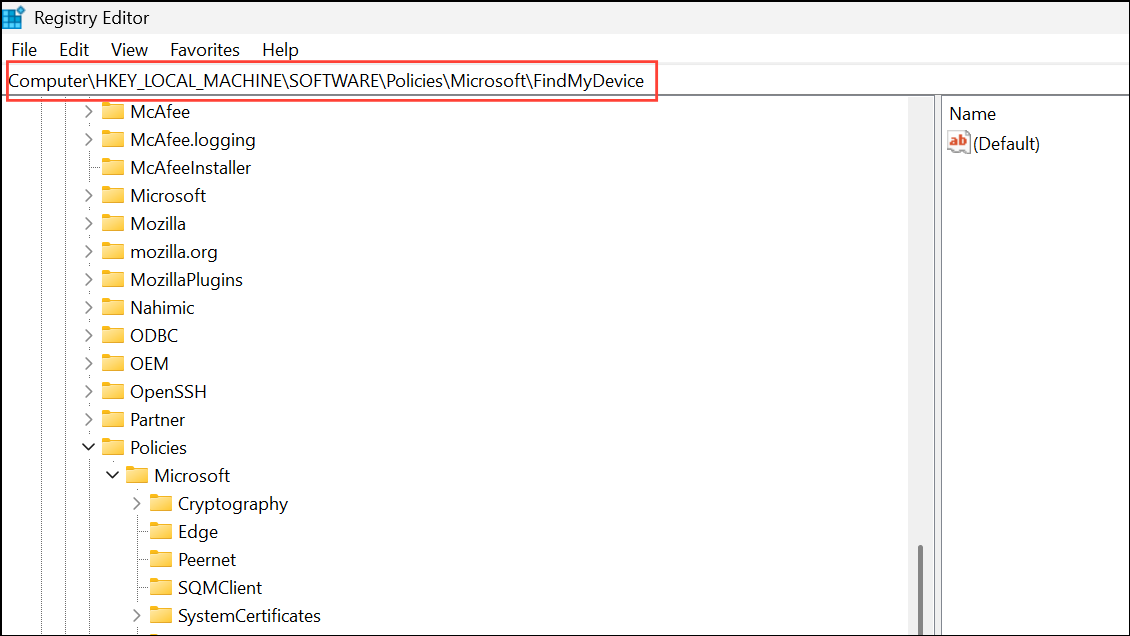
If the FindMyDevice key does not exist, right-click on Microsoft, choose New > Key, and name it FindMyDevice.
AllowFindMyDevice.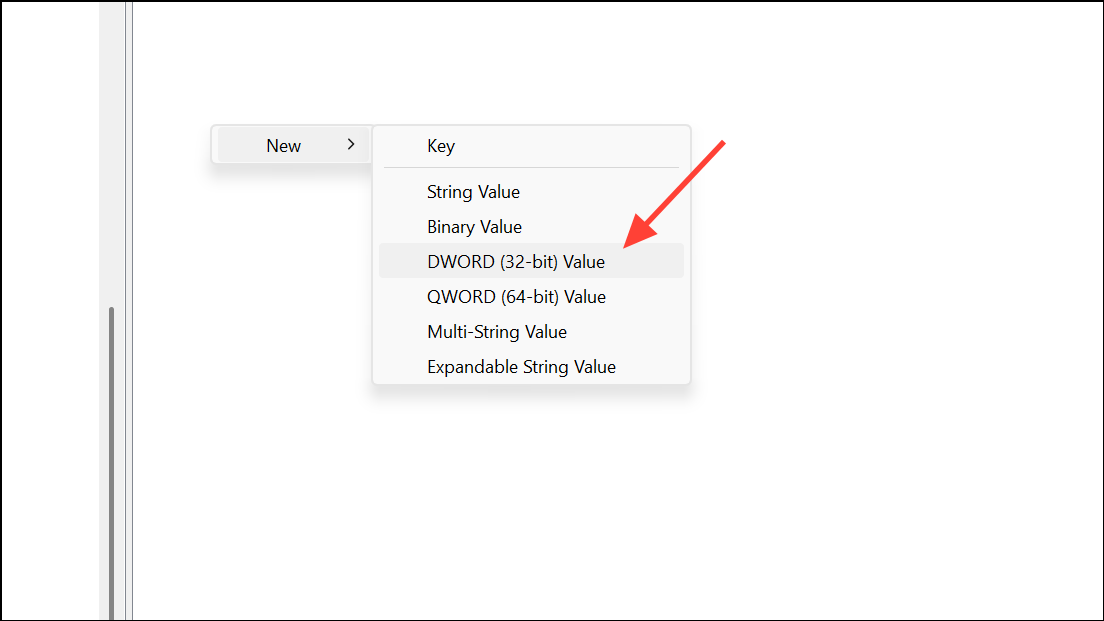
AllowFindMyDevice and set its value data to 0. This disables Find My Device at the system level.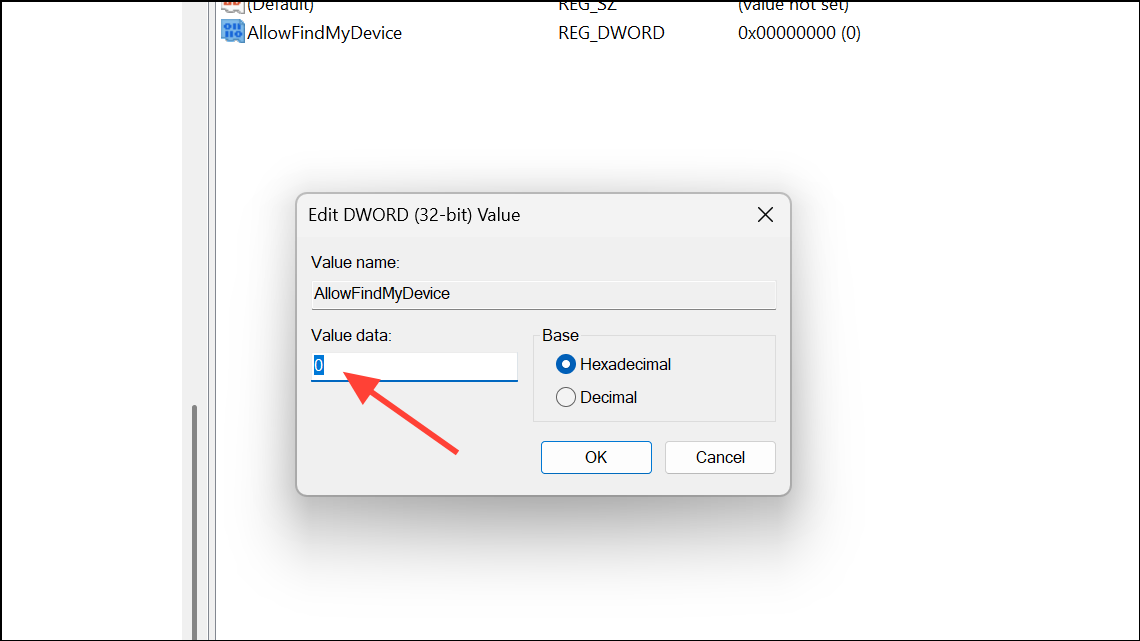
Turn Off Find My Device Using Group Policy Editor
This method is available for Windows 11 Pro, Enterprise, and Education editions. Group Policy provides centralized control over system settings, making it suitable for organizational environments or shared devices.
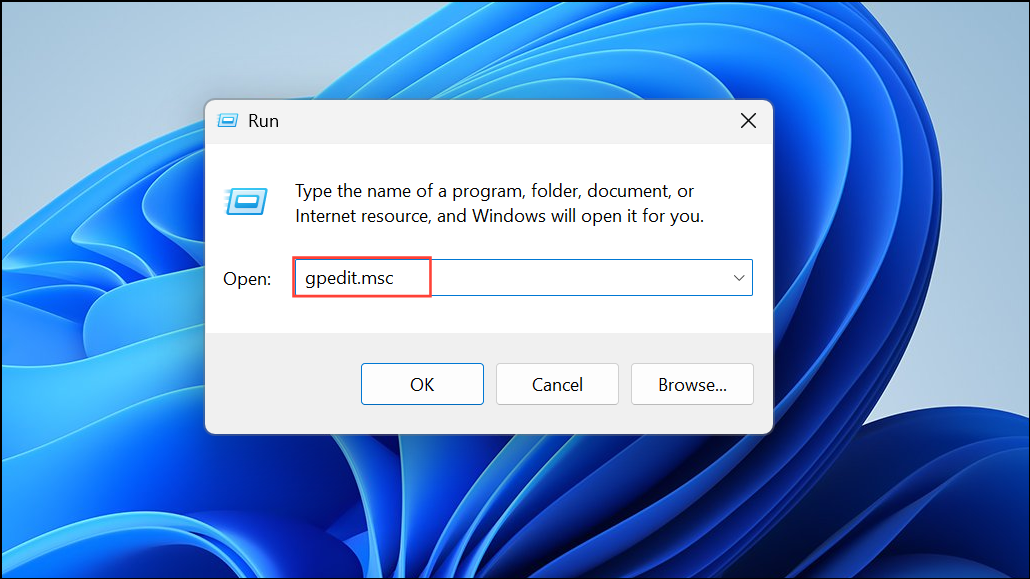
Computer Configuration\Administrative Templates\Windows Components\Find My Device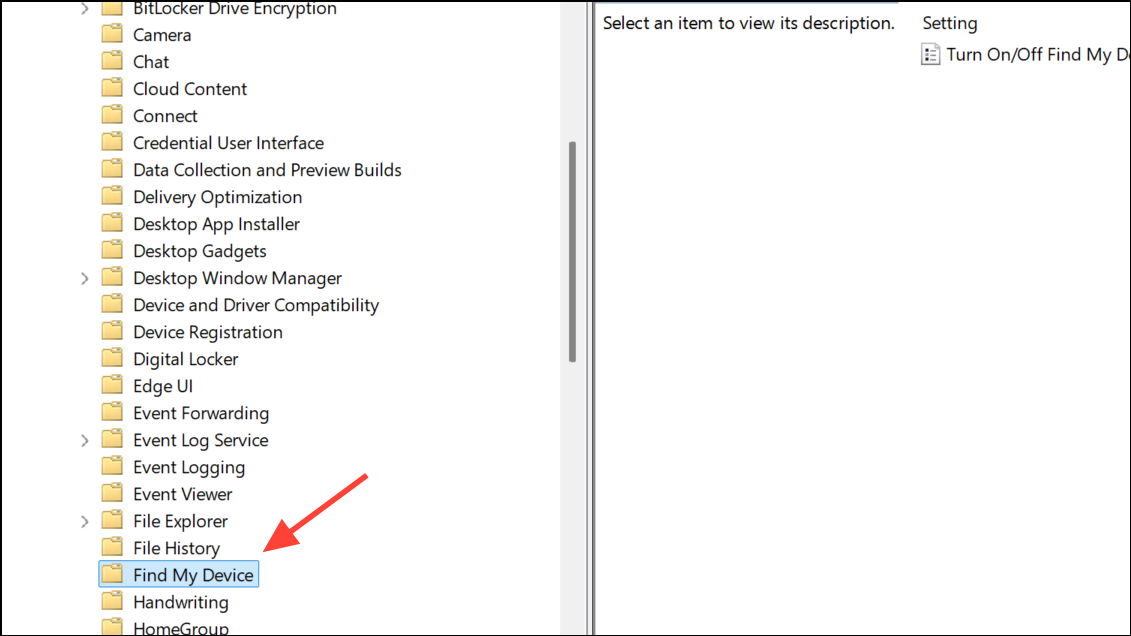
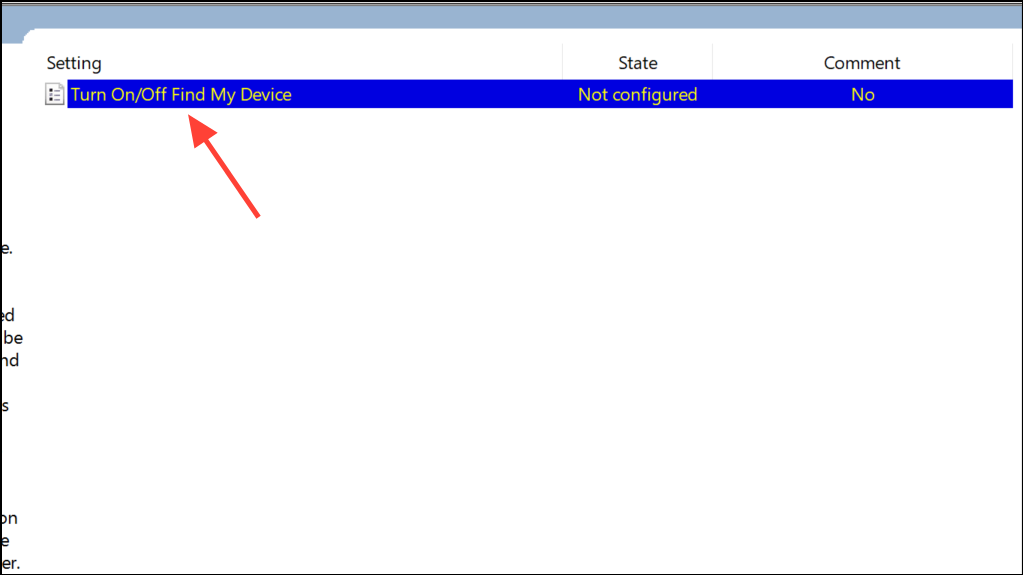
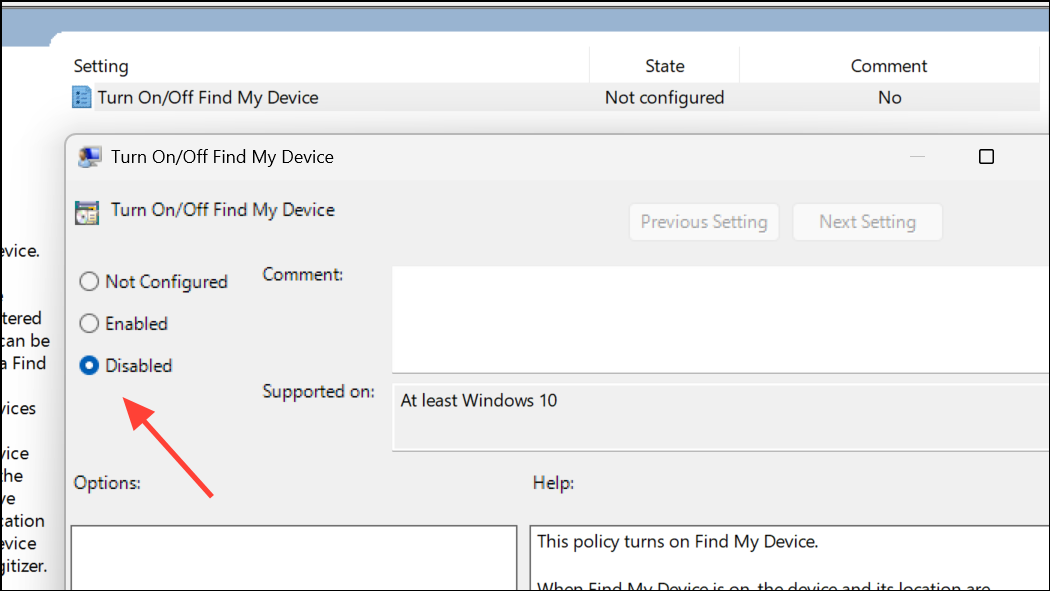
Troubleshooting and Additional Tips
If the Find My Device option is grayed out in Settings, confirm that you are signed in with a Microsoft account and have administrator privileges. Devices managed by organizations or schools may have restrictions set by IT administrators, which can override individual preferences. In these cases, contact your IT support team to request changes.
Disabling Find My Device will prevent your PC from being tracked if it is lost or stolen. If you decide to re-enable the feature later, you can return to Settings or reverse the registry or group policy changes described above.
Turning off Find My Device in Windows 11 is straightforward and gives you control over your device’s privacy. Whether you use Settings, the Registry, or Group Policy, you can stop location updates and remote tracking with just a few steps.



