

Restricting access to the Settings app and Control Panel in Windows 11 prevents non-administrator accounts from making system-wide changes, reducing the risk of misconfiguration or unauthorized adjustments. Administrators can use built-in Windows tools to block these areas for standard users, ensuring that only authorized personnel can modify critical system options.
Disable Settings and Control Panel Using Group Policy (Windows 11 Pro, Enterprise, Education)
Group Policy provides the most direct method for blocking access to both the Settings app and Control Panel for specific users or groups. This approach is available on Windows 11 Pro, Enterprise, and Education editions.
gpedit.msc tool. Press Windows + R, type gpedit.msc, and press Enter to launch the Local Group Policy Editor.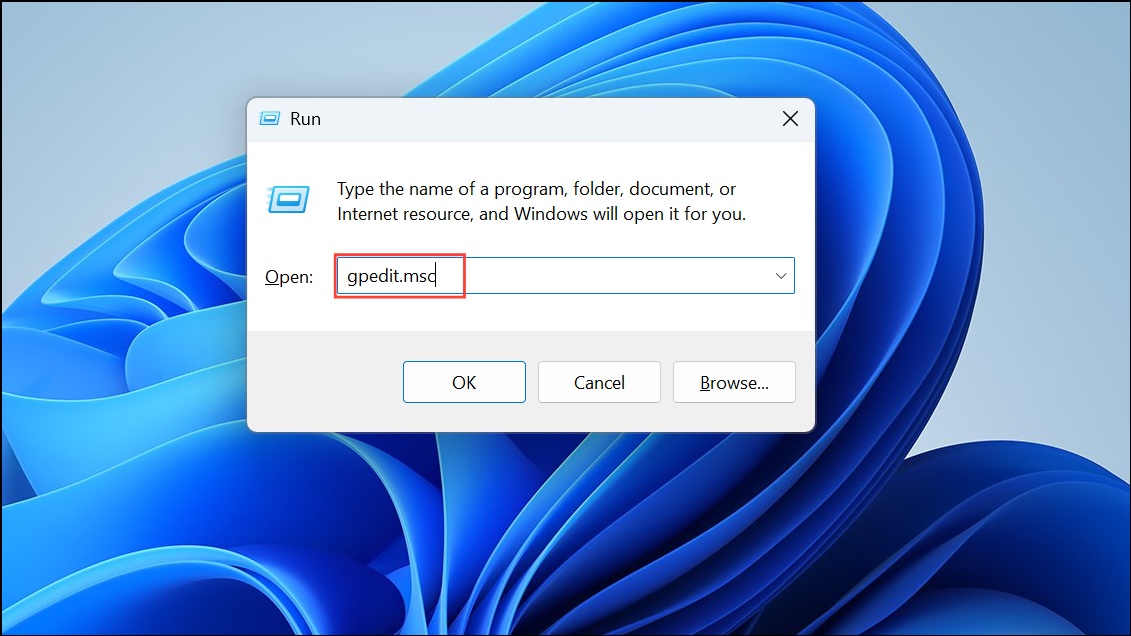
User Configuration > Administrative Templates > Control Panel in the left pane. This section contains policies related to user access for system configuration tools.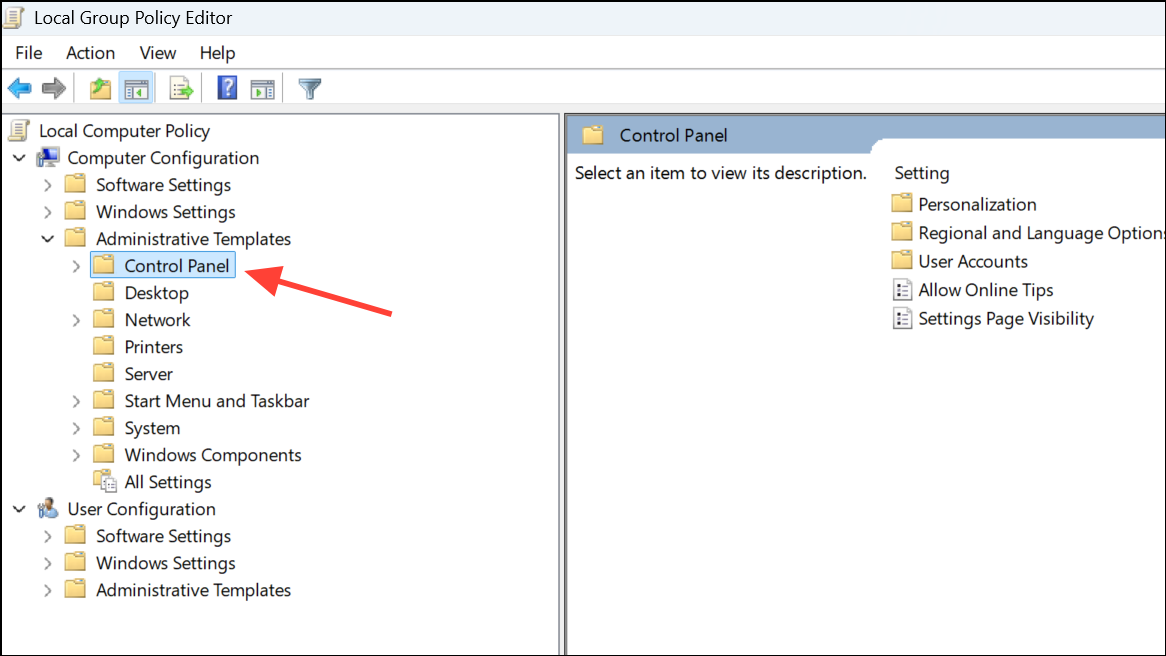
Once this policy is enabled, users affected by it will see an error message when trying to open the Control Panel: “This operation has been canceled due to restrictions in effect on this computer. Please contact your system administrator.” The Settings app will fail to open or may loop indefinitely before closing. To restore access, repeat the steps and set the policy to Not Configured.
Block Settings and Control Panel via Registry Editor (Windows 11 Home and All Editions)
Windows 11 Home does not include the Group Policy Editor, but similar restrictions can be applied by editing the Windows Registry. This method is technical and requires caution, as incorrect changes can cause system instability. Always back up your registry and important data before proceeding.
Windows + R, typing regedit, and pressing Enter. Approve any User Account Control prompts.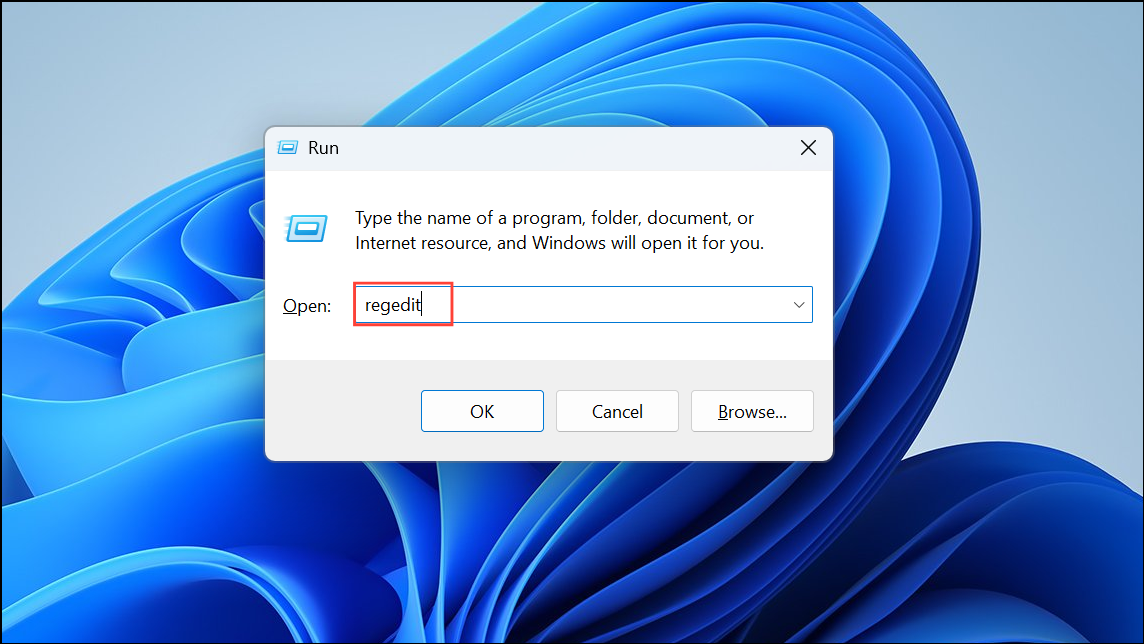
HKEY_CURRENT_USER\Software\Microsoft\Windows\CurrentVersion\Policies\ExplorerIf the Explorer key does not exist under Policies, right-click Policies, select New > Key, and name it Explorer.
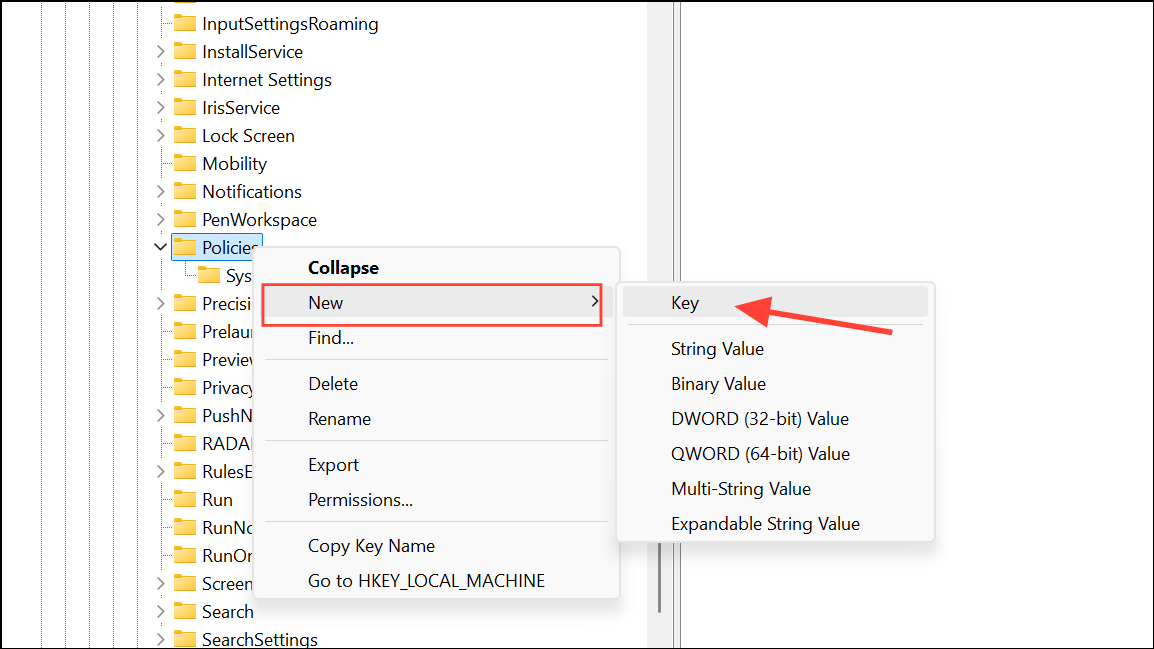
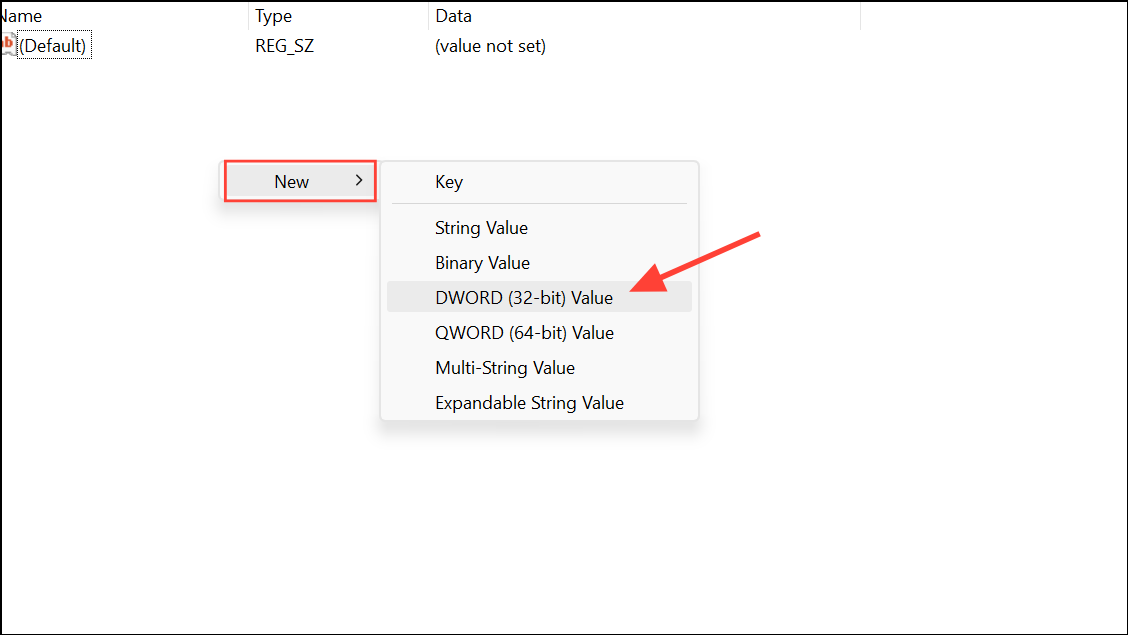
NoControlPanel value and set its data to 1. This action activates the restriction for the current user.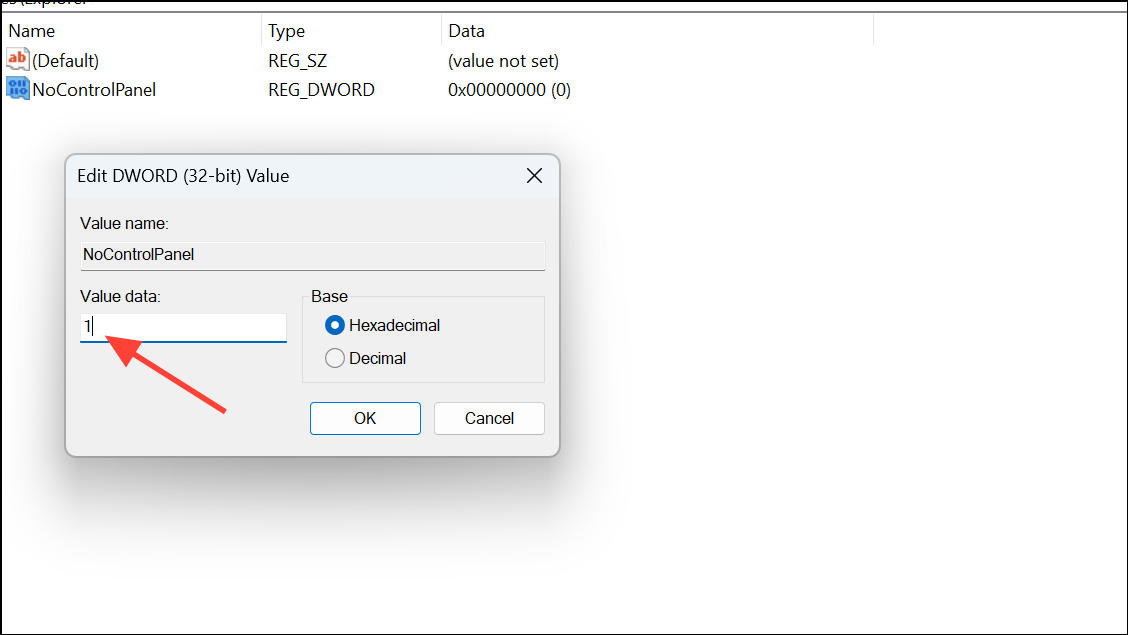
This registry modification prevents the user from opening both the Settings app and Control Panel. To reverse the change, set NoControlPanel to 0 or delete the value entirely.
Hide the Settings Homepage or Specific Settings Pages
Administrators may want to hide only the Settings homepage or specific pages within the Settings app rather than block access entirely. This can be done using either the Registry Editor or Group Policy.
Hide Settings Homepage via Registry
HKEY_LOCAL_MACHINE\SOFTWARE\Microsoft\Windows\CurrentVersion\Policies\Explorer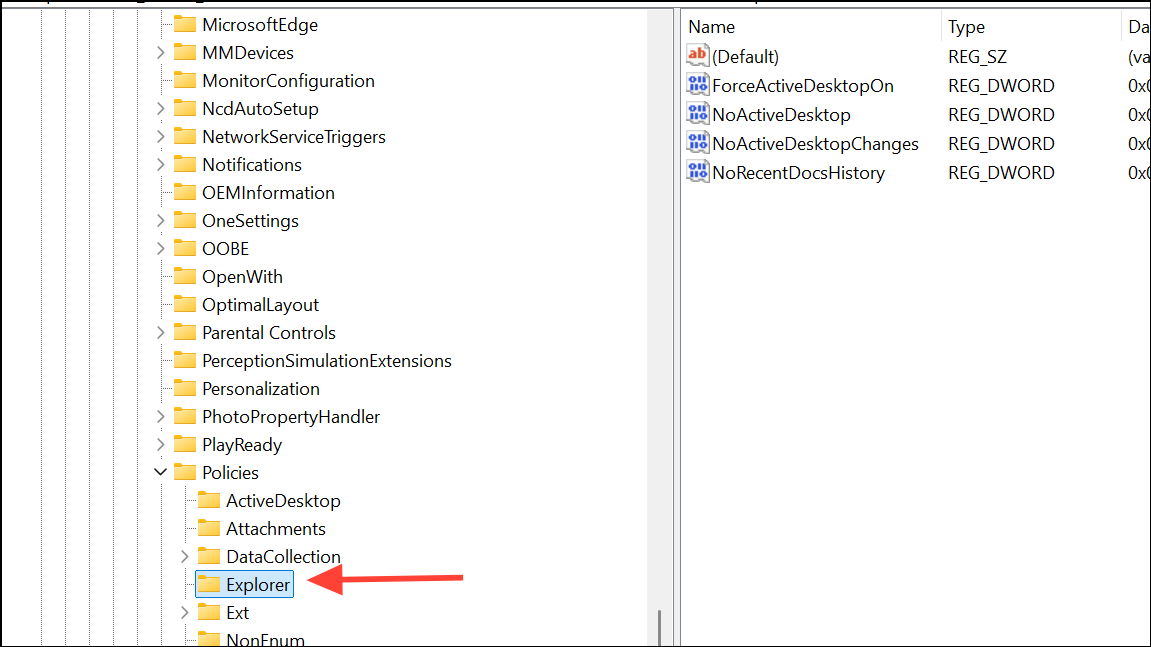
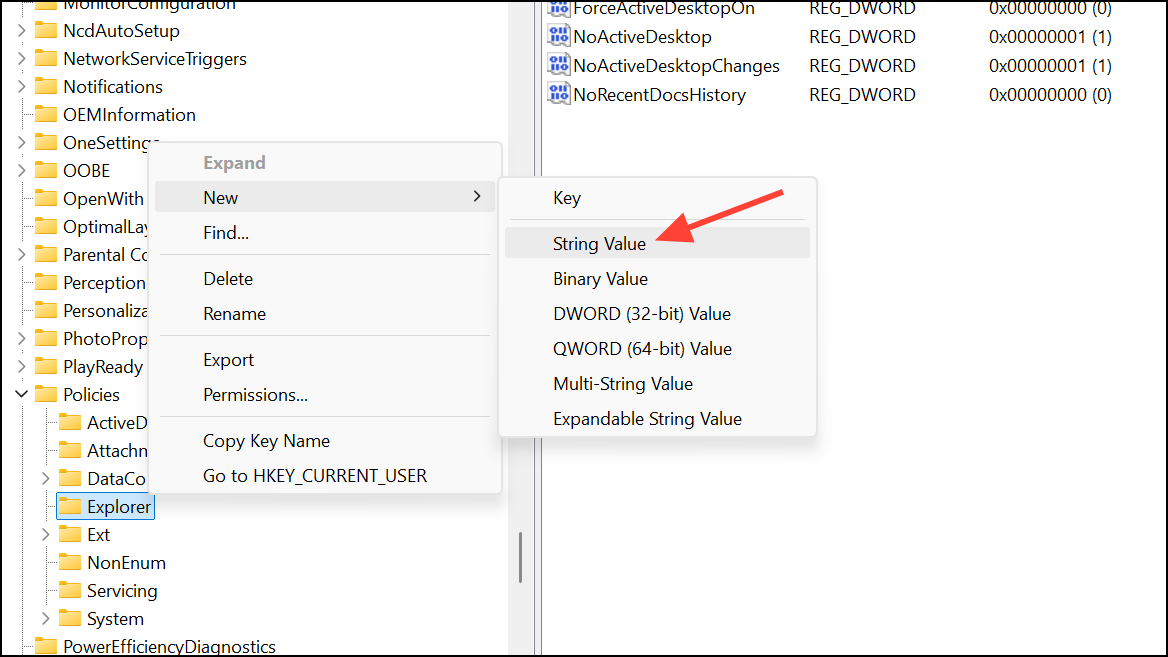
SettingsPageVisibility and enter hide:home as the value data to hide the homepage. To hide other pages, use hide: followed by the page identifier (e.g., hide:privacy;network).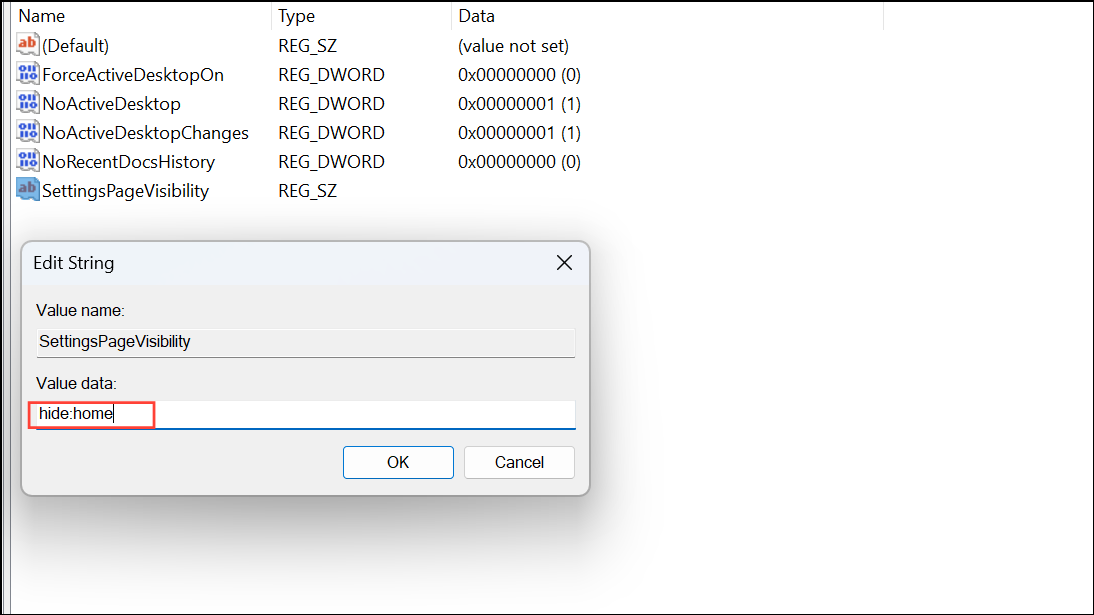
Hide Settings Homepage via Group Policy
Computer Configuration > Administrative Templates > Control Panel or All Settings depending on your Windows version.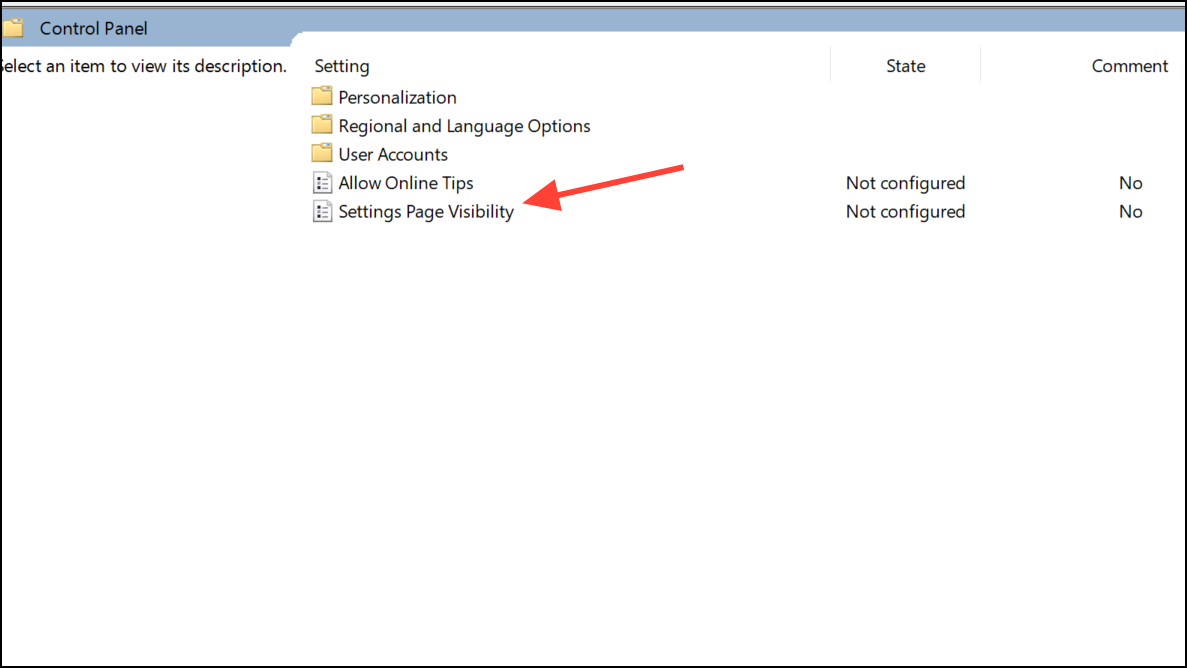
hide:home in the options field to hide the homepage. Click Apply and OK.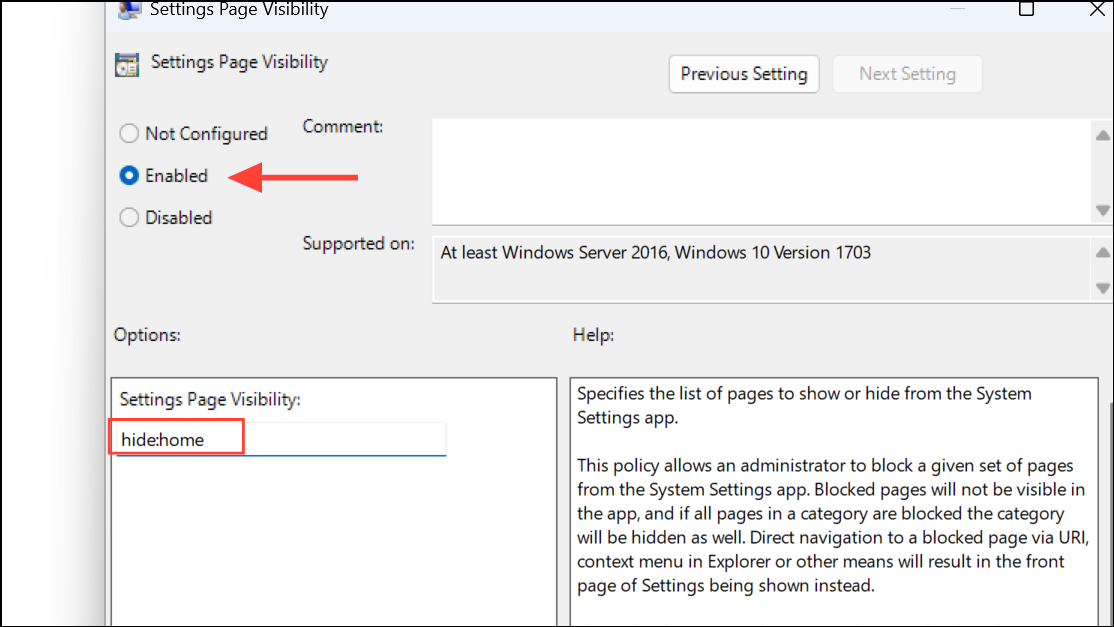
This approach hides only the targeted page(s) within the Settings app, allowing access to other settings as needed. This is useful for limiting access without fully blocking the Settings app.
Limitations and Additional Considerations
On Windows 11 Home, Family Safety and app restrictions do not allow direct blocking of the Settings app or Control Panel via their standard interfaces. Registry and Group Policy remain the most reliable methods. Be aware that some advanced users may attempt to bypass these restrictions if they have local administrator rights. For organizational environments, combine these restrictions with standard user permissions and account controls.
Blocking access to system settings strengthens security and helps prevent accidental or unauthorized changes. Always document changes and inform affected users about the new restrictions to avoid confusion or support requests.
Blocking Settings access in Windows 11 gives administrators tighter control over system security and stability. Adjust or remove these restrictions as needed to restore access for trusted users.



