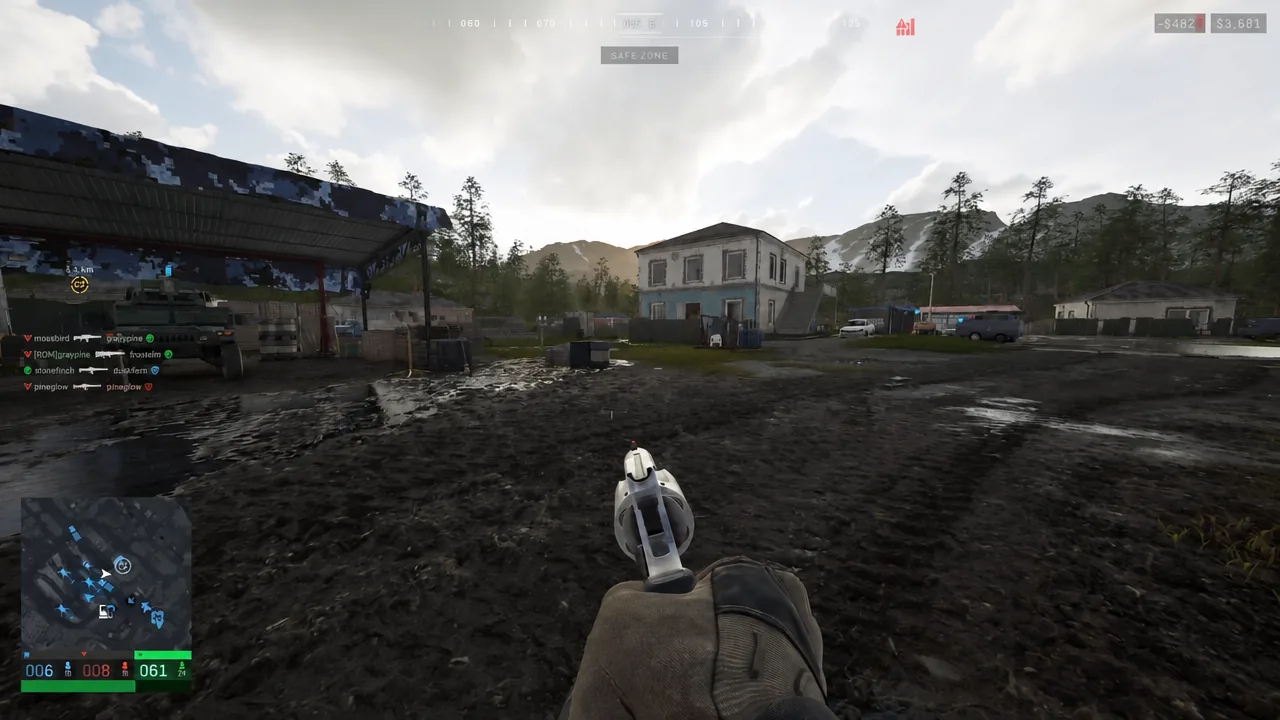
Wardogs throws up to 100 players across three factions into the same Control Zones, and yelling grid references over voice chat falls apart quickly. The squad ping system is the fix. It puts a labeled marker in the world exactly where you are looking, and it takes one button.
Quick answer: Aim at the spot, hold Middle Mouse Button (R3 on a controller) to open the ping wheel, move the cursor to an option such as Watching Here, then release to place the marker.
Squad ping controls on PC and controller
The ping and the ping wheel share one input. A quick press drops a plain marker, and holding the same button brings up the wheel with the specific callouts.
| Action | Keyboard & mouse | Xbox / PS5 controller |
|---|---|---|
| Ping | Middle Mouse Button | Right Stick Click (R3) |
| Ping wheel | Hold Middle Mouse Button | Hold R3 |
| Tactical map | M | View / Create button |
How to place a squad ping
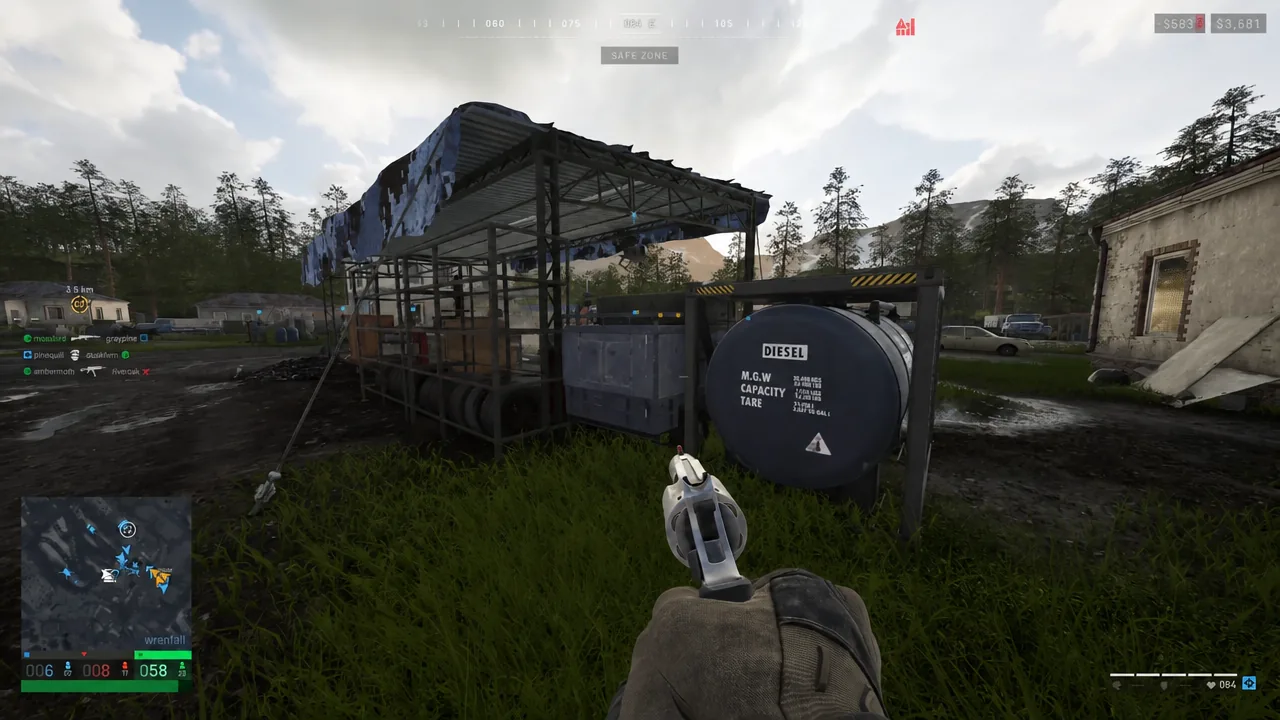
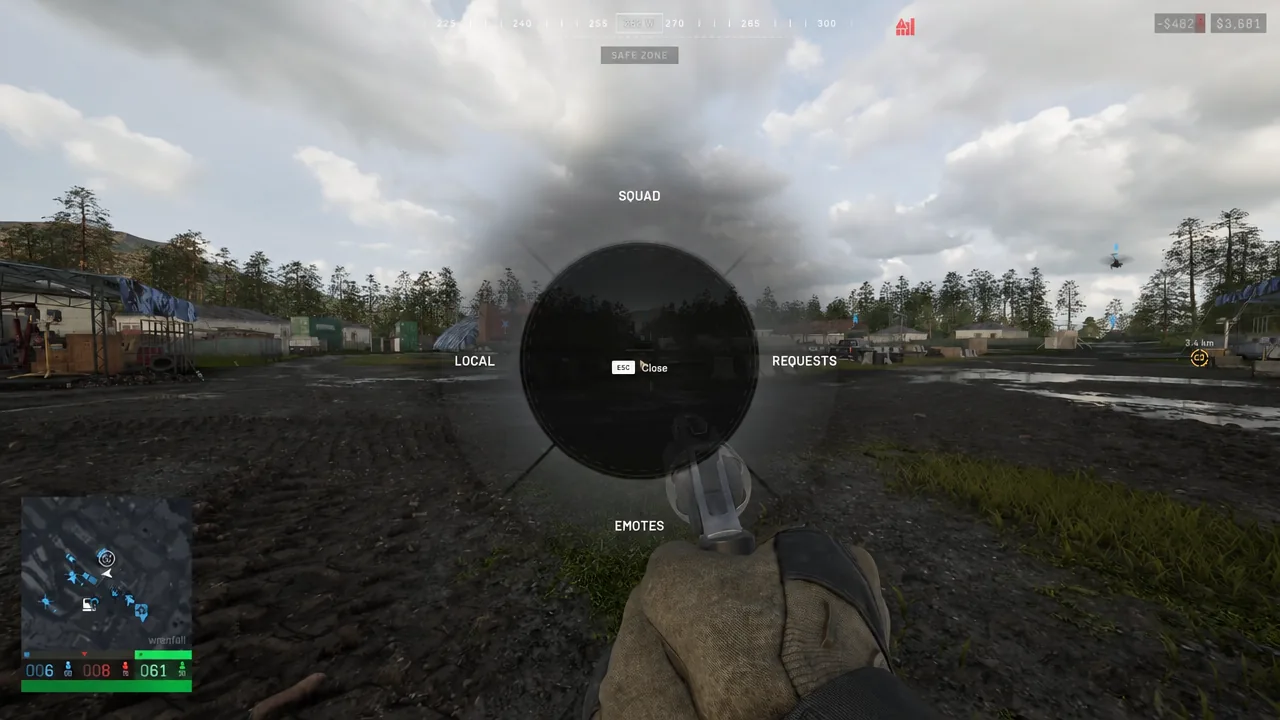
[MMB] Close sitting in the middle as the cancel option.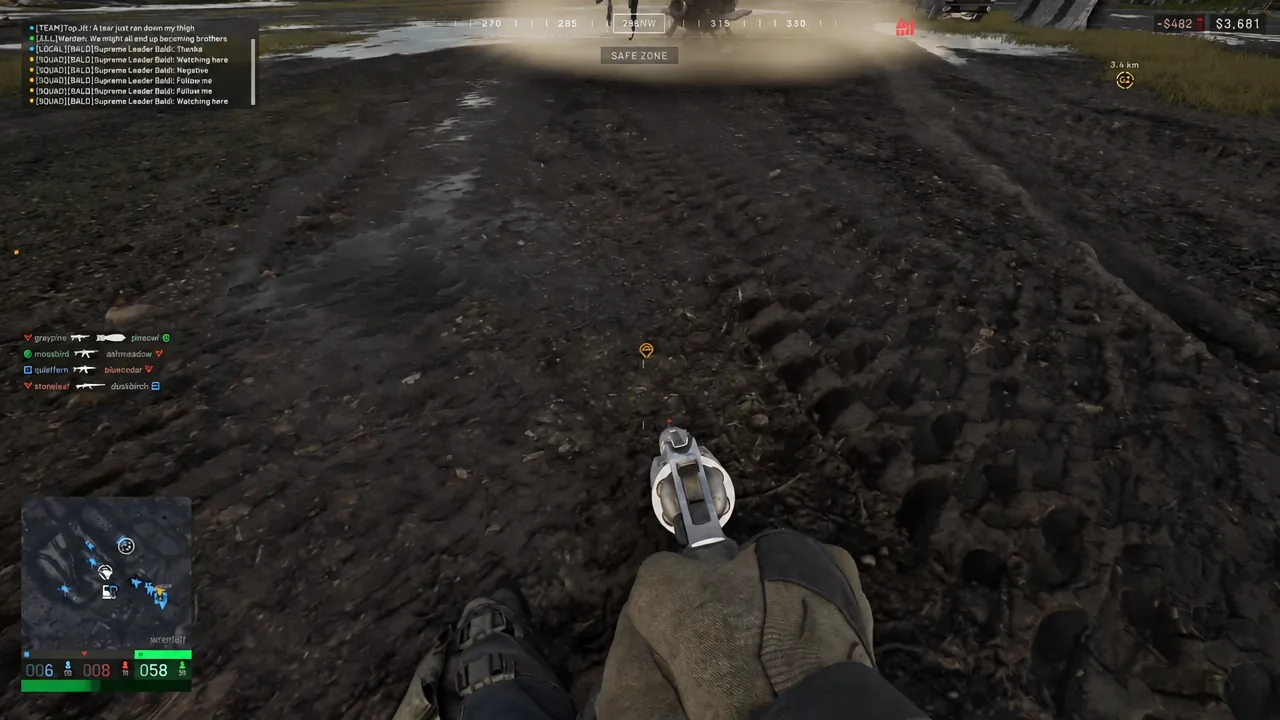
That in-world marker is your confirmation. If nothing appears after you let go, you either released on the center Close segment or you are not in a squad.
What each squad ping option means
The Squad section of the wheel carries seven callouts. They cover intent as well as position, which is why a ping is often faster than describing the same thing out loud.
- Watching Here — you are covering that angle or building.
- Attacking Here — you are pushing that position.
- On My Way — you are moving to the marked spot.
- Defending Here — you are holding that ground.
- Follow Me — you want the squad to move with you.
- Yes and No — quick confirmation without touching voice chat.
Local, Requests, and Emotes in the same wheel
Squad is only one category. The same radial menu also holds LOCAL, REQUESTS, and EMOTES, so the single input covers communication beyond your own four-man group. The Close button stays in the center of the wheel the whole time, which means you can back out of any category without committing to a callout.
Join a squad before you start pinging
Pings are squad-only. If you are playing unassigned, nobody sees your markers, and you also earn no XP for tagging enemies with observation tools. Squads are optional in Wardogs, but the ping system effectively is not usable without one.
After picking a faction, open the pause menu and look at the squad list on the right side of the screen. Any squad showing a Join button is open. Locked squads cannot be entered, and a third type lets you send a request that the squad leader has to accept. The Create button at the top of the list makes you a squad leader with control over those settings, and the Unassigned Players section below the list lets you invite specific people. Squadmates are marked with yellow icons in the world.
Pinging from ground vehicles and helicopters
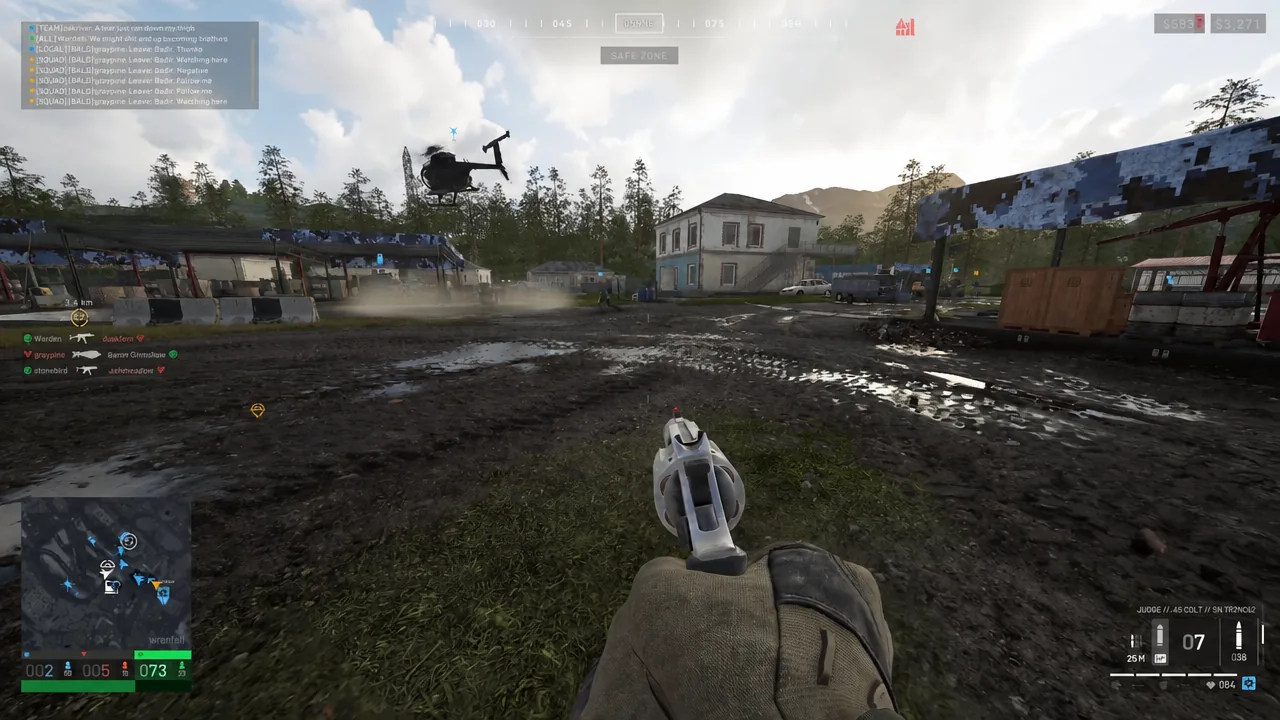
The input does not change when you get behind the wheel or into a cockpit. Middle mouse button and R3 still ping, and holding them still opens the wheel, which makes it practical to mark landing zones and objectives while the squad is moving.
Markers are temporary and disappear fairly quickly, so a single ping is not a lasting reference point. If a pilot is inbound or the squad is still crossing open ground, re-ping the location as they close in.
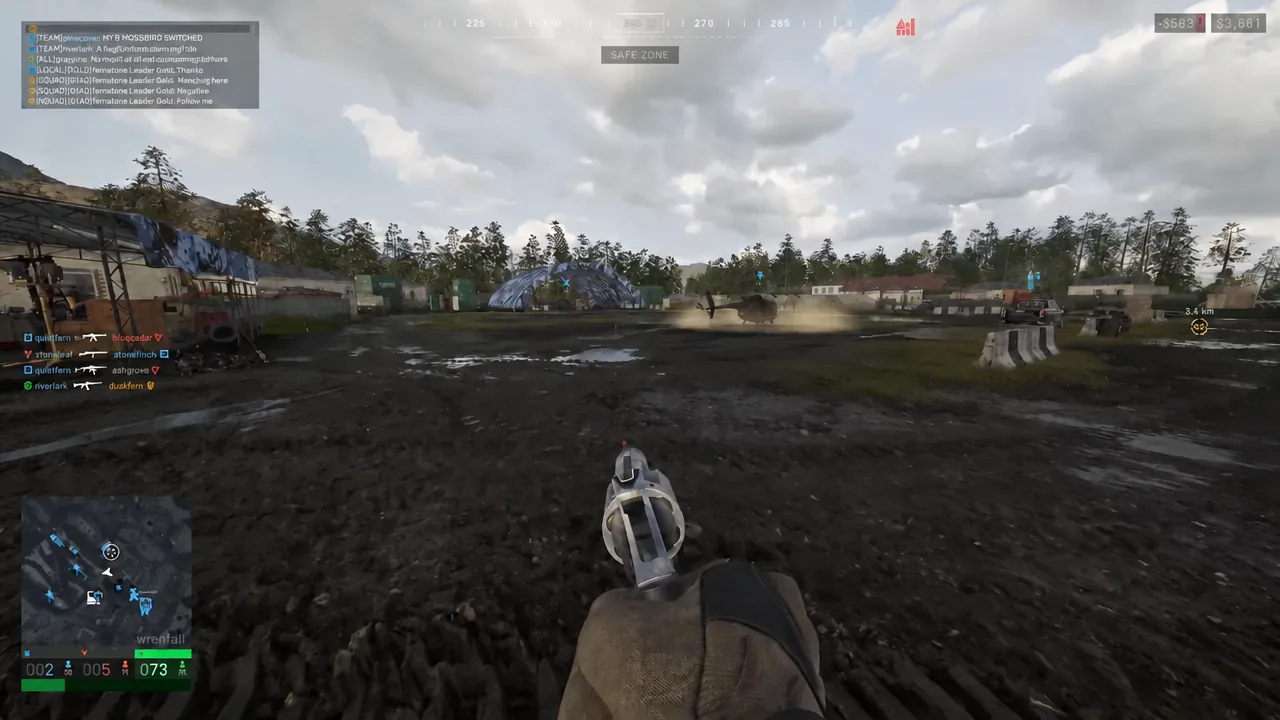
When a landing zone needs to stay identifiable for repeated runs, deployed LZ smoke is the better tool. It puts the spot on the map and leaves a visible column, with the obvious trade-off that enemy factions can see it too.
How to rebind the ping and ping wheel keys
Squad pings do not mark enemies: Use recon optics
This is the part that catches people out. A ping is a location callout for your squad. It does not put an enemy player or vehicle on the tactical map. Spotting is a separate system that runs through recon equipment, and there are four tools that can do it: Binoculars, the Monocular, the Range Finder, and the Infrared Range Finder.
| Recon tool | Price | Weight |
|---|---|---|
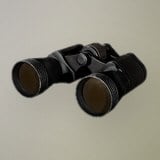 Binoculars Binoculars | $75 | 0.3 kg |
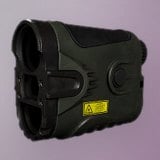 Range Finder Range Finder | $400 | 0.23 kg |
Binoculars are the cheap entry point. They spot enemy infantry and vehicles with low level magnification and nothing else.
The Range Finder adds high level variable magnification and an accurate distance indicator, which is what snipers and mortar crews want. It unlocks at Recon level 8 and costs a one-time unlock fee of $15,000 before you can buy it.
To spot, equip the optic, right-click to scope in, and hold the reticle on a visible enemy. A rectangular progress box frames the reticle and has to fill completely. Drift off the target early and nothing registers. When it completes, a colored tag sits over the target, the position shows up on the tactical map with a distance readout, and you get paid for the spot.
The map marker only lasts around a minute, and the colored tag above the enemy is shown to the player who made the spot. Re-tag anything that is still moving or still mattering to the fight.
Used together, the two systems cover different jobs. Pings handle fast squad-level intent, where you are going and what you are covering, while recon optics turn a distant silhouette into a map position the whole squad can act on. Spotting also earns cash, including extra when a teammate kills a target you tagged, which gives recon players a reason to keep glassing the ridgeline instead of firing at it.