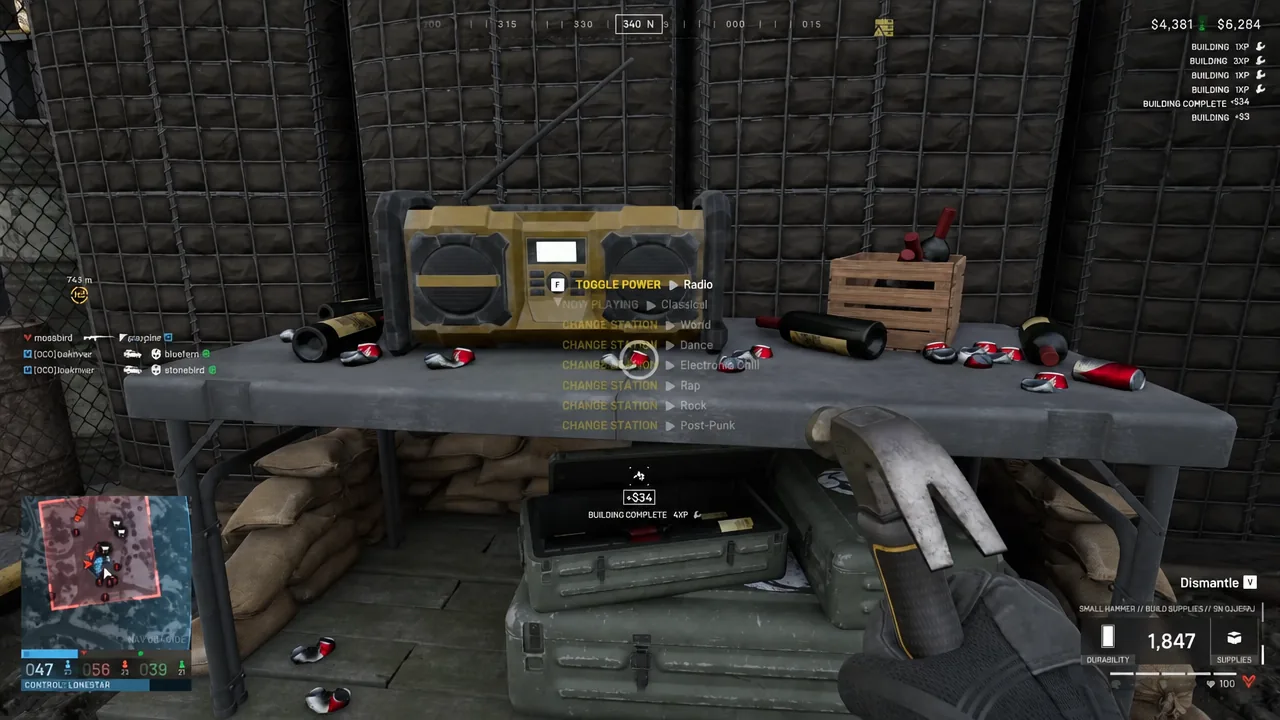
The Builder’s Radio is one of the few things you can put down in Wardogs that has nothing to do with killing anyone. It sits inside your Forward Operating Base, plays music for everyone nearby, and pays out Support XP for the trouble of building it. It is also one of the cheapest buildables in the game, so there is no real reason not to drop one during a lull.
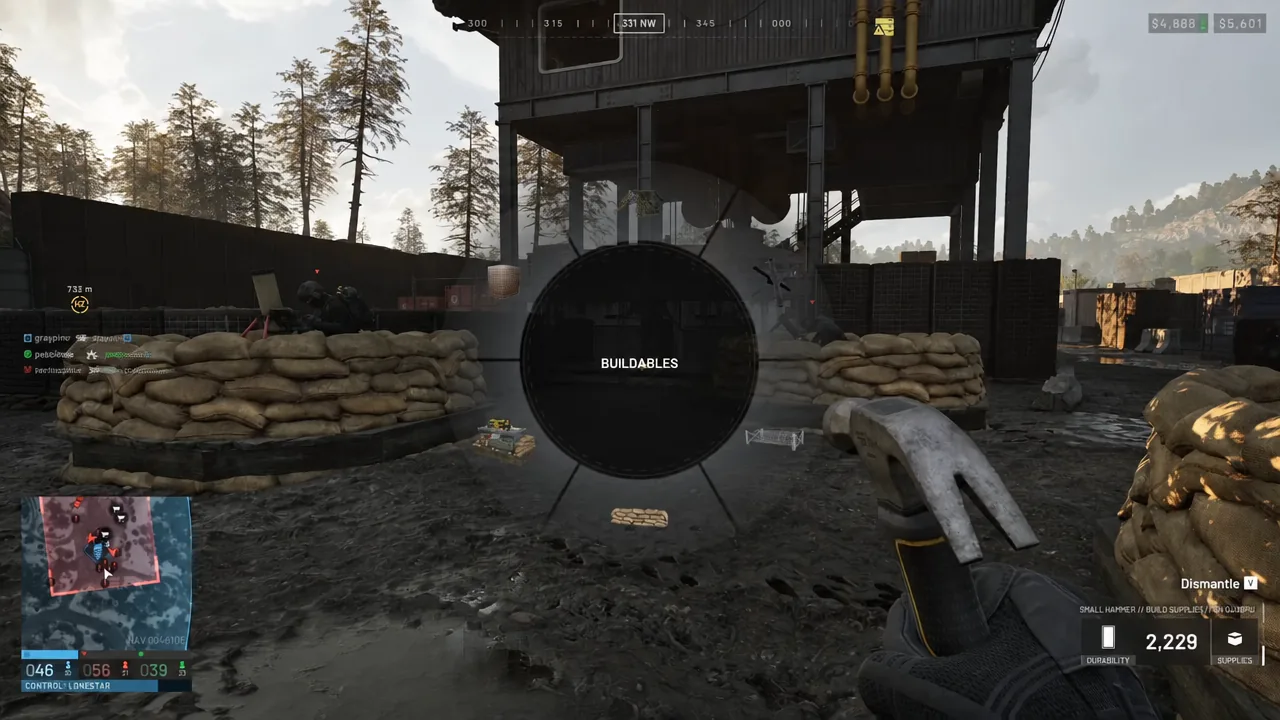
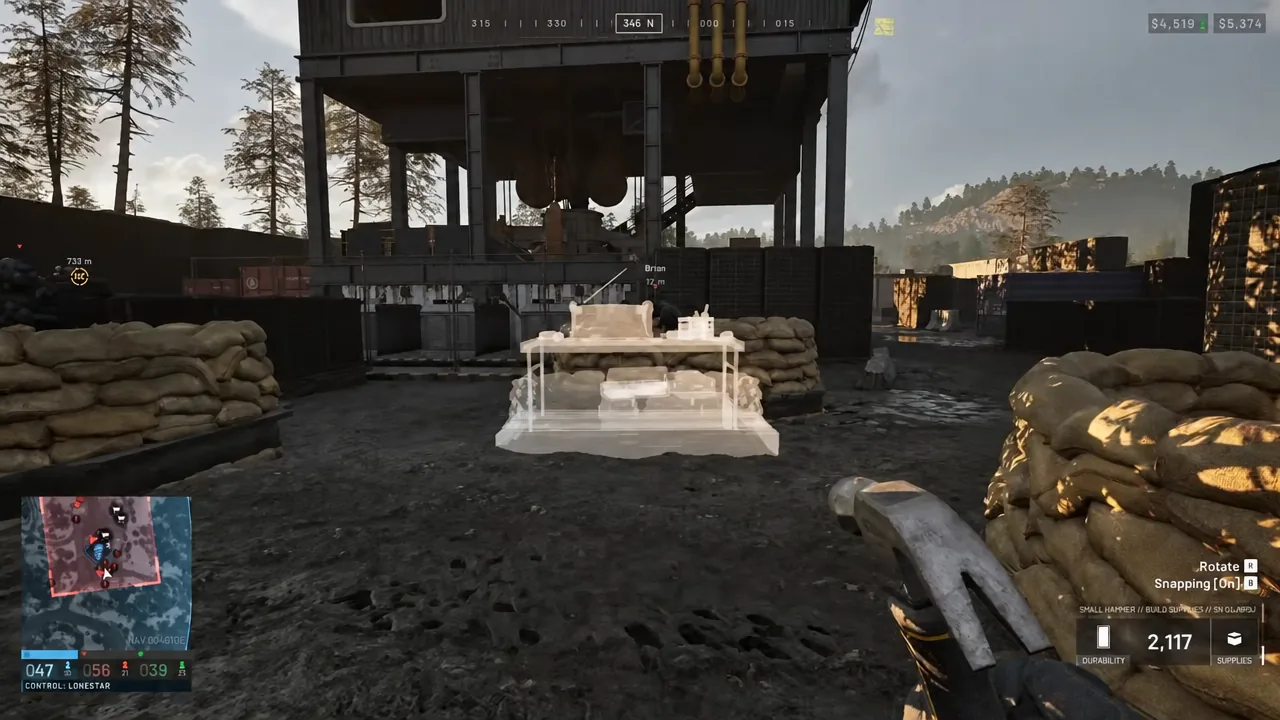
Quick answer: Equip any hammer, right-click to open the Buildables radial menu, pick Builder’s Radio, place the blueprint inside a FOB build zone for 7 build supplies, then hammer the yellow X marks to 100%.
What the Builder’s Radio does in Wardogs
The Builder’s Radio is a utility buildable issued to the Support role. Its whole job is to play music around your FOB, and the in-game description is blunt about it: place it down around your FOB in order to get some tunes. Finishing one rewards Support XP, and the build itself pays out +050 Control Zone Presence along with a +050 Building Complete bonus.
It has no combat function. It will not block bullets, spot enemies, or repair anything. Treat it as a morale object you park somewhere your squad actually stands around, like next to a repair or refuel point inside the base.
Requirements: Hammer, build supplies, and a FOB
Three things have to line up before the radio option is even usable. You need a hammer in hand, you need supplies in your inventory, and you need to be standing inside an active build zone.
| Item | Price | Weight | Why you need it |
|---|---|---|---|
| Small Hammer | $100 | 0.32 kg | Opens the build menu, builds small buildables |
| Build Supplies | $10 | 0.02 kg | Consumed when placing and finishing the radio |
 Forward Operating Base Forward Operating Base | $7,500 | 6.5 kg | Creates the radius you are allowed to build in |
The Small Hammer is enough. It is slow and it is limited to small buildables only, but the radio counts as one, so there is no need to carry a Medium or Large Hammer just for this. Build supplies are the resource every buildable consumes, and any hammer can spend them.
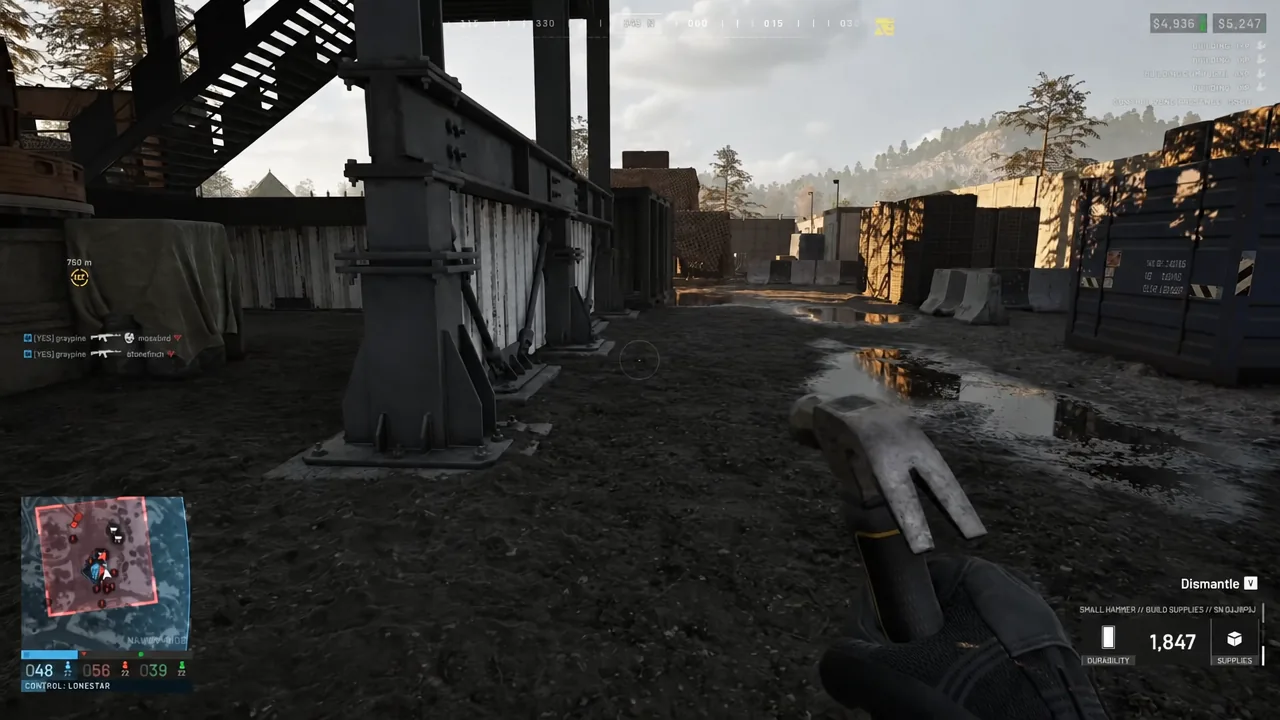
Supplies stack up fast once you start pulling apart crates and abandoned structures with the hammer, and the HUD tracks your current total in the corner while you have it out.
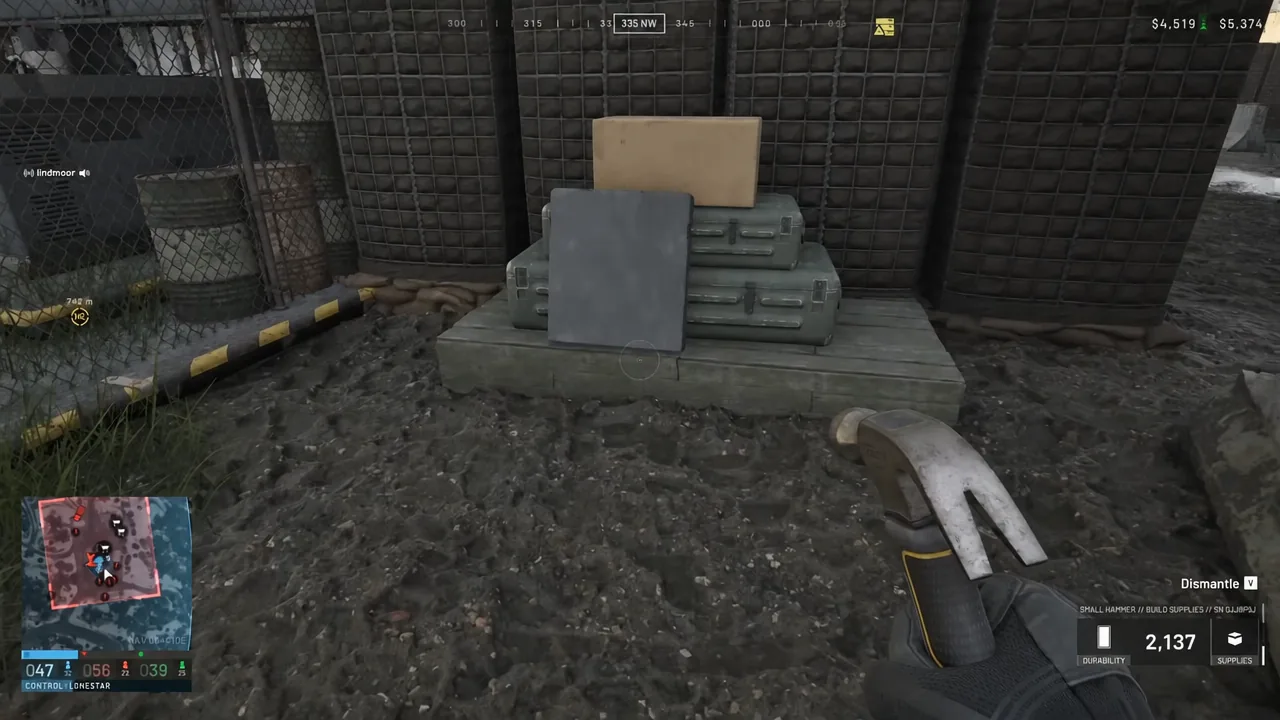
The FOB is what draws the build zone. Outside that radius the blueprint will not settle, so if the hologram refuses to place, walk back toward the base before trying again.
How to build the Builder’s Radio
How to know the build worked
Completion is obvious. The wireframe turns into a solid radio, the progress bar disappears, and two score pop-ups fire on screen: Building Complete +050 and Control Zone Presence +050. Once those land, the radio is live and interactable for anyone in the base.
Walk up to it and you will see the interaction prompts on the unit itself, starting with F to toggle power. If the prompts are showing, the build registered.
Builder’s Radio controls and music stations
Press F to switch the radio on or off. With the power on, the number keys jump straight to a station, and the currently selected one shows up as a Now Playing readout.
| Key | Station |
|---|---|
| 1 | Classical |
| 2 | Dance |
| 3 | Electronic Chill |
| 4 | Rap |
| 5 | Rock |
| 6 | Pop-Punk |
The station choice is shared, not personal, so whoever touches it last sets the soundtrack for everyone standing in earshot. At 7 supplies a unit, replacing one is cheap enough that it is worth putting a radio wherever your team respawns and rearms, rather than tucked away in a corner of the FOB nobody walks through.