Call of Duty: Modern Warfare 4 uses a familiar keyboard and mouse layout on PC, and the defaults can be changed in the Settings menu. Each action has two key slots, so you can keep the default key and add a second one.
Quick answer: W, A, S, D move. Space jumps, stands up or mantles. C crouches or slides, and Ctrl goes prone or dives. Shift sprints, and a double press gives Tactical Sprint. Left Mouse Button fires and Right Mouse Button aims down sights. R reloads and V is melee. E throws lethal equipment and Q throws tactical equipment. X is the Field Upgrade, G applies armor plates and F interacts. Keys 3, 4, 5 and 6 call killstreaks. Tab opens the scoreboard and M opens the map. Middle Mouse Button pings, and Z is push to talk.
How to change keybinds in Modern Warfare 4
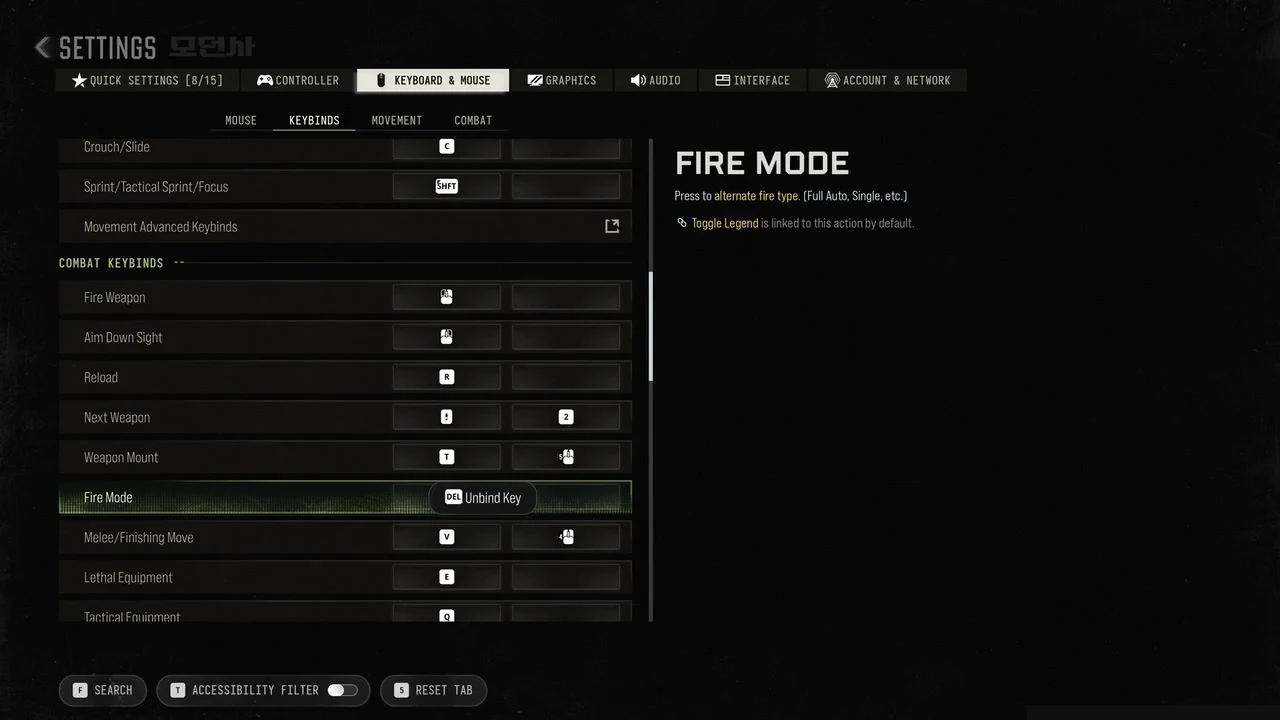
The bottom bar carries Search, an Accessibility Filter toggle and a Reset Tab button. On a controller, buttons are changed under Settings > Controller > Controller tab > Button Layout (default: Default), which opens its own screen.
Movement keybinds
| Action | Default key | Alternate key |
|---|---|---|
| Move Forward | W | – |
| Move Backward | S | – |
| Move Left | A | – |
| Move Right | D | – |
| Walk | Alt | – |
| Auto Move Forward | H | – |
| Jump/Stand/Mantle | Space | – |
| Prone/Dive | Ctrl | – |
| Change Stance/Slide/Dive | not bound | – |
| Crouch/Slide | C | – |
| Sprint/Tactical Sprint/Focus | Shift | – |
| Movement Advanced Keybinds | opens its own list | – |
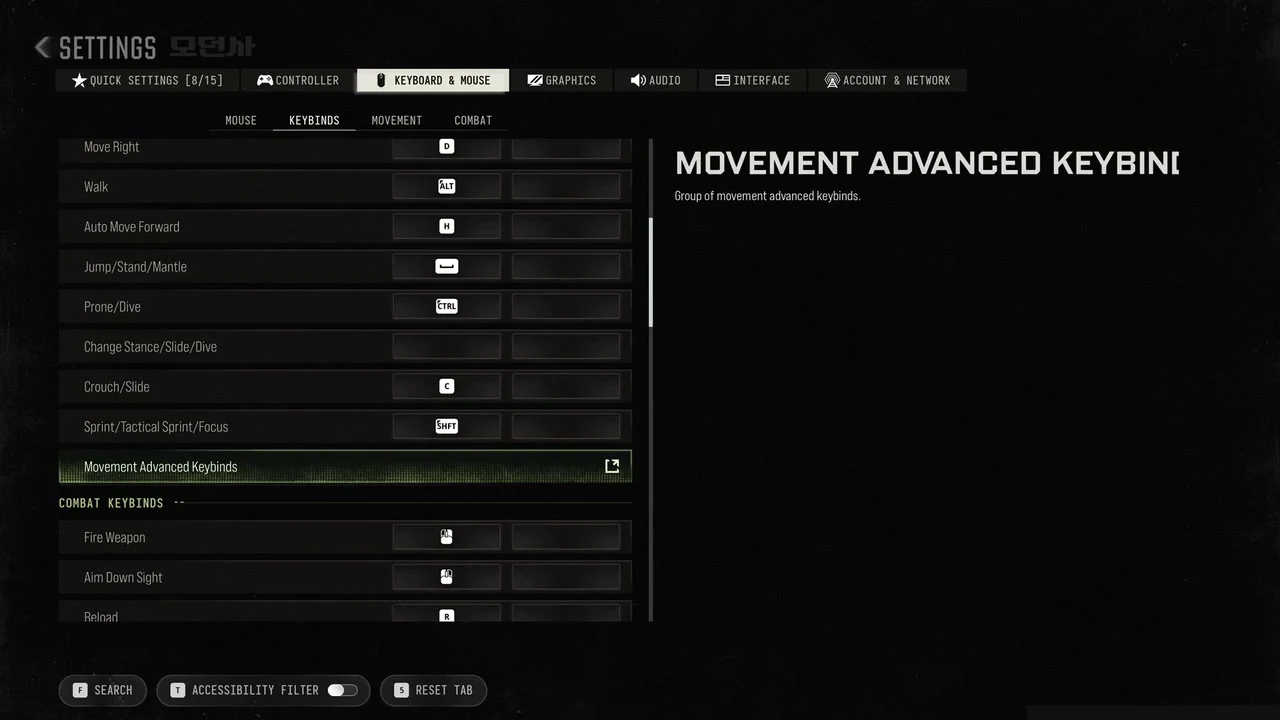
Several movement keys do more than their label suggests. Space also swims up in water, and Open Parachute, Drift/Handbrake, Climb On Roof and Ascend share that key by default. C slides when you press it while sprinting, and Cut Parachute and Lean Forward are linked to it by default. The game describes crouching this way: “While crouched, movements are slowed and hip-fire accuracy is increased.”
- Walk reads “Use to slow down the movement speed.” Its Walk Behavior default is Hold.
- Jump/Stand/Mantle stands you up from a crouch or prone, and mantles when you move toward a reachable edge.
- Change Stance/Slide/Dive starts without an assigned key.
Combat keybinds
| Action | Default key | Alternate key |
|---|---|---|
| Fire Weapon | Left Mouse Button | – |
| Aim Down Sight | Right Mouse Button | – |
| Reload | R | – |
| Next Weapon | Mouse Wheel Down | 2 |
| Weapon Mount | T | Mouse Button 5 |
| Fire Mode | B | – |
| Melee/Finishing Move | V | Mouse Button 4 |
| Lethal Equipment | E | – |
| Tactical Equipment | Q | – |
| Field Upgrade | X | – |
| Armor Plate/Drop Item | G | – |
| Interact | F | – |
| Killstreak 1 | 3 | – |
| Killstreak 2 | 4 | – |
| Killstreak 3 | 5 | – |
| Killstreak 4 (Extra) | 6 | – |
| Combat Advanced Keybinds | opens its own list | – |
Some combat keys have other actions linked to them by default, so check the side panel before changing a binding.
- Reload shares its key with Ground Vehicles Reload and Drop All & Drop Ammo.
- Fire Mode’s description is “Press to alternate fire type. (Full Auto, Single, etc.)” Toggle Legend uses the same key.
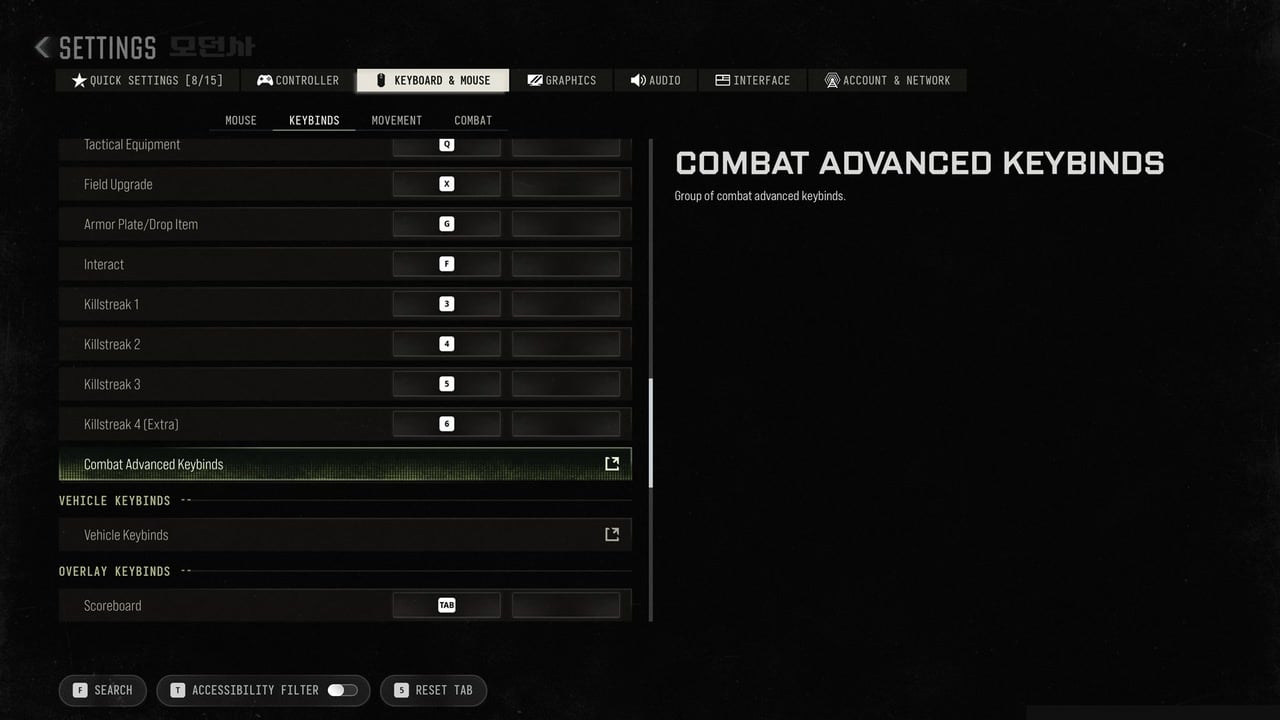
- Tactical Equipment shares its key with Parachute/Wingsuit Free Look, Use Flares and Center Camera/Free Look. Its Equipment Behavior default is Hold.
- Interact has other uses: double-tap it to detonate placed C4; the same key also skips the killcam and spawns you in specific modes. Interact Behavior is set to Press by default.
Vehicle and overlay keybinds
| Action | Default key | Alternate key |
|---|---|---|
| Scoreboard | Tab | – |
| Map | M | Caps Lock |
| Ping | Middle Mouse Button | – |
| Text Chat (Last Used Chat Channel) | Enter | – |
| Overlay Advanced Keybinds | opens its own list | – |
| Theater Mode Keybinds | opens its own list | – |
| Night Vision Goggles | N | – |
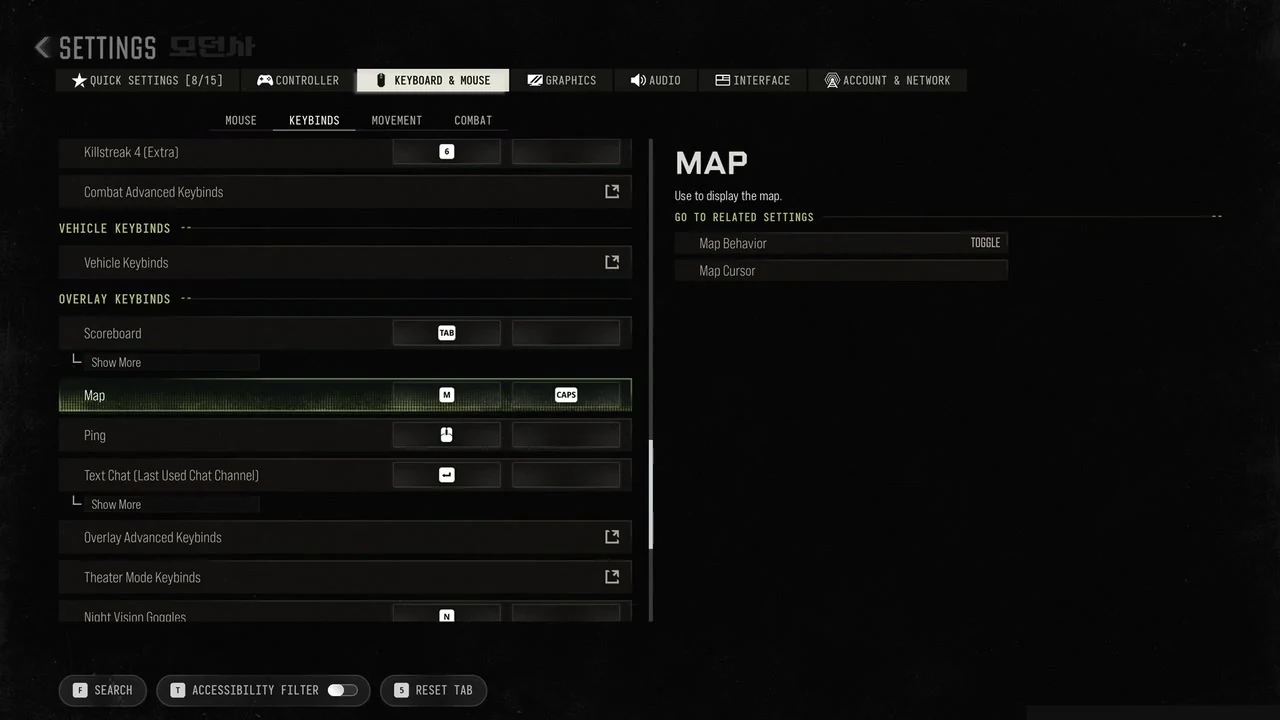
Map reads “Use to display the map.” and its Map Behavior default is Toggle. Night Vision Goggles reads “Press to activate Thermal Vision of scorestreaks in Multiplayer mode.” Air and ground vehicles War Tracks share the N key by default. The Vehicle Keybinds section holds a single entry, Vehicle Keybinds, which opens a separate list of vehicle keys.
Menu keybinds
| Action | Default key | Alternate key |
|---|---|---|
| Launcher Menu | F1 | – |
| Social Menu | O | – |
| Chat Channels | F2 | – |
| Settings Menu | F3 | – |
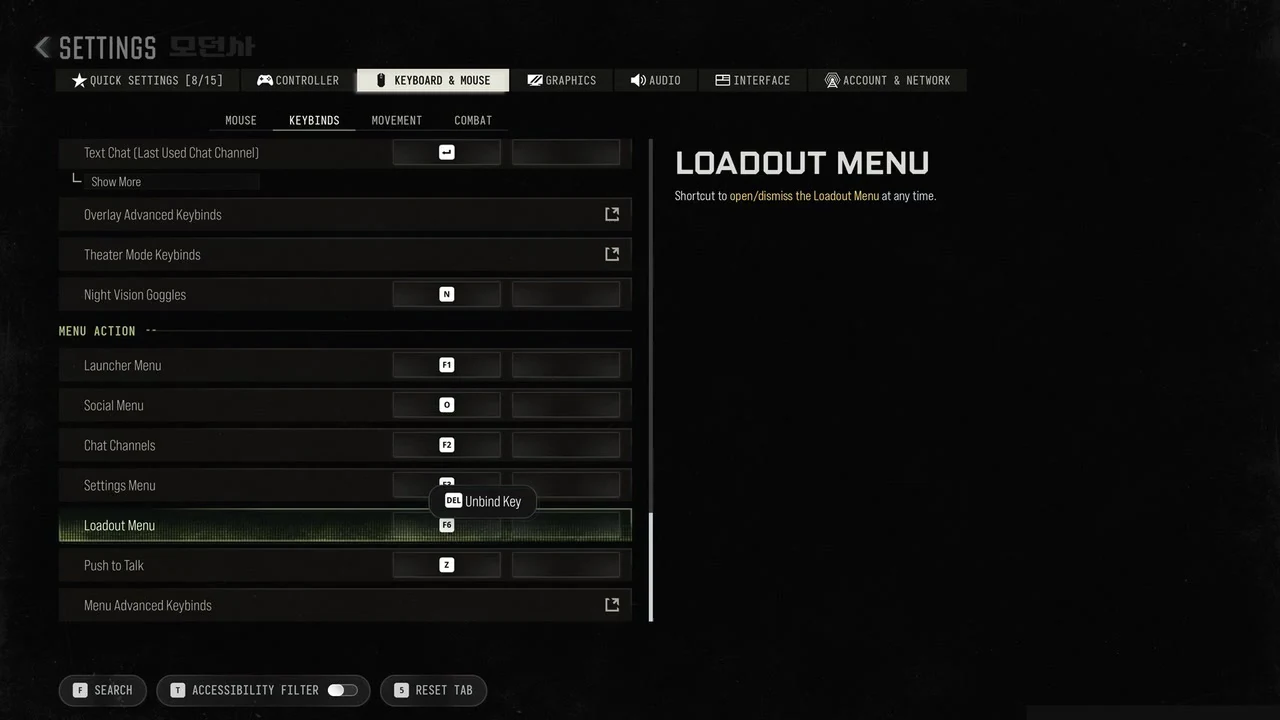
| Loadout Menu | F6 | – |
| Push to Talk | Z | – |
| Menu Advanced Keybinds | opens its own list | – |
Social Menu is described as “Shortcut to open/dismiss the Social Menu.” and Loadout Menu as “Shortcut to open/dismiss the Loadout Menu at any time.” Both keys close the menu they open.
Default mouse settings
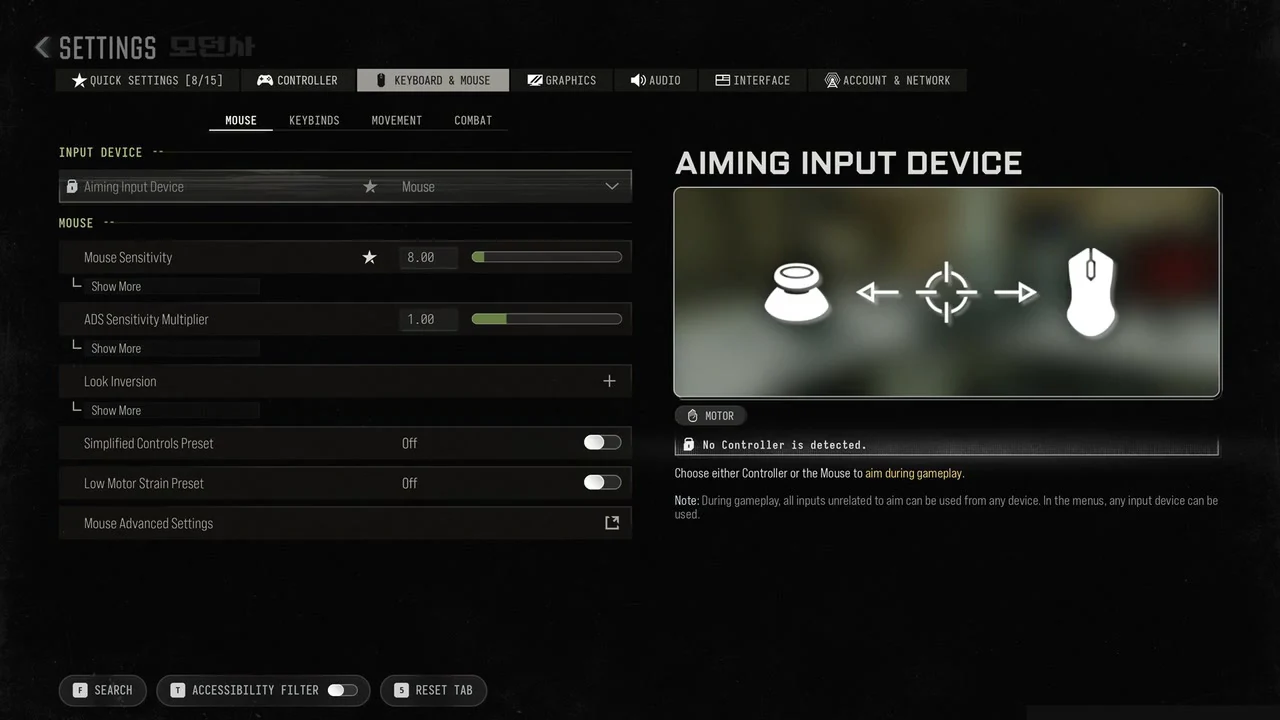
The Mouse sub-tab sets Aiming Input Device to Mouse. You can switch it to Controller for aiming. Inputs that have nothing to do with aiming work from any device during gameplay, and any input device works in the menus.
- Mouse Sensitivity is 8.00 and ADS Sensitivity Multiplier is 1.00.
- Simplified Controls Preset and Low Motor Strain Preset are Off.
- Under Mouse Advanced Settings, Custom Sensitivity Per Zoom is Off, ADS Sensitivity Transition Timing is Gradual and ADS Sensitivity Type is Relative.
- 3rd Person ADS Correction Type is Precision and Monitor Distance Coefficient is 1.33.
- Use System Mouse Cursor and Constrain Mouse to Game Window are Off.
Hold or toggle: Default keyboard and mouse behaviours
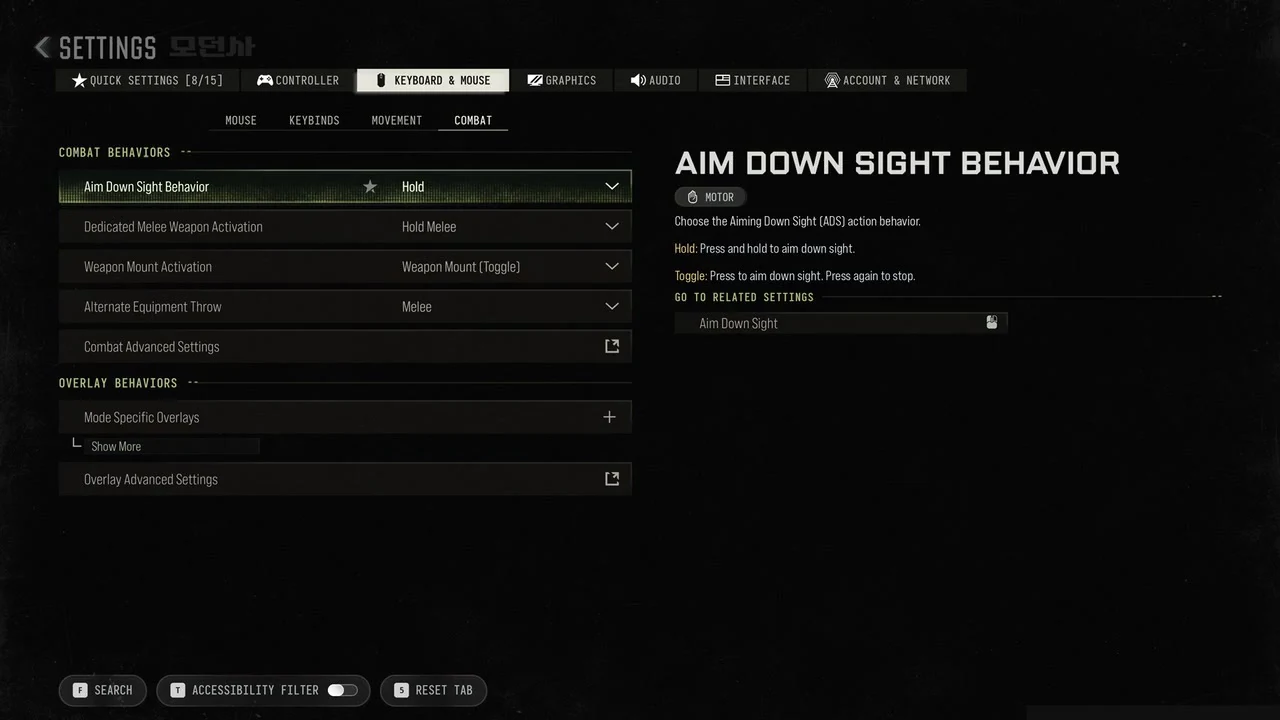
Whether a key needs holding or a single press is set outside the Keybinds list, in the Combat and Movement sub-tabs. The Combat sub-tab defaults are below.
- Aim Down Sight Behavior is Hold. The options read “Hold: Press and hold to aim down sight.” and “Toggle: Press to aim down sight. Press again to stop.”
- Dedicated Melee Weapon Activation is Hold Melee.
- Weapon Mount Activation is Weapon Mount (Toggle).
- Alternate Equipment Throw is Melee.
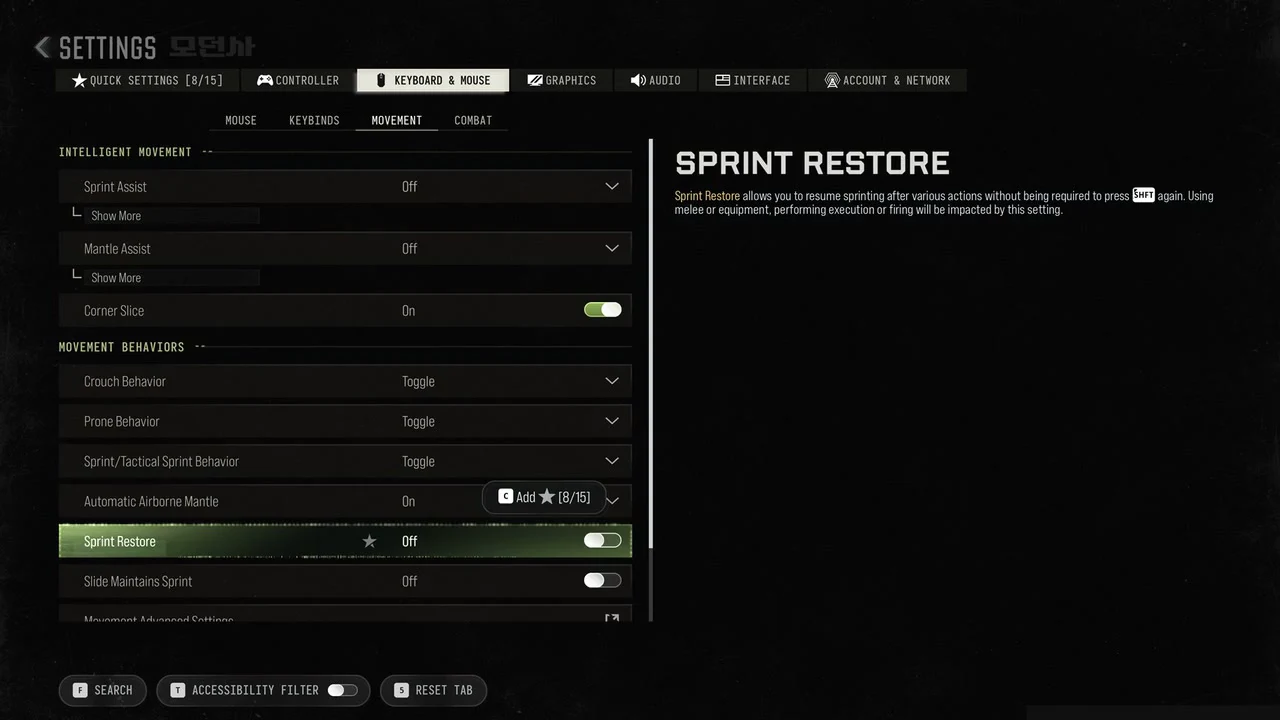
The Movement sub-tab has its own defaults, and here crouch, prone and sprint start out as toggles.
- Sprint Assist and Mantle Assist are Off, and Corner Slice is On.
- Crouch Behavior, Prone Behavior and Sprint/Tactical Sprint Behavior are Toggle.
- Automatic Airborne Mantle is On.
- Sprint Restore and Slide Maintains Sprint are Off.
For sprinting, Toggle reads “Toggle: Press to start sprinting. Release Move Forward to stop. Double press Sprint quickly to activate Tactical Sprint.” The other option reads “Hold: Press and hold to sprint. Release Move Forward or Sprint to stop. Double press Sprint quickly and hold to activate Tactical Sprint.” With Sprint Restore on, you go back to sprinting after melee, equipment, executions and firing without pressing Shift again.
Controller settings in Modern Warfare 4
Controller options live under Settings > Controller, split across the Controller, Aiming, Movement and Combat sub-tabs.
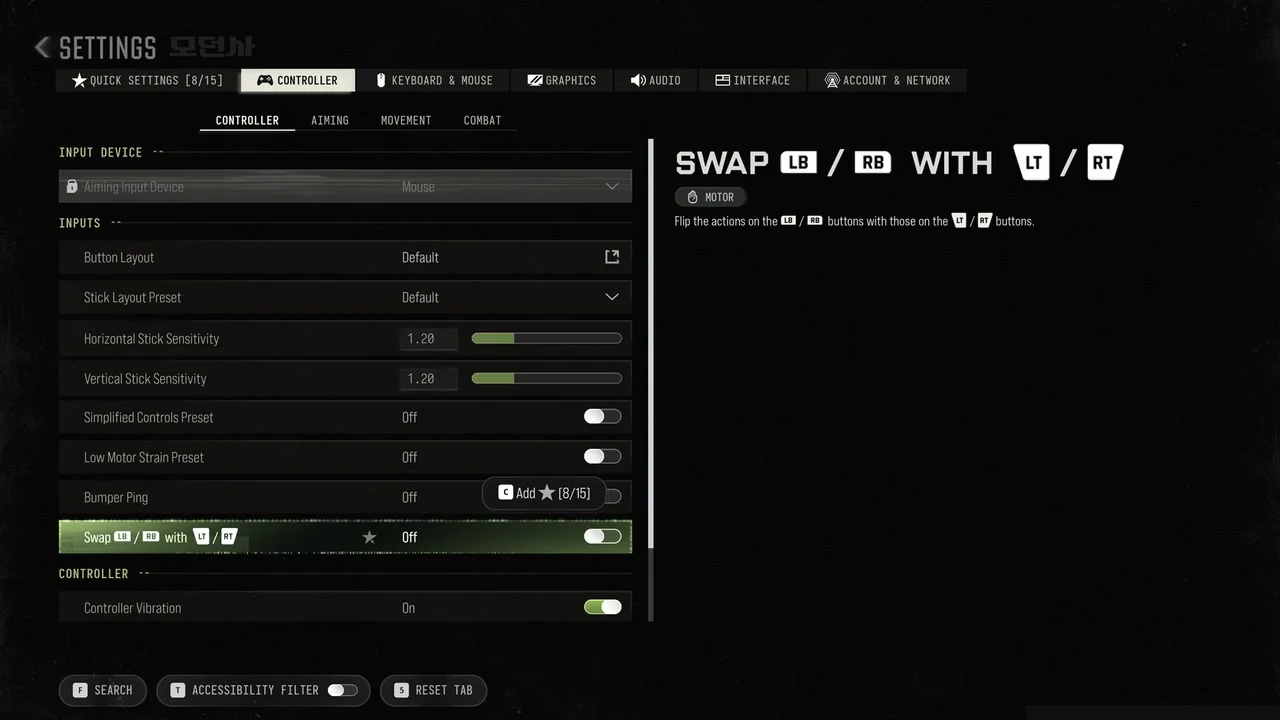
Inputs and Button Layout
- Button Layout is Default and opens its own screen for choosing a layout. Stick Layout Preset is Default.
- Horizontal Stick Sensitivity and Vertical Stick Sensitivity each have a value of 1.20.
- Simplified Controls Preset, Low Motor Strain Preset and Bumper Ping are Off.
- Swap LB/RB with LT/RT is Off. It does what it says: “Flip the actions on the LB / RB buttons with those on the LT / RT buttons.”
- Controller Vibration is On.
Aiming and aim assist
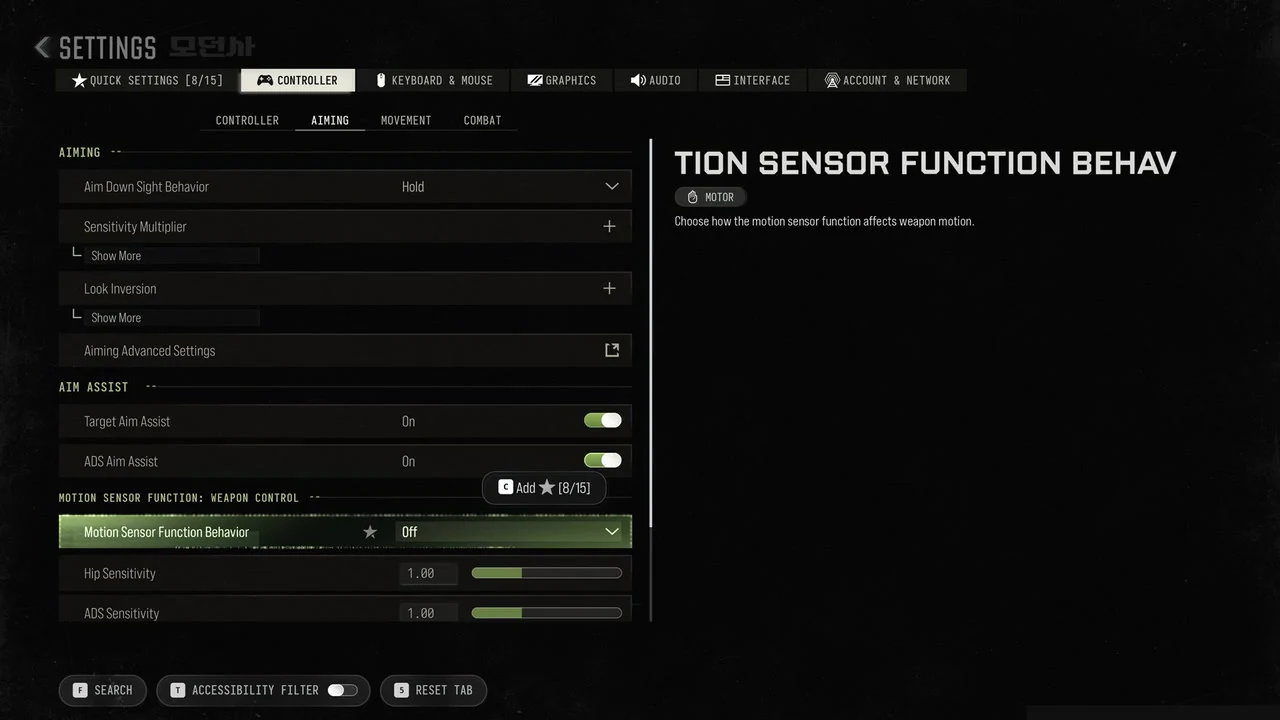
- Aim Down Sight Behavior is Hold.
- Under Sensitivity Multiplier, the 3rd Person, Ground Vehicles, Air Vehicles, Tablet, ADS and ADS Focus multipliers are all 1.00.
- Look Inversion and Aiming Advanced Settings sit on the same sub-tab.
- Target Aim Assist and ADS Aim Assist are On.
- Motion Sensor Function Behavior is Off, with Hip Sensitivity and ADS Sensitivity at 1.00.
Deadzone inputs
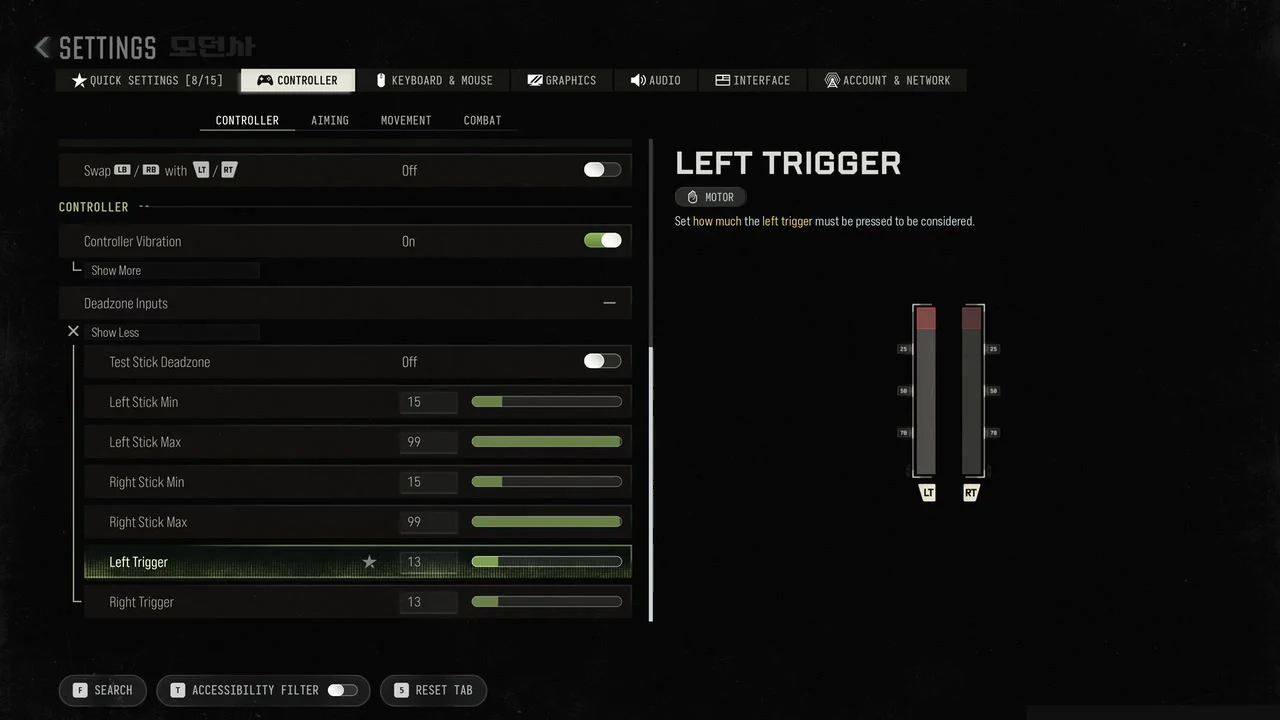
Deadzone Inputs sits inside the Controller sub-tab. Test Stick Deadzone is Off. Both sticks use a Min of 15 and a Max of 99, and the Left Trigger and Right Trigger are each set to 13.
Movement behaviours
- Sprint Assist and Mantle Assist are Off, and Corner Slice is On.
- Slide/Dive Behavior is Tap to Slide, and Automatic Airborne Mantle is On.
- Sprint Restore is Off. Slide Maintains Sprint, described as “Continue to sprint after performing slide.”, is also Off.
- Parachute Automatic Behavior is Free Fall.
Movement Advanced Settings sets Sprint/Tactical Sprint Behavior to Toggle, with Auto Move Forward and Auto Door Peek Off and Grounded Mantle On. Tactical Sprint Activation is Single Tap Run, Plunging Underwater is Trigger, and Slide/Combat Roll Behavior is Double Tap.
Combat behaviours
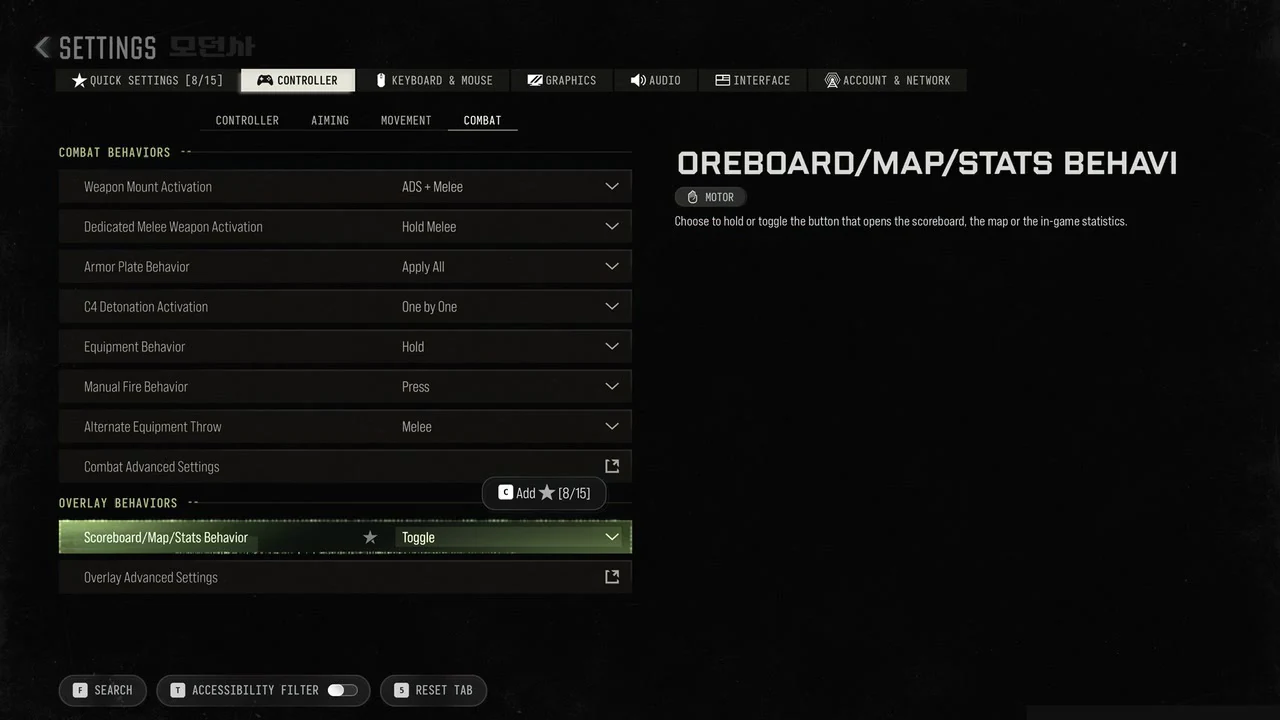
- Weapon Mount Activation is ADS + Melee, and Dedicated Melee Weapon Activation is Hold Melee.
- Armor Plate Behavior is Apply All, and C4 Detonation Activation is One by One.
- Equipment Behavior is Hold, and Manual Fire Behavior is Press.
- Alternate Equipment Throw is Melee.
- Under Overlay, Scoreboard/Map/Stats Behavior is Toggle: “Choose to hold or toggle the button that opens the scoreboard, the map or the in-game statistics.”
Related guides
- If the game will not launch on PC, here is how to enable TPM 2.0 and Secure Boot.
- For graphics options, see the beta settings guide.
- New to DMZ? Start with how DMZ works in Modern Warfare 4.