Enshrouded gives you two ways to delete items from your backpack, and both take effect immediately. The backpack itself has no drop option for getting rid of items. If you hold a lit Torch in your hand, though, the HUD shows “R Drop Item”.
Quick answer: Remove an item immediately by pressing B, right-clicking its entry and choosing “Delete”, or selecting it and pressing DELETE. Neither method asks for confirmation. Press R to drop a lit Torch you’re holding.
Delete items from the Enshrouded backpack
Delete with the right-click menu
Press B to open the BACKPACK tab, then right-click the item you want to discard. For a spare Ragged Shirt, the available choices are “Equip”, “Equip (Cosmetic)” and “Delete”.
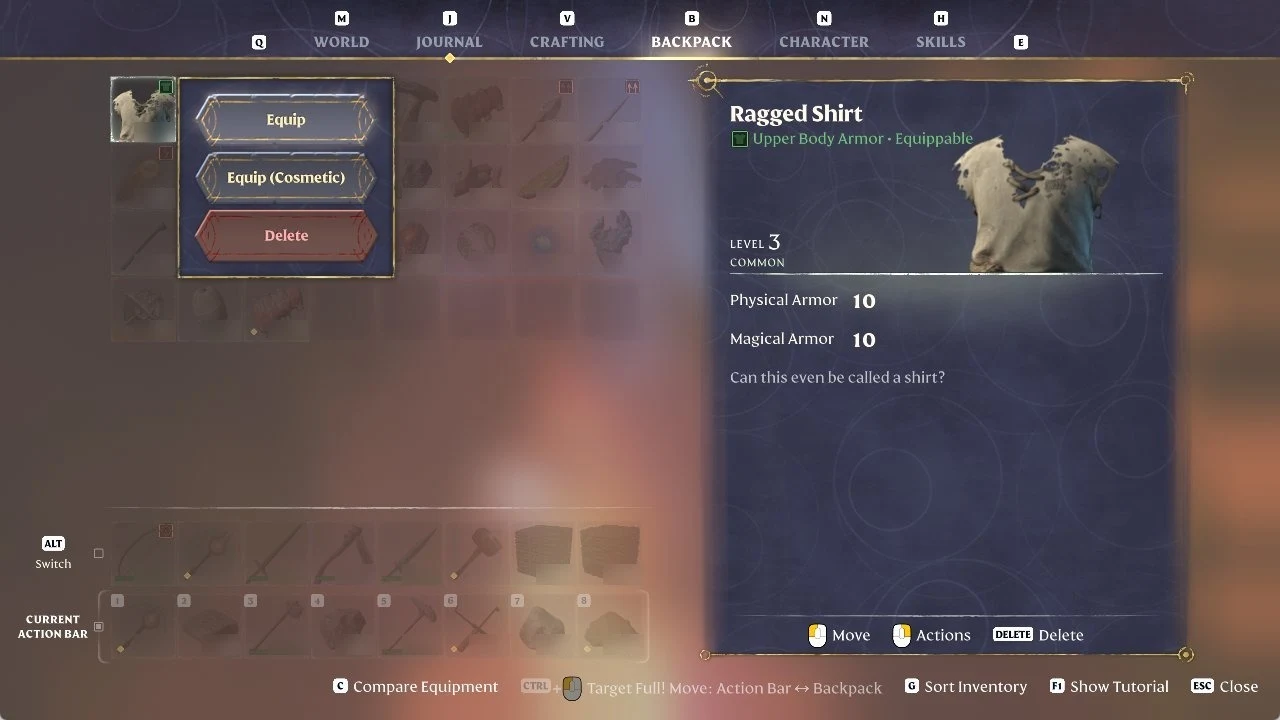
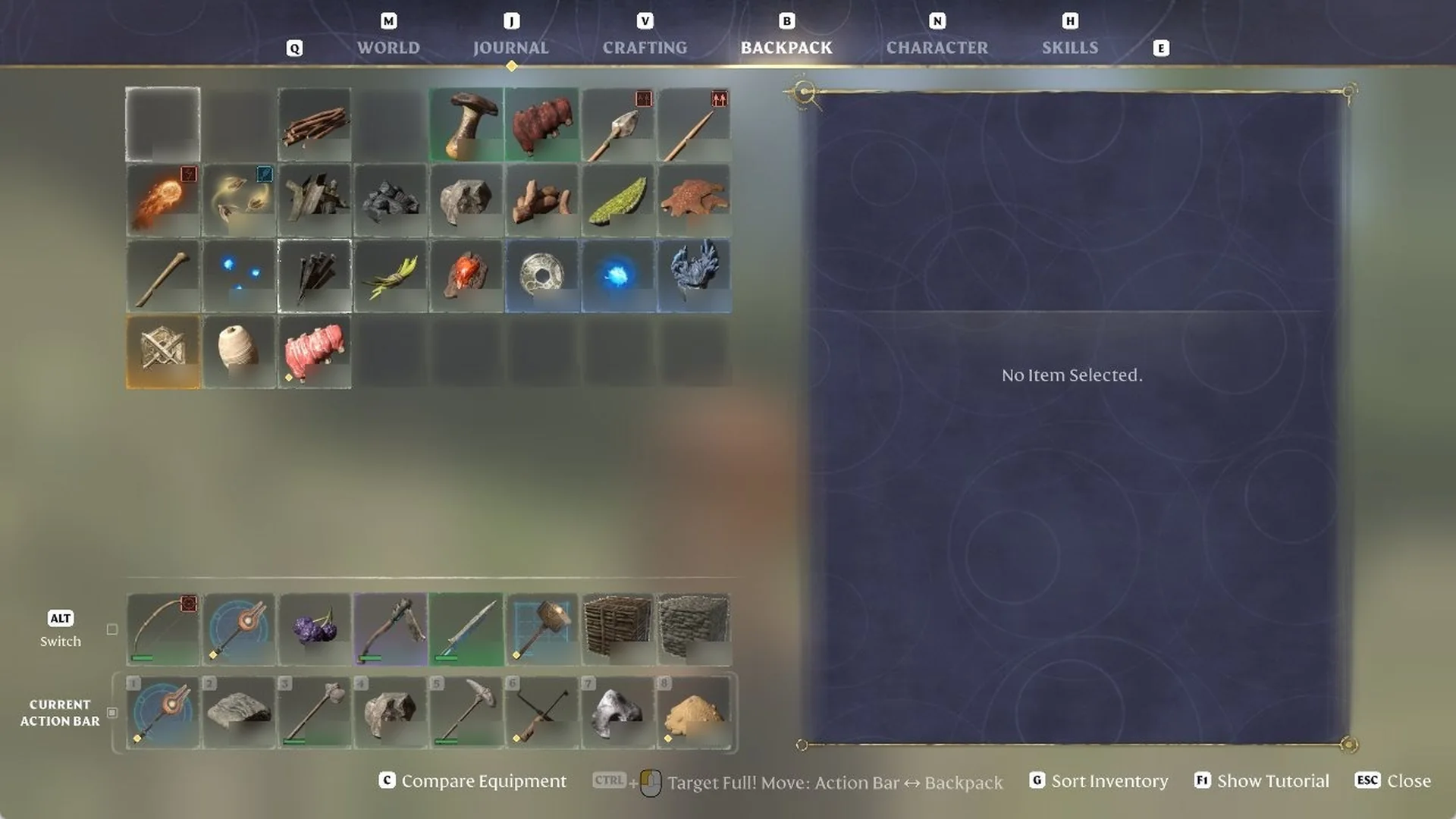
Choose “Delete”. The item leaves its slot straight away, and the right panel changes to “No Item Selected.” No confirm prompt appeared for us.
The options in the right-click menu change with the item. Delete was on both menus we opened.
| Item | Right-click options |
|---|---|
| Ragged Shirt | Equip, Equip (Cosmetic), Delete |
| Rusty Sword | Salvage (9), Delete |
Delete with the DELETE key
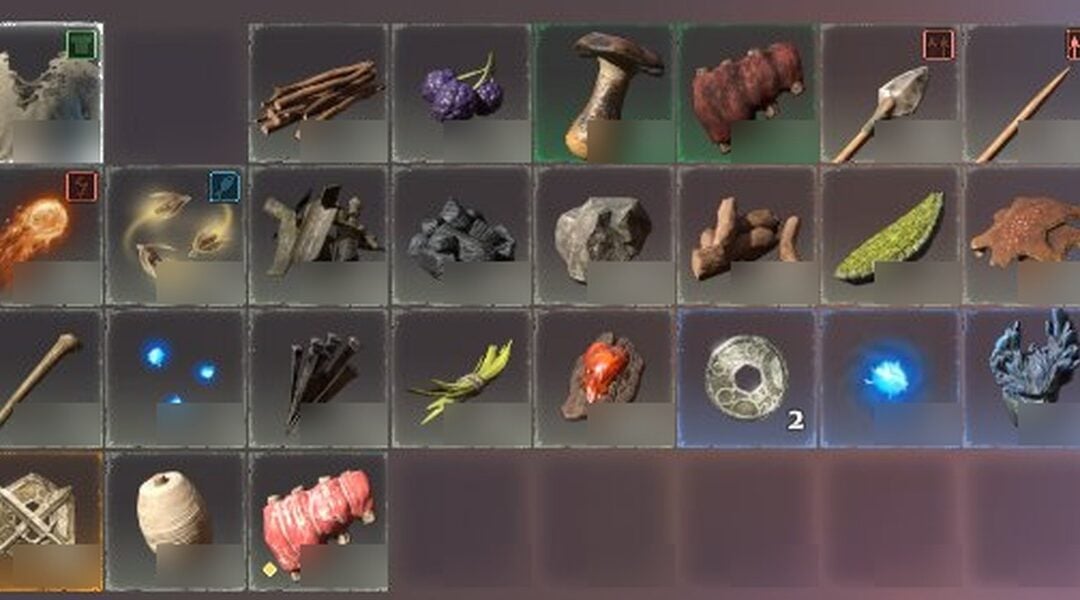
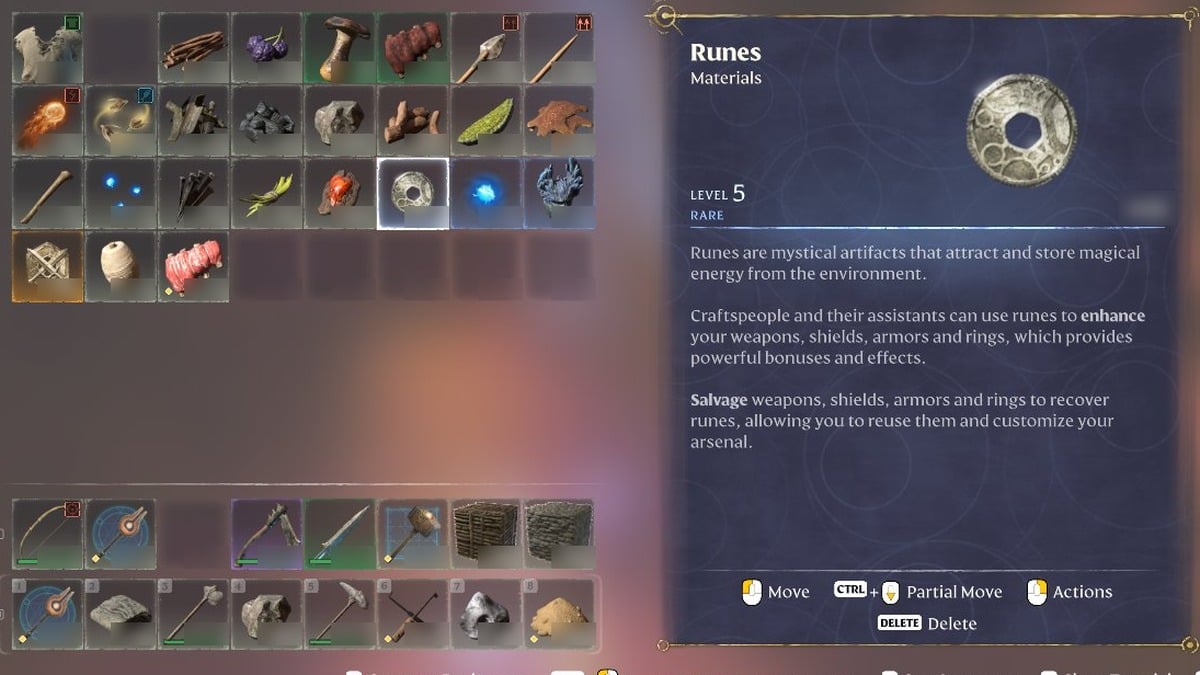
In the backpack, select the item or stack. The footer of the item card shows “Move”, “CTRL + Partial Move”, “Actions” and “DELETE Delete”. We selected a stack of Twigs, whose card read “Twigs”, “Materials”, LEVEL 1, COMMON.
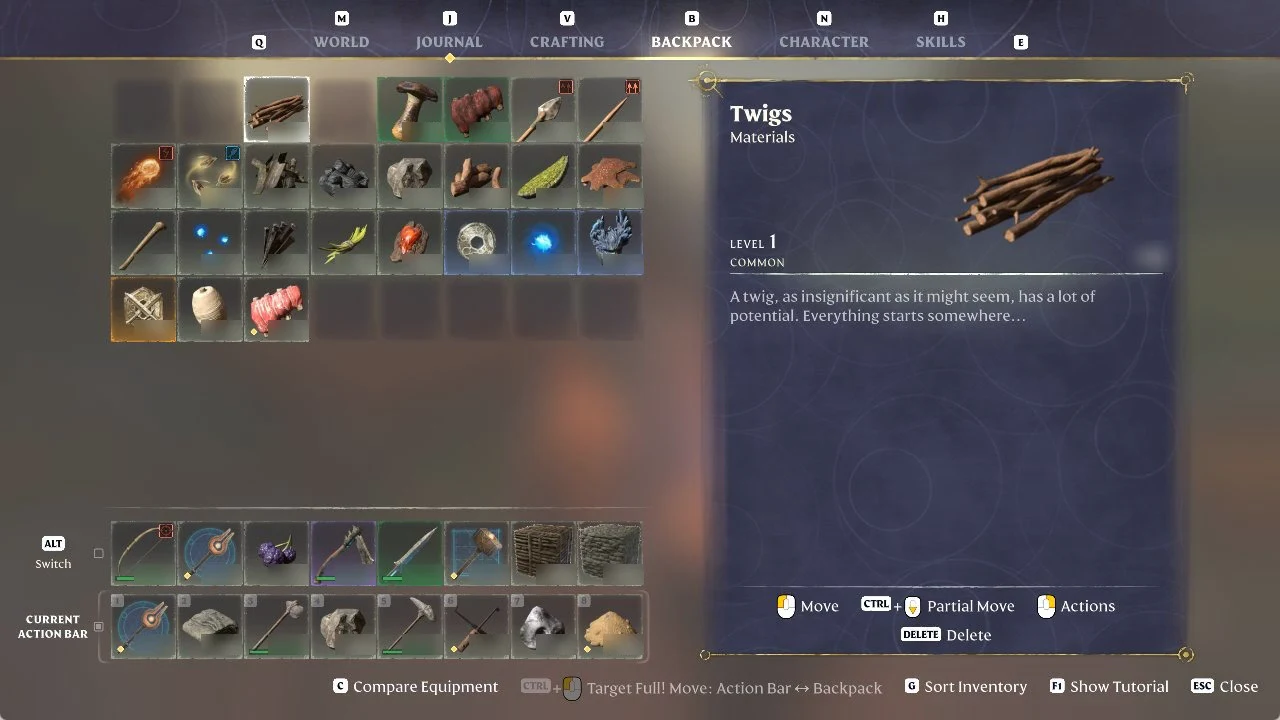
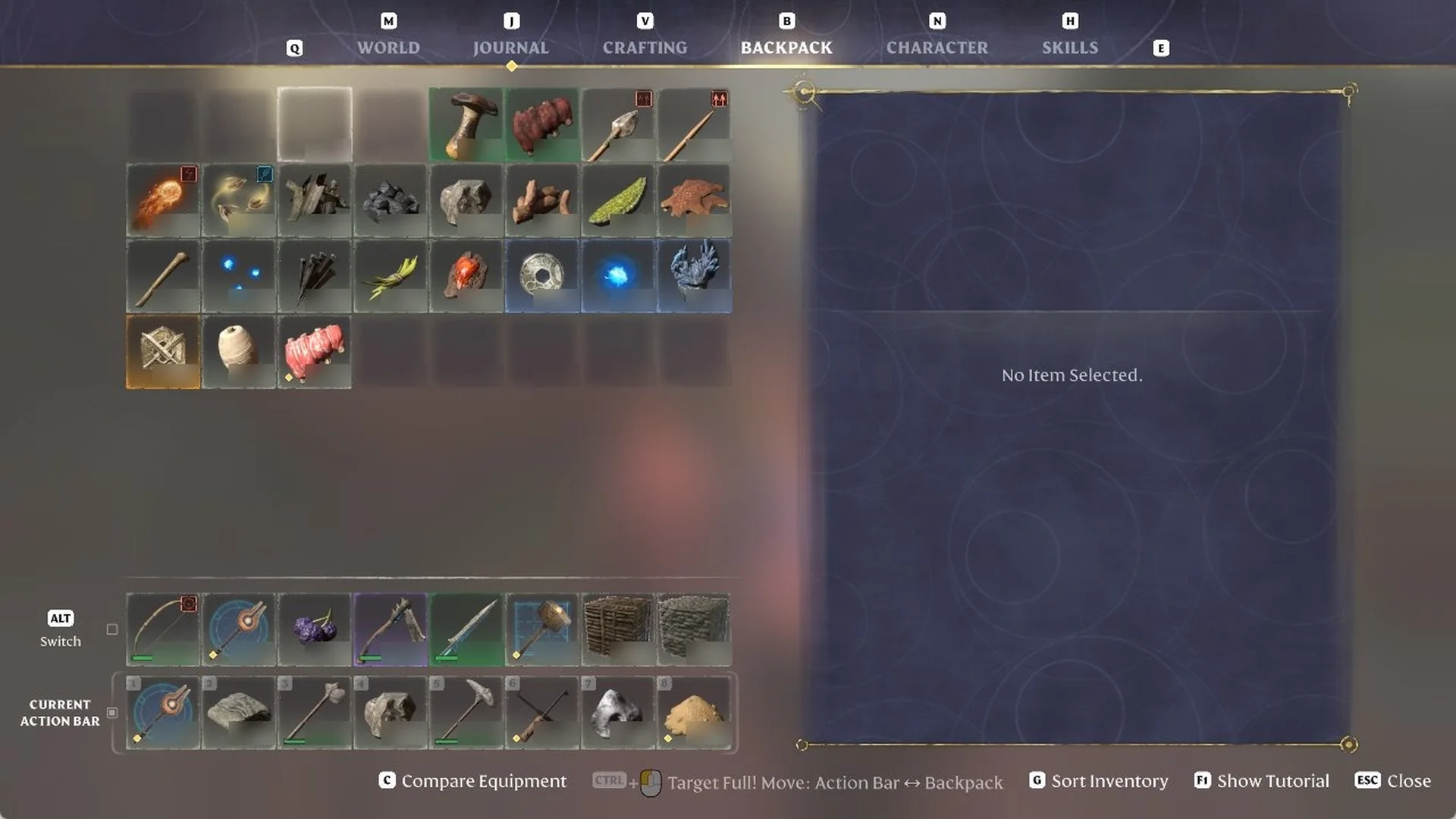
Press DELETE. Our whole Twigs stack was removed in a single action without a confirmation prompt, and the panel then displayed “No Item Selected.”
The Rusty Sword’s menu also has “Salvage (9)”, which turns it into Runes instead of deleting it (see salvaging items for Runes). The same footer has CTRL + Partial Move for splitting stacks and G Sort Inventory (see splitting stacks and sorting the backpack).
Drop items on the ground in Enshrouded
We found no way to drop items from the backpack: its card footer provides Move, Partial Move, Actions and Delete, and the right-click menus we opened had no drop command either. The only drop we saw was on a lit Torch in hand.
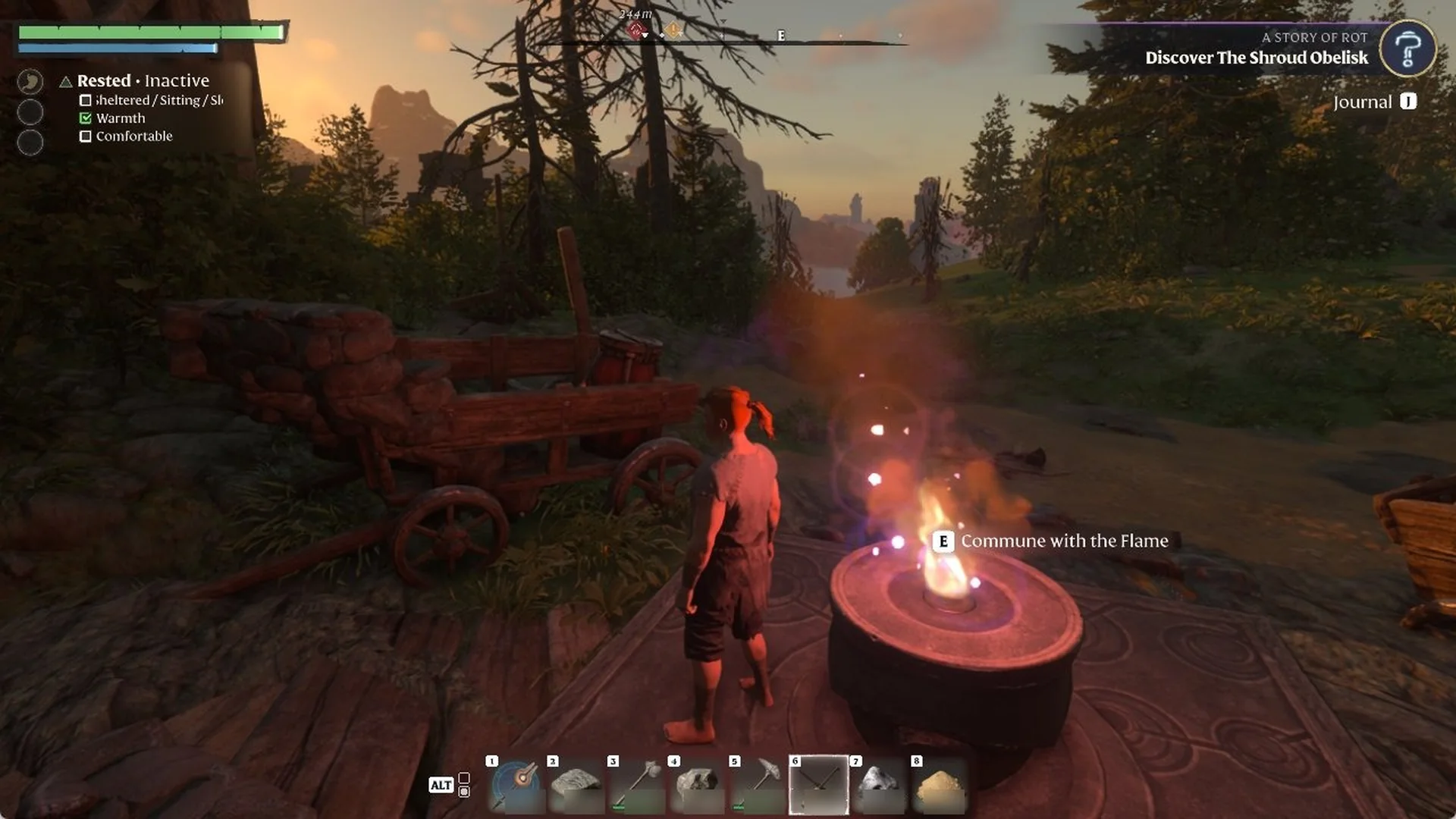
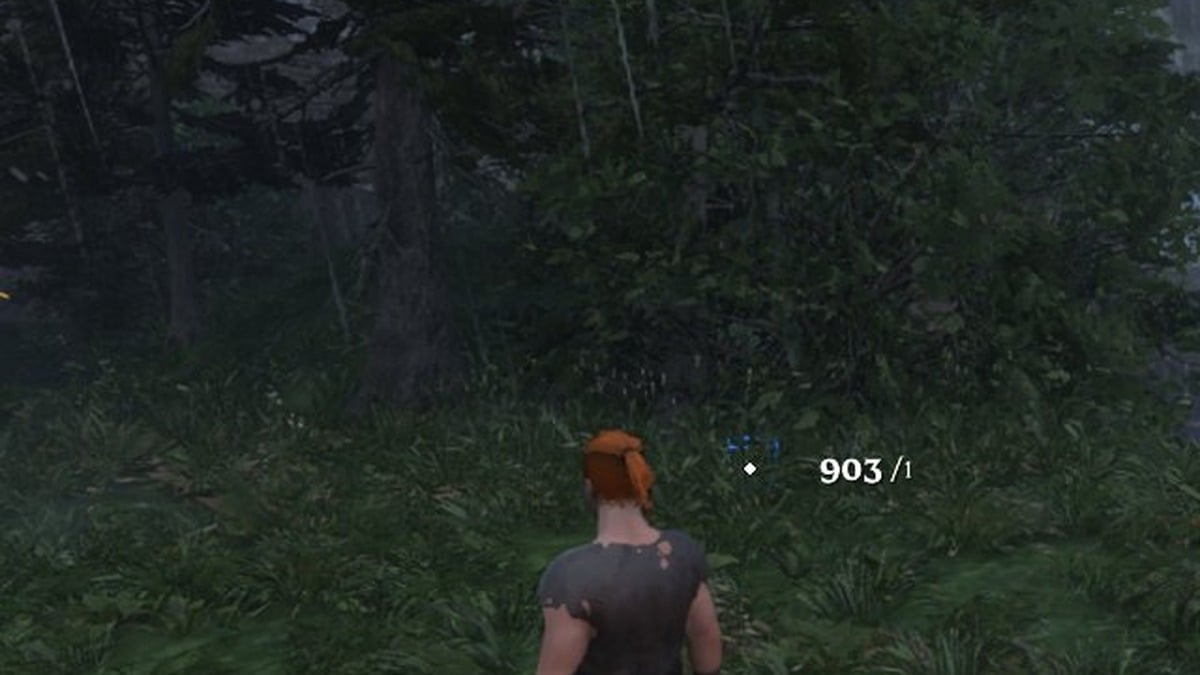
Hold a lit Torch in your hand and the HUD shows “Torch” with “Attack” and “R Drop Item” (see making and dropping a Torch).
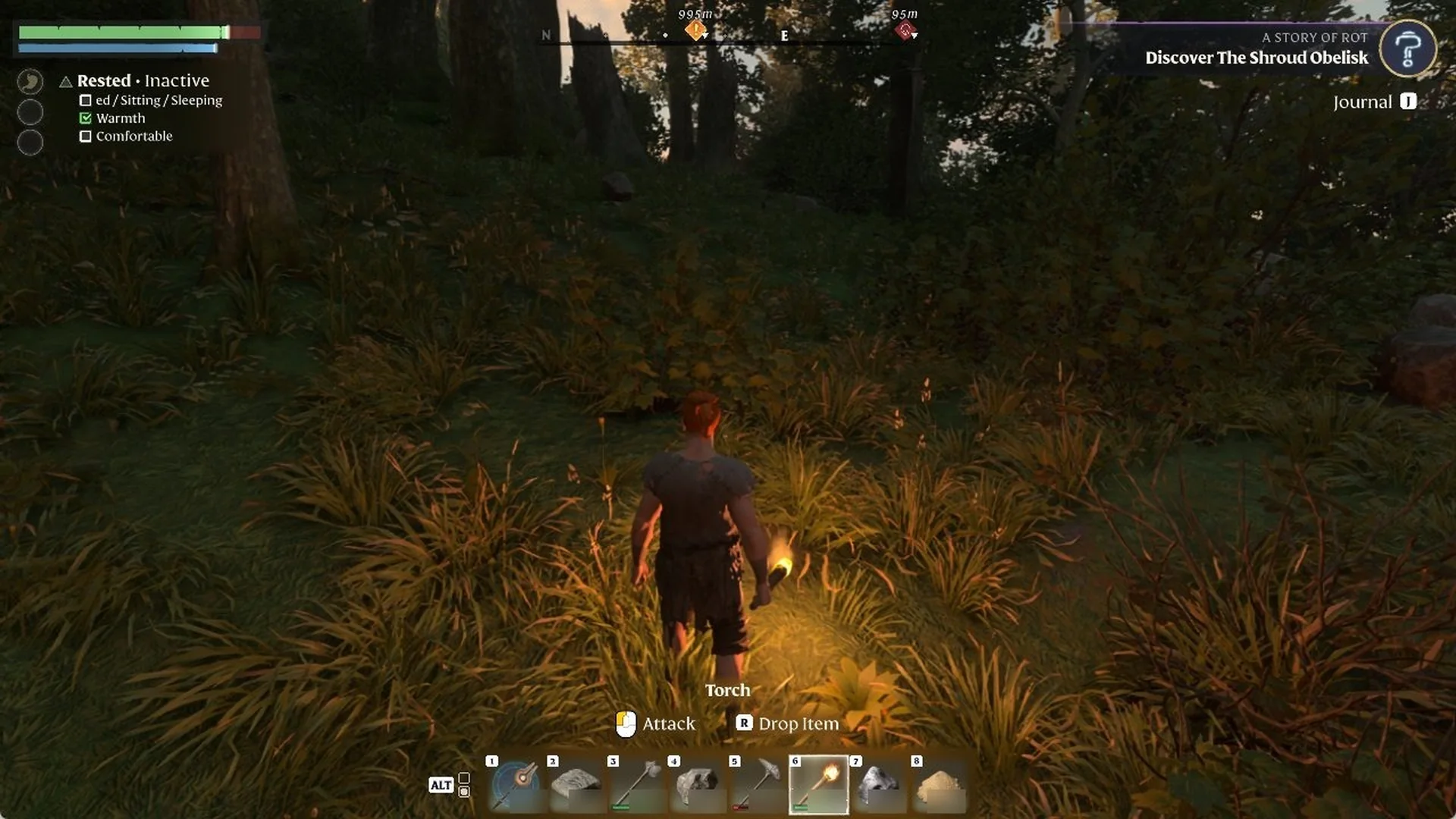
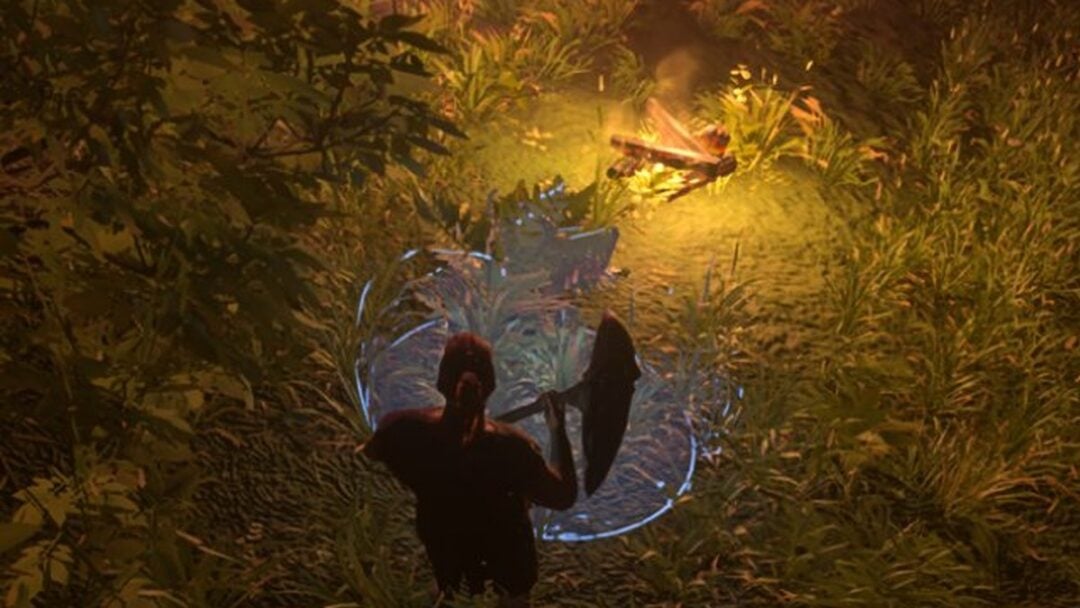
Press R. Our Torch dropped onto the ground and kept burning.
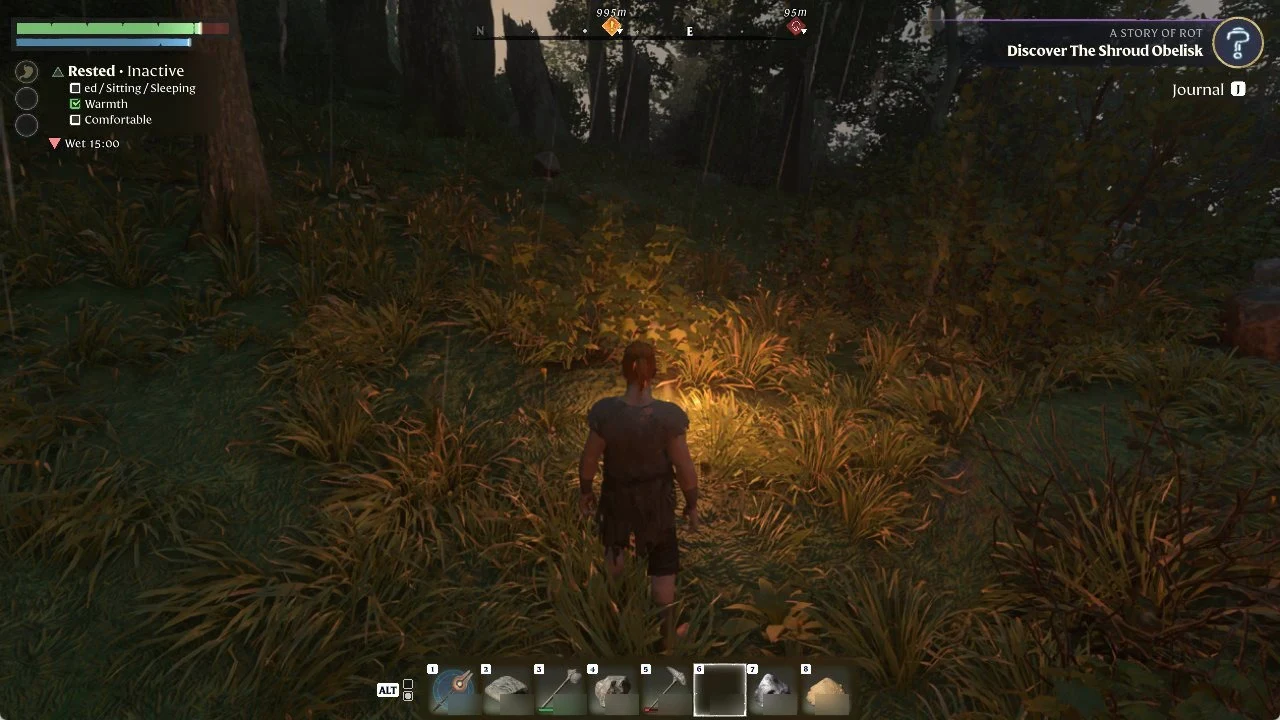
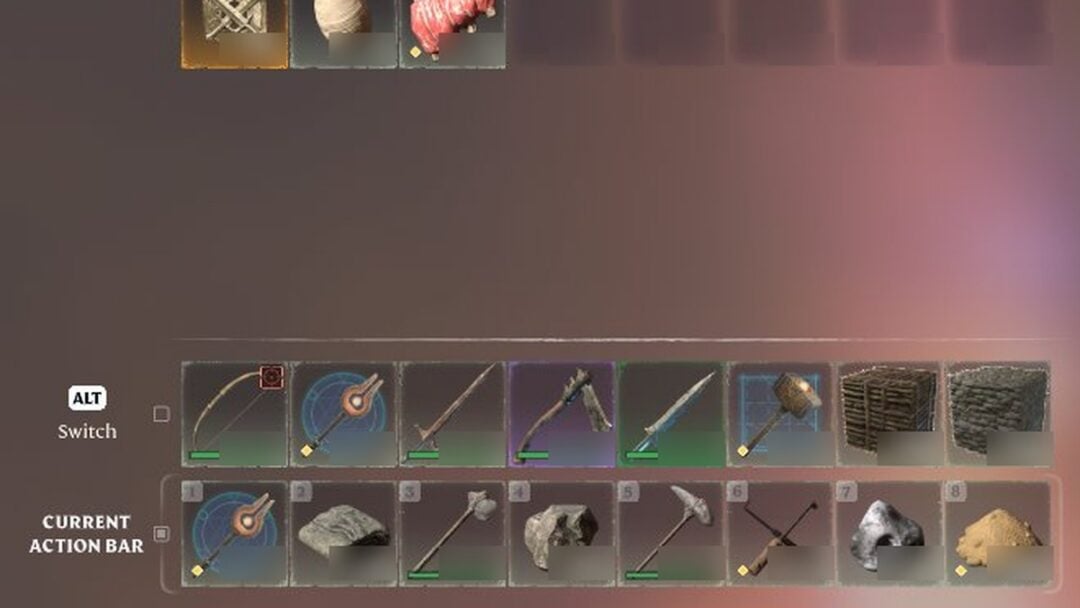
With a Lockpick selected in action bar slot 6, the HUD showed no drop prompt.