

Windows 11 sometimes reports a smaller “usable” figure than the amount of memory physically installed, so a machine with 16GB might show only 8GB usable. The gap almost always comes from a boot setting, a firmware option, memory reserved by hardware, or a bad module, and each of those has a clear fix.
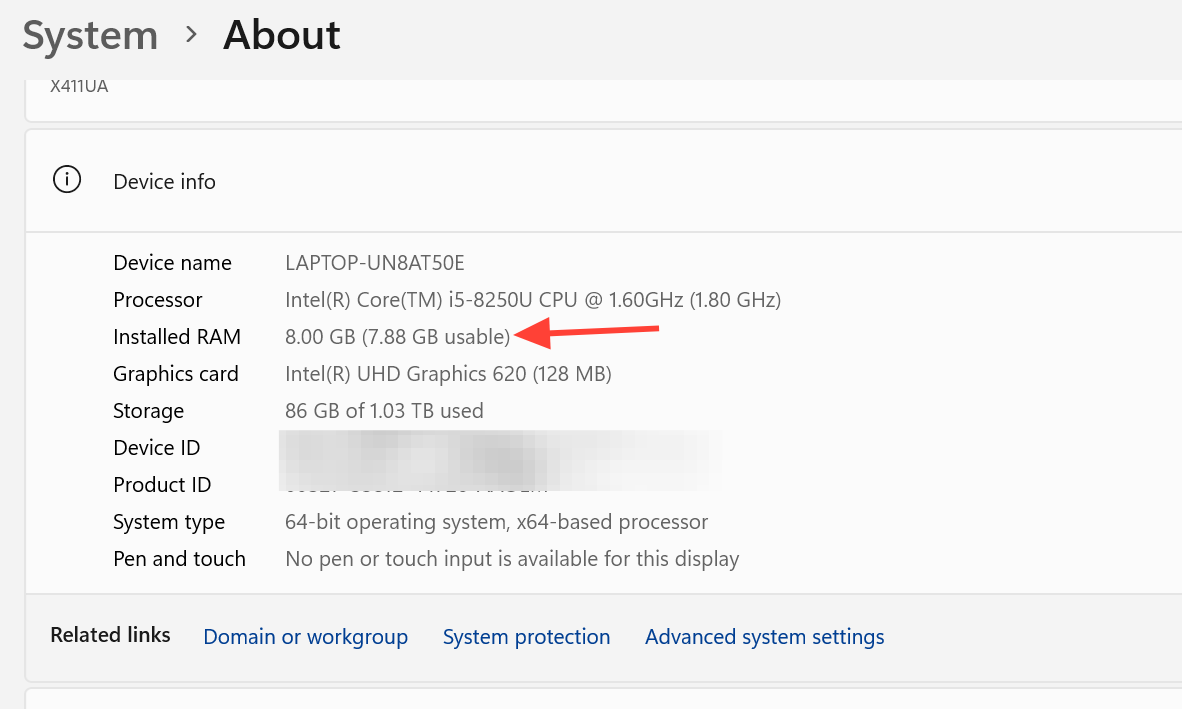
Quick answer: Open msconfig → Boot → Advanced options and uncheck “Maximum memory,” then reboot. If the gap remains, confirm you are on 64-bit Windows, enable Memory Remap / Above 4G Decoding in UEFI, lower the integrated GPU memory allocation, and reseat or test each RAM stick.
Confirm how much RAM is missing
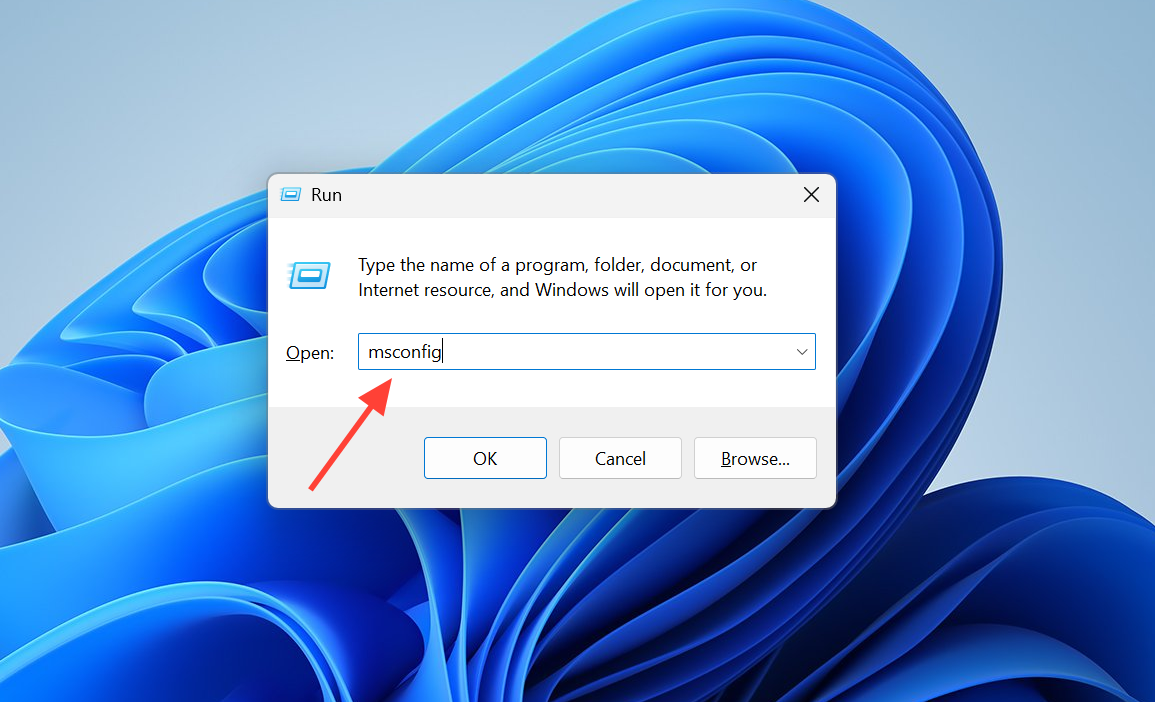
Before changing anything, measure the exact gap so you know which fix applies. Open Settings, go to System → About, and compare “Installed RAM” with the usable amount shown in parentheses. Then run msinfo32 (System Information) and check three values: Total Physical Memory, Available Physical Memory, and Hardware Reserved.
A large Hardware Reserved figure points to firmware or a device reservation, such as integrated graphics. A round number that is exactly half of your installed memory usually points to a boot limit or a defective stick.
Clear the “Maximum memory” boot limit
A checked “Maximum memory” box in the boot configuration caps how much RAM Windows will use, and this is one of the most common causes of the missing-RAM report. Removing it restores the full amount.
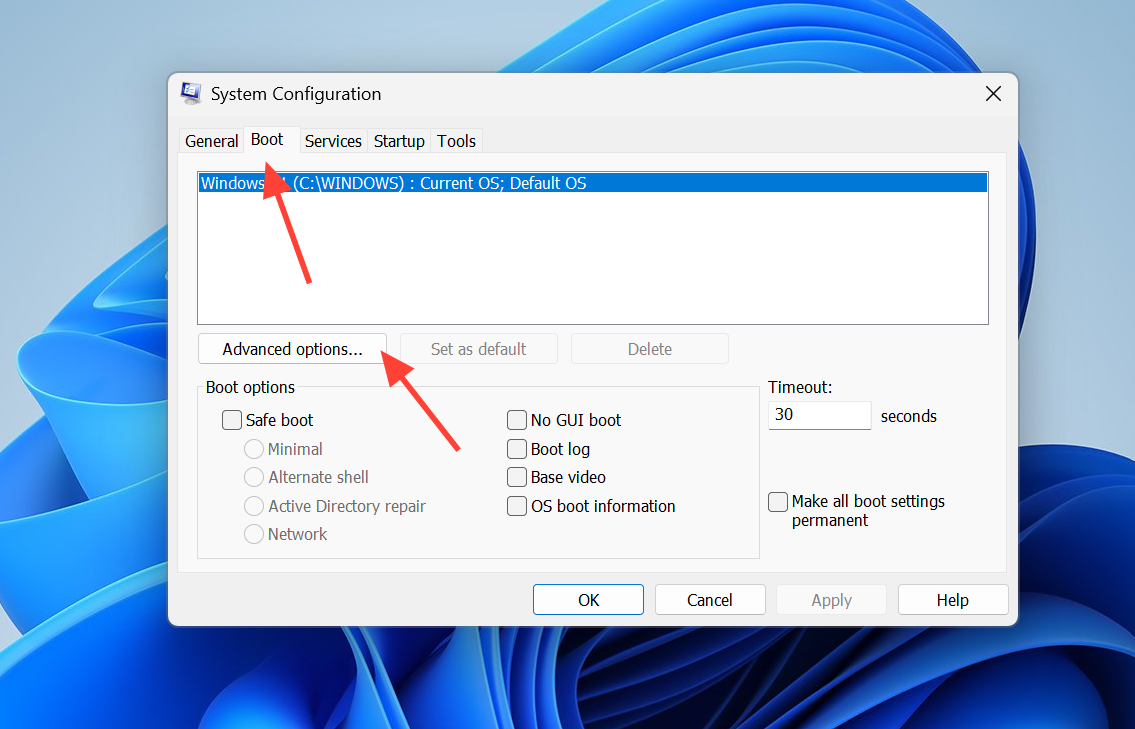
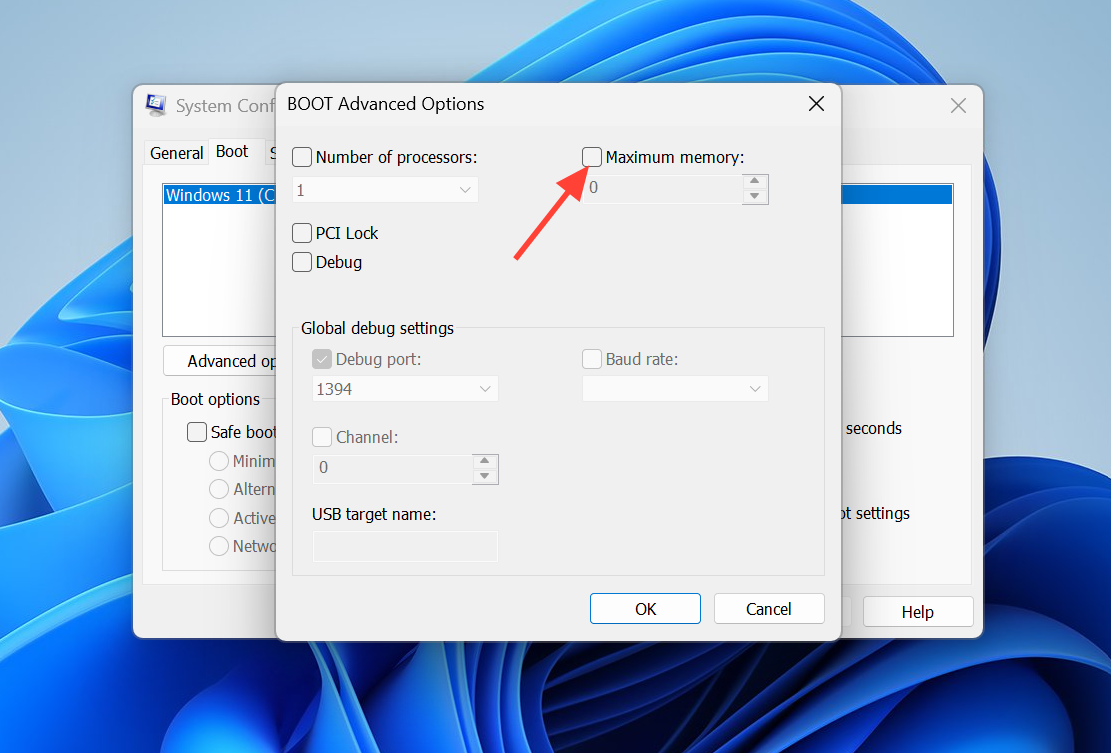
Leaving this box unchecked lets Windows manage all installed memory automatically, which is the correct state for almost every system.
Verify you are running 64-bit Windows 11
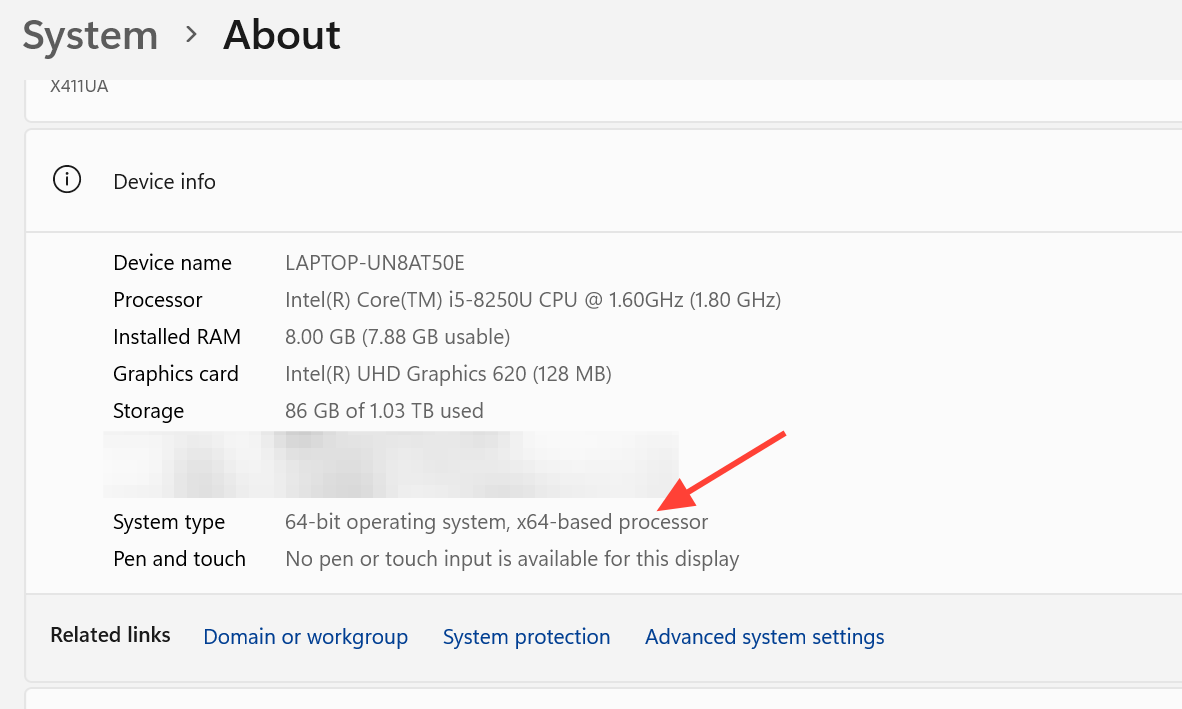
A 32-bit installation can address only about 4GB of memory, so anything beyond roughly 3.5GB is unreachable no matter how many sticks you install. In System → About, check the “System type” line. If it reads 32-bit, only a clean install of the 64-bit edition will let Windows use more than 4GB. Windows 11 itself requires a 64-bit processor and a minimum of 4GB of memory, so most modern systems already meet this.
Adjust UEFI/BIOS memory settings
Firmware controls how the system maps memory above the 4GB boundary. When those options are off, part of your RAM stays hidden from Windows.
Reduce integrated graphics reserved memory
Systems with integrated graphics carve out a slice of system RAM as shared video memory, and that slice shows up as Hardware Reserved. A laptop with 12GB installed that reports 8GB usable is a classic example, where about 4GB has been taken by the GPU or a remap problem. In UEFI, look for a UMA frame buffer size, shared memory, or integrated graphics memory option and lower it if the board allows. Updating firmware and graphics drivers can also correct an oversized reservation.
Test for faulty or misseated RAM
When a single slot suddenly stops contributing, hardware is usually the cause. A desktop with 32GB installed but 16GB usable often has one dead module or a bad slot.
Check platform and edition limits
Only relevant with very large amounts of memory, the motherboard, CPU, and Windows edition each impose a ceiling. Confirm your board and processor support the total capacity and module sizes you installed.
| Limit source | Maximum RAM |
|---|---|
| Windows 11 Home | 128 GB |
| Windows 11 Pro | 2 TB |
| Motherboard / CPU | Set by manufacturer specs |
Confirm the fix worked
After each change, reboot and return to System → About. Success looks like the usable figure matching the installed figure, or the parenthetical usable amount disappearing entirely. In msinfo32, the Hardware Reserved value should drop to a small number once a boot limit is cleared or firmware is corrected. If Hardware Reserved stays large after enabling remap, updating firmware, and lowering GPU allocation, the reservation is coming from integrated graphics or PCI devices that cannot be reconfigured, and the motherboard vendor is the next point of contact. If memory testing still shows errors or empty slots, the remaining fix is replacing the faulty module or repairing the board.



