Screen Tint puts a soft color layer over your whole display so bright, white-heavy screens are gentler on your eyes during the day. It lives under Accessibility in Settings, works alongside Night Light, and can be switched on in seconds once your Windows 11 build supports it.
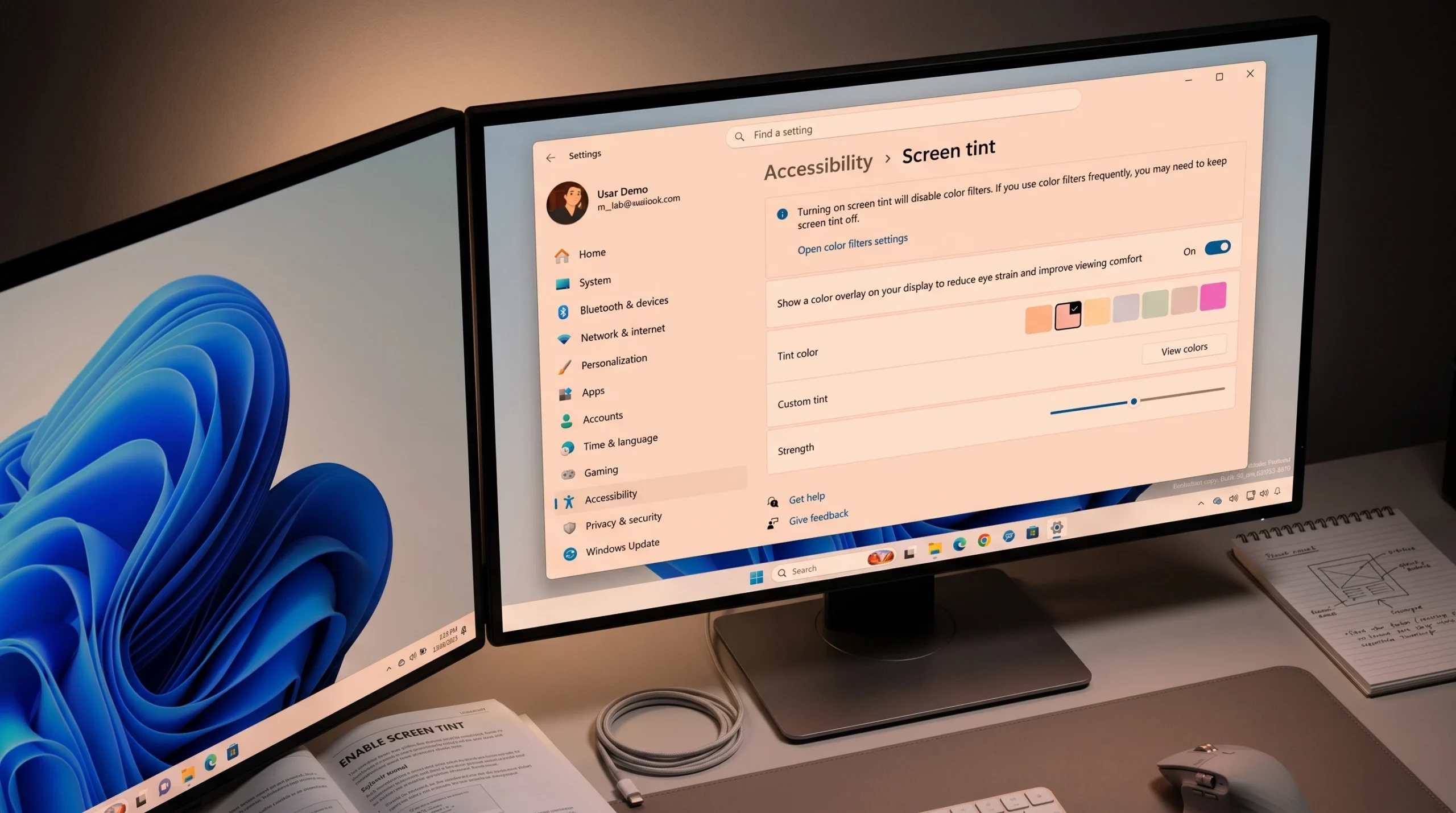
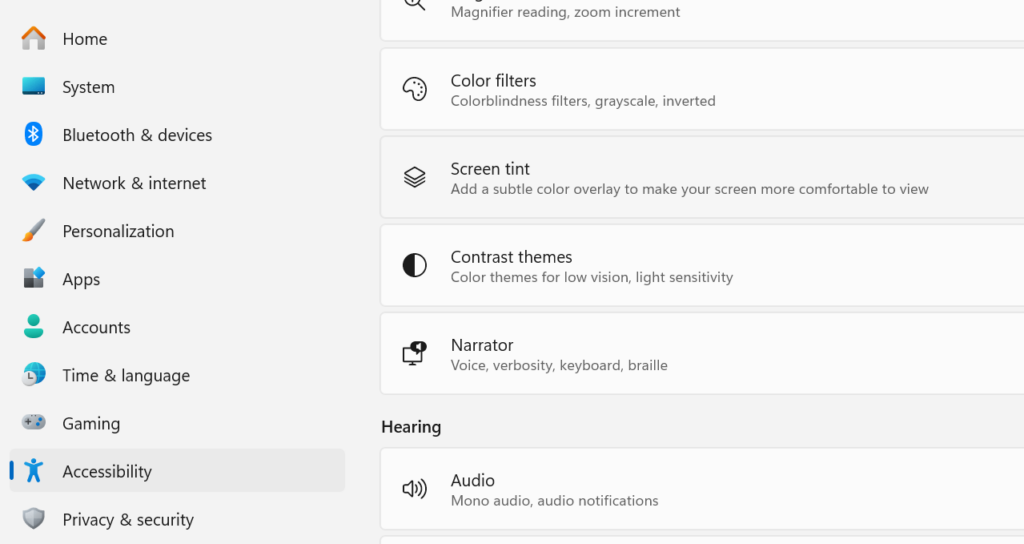
Quick answer: Open Settings with Win + I, go to Accessibility > Screen tint (in the Vision section), and toggle Screen tint to On. Your screen instantly picks up a color cast using the default Calm amber preset.
Which Windows 11 builds have Screen Tint
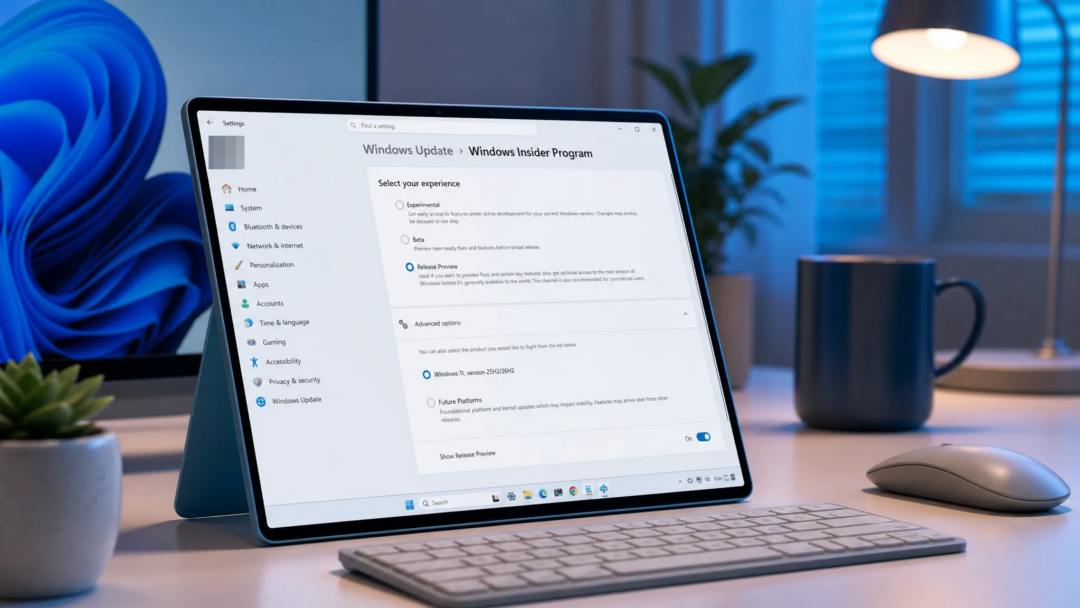
Screen Tint is rolling out through Windows Insider Preview builds and is not yet part of the stable release for everyone. You need one of the following builds or newer for the toggle to appear on its own.
| Channel | Build |
|---|---|
| 24H2 / 25H2 preview | 26100.8737 / 26200.8737 |
| Release Preview | 26300.8497 |
| Beta | 26220.8680 |
| Dev / Canary | 28020.2298 |
If you are on a regular stable version, you may not see Screen tint yet. Microsoft is expanding the rollout gradually, and it should reach general releases in a future update.
Turn on Screen Tint in Settings
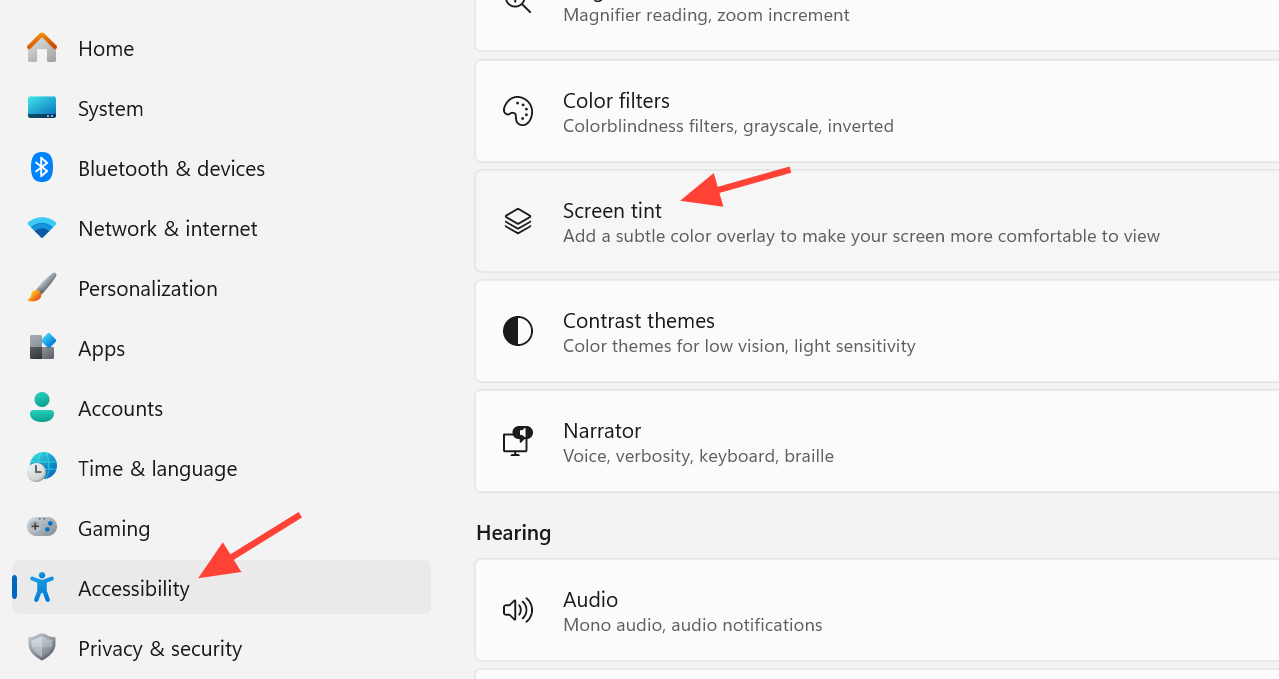
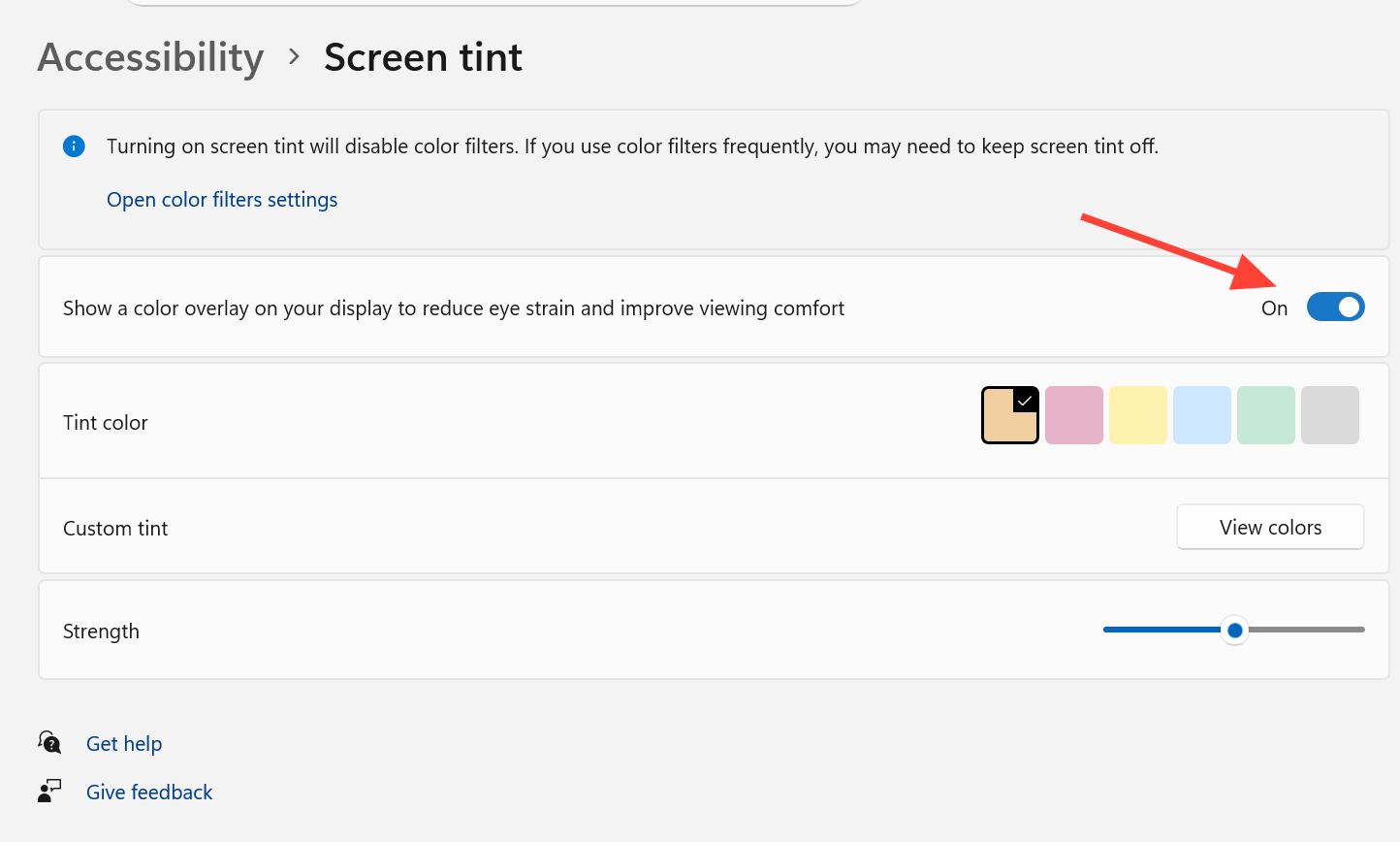
Turning Screen tint on will disable Color filters, since the two cannot run at the same time. Night Light is not affected and can stay on together with Screen tint.
Color presets and what they target
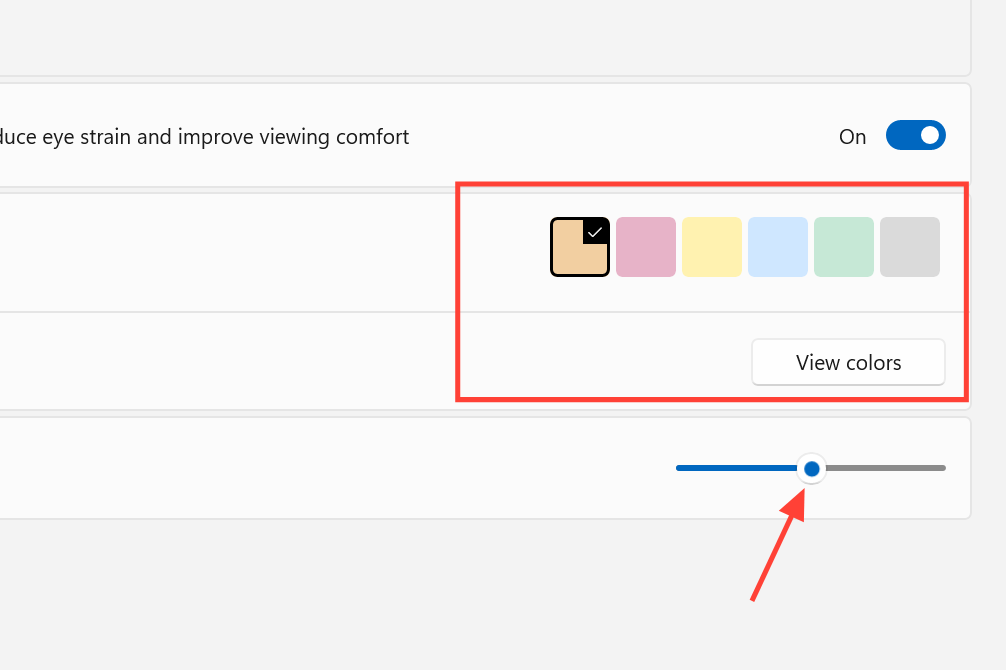
Screen Tint ships with six built-in presets, each tuned for a different kind of visual discomfort. Pick the one that matches your situation, then fine-tune with the Strength slider.
| Preset | Best for |
|---|---|
| Calm amber | Long screen sessions; softens harsh white backgrounds |
| Rose tint | Migraine triggers and fluorescent light sensitivity |
| Soft yellow | Visual stress and reading discomfort |
| Cool blue | Glare sensitivity in bright environments |
| Gentle green | Photophobia and painful white backgrounds |
| Natural grey | Fatigue from stark black-on-white contrast |
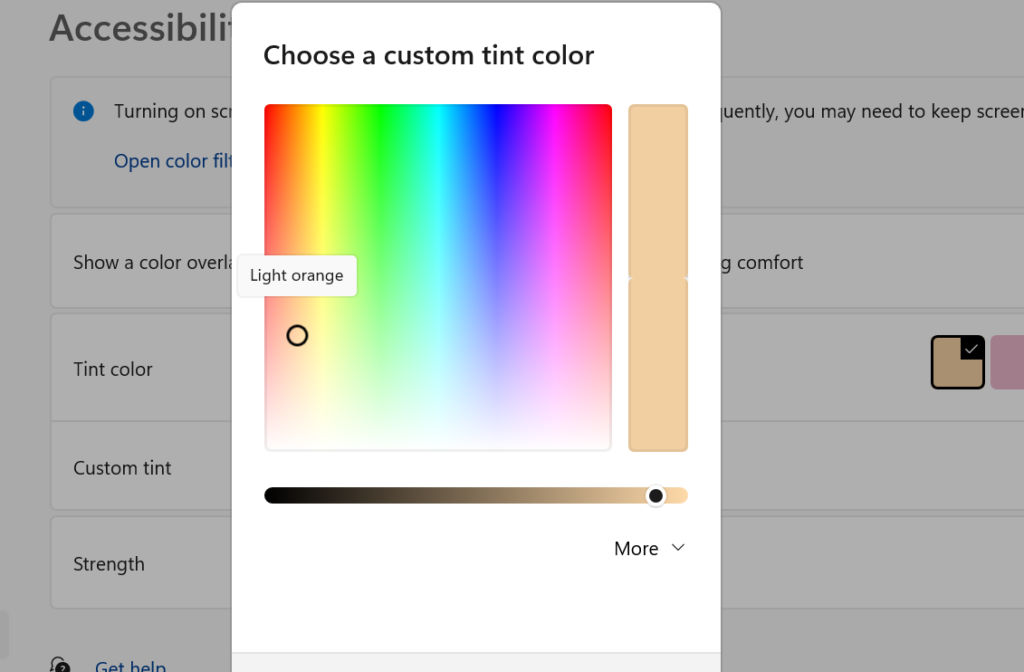
If none of the presets fit, click View colors next to Custom tint to pick any color. The picker supports RGB, HSV, and HEX values, so you can enter an exact shade such as #EBC99C.
Enable Screen Tint with ViVeTool
If your build should have Screen Tint but the option is missing, you can flip the feature flag with ViVeTool, a free open-source utility for toggling hidden Windows features.
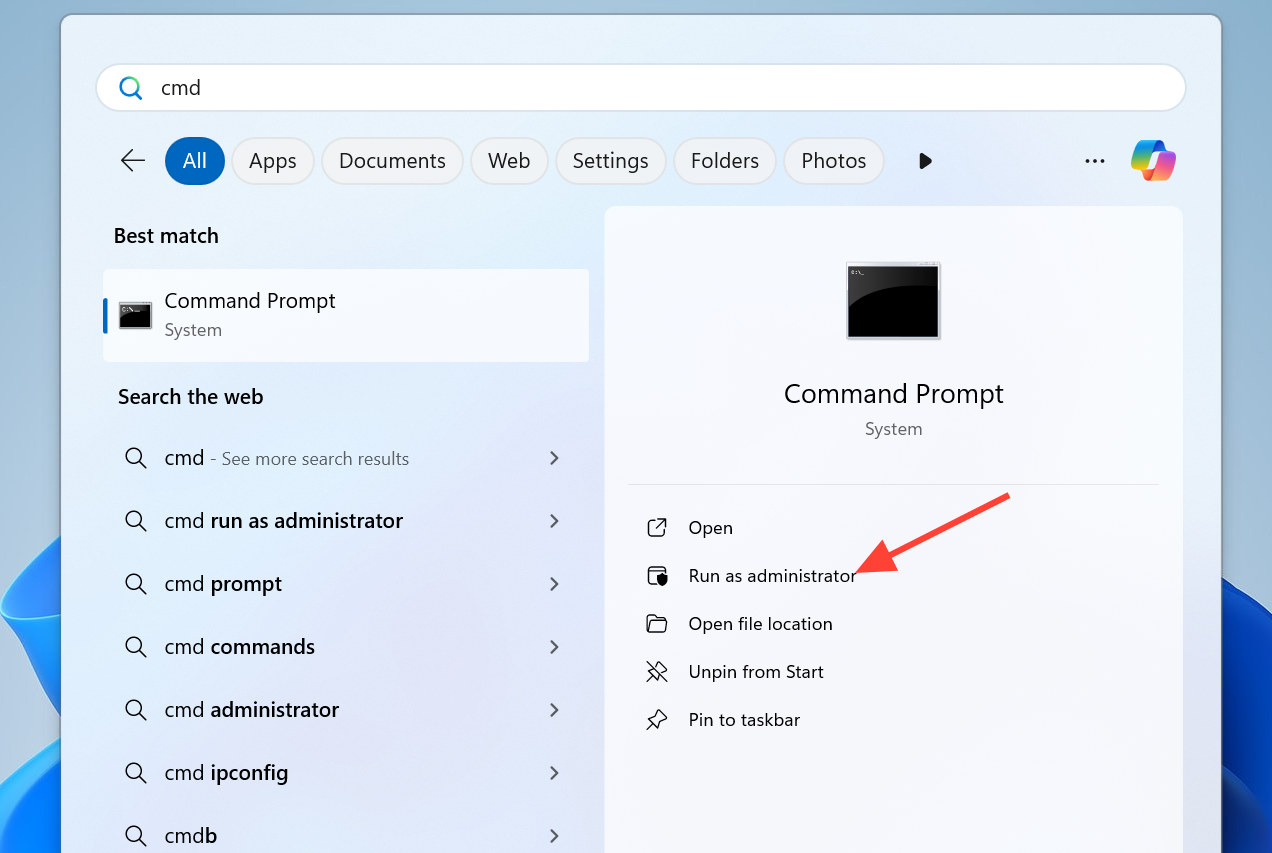
vivetool.exe /enable /id:60662124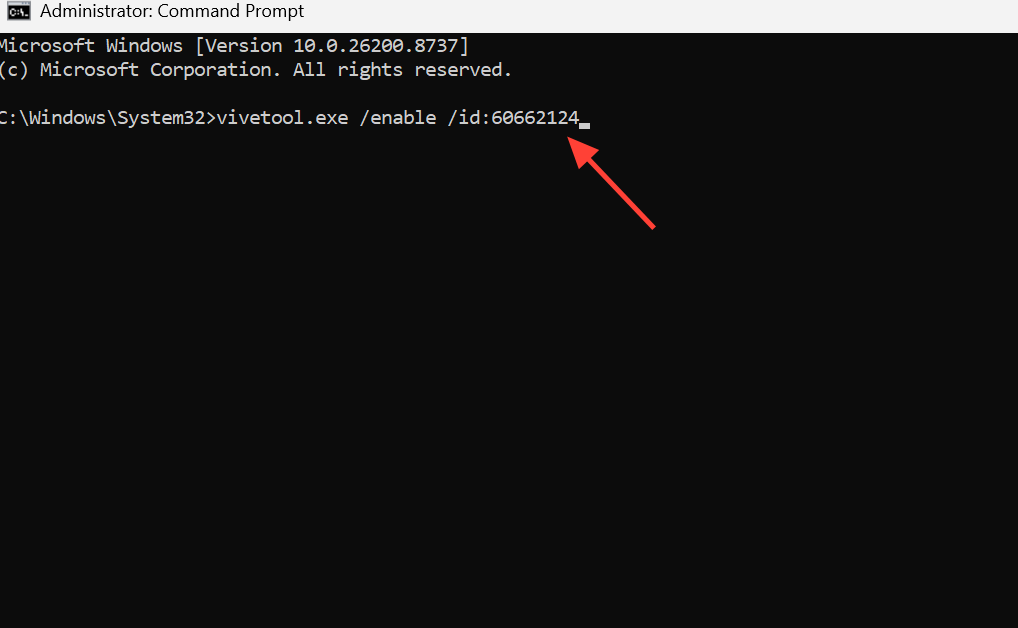
Enable or disable Screen Tint from the Registry
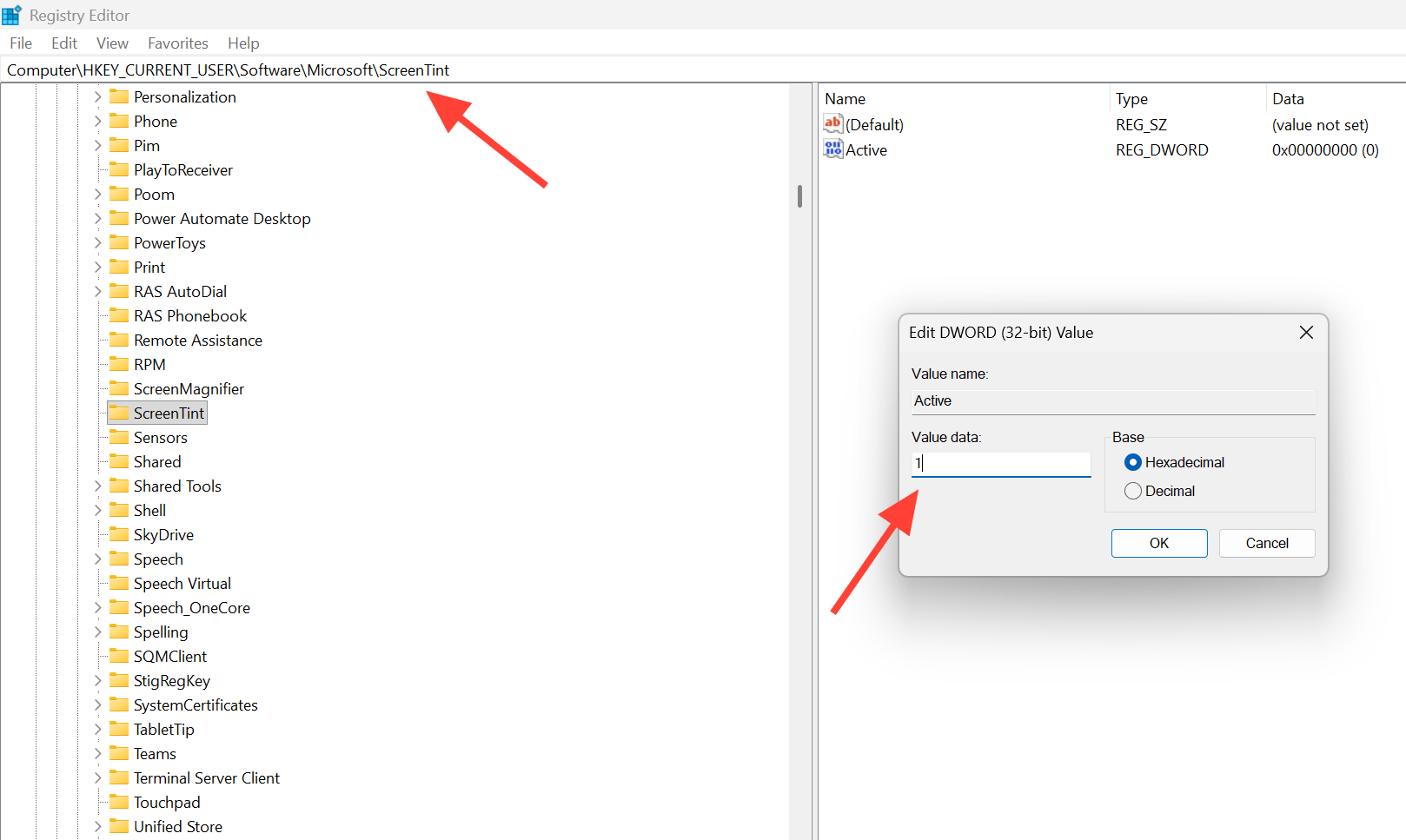
You can also switch Screen Tint on or off with a registry value. Open Registry Editor (regedit) and go to the key below, then create a DWORD (32-bit) value named Active.
HKEY_CURRENT_USERSoftwareMicrosoftScreenTint
"Active"=dword:00000001
Set Active to 1 to turn Screen Tint on, or 0 to turn it off (the default). Sign out and back in, or restart the computer, for the change to apply.
How Screen Tint compares to Night Light and Color Filters
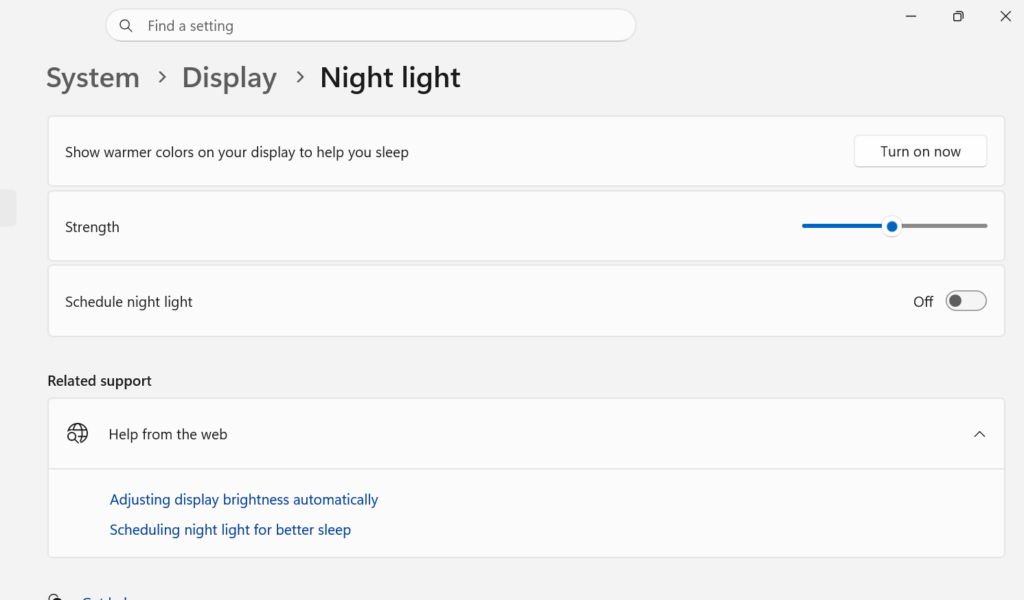
These three features look similar but solve different problems. Screen Tint changes viewing comfort with a color overlay, Night Light shifts warmth to cut blue light, and Color Filters exist mainly for color blindness.
| Feature | Purpose | Runs with Screen Tint? |
|---|---|---|
| Screen Tint | Color overlay to reduce eye strain and light sensitivity | — |
| Night Light | Warms the display to lower blue light for sleep | Yes |
| Color Filters | Alters color display for color blindness (Grayscale, Red-Green, Blue-Yellow) | No, mutually exclusive |
Because Night Light and Screen Tint target warmth and intensity separately, you can run both at once. Enabling Color Filters, however, turns Screen Tint off automatically, and enabling Screen Tint turns Color Filters off.
Screenshots, screen sharing, and shortcuts
Screen Tint is a display-level overlay, so it only changes what you see on your own monitor. Screenshots, screen recordings, presentations, and shared screens still show your normal colors, and saved files and images are never altered.
There is no dedicated keyboard shortcut for Screen Tint yet, unlike the Win + Ctrl + C combination for Color Filters. For faster access, you can pin the Accessibility settings page to Start. Once it is on, the amber (or your chosen) cast across the desktop is the signal that everything is working as intended.